Basic Fixes:
- Confirm the OS is running an updated Windows 11: You may use the built-in Winver utility to check your OS version and update status.
- Ensure you have a valid and legitimate product key: If your activation key is not valid, it won’t work. So, ensure it is not an expired key.
- Verify there is no mismatch: Ensure the Windows version matches your purchased product key.
- Clean install Windows: You may perform a clean installation using the correct version of Windows.
Fix 1: Run the Windows Activation Troubleshooter
Windows bundles several dedicated troubleshooters to figure out issues and apply fixes automatically. For example, you can run the dedicated troubleshooter for Windows Activation when the key is not working on your Windows 11 computer.
Step 1: Press the Windows + I shortcut to open the Settings app. Select System from the left column, scroll down, and click Activation.

Step 2: Under Activation Settings, click on Activation state. Since your key didn’t work, the state will show as Not active.

Step 3: When the drop-down opens, click on Troubleshoot.

Step 4: Wait a few minutes until the Windows Activation troubleshooter runs in the background to detect the problem.

Step 5: After the troubleshooter finishes checking, it will show a few details about the problem and a potential fix related to Windows Activation. Then, click on Close.

The Windows Activation Troubleshooter might work in most cases. However, if it doesn’t work for you, move to the next solution.
Fix 2: Activate Windows via Phone Using SLUI 4
Try the Software Licensing User Interface utility to activate your Windows 11 copy using a phone. Run the SLUI 4 command and find a location-based toll-free number. Call it to retrieve a confirmation ID that can be used to activate Windows 11 on your computer.
Step 1: Press the Windows + R keys to open the Run dialog. In the text field, type SLUI 4. Then, press Enter.

Step 2: In the blue window, select your country or region by clicking on the drop-down menu. Then, click Next.

Step 3: Call the toll-free number as denoted below and give them your device’s installation ID. Then, click on Enter confirmation ID.

Step 4: After revealing your Installation ID, Microsoft will provide a Confirmation ID. Enter the confirmation ID and click on Activate Windows.

Fix 3: Try Activating Windows 11 Using Command Prompt
Windows also includes a Software Licensing Management Tool (slmgr) as a VBS (Visual Basic Script) file to run commands for managing the Windows product activation. You can use the Command Prompt to run this VBS file to activate Windows 11. Here are the steps to follow:
Step 1: Press the Windows + S keys and type Command Prompt. Then, click Run as administrator.

Step 2: Click Yes when a User Account Control (UAC) prompt appears on the screen.
Step 3: Type the following command into the Command Prompt window, replacing the X with the letters from the Activation key. Then, press Enter.
slmgr.vbs -ipk xxxxx-xxxxx-xxxxx-xxxxx-xxxxx

Step 4: Click OK when a Windows Script Host dialog appears on the screen.

If the activation succeeds, the Windows Script Host dialog states, “Installed activation key XXXX-XXXX-XXXX-XXXX-XXXX successfully”.
If the activation fails, you might get a message – “Error: OxC004FOSO The Software Licensing Service reported that the activation key is invalid”.
Fix 4: Rearm Windows 11 Activation Key
Your PC may not be able to contact Microsoft’s activation servers. However, you can potentially extend the 30-day trial window and put off the Activate Windows watermark for a few more days using the rearm command.
Step 1: Press the Windows + S keys and type Command Prompt. From the Command Prompt results, click Run as administrator.
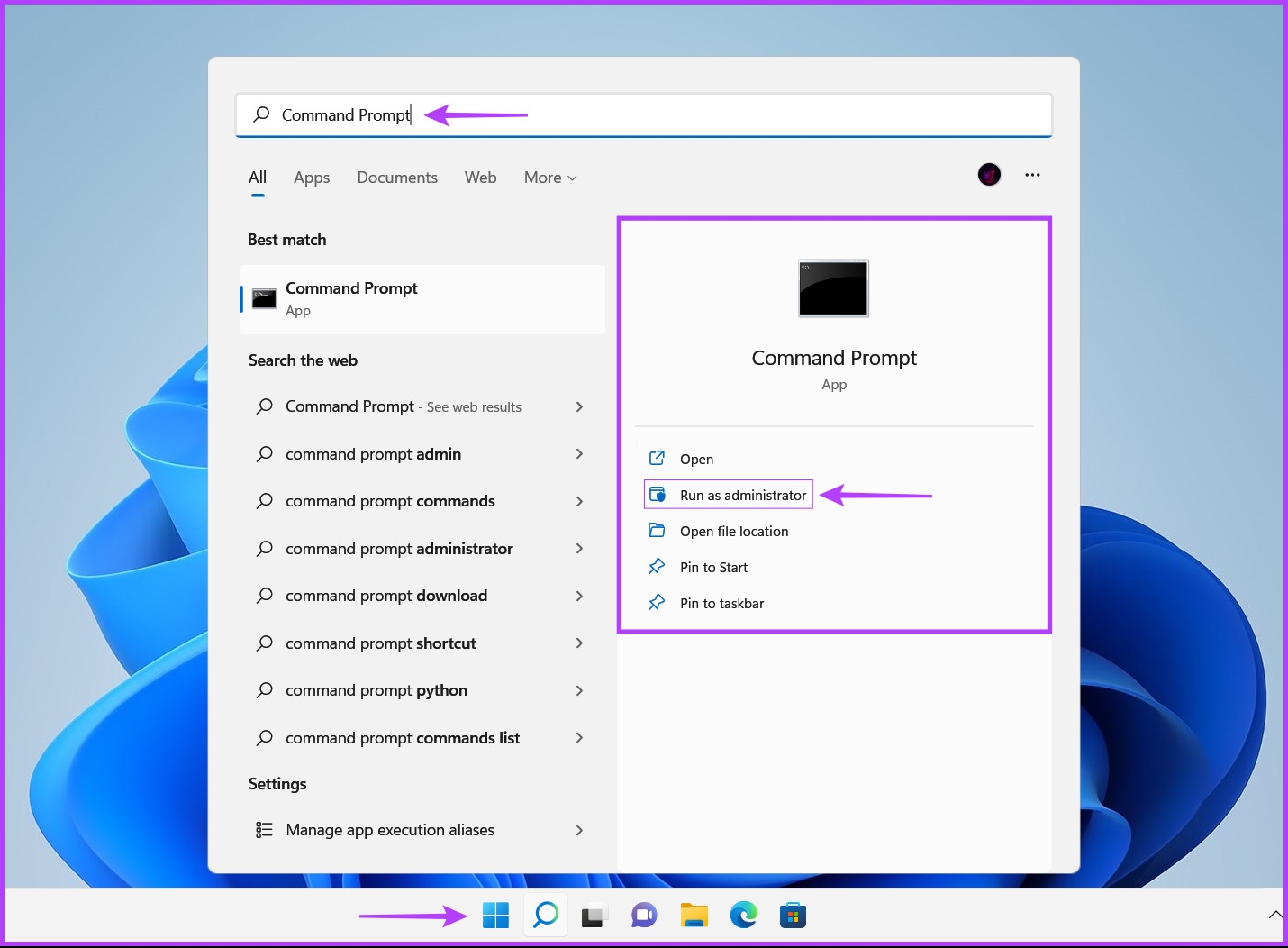
Step 2: Click Yes when a User Account Control (UAC) prompt appears on the screen.
Step 3: Type the following command into the Command Prompt window and press Enter:
slmgr /rearm

Step 4: Click OK when a Windows Script Host dialog appears on the screen. Then, restart your PC.

After that, your computer will restart to complete the rearming process, and you will have at least 30 more days until you retry activating your Windows 11 computer.
You may also try some free methods of activating Windows 11, but if none of these work, contact Microsoft Support as a last resort.
Was this helpful?
Last updated on 30 July, 2024
Read Next
 Top 7 Ways to Fix Windows Key Not Working on Windows 10
Windows 10 operating system is full of keyboard shortcuts.
Top 7 Ways to Fix Windows Key Not Working on Windows 10
Windows 10 operating system is full of keyboard shortcuts.
 7 Ways to Fix Windows Key Not Working in Windows 11
Basic Fixes Check for physical damage: There might be physical damage or dirt buildup on your keyboard.
7 Ways to Fix Windows Key Not Working in Windows 11
Basic Fixes Check for physical damage: There might be physical damage or dirt buildup on your keyboard.
 How to Fix Enter Key or Backspace Not Working on Windows 11
Basic Fixes: Restart Windows device: Restarting your device can help fix any minor software issue that might be preventing the Backspace or Enter key from working on Windows after the
How to Fix Enter Key or Backspace Not Working on Windows 11
Basic Fixes: Restart Windows device: Restarting your device can help fix any minor software issue that might be preventing the Backspace or Enter key from working on Windows after the
 4 Ways to Fix Tab Key Not Working on Windows 11
Try These Fixes First Restart your computer: The Issue can occur due to a temporary bug or glitch on your computer.
4 Ways to Fix Tab Key Not Working on Windows 11
Try These Fixes First Restart your computer: The Issue can occur due to a temporary bug or glitch on your computer.
 3 Quick Ways to Find Product Key on Windows 10 or Windows 11
1.
3 Quick Ways to Find Product Key on Windows 10 or Windows 11
1.
 The List of All Excel Function Key (F1 to F12) Shortcuts
F1 Shortcuts Shortcut KeyActionF1Opens the Excel Help task pane.Ctrl+F1Hide/Unhide the taskbar.Alt+F1Create a chart from data in the current range.Ctrl+Shift+F1Hide/Unhide ribbon and taskbar.Alt+Shift+F1Create a new worksheet.
The List of All Excel Function Key (F1 to F12) Shortcuts
F1 Shortcuts Shortcut KeyActionF1Opens the Excel Help task pane.Ctrl+F1Hide/Unhide the taskbar.Alt+F1Create a chart from data in the current range.Ctrl+Shift+F1Hide/Unhide ribbon and taskbar.Alt+Shift+F1Create a new worksheet.
 How to Generate an OpenAI API Key
Here's how you can generate and download an OpenAI API key.
How to Generate an OpenAI API Key
Here's how you can generate and download an OpenAI API key.
 What Is Contact Key Verification in iMessage and How to Use It
There is no need to worry about whether your messages are reaching the right person.
What Is Contact Key Verification in iMessage and How to Use It
There is no need to worry about whether your messages are reaching the right person.
The article above may contain affiliate links which help support Guiding Tech. The content remains unbiased and authentic and will never affect our editorial integrity.