1. iMarkup – Easy to Use
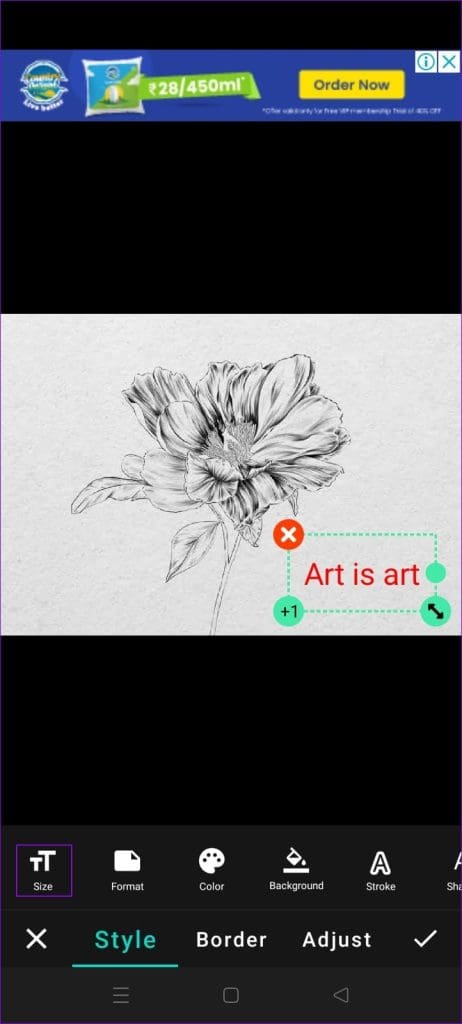
iMarkup is a free and easy-to-use photo markup tool. It provides various annotation features such as crop, add text, draw arrow, pixelate image, etc. The application lets you quickly edit and mark up your photos and share them with the world.
How to Add Text and Arrow:
- To add a text, tap on the Text icon in the toolbar.
- To add an arrow, tap on draw and add an arrow.

Pros
- Saves high-quality images and supports PNG format.
- Supports stitching multiple photos into one panoramic image.
- All the annotations are free.
Cons
- Force-watch ads in the free version.
- Limited fonts.
Price: Free
2. Canva – Versatile Tool
Canva is a versatile graphic designing and editing tool that effortlessly empowers users to create stunning visual content. Whether you’re a professional designer, a marketer, or an individual looking to enhance your social media presence, Canva offers a user-friendly platform for creating eye-catching designs for everyone.
How to Add Text and Arrow:
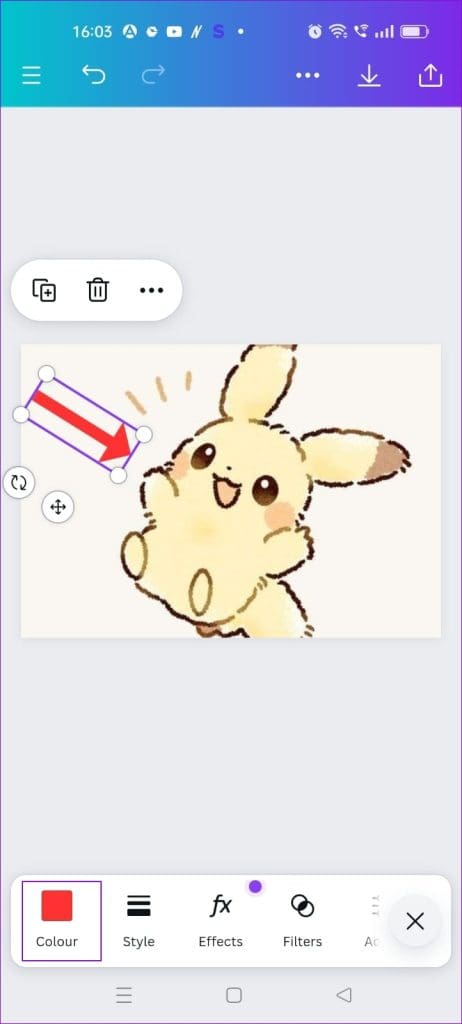
- To add a text, tap on the Text icon in the toolbar.
- To add an arrow, tap on Elements and search for Arrows.

Pros
- Drag-and-drop makes it easier to use.
- Free and paid templates for various purposes, such as social media posts, posters, logos, etc.
- Robust photo editor with many filters, enhancers, and annotation features.
Cons
- It is hard to expand individual elements when they are stacked.
- The app is heavy and slow for minor edits.
Price: Free; Subscription: $50 per month onwards.
3. Picsart – Best for Photo and Video Editing
Picsart is the largest all-in-one creative platform for photo and video editing. Its intuitive interface, extensive feature set, and community of over 150 million creators worldwide have made it the most popular photo editing application.
How to Add Text and Arrow:
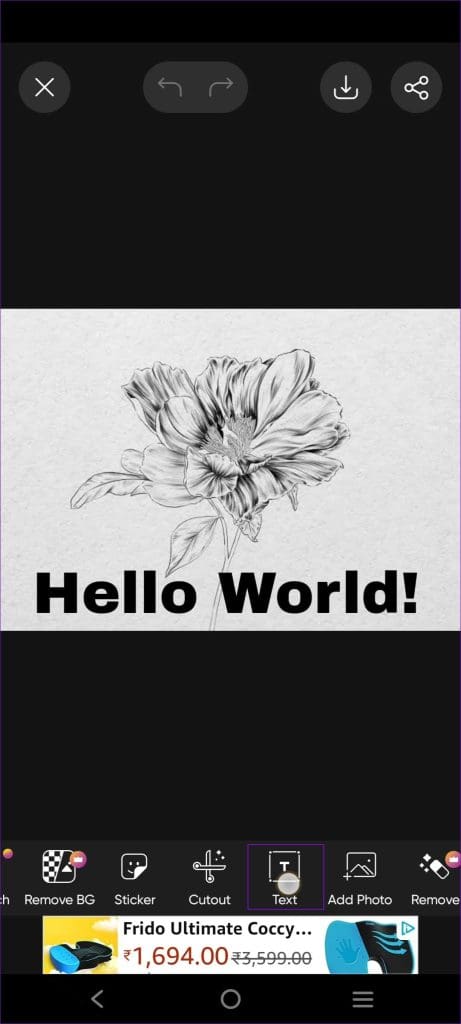
- Tap the Text icon in the toolbar to add text to your photos.
- To add arrows to your photos, scroll to the right in the toolbar, tap the Shapes icon, and select Arrows and Lines.

Pros
- Well-integrated AI features like background remover, upscaling images, and headshot generator.
- Offers a wide variety of trending image and video filters.
- Drawing tools to create art, doodles, and illustrations.
Cons
- Editing a photo degrades the photo quality, often making it pixelated.
- Intrusive ads in the free version.
- No screenshots are allowed.
Price: Free; Subscription: $2 per month onwards.
4. Sketchbook – Best for Artists
Sketchbook is an award-winning sketching, painting, and drawing app for anyone who loves to draw. Artists and illustrators love Sketchbook for its professional-grade feature set and highly customizable tools.
How to Add Text and Arrow:
- To add text, tap Text on the Cube icon at the top.
- To add an arrow, tap on Draw Styles and add an arrow.


Pros
- Offers natural drawing experience.
- Several options for brushes and easy-to-use color pickers.
- Multiple drawing styles.
Cons
- Importing and exporting fails often.
- App crashes for heavy editing, resulting in the loss of files.
Price: Free; One-Time Purchase: $0.99 on Android and $2.99 on iOS.
5. B612 – AR Features
B612 offers a plethora of filters, effects, and editing tools at your fingertips, empowering you to express yourself creatively and authentically. The app not only lets you find the trending filters quickly but also lets you create your own. It also offers some pretty cool AR features in real-time.
How to Add Text and Arrow:
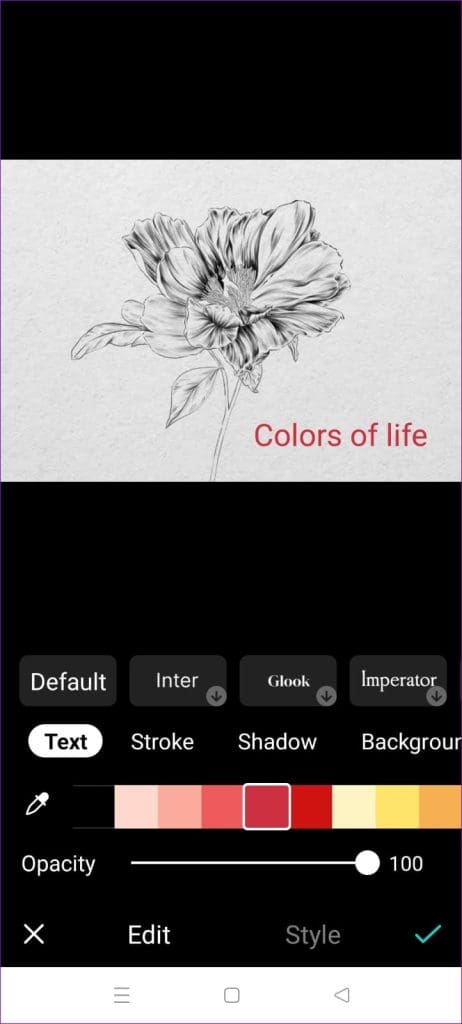
- To add a text, tap on the Text icon in the toolbar.
- To add an arrow, tap on draw and add an arrow.

Pros
- Create Filters.
- Shoot videos with real-time filters and AR makeup.
- Built-in music library with 500+ kinds of music, making it a reel-ready application.
Cons
- Best filters are limited to the Pro version.
- Glitches and bugs can be irritating at times.
Price: Free; Subscription: $3.50 per month.
Was this helpful?
Last updated on 08 July, 2024
Read Next
 4 Ways to Add Arrows or Text to Photos on Windows
Method 1: Using Microsoft Photos The Microsoft Photos app is a fantastic tool to view and edit a picture on a Windows computer.
4 Ways to Add Arrows or Text to Photos on Windows
Method 1: Using Microsoft Photos The Microsoft Photos app is a fantastic tool to view and edit a picture on a Windows computer.
 6 Ways to Insert Arrows in Google Docs
Whether you want to annotate an image with an arrow, draw a flowchart, or add an arrow to a math equation, Google offers multiple ways to insert arrows in Google
6 Ways to Insert Arrows in Google Docs
Whether you want to annotate an image with an arrow, draw a flowchart, or add an arrow to a math equation, Google offers multiple ways to insert arrows in Google
 3 Ways to Remove Shortcut Arrows in Windows
Method 1: Remove Shortcut Arrows by Manually Editing the Registry The Windows Registry is a database that stores configuration settings for your computer.
3 Ways to Remove Shortcut Arrows in Windows
Method 1: Remove Shortcut Arrows by Manually Editing the Registry The Windows Registry is a database that stores configuration settings for your computer.
 How to Overlap Images or Text in Google Docs
Method 1: Overlap Images in Google Docs With Google Drawings In this method, you must first add your image as a drawing.
How to Overlap Images or Text in Google Docs
Method 1: Overlap Images in Google Docs With Google Drawings In this method, you must first add your image as a drawing.
 3 Ways to Extract Text From Images on Windows 11
Method 1: Using Snipping Tool's Text Action The Snipping Tool comes with a very capable Text Action feature.
3 Ways to Extract Text From Images on Windows 11
Method 1: Using Snipping Tool's Text Action The Snipping Tool comes with a very capable Text Action feature.
 How to Add and Edit Images in Google Forms
How to Add Images in Google Forms on Desktop Method 1: Add an Image Before or After the Question Sometimes, you want to add an image describing what precedes or
How to Add and Edit Images in Google Forms
How to Add Images in Google Forms on Desktop Method 1: Add an Image Before or After the Question Sometimes, you want to add an image describing what precedes or
 4 Ways to Add Captions to Images in Google Docs
Method 1: Use the Drawing Panel Using the Drawing panel is probably the most effective way of captioning images in Google Docs.
4 Ways to Add Captions to Images in Google Docs
Method 1: Use the Drawing Panel Using the Drawing panel is probably the most effective way of captioning images in Google Docs.
 How to Transfer Text Messages (SMS) From Android to Android
Boasting an easy-to-use interface, Android devices are the choice of more than half of smartphone users worldwide.
How to Transfer Text Messages (SMS) From Android to Android
Boasting an easy-to-use interface, Android devices are the choice of more than half of smartphone users worldwide.
The article above may contain affiliate links which help support Guiding Tech. The content remains unbiased and authentic and will never affect our editorial integrity.