Basic Fixes
- Check the Setup Process: Ensure you set up the Echo properly. If you’re facing issues while setting it up, check our guide for solutions to fix the Echo setup woes.
- Check Your Wi-Fi Settings: Many times, hidden networks don’t connect well with Echo devices. If your Wi-Fi is hidden, we would suggest unhiding the network and then trying to connect it to your Echo.
Fix 1: Connect to the Right Wi-Fi Network
Some users have more than one Wi-Fi network at their place. If you have linked your Echo to multiple networks, verify that it’s connected to the closest one. This will ensure that you have a stable connection. It’s also applicable if you have a dual-band Wi-Fi network setup.
To check the currently connected Wi-Fi network on your Echo device, follow these steps.
Step 1: Open the Alexa app linked with your Echo and tap on Devices at the bottom. Then, select Echo & Alexa followed by your Echo. The app will take you to the Echo device settings. Confirm the Wi-Fi name under the Wi-Fi network option.

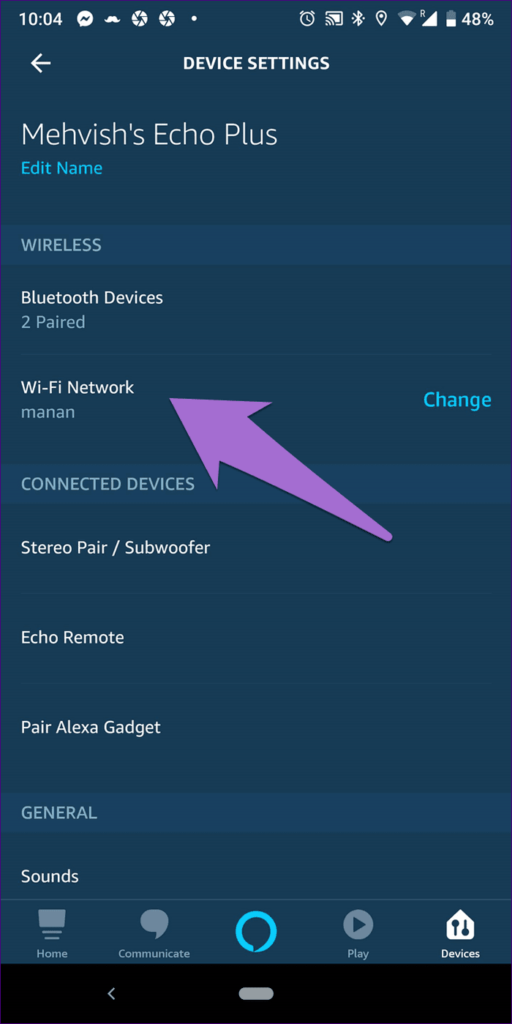
Sadly, you cannot pick the ‘Forget a Wi-Fi network‘ option from the Alexa app. You need to either turn off the router, change its password, reset your Echo, or restart the setup process again to connect to a new network. This is applicable if Alexa is having trouble connecting to the internet on your existing network.
Fix 2: Update Your Wi-Fi Password
Entering the wrong password is often the cause of why the Echo won’t connect to Wi-Fi. Did you or someone else recently change the Wi-Fi password? If yes, you need to update the password in your Echo too.
For that, go to your Echo device settings in the Alexa app and tap on Change next to Wi-Fi. Then follow the on-screen instructions to set up Wi-Fi.


Then, try accessing the Echo again using voice commands to see if it works as intended.
Fix 3: Remove Wi-Fi Extenders
While the primary purpose of extenders is to increase the Wi-Fi range, using them with the Echo doesn’t go well at times.

So skip linking the Echo to a Wi-Fi extender and connect the unit directly with your Wi-Fi router. If your Echo device is out of range, we suggest moving the speaker or the Echo Show closer within the Wi-Fi router’s range.
Fix 4: Update the Alexa App
Astonishingly, using an old Alexa app could also be your culprit for Wi-Fi connection disruptions. Updating the app should squash all the Wi-Fi bugs. Therefore, try that as well.
Once you update the app, open it and see if your Echo automatically connects to it.
Fix 5: Change the Wi-Fi Frequency Band
While the Echo is designed to connect to both Wi-Fi bands (2.4GHz and 5 GHz), switching to the 2.4GHz one helps sometimes. This is because it’s more compatible with smaller devices and the range is also higher.
So, make sure you’ve defined both the bands clearly from your router settings and connected the phone as well as the Echo to the same band.
Was this helpful?
Last updated on 04 September, 2024
Read Next
 Top 6 Ways to Fix Amazon Echo Stuck on Blue Light
An Amazon Echo speaker or display can be of great help if you wish to add a touch of smartness to your home.
Top 6 Ways to Fix Amazon Echo Stuck on Blue Light
An Amazon Echo speaker or display can be of great help if you wish to add a touch of smartness to your home.
 Top 7 Ways to Fix Amazon Echo Sound Keeps Cutting Out
Amazon Echo smart speakers come in several price offerings.
Top 7 Ways to Fix Amazon Echo Sound Keeps Cutting Out
Amazon Echo smart speakers come in several price offerings.
 4 Ways to Fix Amazon Echo Not Playing Music
Basic Fixes Check your internet connection: Ensure your Amazon Echo device is connected to a robust Wi-Fi connection.
4 Ways to Fix Amazon Echo Not Playing Music
Basic Fixes Check your internet connection: Ensure your Amazon Echo device is connected to a robust Wi-Fi connection.
 Top 15 Ways to Fix Amazon Echo and Alexa Setup Problems
If you've landed on this page, it means that the Amazon Echo setup process is giving you a hard time too.
Top 15 Ways to Fix Amazon Echo and Alexa Setup Problems
If you've landed on this page, it means that the Amazon Echo setup process is giving you a hard time too.
 7 Ways to Fix Alexa Responding But Not Talking on Amazon Echo
Fix 1: Check or Change Wake Word for Alexa The wake word is the name used for calling Alexa.
7 Ways to Fix Alexa Responding But Not Talking on Amazon Echo
Fix 1: Check or Change Wake Word for Alexa The wake word is the name used for calling Alexa.
 How to Connect Amazon Echo to Mobile Hotspot
A working internet connection is essential for the proper functioning of a smart device like Amazon Echo.
How to Connect Amazon Echo to Mobile Hotspot
A working internet connection is essential for the proper functioning of a smart device like Amazon Echo.
 4 Fixes for Amazon Echo Connected to Bluetooth but No Sound
Fix 1: Remove AUX Cable Is an aux cable connected to your Echo?
4 Fixes for Amazon Echo Connected to Bluetooth but No Sound
Fix 1: Remove AUX Cable Is an aux cable connected to your Echo?
 How to Play YouTube Music on Amazon Echo
Step 1: Download the Alexa App on iPhone or Android First, download the Alexa app for iOS or Android.
How to Play YouTube Music on Amazon Echo
Step 1: Download the Alexa App on iPhone or Android First, download the Alexa app for iOS or Android.
The article above may contain affiliate links which help support Guiding Tech. The content remains unbiased and authentic and will never affect our editorial integrity.