Enable or Disable Explicit Songs on Apple Music
On iPhone
The content restrictions module controls Apple Music’s explicit content, which now resides inside the Screen Time setting.
Step 1: Open the Settings app and tap on Screen Time.
Step 2: Tap on Content & Privacy Restrictions > enable the toggle for Content & Privacy Restrictions > tap Content Restrictions.
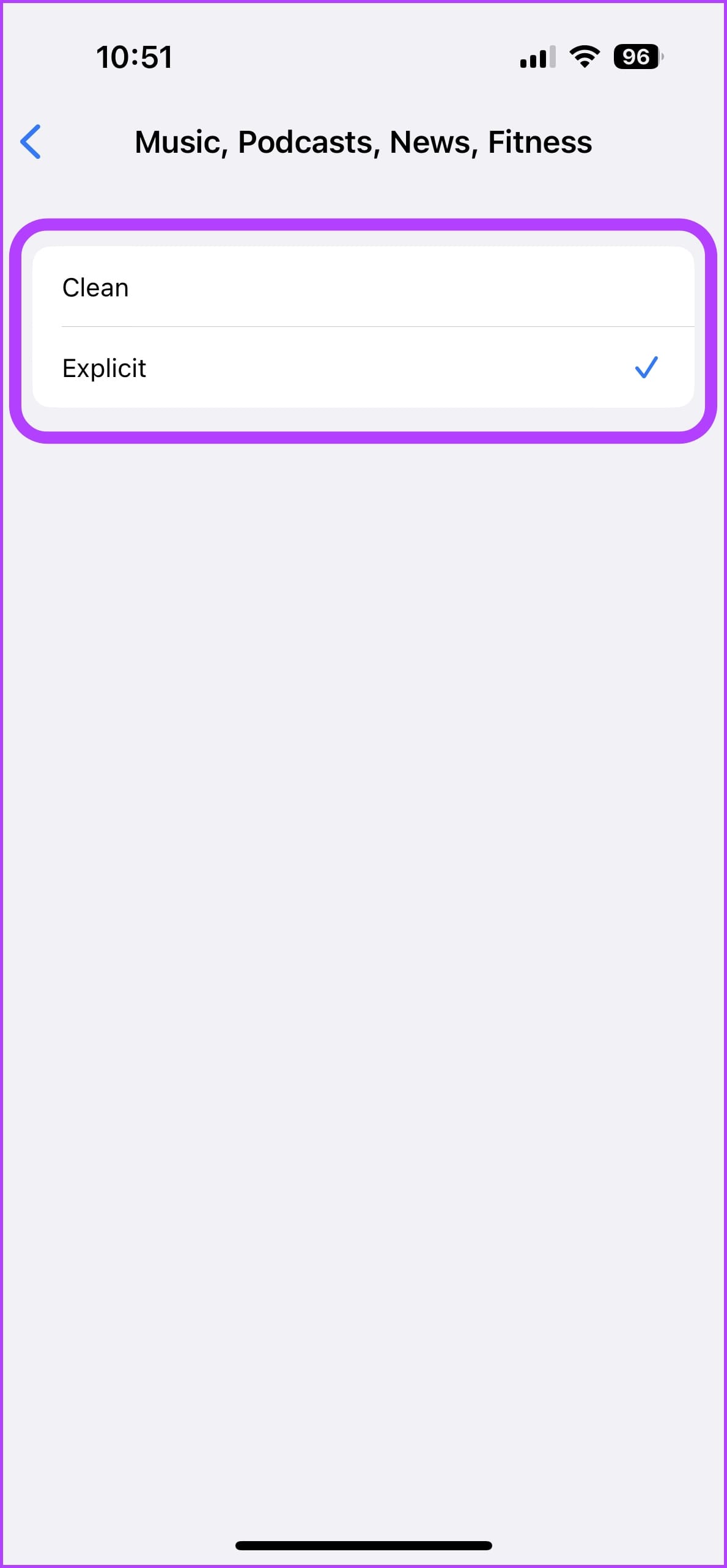
Step 3: Tap on Music, Podcasts, News, Fitness. Now, select the music style of your preference.
- Explicit: Removes content restrictions.
- Clean: Filters out explicit songs from your Apple Music library.


Also Read: How to make a shared playlist on Apple Music on iPhone
On Android
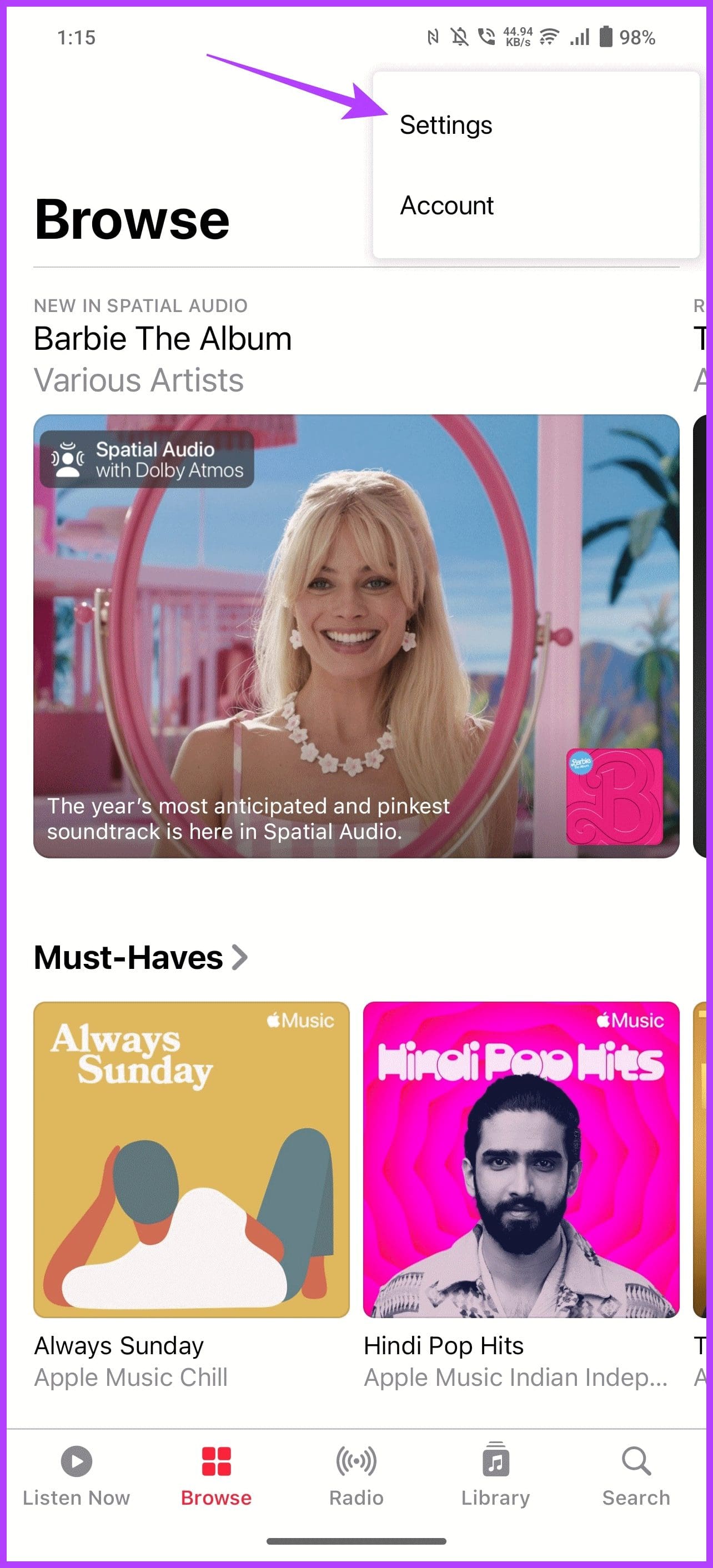
Step 1: Open the Apple Music app on your Android device and tap on the three dots at the top-right corner. Select Settings from the options.
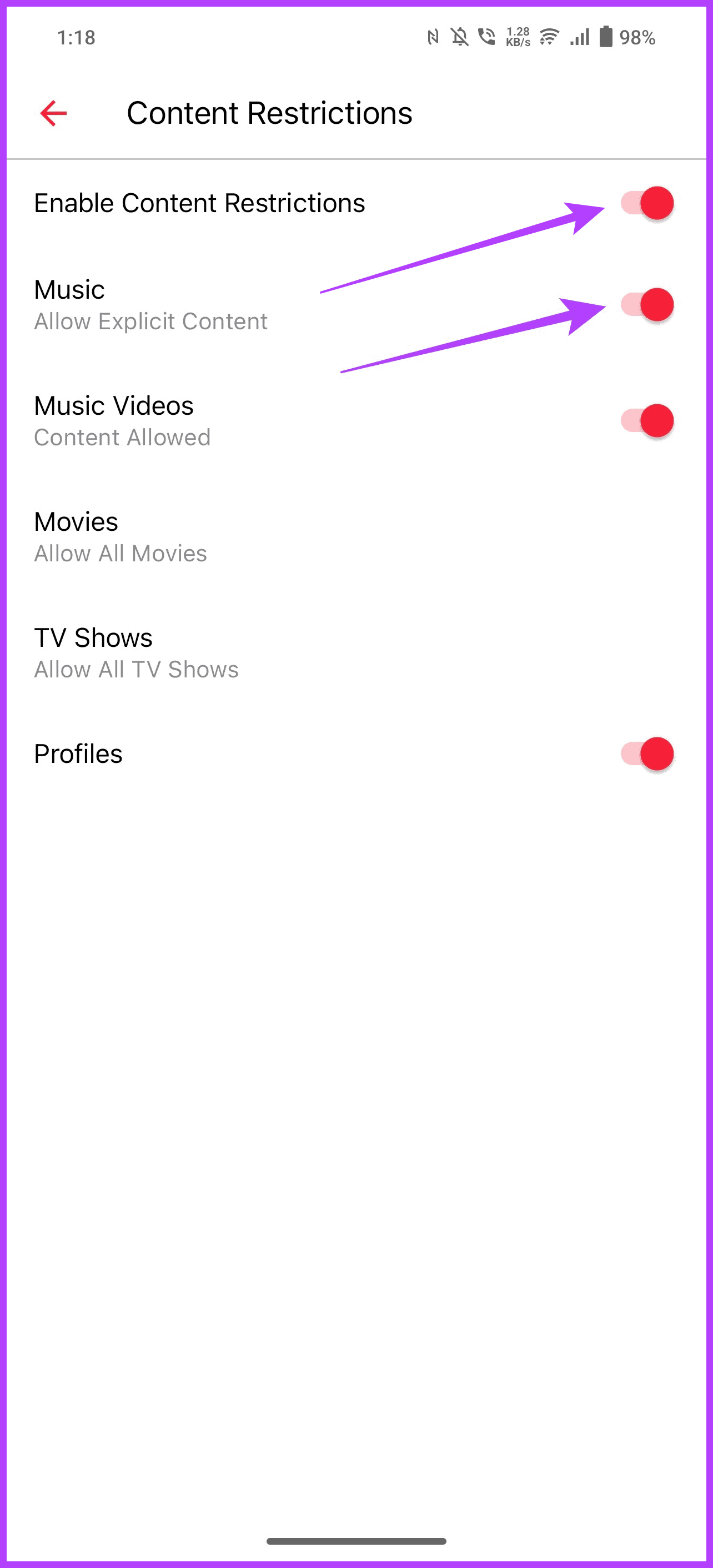
Step 2: Tap on Content Restrictions. You must set a passcode for these settings.
Step 3: Now, turn on the toggle for Enable Content Restrictions. Enable or disable the toggle for Music to show/block explicit content.

Also Read: How to fix Apple Music not working on Android
On Mac
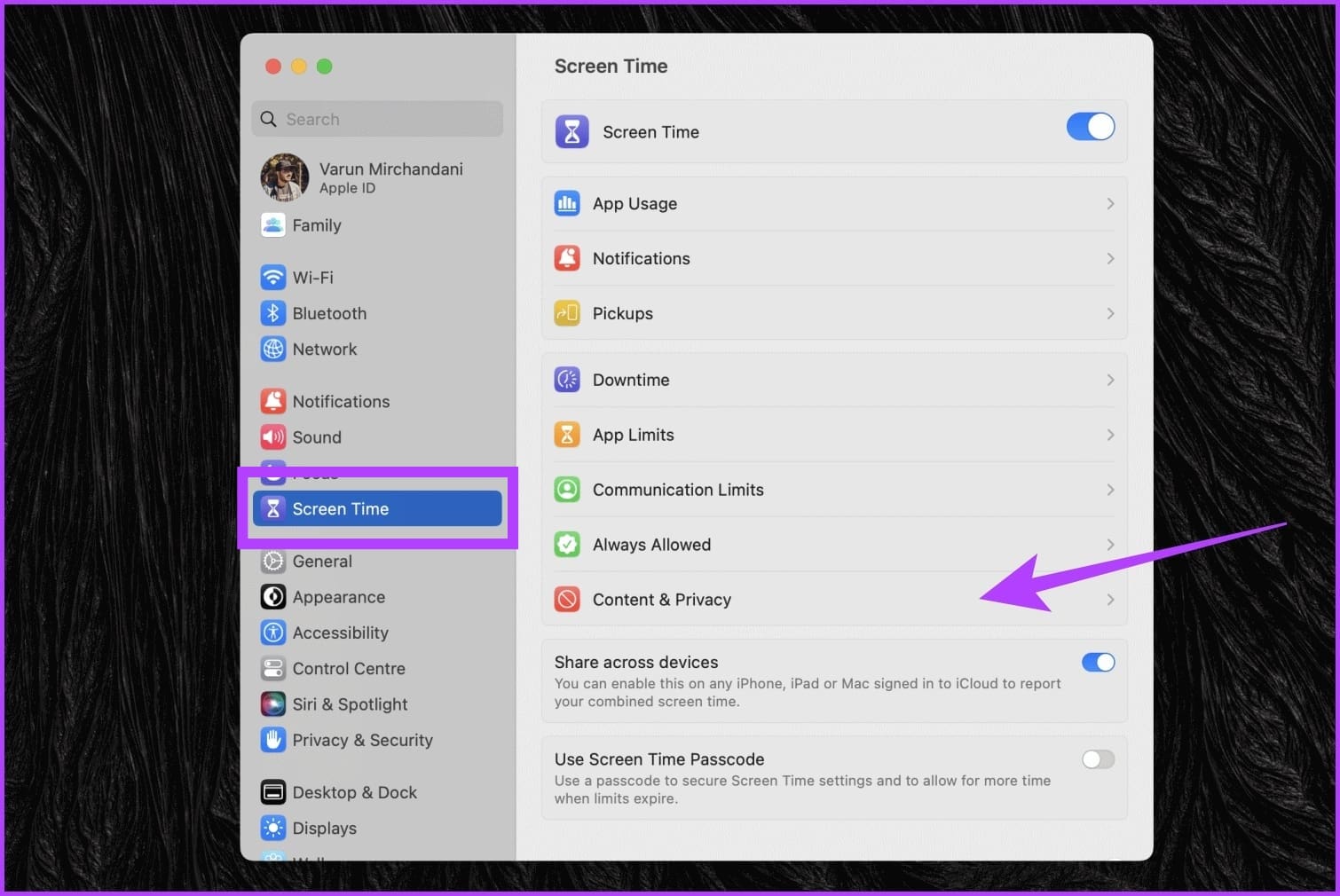
Step 1: Open System Settings > select Screen Time from the left sidebar > click on Content & Privacy.
Step 2: Enable the toggle for Content & Privacy and select Store Restrictions.
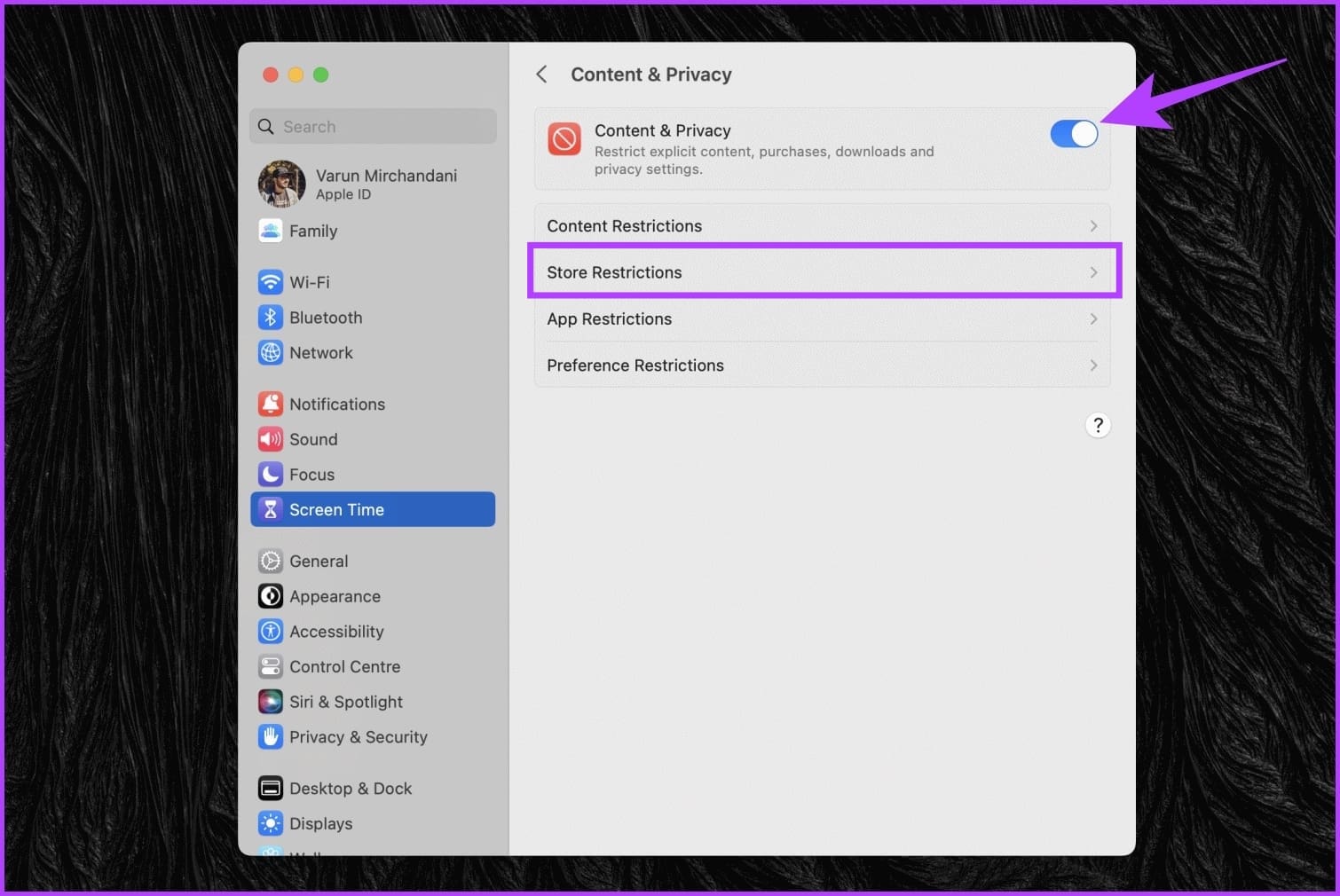
Step 3: In the new pop-up window, disable the toggle for Allow Explicit Music, Podcasts, and News. Alternatively, if you wish to filter out explicit music, you can toggle it off.

On Windows
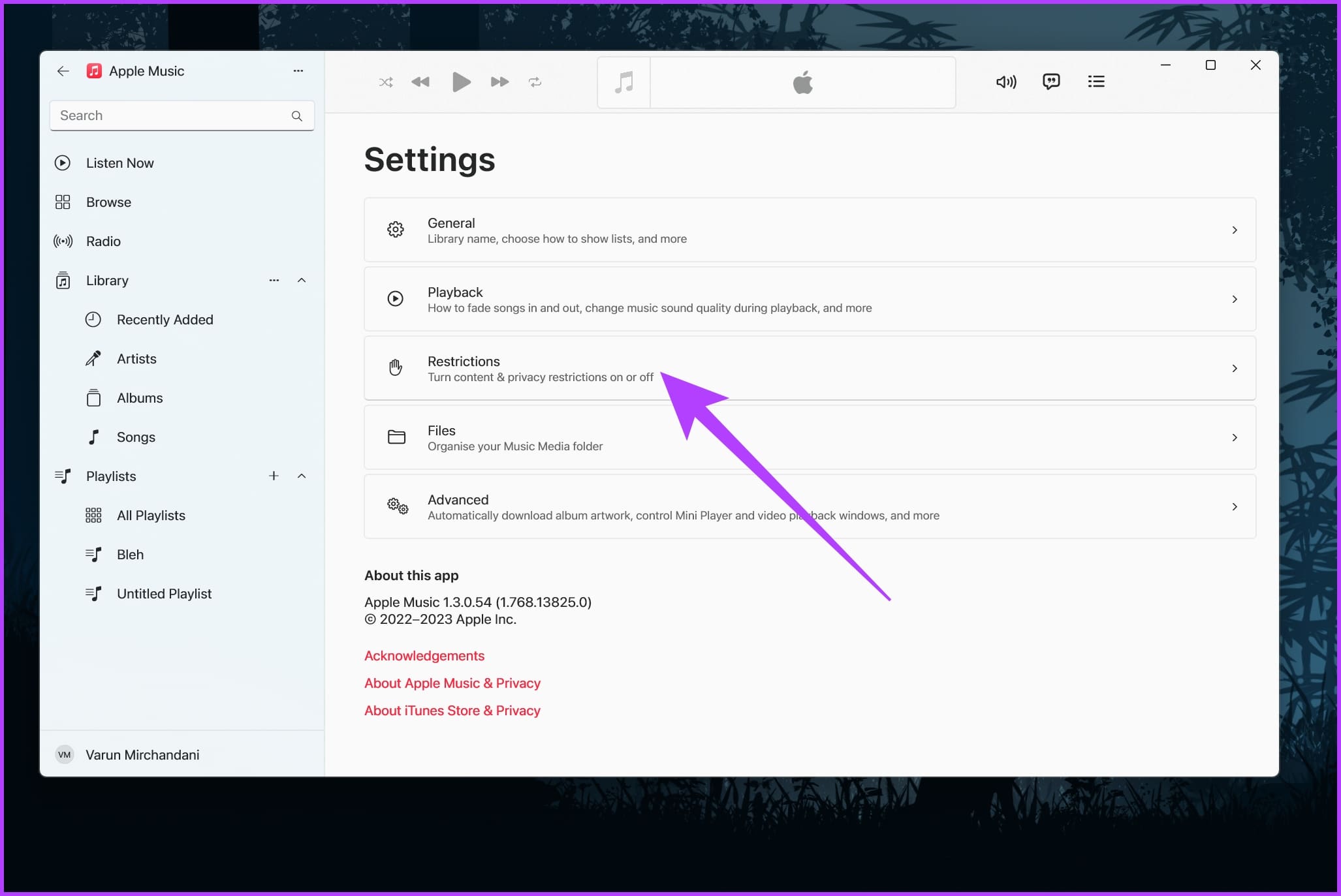
Step 1: Click on the three-dot icon for Apple Music. From the drop-down menu, click on Settings.

Step 2: Now, click on Restrictions. This will open up the restrictions settings.
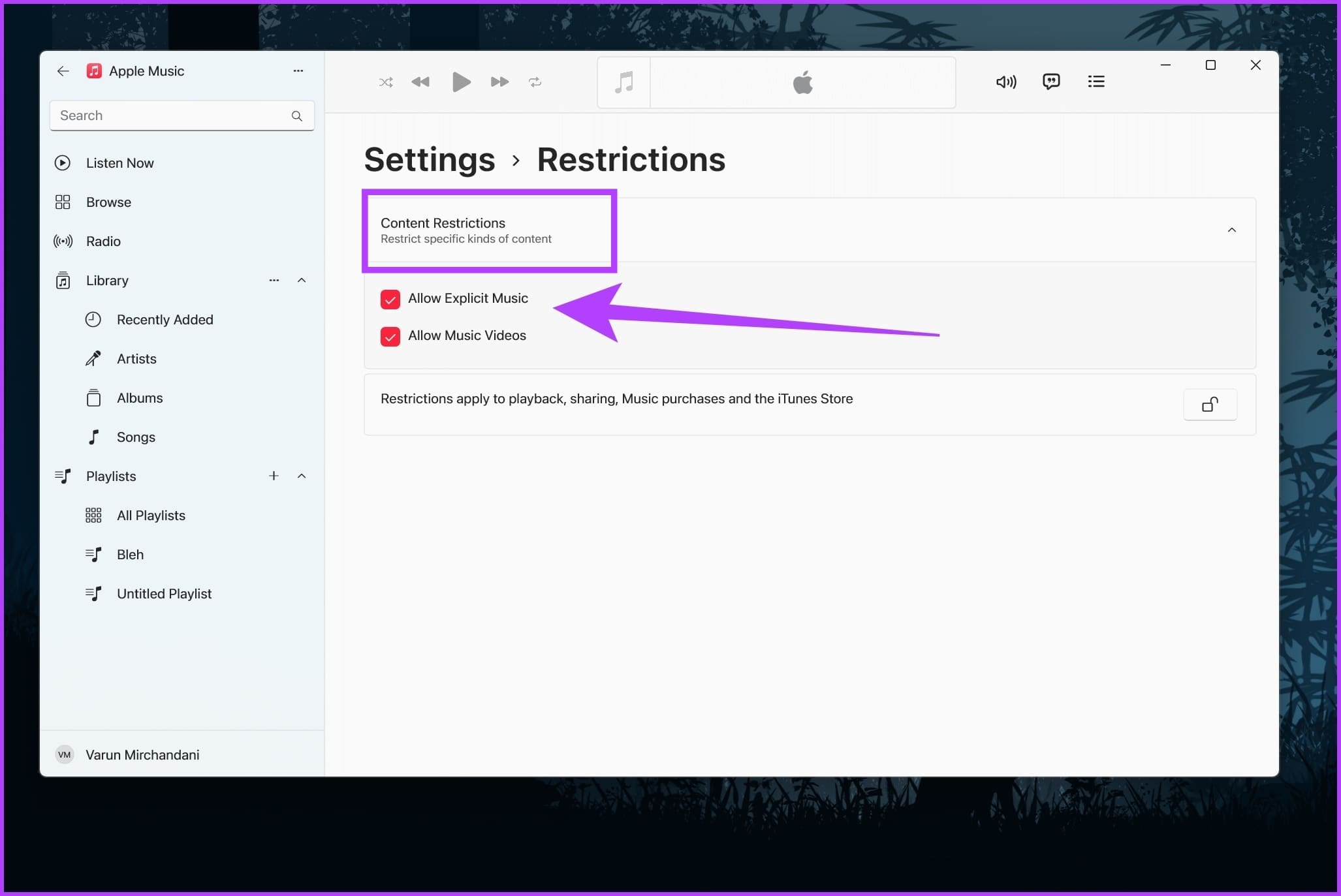
Step 3: Inside the Restrictions settings, select Content Restrictions to expand it. Select whether to allow or block Explicit Music by checking or unchecking the toggle, respectively.
On Web Player
Step 1: Click on the Profile icon at the top-right corner. From the options that appear, select Settings.

Step 2: On the Account Settings page, scroll down to the Parental Controls section. Click on the drop-down box below Music. Select the setting you prefer between Clean and Explicit.

Similar to the Android app, you need to set a 4-digit passcode. Ensure to remember this passcode since you’ll need it each time you wish to change the restriction setting.
Was this helpful?
Last updated on 14 May, 2024
Read Next
 How to Turn on Emergency Bypass on iPhone to Allow Specific Notifications in DND
What is Emergency Bypass on iPhone?
How to Turn on Emergency Bypass on iPhone to Allow Specific Notifications in DND
What is Emergency Bypass on iPhone?
 3 Ways to Transfer Playlists From YouTube Music to Apple Music
There are three services you can use to perform the transfer based on your preferences.
3 Ways to Transfer Playlists From YouTube Music to Apple Music
There are three services you can use to perform the transfer based on your preferences.
 Top 7 Ways to Fix Siri Not Playing Music from Apple Music
Siri not recognizing your voice and not playing music from Apple Music can lead to an undesirable experience.
Top 7 Ways to Fix Siri Not Playing Music from Apple Music
Siri not recognizing your voice and not playing music from Apple Music can lead to an undesirable experience.
 How to Add Downloaded Music to Apple Music Library
If you download songs on your iPhone and use the Files app to listen to them, you are doing it wrong.
How to Add Downloaded Music to Apple Music Library
If you download songs on your iPhone and use the Files app to listen to them, you are doing it wrong.
 Understanding and Resolving the “This content isn’t available” Error on Facebook
Why Do I See "This Content Isn’t Available at the Moment" on Facebook There can be various reasons behind the ‘Content is not available right now’ error on Facebook.
Understanding and Resolving the “This content isn’t available” Error on Facebook
Why Do I See "This Content Isn’t Available at the Moment" on Facebook There can be various reasons behind the ‘Content is not available right now’ error on Facebook.
 What Are Safari Content Blockers and Should You Use Them
How Do Safari Content Blockers Work Content blockers are tiny apps that contain lots of rules, each with their specific triggers and actions.
What Are Safari Content Blockers and Should You Use Them
How Do Safari Content Blockers Work Content blockers are tiny apps that contain lots of rules, each with their specific triggers and actions.
 How to Manage the Content Shown on Your Instagram Explore Page
A large number of Instagram users scroll through the app discover new content.
How to Manage the Content Shown on Your Instagram Explore Page
A large number of Instagram users scroll through the app discover new content.
 How to See Sensitive Content on X (Twitter)
While Twitter is quite an evolved social media app, it isn't fully free from inappropriate and NFSW content.
How to See Sensitive Content on X (Twitter)
While Twitter is quite an evolved social media app, it isn't fully free from inappropriate and NFSW content.
The article above may contain affiliate links which help support Guiding Tech. The content remains unbiased and authentic and will never affect our editorial integrity.