Office add-ins not working usually means they don’t get enabled or show up in their space in the toolbar. This is usually a protective measure against add-ins that may be trustworthy or simply not work properly or fail to load. Here’s how to get them running again.
Fix 1 – Restore Items for Office Add-Ins Not Working Due to a Crash
There’s a “secret” Disabled Items list where Office apps put all add-ins that repeatedly crash when the program is opened. It’s usually the first place to look when an add-in keeps switching itself off.
Step 1. Go to “File,” then to “Options,” and open the “Add-ins” tab.
Step 2. Set the “Manage” drop-down on the bottom to “Disabled Items” and click on “Go.”
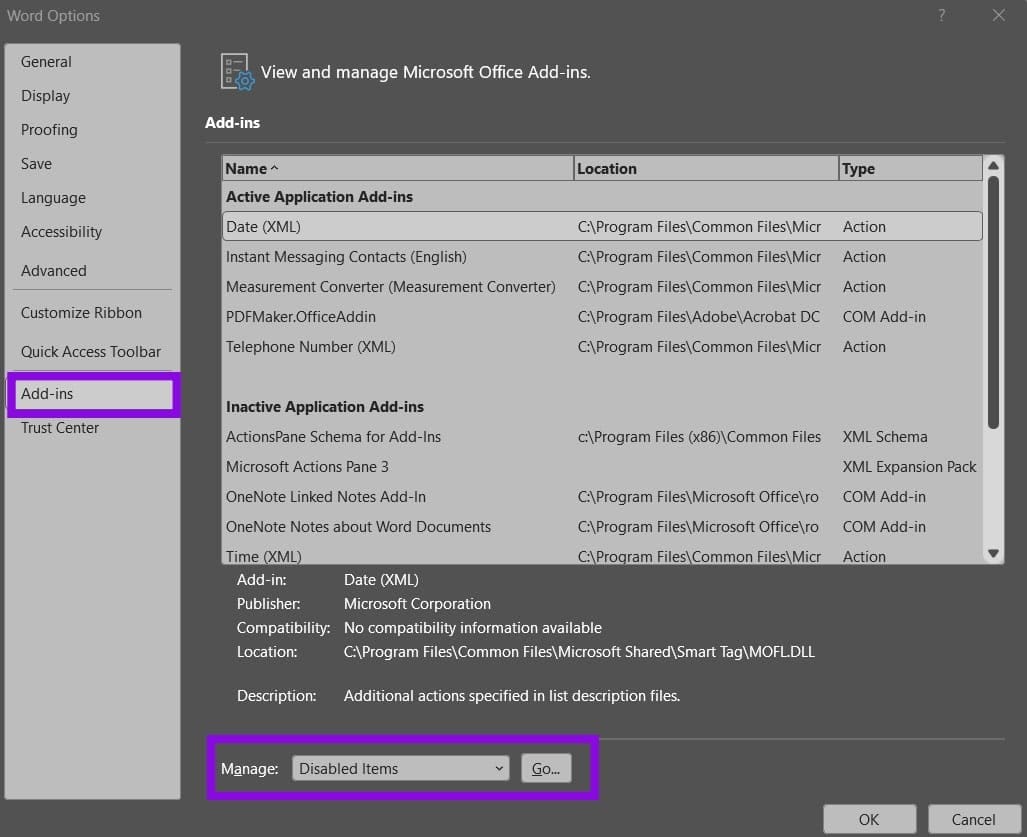
Step 3. Select the add-in and click “Enable,” then click on “Close.”
Step 4. If the add-in is a COM add-in, go back to “Manage” and choose “COM Add-ins” to enable it again. Otherwise, simply exist settings.
Step 5. Restart the app.
If Office disables the add-in again, it may still be causing a stability problem or may be incompatible with your current Office version. Check for an updated version from the add-in’s publisher on its website or the add-in store.
Fix 2 – Adjust Trust Center Settings
The Trust Center can block add-ins across the board while still technically letting you download them. They just won’t show up on the list. You’ll need to provide broad permissions for third-party add-ins for it to get bypassed.
Step 1. Find “Options” and go to the “Trust Center” tab, then click on “Trust Center Settings.”
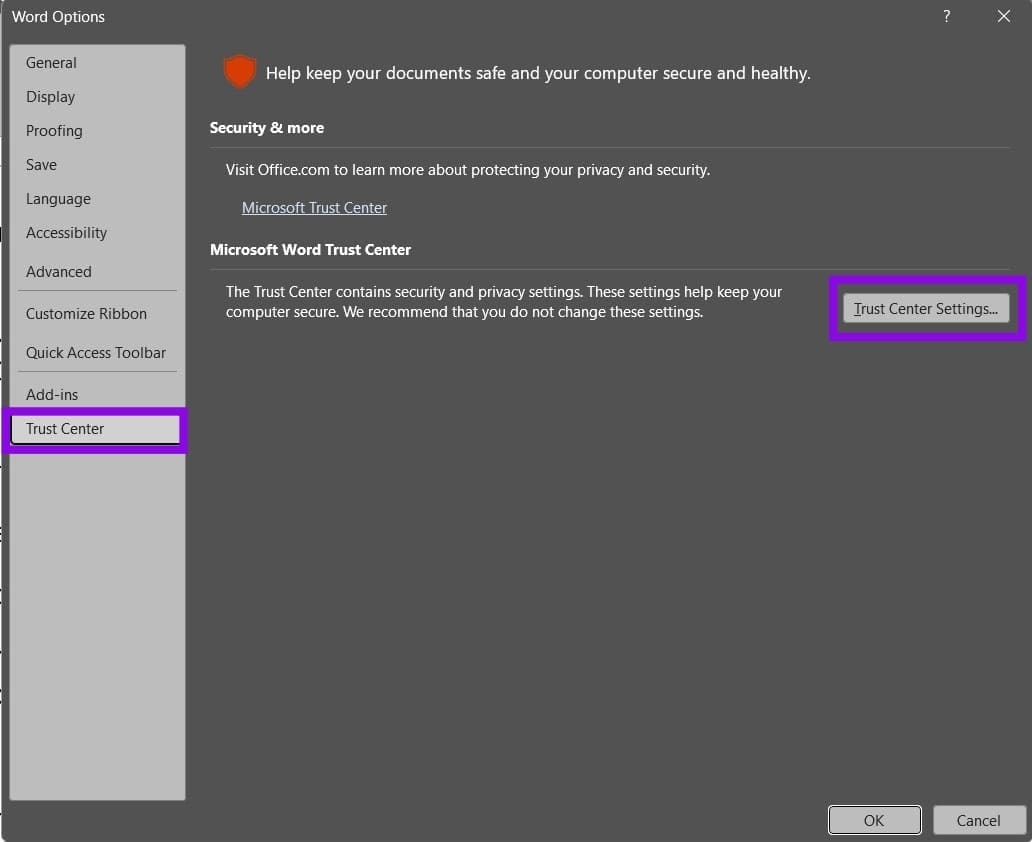
Step 2. Open the “Add-ins” tab.
Step 3. Make sure that the setting for “Disable all Application Add-ins” is unchecked.
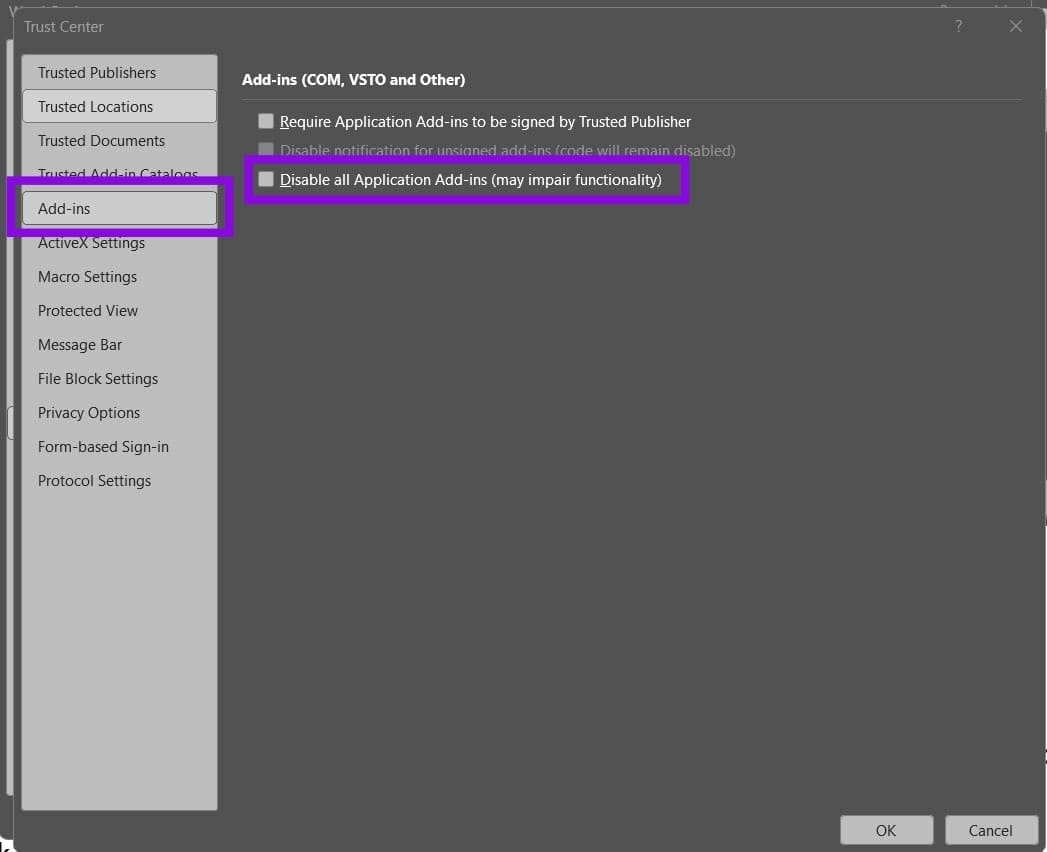
Step 4. If the add-in is relatively unknown or made privately (such as an internal feature for your work), check whether “Require Application Add-ins to be signed by Trusted Publisher” is blocking it.
Step 5. Click “OK” and restart the app.
If these options are grayed out, they’re set by Group Policy and are managed by a separate account that you likely won’t have access to if you’re using a work or school PC.
Fix 3 – Clear the Add-In Cache
Office Add-ins use local caches to store resources and data. A corrupted cache can cause an add-in to load incorrectly or display errors.
Step 1. In “Trust Center Settings,” open “Trusted Add-in Catalogs.”
Step 2. Check “Next time Office starts, clear all previously-started web add-ins cache” and click on ”OK.”
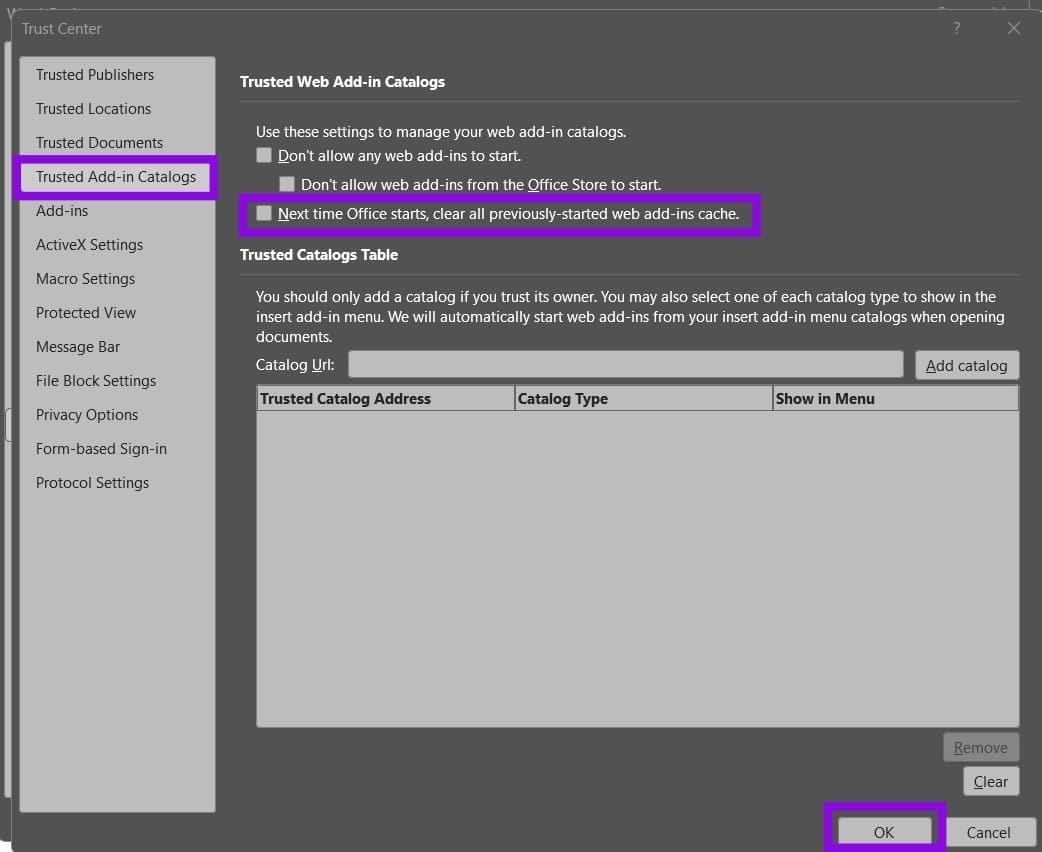
Step 3. Restart the app.
If that option isn’t there, close all Office apps, open the Run utility with “Win + R,” and go to the following folder:
%LOCALAPPDATA%\Microsoft\Office\16.0\Wef

Then, remove all files from the folder.
Fix 6 – Check the Clock, Then Update or Repair Office
Add-ins rely on signed certificates and manifests. This means if you’ve changed your time settings for testing, they may become out of sync.
Step 1. Open Settings and go to “Time & language.” Make sure to use the option “Set time automatically.”
Step 2. Go to “File” and “Account,” then update Microsoft Office.

Step 3. If add-ins still won’t load, open “Settings” and go to “Installed apps,” then try to “Modify” Microsoft Office to repair it. This may remove all add-ins so you can add them separately.
Was this helpful?
Last updated on 10 October, 2026
Read Next
 Game Icons Won’t Display on Desktop – Fixes to Try for Steam
If your Steam desktop icons blank, this is usually a graphics-only issue.
Game Icons Won’t Display on Desktop – Fixes to Try for Steam
If your Steam desktop icons blank, this is usually a graphics-only issue.
 HP Support Assistant Won’t Install? 5 Fixes to Try
Getting an HP Support Assistant install error usually shows a message such as “installation code -2” with no additional (helpful) information.
HP Support Assistant Won’t Install? 5 Fixes to Try
Getting an HP Support Assistant install error usually shows a message such as “installation code -2” with no additional (helpful) information.
 Cross Device Experience Host Won’t Install on Windows 11 – 5 Fixes to Try
The Cross Device Experience Host is a Microsoft feature that supports Windows' cross-device and mobile-device connectivity.
Cross Device Experience Host Won’t Install on Windows 11 – 5 Fixes to Try
The Cross Device Experience Host is a Microsoft feature that supports Windows' cross-device and mobile-device connectivity.
 Office 365 vs. Office 2024 – Which Is Right for You?
The choice between Microsoft 365 (or Office 365) vs.
Office 365 vs. Office 2024 – Which Is Right for You?
The choice between Microsoft 365 (or Office 365) vs.
 How to Add Fonts to Office Online
Note: The Microsoft account used on the PC and the web app must be the same for the downloaded fonts to work.
How to Add Fonts to Office Online
Note: The Microsoft account used on the PC and the web app must be the same for the downloaded fonts to work.
 4 Ways to Fix Microsoft Teams Meeting Add-in Won’t Appear in Outlook for Windows
Fix 1: Enable the Teams Add-In A common reason the Microsoft Teams meeting option may disappear from Outlook is if you have accidentally disabled the related add-in.
4 Ways to Fix Microsoft Teams Meeting Add-in Won’t Appear in Outlook for Windows
Fix 1: Enable the Teams Add-In A common reason the Microsoft Teams meeting option may disappear from Outlook is if you have accidentally disabled the related add-in.
 How to Enable Dark Mode in Microsoft Office Apps
Is the bright white format of Excel burning holes in your eyes, or are you just looking for a theme that matches the rest of your desktop aesthetic?
How to Enable Dark Mode in Microsoft Office Apps
Is the bright white format of Excel burning holes in your eyes, or are you just looking for a theme that matches the rest of your desktop aesthetic?
 Clever Telegram Hacks to Try
Telegram is fast becoming one of the most popular messaging apps among people of all ages, and part of what makes it so great is its many features.
Clever Telegram Hacks to Try
Telegram is fast becoming one of the most popular messaging apps among people of all ages, and part of what makes it so great is its many features.
The article above may contain affiliate links which help support Guiding Tech. The content remains unbiased and authentic and will never affect our editorial integrity.