


1. Forward and Rewind
I believe this is one of the most required proponents for any media player. Now, depending on the required forward and rewind length, you can use the following combinations:
- Right arrow/Left Arrow: 5 Seconds.
- Ctrl + [Right Arrow, Left Arrow]: 30 Seconds.
- Alt + [Right Arrow, Left Arrow]: 1 Minute.
- Ctrl + Alt + [Right Arrow, Left Arrow]: 10 Minutes.
2. Volume Up and Down
Scrolling the volume bar to adjust the volume takes some time. Using the Up and Down arrows to raise or lower the volume is better. M puts the media to mute.
3. Change Video Frame Size
You mostly want to switch to the full-screen mode when playing a video. Pressing Enter toggles between the full-screen and window modes. Ctrl + Enter and Ctrl + Alt + Enter are the Stretch and Overscan full-screen modes.
Other screen controls include Alt + [1, 2, 3, 4], which stand for half size, standard size, one and a half size, and double size, respectively. You can also press Alt + 5 to reset the frame to its original size.
4. Adjust Contrast, Saturation, and Brightness
We sometimes need to adjust these properties depending on the video quality we are watching. On KMPlayer, we can adjust the hardware or software profiles as follows:
- H/W Contrast: Z, X, C.
- S/W Contrast: V, B, N.
- H/W Saturation: A, S, D.
- S/W Saturation: G, H, J.
- H/W Brightness: Q, W, E.
- S/W Brightness: T, Y, U.
5. Windows Size and Position
To quickly move the window around the screen, use the following keyboard shortcuts and gestures to gain more control.
- Ctrl + Alt + 2: Move bottom
- Ctrl + Alt + 4: Move left
- Ctrl + Alt + 6: Move right
- Ctrl + Alt + 8: Move top

In addition, you have a combination of Alt + 1 to Alt + 8, which you can find under Pan & Scan > Windows Size & Position.
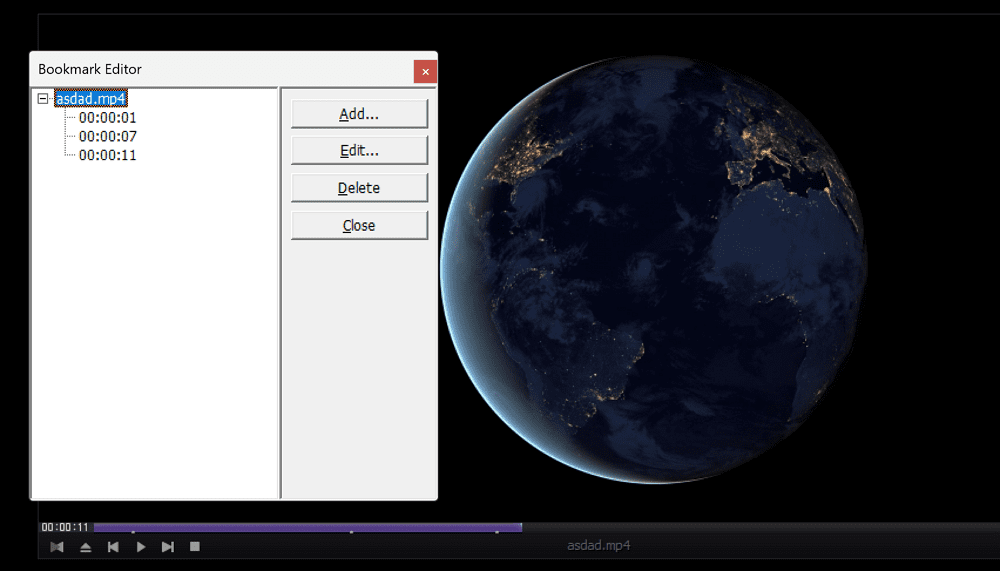
6. Bookmark Media
Sometimes, it can be fun to bookmark media positions to return to the exact frame without wasting time. Press P to bookmark any position. Use Alt + [Page Up, Page Down] to start playing in the next/previous bookmarked position.
7. Activate Album Art
If you feel that album art is missing on KMPlayer, it will likely be deactivated. Use the Ctrl + Alt + L combination to activate and/or change the player’s skin.
8. Subtitle Shortcuts
I generally watch a movie with the subtitles. If you are of the same kind, you must know these controls:
- Alt + O: Load subtitle
- Alt + X: Show or hide subtitle
- Alt + Q: Load Subtitle editor (read our article to learn how to edit subtitles)
- Alt + [F1, F2, F3]: Increase, decrease or reset font size

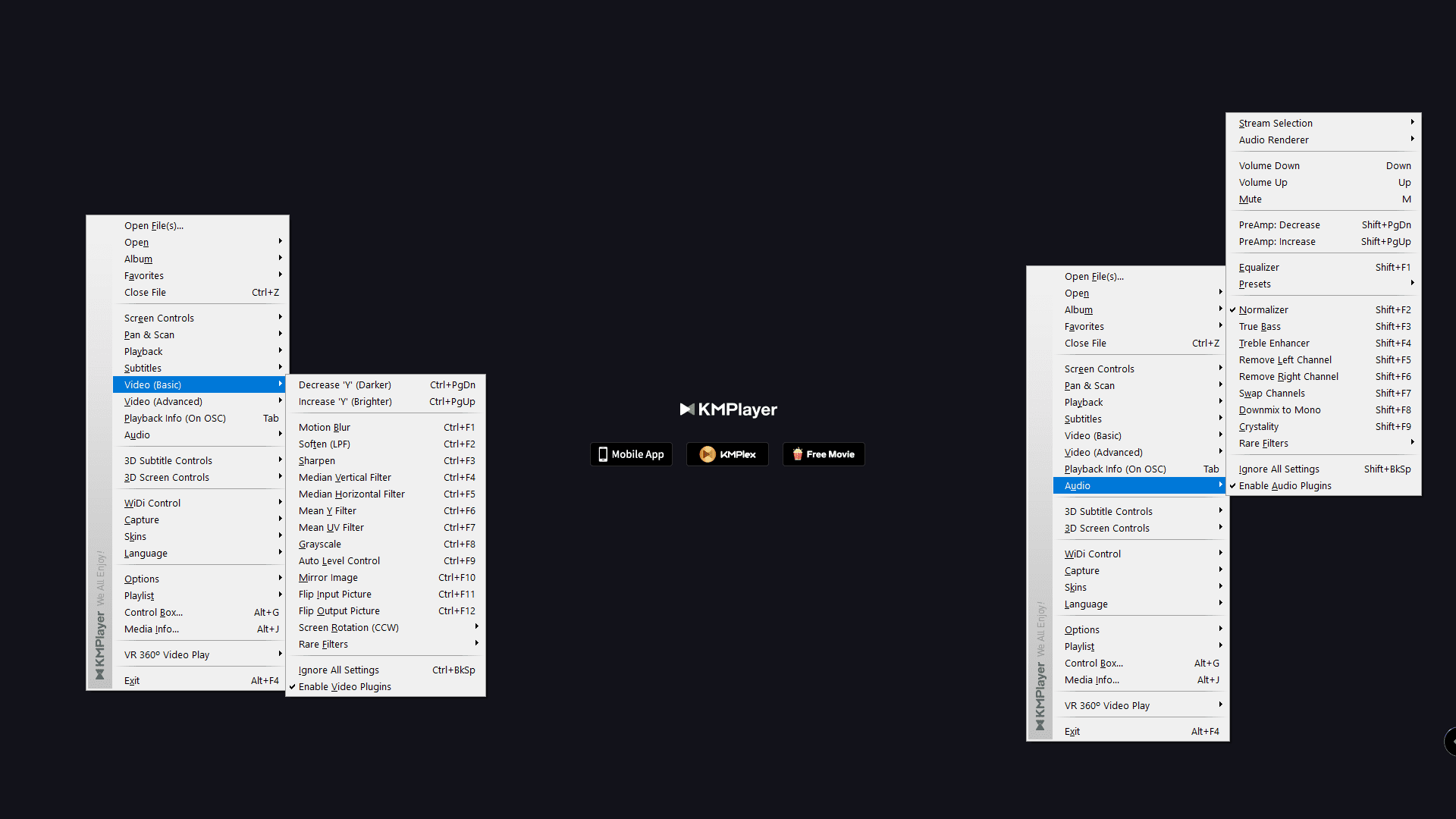
9. Audio Video Settings
This list is very long, and I do not want to state each line by line. Instead, check the image below and try all combinations from Shift + [F1, F2…F9] to Ctrl + [F1, F2….F12].
10. Miscellaneous
Some keys did not make it to any of the above sets. Here they are for your quick reference:
- Spacebar: Instant play and pause.
- F1: Help
- F2: Preferences
- Alt + E: Playlist editor
- Alt + G: Control box
- Ctrl + Z: Close playing file
- Alt + F4: Close media player
Was this helpful?
Last updated on 03 June, 2024
2 Comments
Leave a Reply
Read Next
 How to Run Multiple Instances of KMPlayer
Enable Multiple Instances in KMPlayer If you prefer KMPlayer over VLC Media Player and want to play multiple videos at once, you can adjust its settings to run multiple instances.
How to Run Multiple Instances of KMPlayer
Enable Multiple Instances in KMPlayer If you prefer KMPlayer over VLC Media Player and want to play multiple videos at once, you can adjust its settings to run multiple instances.
 Play YouTube Videos (and From Other Sites) in KMPlayer
What’s your first choice of media player?
Play YouTube Videos (and From Other Sites) in KMPlayer
What’s your first choice of media player?
 How to Sync Subtitles and Videos Easily Using KMPlayer
I love watching movies and love to explore different genres and kinds of movies from every part of the world.
How to Sync Subtitles and Videos Easily Using KMPlayer
I love watching movies and love to explore different genres and kinds of movies from every part of the world.
 9 Best Microsoft Whiteboard Keyboard Shortcuts to Boost Productivity
Whiteboards are super useful to brainstorm with your team, collect ideas, or draw a plan.
9 Best Microsoft Whiteboard Keyboard Shortcuts to Boost Productivity
Whiteboards are super useful to brainstorm with your team, collect ideas, or draw a plan.
 A Guide to Fixing Keyboard Shortcuts Not Working on Windows 10
When you get used to keyboard shortcuts, there's no going back.
A Guide to Fixing Keyboard Shortcuts Not Working on Windows 10
When you get used to keyboard shortcuts, there's no going back.
 28 Microsoft Paint 3D Keyboard Shortcuts That You Should Use
Basic Editing Shortcuts ShortcutFunctionCtrl + CUse it to copy both 2D and 3D elements on your imageCtrl + XDelete or move an element using this shortcutCtrl + VPaste the copied
28 Microsoft Paint 3D Keyboard Shortcuts That You Should Use
Basic Editing Shortcuts ShortcutFunctionCtrl + CUse it to copy both 2D and 3D elements on your imageCtrl + XDelete or move an element using this shortcutCtrl + VPaste the copied
 Top 11 Microsoft Teams Keyboard Shortcuts to Use It Like a Pro
Work from home is the new norm these days.
Top 11 Microsoft Teams Keyboard Shortcuts to Use It Like a Pro
Work from home is the new norm these days.
 5 Fixes for Keyboard Shortcuts Not Working in Microsoft Excel for Windows
Fix 1: Use the On-Screen Keyboard First, you must perform a few keyboard shortcuts using the On-Screen Keyboard (OSK) on Windows.
5 Fixes for Keyboard Shortcuts Not Working in Microsoft Excel for Windows
Fix 1: Use the On-Screen Keyboard First, you must perform a few keyboard shortcuts using the On-Screen Keyboard (OSK) on Windows.
The article above may contain affiliate links which help support Guiding Tech. The content remains unbiased and authentic and will never affect our editorial integrity.
Hello, my name is Natalia. I suffered for two weeks until it dawned on me that I needed to make an Internet request. Very useful information. Thank you!
It would be nice to download as a PDF file all the buttons you wrote.