How to Clear Chrome Cookies and Cache for One Site Only on a Desktop
Method 1: Delete Chrome Cache and Cookie From the Website
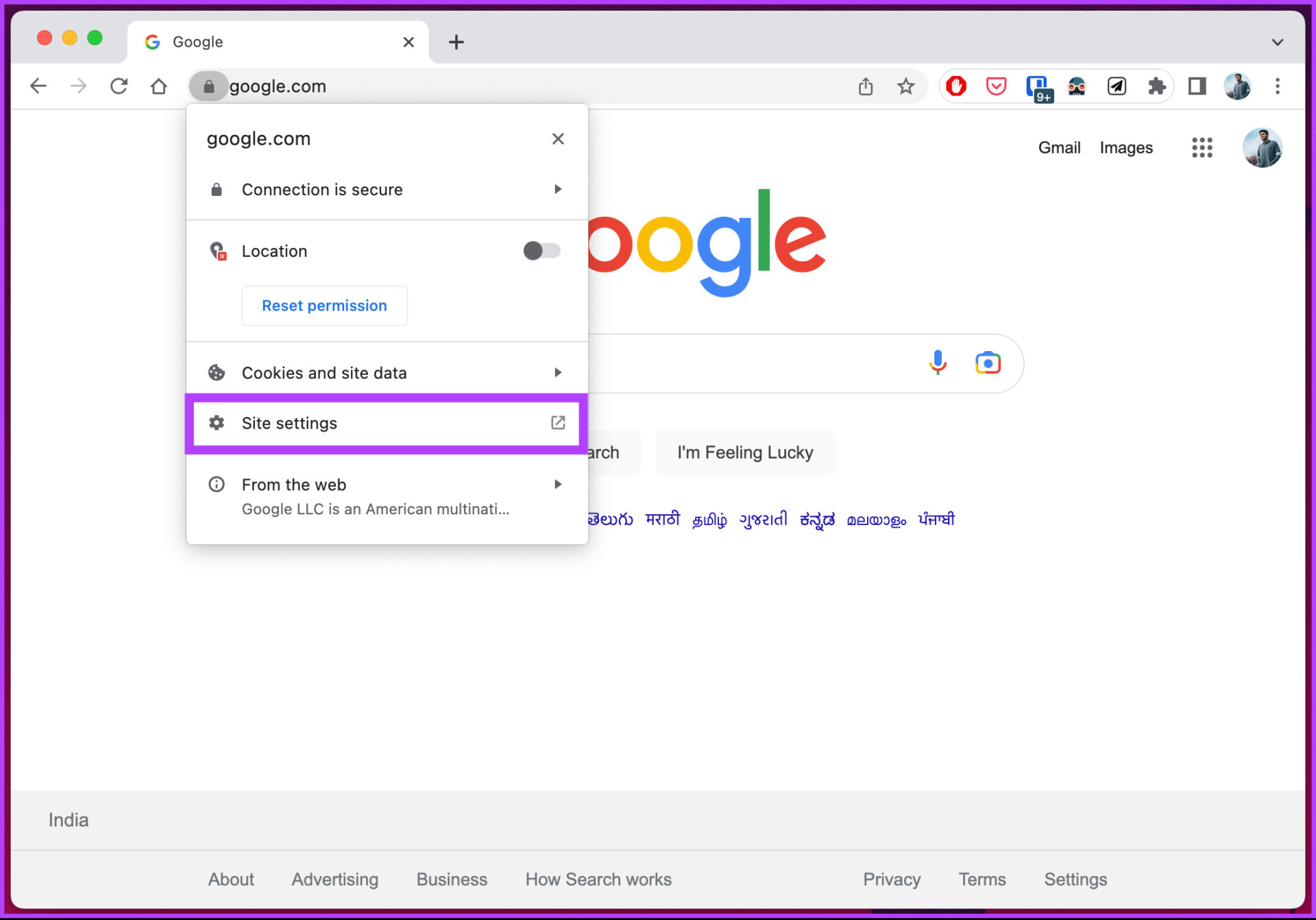
Step 1: Load the site from which you want to clear cookies and cache in Google Chrome and click on the padlock-shaped icon in the left corner of the address bar.
Step 2: From the pop-up modal, click on Site settings.
Chrome will load a new table listing site-related usage data and permissions.
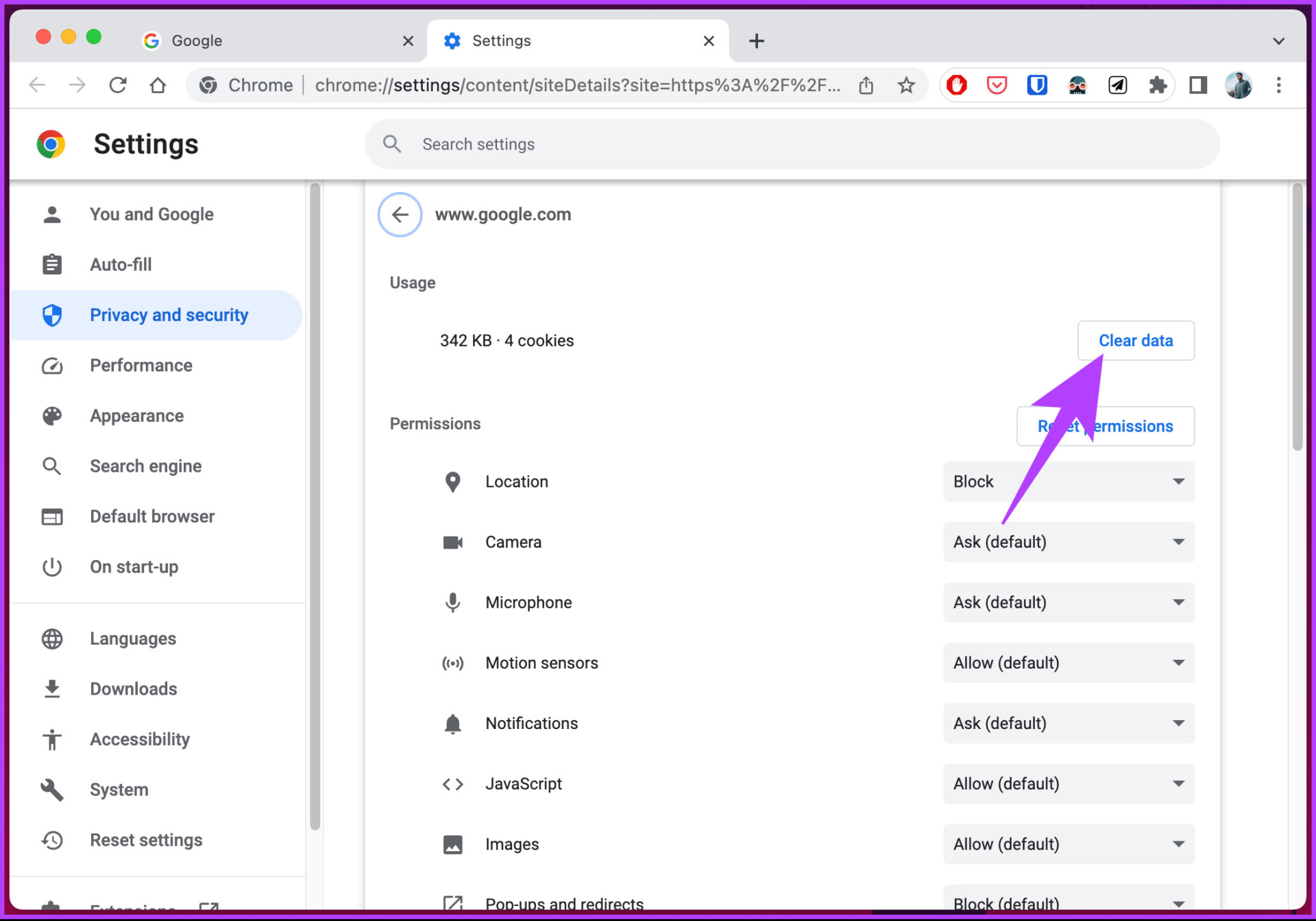
Step 3: Click on the Clear data button under the Usage section.
Step 4: In the prompt, select the Clear button.
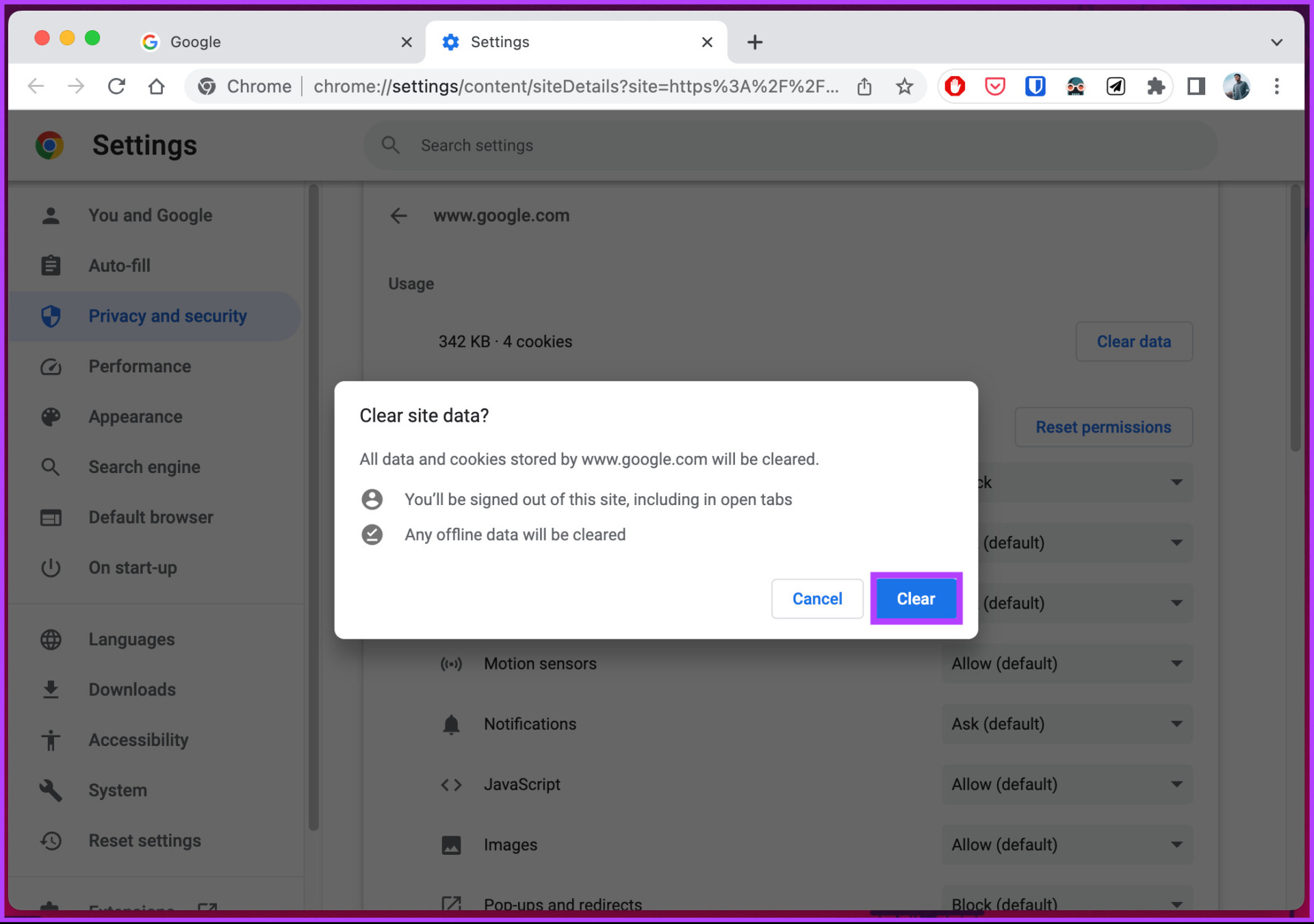
That’s it. Chrome will immediately clear the cookies and cache for the site. Once you refresh the website, it will only load fresh site cookies and data.
If, for some reason, you cannot access the site settings menu, there’s another way to clear the browser’s cache and cookies from a specific website; check out the next method.
Method 2: From Chrome Settings
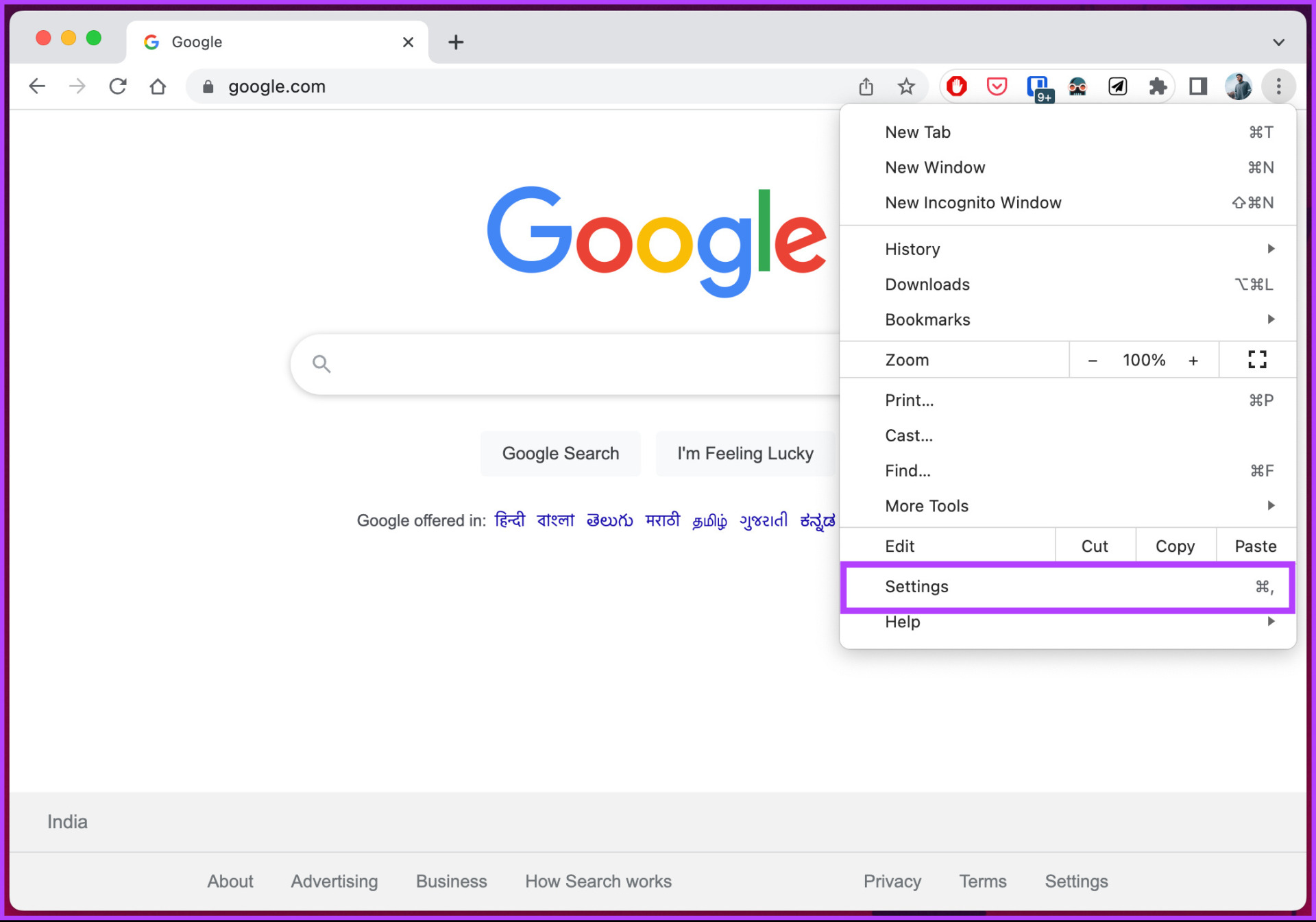
Step 1: Launch Google Chrome and click the three-dot icon at the top right corner.
Step 2: From the drop-down menu, select Settings.
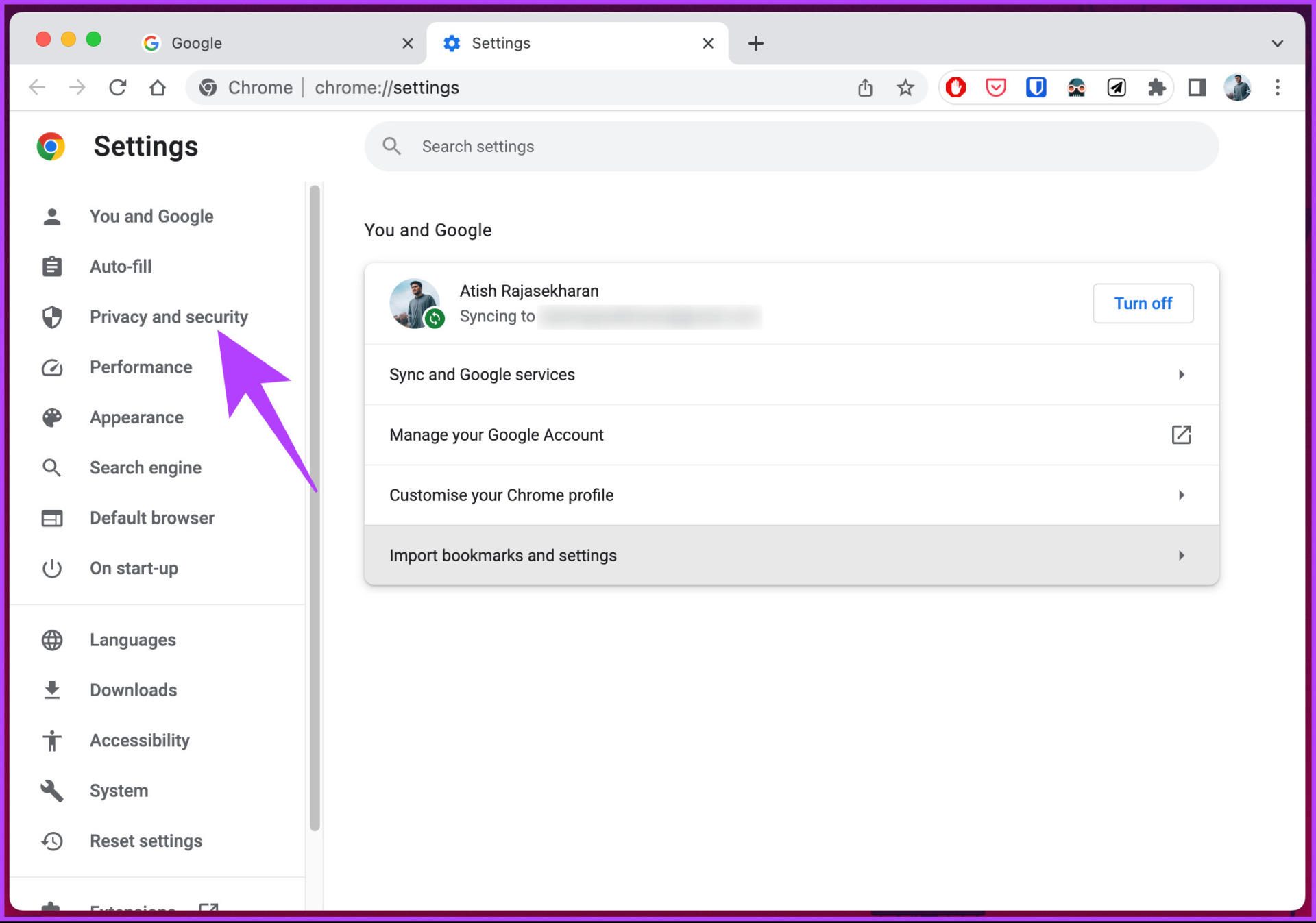
Step 3: In the Settings window, go to Privacy and Security.
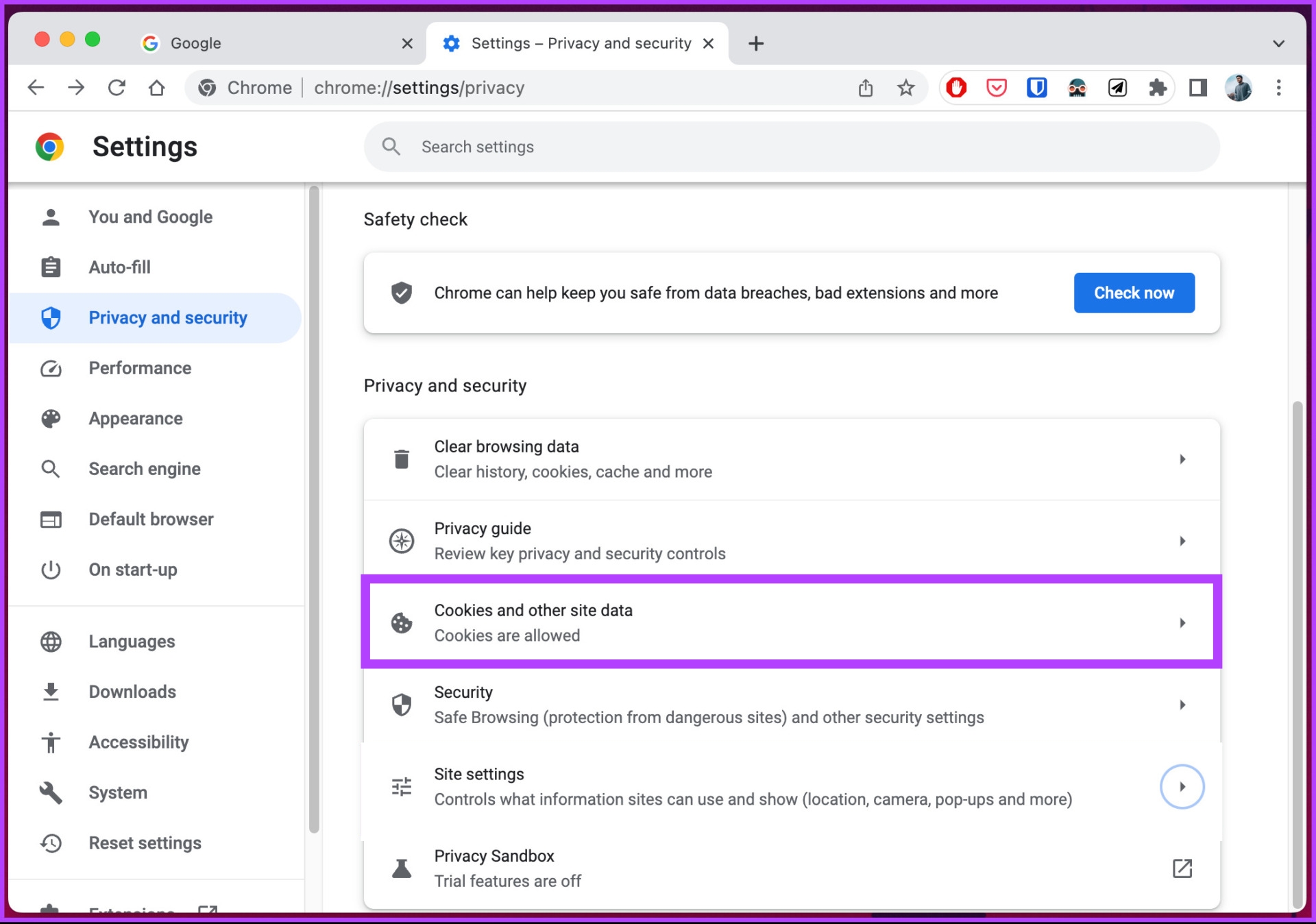
Step 4: Choose Cookies and other site data.
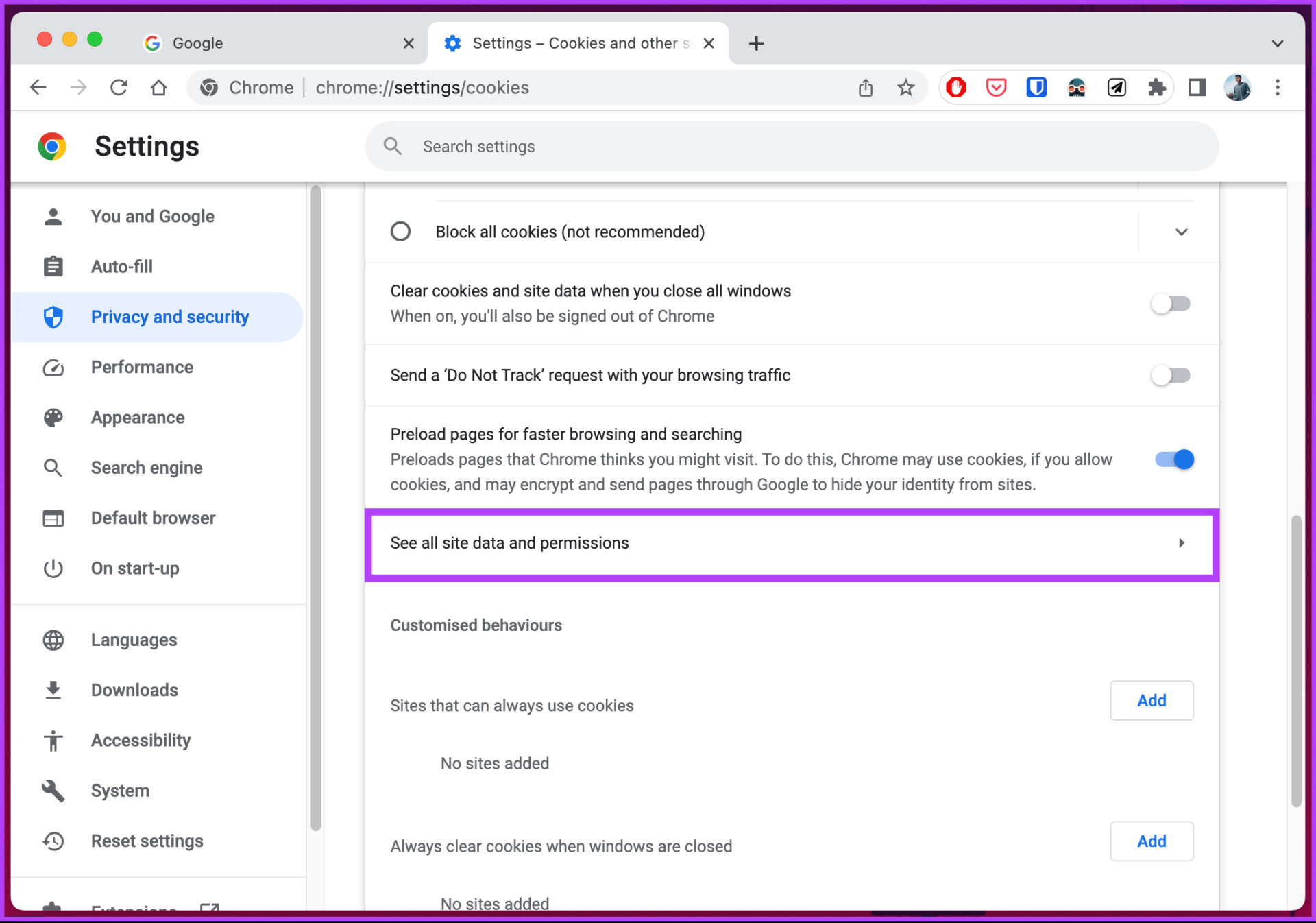
Step 5: Select See all site data and permissions.
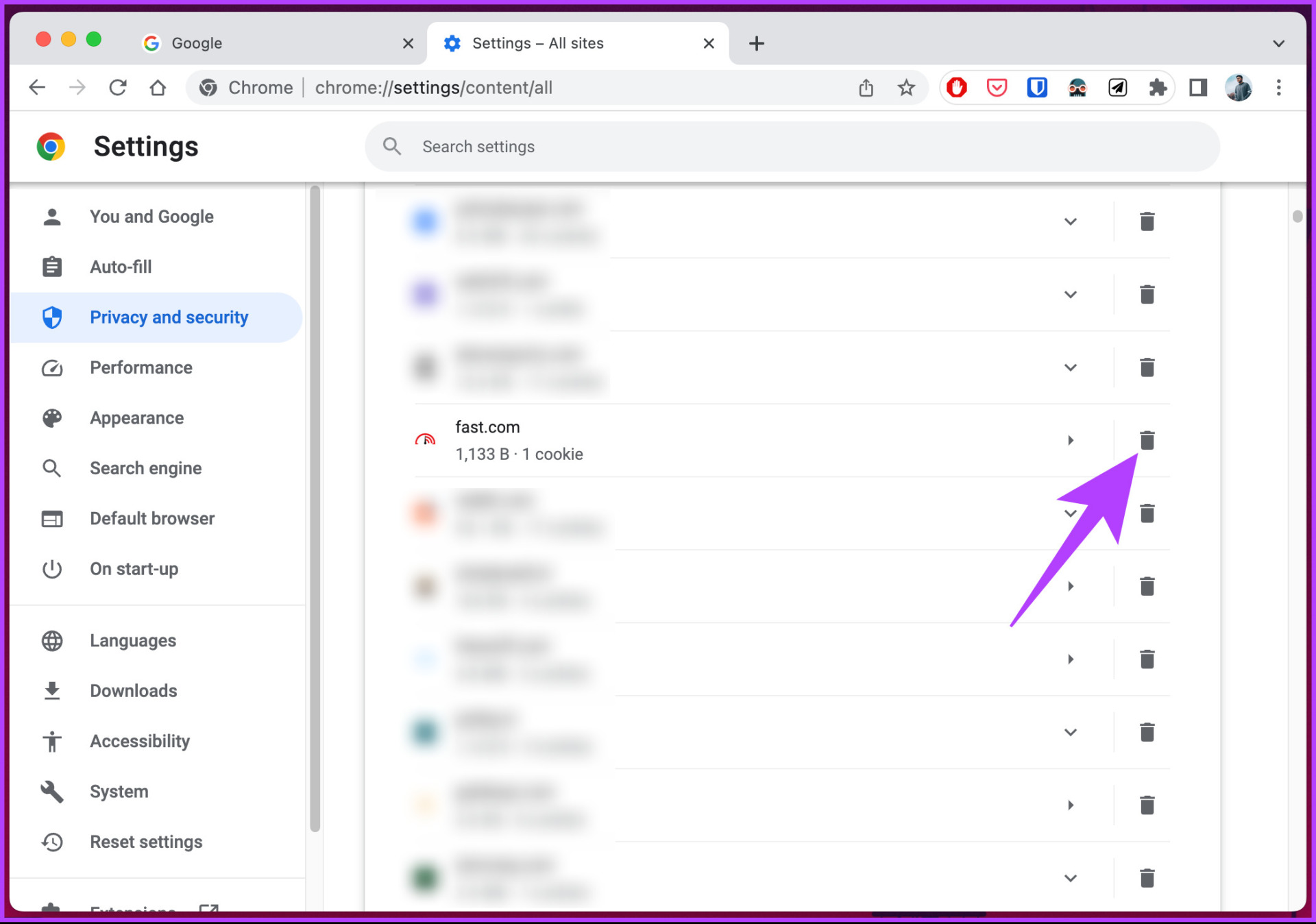
Step 6: In the All sites settings, select the site from which you want to delete cache and cookies and click the trashcan icon.
Step 7: In the prompt, click the Clear button.
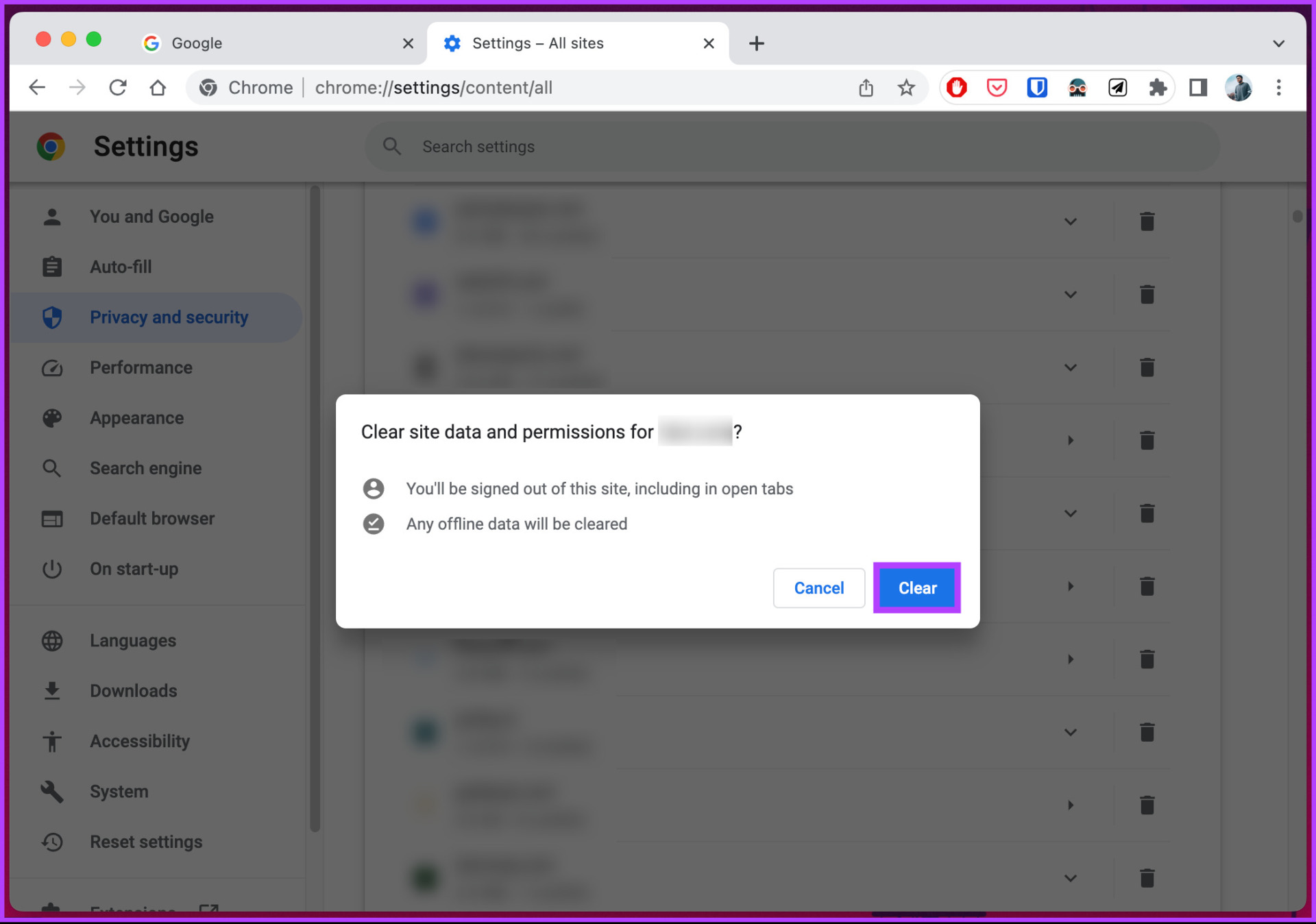
There you go. All the cache and cookies data will be removed from the site, and load a fresh set of data only when you refresh the site.
Cookies and cache don’t get synced. If you are clearing cache and cookies from Chrome Windows or Mac applications, it doesn’t mean they will also get cleared from your Chrome mobile app. You will have to clear it from your device manually. Move on to the next section to learn how to do it.
Clear Chrome Cookies and Cache for One Site on Android
Step 1: Launch Google Chrome on your device and tap the three-dot icon at the top right corner.
Step 2: Select Settings. On the next screen, scroll down and choose Site settings.

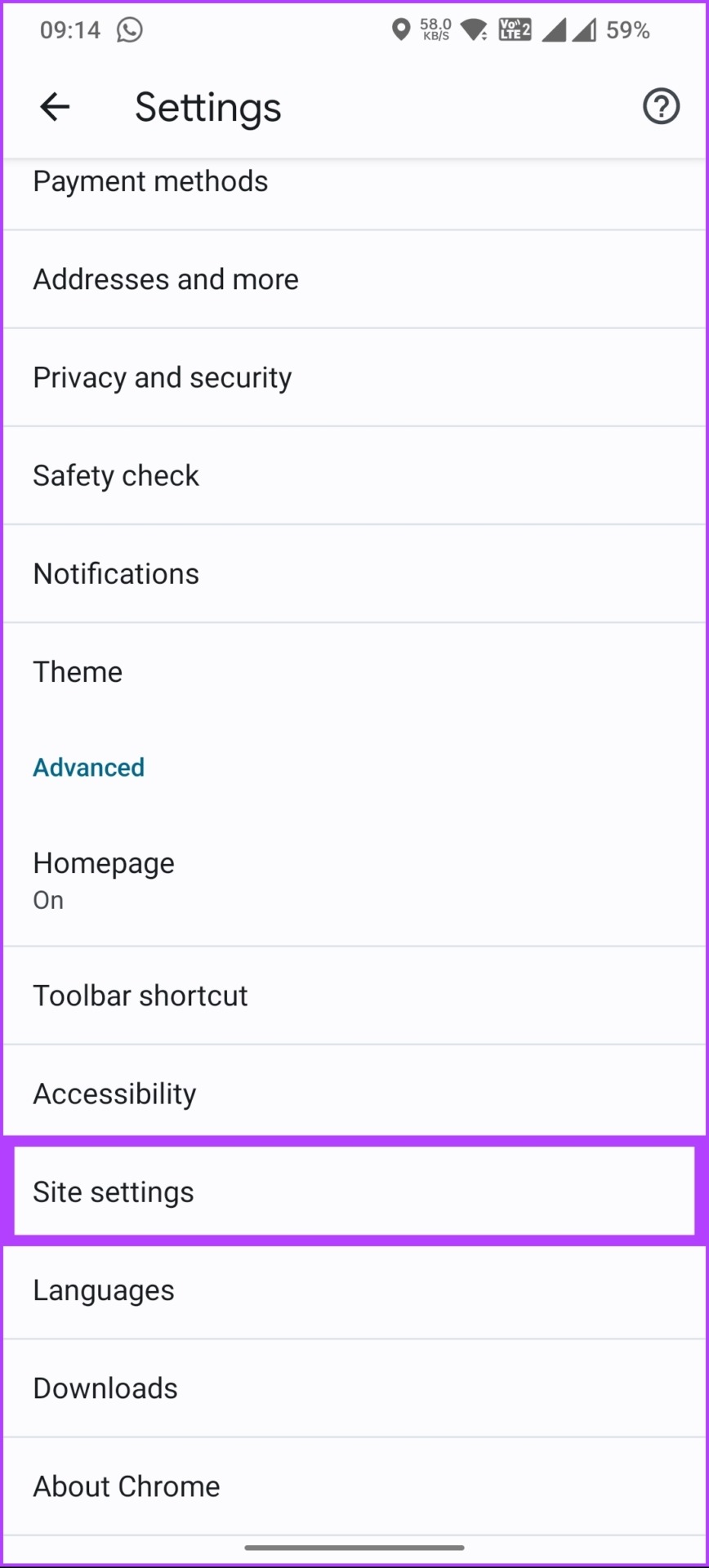
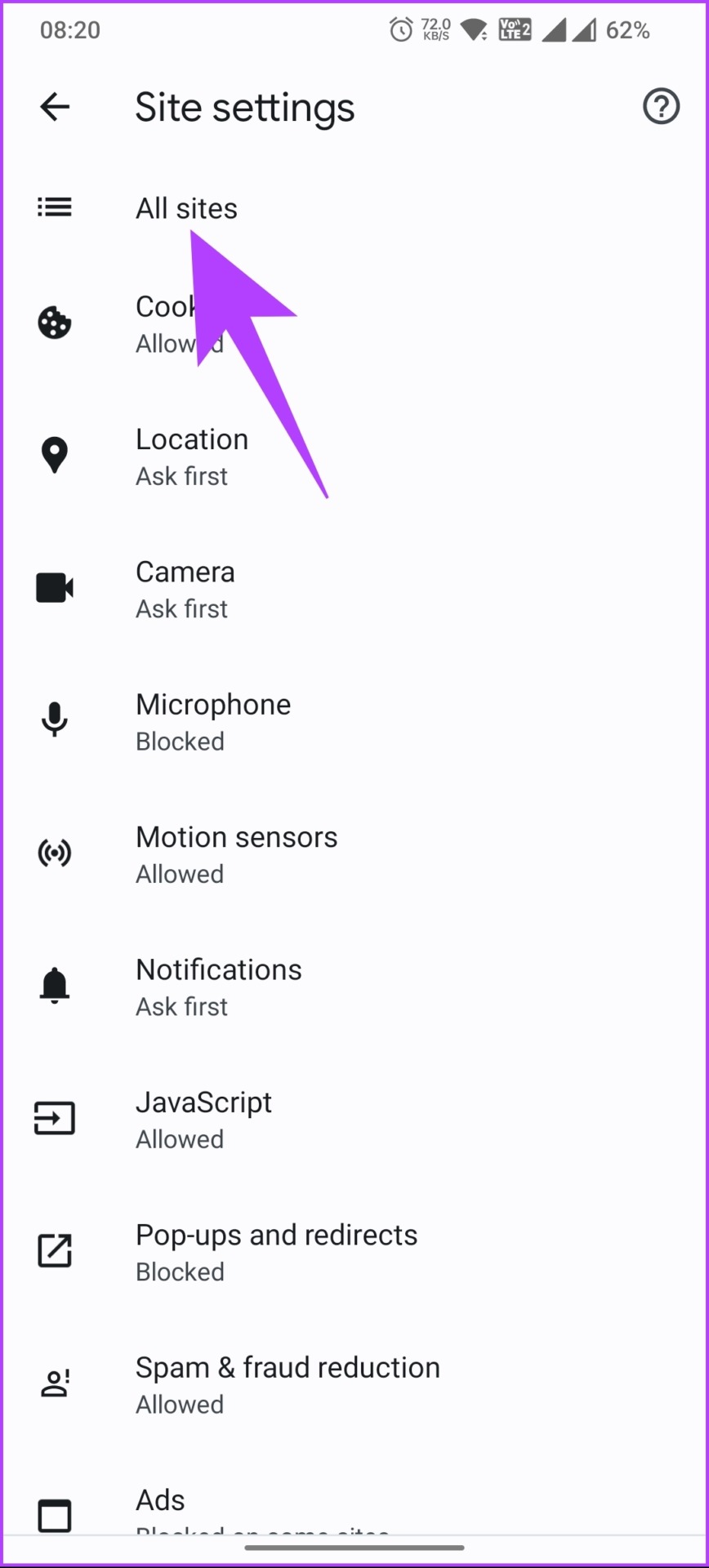
Step 3: Under Site settings, choose All sites, and from the list of sites, select the one you want to clear cookies and cache from.
Note: You can also look up the domain name using the search icon at the top.

Step 4: Tap the Clear & reset button, and choose Clear & reset.

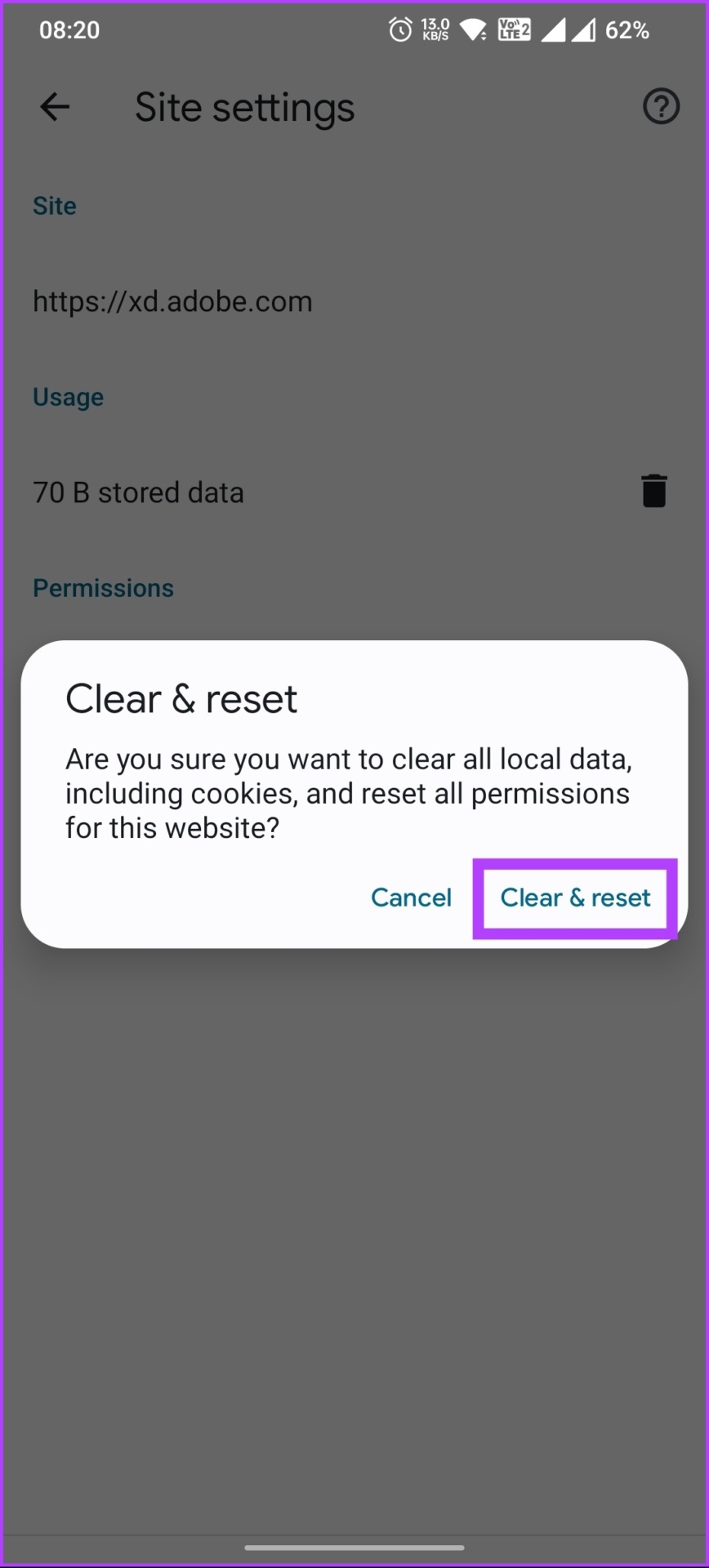
There you have it. You have successfully removed the cookies and cache from a specific website from your mobile device. If you are an iOS user, things will be slightly different; check out the next method.
How to Clear Browsing Data from iOS
If you are on iOS, you cannot clear cookies and cache from a specific site. However, you can only clear your Chrome browsing data. Here’s how to.
Step 1: Launch Google Chrome on your iPhone and tap on the three-dot icon at the bottom navigation.
Step 2: Select Clear browsing data.


Step 2: Choose Cookies, site data and Cached images and Files. Once selected, tap on Clearing Browsing Data.
Step 3: In the prompt, tap Clear Browsing Data again to confirm.
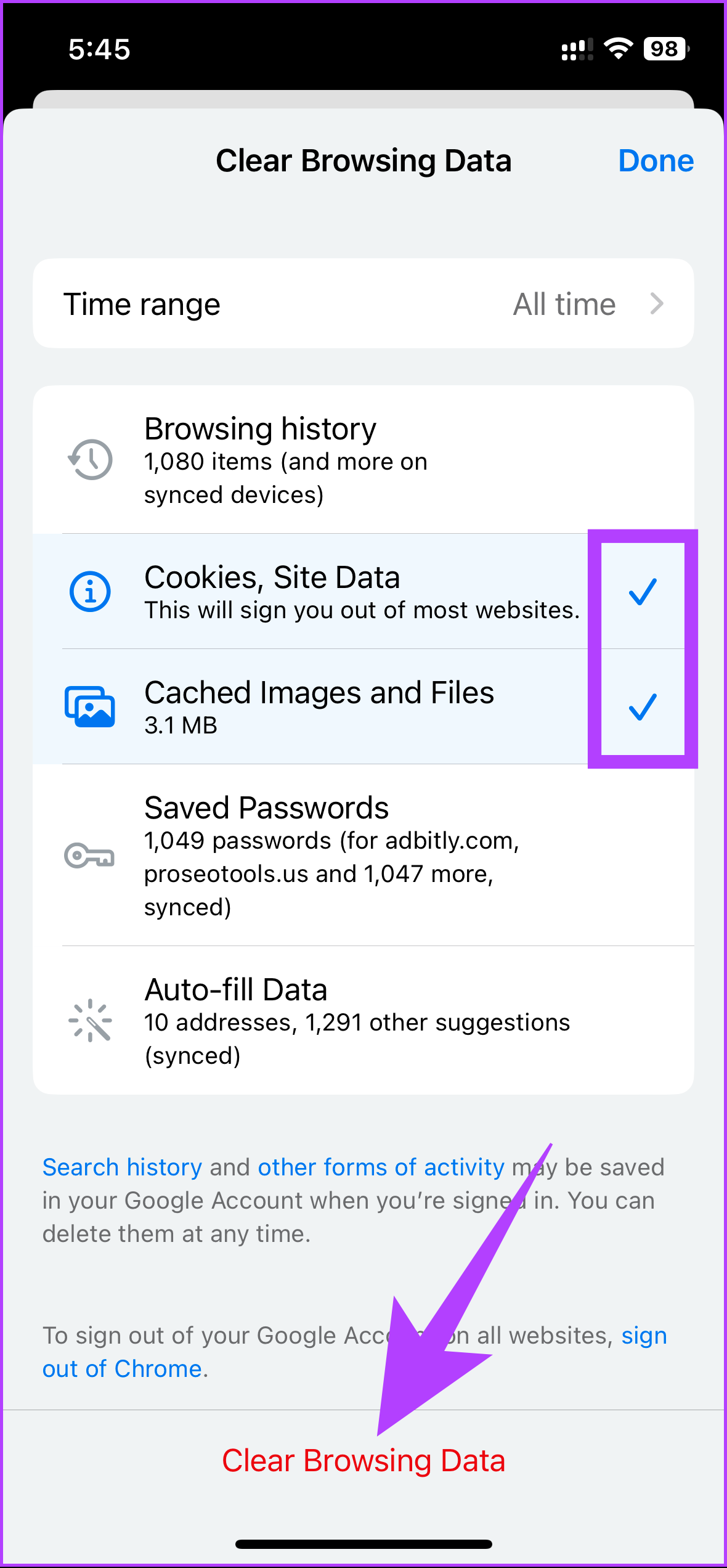
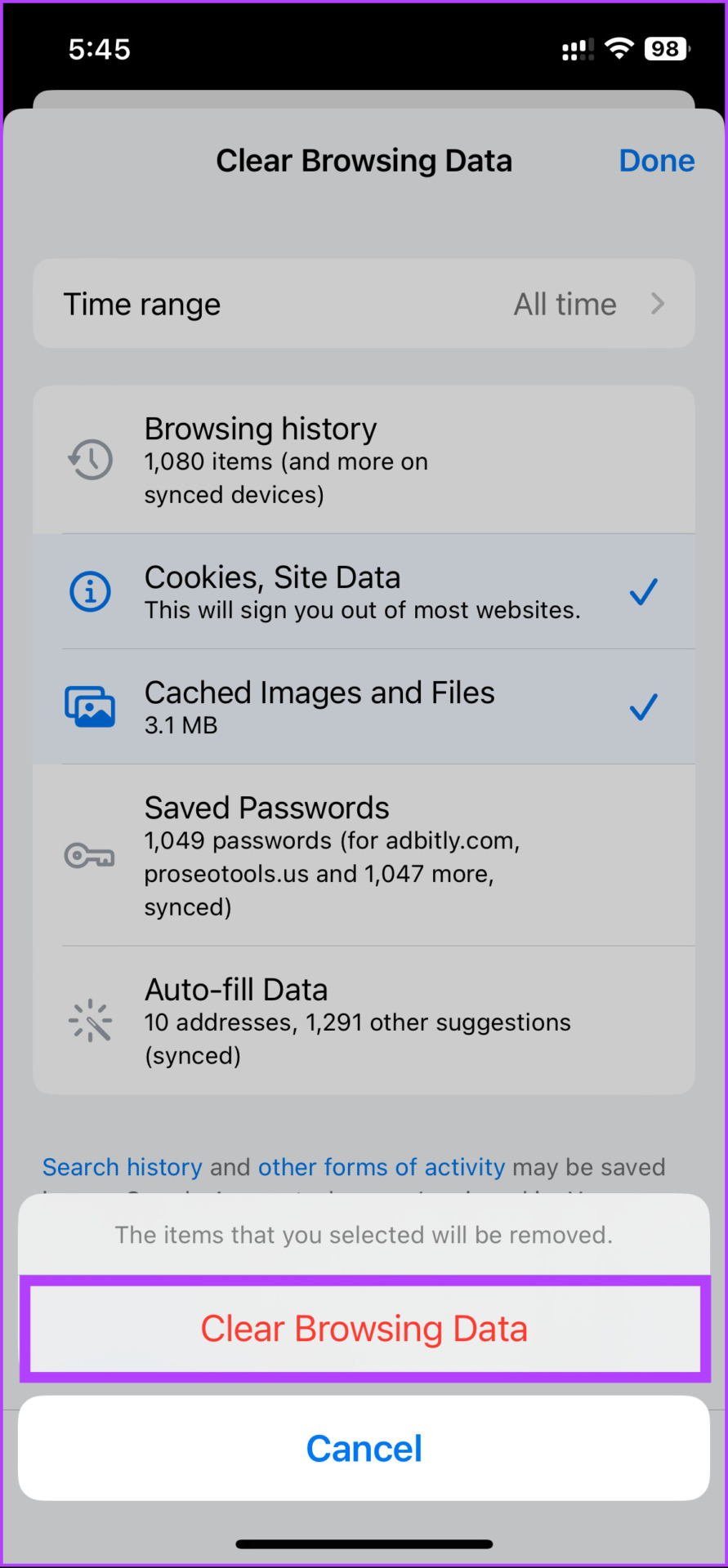
That’s it. You have successfully deleted cookies and cache from your iOS device.
FAQs on Clearing Specific Chrome Cookies and Cache
Clearing cache and cookies in Chrome can help speed up the browsing experience to some extent, especially if your browser has accumulated a lot of temporary files and data over time. When you clear the cache, you remove stored copies of images, videos, and other web content, which frees up space on your device and reduces the load on your browser.
There is no specific timeframe for clearing cookies in Chrome, as it depends on individual preferences and usage patterns. However, clearing cookies periodically can help protect your privacy and keep your browser running smoothly.
Yes, it is possible to automate removing the cache in Chrome using different options, tools, and extensions. One of the safest ways to do it is to set clear cookies on exit. Here’s how: Launch Google Chrome > click on the three-dot icon at the top right corner > select Settings > under Settings, go to ‘Privacy and security’ and choose ‘Cookies and other site data’ > toggle on ‘Clear cookies and site data when you close all windows.’
Some extensions, such as Clear Cache, Classic Cache Killer, and so on, are available to automate the process. However, it is vital to be cautious when giving third parties access to your cookies.
Now that you know how to clear cookies and cache in Chrome for one site, you can quickly troubleshoot website issues, improve performance, and maintain privacy.
Was this helpful?
Last updated on 31 August, 2024
Read Next
 How to Clear Cache and Cookies on Microsoft Edge
Clear Microsoft Edge Cache and Cookies in Windows and Mac Here are all the ways to clear your Microsoft Edge cache and cookies on Windows and Mac.
How to Clear Cache and Cookies on Microsoft Edge
Clear Microsoft Edge Cache and Cookies in Windows and Mac Here are all the ways to clear your Microsoft Edge cache and cookies on Windows and Mac.
 6 Ways to Fix Chrome “This Site Can’t Be Reached” Error
Try Basic Fixes Reinstall Chrome: When a browser is uninstalled, extensions or settings are removed.
6 Ways to Fix Chrome “This Site Can’t Be Reached” Error
Try Basic Fixes Reinstall Chrome: When a browser is uninstalled, extensions or settings are removed.
 2 Fixes if Chrome’s Request Desktop Site Is Not Working on iPhone
Basic Fixes Reload website: Try refreshing the webpage and use the Request Desktop Site option again.
2 Fixes if Chrome’s Request Desktop Site Is Not Working on iPhone
Basic Fixes Reload website: Try refreshing the webpage and use the Request Desktop Site option again.
 5 Fixes for the Connection for This Site Is Not Secure on Edge on Windows
Basic Fixes Use the InPrivate window: Click on the three-dots icon at the top right, and open an InPrivate window.
5 Fixes for the Connection for This Site Is Not Secure on Edge on Windows
Basic Fixes Use the InPrivate window: Click on the three-dots icon at the top right, and open an InPrivate window.
 How to Clear the Cache in Google Drive and Docs
How to Clear Google Drive Cache If you run into certain Drive problems, you may want to delete the Google Drive cache.
How to Clear the Cache in Google Drive and Docs
How to Clear Google Drive Cache If you run into certain Drive problems, you may want to delete the Google Drive cache.
 How to Clear Facebook Cache on Android and iPhone
What Does Clearing Facebook Cache Do?
How to Clear Facebook Cache on Android and iPhone
What Does Clearing Facebook Cache Do?
 How to Clear Discord Cache on Windows, Mac, iPhone, and Android
Note: We are running a OnePlus 7T (Android 12) and an iPhone 12 (iOS 16.1) for the steps in this article.
How to Clear Discord Cache on Windows, Mac, iPhone, and Android
Note: We are running a OnePlus 7T (Android 12) and an iPhone 12 (iOS 16.1) for the steps in this article.
 How to Clear Cache for Messenger on Any Device
Once you install and use an app like Messenger, it collects and stores some data on your device's local storage.
How to Clear Cache for Messenger on Any Device
Once you install and use an app like Messenger, it collects and stores some data on your device's local storage.
The article above may contain affiliate links which help support Guiding Tech. The content remains unbiased and authentic and will never affect our editorial integrity.