

Windows 11 doesn’t have the best track record when it comes to keeping RAM and CPU usage low while running background tasks and services like Zoom or other video conferencing programs. Sometimes, though, a process may require even higher than normal RAM or CPU power. Many Windows users rely on Zoom, for example, for meetings, which leads to high frame rates and resource use.
Today, we’re looking at a process that can place a high demand on your computer: Windows camera frame server high RAM and CPU usage. If this is a problem for you, read on for our fixes to the problem.
What Is the Camera Frame Server?
First, a little background. The camera frame server is a service that manages any and all camera hardware and assists with streaming to the software apps that require them. This means that, be it a built-in laptop webcam or a standalone camera on the top of your monitor, this service will assist with capturing video for apps like Teams and Skype.
Video streaming is quite demanding, resource-wise, but problems like outdated drivers, conflicts with apps, and certain apps themselves can cause usage to spike.
Fixing Windows Camera Frame Server High RAM and CPU Usage
Now you know more, it’s time to get working on a fix. Try the following troubleshooting steps:
Check Your Drivers
A good first step is to ensure your camera drivers are up to date. Sometimes, if they are, they might need to be rolled back or reinstalled to a more compatible version. Here’s what to do:
Step 1. Open the Run dialog (Win + R) and type “devmgmt.msc” into the box before hitting “Enter.”
Step 2. Scroll down to the “Camera” subsection, click to expand it, and double-click your webcam.
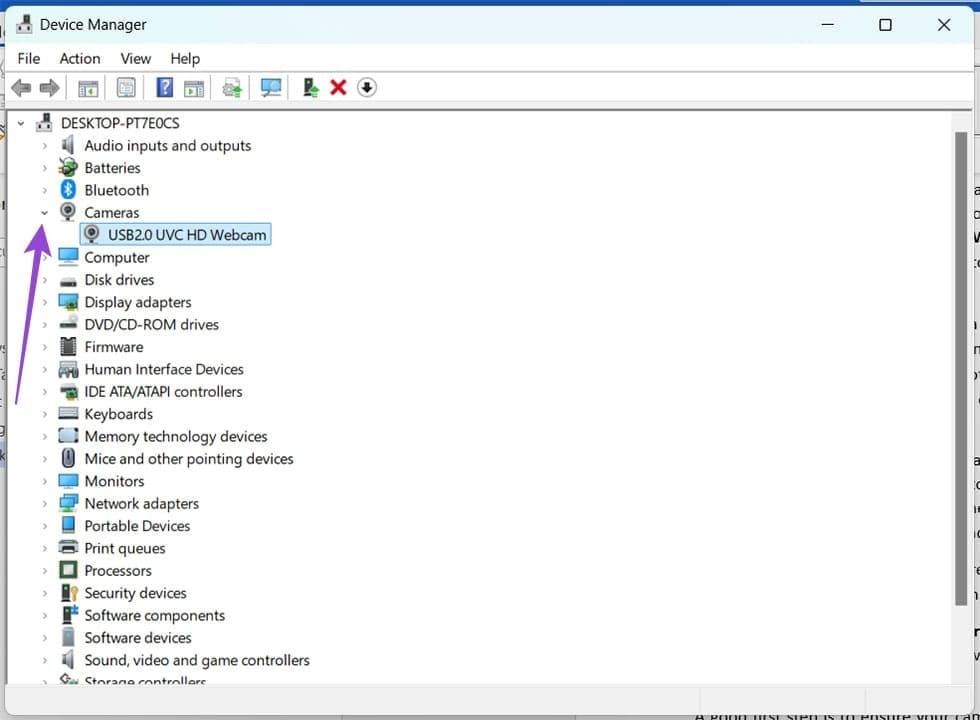
Step 3. To update the driver (if needed), click the “Update driver” option.

Step 4. Click “Search automatically for drivers” and follow the steps to install any new ones detected.
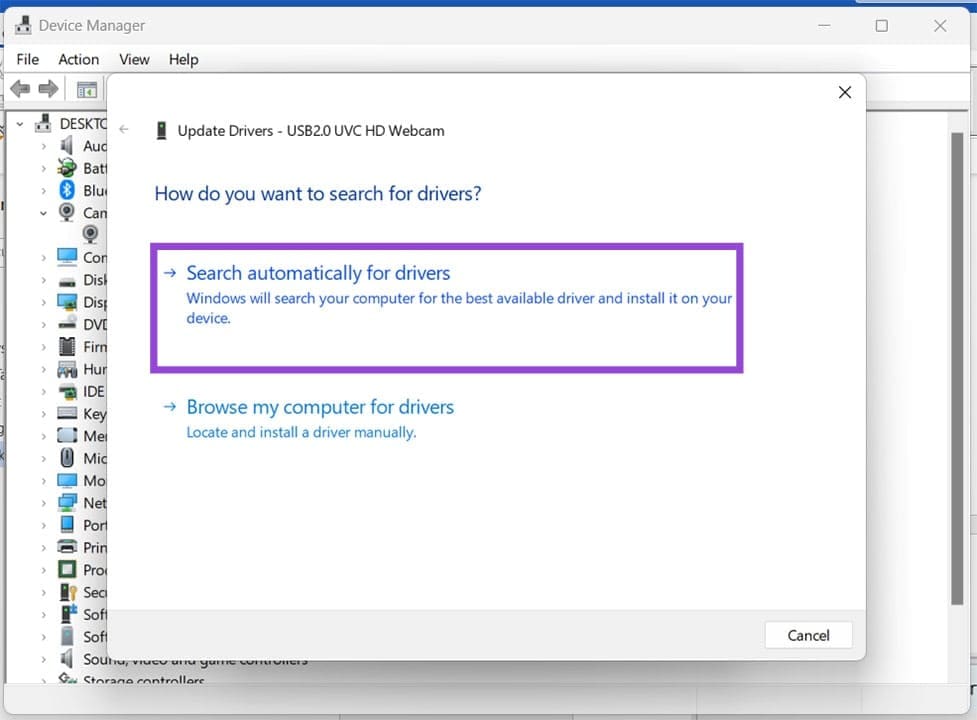
Step 5. To roll back drivers, simply click the “Roll Back Driver” button and follow the steps.
Step 6. To uninstall and reinstall the drivers, click “Uninstall Device” and follow the steps. Once complete, restart your machine, and the driver will reinstall.
Control App Access
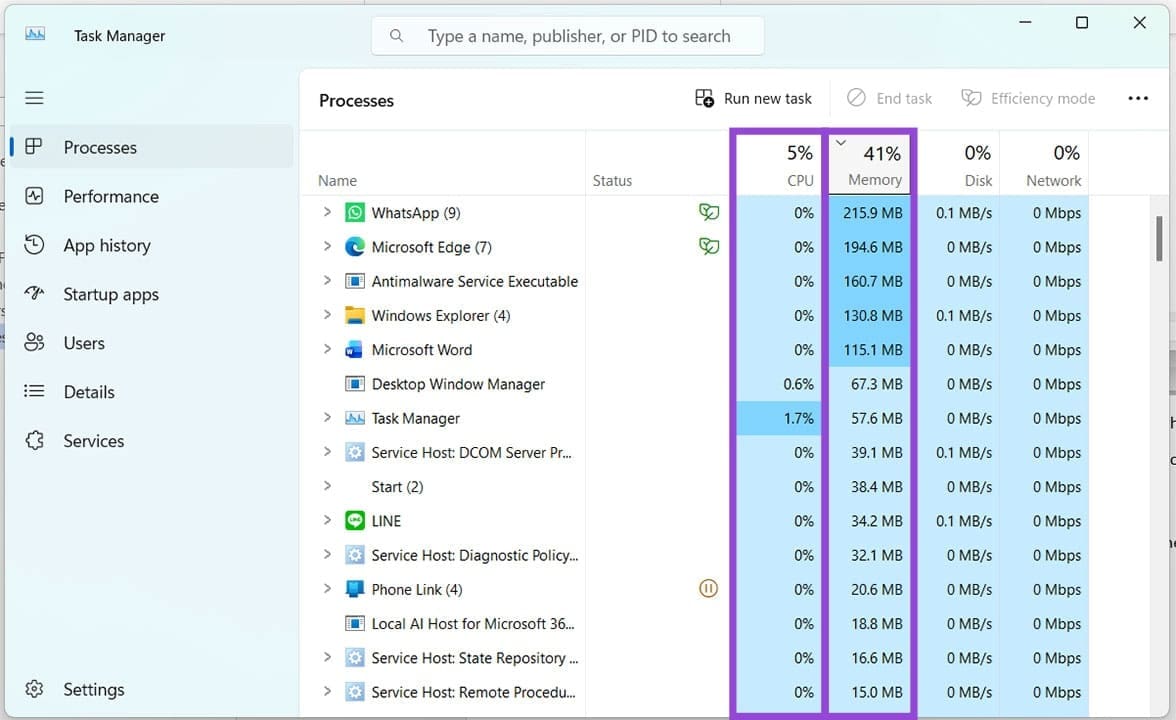
The problem could be caused by a certain app that is causing the spikes in RAM and CPU usage. To check which one, open the apps and open the Task Manager tool (Ctrl + Shift + Esc). Click “Memory” or “CPU” near the top to sort by usage. Shut down the apps one by one, and see if Windows Camera Frame Server drops in usage.
If a certain app is causing the problem, you can always disable camera access to it. Here’s how:
Step 1. Open Settings (Win + I) and click “Privacy & security” in the sidebar.
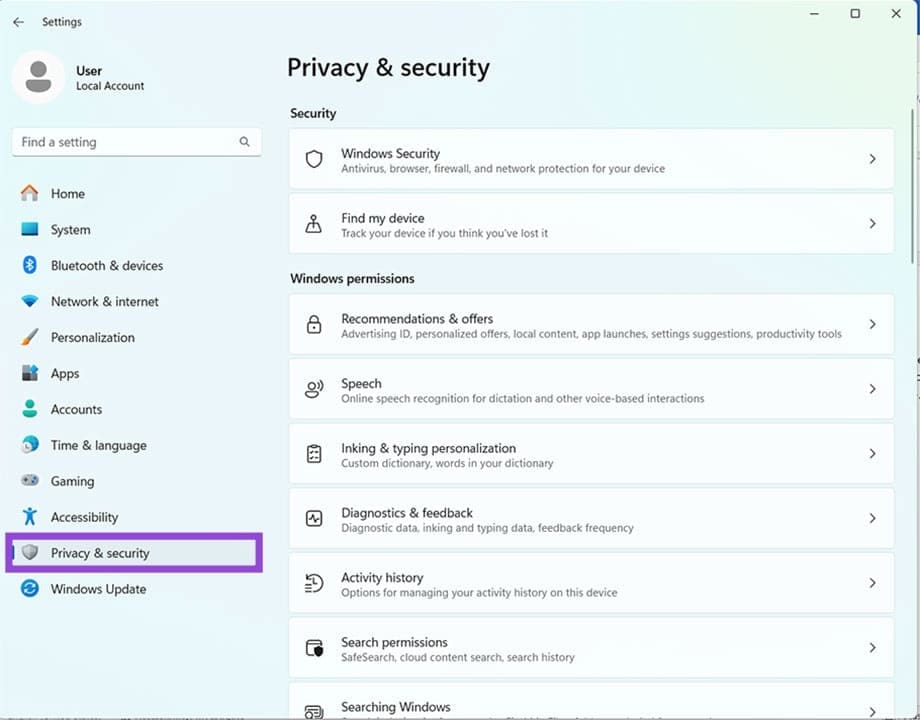
Step 2. Navigate down to “Camera” and click it.
Step 3. In the next menu, drag the slider to “Off” for any apps you don’t want accessing your camera.

Clean Boot
If you suspect a third-party app might be the culprit, you can try running Windows with essential services only to see if the issue persists. Here’s what to do:
Step 1. Open the Run dialog (Win + R) and type “msconfig” before hitting “Enter.”
Step 2. In the window that pops up, check “Selective startup” and ensure only “Load system services” is checked.
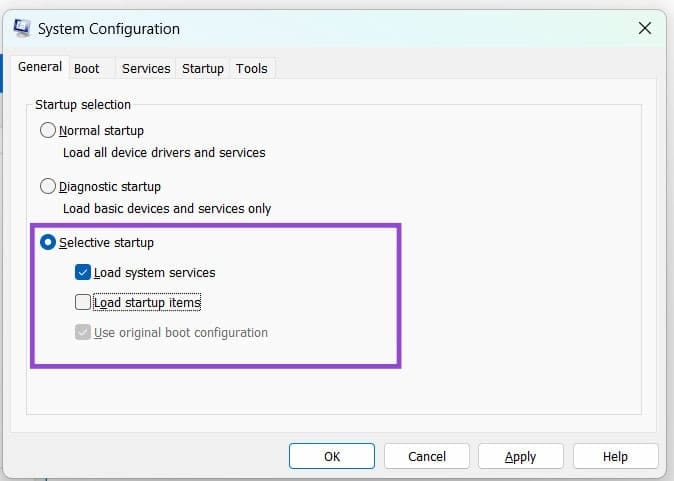
Step 3. Click “OK” and restart your machine. Check if the issue persists. If it does, begin uninstalling third-party apps to identify the culprit.
Was this helpful?
Last updated on 15 March, 2026
Read Next
 5 Ways to Fix Windows Explorer High CPU Usage on Windows 11
Try Basic Fixes Restart the Windows Explorer process: There's a chance that Windows Explorer's high CPU usage is a one-time glitch.
5 Ways to Fix Windows Explorer High CPU Usage on Windows 11
Try Basic Fixes Restart the Windows Explorer process: There's a chance that Windows Explorer's high CPU usage is a one-time glitch.
 5 Ways to Fix High CPU Usage on Windows 11
Try Basic Fixes Wait for Windows to finish updates: If Windows is in the process of checking, downloading, or installing any updates in the background, CPU usage may increase during
5 Ways to Fix High CPU Usage on Windows 11
Try Basic Fixes Wait for Windows to finish updates: If Windows is in the process of checking, downloading, or installing any updates in the background, CPU usage may increase during
 Windows Audio Device Graph Isolation: Fix High CPU Usage
What is Windows Audio Device Graph Isolation Windows Audio Device Graph Isolation, also known as audiodg.exe, is a process that handles digital signal processing, including advanced sound enhancement effects, on
Windows Audio Device Graph Isolation: Fix High CPU Usage
What is Windows Audio Device Graph Isolation Windows Audio Device Graph Isolation, also known as audiodg.exe, is a process that handles digital signal processing, including advanced sound enhancement effects, on
 6 Fixes for Discord’s High CPU Usage on Windows
Fix 1: Turn Off Hardware Acceleration The Hardware Acceleration in Discord allows the app to use your GPU instead of your CPU for graphics-intensive tasks.
6 Fixes for Discord’s High CPU Usage on Windows
Fix 1: Turn Off Hardware Acceleration The Hardware Acceleration in Discord allows the app to use your GPU instead of your CPU for graphics-intensive tasks.
 6 Ways to Fix Windows Modules Installer Worker High CPU Usage
If you've ever found your computer's fan working overtime and the CPU usage going sky-high, you're not alone.
6 Ways to Fix Windows Modules Installer Worker High CPU Usage
If you've ever found your computer's fan working overtime and the CPU usage going sky-high, you're not alone.
 How to Reduce CPU and RAM Usage in Microsoft Teams on Windows 11
Common Fixes Update or reinstall the Microsoft Teams app: Open the Microsoft Store, search Microsoft Teams, and click Update (if available).
How to Reduce CPU and RAM Usage in Microsoft Teams on Windows 11
Common Fixes Update or reinstall the Microsoft Teams app: Open the Microsoft Store, search Microsoft Teams, and click Update (if available).
 4 Ways to Fix Microsoft Edge High Memory and CPU Usage
Basic Fixes Restart the Microsoft Edge browser - You should restart the browser as it may fix minor bugs and glitches that trigger the problem.
4 Ways to Fix Microsoft Edge High Memory and CPU Usage
Basic Fixes Restart the Microsoft Edge browser - You should restart the browser as it may fix minor bugs and glitches that trigger the problem.
 How to Go Frame by Frame on YouTube on Desktop and Mobile
Ever found yourself engrossed in a YouTube video, wanting to catch every detail, every frame?
How to Go Frame by Frame on YouTube on Desktop and Mobile
Ever found yourself engrossed in a YouTube video, wanting to catch every detail, every frame?
The article above may contain affiliate links which help support Guiding Tech. The content remains unbiased and authentic and will never affect our editorial integrity.

