

You might not be sure why it’s happening, but it’s happening: your Windows 11 screen keeps flickering and you want some answers, or better yet, some solutions. In this article, we’re going to be offering you just that and a few ways to troubleshoot a screen on the blink.
Windows 11 Screen Keeps Flickering – A Display Issue
If a screen is flickering, the issue always has something to do with the display, no matter what the operating system. It could be a problem with the monitor refresh rates, faulty cables, or other hardware issues. It could also be a matter of conflicting drivers, incorrect settings, or various software issues, too. It’s a broad problem, but we’ve got solutions handy.
Hardware Solutions
Here are some hardware fixes to try if your screen flickers in Windows.
Check Your Cables and Monitor
A screen, be it a laptop or PC, is connected to the motherboard via cables. If these aren’t connected properly or damaged, they can cause flickering. Your first step should be to check your cable connections. If your laptop screen flickers, checking your display connections will likely have to involve visiting a repair specialist.
Overheating
If your PC is overheating, especially during demanding tasks, and often as a result of blocked ventilation or a clogged fan, then all components begin to overheat and behave erratically. This includes the monitor. Switch off your machine and check your dust levels.
Aging Graphics Card
If you’ve had your PC for several years and Windows 11 has been installed only recently, you might find that the graphics card can’t keep up with the higher demands of the operating system, compared to its predecessor. In this case, you should consider getting a new one.
Dual Cards
Some gaming laptops come with a graphics card in addition to integrated graphics. The latter normally handles smaller tasks while the former kicks in for heavier ones. This switch can cause flickering, especially when a single app causes frequent performance spikes and dips. To solve this problem:
Step 1. Type “Graphics Settings” into the search bar.
Step 2. In the Settings, select the problematic app from the list. If it’s not there, click the “Browse” button and navigate to the app folder, and add the “.exe” file.
Step 3. Click “Options” under the app, then select your preferred graphics card for the app.
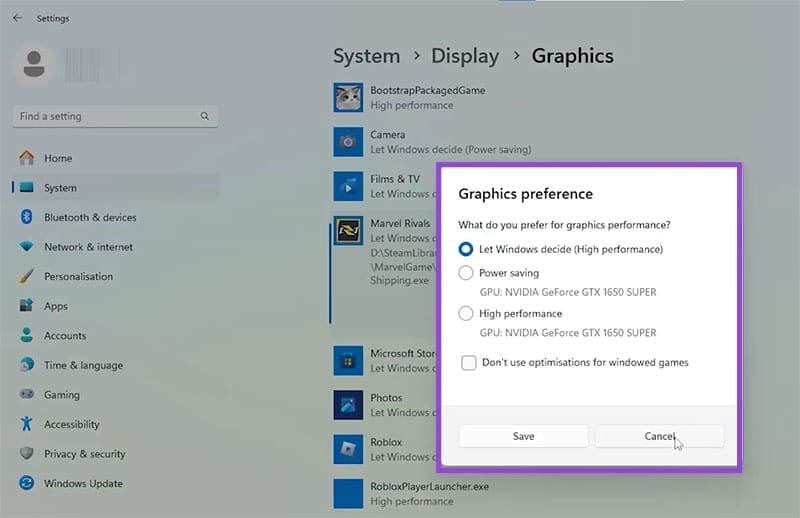
Step 4. Click “Save” once done.
Software Troubleshooting
Sometimes apps and operating systems might be to blame. Try the solutions below:
Refresh Rate
Your refresh rate should match that of your screen to prevent flickering. A lower refresh rate can also ensure more stability. Here’s how to fix the issue:
Step 1. Open Settings (Win + I) and navigate to “System” in the sidebar.
Step 2. Click “Display,” then navigate down to “Advanced Display.”
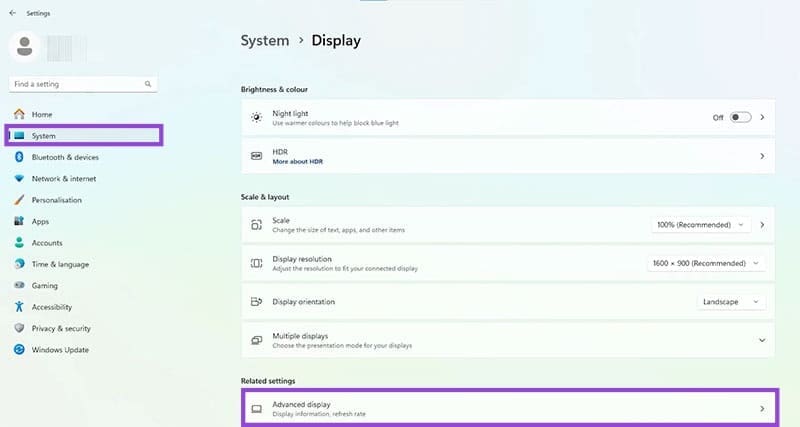
Step 3. Choose your display and check the refresh rate to see if it matches the other. A setting of 60Hz is always a good baseline.

Update Drivers
Outdated or incompatible drivers are a major cause of flickering. It’s a good idea to use your graphics card’s client software to check for updates, especially after any system update. You can also check for updates via Device Manager:
Step 1. Open “Run” (Win + R) and enter “devmgmt.exe” before pressing “OK.”
Step 2. Navigate to “Display Adapters,” and right-click your graphics card.
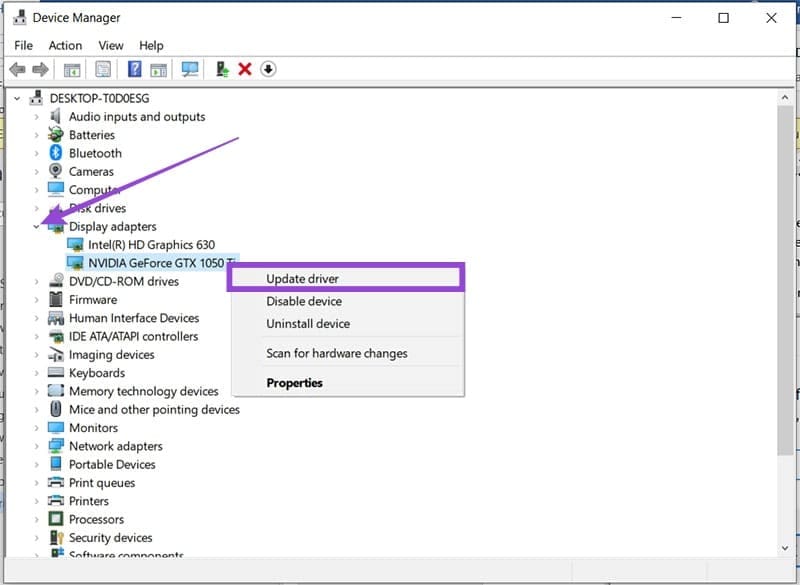
Step 3. Select “Update driver” and choose “Search automatically for new drivers.”
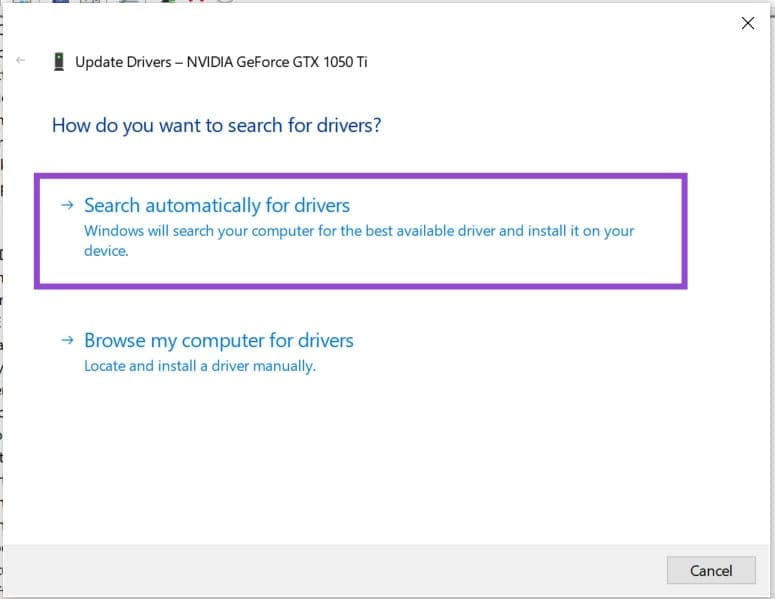
Step 4. If Windows finds any new drivers, you’ll be able to install them.
Was this helpful?
Last updated on 09 December, 2025
Read Next
 3 Ways to Fix Flickering Screen on iPhone
Basic Fixes: Increase brightness on iPhone: Increasing brightness may help fix the flickering screen issue on iPhone.
3 Ways to Fix Flickering Screen on iPhone
Basic Fixes: Increase brightness on iPhone: Increasing brightness may help fix the flickering screen issue on iPhone.
 4 Ways to Fix iPad Screen Glitching or Flickering
Why Is My iPad Screen Jumping Around Before we start troubleshooting, let's examine a few reasons you might encounter this issue on your iPad.
4 Ways to Fix iPad Screen Glitching or Flickering
Why Is My iPad Screen Jumping Around Before we start troubleshooting, let's examine a few reasons you might encounter this issue on your iPad.
 Add Safe Mode to Windows 11 Boot Menu for Easier Troubleshooting
When something goes wrong in Windows, Safe Mode is an excellent way to troubleshoot by isolation.
Add Safe Mode to Windows 11 Boot Menu for Easier Troubleshooting
When something goes wrong in Windows, Safe Mode is an excellent way to troubleshoot by isolation.
 A Complete Guide to Using Split Screen in Windows 10
Windows makes multitasking feel like a cakewalk.
A Complete Guide to Using Split Screen in Windows 10
Windows makes multitasking feel like a cakewalk.
 A Complete Guide to Using Print Screen in Windows 10
Have you been told to take a screenshot using the Print Screen key on your Windows 10 computer?
A Complete Guide to Using Print Screen in Windows 10
Have you been told to take a screenshot using the Print Screen key on your Windows 10 computer?
 3 Ways to Fix Windows 11 Screen Keeps Locking Automatically
Fix 1: Increase Lock Screen Timeout You can start by verifying the set lock screen timeout duration on your PC.
3 Ways to Fix Windows 11 Screen Keeps Locking Automatically
Fix 1: Increase Lock Screen Timeout You can start by verifying the set lock screen timeout duration on your PC.
 A Detailed Guide to Fixing Mac Booting With Black Screen Issues
Clicking the power button on your MacBook should light up the screen and keyboard, play a startup chime, display the Apple logo, and finally, boot into the authentication screen where
A Detailed Guide to Fixing Mac Booting With Black Screen Issues
Clicking the power button on your MacBook should light up the screen and keyboard, play a startup chime, display the Apple logo, and finally, boot into the authentication screen where
 What Is iPhone Screen Mirroring: A Complete Guide
iPhone Screen Mirroring: Basic Overview As the name suggests, Screen Mirroring allows you to mirror the content of your iPhone's screen on other devices.
What Is iPhone Screen Mirroring: A Complete Guide
iPhone Screen Mirroring: Basic Overview As the name suggests, Screen Mirroring allows you to mirror the content of your iPhone's screen on other devices.
The article above may contain affiliate links which help support Guiding Tech. The content remains unbiased and authentic and will never affect our editorial integrity.

