Why Is TikTok Lagging on Your Phone
Apps like TikTok can lag or freeze on your phone for various reasons, such as temporary glitches, internet connectivity issues, device-specific factors, etc. This can also occur if you have enabled TikTok’s data saver mode or are using an outdated version of the app. Additionally, TikTok may run slowly on your Android or iPhone if the existing cache data is affecting the app’s performance.
In any case, there’s no need to settle for a subpar experience, as the solutions listed below can help you fix the issue.
Fix 1: Enable Faster Scroll Speed From Accessibility Menu in TikTok
The TikTok app offers several handy options for enhancing your video playback experience. One of these options includes the ability to increase the scrolling speed, which can make the TikTok app feel more responsive. Hence, it’s best to enable it.
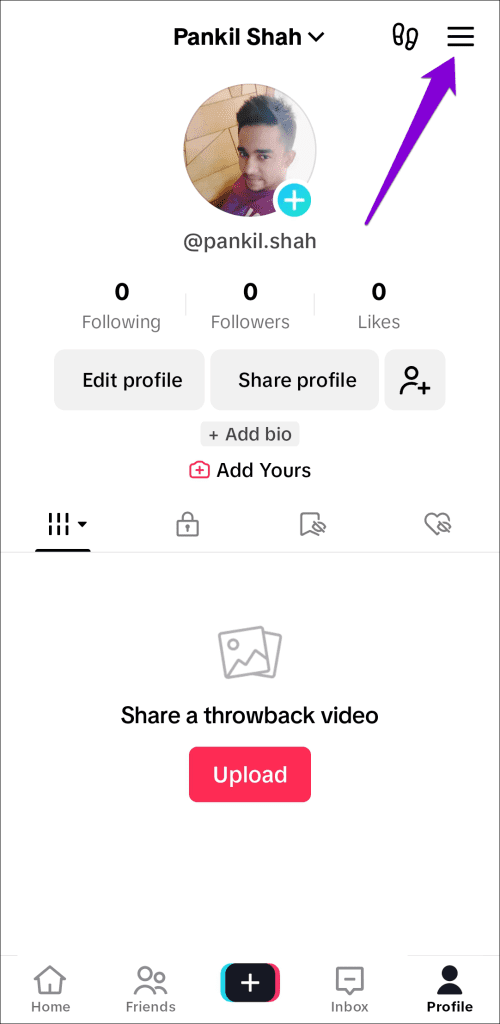
Step 1: Open the TikTok app and tap the Profile tab in the bottom-right corner.
Step 2: Tap the menu icon (three horizontal lines) in the top-right corner and select Settings and privacy.

Step 3: Scroll down to select Accessibility (Android) or Display (iPhone), and then turn on the Faster scroll speed toggle in the subsequent menu.


Try using the TikTok app after this and see if it runs smoothly.
Fix 2: Turn Off Data Saver in TikTok
TikTok’s built-in data saver mode can be handy when you’re away from Wi-Fi and using your limited mobile data plan. However, as this feature causes TikTok to load videos slowly, you might experience lag or a delay in sound. To avoid this, it’s best to turn off the data saver mode in TikTok when you don’t need it.
Step 1: Open the TikTok app and switch to the Profile tab.
Step 2: Tap the menu icon in the top-right corner and select Settings and privacy.
Step 3: Scroll down to the Cache & Cellular section and select Data Saver. Turn off the toggle next to Data Saver.


Fix 3: Clear App Cache
Like most apps, TikTok creates and saves temporary files, known as cache data, to enhance your experience. However, when this data becomes old or corrupted, it hurts more than it helps.
For such instances, TikTok allows you to clear the cache directly from its settings menu. Here’s how to use it to fix TikTok lag on your Android or iPhone.
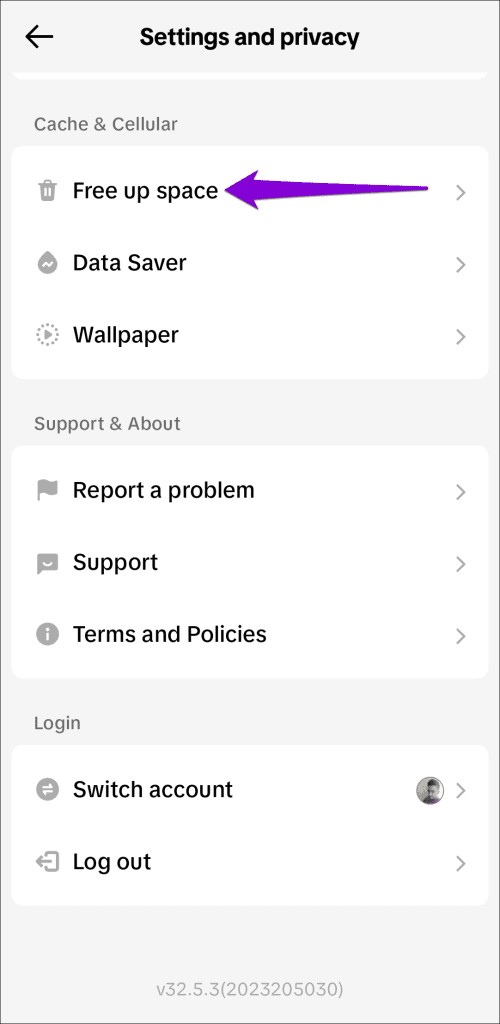
Step 1: Open the Settings and privacy menu in TikTok.
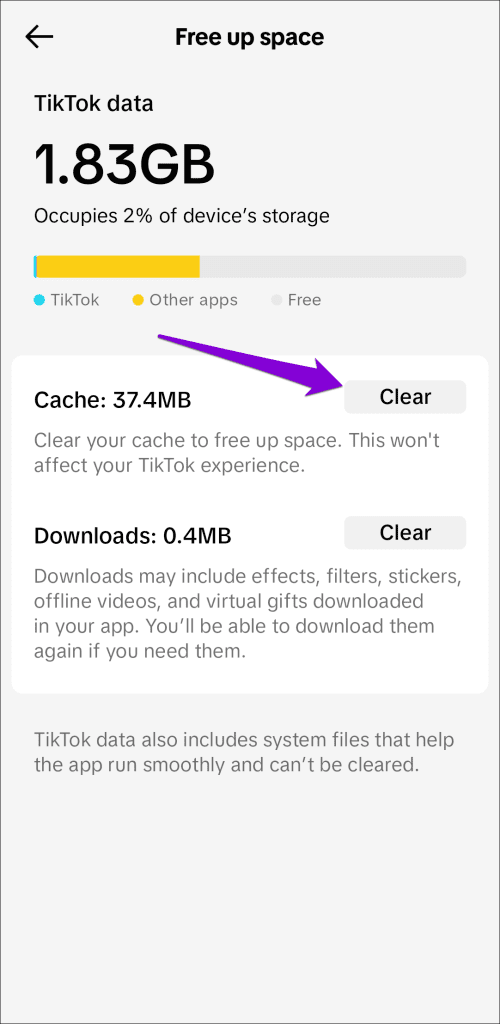
Step 2: Scroll down to select Free up space and tap the Clear button next to Cache from the prompt that follows.
Was this helpful?
Last updated on 28 August, 2024
Read Next
 5 Ways to Fix YouTube Videos Lagging on Android
Basic Fixes Force stop app: Tap and hold on the YouTube app icon, select App Info, tap on Force Stop, and re-open the app.
5 Ways to Fix YouTube Videos Lagging on Android
Basic Fixes Force stop app: Tap and hold on the YouTube app icon, select App Info, tap on Force Stop, and re-open the app.
 TikTok vs TikTok Lite: What’s Best for You?
TikTok (previously known as Musical.ly) is one of the massively growing social media apps out there, and it's easy to see why.
TikTok vs TikTok Lite: What’s Best for You?
TikTok (previously known as Musical.ly) is one of the massively growing social media apps out there, and it's easy to see why.
 Why Is My TikTok Account Suspended
TikTok has taken the social media market by storm.
Why Is My TikTok Account Suspended
TikTok has taken the social media market by storm.
 6 Ways to Fix YouTube Lagging on Chrome, Firefox, and Other Browsers
https://youtu.be/YyRuUvT3-ho Basic Fixes Use a reliable Wi-Fi network: It goes without saying that you need a fast and reliable network connection to play YouTube videos.
6 Ways to Fix YouTube Lagging on Chrome, Firefox, and Other Browsers
https://youtu.be/YyRuUvT3-ho Basic Fixes Use a reliable Wi-Fi network: It goes without saying that you need a fast and reliable network connection to play YouTube videos.
 Top 8 Ways to Fix Mouse Cursor Lagging on Mac
A Mac is generally known for its friendly UI and smooth performance.
Top 8 Ways to Fix Mouse Cursor Lagging on Mac
A Mac is generally known for its friendly UI and smooth performance.
 7 Ways to Fix High Ping and Lagging Issues in Valorant
Why Is My Ping So High in Valorant High ping in Valorant can be frustrating, but there are a few reasons behind it.
7 Ways to Fix High Ping and Lagging Issues in Valorant
Why Is My Ping So High in Valorant High ping in Valorant can be frustrating, but there are a few reasons behind it.
 4 Ways to Fix TikTok Notifications Not Working on iPhone and Android
Preliminary Fixes Disable Do Not Disturb: If your phone is on DND, you don’t receive notifications from TikTok and other apps.
4 Ways to Fix TikTok Notifications Not Working on iPhone and Android
Preliminary Fixes Disable Do Not Disturb: If your phone is on DND, you don’t receive notifications from TikTok and other apps.
 How to Clear Cache on TikTok on Android, iOS, or Web
TikTok has quickly become one of the most popular social media platforms with millions of users worldwide.
How to Clear Cache on TikTok on Android, iOS, or Web
TikTok has quickly become one of the most popular social media platforms with millions of users worldwide.
The article above may contain affiliate links which help support Guiding Tech. The content remains unbiased and authentic and will never affect our editorial integrity.