With Windows 11, you can store files on your computer or via Microsoft’s cloud-based storage service, OneDrive. But with Windows 11 automatically deleting files from time to time, how can you trust that your data is safe while using Microsoft services?
Well, it turns out that in most cases, Windows 11 is actually following instructions to delete files, and not going rogue. Services like Storage Sense are set up to automatically delete files, while Windows Defender may track a file as being potentially harmful.
Thankfully, it’s pretty easy to configure your settings to protect your files and even roll back to a previous update if necessary.
Why Is Windows 11 Automatically Deleting Files: Storage Sense
Storage Sense is a service designed to automatically delete temporary files and downloads to keep your storage to a minimum. If you catch Windows 11 automatically deleting files, it’s more than likely the Storage Sense settings that need changing.
Step 1. Search for Storage Sense or follow this path: Settings > System > Storage > Storage Sense.

Step 2. If you’re confident that you can manage storage on your computer yourself, you can simply turn the service off. You may also want to do this while you familiarize yourself with the settings.

Step 3. Check all your Storage Sense settings. Firstly, check how often the cleanup is occurring. You can set it to only run when disk space is low. If the cleanup is running daily, that might explain why you’re losing files, particularly if you have a habit of leaving items in your Downloads folder.

Step 4. Decide how often you want your Recycle Bin emptied and how often or if you want your Downloads folder cleared. If you set the “Delete files in my Downloads folder…” option to “Never,” you should find that files stop being deleted automatically.

Windows Security Settings
Default security apps like Microsoft Defender offer effective firewall and virus protection tools, but can inadvertently identify files as harmful when they’re not. You can set exclusions to get around this.
Step 1. Search for Windows Security and open the relevant app.

Step 2. Go to Virus & threat protection by clicking the option on the left-hand menu, then click Manage settings.

Step 3. Scroll until you see Exclusions, then click on Add or remove exclusions.
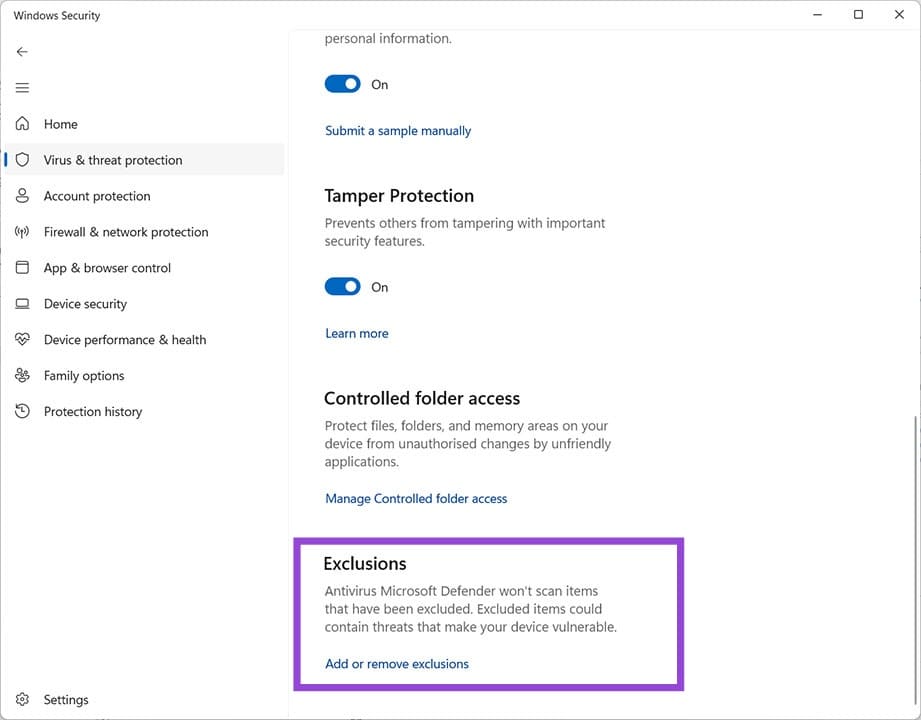
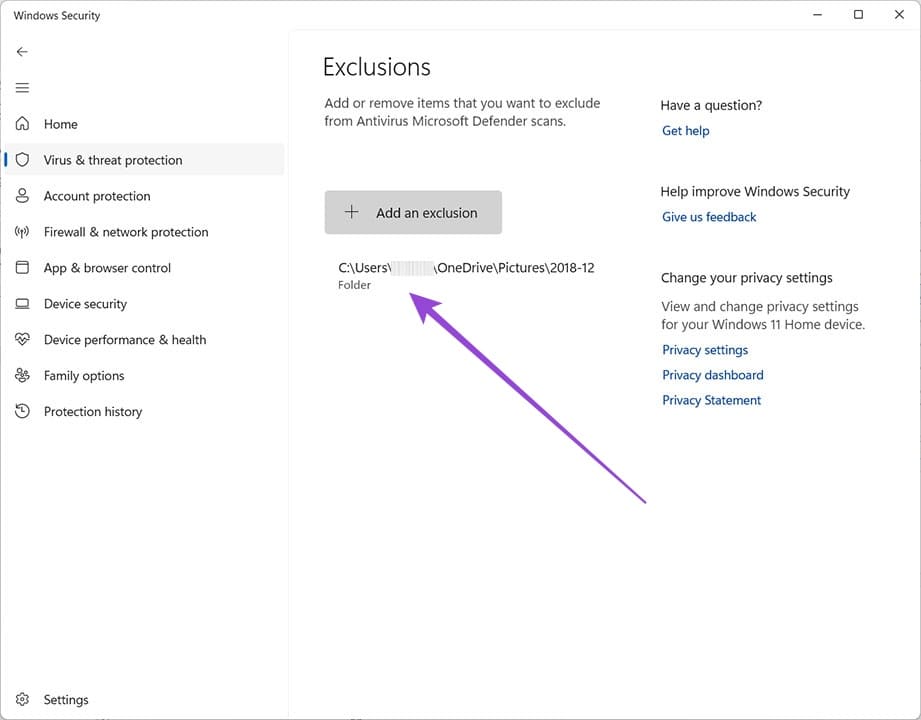
Step 4. Click on Add an exclusion and choose a file, file type, process, or folder. This essentially tells Windows Security to ignore these files/folders while doing security checks.

Step 5. Select the file or folder you want to protect. Choosing a folder might be a smart move as you can move anything critical into this folder.

Step 6. You’ll now see the relevant folder path in your Windows Security exclusions list. At any time, you can add or remove exclusions here.
Faulty Windows 11 Update
If Windows continues to delete files, try rolling back to an earlier update and reinstalling the most recent one.
Step 1. Go to Settings > Windows Update. Alternatively, search for Windows Update from the task bar.

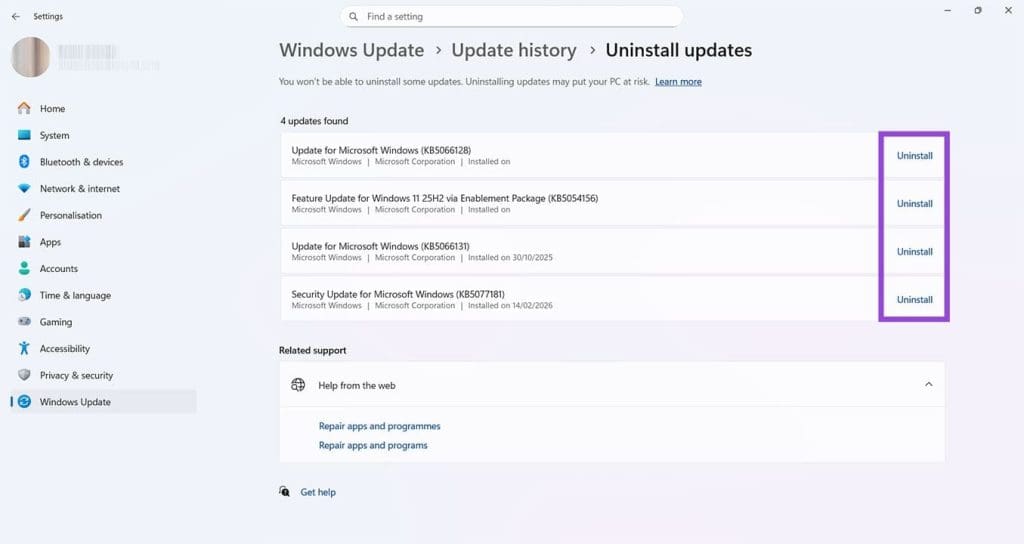
Step 2. Click on Update history, then Uninstall updates.

Step 3. Click on the most recent update. If you can’t see a date, it will be the one at the top labeled “Update for Windows.” Click Uninstall, and follow the onscreen prompts.
Restart your computer, and you should find that the problem with Windows 11 automatically deleting files has been fixed. You can follow the same settings route to reinstall the latest updates as needed.
Was this helpful?
Last updated on 27 February, 2026
Read Next
 3 Ways to Stop OneDrive From Deleting Files Automatically on Windows 11
Basic Fixes: Check for Windows updates: An out-of-date Windows version can also cause issues, such as OneDrive moving files to the recycle bin by itself. So, install the latest software updates
3 Ways to Stop OneDrive From Deleting Files Automatically on Windows 11
Basic Fixes: Check for Windows updates: An out-of-date Windows version can also cause issues, such as OneDrive moving files to the recycle bin by itself. So, install the latest software updates
 Top 3 Ways to Fix Windows Temporary Files Not Deleting
Fix 1: Use Disk Cleanup Disk Cleanup is a disk maintenance utility built into the Windows operating system to help users clear unwanted system files from their PC's hard drive.
Top 3 Ways to Fix Windows Temporary Files Not Deleting
Fix 1: Use Disk Cleanup Disk Cleanup is a disk maintenance utility built into the Windows operating system to help users clear unwanted system files from their PC's hard drive.
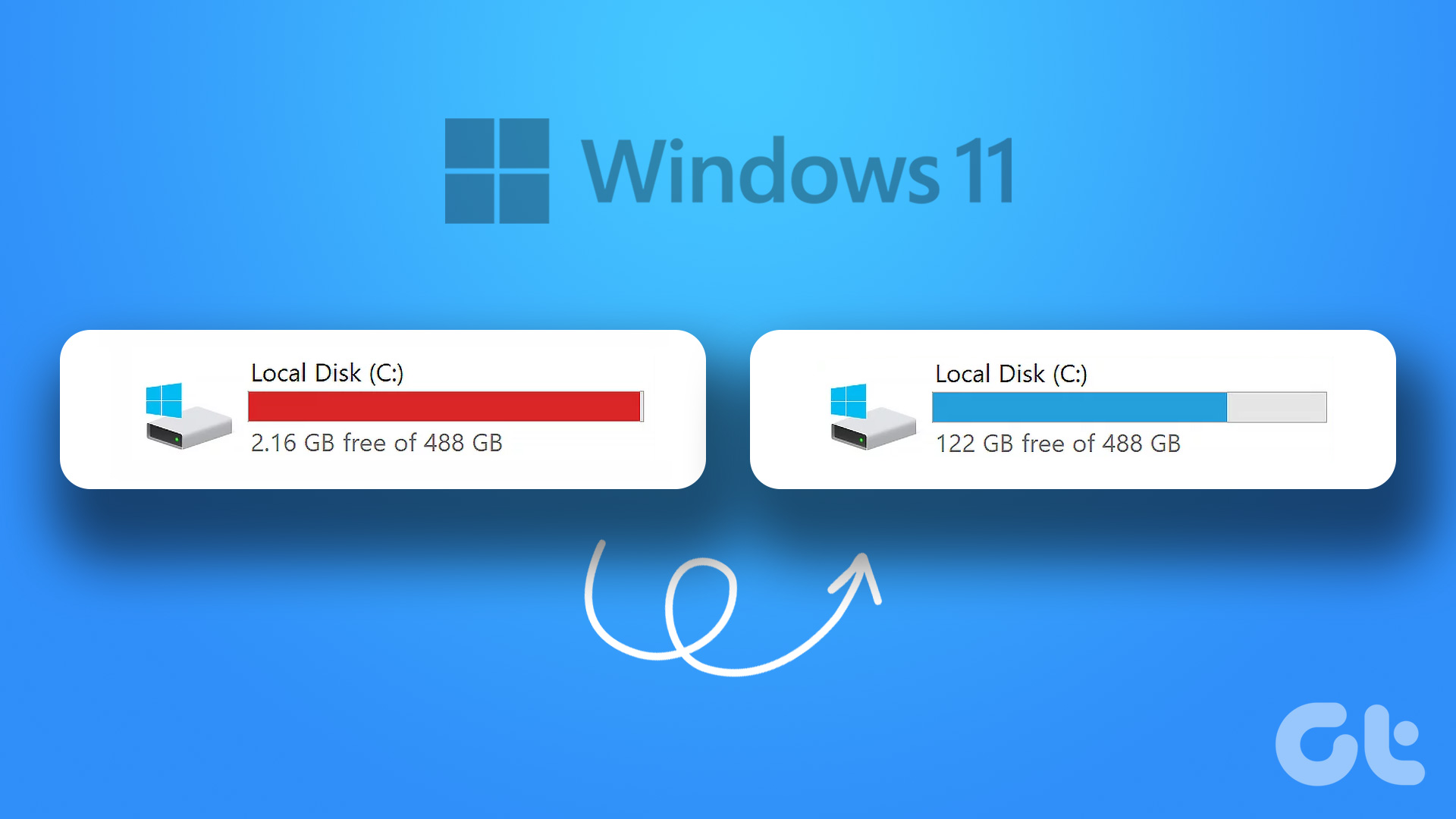 6 Ways to Free Up Space on Windows 11 Without Deleting Apps
Method 1.
6 Ways to Free Up Space on Windows 11 Without Deleting Apps
Method 1.
 How To Automatically Extract ZIP Files After Downloading
ZIP files are necessary for combining multiple files together into one downloadable file.
How To Automatically Extract ZIP Files After Downloading
ZIP files are necessary for combining multiple files together into one downloadable file.
 Why Do My WhatsApp Messages Get Deleted Automatically
Disable Disappearing Messages When the Disappearing Messages option is enabled, WhatsApp will disappear new messages from the selected chat after a certain duration.
Why Do My WhatsApp Messages Get Deleted Automatically
Disable Disappearing Messages When the Disappearing Messages option is enabled, WhatsApp will disappear new messages from the selected chat after a certain duration.
 4 Ways to Fix Chrome Bookmarks Not Deleting Issue
Basic Fixes: Check for software updates: Software glitches can cause Chrome bookmarks to show up even after being deleted.
4 Ways to Fix Chrome Bookmarks Not Deleting Issue
Basic Fixes: Check for software updates: Software glitches can cause Chrome bookmarks to show up even after being deleted.
 4 Ways to Free Up Space on Android Without Deleting Apps
Basic Fixes: Find and remove large files: You can use Google's Files app to auto-detect and remove large files from your phone.
4 Ways to Free Up Space on Android Without Deleting Apps
Basic Fixes: Find and remove large files: You can use Google's Files app to auto-detect and remove large files from your phone.
 How Does Deleting Messages on WhatsApp Work
What Happens When You Use Delete for Me WhatsApp offers four ways to delete messages and chats: Delete for me, Delete for everyone, Delete chat, and Clear chat.
How Does Deleting Messages on WhatsApp Work
What Happens When You Use Delete for Me WhatsApp offers four ways to delete messages and chats: Delete for me, Delete for everyone, Delete chat, and Clear chat.
The article above may contain affiliate links which help support Guiding Tech. The content remains unbiased and authentic and will never affect our editorial integrity.