Basic Fixes
- Check spam numbers on Truecaller: You can check and block spam numbers on Truecaller. In the app, go to Settings > Block > Number Series > Enter the number series that you wish to block.
- Block your emails: Even if you block someone on social media apps, the person can send you a message via email.
Why You Are Receiving Messages From a Blocked Number
- The contact has not been blocked.
- The contact needs to be blocked on third-party apps.
Fix 1: Check the Blocked Numbers List
Before we explore advanced tricks, make sure to check the blocked numbers list once. You will continue receiving text messages if the person’s mobile number is not on the list.
On iPhone
Open Settings > Messages > Blocked Contacts > Check the number list.

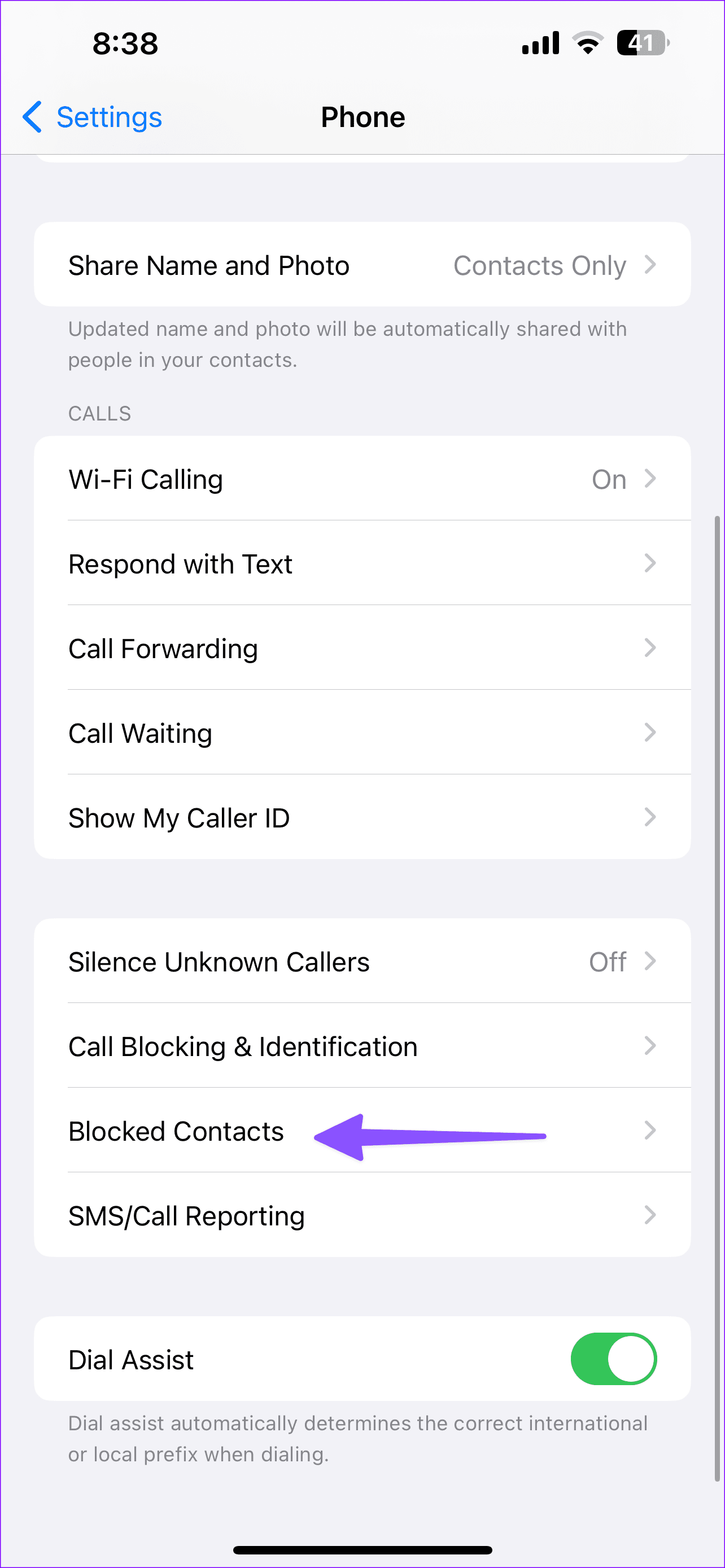
If it’s an unknown number, use the Messages app to block it.
Open the Messages app > Tap the chat from the unknown number > Profile icon > Info > Block this Caller.
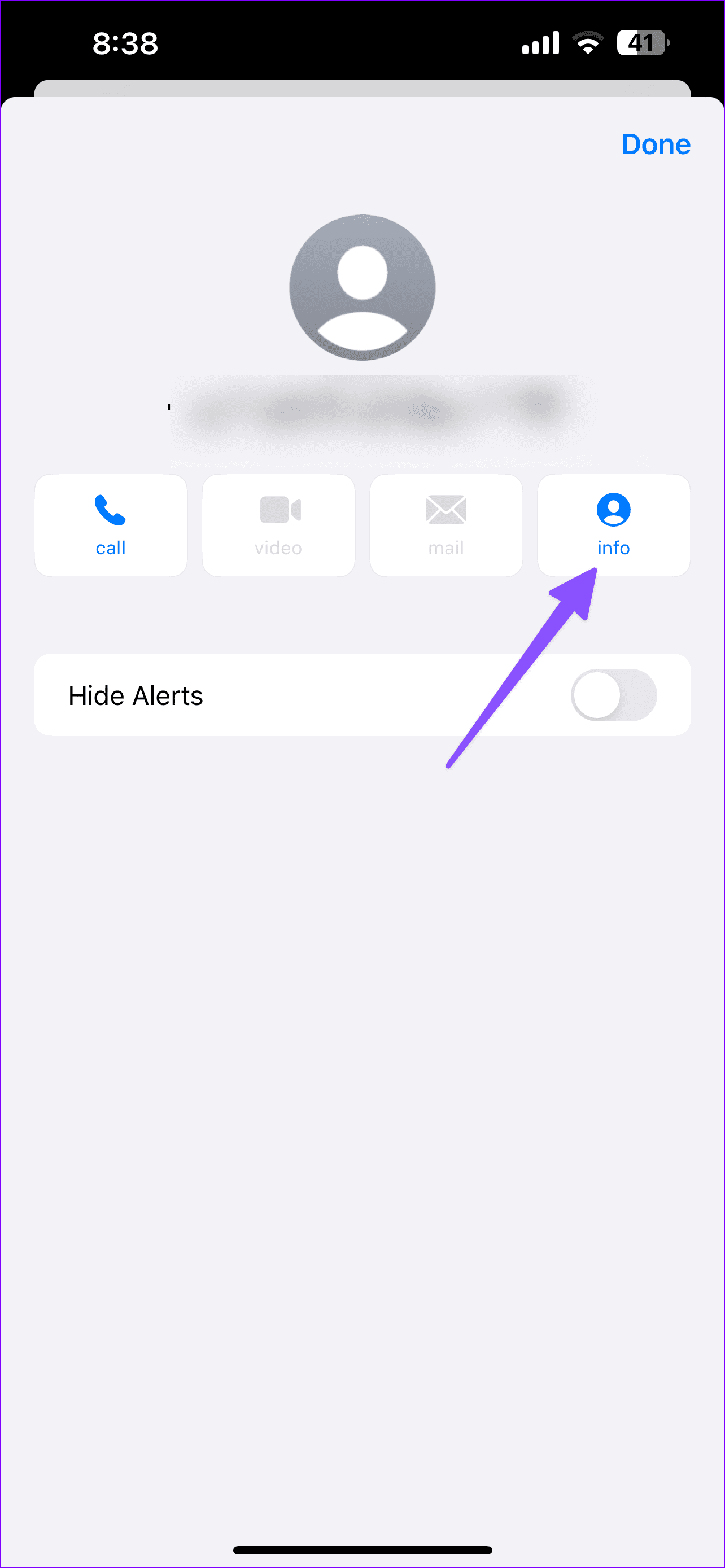
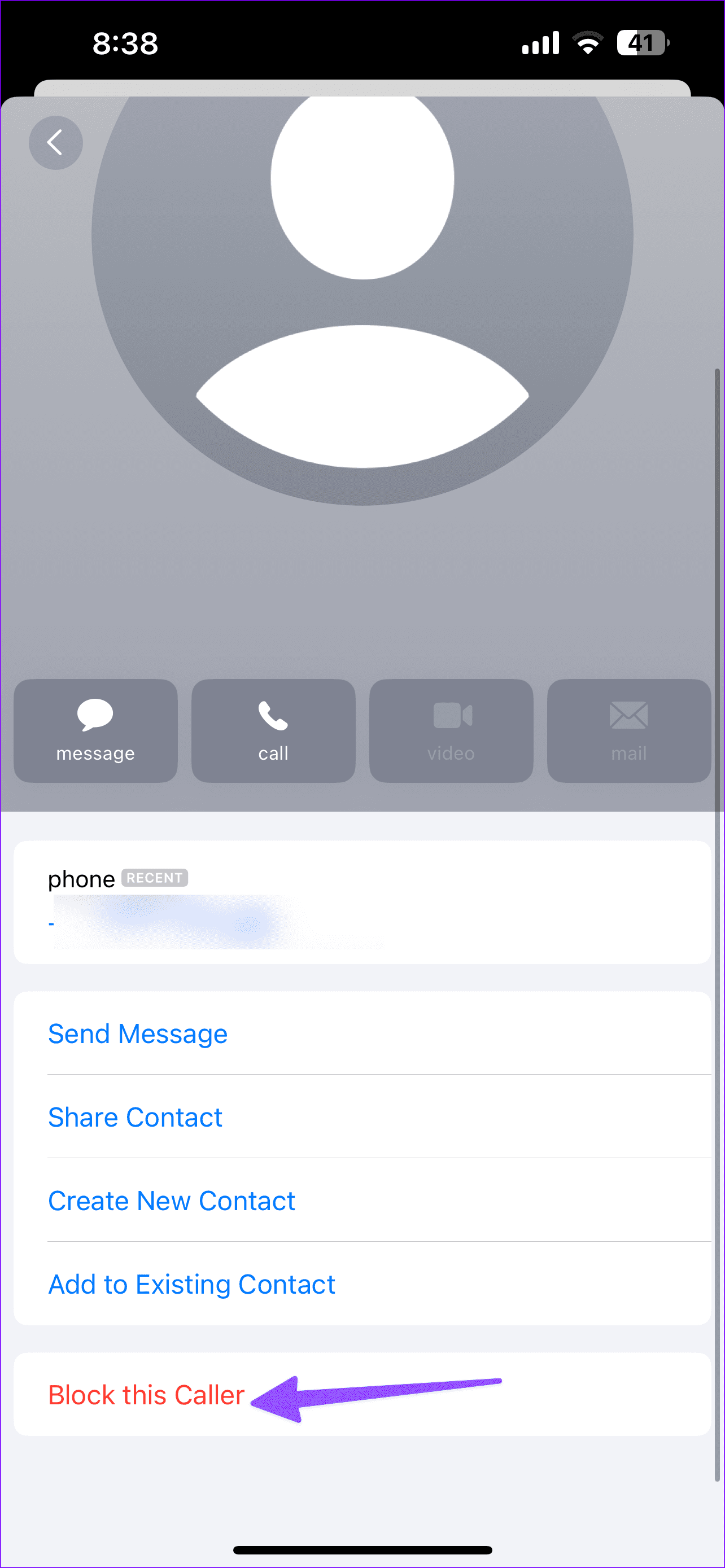
Once you block a caller on iPhone, the same caller will be blocked in the Messages app on your Mac. You don’t have to block the same person separately on your iPhone and Mac.
We also suggest blocking both the email address and phone number in the Messages app to stop receiving iMessages. On your iPhone, open Settings > Messages > Blocked Contacts > Add the number and email address linked with iMessage.


On Android Dialler App
Step 1: Open the Phone app > Three dots > Settings > Blocked numbers.


Step 2: Check the blocked numbers list. Tap Add a number to enter a number manually.
On Samsung Phone App
Samsung uses a different Phone app on Galaxy phones. Here’s how to check the blocked numbers list on a Samsung device.
Step 1: Open the Phone app > Three dots > Settings.
Step 2: Tap Blocked numbers. If the person’s number is not on the list, enter the number manually.
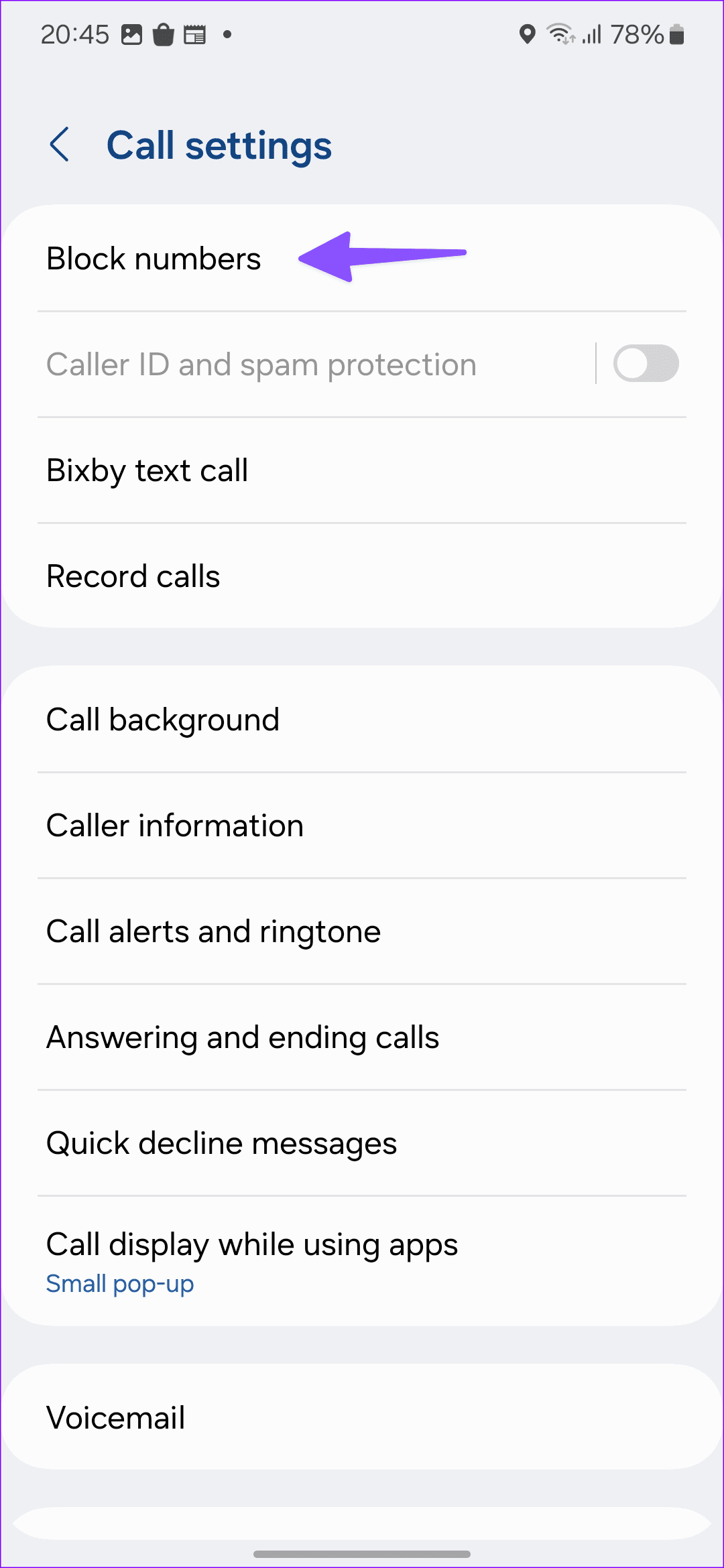
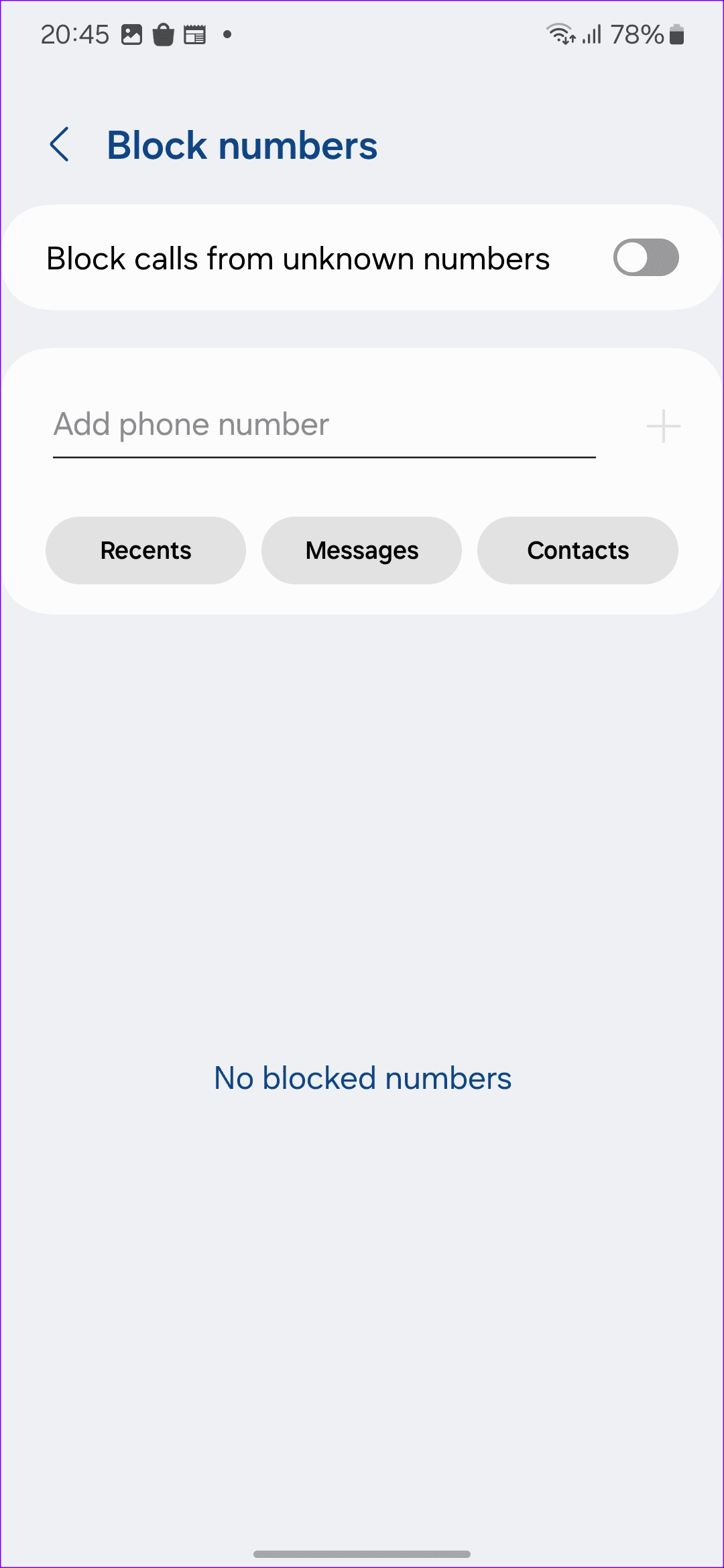
Do note that your block list won’t change while switching the Messaging apps on your Android phone.
Tip: Check out our post if your Samsung phone screen goes black during calls.
Fix 2: Block via Third-Party Apps
When you use the Phone app to block annoying contacts, the system only blocks normal messages and calls. The person can still reach you via third-party apps like WhatsApp or Telegram. You need to block them from such platforms, too. Let’s take WhatsApp and Telegram as examples here.
Step 1: Launch WhatsApp and then open a conversation you want to block.
Step 2: Tap the three-dot menu at the top and then expand More. Select Block.
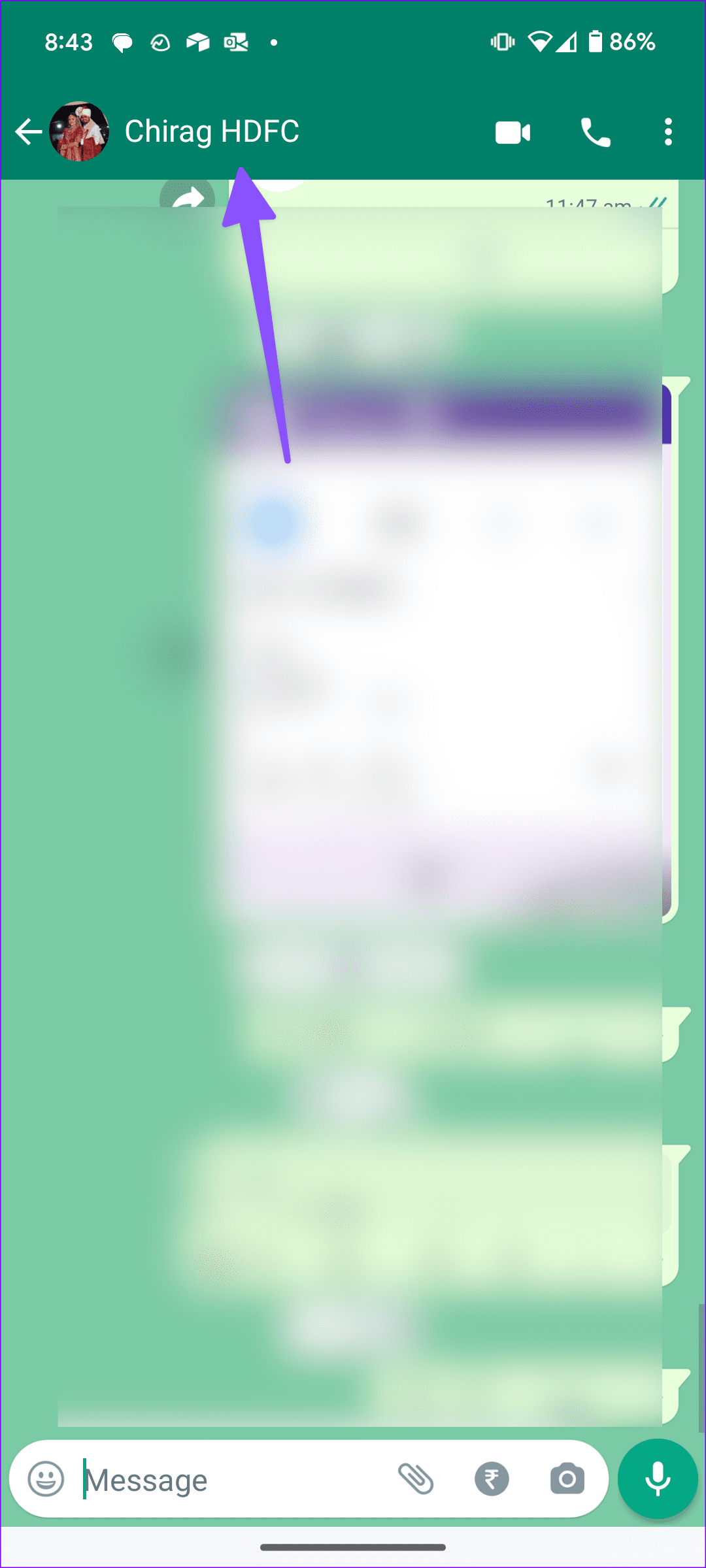
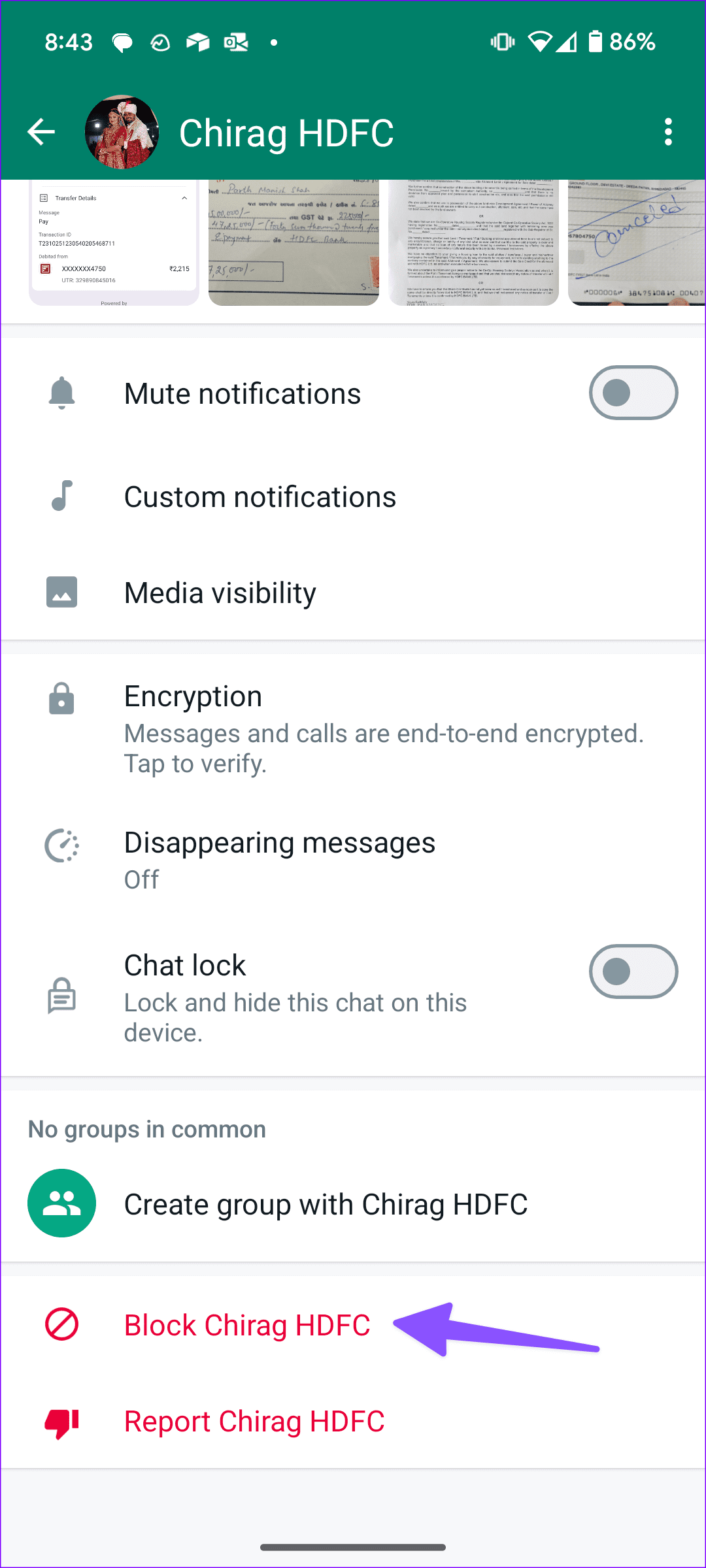
You can read our dedicated post to learn the implications of blocking someone on WhatsApp.
Telegram
Step 1: Open Telegram and then select a conversation.
Step 2: Select the number at the top. Tap the three-dot menu and then select Block user.


Was this helpful?
Last updated on 28 August, 2024
Read Next
 How to Stop Getting Calls From Blocked Numbers
Method 1: Review the Blocked Numbers List Before you delve deeper, double-checking the list of blocked numbers on your phone should fix calls from blocked contacts.
How to Stop Getting Calls From Blocked Numbers
Method 1: Review the Blocked Numbers List Before you delve deeper, double-checking the list of blocked numbers on your phone should fix calls from blocked contacts.
 Why Am I Getting Calls When Do Not Disturb or Focus Mode Is On
Stop Getting Calls During DND or Focus Mode on iPhone 1.
Why Am I Getting Calls When Do Not Disturb or Focus Mode Is On
Stop Getting Calls During DND or Focus Mode on iPhone 1.
 Why Am I Getting Notifications When Do Not Disturb Is On?
On iPhone Apple has incorporated DND under Focus (an extended version of Do Not Disturb).
Why Am I Getting Notifications When Do Not Disturb Is On?
On iPhone Apple has incorporated DND under Focus (an extended version of Do Not Disturb).
 How to Fix USB Connector Disconnected Notification on Android
Why Is My Phone Saying USB Connector Connected and Disconnected?
How to Fix USB Connector Disconnected Notification on Android
Why Is My Phone Saying USB Connector Connected and Disconnected?
 How to See and Retrieve Blocked Messages on Android (Samsung Included)
How to See and Recover Blocked Messages Android If you are using the Google Messages app as the default messaging app on your Android phone, we have some sad news.
How to See and Retrieve Blocked Messages on Android (Samsung Included)
How to See and Recover Blocked Messages Android If you are using the Google Messages app as the default messaging app on your Android phone, we have some sad news.
 How to Know if Someone Blocked You on Instagram
https://www.youtube.com/embed/W8JfcQAwk0Q Fix 1.
How to Know if Someone Blocked You on Instagram
https://www.youtube.com/embed/W8JfcQAwk0Q Fix 1.
 4 Ways to Know if Someone Has Blocked You on Snapchat
Method 1: Check Previous Chat History If you have interacted with this person on Snapchat in the past, you can find the conversation in the chat window.
4 Ways to Know if Someone Has Blocked You on Snapchat
Method 1: Check Previous Chat History If you have interacted with this person on Snapchat in the past, you can find the conversation in the chat window.
 7 Clues That Someone Blocked You on iMessage
Method 1: Check the Chat Bubble Color The green chat bubble is the first indication of you being blocked by someone on iMessage.
7 Clues That Someone Blocked You on iMessage
Method 1: Check the Chat Bubble Color The green chat bubble is the first indication of you being blocked by someone on iMessage.
The article above may contain affiliate links which help support Guiding Tech. The content remains unbiased and authentic and will never affect our editorial integrity.