You might’ve recently seen the news along the lines of “Microsoft warns Windows users about urgent Secure Boot Certificate update.” But what’s that all about? Well, as it turns out, if you have a relatively old PC and haven’t updated its firmware, now might be the time to start. Microsoft’s original 2011 Windows Secure Boot certificate is slowly going obsolete, with the first of them expiring in late June 2026. Here’s how to check where your PC stands and what to do if it needs an update.
What Is a Secure Boot Certificate, and Why Does It Matter?
Secure Boot is a firmware-level security feature built into UEFI, the modern replacement for the traditional BIOS. Its job is to make sure that only trusted, digitally signed software is allowed to run during startup, before Windows even loads. This blocks malware that tries to hijack a PC at the earliest possible stage, when traditional antivirus tools aren’t running.
To determine malware, Secure Boot relies on a set of certificate authorities (CAs). And like any digital certificate, these have expiration dates. Microsoft issued the original set in 2011, and after more than 15 years in service, they’ve reached the end of their planned lifecycle. The Microsoft Corporation KEK CA 2011 and Microsoft Corporation UEFI CA 2011 both expire on June 24–27, 2026, with the Windows Production PCA 2011 following in October 2026.
Notably, the replacement 2023 certificates were installed on newer devices, have been rolling out automatically, and are valid until 2053, so you don’t have to worry about Windows Secure Boot Certificate expiration for a long time.
Most PCs will actually work with old certificates. They might not receive updates if the new certificate chain isn’t installed, which can cause a lack of up-to-date firmware down the line. This may cause a few security issues or cause your BitLocker to repeatedly ask for the password if you’ve set it up.
How to Check if You Have an Old Windows 11 Secure Boot Certificate
Option 1 – Check the Windows Security App
This is the simplest method, and the one most people should start with.
Step 1. Open “Start” and search for “Windows Security,” then open it.
Step 2. Go to “Device security” from the left-hand menu.
Step 3. Look for the “Secure Boot” entry and check the badge color and accompanying message.
If you have the updated software, you should see a few badges here. Here’s what each means:
- Green: Secure Boot is on, and all required certificate updates have been applied. No action needed.
- Yellow: Your device is still running the older certificate, and the update is expected to arrive through Windows Update. It can also mean the update is blocked by a hardware or firmware limitation.
- Red: A security update can’t be delivered to your device’s current configuration, and immediate attention is needed.
Option 2 – Check With PowerShell
If the Windows Security app doesn’t have the certificate status on your device, PowerShell gives you a direct answer.
Step 1. Open “Start,” search for PowerShell, and choose “Run as administrator.” This is also available by right-clicking on the Start button and selecting “Terminal (Admin).”
Step 2. Paste the following command and press “Enter.”
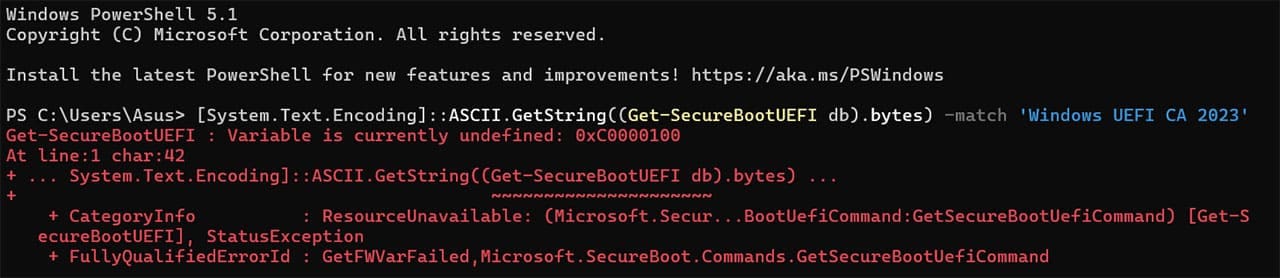
[System.Text.Encoding]::ASCII.GetString((Get-SecureBootUEFI db).bytes) -match ‘Windows UEFI CA 2023’
Step 3. Check the result: “True” means the 2023 certificate (valid until 2053) is already installed. “False” means you’re still running on the original certificate that starts expiring in June 2026.
Option 3 – Check Event Viewer
If the former two options don’t yield results, the Event Viewer can show you where a device sits in the rollout process.
Step 1. Open “Start,” then go to “EventViewer.”
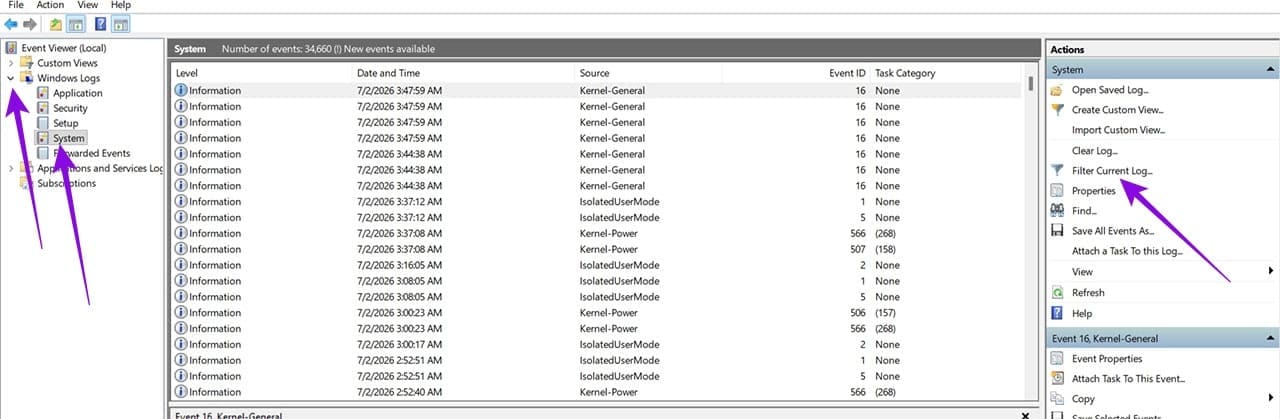
Step 2. Go to “Windows Logs” and then to “System.”
Step 3. On the right pane, click on “Filter current log.”
Step 4. Click on the “Event sources” dropdown, type in the letter “T,” then scroll down to “TPM-WMI” and select it. Then, click “Ok” in the dialog.

Step 5. Look for Event ID 1801 with a message like “BucketConfidenceLevel: Under Observation – More Data Needed.”

This entry looks alarming, but it simply means Windows has downloaded and staged the new certificate inside the operating system but hasn’t yet written it to firmware – the rollout happens in two phases, and devices can sit at this stage for a while as Microsoft validates compatibility before activation.
How to Update Your Boot Certificate
For the vast majority of home users, the update happens automatically. If your check above showed an older certificate, run Windows Update and download the latest updates, then run it again. Alternatively, some devices need a firmware update from the manufacturer before the certificate update can apply cleanly.
For that, you need to visit the manufacturer’s support page and search for the latest BIOS/UEFI firmware update for your exact model, then install it.
If the Windows Security app tells you the update is “temporarily paused,” Microsoft might be holding back the rollout until a fix is ready. This just means you may need to wait a bit longer.
Last Resort – Contact Your Device Manufacturer
If your Secure Boot badge stays red, or the Windows Security app specifically says your device can’t receive the automated update due to hardware or firmware limitations, the fix has to come from the OEM. Reach out to your manufacturer’s support team, reference the Secure Boot certificate update, and ask whether a compatible firmware update is available for your model.
Was this helpful?
Last updated on 04 July, 2026
Read Next
 What Does the Secure Boot Folder Do on Your PC? (And Why It’s Hidden)
If you’ve suddenly found a strange folder in Windows Explorer labelled Secure Boot, you’re no doubt wondering where it came from and if it’s legit.
What Does the Secure Boot Folder Do on Your PC? (And Why It’s Hidden)
If you’ve suddenly found a strange folder in Windows Explorer labelled Secure Boot, you’re no doubt wondering where it came from and if it’s legit.
 How to Perform a Clean Boot in Windows and Why It Matters
What Is Clean Boot on a Windows PC A clean boot in Windows is a troubleshooting technique that helps you identify software conflicts causing issues with your computer.
How to Perform a Clean Boot in Windows and Why It Matters
What Is Clean Boot on a Windows PC A clean boot in Windows is a troubleshooting technique that helps you identify software conflicts causing issues with your computer.
 How to Check Last Computer Boot Time (Windows/Linux/Mac)
PCs take different lengths of time to start up.
How to Check Last Computer Boot Time (Windows/Linux/Mac)
PCs take different lengths of time to start up.
 5 Ways to Fix Dual Boot Option Not Showing on Windows 11
Fix 1: Enable Dual Boot Option Using Command Prompt Sometimes, the dual boot option goes missing when upgrading the operating system.
5 Ways to Fix Dual Boot Option Not Showing on Windows 11
Fix 1: Enable Dual Boot Option Using Command Prompt Sometimes, the dual boot option goes missing when upgrading the operating system.
 What to Do if Windows Won’t Boot With a New GPU
If you’ve just upgraded your PC with a new graphics card (GPU) and it won’t boot, there are several possible reasons for that, each with a varying difficulty of fixing
What to Do if Windows Won’t Boot With a New GPU
If you’ve just upgraded your PC with a new graphics card (GPU) and it won’t boot, there are several possible reasons for that, each with a varying difficulty of fixing
 How to Boot Windows From an External SSD
If you’re looking to install Windows from scratch, the good news is that it’s easy to do with any external drive, including an SSD.
How to Boot Windows From an External SSD
If you’re looking to install Windows from scratch, the good news is that it’s easy to do with any external drive, including an SSD.
 Add Safe Mode to Windows 11 Boot Menu for Easier Troubleshooting
When something goes wrong in Windows, Safe Mode is an excellent way to troubleshoot by isolation.
Add Safe Mode to Windows 11 Boot Menu for Easier Troubleshooting
When something goes wrong in Windows, Safe Mode is an excellent way to troubleshoot by isolation.
 What to Do if Stuck in a Boot Loop With Windows 11 KB5083769
Microsoft’s April 14, 2026 patch is causing a KB5083769 boot loop for some machines that doesn’t get fixed with standard automatic repair.
What to Do if Stuck in a Boot Loop With Windows 11 KB5083769
Microsoft’s April 14, 2026 patch is causing a KB5083769 boot loop for some machines that doesn’t get fixed with standard automatic repair.
The article above may contain affiliate links which help support Guiding Tech. The content remains unbiased and authentic and will never affect our editorial integrity.