PCs take different lengths of time to start up. They also keep running for different times. If you want to keep your PC healthy or troubleshoot any errors, checking startup and uptime is important. In this guide, we’ll be showing you how to check last computer boot times on Windows, Mac, and Linux.
Why Check Last Computer Boot?
Your computer boot time is a good way to gauge a few things about your machine’s health. A good startup BIOS time should not exceed 15 seconds. But why bother checking this time, though?
Startup time can help you judge the state of your hardware, seeing as the initial BIOS boot initializes hardware (POST) before booting up your OS.
Uptime is another way to check how long your PC has been running – useful when checking for automatic restarts and overall runtime. A machine running too long has a higher chance of memory leaks and behaving erratically.
Check the Last Computer Boot on Windows
Windows offers users the chance to see how long it took their BIOS to start up. This is easy to check using two methods.
Method 1.
Step 1. Open Task Manager directly by pressing (Ctrl + Shift + Esc).
Step 2. Navigate to the “Startup apps” tab in the sidebar.
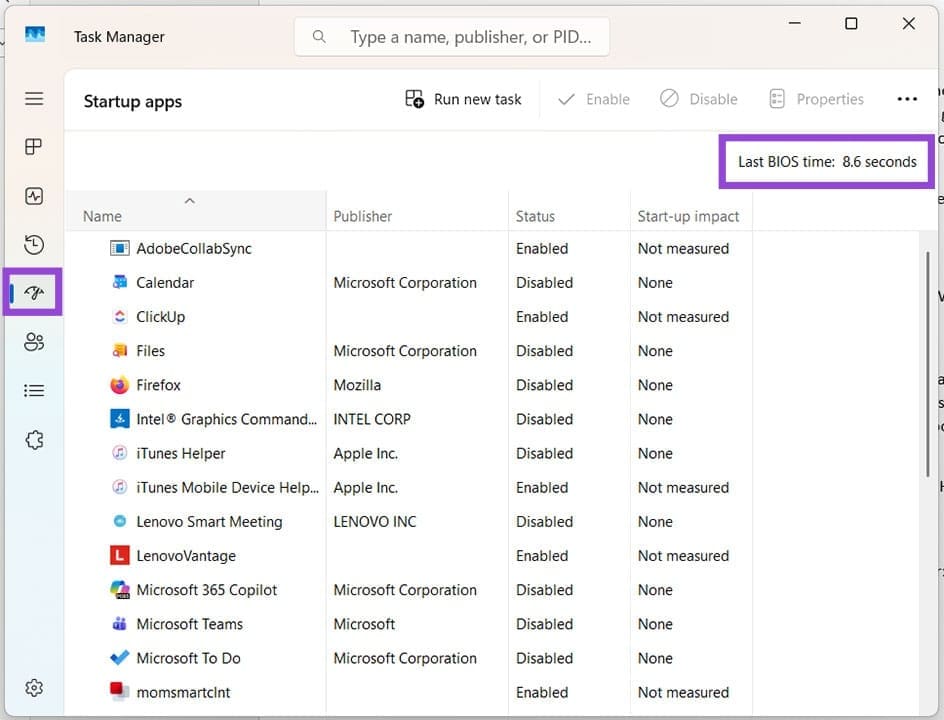
Step 3. Check the “Last BIOS time” in the top-right of the window, measured in seconds.
Method 2.
The second method is to use the Command Prompt:
Step 1. Open the Run Dialog (Win + R) and type in “cmd” before hitting (Ctrl + Shift + Enter) to run as Admin.
Step 2. In the Command Prompt window, type “wmic path Win32_OperatingSystem get LastBootUpTime”and hit “Enter.”
Step 3. Command Prompt will show the last boot time in (YYMMDDHHMMSSMM and GMT).
Checking the Startup Time in Mac
Seeing as Macs don’t use BIOS in the way Windows PCs do, there’s no option to gauge startup time. Uptime, on the other hand, is easy:
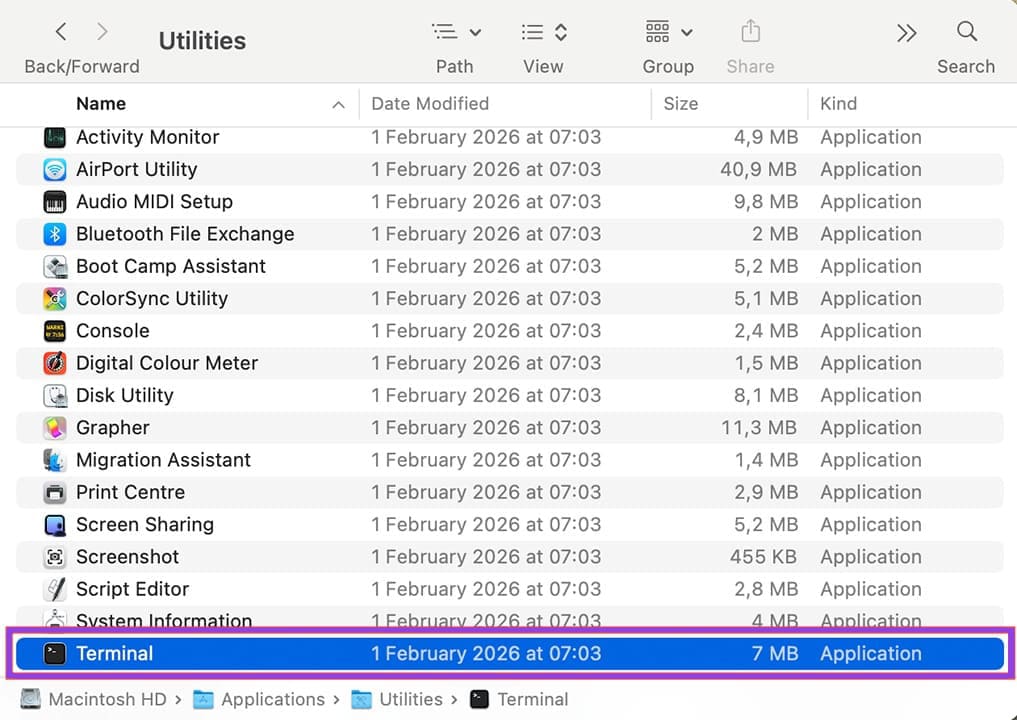
Step 1. Go to Applications – Utilities and open Terminal.
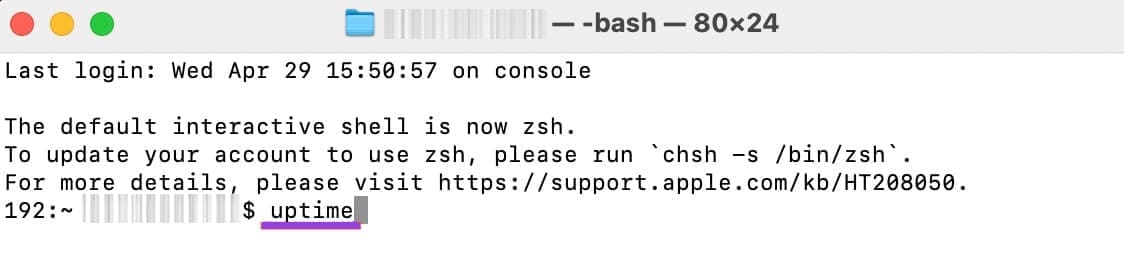
Step 2. Type: “uptime” and hit “Enter.”
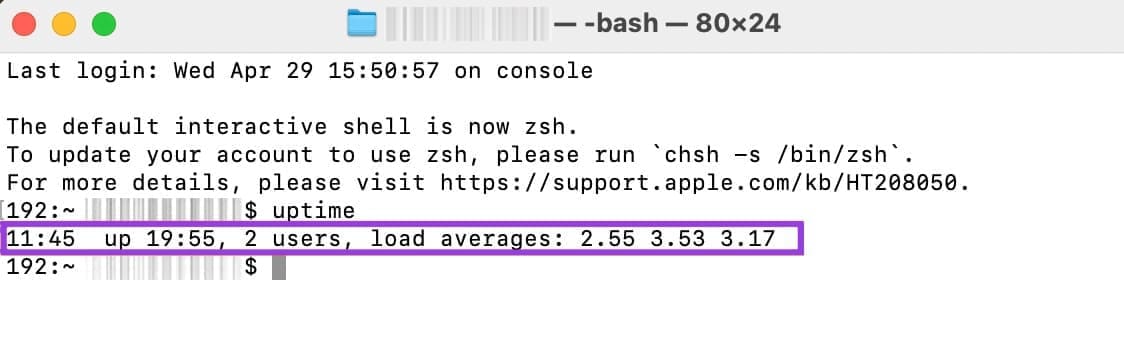
Step 3. Terminal will show how long your Mac has been up and running.
The second method uses the Top Menu:
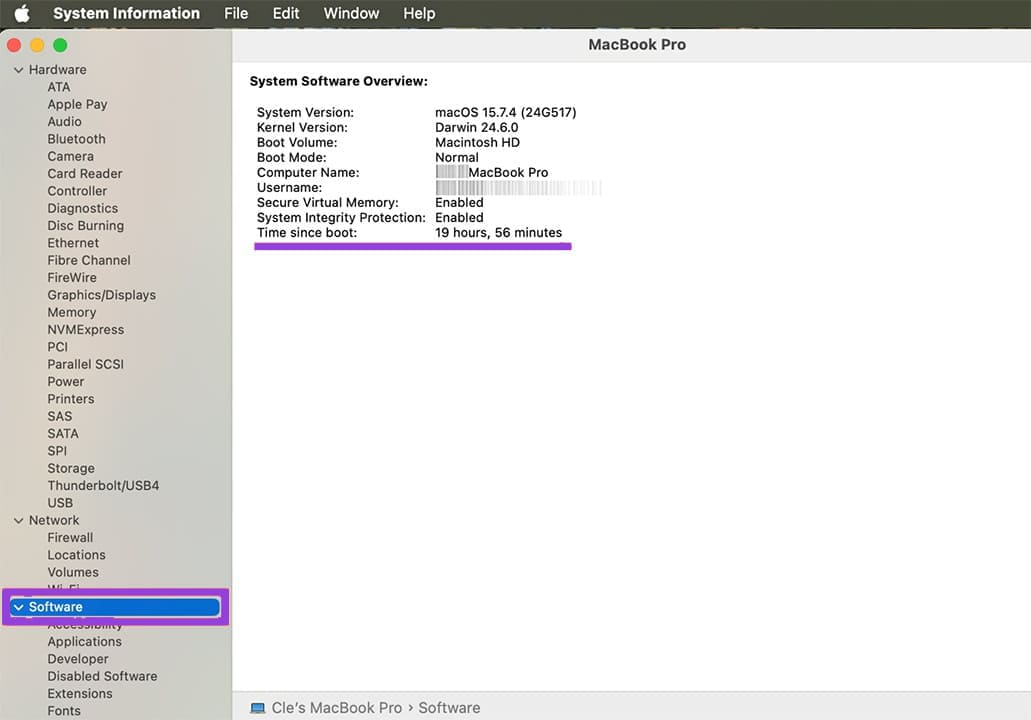
Step 1. Click the Apple logo in the Top Menu while pressing the “Option” key.
Step 2. Click on “System Information” from the dropdown menu.
Step 3. Choose “Software” in the sidebar. In the main window, you’ll see “Time since boot.” This will let you see how long your machine’s been on.
Checking the Last Boot in Linux
Linux offers both a way to check your startup time and your uptime. Let’s begin with the startup time:
Step 1. Open Command Line (Ctrl + Alt + T).
Step 2. In the Command Line, enter “systemd-analyze time” and hit “Enter.”
Step 3. Your startup time (measured in milliseconds) should then appear in the line below.
For PC uptime, you can also use the Command Line:
Step 1. Open Command Line.
Step 2. Type “uptime” into the window and hit “Enter.”
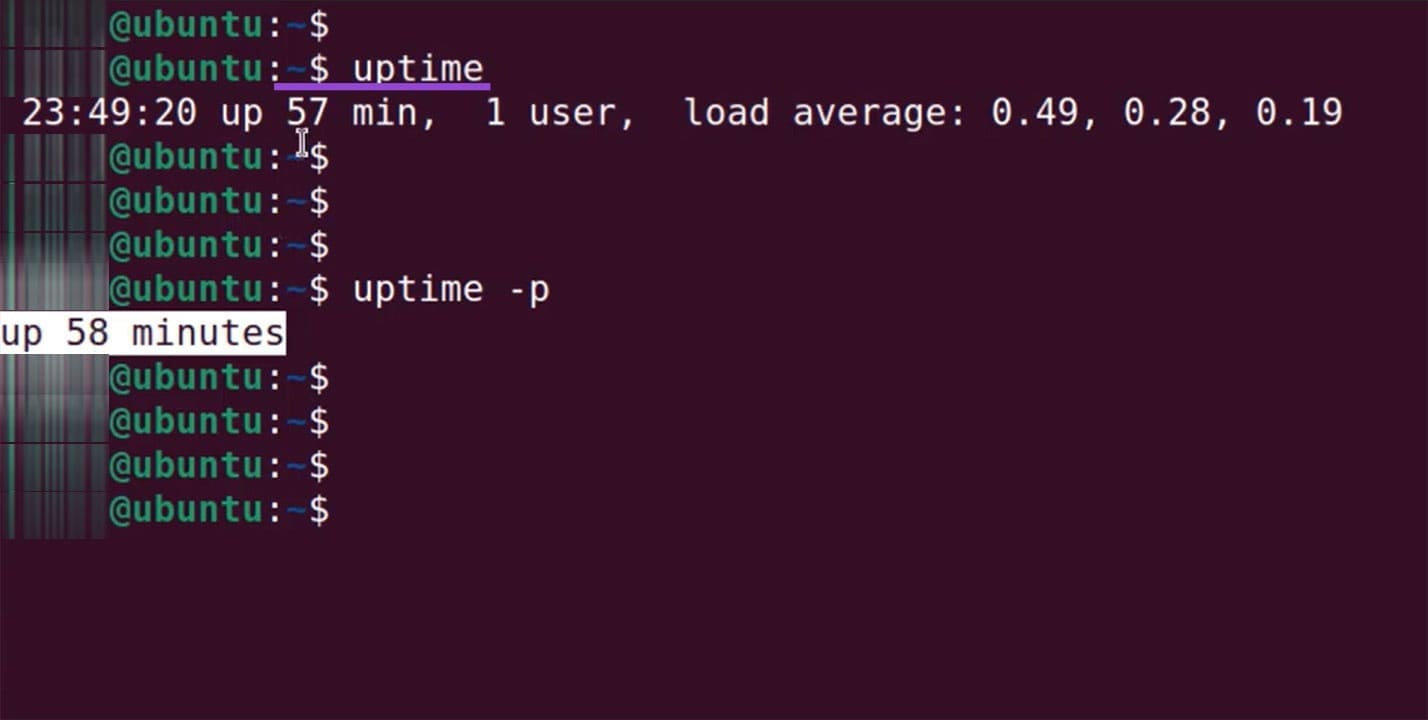
Step 3. Command Line will show the duration the system has been running, the current time, load averages, and the number of users.
Was this helpful?
Last updated on 01 May, 2026
Read Next
 How to Install Linux on Windows for Dual Booting or Avoiding Windows 11
If you’re still on the fence about upgrading from Windows 10 to Windows 11 due to the increased number of apps that constantly track and share your information, you might
How to Install Linux on Windows for Dual Booting or Avoiding Windows 11
If you’re still on the fence about upgrading from Windows 10 to Windows 11 due to the increased number of apps that constantly track and share your information, you might
 How to Install WSL on Windows 11 for Linux Apps
For most Windows users, running applications designed for Linux has been a challenge due to their inherent incompatibility.
How to Install WSL on Windows 11 for Linux Apps
For most Windows users, running applications designed for Linux has been a challenge due to their inherent incompatibility.
 How to Make a Bootable USB Drive for Windows or Linux
If you’re looking to install Windows or Linux from scratch, then you’re going to need an external device to do so.
How to Make a Bootable USB Drive for Windows or Linux
If you’re looking to install Windows or Linux from scratch, then you’re going to need an external device to do so.
 Considering Moving From Windows to Linux? Pros, Cons & Guide
There’s a lot of talk recently around making the move away from Windows.
Considering Moving From Windows to Linux? Pros, Cons & Guide
There’s a lot of talk recently around making the move away from Windows.
 5 Ways to Fix Dual Boot Option Not Showing on Windows 11
Fix 1: Enable Dual Boot Option Using Command Prompt Sometimes, the dual boot option goes missing when upgrading the operating system.
5 Ways to Fix Dual Boot Option Not Showing on Windows 11
Fix 1: Enable Dual Boot Option Using Command Prompt Sometimes, the dual boot option goes missing when upgrading the operating system.
 How to Perform a Clean Boot in Windows and Why It Matters
What Is Clean Boot on a Windows PC A clean boot in Windows is a troubleshooting technique that helps you identify software conflicts causing issues with your computer.
How to Perform a Clean Boot in Windows and Why It Matters
What Is Clean Boot on a Windows PC A clean boot in Windows is a troubleshooting technique that helps you identify software conflicts causing issues with your computer.
 What to Do if Windows Won’t Boot With a New GPU
If you’ve just upgraded your PC with a new graphics card (GPU) and it won’t boot, there are several possible reasons for that, each with a varying difficulty of fixing
What to Do if Windows Won’t Boot With a New GPU
If you’ve just upgraded your PC with a new graphics card (GPU) and it won’t boot, there are several possible reasons for that, each with a varying difficulty of fixing
 How to Boot Windows From an External SSD
If you’re looking to install Windows from scratch, the good news is that it’s easy to do with any external drive, including an SSD.
How to Boot Windows From an External SSD
If you’re looking to install Windows from scratch, the good news is that it’s easy to do with any external drive, including an SSD.
The article above may contain affiliate links which help support Guiding Tech. The content remains unbiased and authentic and will never affect our editorial integrity.