There are plenty of symbols and characters we use in our emails every day, not to mention those that other people and countries use into the bargain. If you’re having trouble sending or reading emails due to Outlook not showing special characters, then this article is here to help you with some troubleshooting.
Outlook Not Showing Special Characters – What to Do
If you’re seeing quotation marks where special characters ought to be in Outlook, then you’re primarily dealing with the app failing to successfully interpret them. This can be caused by the message being sent in plain text, not supporting characters, or settings in the app itself. We’ve got some potential fixes below to help:
Update Outlook
A good first step is to ensure that your Outlook is running the latest software that won’t cause trouble with other new software. Here’s how to update things:
Step 1. Click “File” in Outlook and click “Account” in the side panel.
Step 2. Click “Microsoft 365 and Office Updates” and select “Update Now” from the dropdown menu.
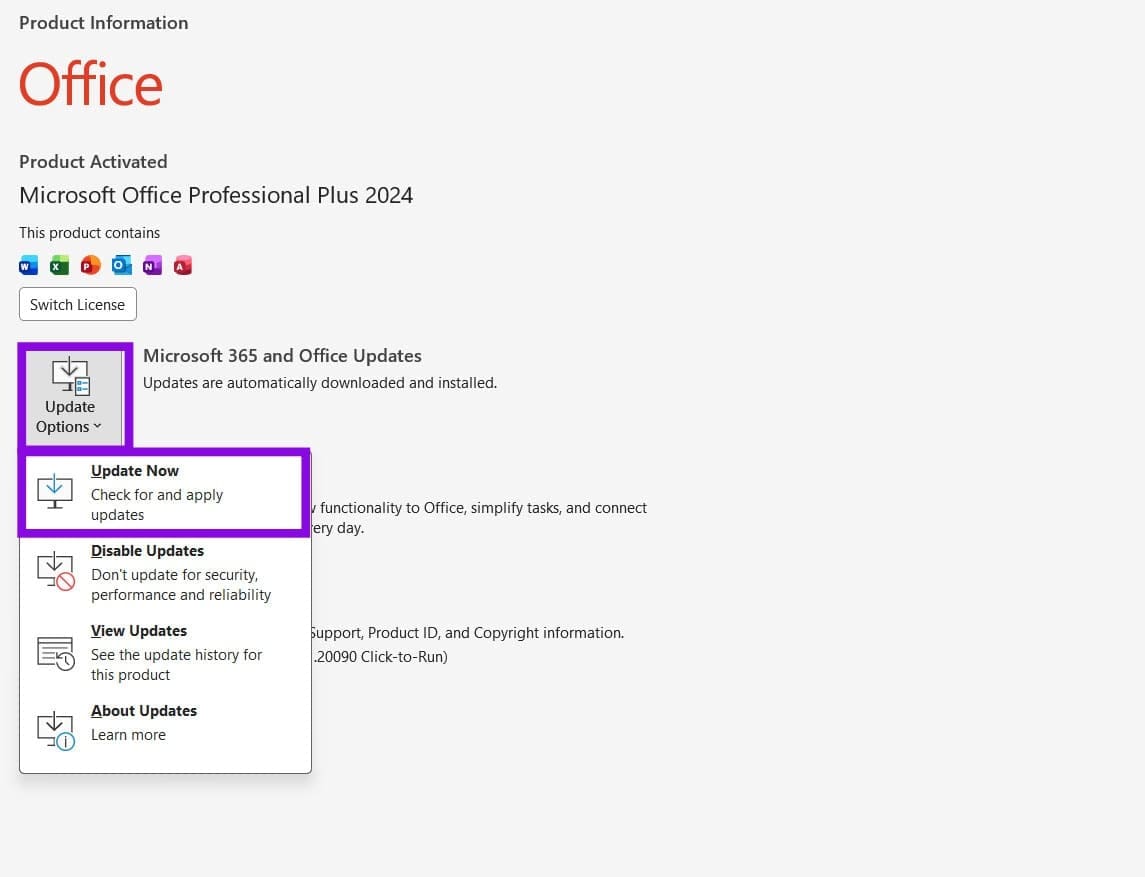
Step 3. If you’re up to date, you’ll be told so via a pop-up. If not, let the latest version install.

Ensure the Right Encoding
If a message does not show special characters, Outlook may misinterpret them. You’ll need to ensure that your emails are configured to use UTF-8 encoding, which supports special characters correctly. Here’s how to do so:
Step 1. Click “File” and select “Options” from the side panel.
Step 2. In Options, select “Advanced” in the sidebar.
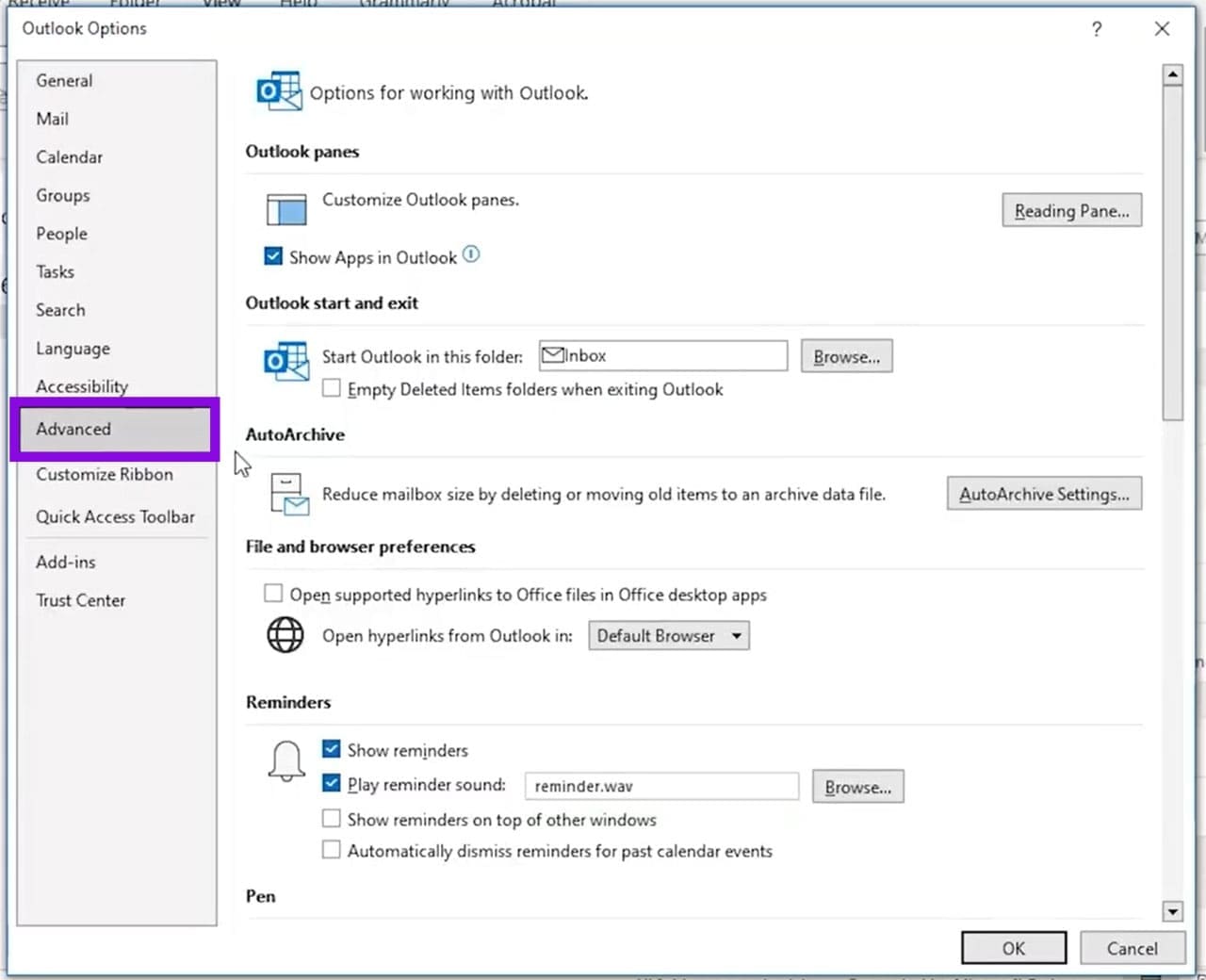
Step 3. Under “International Options,” verify that Outlook is using Unicode (UTF-8) encoding for outgoing messages if the setting is available.
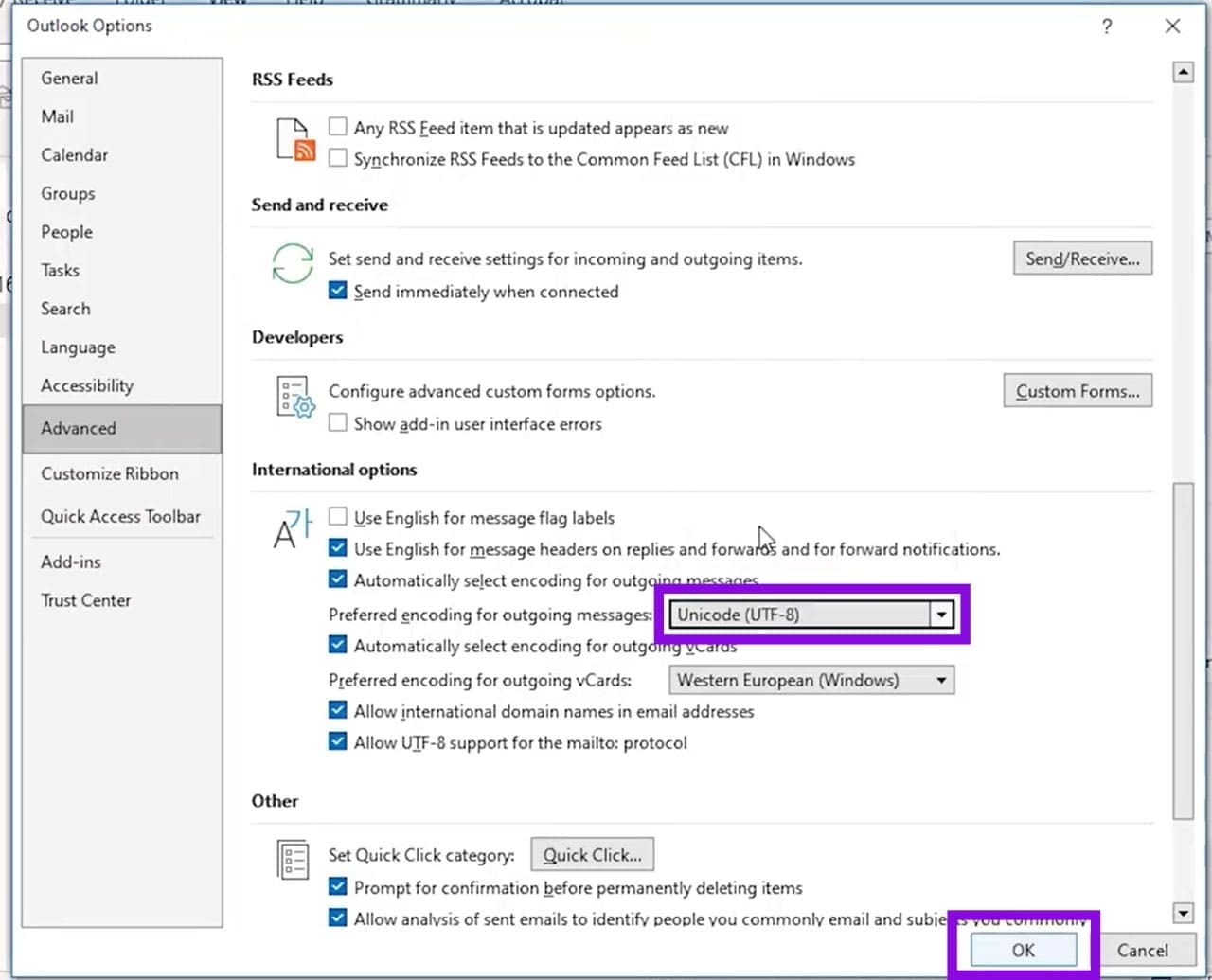
Step 4. From the dropdown list next to it, choose “Unicode (UTF-8)” from the options provided.
Step 5. Click “OK” to finalize.
You can also ensure this is the case for your operating system. Here’s how to do it in Windows 11:
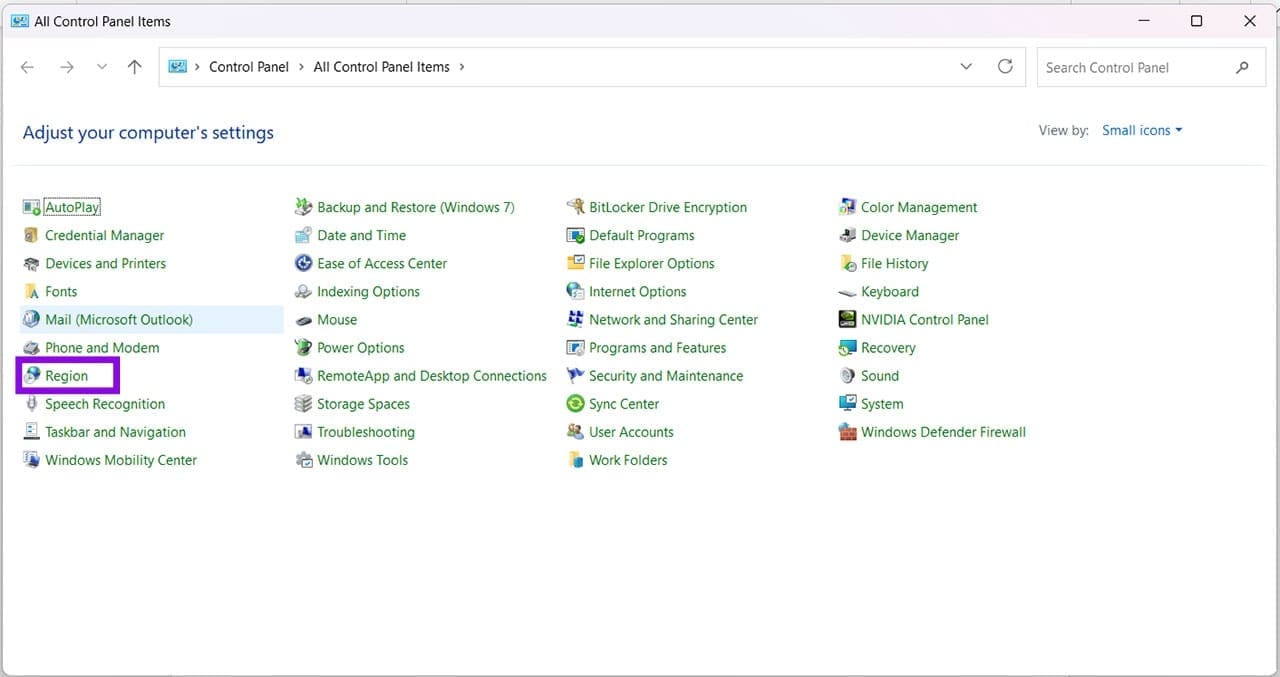
Step 1. Open up Control Panel and click on “Region.”
Step 2. In the “Administrative” tab, click “Change setting locale.”
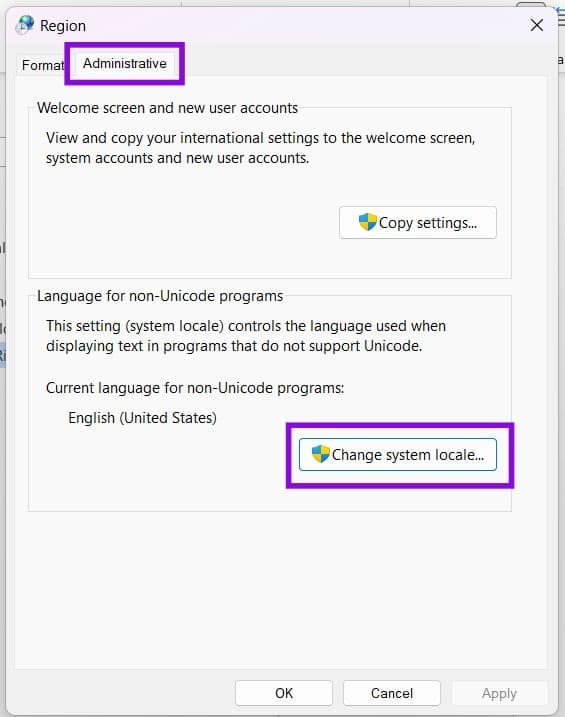
Step 3. Ensure that “Beta: Use Unicode UTF-8” is checked, and click “OK.”

Step 4. You’ll be required to restart your machine.
Change Things in the Registry
If the issue persists, you can try disabling Outlook’s detection of characters and character sets in the Registry. This setting forces Outlook to stop automatically guessing character encodings, which can be useful if Outlook is consistently choosing the wrong encoding for incoming messages. Just be careful not to touch anything else while in there, as it could disrupt your whole system. Here’s what to do:
Step 1. Open the Run Dialog (Win + R) and type “regedit” before hitting (Ctrl + Shift + Enter) to run as Admin.
Step 2. In the Registry, enter the following into the address bar at the top: “HKEY_CURRENT_USER\Software\Microsoft\Office\16.0\Outlook\Options\Mail”
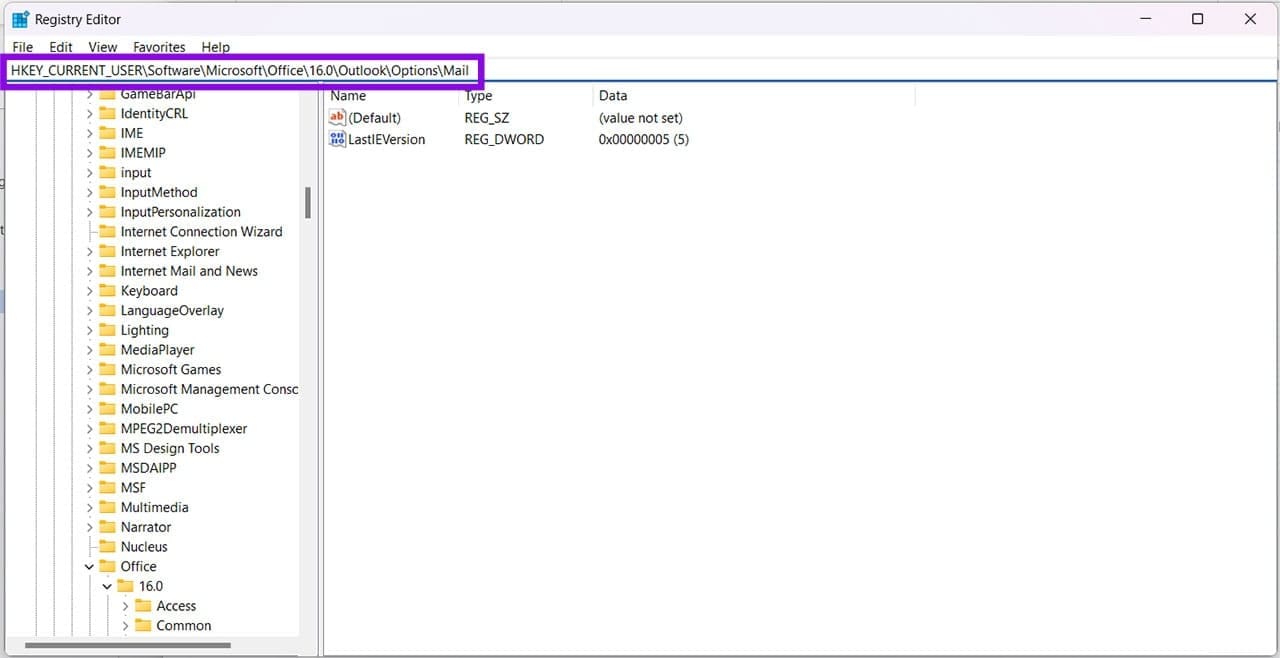
Step 3. Right-click the main window and select “New” and “DWORD (32-bit) Value.”
Step 4. Enter the name as “DisableCharsetDetection” and set the value data to “1” before hitting “OK.”
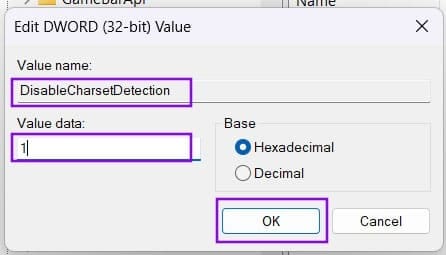
Step 5. Restart Outlook and see if this resolves the issue.
Was this helpful?
Last updated on 14 July, 2026
Read Next
 Chats Aren’t Loading in Microsoft Teams – 4 Fixes
Having an issue where chats aren’t loading in Teams?
Chats Aren’t Loading in Microsoft Teams – 4 Fixes
Having an issue where chats aren’t loading in Teams?
 6 Fixes for “Gaming Features Aren’t Available for the Windows Desktop” Error
Fix 1: Update the Game Bar App and Open It From Microsoft Store Several users on a Microsoft community post reported fixing the error almost instantly by updating the Game
6 Fixes for “Gaming Features Aren’t Available for the Windows Desktop” Error
Fix 1: Update the Game Bar App and Open It From Microsoft Store Several users on a Microsoft community post reported fixing the error almost instantly by updating the Game
 What to Do When Your USB Ports Aren’t Detecting Anything
If you’re finding that your PC’s USB ports are not recognizing anything you’re putting in them, then you might be searching for fixes.
What to Do When Your USB Ports Aren’t Detecting Anything
If you’re finding that your PC’s USB ports are not recognizing anything you’re putting in them, then you might be searching for fixes.
 4 Ways to Fix Google Docs Not Printing Correctly
Fix 1: Check the Printer Connection and Select the Right Printer You must perform some basic hardware checks to ensure everything is hooked up.
4 Ways to Fix Google Docs Not Printing Correctly
Fix 1: Check the Printer Connection and Select the Right Printer You must perform some basic hardware checks to ensure everything is hooked up.
 6 Ways to Get Rid of “Chrome Didn’t Shut Down Correctly” Message
Fix 1: Use the Restore Option One of the most straightforward ways to stop Google Chrome from showing this pop-up is to restore tabs from your previous session.
6 Ways to Get Rid of “Chrome Didn’t Shut Down Correctly” Message
Fix 1: Use the Restore Option One of the most straightforward ways to stop Google Chrome from showing this pop-up is to restore tabs from your previous session.
 Top 5 Ways to Fix Microsoft Teams Not Displaying Images on Windows
Preliminary Fixes Check the Internet Connection: A stable internet connection is crucial for Microsoft Teams to properly load images and other media content.
Top 5 Ways to Fix Microsoft Teams Not Displaying Images on Windows
Preliminary Fixes Check the Internet Connection: A stable internet connection is crucial for Microsoft Teams to properly load images and other media content.
 5 Fixes for PowerPoint Not Displaying Pictures on Windows
Try Basic Fixes Remove and add the picture again: Microsoft PowerPoint may fail to load an image if it is not added completely to the presentation file.
5 Fixes for PowerPoint Not Displaying Pictures on Windows
Try Basic Fixes Remove and add the picture again: Microsoft PowerPoint may fail to load an image if it is not added completely to the presentation file.
 Monitor Not Displaying Full Screen (Windows 11)
In the case of a monitor not displaying full screen, Windows 11 users may find this a relatively common issue, especially if they’ve recently plugged in a new monitor or
Monitor Not Displaying Full Screen (Windows 11)
In the case of a monitor not displaying full screen, Windows 11 users may find this a relatively common issue, especially if they’ve recently plugged in a new monitor or
The article above may contain affiliate links which help support Guiding Tech. The content remains unbiased and authentic and will never affect our editorial integrity.