There’s a lot to love about Windows, and then there are all the extras that run behind the scenes and slow down your machine. There are many services, some only a little better than bloatware, that hamper performance and (in some cases) infringe on your privacy.
In this article, we’ll be showing you how easy on Windows 11 remove background services can be and what services you can do without.
Where to Disable Almost Any Service
Services run in the background of Windows, fulfilling a variety of tasks. Some, like Task Manager, are vital for keeping tabs on programs and troubleshooting errors. Other services assist Microsoft in data gathering or serve functions you might not find useful in your workflow.
You’ll need to have Administrator privileges to enable or disable services.
Almost all services can be disabled through the Services menu, accessible in the following way:
Step 1. Open the Run dialog box (Win + R) and type in “services.msc.”
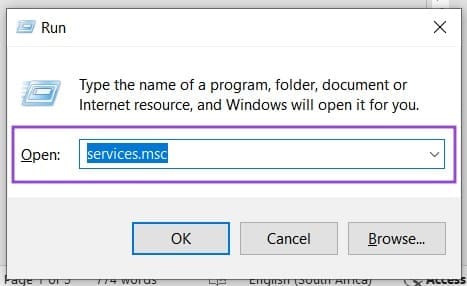
Step 2. Instead of hitting the “OK” button, press (Ctrl + Shift + Enter) to open as an Administrator.
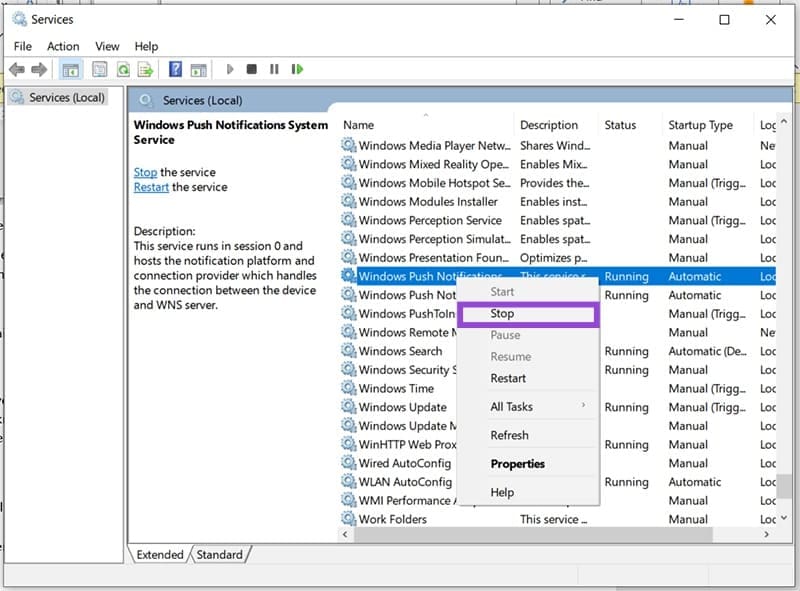
Step 3. In the Service screen, right-click on any service you want to disable and choose “Stop” from the context menu.
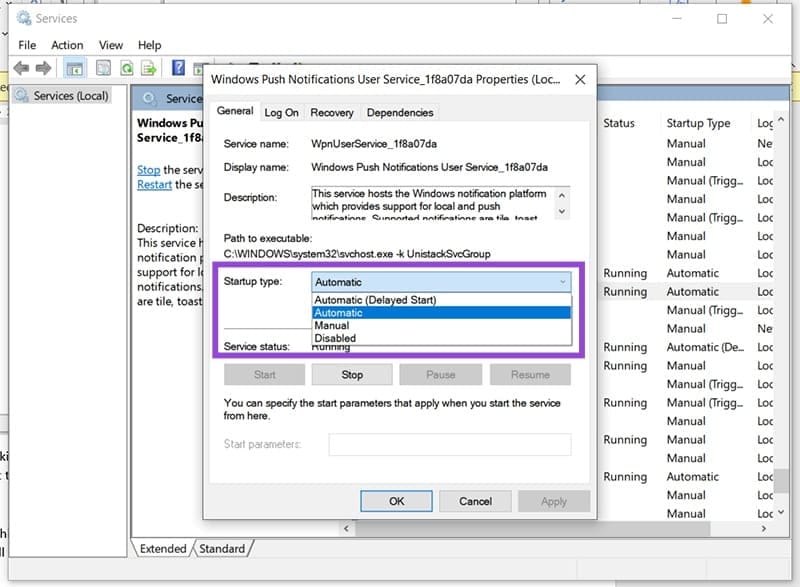
Step 4. Clicking on “Properties” in the same menu will allow you to choose whether a service will start. If you want to disable one long-term, change the “Startup type” to “Manual.”
Windows 11 Remove Background Services: What You Can Remove
Let’s take a look at what services you can safely do without, while boosting your performance and safeguarding your privacy in the bargain.
Microsoft Telemetry Data
Let’s start with the service that kills two birds with one stone. Telemetry data is Microsoft’s way of gathering analytical and performance data from its many machines around the world. While data is gathered anonymously, according to Microsoft, it’s still being gathered. This service can also be quite a drain on performance, especially on older computers. Disabling it has no disadvantages to the running of your PC.
Error Reporting
The Windows Error Reporting Service is a way for Microsoft to gather data on crashes and bugs. Whenever something goes wrong, a report is sent to Microsoft. This is yet another data-gathering service (helpful to Microsoft in offering better service), but not necessary to keep around. Your time would probably be better spent searching for ways to solve issues as they pop up.
Diagnostic Policy Service
In much the same vein as above, diagnostics is Windows’ in-operating-system method of troubleshooting errors. Seeing as most of these solutions are ineffective and send frustrated users to the internet to ask for help, Microsoft may gradually phase out this service. As such, you can disable this service guilt-free and enjoy the performance boost.
Similar services you can also disable here are “Diagnostic System Host,” “Diagnostic Service Host,” and “Diagnostic Execution Service.”
Optimize Drives
Defragmenting your hard drives used to be something you had to remember to do semi-regularly. Windows now offers this service to do it automatically, and it will usually kick in if your machine is standing idle. As defragging is quite an intense process, this can affect performance. As long as you remember to manually defragment your machine from time to time, you can disable this service.
Optional Services
Many services will only affect you if you use a certain function on your machine, and can be disabled if you don’t use those functions. Here are a few:
- Phone Service – This service links your smartphone to your PC. It’s safe to disable it if you don’t need it.
- Print Spooler – It’s safe to disable if you don’t use your machine with a printer.
- Geolocation Services – If you don’t use maps and don’t want to be tracked, turn this off.
Was this helpful?
Last updated on 28 August, 2025
Read Next
 9 Best Microsoft Whiteboard Keyboard Shortcuts to Boost Productivity
Whiteboards are super useful to brainstorm with your team, collect ideas, or draw a plan.
9 Best Microsoft Whiteboard Keyboard Shortcuts to Boost Productivity
Whiteboards are super useful to brainstorm with your team, collect ideas, or draw a plan.
 How to Boost Graphics and FPS in Roblox
Try These Basic Tips Switch to windowed mode: You're likely to experience increased FPS while playing Roblox in windowed mode.
How to Boost Graphics and FPS in Roblox
Try These Basic Tips Switch to windowed mode: You're likely to experience increased FPS while playing Roblox in windowed mode.
 5 Eco-Friendly Ways to Increase Performance of Your Aging PC
1.
5 Eco-Friendly Ways to Increase Performance of Your Aging PC
1.
 MSI Cyborg 15 Review: High Performance, Low Bucks
With the launch of Nvidia's latest 40-series of graphics cards, the gaming laptop market has seen a massive performance boost.
MSI Cyborg 15 Review: High Performance, Low Bucks
With the launch of Nvidia's latest 40-series of graphics cards, the gaming laptop market has seen a massive performance boost.
 How to Optimize Steam Deck’s Performance in Games
Valve's Steam Deck is easily one of the best handheld gaming consoles.
How to Optimize Steam Deck’s Performance in Games
Valve's Steam Deck is easily one of the best handheld gaming consoles.
 4 Ways to Fix Location Services Grayed Out on Windows 11
Fix 1: Configure Geolocation Service Geolocation Service is a small program that needs to run in the background for the location services to work.
4 Ways to Fix Location Services Grayed Out on Windows 11
Fix 1: Configure Geolocation Service Geolocation Service is a small program that needs to run in the background for the location services to work.
 5 Ways to Fix Services Not Opening on Windows 11
Fix 1: Check Default File Association for MSC Files MSC (Microsoft Saved Console) files on your computer store information about various systems and third-party services.
5 Ways to Fix Services Not Opening on Windows 11
Fix 1: Check Default File Association for MSC Files MSC (Microsoft Saved Console) files on your computer store information about various systems and third-party services.
 4 Ways to Fix Gaming Services Won’t Update on Windows
Try Basic Fixes Close the Xbox app and try again: Since the Gaming Services app is tightly integrated with the Xbox app, you may have trouble installing or updating it
4 Ways to Fix Gaming Services Won’t Update on Windows
Try Basic Fixes Close the Xbox app and try again: Since the Gaming Services app is tightly integrated with the Xbox app, you may have trouble installing or updating it
The article above may contain affiliate links which help support Guiding Tech. The content remains unbiased and authentic and will never affect our editorial integrity.