

Tip 1. Change Broadcast Name
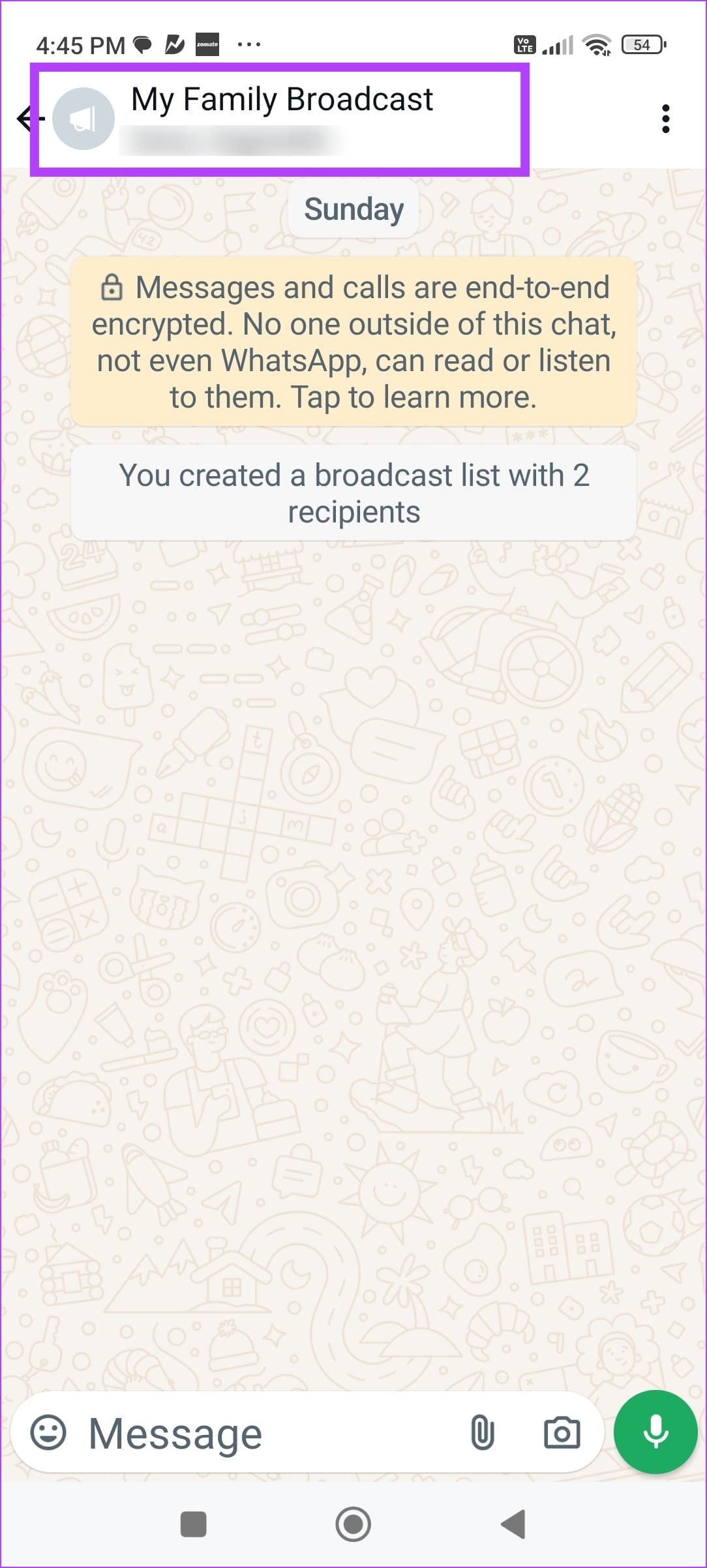
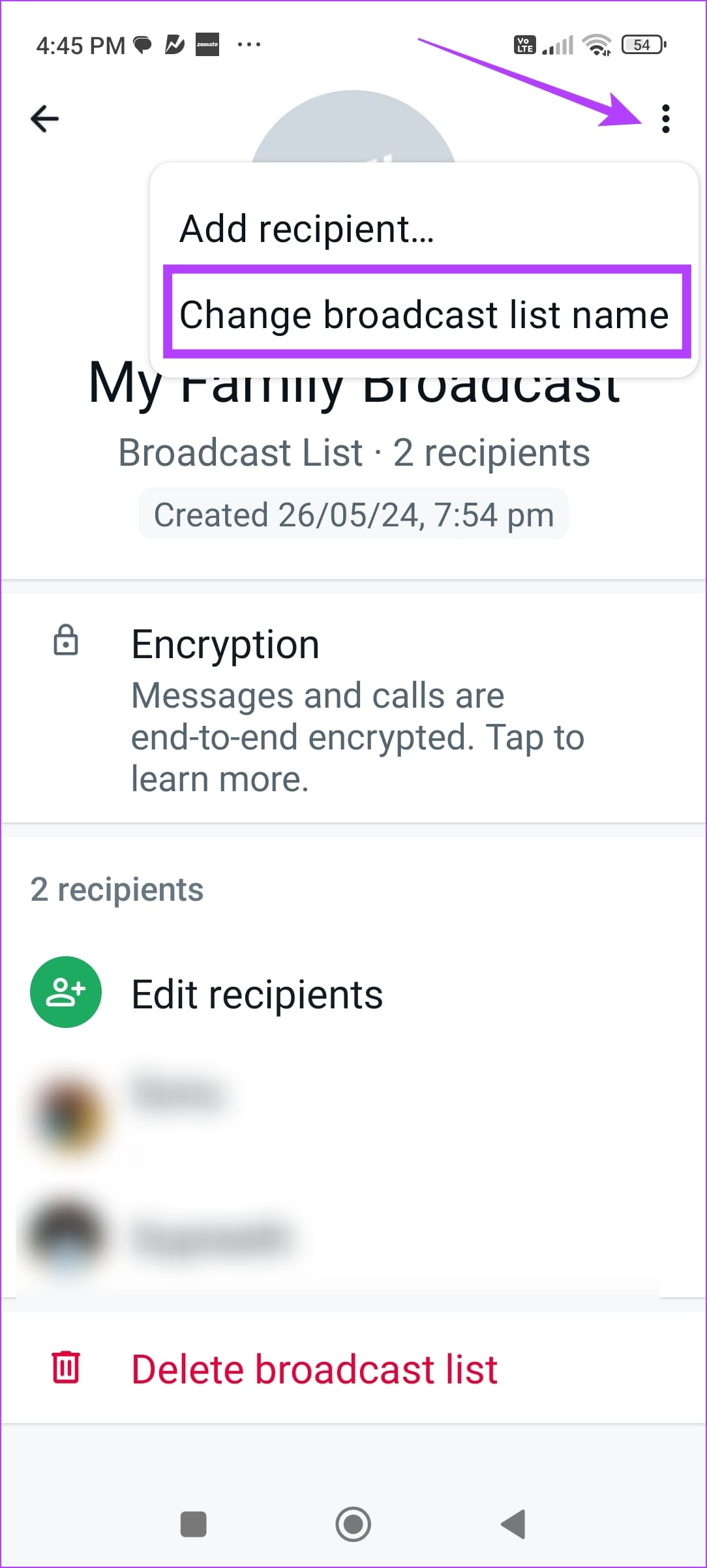
By default, a broadcast is named after all the recipients in the list. Open the Broadcast list, and tap on the name at the top. Tap on the three dots icon at the top right and select Change broadcast list name.
Enter a name of your choice, preferably something you can easily identify the list from.
Also Read: WhatsApp Group tips and tricks that all users should know.
Tip 2. Add or Remove Recipients
You can add up to 256 recipients to a Broadcast list.
Step 1: Open the Broadcast chat and tap on the name at the top.
Step 2: Tap on the three dots icon at the top right and select Add Recipient. Select all the contacts you want to add.
Step 3: To remove a recipient, tap on the Edit List option and remove a recipient from the list.


Tip 3. Archive Broadcast
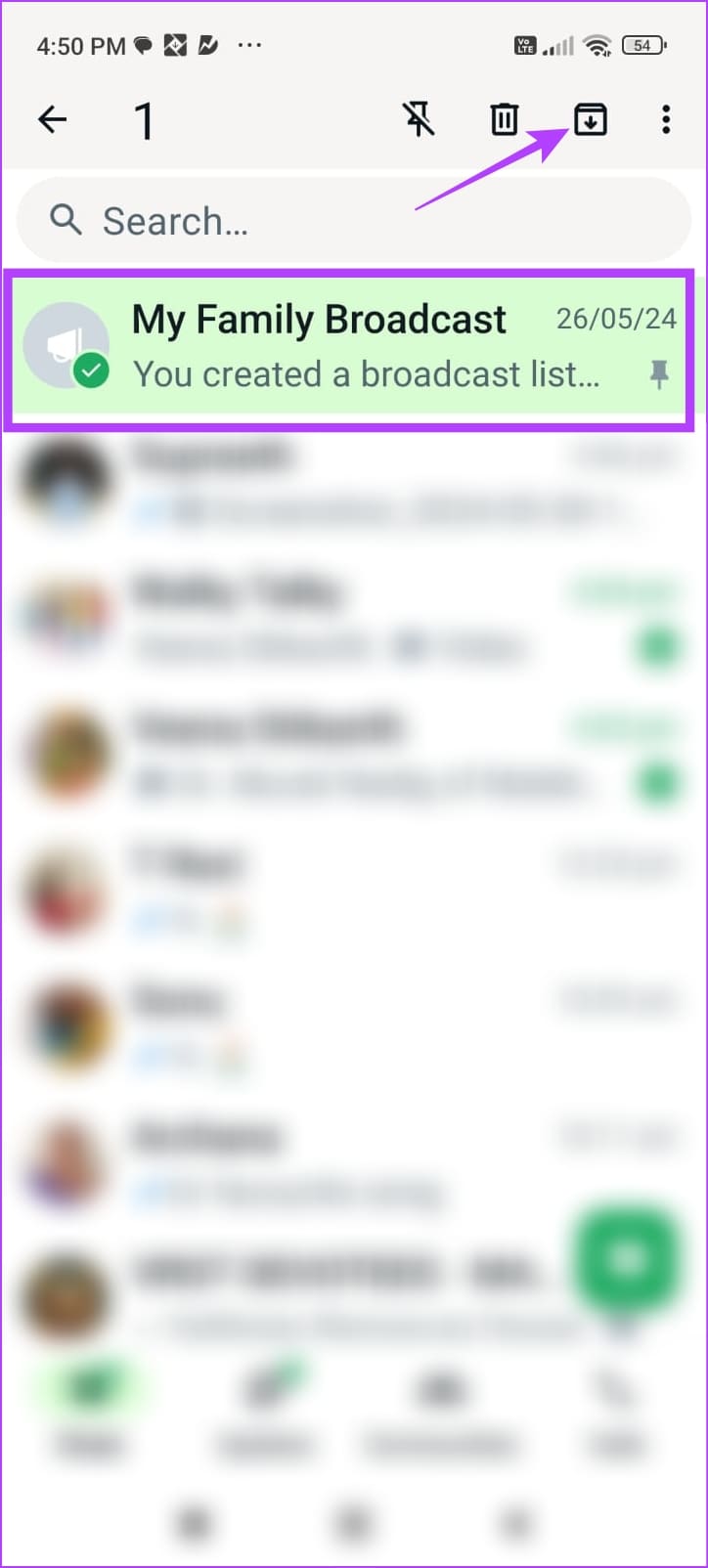
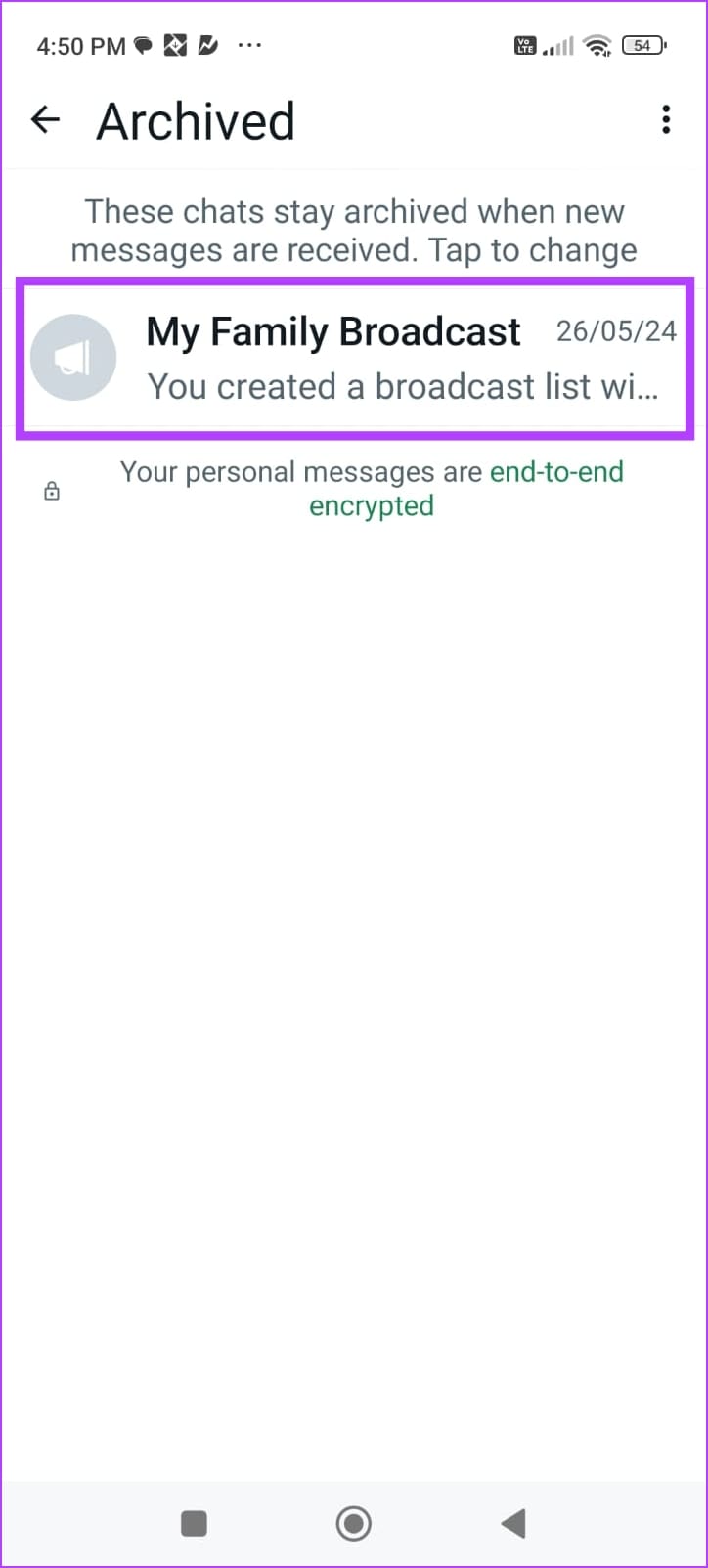
If you’re done sending messages to the Broadcast list, you don’t necessarily have to delete them. You can hide them from the list of your chats by long tapping on the Broadcast chat and selecting Archive.
You can always visit the Archived section and revisit the messages you have sent.

Also Read: WhatsApp Mute vs. Archive: Understand the differences.
Tip 4. Change Broadcast Wallpaper
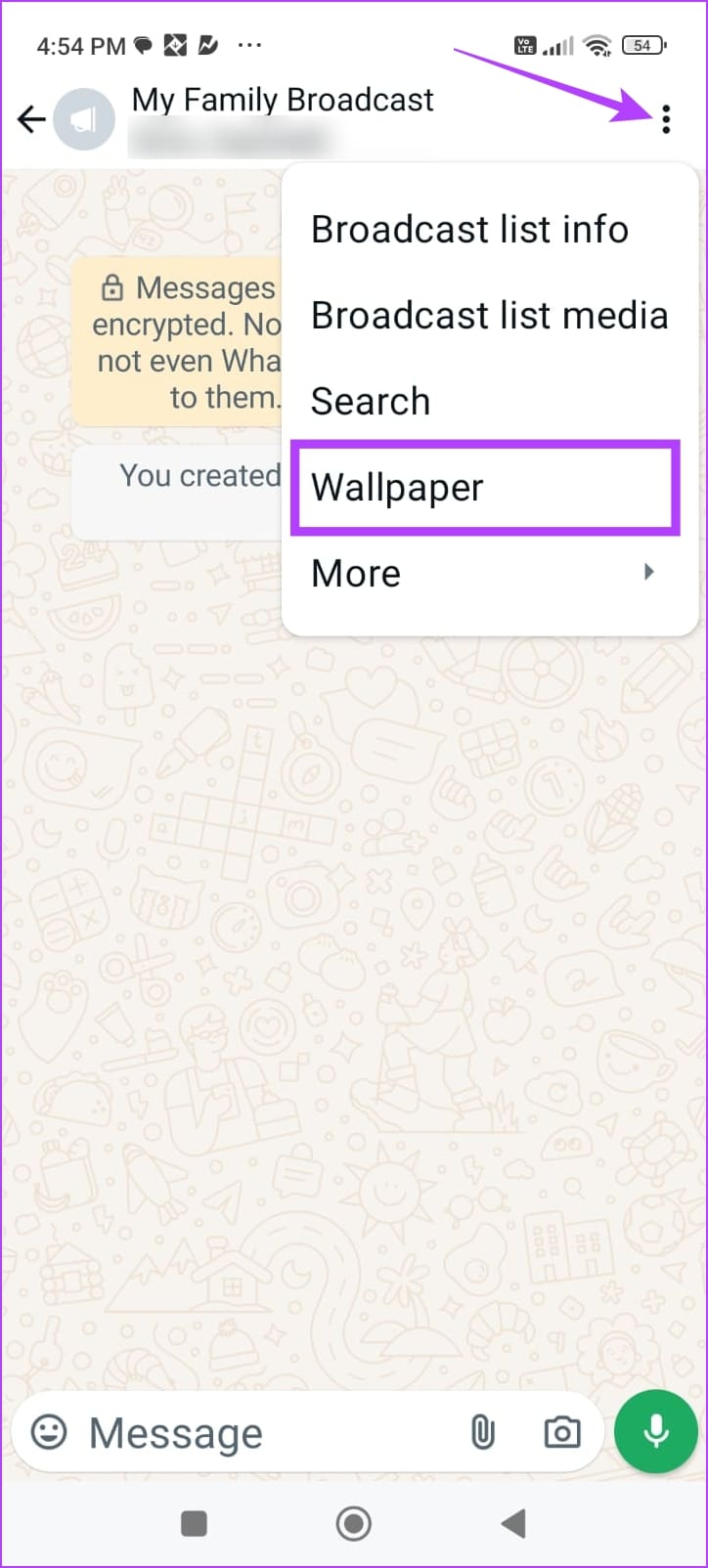
Bored by the default wallpaper on the Broadcast chat? Tap on the three-dots icon inside the chat and tap on Wallpaper. Choose from the presets or add a background image of your own.

Also Read: How to set custom notification sound for specific contacts on WhatsApp
5. Add a Shortcut to the Broadcast List
If you frequently visit the Broadcast, why not add a shortcut on your home screen?
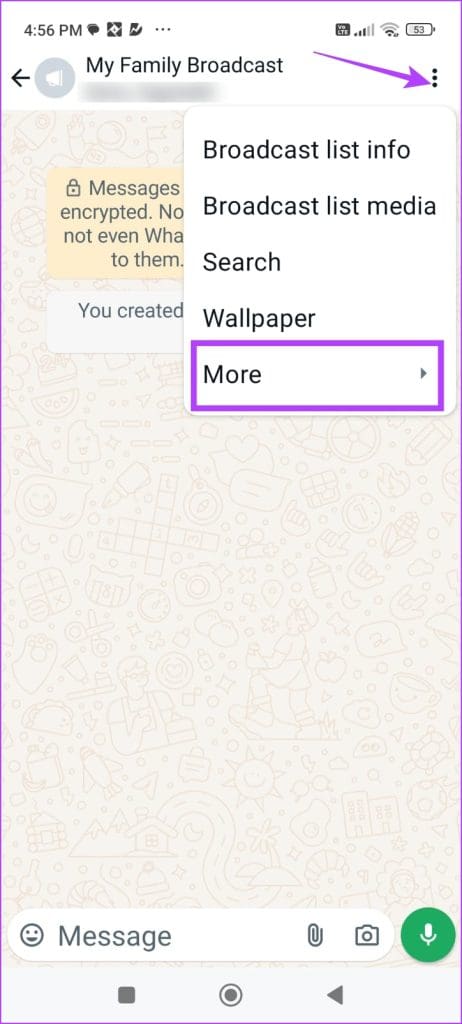
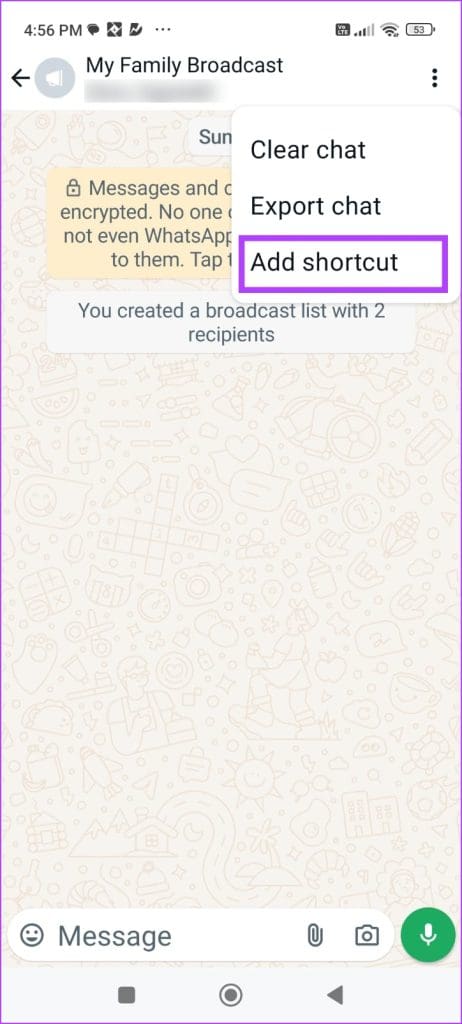
Tap on the three-dot icon inside your chat and select More > Add Shortcut. Tap on Add Automatically to easily access the list from the home screen shortcut.

6. Export Broadcast List
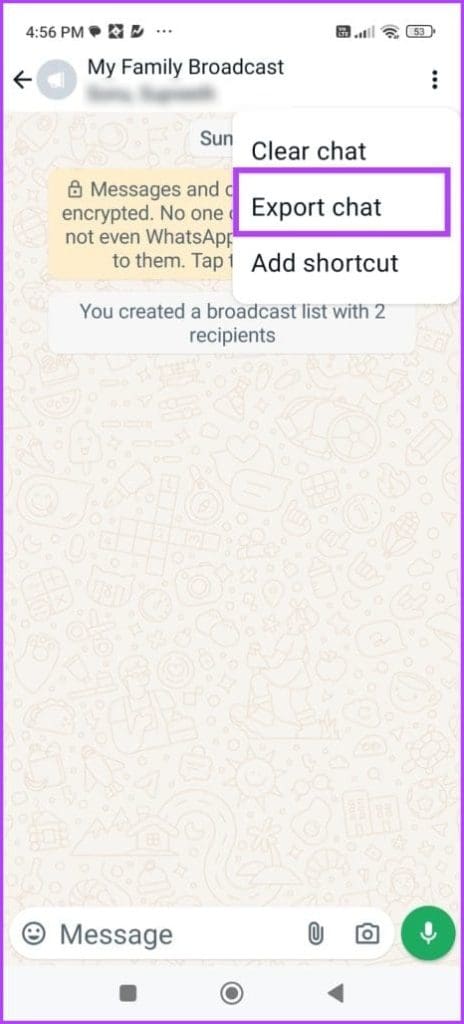
If you plan to delete the Broadcast, consider keeping a record of the messages you’ve sent. Tap on the three-dots icon inside your chat, and select More > Export. The chat will be exported in a document format.

7. Delete Broadcast List
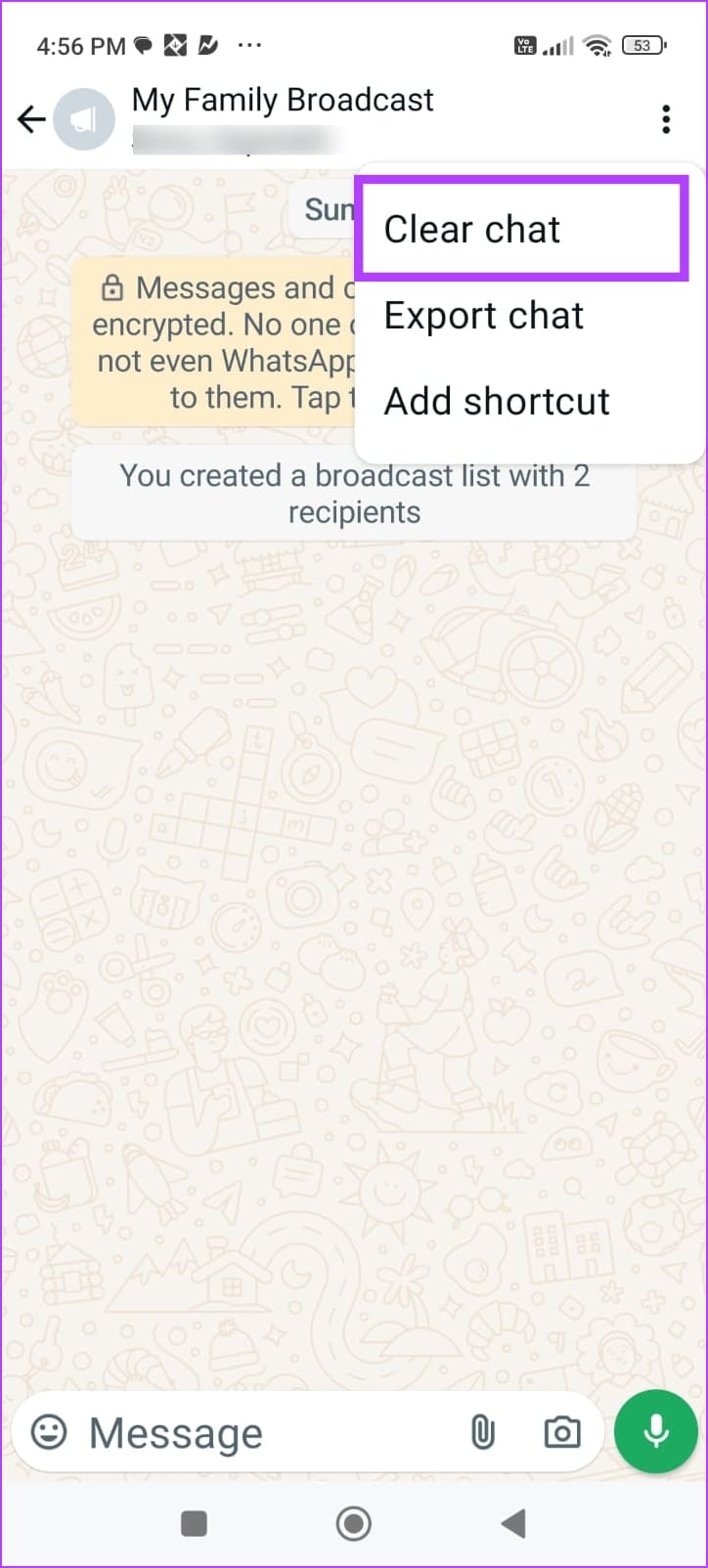
Don’t want the Broadcast anymore? Tap on the three-dots icon inside the chat and select More > Clear Chat. This will delete the messages you’ve sent in the channel.
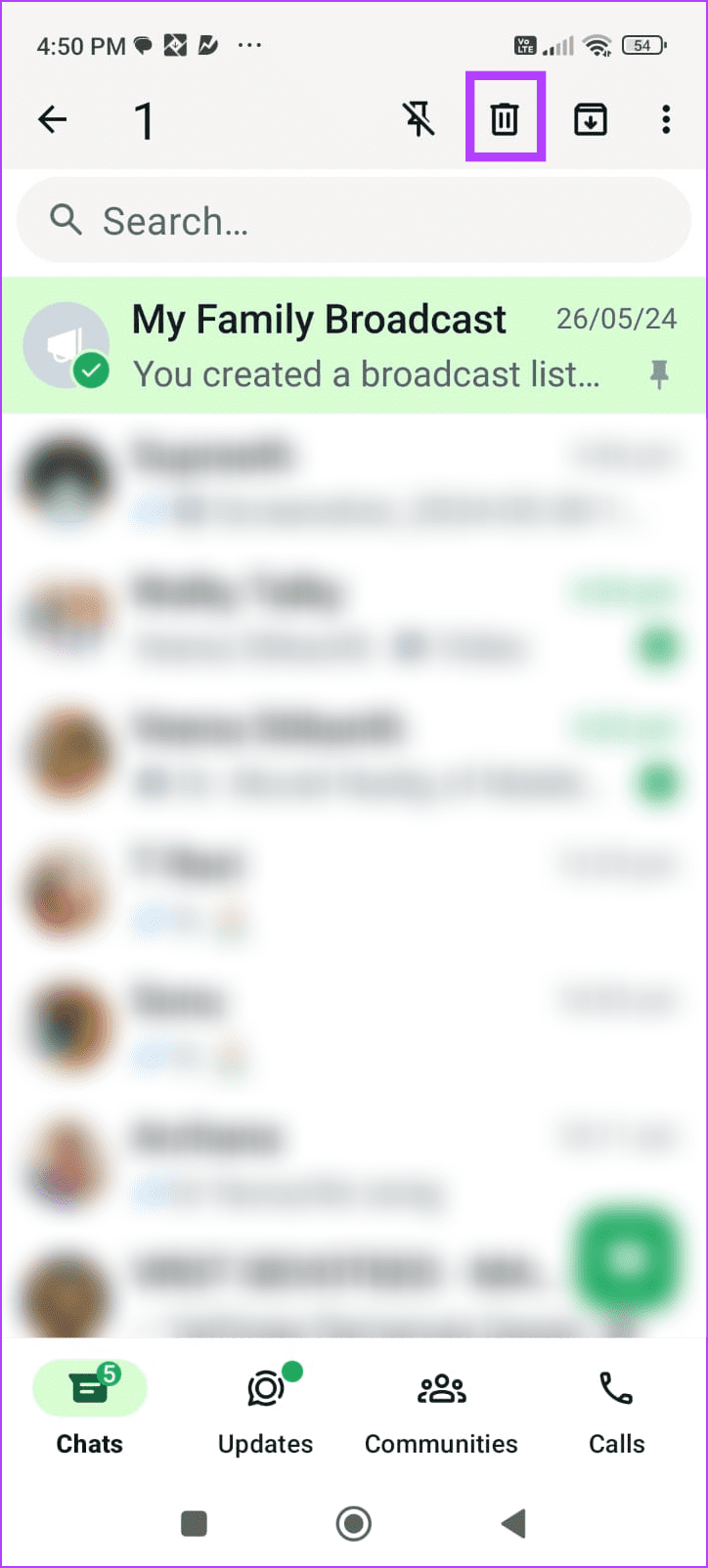
If you want to delete the channel from WhatsApp, long-tap on the Broadcast chat and tap on the Delete icon.

Was this helpful?
Last updated on 18 July, 2024
1 Comment
Leave a Reply
Read Next
 16 WhatsApp Group Tips and Tricks That All Users Should Know
Note: The below features have been illustrated with images and instructions using an iPhone.
16 WhatsApp Group Tips and Tricks That All Users Should Know
Note: The below features have been illustrated with images and instructions using an iPhone.
 17 WhatsApp Status Tips and Tricks You Should Know
Tip 1: Create a Status The process for creating a status is different for Android and iOS devices.
17 WhatsApp Status Tips and Tricks You Should Know
Tip 1: Create a Status The process for creating a status is different for Android and iOS devices.
 11 Facebook Comment Tricks and Tips You Should Know
Tip 1: @highlight in Facebook Comments If you have a comment that you want all your friends to be notified of, simply type @ and select @highlight from the options.
11 Facebook Comment Tricks and Tips You Should Know
Tip 1: @highlight in Facebook Comments If you have a comment that you want all your friends to be notified of, simply type @ and select @highlight from the options.
 17 Best Signal Messenger Tips and Tricks to Use It Like a Pro
Signal Messenger is one of the secure messaging alternatives to WhatsApp.
17 Best Signal Messenger Tips and Tricks to Use It Like a Pro
Signal Messenger is one of the secure messaging alternatives to WhatsApp.
 Top 14 Instagram Direct Messages (DM) Tricks and Tips
Instagram Direct Messages (DM) may seem simple at first.
Top 14 Instagram Direct Messages (DM) Tricks and Tips
Instagram Direct Messages (DM) may seem simple at first.
 11 Instagram Story Text Tips and Tricks You Should Know
Tip 1: Change Font Size and Style You can change the font style and size.
11 Instagram Story Text Tips and Tricks You Should Know
Tip 1: Change Font Size and Style You can change the font style and size.
 15 Best Microsoft Designer Tips and Tricks
1.
15 Best Microsoft Designer Tips and Tricks
1.
 17 Discord Tips and Tricks: The Ultimate Guide
Tip 1: Send Files More Than the Discord File Limit Despite being a popular messaging app, Discord still has a slight limit on sending files.
17 Discord Tips and Tricks: The Ultimate Guide
Tip 1: Send Files More Than the Discord File Limit Despite being a popular messaging app, Discord still has a slight limit on sending files.
The article above may contain affiliate links which help support Guiding Tech. The content remains unbiased and authentic and will never affect our editorial integrity.

The 3 dots do not appear for me on iOS