Recent Windows 11 updates have tended to prioritize AI integrations over practical improvements to stability and usability, to the concern of many users. Windows update KB5077241 alleviates many of those concerns.
The update contains several useful quality-of-life upgrades, reliability fixes, and platform-level changes, plus a few new AI integrations. Let’s take a look at the highlights.
Practical Benefits
The first category of Windows Update KB5077241 new features revolves around those that add practical benefits for daily use.
Network Speed Test on the Taskbar
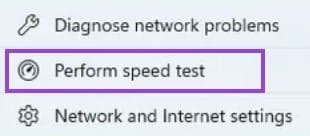
Gamers, regular video callers, and remote workers should appreciate this new feature. You can now run a network speed test right from your Windows taskbar. That greatly simplifies what was previously a repetitive multi-step troubleshooting process.
Launch the speed test from your Quick Settings or by right-clicking the network icon on your taskbar. Select the “Perform Speed Test” option to open the speed test in your default browser, where it measures Ethernet, Wi‑Fi, or cellular connections.
Webcam Pan and Tilt Controls
If you use advanced webcams that support motorized pan and tilt, you can now access basic camera positioning controls right from your Windows Settings. For supported devices, this KB5077241 feature allows you to fine-tune your camera’s framing without installing third-party software.
You’ll find this new feature in your Windows Settings under Bluetooth & devices > Cameras.
WebP Wallpapers
The WebP image format offers many users better compression and color fidelity than JPEGs or PNGs. Thanks to Windows Update KB5077241, you can now set .webp images as desktop backgrounds directly from Settings or File Explorer.
Via Settings, add WebP background images from the Background section in Personalization.
In File Explorer, right-click on the image you want to set as background and select the “Set as background” option.

Emoji 16.0 Support
The new Emoji 16.0 release makes available a thoughtfully curated set of new emojis, consisting of one from each major category. Access the emoji panel by pressing the Windows key + . (period) or ; (semicolon) to browse the new set.
Search Tweaks
When you search from the taskbar, you’ll now see counts for each results group. The results page also now features hover previews – a small but meaningful improvement to discoverability and usability.
Reliability and Quality-of-Life Features
Windows Update KB5077241 new features also include some welcome fixes for long-standing issues that make Windows 11 faster and more reliable.
Sleep/Resume Improvements
For some Windows 11 users, when resuming after a Sleep, peripherals don’t reinitialize, touchscreens don’t respond, and the system may even require a reboot. Following the installation of KB5077241, most of those issues should be resolved. That means quicker reactivation of peripherals, fewer failures, and no need to reboot.
Performance Improvements
KB5077241 also resolves several long-standing operational irritations. Highlights include:
- Improved Sign-in / Lock screen – Signing in should now be quicker and smoother.
- Improved Print Spooler – Print jobs should now process more quickly, especially during heavy printing loads.
- Improved Windows Update – The Windows Settings Update page is now more responsive, thanks to improvements in Windows’ device targeting for Secure Boot certificate distribution.
- Improved File Explorer – Enhancements include an Extract All command for archive‑like folders.
Administrative Tools
Windows Update KB5077241 also features several handy new features for administrators and techies.
Built-In Sysmon
Sysmon (System Monitor) is a powerful tool that logs detailed system events into the Event Log. While it remains disabled by default, you can now enable Sysmon via Settings or command line and configure it with custom configuration files for consistent enhanced telemetry across multiple endpoints.
RSAT Support for Arm64
Remote Server Administration Tools (RSAT) is now available on Windows 11 Arm64 devices.
Recovery Improvements
KB5077241 expands Quick Machine Recovery (QMR) behavior so that private Windows 11 Pro devices experience the expanded recovery features previously limited to Home devices. The update also includes improvements to backup/restore experiences for organizations.
Conclusion
For normal end-users, the update offers subtle but meaningful enhancements to the overall Windows 11 experience. The same is true for techies, but it’s probably worth testing features like Sysmon in a ring-fenced environment before deploying enterprise-wide.
Was this helpful?
Last updated on 09 April, 2026
Read Next
 3 Ways to Delete Old Windows Update Files From Windows 10 and 11
Method 1: Delete Old Windows Update Files via Settings The Storage section of the Settings app provides a detailed breakdown of all temporary files on your PC, including old Windows
3 Ways to Delete Old Windows Update Files From Windows 10 and 11
Method 1: Delete Old Windows Update Files via Settings The Storage section of the Settings app provides a detailed breakdown of all temporary files on your PC, including old Windows
 5 Best Ways To View Windows Update History In Windows 11
By constantly updating your Windows 11 operating system, you get access to new or improved features to deliver a better user experience.
5 Best Ways To View Windows Update History In Windows 11
By constantly updating your Windows 11 operating system, you get access to new or improved features to deliver a better user experience.
 7 Best Fixes for Windows Update Error 0x800f081f in Windows 11
Microsoft regularly releases Windows updates to introduce new features and fix known issues.
7 Best Fixes for Windows Update Error 0x800f081f in Windows 11
Microsoft regularly releases Windows updates to introduce new features and fix known issues.
 How to Get Windows 11 25H2 if It Doesn’t Show in Windows Update
Windows 11 hasn’t had the best track record with major software updates.
How to Get Windows 11 25H2 if It Doesn’t Show in Windows Update
Windows 11 hasn’t had the best track record with major software updates.
 4 Ways to Fix “We Couldn’t Connect to the Update Service” Issue on Windows
Basic Fixes Restart PC: Restart your PC to fix temporary bugs and glitches.
4 Ways to Fix “We Couldn’t Connect to the Update Service” Issue on Windows
Basic Fixes Restart PC: Restart your PC to fix temporary bugs and glitches.
 5 Best Ways to Update iTunes on Windows 10
On Windows 10, iTunes is that one program that never seems to change with the times.
5 Best Ways to Update iTunes on Windows 10
On Windows 10, iTunes is that one program that never seems to change with the times.
 10 Ways to Fix Windows Update Stuck at 100% Issue
Keeping your Windows device up-to-date ensures you get access to the latest features and bug fixes.
10 Ways to Fix Windows Update Stuck at 100% Issue
Keeping your Windows device up-to-date ensures you get access to the latest features and bug fixes.
 How to Update DirectX on Windows 11
DirectX is a component of the Windows OS that enables software, primarily games, to work seamlessly with your computer's hardware, and keeping it up-to-date ensures your system can handle the
How to Update DirectX on Windows 11
DirectX is a component of the Windows OS that enables software, primarily games, to work seamlessly with your computer's hardware, and keeping it up-to-date ensures your system can handle the
The article above may contain affiliate links which help support Guiding Tech. The content remains unbiased and authentic and will never affect our editorial integrity.