What Is a Private Session on Spotify?
Private Session on Spotify keeps your music choices your own. Dubbed as the “Incognito Mode” of Spotify, it makes sure no one can see what you’re currently listening to. Here are a few more perks that help make Private Session a fan favorite.
- Not Tracked by Spotify: When enabled, Spotify will no longer record your music choice. This means you can listen to anything you want without influencing your Weekly playlists or recommendations from Spotify.
- Temporary: You never have to worry about Private Session being on indefinitely. Spotify will automatically disable Private Session after 6 hours or once the Spotify app is restarted.
- Off the Radar: As mentioned before, the Private Session feature makes sure your friends and followers are not able to see what you’re currently listening to. However, your previous listening activity might still be visible.
- Visible Only to You: While others cannot see, you will be able to tell if your current session is public or private using your own Spotify app.
Now that we know more about what Private Session is, let us look at how to enable or disable it on Spotify mobile and desktop apps.
How to Start or End Private Session on Spotify Mobile App
The settings menu on the Spotify app helps you control who can see what you’re listening to and how. So it is no surprise using this, you can easily start or end a Private Session on the Spotify mobile app. Follow the below steps to do it.
Step 1: Open the Spotify app and tap on your account icon. Tap on Settings and privacy.
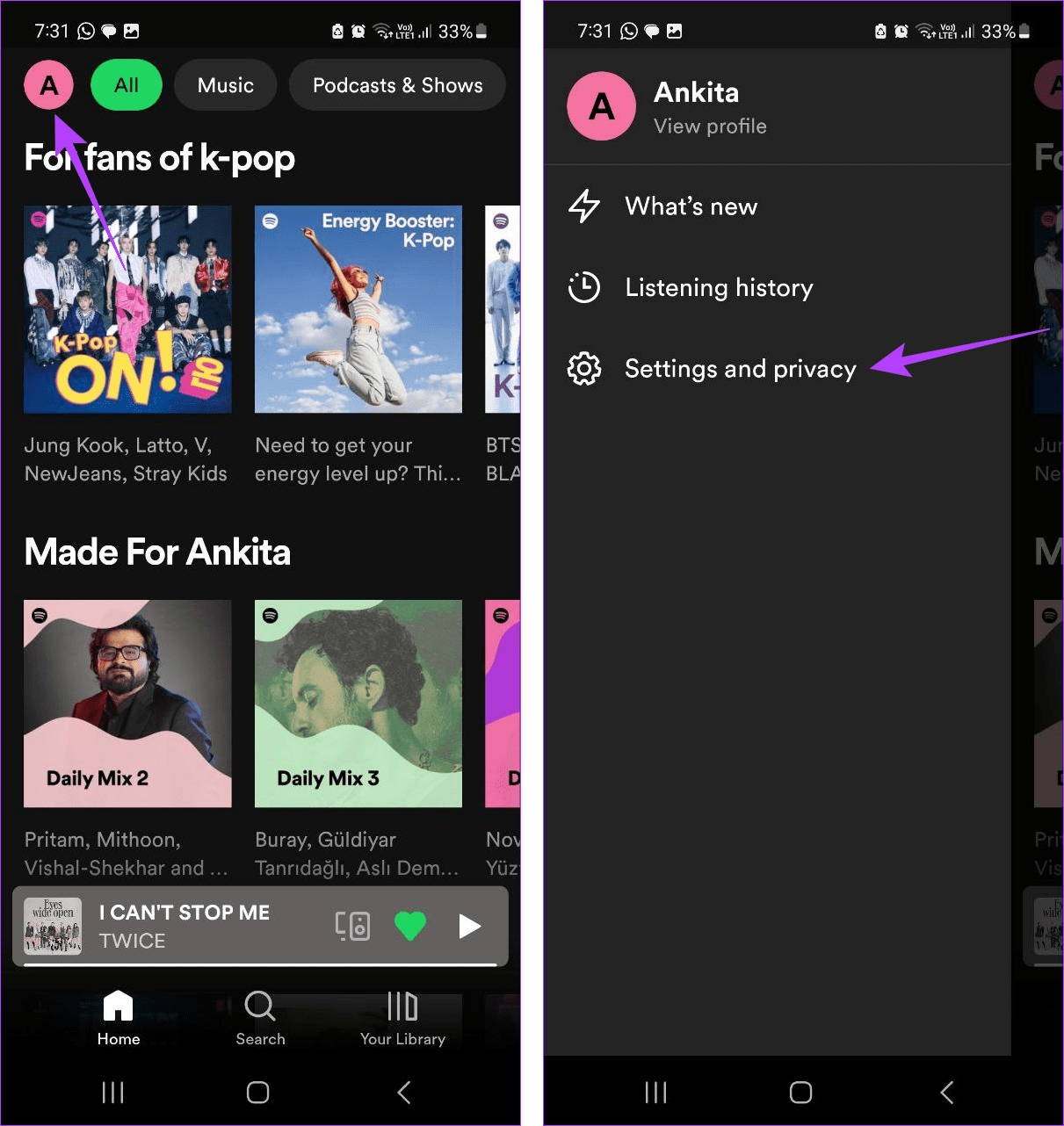
Step 2: Tap on Privacy & social and turn on the Private session toggle.


If the toggle is already on, turn it off to disable the Private Session on your Spotify mobile app.
Also Read: How to fix Spotify stops playing when screen is off issue
How to Turn On or off Private Session on Spotify Web and Desktop
Like the Spotify mobile app, you can also use Private Session on the Spotify web or desktop app. Once done, your Spotify listening activity will only be private to you. Here’s how to do it.
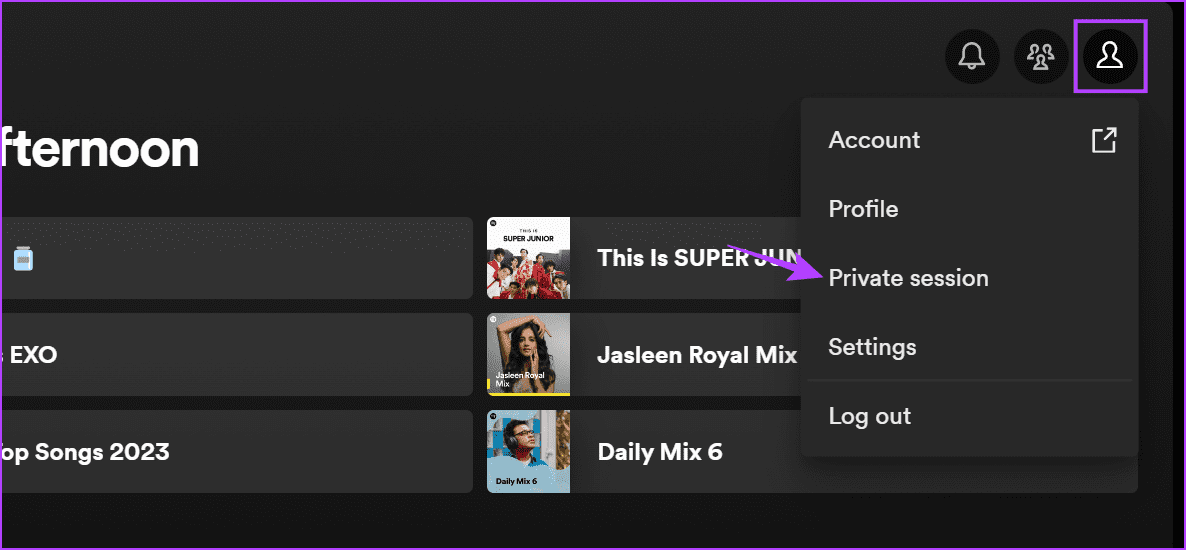
Step 1: Open the Spotify desktop or Spotify web app. Click on your account icon and click on Private session.
Note: If the Private Session option has a tick in front of it, click on it again to turn off Private Session.
Also Read: How to make Spotify use less mobile data
How to Check if Current Spotify Session Is Private or Not
If you’re unsure whether your current Spotify session is private, you can look for certain indicators on your Spotify desktop or iOS app. This option might not be available on the Spotify Android app. For the Spotify desktop and iOS app, follow the below steps.
On Desktop
Step 1: Open the Spotify desktop app and look for the lock icon. Hover over it for more information.

This means your current Spotify session is private. When you disable Private Session, this lock icon will also disappear from your Spotify desktop app.
On iOS App
In the Spotify iOS app, at the bottom of the screen, Private Session might be visible. This indicates your Spotify iOS app currently has Private Session enabled. Once turned off, this will also disappear.
FAQs
Making a playlist private on Spotify will not enable Spotify Private Session. To do this, you must follow the abovementioned steps. However, others can’t see your listening activity as long as you’re listening to your private playlist on Spotify.
No, your Private Session is only for you and is not visible to your friends. Your friends will not be able to see if you’re using a Private Session or just not using Spotify. However, they can see the songs you previously publicly listened to on Spotify.
No. Since Private Session strives to make your listening activity private, anything you play during this time will not be recorded by Spotify’s algorithm. Due to this, the song or podcast you listen to will also not be counted towards your Spotify Wrapped playlist.
Was this helpful?
Last updated on 29 August, 2024
Read Next
 How to Start a Spotify Jam Session With Friends
Starting a Jam Session Open the Spotify app and go to the now playing screen.
How to Start a Spotify Jam Session With Friends
Starting a Jam Session Open the Spotify app and go to the now playing screen.
 6 Best Session Manager Extensions for Chrome
1.
6 Best Session Manager Extensions for Chrome
1.
 How to Disable Private Browsing in Safari on iPhone
Limiting adult websites inside the Content Restrictions menu disables the Private Browsing Mode in Safari.
How to Disable Private Browsing in Safari on iPhone
Limiting adult websites inside the Content Restrictions menu disables the Private Browsing Mode in Safari.
 How to Disable Safari Private Browsing on Mac
If you hand over your Mac to someone else, you may not know what they were up to during their browsing sessions.
How to Disable Safari Private Browsing on Mac
If you hand over your Mac to someone else, you may not know what they were up to during their browsing sessions.
 How to Make Sure Google Photos Are Private
Google Photos is a well-known photo-storage service.
How to Make Sure Google Photos Are Private
Google Photos is a well-known photo-storage service.
 5 Fixes for “Your Connection Is Not Private” Error in Google Chrome
Try Basic Fixes Switch to a different network: If you use a public Wi-Fi connection at a restaurant, mall, or airport that runs on the HTTP protocol instead of HTTPS,
5 Fixes for “Your Connection Is Not Private” Error in Google Chrome
Try Basic Fixes Switch to a different network: If you use a public Wi-Fi connection at a restaurant, mall, or airport that runs on the HTTP protocol instead of HTTPS,
 How to Upload Private and Unlisted Videos on YouTube
How to Upload an Unlisted or Private Video on YouTube On Web Browser Step 1: Open YouTube on your web browser.
How to Upload Private and Unlisted Videos on YouTube
How to Upload an Unlisted or Private Video on YouTube On Web Browser Step 1: Open YouTube on your web browser.
 Can You Remove Yourself From a Private Story on Snapchat
In order to ensure your snaps remain private, users can create private stories on Snapchat.
Can You Remove Yourself From a Private Story on Snapchat
In order to ensure your snaps remain private, users can create private stories on Snapchat.
The article above may contain affiliate links which help support Guiding Tech. The content remains unbiased and authentic and will never affect our editorial integrity.