What Is Share Focus Status on iPhone?
As the name implies, the setting shares your Focus status with other people connecting with you when your iPhone is in Focus mode. However, there are currently limited apps that support this feature.
Which Apps Can Share Focus Status?
The feature is limited to apps with communication notifications like Messages. And though Apple provides Focus status API, not many developers have adopted it yet. So, more or less, you’re stuck with Apple’s native Messages app, and that too is only for iMessage users.

How to Turn On Share Focus Status on iPhone
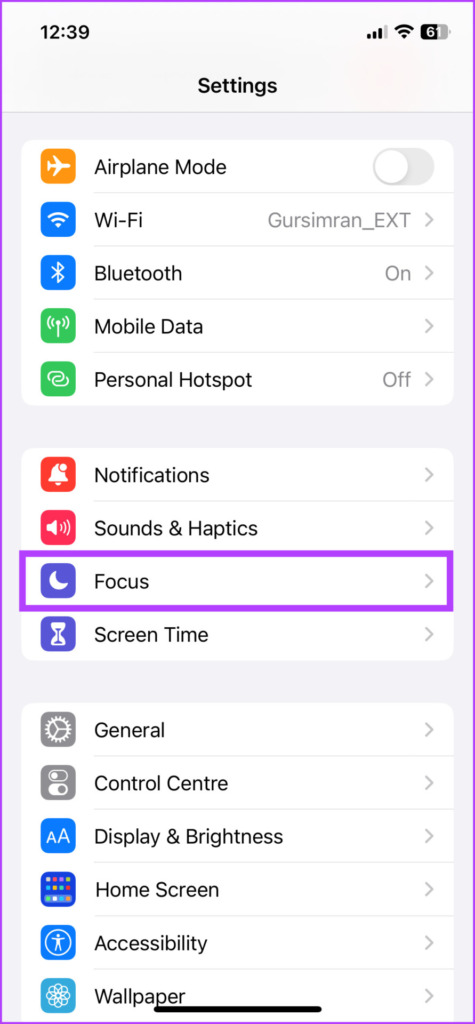
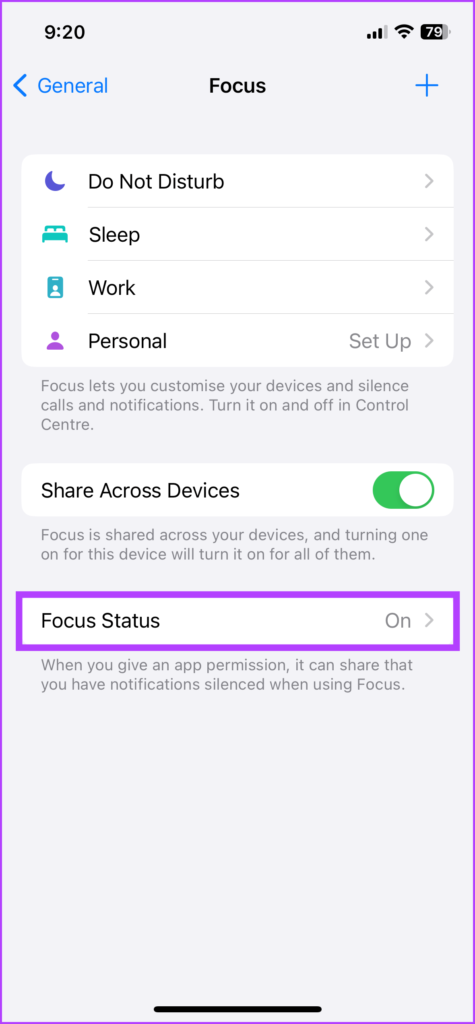
Step 1: Go to Settings > Focus. Tap Focus Status.
Step 2: Turn on Share Focus Status.
Step 3: You’ll also see all the Focus you’ve set up. Toggle on or off the switch next to the preferred Focus.

How to Share Focus Status With Everyone or Selected Contacts
By default, your Focus status is shared with all iMessage users in your contacts and turned off for unknown chats. If you want to exclude a bunch of people, turn it off for individual contacts
Step 1: Go to Messages. Select the contact.
Step 2: Tap the contact at the top. Turn on or off the Share Focus Status option.
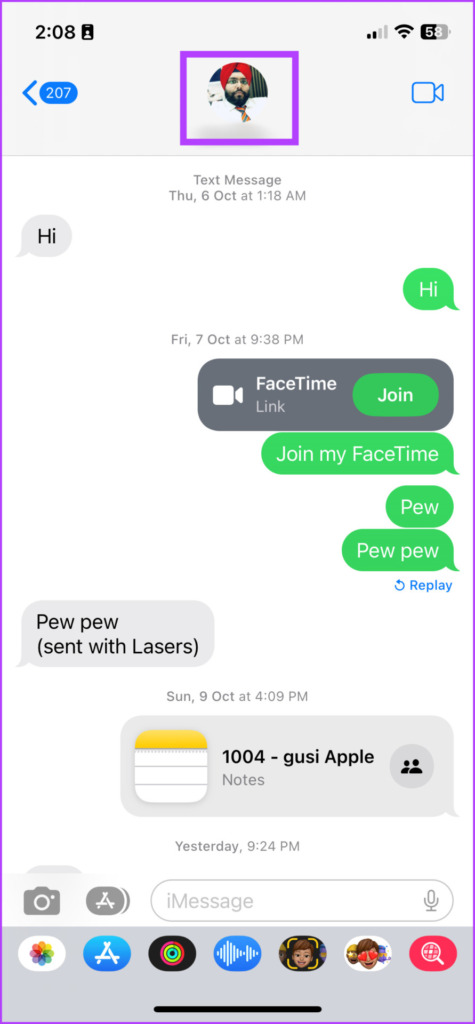

If you can’t see the option, the user is probably not using iMessage.
Tip: If you want your friends or close family to bypass Focus mode, turn on Emergency Bypass for those contacts.
Was this helpful?
Last updated on 19 August, 2024
Read Next
 Why Am I Getting Calls When Do Not Disturb or Focus Mode Is On
Stop Getting Calls During DND or Focus Mode on iPhone 1.
Why Am I Getting Calls When Do Not Disturb or Focus Mode Is On
Stop Getting Calls During DND or Focus Mode on iPhone 1.
 2 Fixes for No Sound in WhatsApp Status on iPhone
Basic Fixes Disable silent mode: Starting with the basic solution, you should disable Silent Mode on your iPhone to hear the WhatsApp Status video sound.
2 Fixes for No Sound in WhatsApp Status on iPhone
Basic Fixes Disable silent mode: Starting with the basic solution, you should disable Silent Mode on your iPhone to hear the WhatsApp Status video sound.
 Firefox Focus vs DuckDuckGo: Which Is the Best Browser for Privacy
Firefox Focus vs DuckDuckGo Browsers: Key Differences FeaturesFirefox FocusDuckDuckGo BrowserTracking ProtectionIt offers enhanced tracking protection and allows you to block/unblock trackers and scripts for advertising, analytics, social media, and content.It
Firefox Focus vs DuckDuckGo: Which Is the Best Browser for Privacy
Firefox Focus vs DuckDuckGo Browsers: Key Differences FeaturesFirefox FocusDuckDuckGo BrowserTracking ProtectionIt offers enhanced tracking protection and allows you to block/unblock trackers and scripts for advertising, analytics, social media, and content.It
 Firefox vs Firefox Focus: Should You Switch
Firefox Focus is a strange name for a browser, and the fact that it’s developed by none other Mozilla is even weirder.
Firefox vs Firefox Focus: Should You Switch
Firefox Focus is a strange name for a browser, and the fact that it’s developed by none other Mozilla is even weirder.
 Top 6 Ways to Fix Camera Focus Not Working on Android
Basic Fixes Check for Physical Damage: Before starting, it's important to ensure that this isn't a hardware issue.
Top 6 Ways to Fix Camera Focus Not Working on Android
Basic Fixes Check for Physical Damage: Before starting, it's important to ensure that this isn't a hardware issue.
 How to Enable and Disable Focus Mode in Microsoft Word
How to Enable Focus Mode in Microsoft Word Focus Mode hides the Ribbon and Taskbar on your document to reduce distractions and let you work only on the document's text
How to Enable and Disable Focus Mode in Microsoft Word
How to Enable Focus Mode in Microsoft Word Focus Mode hides the Ribbon and Taskbar on your document to reduce distractions and let you work only on the document's text
 5 Ways to Fix WhatsApp Status Couldn’t Send Error
Try Basic Fixes Try another image or video: Uploading another image or video will help verify whether the issue is related to the specific media file.
5 Ways to Fix WhatsApp Status Couldn’t Send Error
Try Basic Fixes Try another image or video: Uploading another image or video will help verify whether the issue is related to the specific media file.
 Why Do Photos Get Blurry on WhatsApp Status: 3 Ways to Fix This
https://youtu.be/k2MGRKNamFQ Basic Fixes Switch to the stable version of WhatsApp: While beta versions give you early access to new features and cool tricks, they may also introduce several bugs and
Why Do Photos Get Blurry on WhatsApp Status: 3 Ways to Fix This
https://youtu.be/k2MGRKNamFQ Basic Fixes Switch to the stable version of WhatsApp: While beta versions give you early access to new features and cool tricks, they may also introduce several bugs and
The article above may contain affiliate links which help support Guiding Tech. The content remains unbiased and authentic and will never affect our editorial integrity.