iPhone Screen Mirroring: Basic Overview
As the name suggests, Screen Mirroring allows you to mirror the content of your iPhone’s screen on other devices. What’s more, you can also wirelessly send and play audio from your iPhone to your TV, smart speakers, and other compatible devices. So, it’s more like a 2-in-1 feature—visual + audio.
While gaming, you can use your iPhone’s Screen Mirroring feature to wirelessly project the game to your TV for a bigger (and better) view. And if you’re watching a movie, you can project to your TV so others can join in or enjoy the film on a much bigger display.
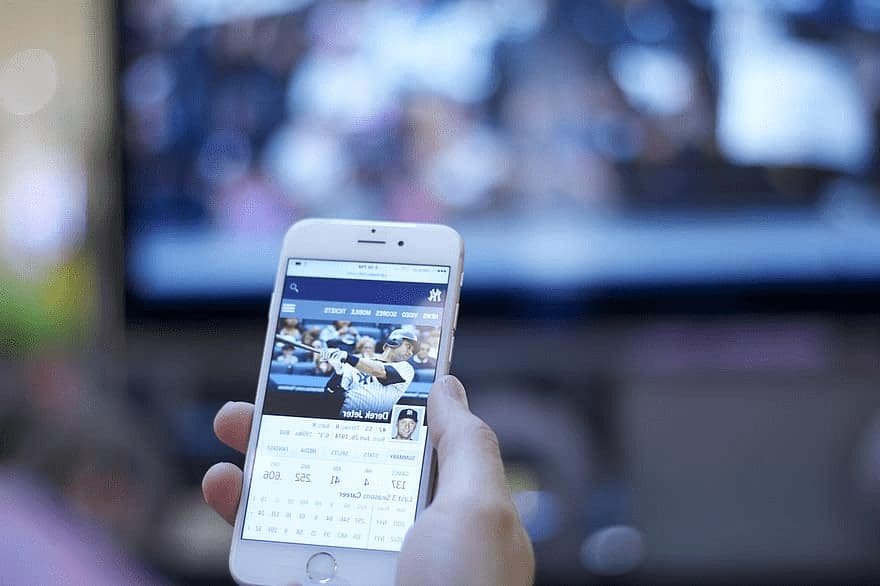
Screen Mirroring on your iPhone is powered by an underlying connectivity technology, AirPlay. As such, to wirelessly mirror and send content to your TV (or other devices), both devices must be AirPlay-compatible.
Supported Devices and Platforms

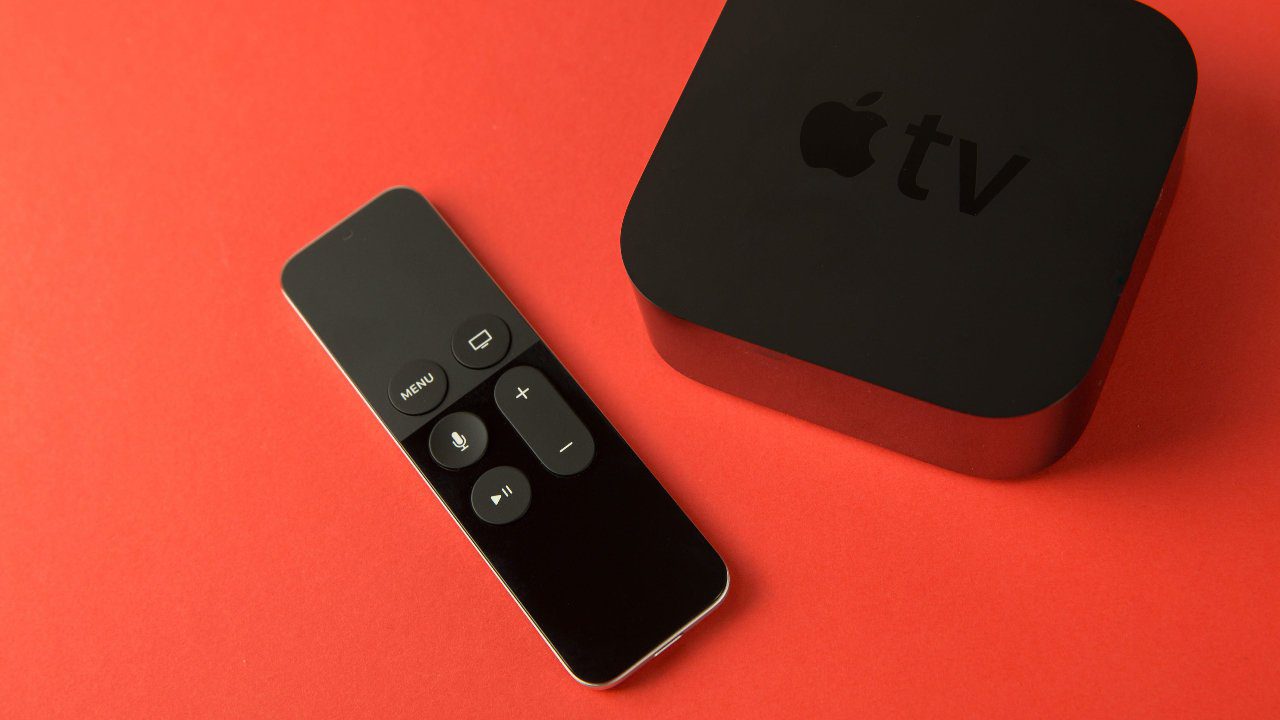
Screen Mirroring works on iPhone, iPad, iPod touch, Mac, and Apple TV (4K and HD). Pretty much all Apple devices that support AirPlay by default.
Note: You can only AirPlay/stream audio from Apple TV to other devices.
Back to the iPhone, you can use screen mirroring to stream video and audio to Apple TV, HomePod, and smart TVs/speakers that support AirPlay. Just look out for a ‘Works with Apple Airplay’ inscription on their packaging or instruction manual.
How to Use Screen Mirroring on iPhone
With AirPlay Compatible Devices
The Airplay protocol that powers the screen mirroring feature requires Wi-Fi to function. To mirror your screen, connect your iPhone to the same Wi-Fi network as your Apple TV, Smart TV, or other AirPlay-compatible device. Once you have done this, follow the steps below.
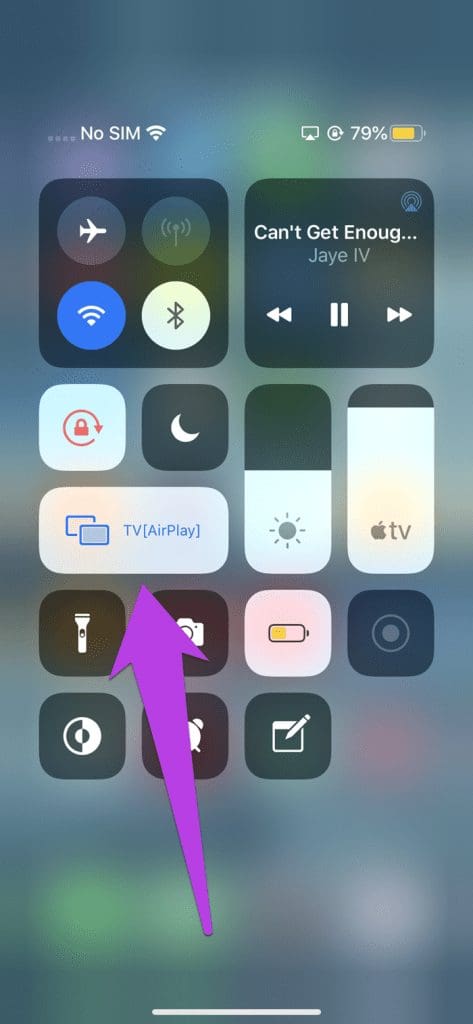
Step 1: Swipe down from the top-right corner of your phone’s screen to open the Control Center. Here, tap on Screen Mirroring. Then, select the device to which you want to mirror your phone’s screen.

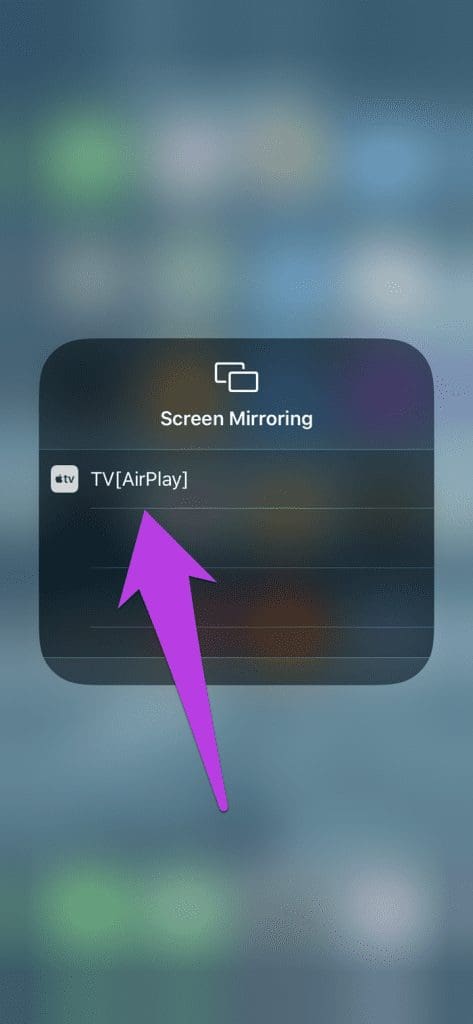
This should immediately initiate a connection between your iPhone and the device. You should now be able to see the content on your iPhone’s display on your TV screen.
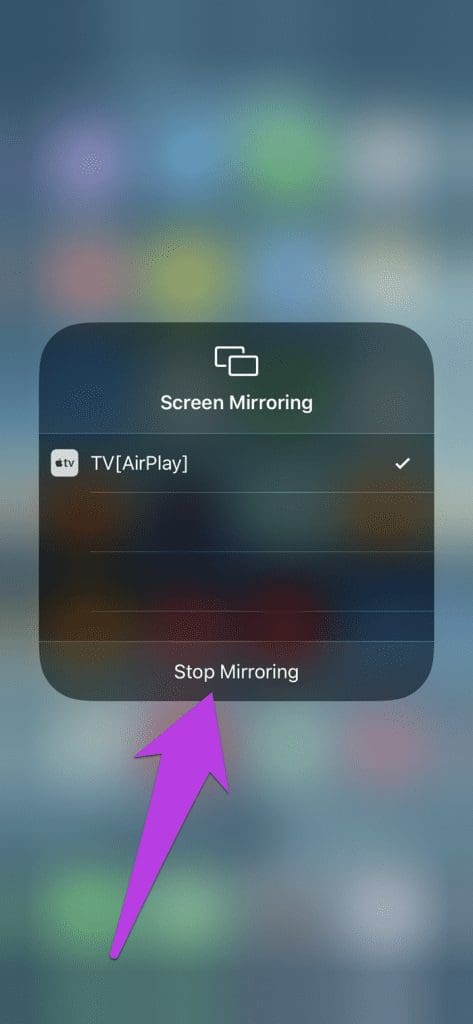
Step 2: Similarly, to stop screen mirroring, open the Control Center, tap the name of the device you’re mirroring to, and tap Stop Mirroring.
Without AirPlay
If your TV doesn’t have native AirPlay support, some workarounds can help you utilize the Screen Mirroring feature to stream content wirelessly from your iPhone without buying an Apple TV box.
Well, you might have to (buy and) use some other devices to get this done, but hey, they are way cheaper than the Apple TV box.
Using some apps on Google Chromecast, you can wirelessly stream content to your TV via the Screen Mirroring feature. Screen Mirroring from iPhone to TV is also achievable with an Android TV box or streaming device. Users of Windows PCs and laptops also don’t need to buy a Mac to use the screen mirroring on their iPhone. There are tonnes of software that lets you mirror your iPhone to Windows PC for free.
With MacBook
With macOS Sequoia, Apple offers a new way to mirror your iPhone onto your MacBook and even seamlessly control it. It elevates iPhone Mirroring capabilities with iOS 18 on the iPhone, offering a fluid ecosystem. We’ll be updating our guide to reflect this, so make sure to check back soon.
Was this helpful?
Last updated on 27 June, 2024
Read Next
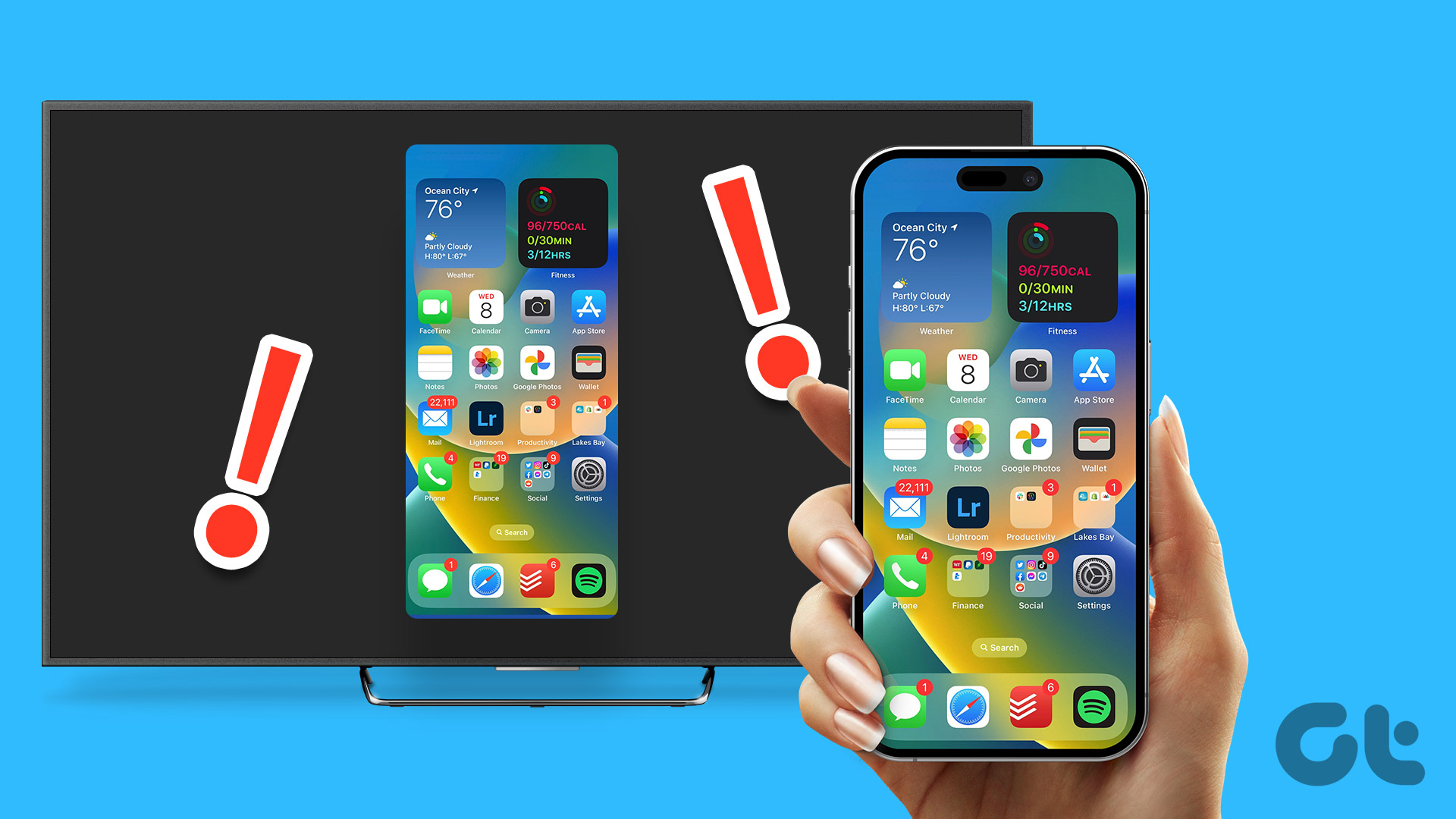 3 Ways to Fix Screen Mirroring Not Working on iPhone
https://youtu.be/yWpGSd6wOa0 Basic Troubleshooting Ensure that your TV supports AirPlay: A quick read of your TV's manual or an internet search could give you the answer.
3 Ways to Fix Screen Mirroring Not Working on iPhone
https://youtu.be/yWpGSd6wOa0 Basic Troubleshooting Ensure that your TV supports AirPlay: A quick read of your TV's manual or an internet search could give you the answer.
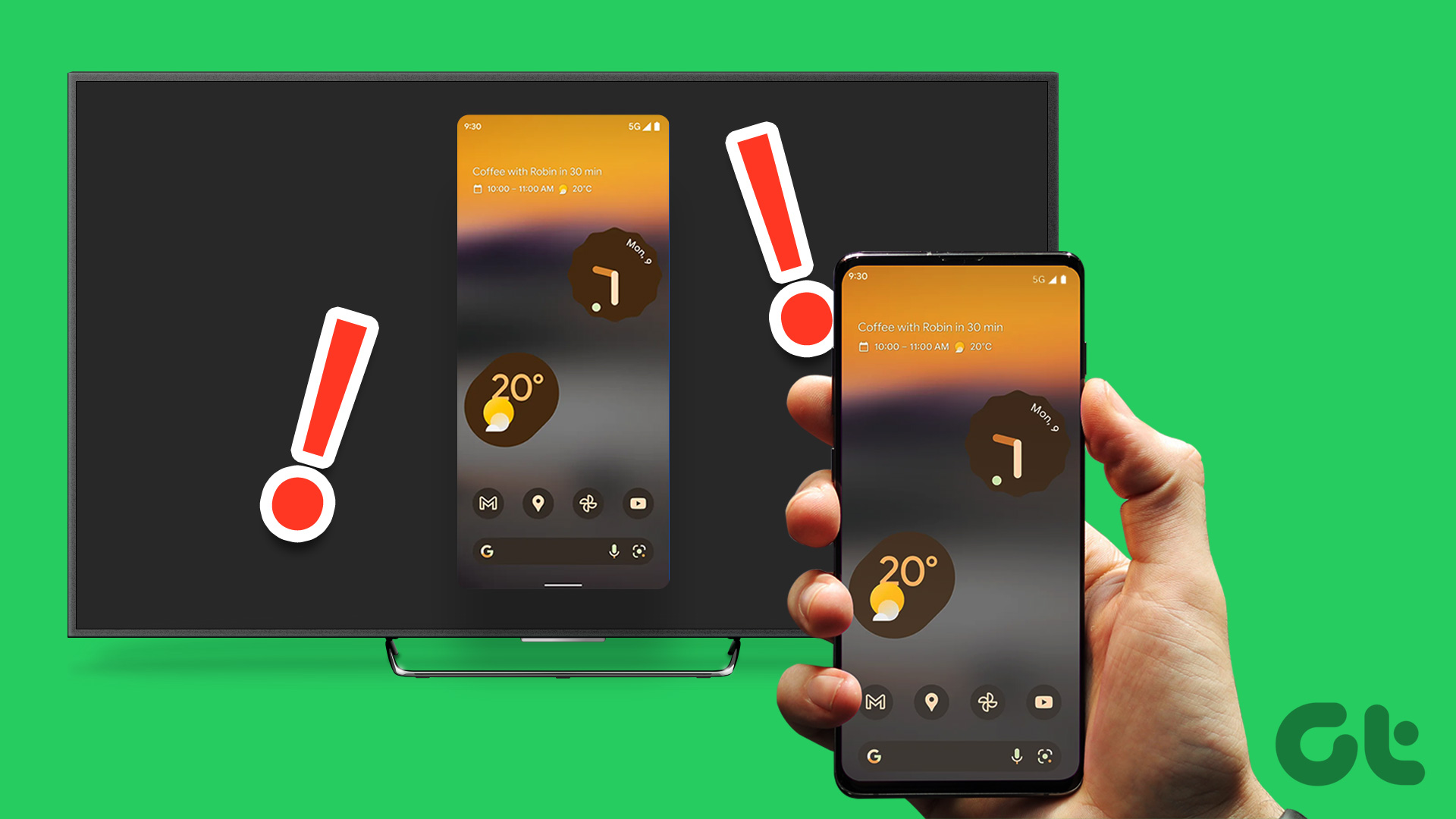 3 Ways to Fix Screen Mirroring Not Working on Android
Basic Fixes Check network connection: Screen mirroring requires a robust Wi-Fi connection.
3 Ways to Fix Screen Mirroring Not Working on Android
Basic Fixes Check network connection: Screen mirroring requires a robust Wi-Fi connection.
 A Complete Guide to Using Split Screen in Windows 10
Windows makes multitasking feel like a cakewalk.
A Complete Guide to Using Split Screen in Windows 10
Windows makes multitasking feel like a cakewalk.
 A Complete Guide to Using Print Screen in Windows 10
Have you been told to take a screenshot using the Print Screen key on your Windows 10 computer?
A Complete Guide to Using Print Screen in Windows 10
Have you been told to take a screenshot using the Print Screen key on your Windows 10 computer?
 6 Ways to Fix Instagram Not Working on iPhone
Basic Fixes Check if Instagram is down: Check if Instagram is facing downtime.
6 Ways to Fix Instagram Not Working on iPhone
Basic Fixes Check if Instagram is down: Check if Instagram is facing downtime.
 4 Ways to Fix Files App Not Working on iPhone
Basic Fixes Restart iPhone: If a bug on iOS is causing problems with the Files app, try restarting your iPhone.
4 Ways to Fix Files App Not Working on iPhone
Basic Fixes Restart iPhone: If a bug on iOS is causing problems with the Files app, try restarting your iPhone.
 A Complete Guide to Using Photos Privacy Options on iPhone
Apple recently unveiled the highly anticipated iOS 14 for iPhones with several privacy features.
A Complete Guide to Using Photos Privacy Options on iPhone
Apple recently unveiled the highly anticipated iOS 14 for iPhones with several privacy features.
 What to Do if Your iPhone is Stolen/Lost: A Complete Guide
Losing your iPhone and not knowing what to do next is distressing.
What to Do if Your iPhone is Stolen/Lost: A Complete Guide
Losing your iPhone and not knowing what to do next is distressing.
The article above may contain affiliate links which help support Guiding Tech. The content remains unbiased and authentic and will never affect our editorial integrity.