


Basic Fixes
- Check for physical damage: There might be physical damage or dirt buildup on your keyboard. If you have a spare keyboard, use it to see if the Windows key works. If it does, your original keyboard might need to be cleaned or replaced.
- Boot into Safe mode: If you recently installed new software or made changes to your system, try booting into Safe mode.
- Check for Windows update: Sometimes, an outdated Windows system can cause the Windows key to stop working. Open Settings > Windows Update > Check for updates > install them.
Fix 1: Update or Reinstall the Keyboard Driver
Outdated keyboard drivers may cause the Windows key to malfunction on Windows 11. To resolve this, update your keyboard drivers to the latest version.
Step 1: Open the Device Manager.
Step 2: Scroll down and click Keyboards to expand it.
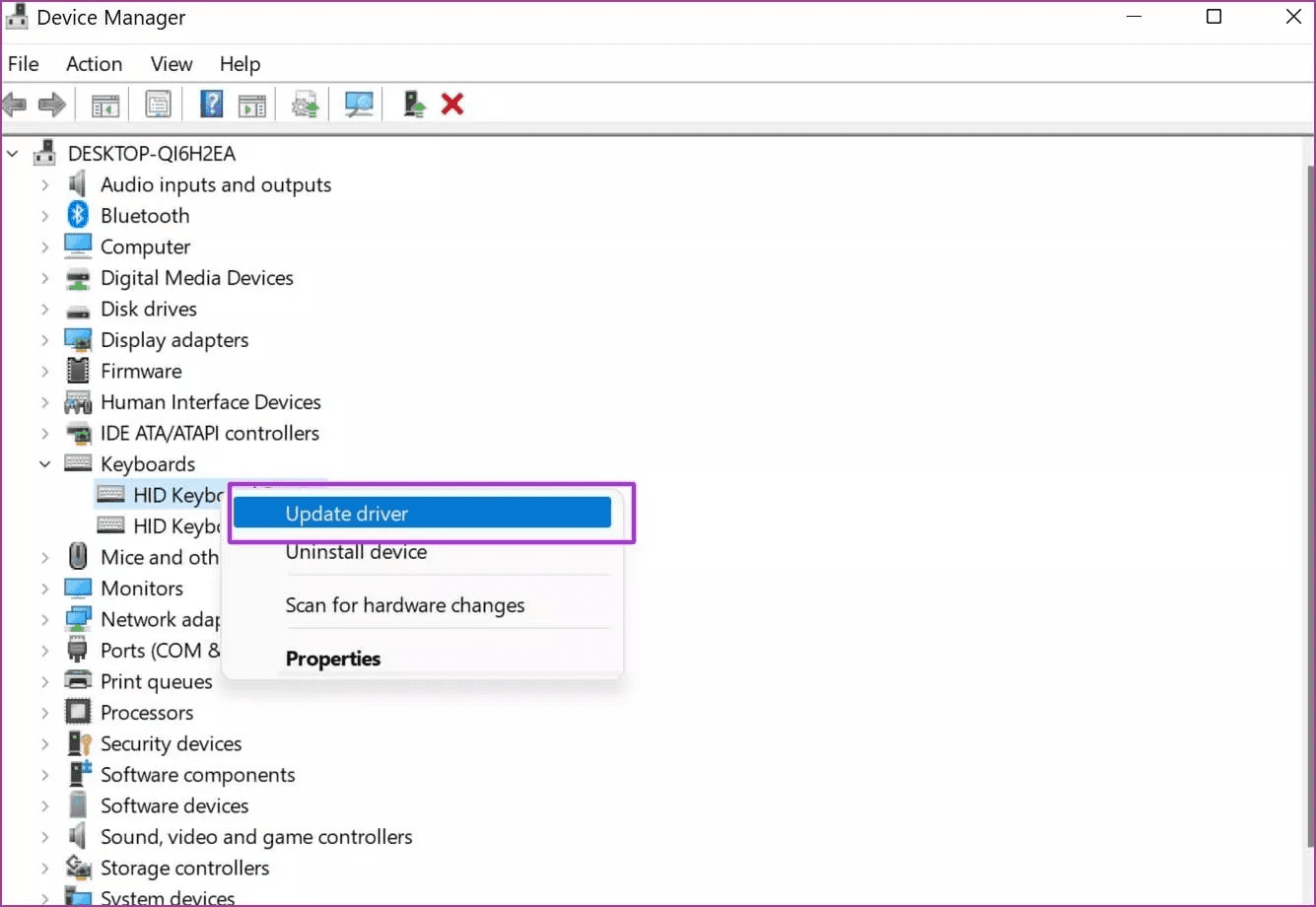
Step 3: Right-click on your keyboard driver and select Update driver > Search automatically for drivers.
Step 4: Wait for the process to complete and restart your computer. Check if the Windows key is now working.
If the issue persists, reinstall the keyboard driver.
Right-click on your keyboard driver > select Uninstall device > Uninstall. After that, restart your computer. Windows will automatically reinstall the keyboard driver.
Fix 2: Enable the Windows Key
Sometimes, the Windows key may stop responding when playing a game on your computer. This is due to a Windows feature that disables the Windows key to prevent gaming interference.
To enable it, press Fn + F6 on your keyboard.
Fix 3: Disable the Game Mode
Some keyboards have a gaming mode that disables certain keys. Make sure this mode is turned off.
Step 1: Open the Settings menu.
Step 2: Navigate to Gaming > Game Mode.

Step 3: Toggle off Game Mode.
Try pressing the Windows key and see if it works. If not, continue reading.
Fix 4: Run Windows Keyboard Troubleshooter
Windows 11 comes with a default keyboard troubleshooter tool to help diagnose and fix small niggles with the keyboard.
Step 1: Open the Settings app > System > Troubleshoot > Other troubleshooter.
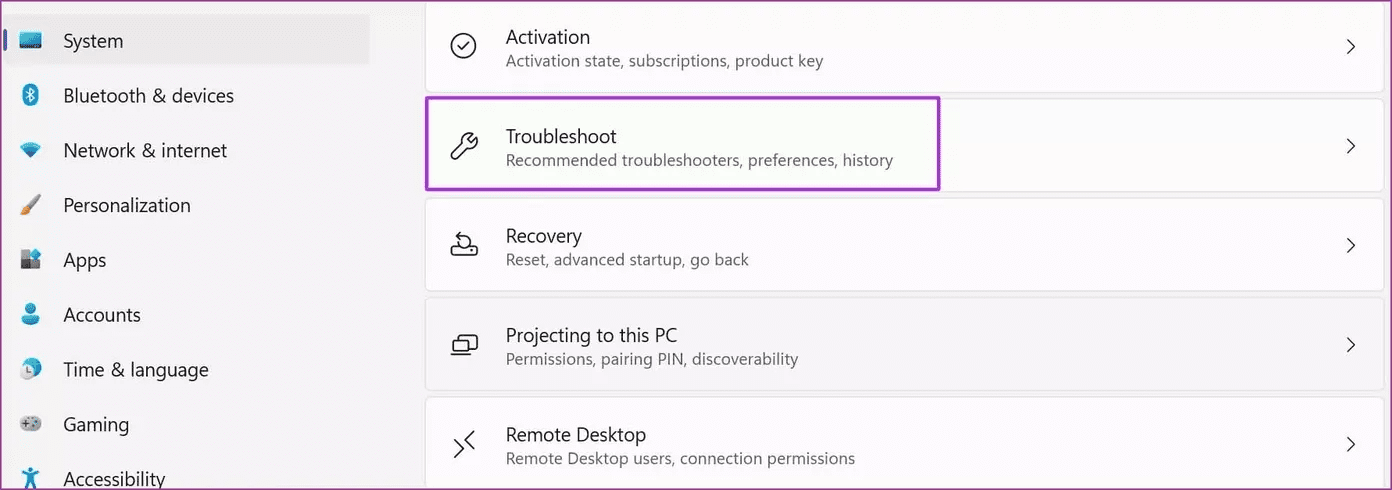
Step 2: Click Run next to the Keyboard.

Troubleshooter will scan for underlying problems and automatically fix them. Restart your computer and check if the Windows key works.
Fix 5: Run the Hardware and Devices Troubleshooter
Run the Hardware and Devices troubleshooter to detect and fix common hardware problems with your computer:
Step 1: Run PowerShell as Administrator.
Step 2: Type the following command and press Enter.
msdt.exe -id DeviceDiagnostic
Step 3: Click Next to scan, then follow the on-screen instructions.

Once you have completed the above steps, restart your computer and see if the Windows keys are now working.
Fix 6: Disable the Filter Keys
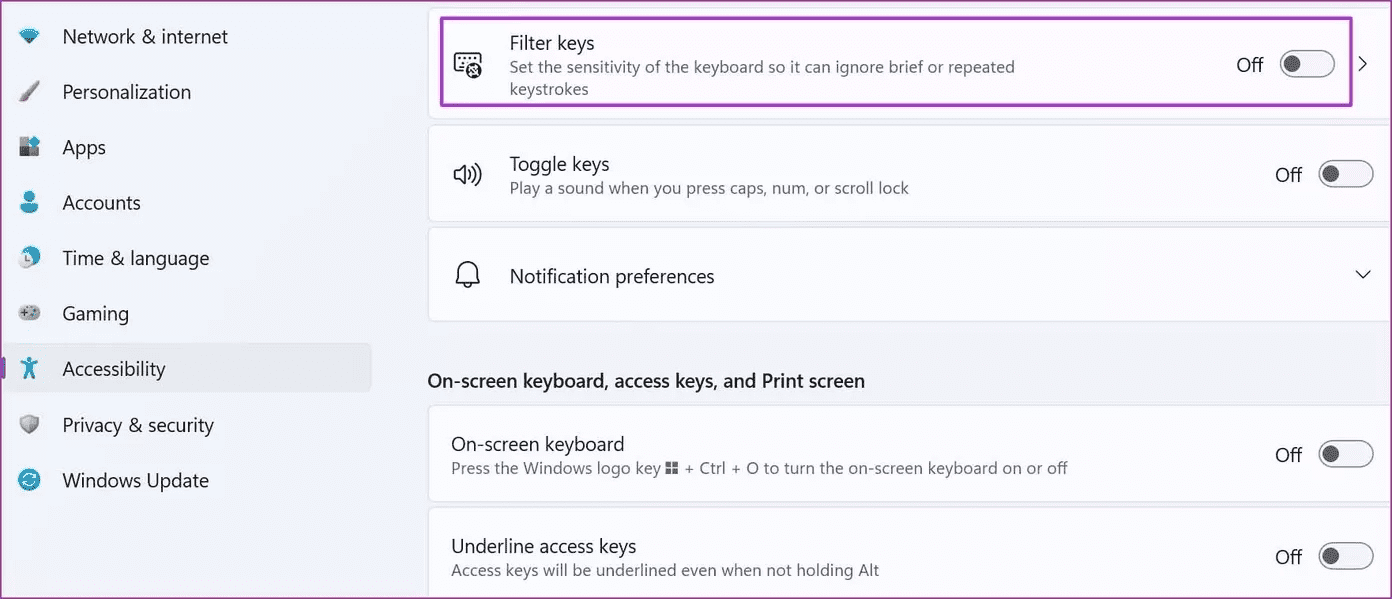
Filter Keys is an accessibility feature that can sometimes interfere with Windows key functions when the OS registers the key twice. Follow these steps to disable it:
Step 1: Open the Settings menu.
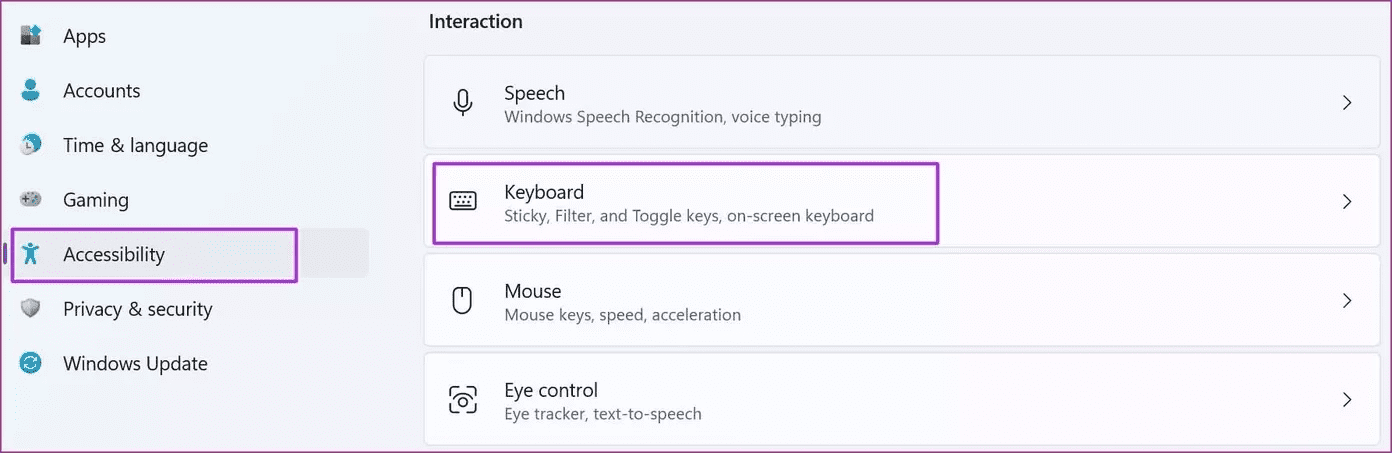
Step 2: Navigate to Accessibility > Keyboard > toggle off Filter keys.
Fix 7: Enable the Windows Key via Registry
This solution requires you to enable the Windows key in your registry. Be careful when using this trick; a small mistake can lead to major issues.
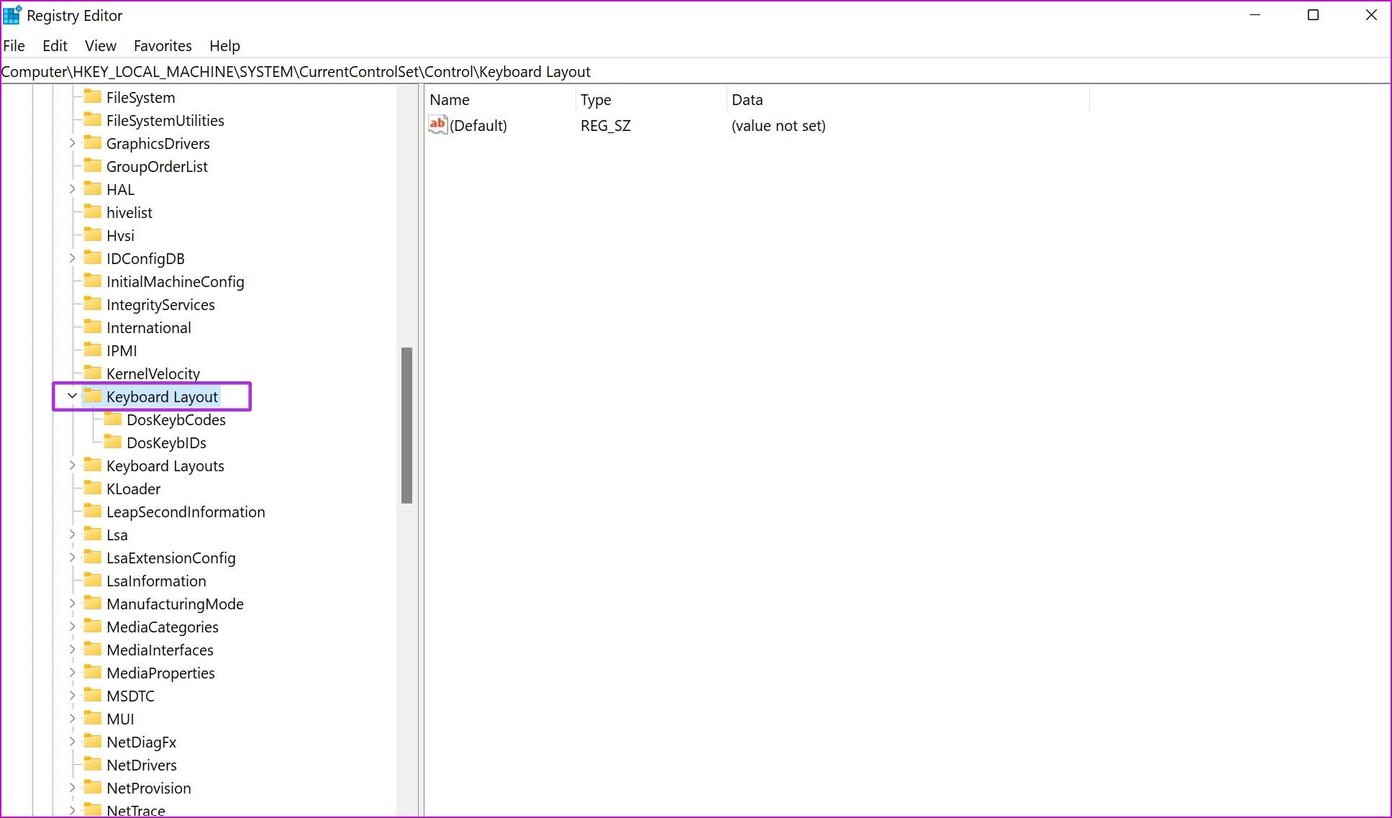
Step 1: Open the Registry Editor.
Step 2: Navigate to the following path.
HKEY_LOCAL_MACHINE\SYSTEM\CurrentControlSet\Control\Keyboard Layout
Step 3: If you see Scancode Map in the right pane, right-click on it and select Delete.
Step 4: Close the Registry menu and restart the PC.
Was this helpful?
Last updated on 30 August, 2024
4 Comments
Leave a Reply
Read Next
 Top 7 Ways to Fix Windows Key Not Working on Windows 10
Windows 10 operating system is full of keyboard shortcuts.
Top 7 Ways to Fix Windows Key Not Working on Windows 10
Windows 10 operating system is full of keyboard shortcuts.
 4 Ways to Fix Tab Key Not Working on Windows 11
Try These Fixes First Restart your computer: The Issue can occur due to a temporary bug or glitch on your computer.
4 Ways to Fix Tab Key Not Working on Windows 11
Try These Fixes First Restart your computer: The Issue can occur due to a temporary bug or glitch on your computer.
 How to Fix Enter Key or Backspace Not Working on Windows 11
Basic Fixes: Restart Windows device: Restarting your device can help fix any minor software issue that might be preventing the Backspace or Enter key from working on Windows after the
How to Fix Enter Key or Backspace Not Working on Windows 11
Basic Fixes: Restart Windows device: Restarting your device can help fix any minor software issue that might be preventing the Backspace or Enter key from working on Windows after the
 3 Quick Ways to Find Product Key on Windows 10 or Windows 11
1.
3 Quick Ways to Find Product Key on Windows 10 or Windows 11
1.
 4 Fixes When the Windows 11 Activation Key Is Not Working
Basic Fixes: Confirm the OS is running an updated Windows 11: You may use the built-in Winver utility to check your OS version and update status.
4 Fixes When the Windows 11 Activation Key Is Not Working
Basic Fixes: Confirm the OS is running an updated Windows 11: You may use the built-in Winver utility to check your OS version and update status.
 The List of All Excel Function Key (F1 to F12) Shortcuts
F1 Shortcuts Shortcut KeyActionF1Opens the Excel Help task pane.Ctrl+F1Hide/Unhide the taskbar.Alt+F1Create a chart from data in the current range.Ctrl+Shift+F1Hide/Unhide ribbon and taskbar.Alt+Shift+F1Create a new worksheet.
The List of All Excel Function Key (F1 to F12) Shortcuts
F1 Shortcuts Shortcut KeyActionF1Opens the Excel Help task pane.Ctrl+F1Hide/Unhide the taskbar.Alt+F1Create a chart from data in the current range.Ctrl+Shift+F1Hide/Unhide ribbon and taskbar.Alt+Shift+F1Create a new worksheet.
 5 Ways to Remove Key Icon on Android Phone
Preliminary Fixes Toggle off VPN: The key icon on your Android phone often indicates that a VPN is active.
5 Ways to Remove Key Icon on Android Phone
Preliminary Fixes Toggle off VPN: The key icon on your Android phone often indicates that a VPN is active.
 Bluetooth 5.1 vs Bluetooth 4.2: The 4 Key Differences
Bluetooth is one of the most common means of wireless connectivity.
Bluetooth 5.1 vs Bluetooth 4.2: The 4 Key Differences
Bluetooth is one of the most common means of wireless connectivity.
The article above may contain affiliate links which help support Guiding Tech. The content remains unbiased and authentic and will never affect our editorial integrity.


Sadly it didnt work, I didnt tried method 5 cuz I was scared
Great guide. Still nothing of the proposed steps worked for me. Windows 11 sucks ass.
nope not working and i have 2 window keys both not doing anything
welp, it didn’t work but i appreciate the effort !