


Basic Fixes:
- Cool down your phone: Your iPhone might get warm during graphics-intensive gaming, video streaming, or video recording. Give your iPhone a few minutes to let the device temperature go down. Then, unlock the phone and attempt to play videos again.
- Try using other video player apps: While the default Files app works fine, it doesn’t support media formats such as .mkv. So, use third-party video player apps to run such videos without breaking a sweat.
- Check iPhone storage: If your iPhone runs on low storage, it might have trouble opening and playing videos. You will also notice device lag, frequent errors with video playback, and more. So, check and ensure your device has at least 30% space.
- Force restart your iPhone: Temporary device glitches can also cause the video not playing error on your iPhone. So, turn your iPhone off and then restart it again. Once done, try playing the video again to check.
- Check for iOS Updates: The Photos app is a part of the iOS package. You can’t simply go to the App Store and update the Photos app. You must install the latest iOS update to enjoy new Photos additions and fix errors such as videos not playing.
Fix 1: Try Downloading the Video File Again
When you save videos from the web via Safari or Google Chrome, you must download them completely. You shouldn’t play such videos if the download is interrupted or fails completely. So, try downloading the video file again and ensure the download finishes. Then, try playing it again.
Fix 2: Make Changes From Photos Settings
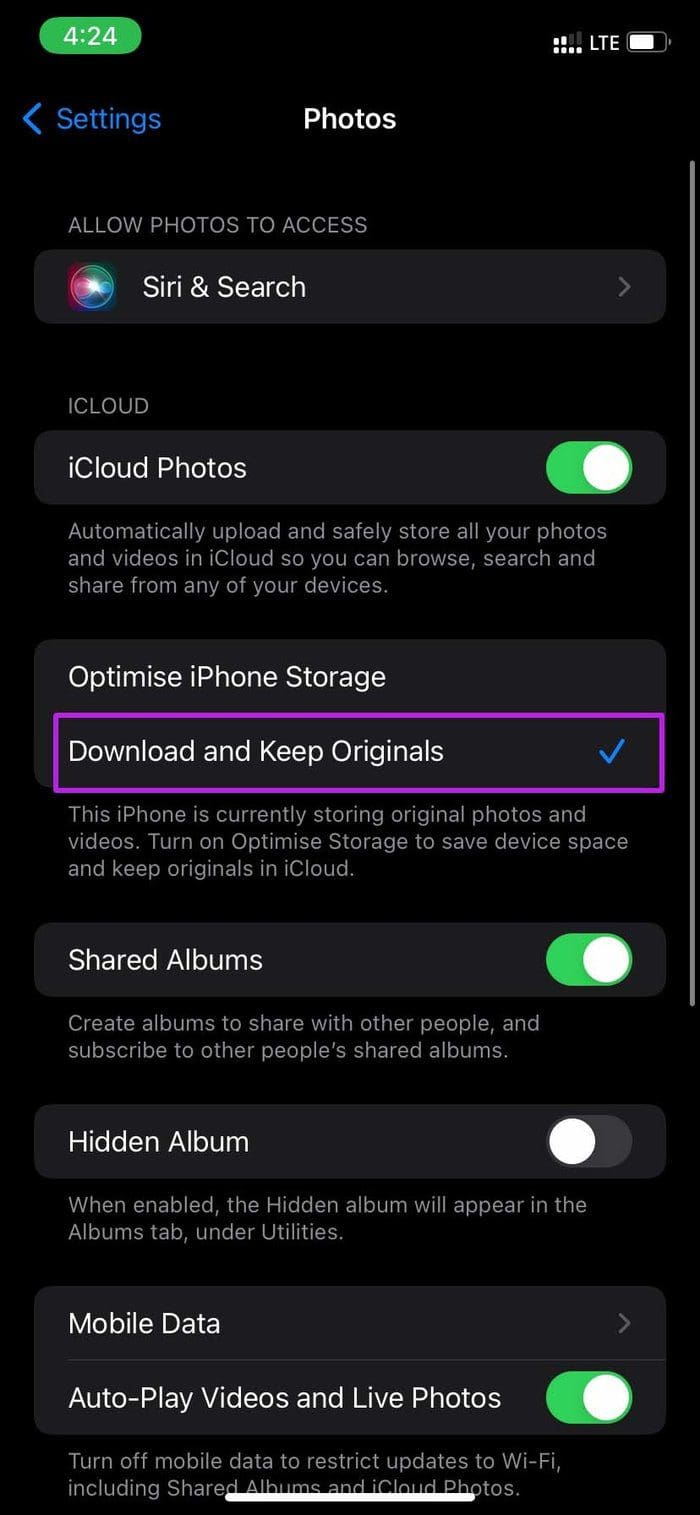
With a patchy internet connection, it is difficult to download a high-quality video from iCloud. In this case, select the Download and Keep Original option and keep media stored on your iPhone for a buffer-free viewing experience. Here’s how.
Step 1: Open Settings and tap on Photos. Select Download and Keep Originals from the options.
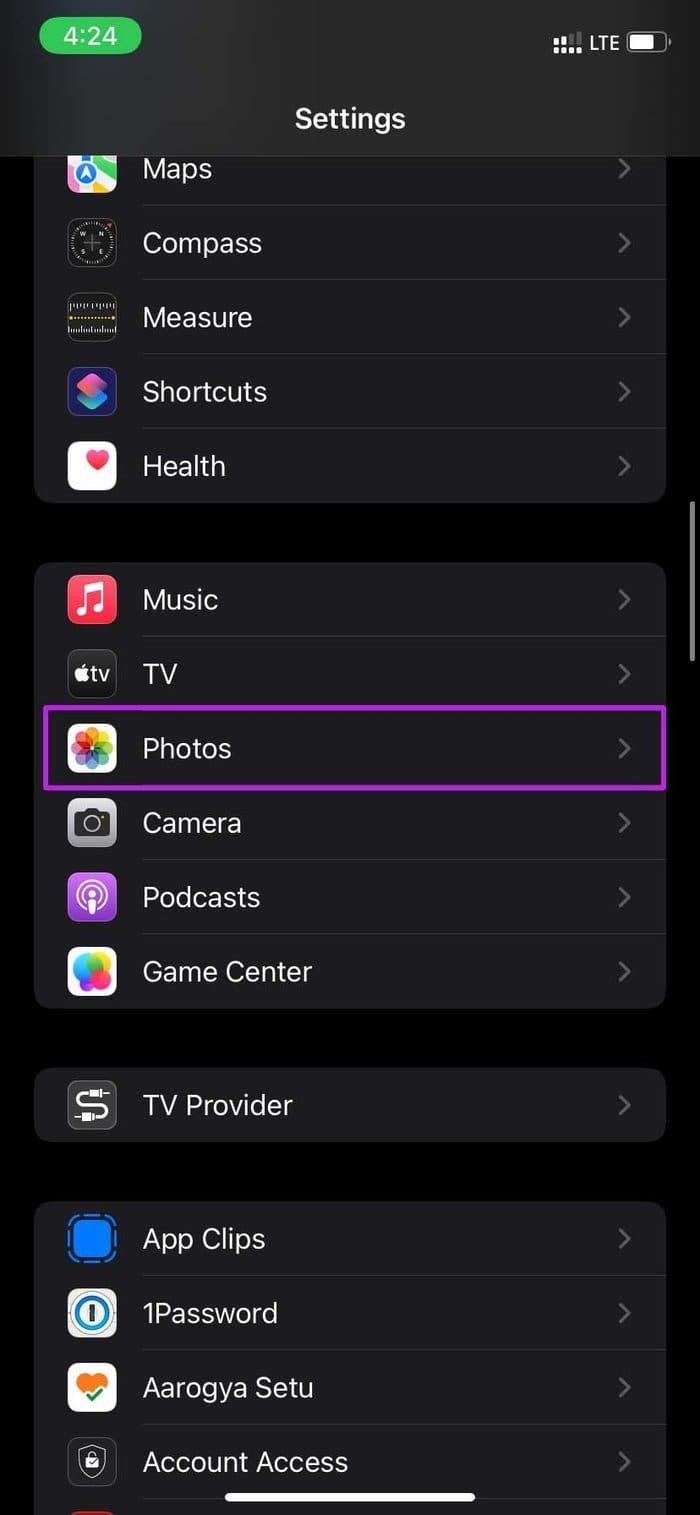
You can also check our dedicated troubleshooting guide if you are cannot load videos or photos on your iPhone.
Fix 3: Use the Files App to Play Videos
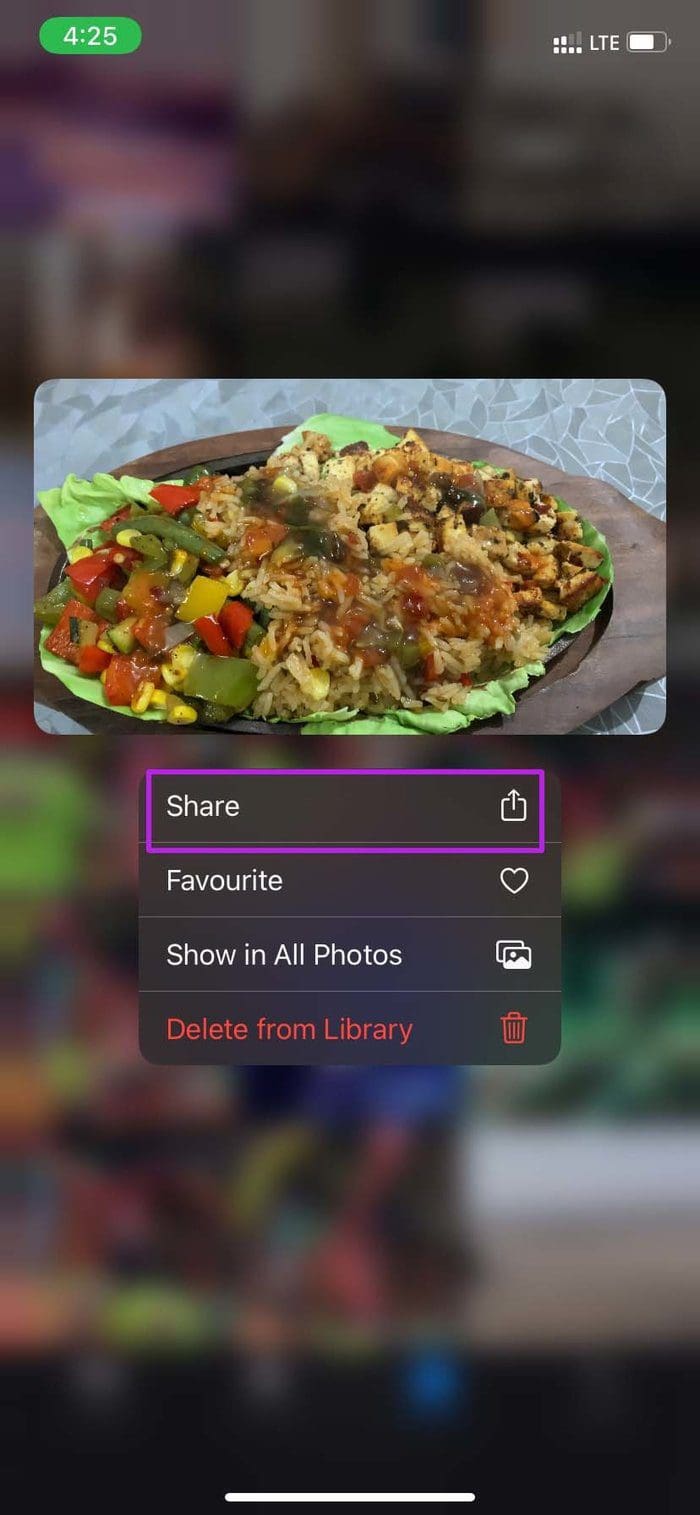
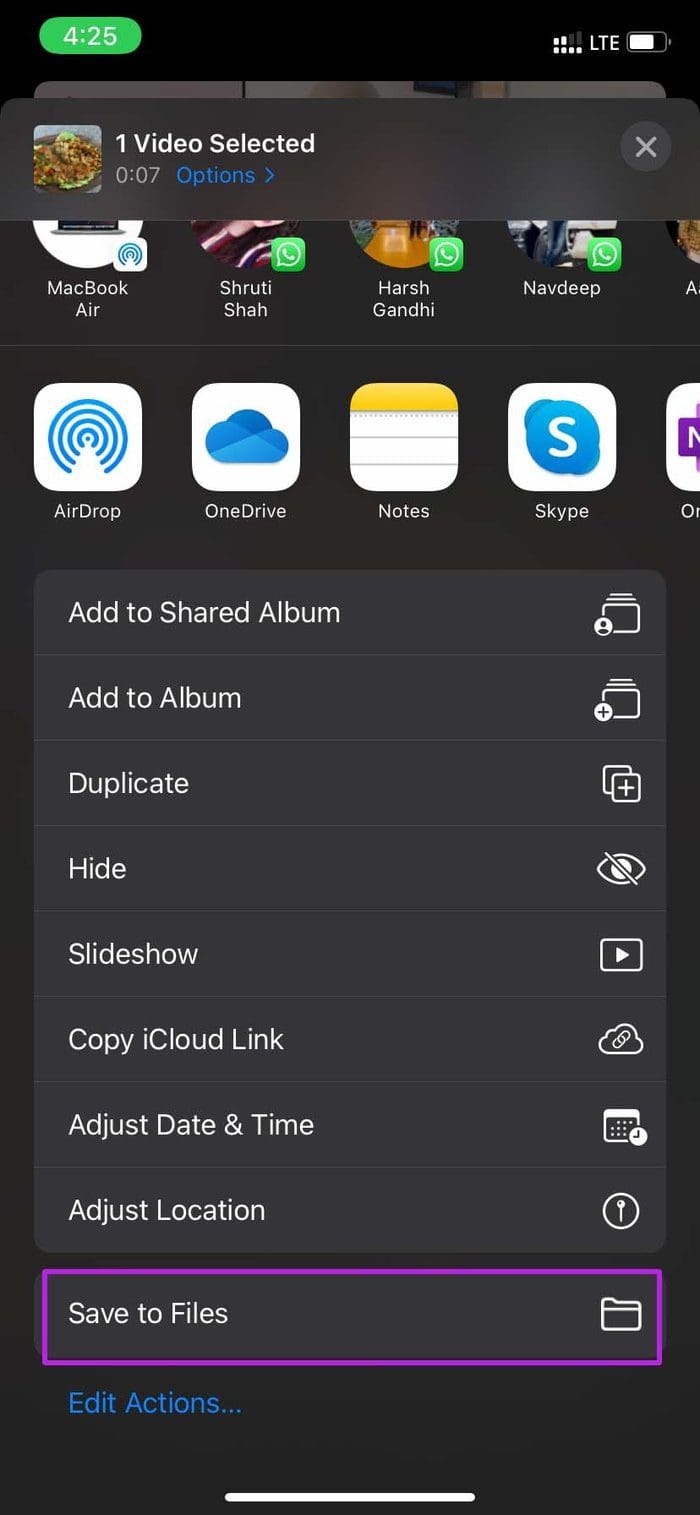
The default Files app also comes with a built-in video player. If you have issues with Photos not playing videos, you can save the video in the Files app and try your luck there. Here’s how.
Step 1: Open the Photos app and long-press the relevant video. Select Share and tap on Save to Files.
Step 2: Place the video in the desired location in the Files app.
Step 3: Then, go to the saved location in the Files app and play the video.

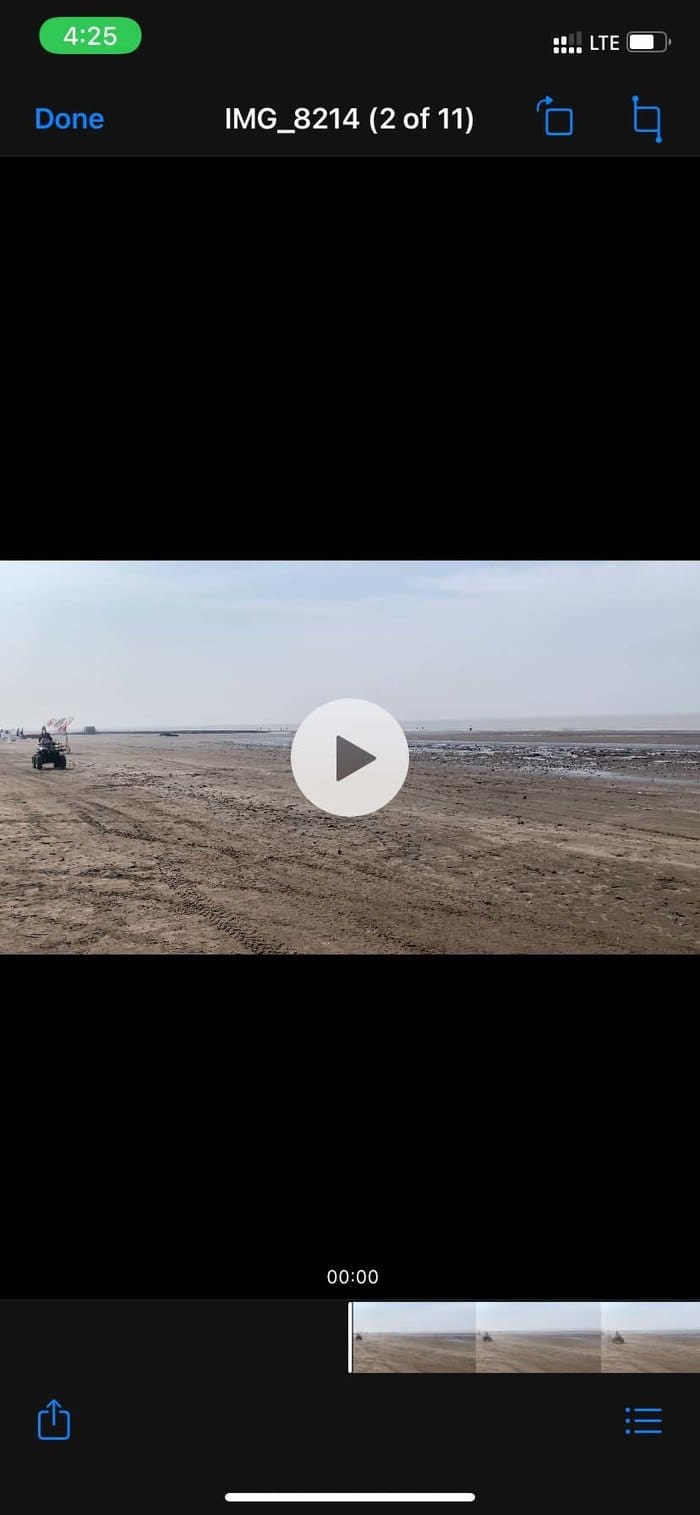
This should start the video playback on your iPhone. You can also check out our other article to learn how to find downloaded files on your iPhone.
Was this helpful?
Last updated on 01 July, 2024
1 Comment
Leave a Reply
Read Next
 Top 5 Ways to Fix Google Photos Not Playing Videos
Basic Fixes Check Network Connection: If you're trying to stream content backed up to the cloud, then you’ll need to use high-speed internet to sync and stream it.
Top 5 Ways to Fix Google Photos Not Playing Videos
Basic Fixes Check Network Connection: If you're trying to stream content backed up to the cloud, then you’ll need to use high-speed internet to sync and stream it.
 5 Ways to Fix Safari Not Playing Videos on iPhone
Fix 1: Disable Extensions Using third-party extensions in Safari can occasionally interfere with its video playback functionality.
5 Ways to Fix Safari Not Playing Videos on iPhone
Fix 1: Disable Extensions Using third-party extensions in Safari can occasionally interfere with its video playback functionality.
 4 Ways to Fix iPad Not Playing or Streaming Videos
Fix 1: Resolve App-Specific Problems Check app server status: Issues with the backend can affect app functions.
4 Ways to Fix iPad Not Playing or Streaming Videos
Fix 1: Resolve App-Specific Problems Check app server status: Issues with the backend can affect app functions.
 3 Ways to Fix Snapchat Not Playing Videos on Android and iPhone
Try Basic Fixes Check if Snapchat is down: At times, server congestion or other related issues can impact Snapchat’s performance and trigger various errors.
3 Ways to Fix Snapchat Not Playing Videos on Android and iPhone
Try Basic Fixes Check if Snapchat is down: At times, server congestion or other related issues can impact Snapchat’s performance and trigger various errors.
 How to Fix WhatsApp Videos Not Playing on iPhone or Android
Basic Fixes Check your network connection: Ensure your phone has a robust internet connection.
How to Fix WhatsApp Videos Not Playing on iPhone or Android
Basic Fixes Check your network connection: Ensure your phone has a robust internet connection.
 4 Ways to Fix Telegram Videos Not Playing on Android
https://youtu.be/vJeVqA9FFzA Method 1: Make Sure to Download the Full Video Step 1: Open Telegram on Android and go to the Telegram group or channel.
4 Ways to Fix Telegram Videos Not Playing on Android
https://youtu.be/vJeVqA9FFzA Method 1: Make Sure to Download the Full Video Step 1: Open Telegram on Android and go to the Telegram group or channel.
 3 Ways to Fix Telegram Videos Not Playing on Windows 11
Fix 1: Download Telegram Videos Without Glitches First, here's how to download Telegram videos without problems on your PC.
3 Ways to Fix Telegram Videos Not Playing on Windows 11
Fix 1: Download Telegram Videos Without Glitches First, here's how to download Telegram videos without problems on your PC.
 3 Ways to Fix Videos Not Playing on Instagram
https://youtu.be/27MXAW2cROQ Try Basic Fixes Update the Instagram app: Running an older version of Instagram can lead to such problems.
3 Ways to Fix Videos Not Playing on Instagram
https://youtu.be/27MXAW2cROQ Try Basic Fixes Update the Instagram app: Running an older version of Instagram can lead to such problems.
The article above may contain affiliate links which help support Guiding Tech. The content remains unbiased and authentic and will never affect our editorial integrity.
Thank you for this article. You gave such a clear detailed breakdown of the steps I was able to easily and quickly fix the problem by using the Files app to play my videos.