Enable Snap Windows From Windows 11 Settings
Enabling the Snap Windows feature lets you use multiple windows at once on your PC.
Step 1: Open Settings > System > Multi-tasking.

Step 2: Turn on the toggle for Snap windows.

Step 3: Click on the Snap windows option, and check the box for When I drag a window…
Further, ensure that all the options are enabled.

Also Read: How to fix Windows snap assist not working
5 Ways to Use Multi-Windows on Windows 11
Microsoft does offer multi-windows on Windows 10 OS as well. But the overall implementation is miles better on Windows 11. Here’s what you need to do.
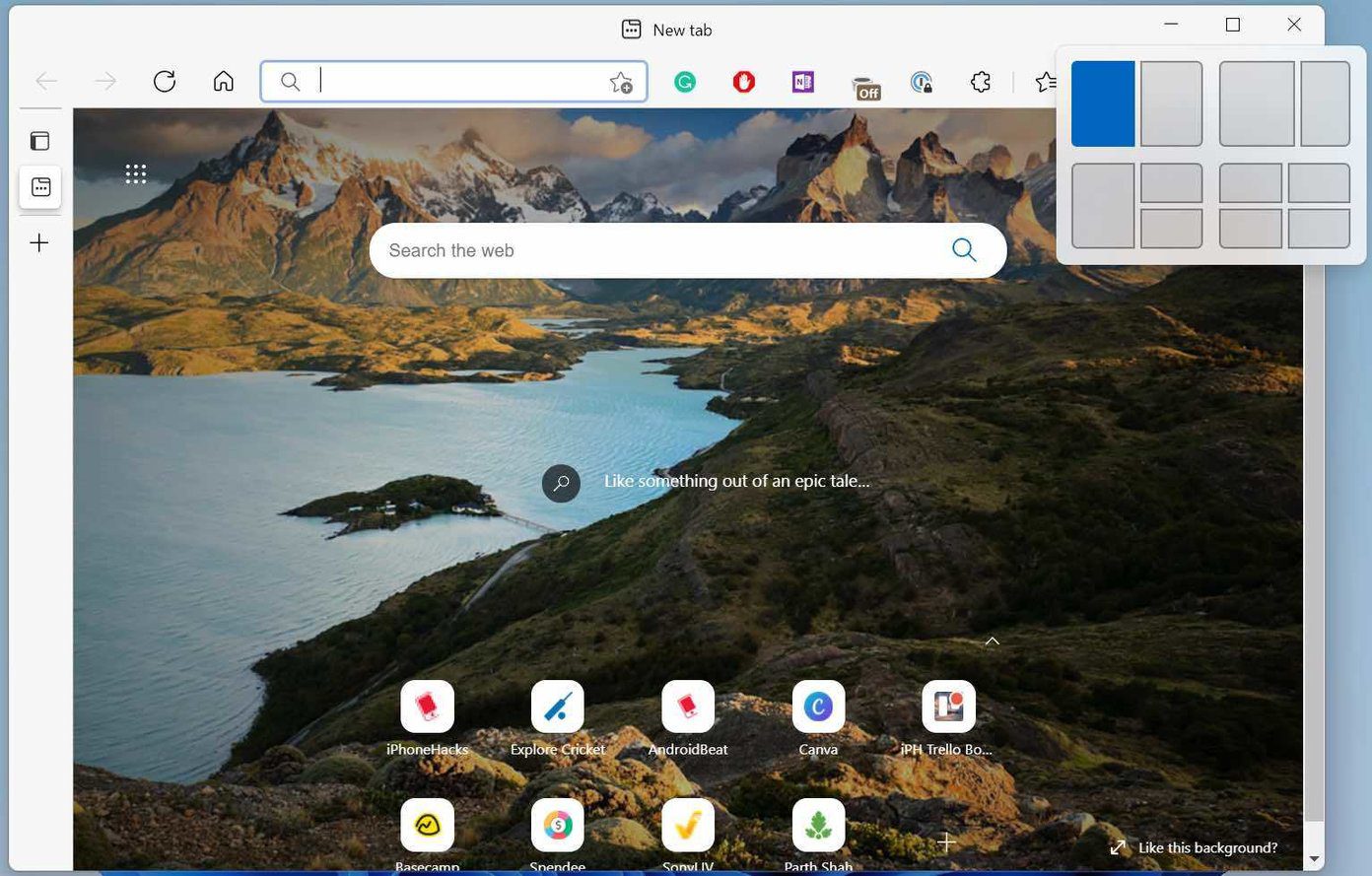
Open an app on Windows. Now hover the mouse pointer above the Maximize icon in the menu bar. Windows 11 will offer an option to use multi-window. Let’s discuss them.
You will have a good idea of how the Windows 11 OS will split the current window with the live preview.
1. Split Apps Window in Half
The first option will split the app window in half. You can select the left or right side, and Windows 11 pin the app on the select side.
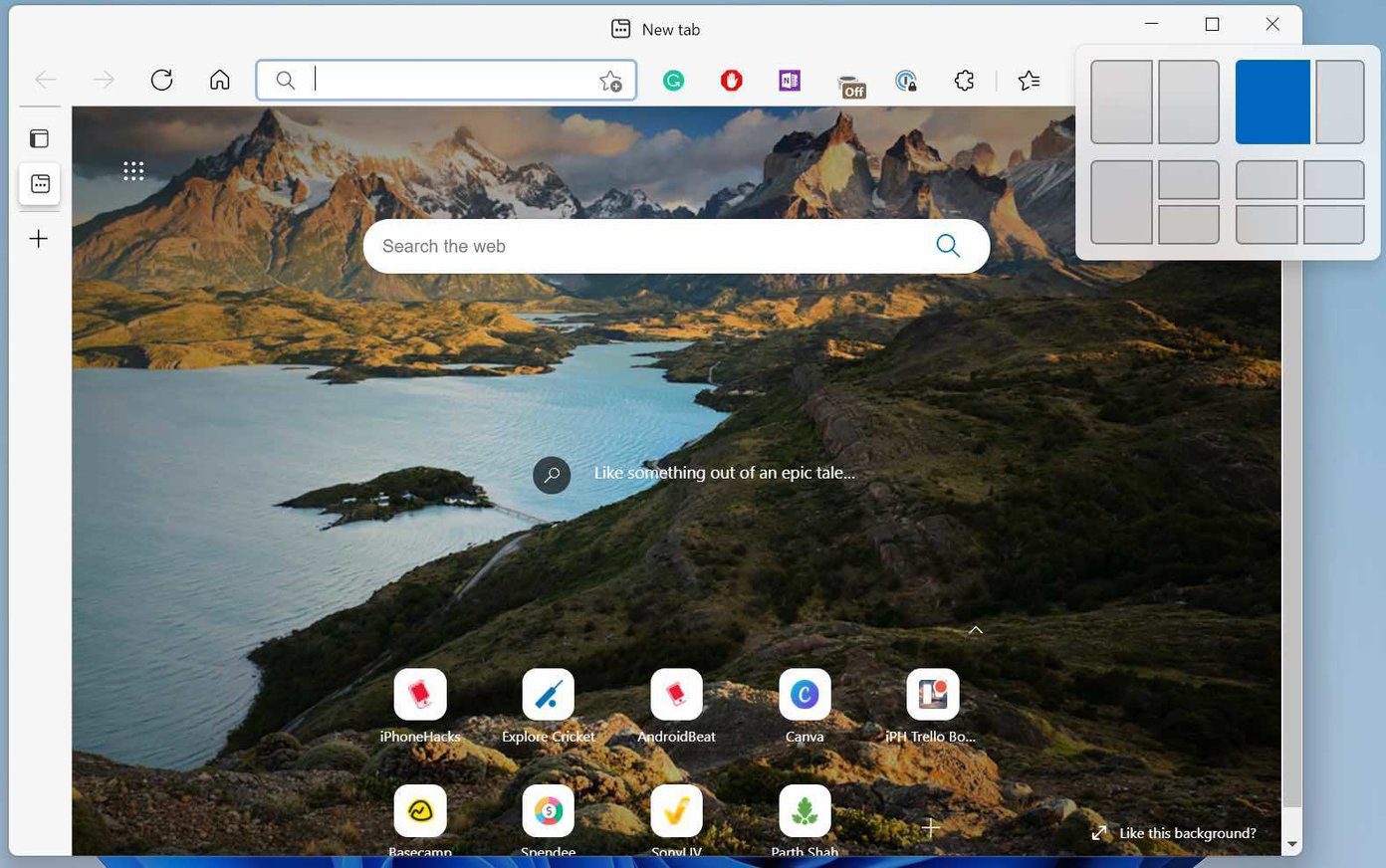
2. Use 2:1 Arrangement
This is one of our most-used multitasking styles on Windows 11. The second option allows users to keep one app in the 1/3 area on the right side and the second on the left side.
3. Use Three Apps Window at Once
Hover the cursor pointer above the maximize button and use the third option to use three Windows 11.
Move the current app on the left half and from the opened windows, select your desired app to continue working.
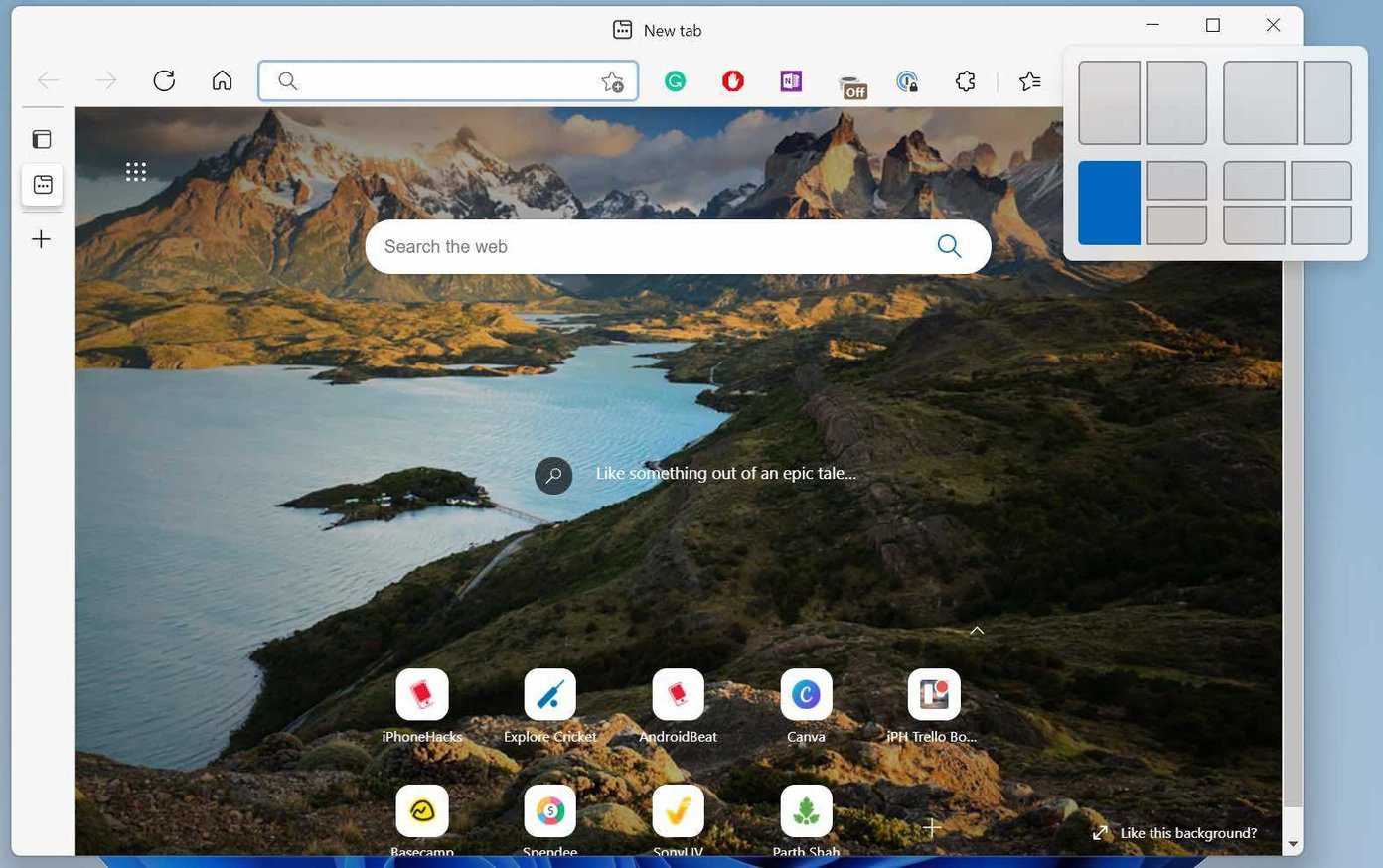
4. Split Screen Into Four Sections
This option is ideal for those using Windows 11 on a larger screen. If you are using Windows 11 on a 13/14-inch laptop, you won’t find it useful.
As you may have guessed from the multitasking preview, the option will split the app windows into four parts. People using Windows 11 on a big desktop such as a 27 to 32-inch monitor will find this setup most useful.
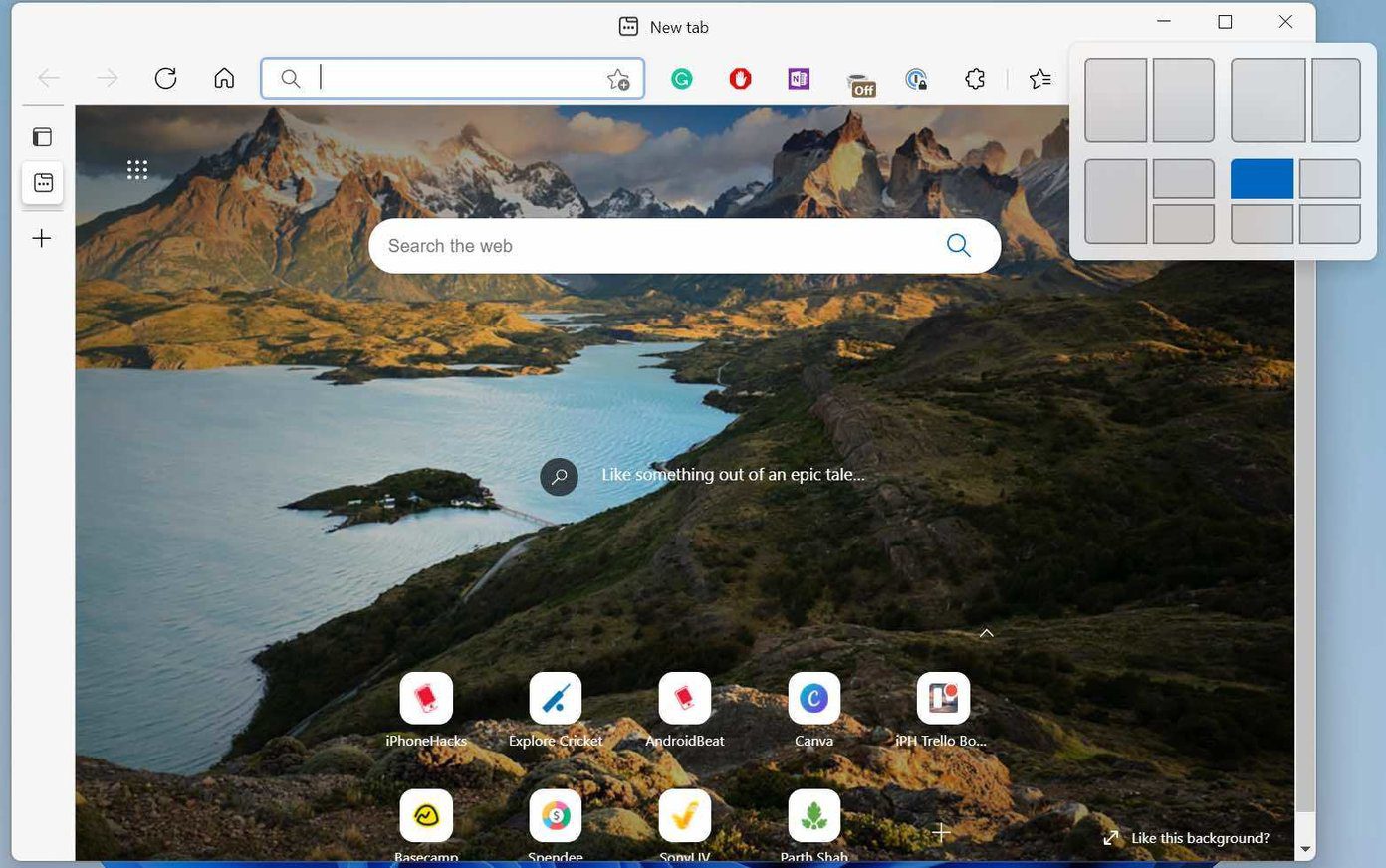
Note: Using multi-windows in three or four sections will affect visibility and clarity. We recommend using this setup on a larger display only.
5. Split Windows Horizontally in Windows 11
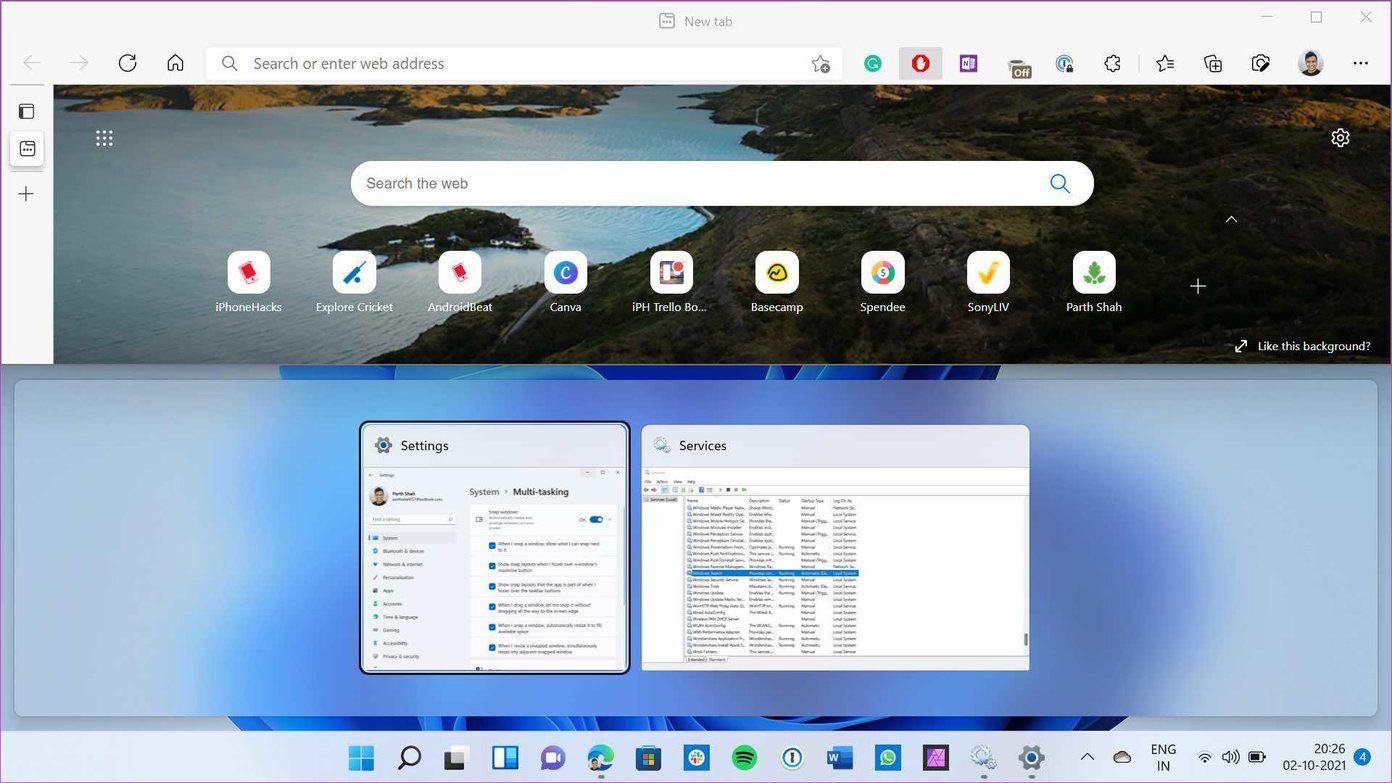
Users can split windows horizontally as well. This is most useful for those using Windows 11 in a vertical screen setup. That way, you won’t get much benefit by splitting the apps vertically. You need to split apps horizontally.
Open the app that you want to split at the upper half of the display. Use Windows + Up arrow key and pin it at the top. You can open the app windows on the bottom half part.
Alternatively, you can drag and drop app windows on either side until the cursor moves. Release the cursor, pin apps, and use multi-windows on Windows 11.
Also Read: 6 best multitasking tips and tricks on Windows 11
Was this helpful?
Last updated on 26 August, 2024
Read Next
 How to Take Screenshots of One Monitor on Windows 11 With a Multi-Monitor Setup
Method 1: PikPick Some screenshot tools allow you to configure their settings so that they will only capture screenshots of one monitor.
How to Take Screenshots of One Monitor on Windows 11 With a Multi-Monitor Setup
Method 1: PikPick Some screenshot tools allow you to configure their settings so that they will only capture screenshots of one monitor.
 7 Best Multi-Charging Cables for Charging Multiple Devices
Most of us nowadays have multiple devices to charge.
7 Best Multi-Charging Cables for Charging Multiple Devices
Most of us nowadays have multiple devices to charge.
 How to Use YouTube’s Multi Audio Track Feature
Gone are the days when you needed to switch to different YouTube dubbed videos to listen to a specific language.
How to Use YouTube’s Multi Audio Track Feature
Gone are the days when you needed to switch to different YouTube dubbed videos to listen to a specific language.
 6 Best Multi-Device Keyboards With Bluetooth Connectivity
Most people use more than one screen.
6 Best Multi-Device Keyboards With Bluetooth Connectivity
Most people use more than one screen.
 6 Best Wireless Mice With Multi-Device Connectivity
If you have a multi-device desk setup, investing in a good wireless mouse with multi-device connectivity is wise.
6 Best Wireless Mice With Multi-Device Connectivity
If you have a multi-device desk setup, investing in a good wireless mouse with multi-device connectivity is wise.
 7 Ways to Fix Windows Key Not Working in Windows 11
Basic Fixes Check for physical damage: There might be physical damage or dirt buildup on your keyboard.
7 Ways to Fix Windows Key Not Working in Windows 11
Basic Fixes Check for physical damage: There might be physical damage or dirt buildup on your keyboard.
 3 Ways to Delete Old Windows Update Files From Windows 10 and 11
Method 1: Delete Old Windows Update Files via Settings The Storage section of the Settings app provides a detailed breakdown of all temporary files on your PC, including old Windows
3 Ways to Delete Old Windows Update Files From Windows 10 and 11
Method 1: Delete Old Windows Update Files via Settings The Storage section of the Settings app provides a detailed breakdown of all temporary files on your PC, including old Windows
 3 Quick Ways to Find Product Key on Windows 10 or Windows 11
1.
3 Quick Ways to Find Product Key on Windows 10 or Windows 11
1.
The article above may contain affiliate links which help support Guiding Tech. The content remains unbiased and authentic and will never affect our editorial integrity.