Things to Know Before Uninstalling OneDrive
- OneDrive is often used for file synchronization across devices. If you uninstall OneDrive, the files stored in the OneDrive folder on your computer will no longer be automatically synchronized with the cloud.
- Uninstalling OneDrive from your computer does not delete the files stored in your OneDrive cloud account. You can still access your files by logging into the OneDrive web interface. However, changes made locally won’t automatically sync with the cloud.
- If you collaborate on documents with others using OneDrive, uninstalling it may affect your ability to share and collaborate on files seamlessly.
- Files stored in the OneDrive folder on your computer contribute to your overall storage usage. If you uninstall OneDrive, the local copies of these files will be removed, potentially freeing up storage space on your device.
- If you decide to use OneDrive again, you can reinstall it. However, reinstalling won’t automatically restore your files’ synchronization settings or local copies unless you sign in with the same OneDrive account.
With this understanding, let’s begin with the methods.
How to Remove OneDrive From Your Windows
Note: Uninstalling OneDrive will not remove the associated leftover files and registry keys from your PC. You will have to remove them manually, as we have explained below. However, if you use third-party tools (mentioned as one of the methods below), you won’t need to remove the residual files; the software will do it for you.
1. Using Control Panel
Step 1: Open the Start Menu, type Control Panel, and choose Open.
Step 2: In the Control Panel, choose Programs and Features.
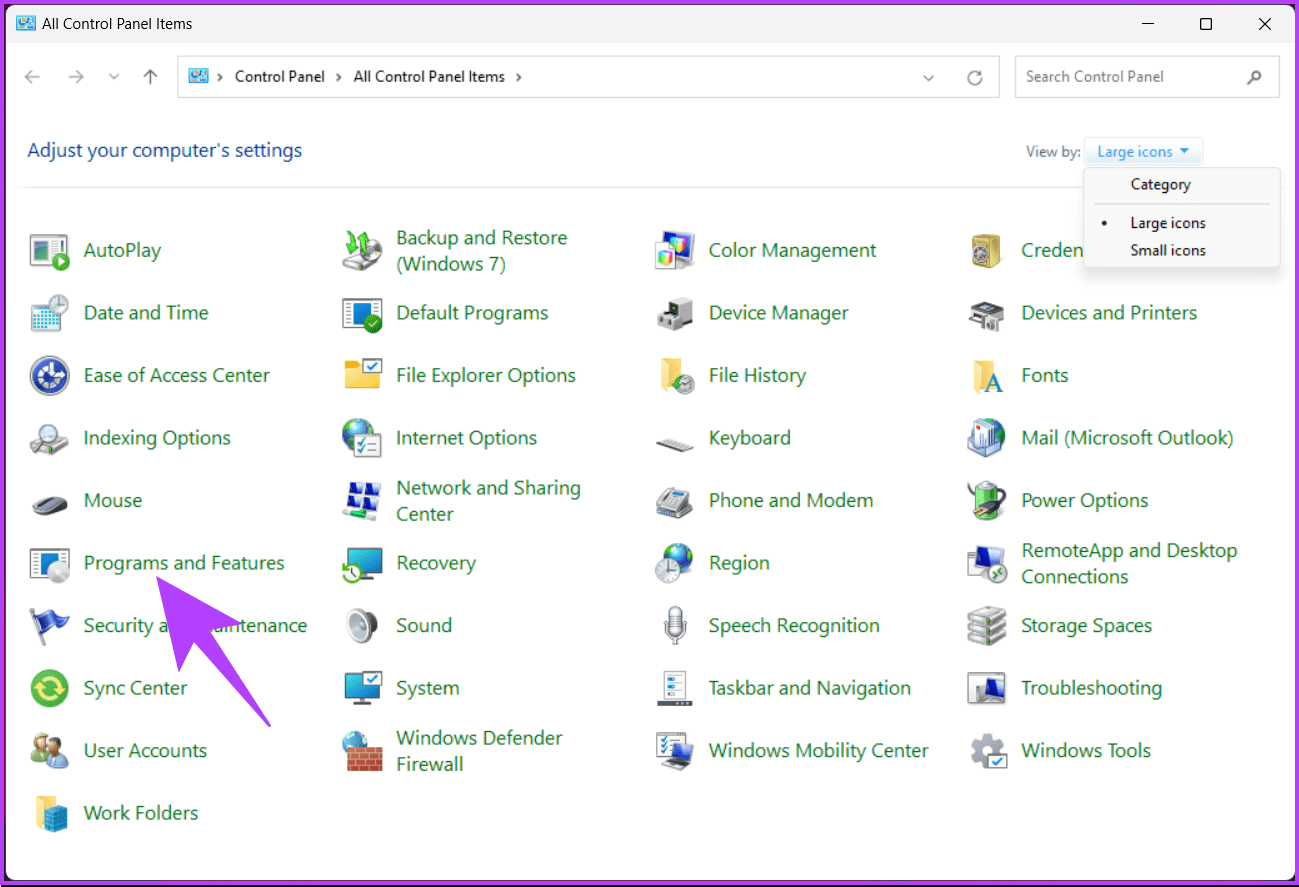
Step 4: Click on OneDrive and click Uninstall from the menu.
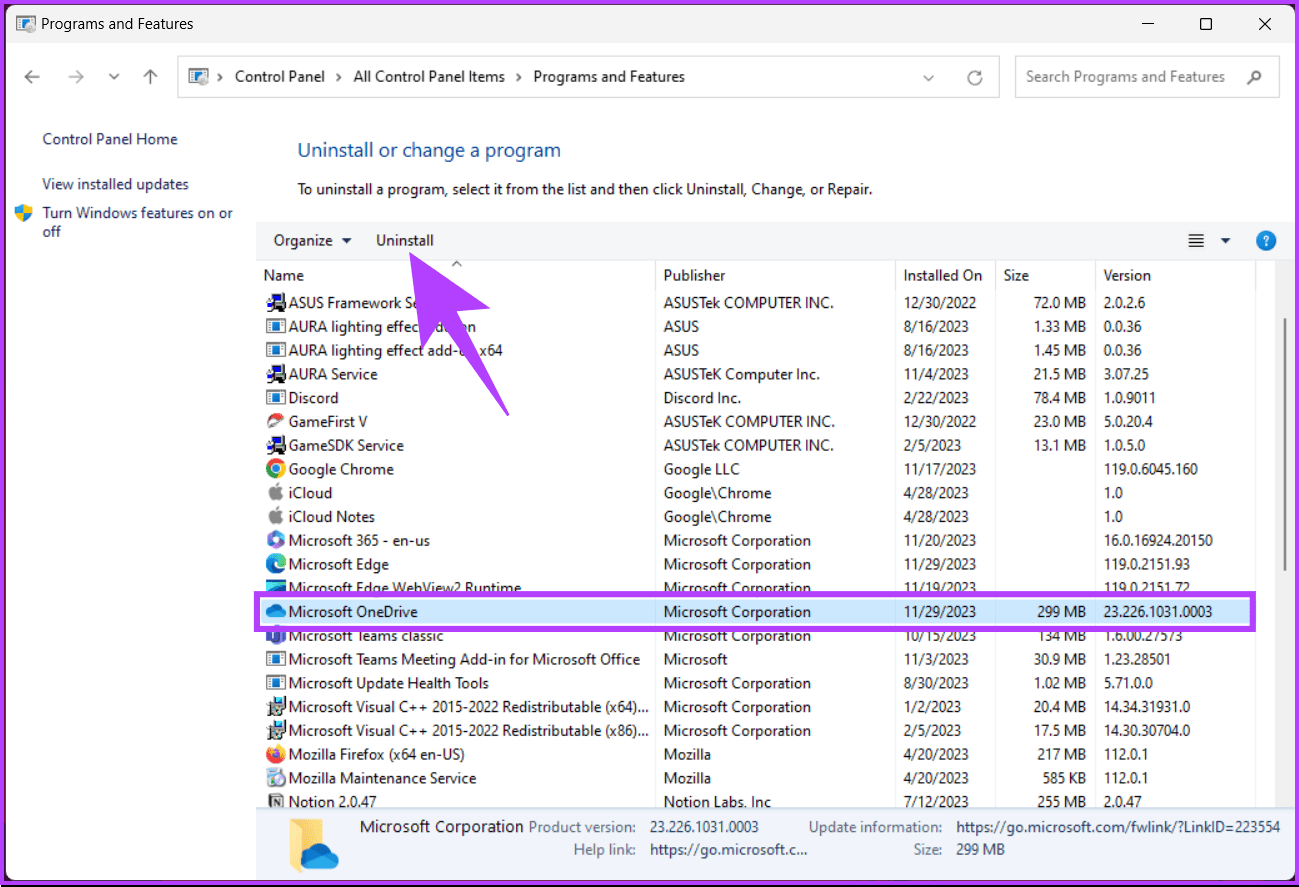
That’s it. OneDrive will be uninstalled from your PC. There’s another way to remove OneDrive from your PC; keep reading.
Also Read: OneDrive storage guide: what counts and what doesn’t
2. Using Registry Editor
Step 1: Press the Windows key, type Registry Editor, and click Run as administrator.
In the prompt, select Yes.
Step 2: In the top address bar, enter the following path:
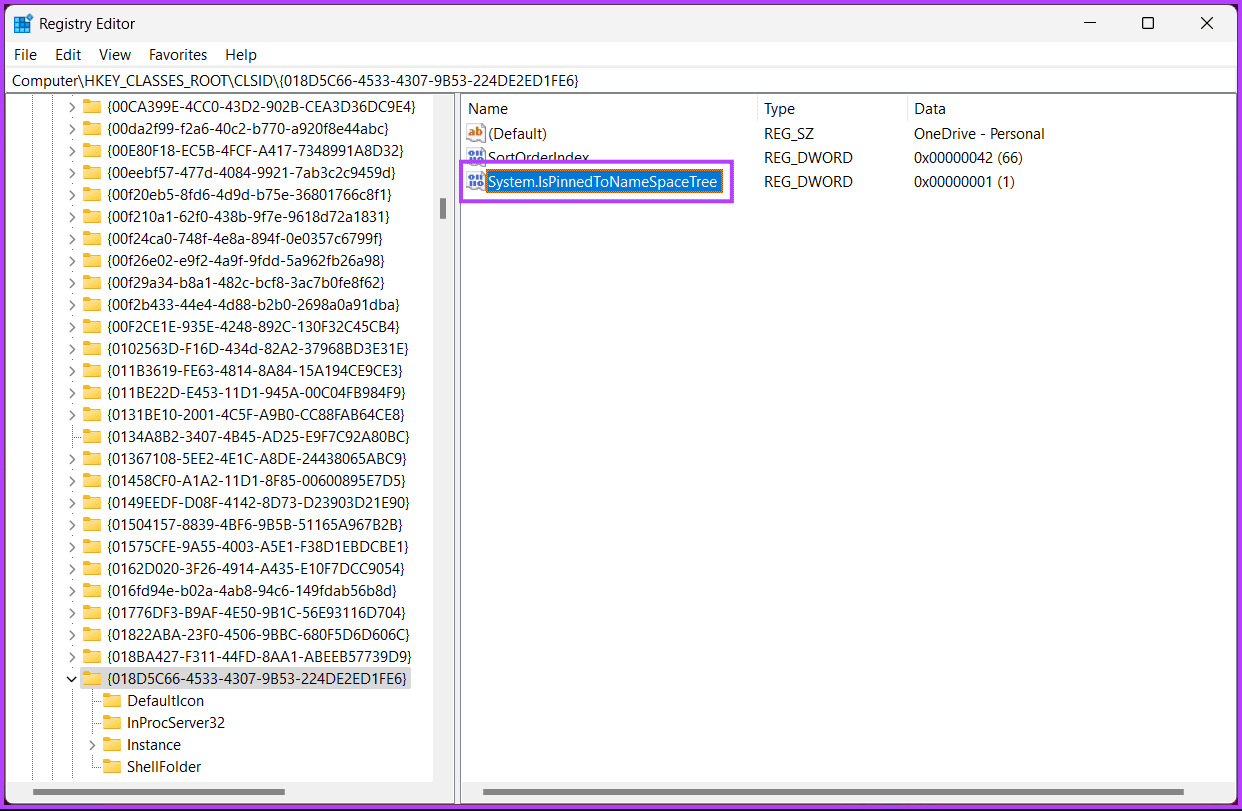
HKEY_CLASSES_ROOT\CLSID\{018D5C66-4533-4307-9B53-224DE2ED1FE6}
Step 3: Find and double-click on the System.IsPinnedToNameSpaceTree file to open it.
Step 4: Now, type 1 in the Value Data field and press OK.
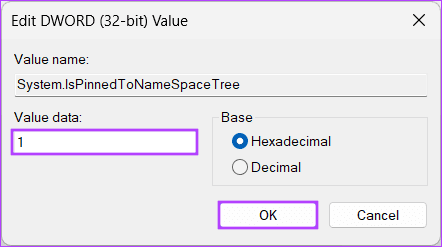
Finally, reboot the system to implement the changes. And that’s it! After booting up your PC again, you will completely remove OneDrive from Windows.
You can go with the Group Policy editor if you don’t want to remove OneDrive from Windows using the registry.
3. Using Group Policy Editor
Note: Group Policy Editor is only available for Windows 11 Pro and Enterprise versions. You can skip this method if you are on Windows 11 Home Edition.
Step 1: Press the Windows keys on your keyboard, type gpedit.msc, and click Open.
Step 2: Select Computer Configuration.
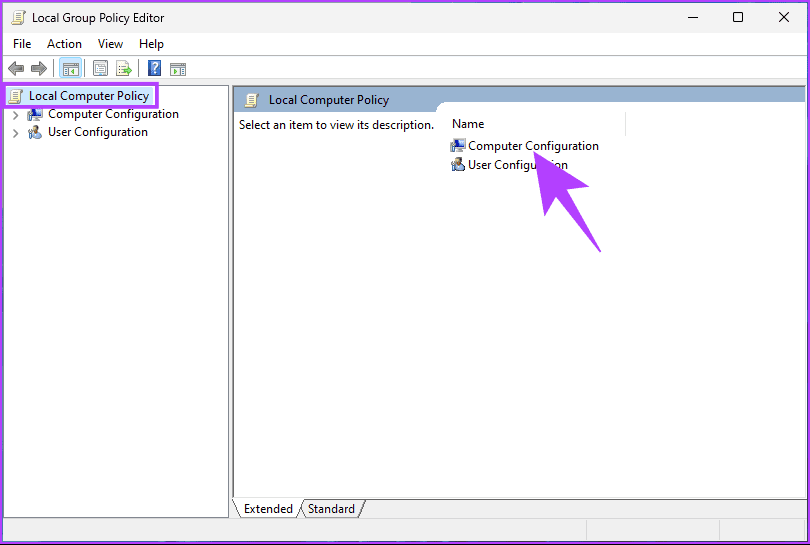
Step 3: In the right pane, double-click on Administrative Templates.
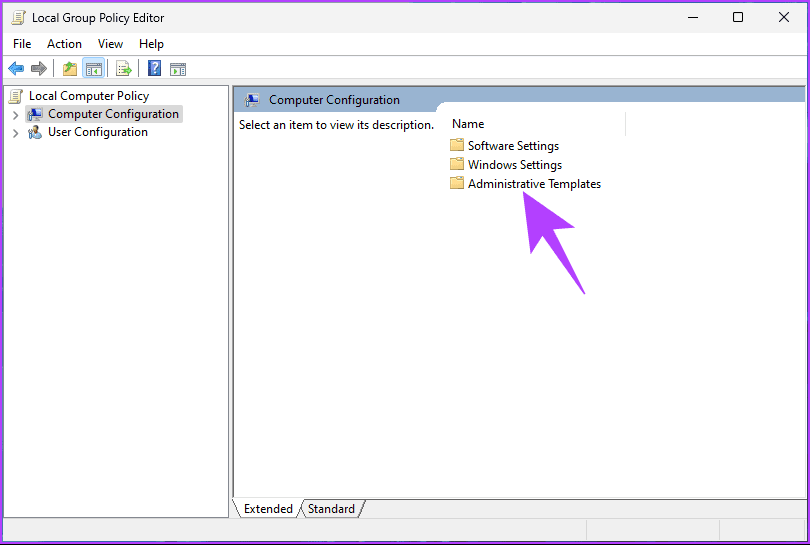
Step 4: Select the Windows Components option.
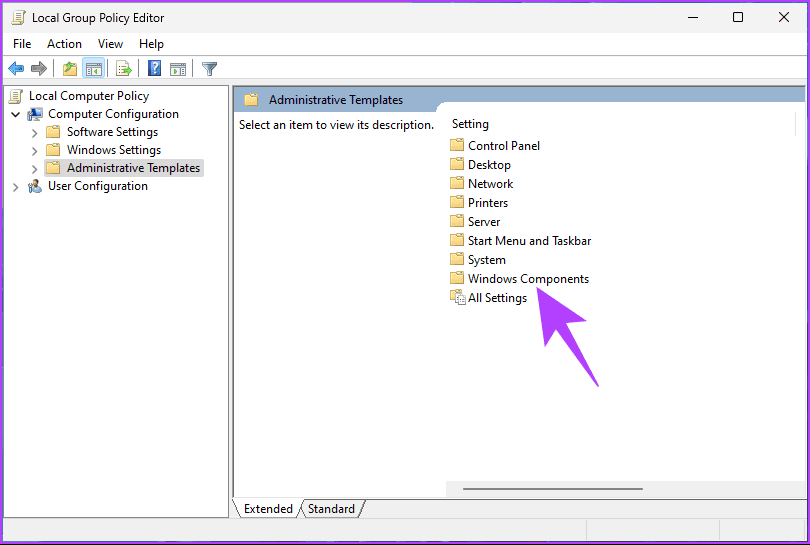
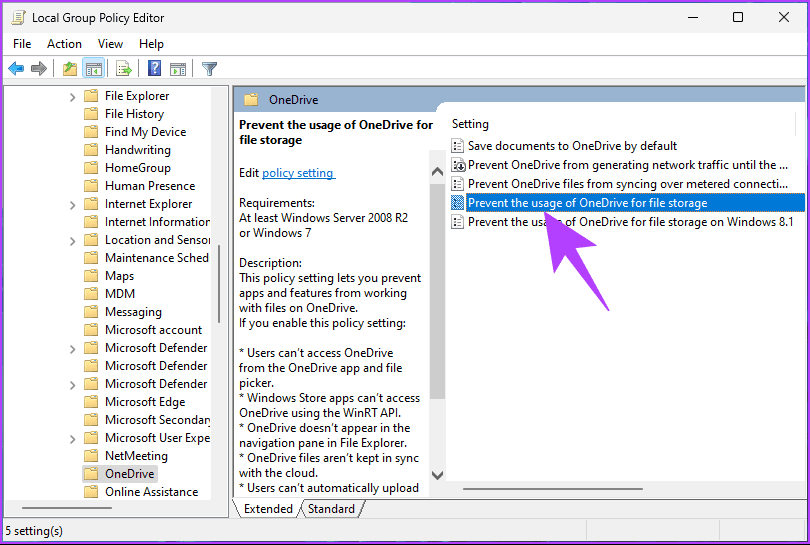
Step 5: Now, choose OneDrive.
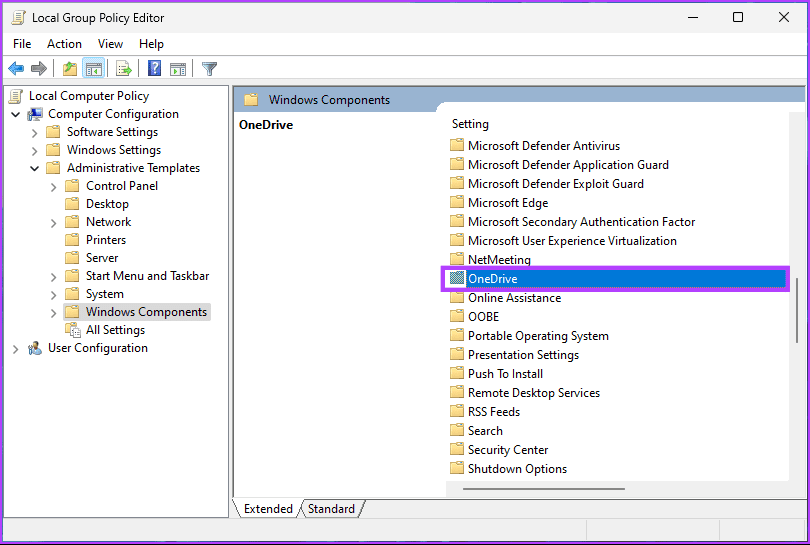
Step 6: Under the OneDrive option, double-click Prevent the usage of OneDrive for file storage.
Step 7: Choose the Enabled option. Finally, click on Apply, followed by OK.
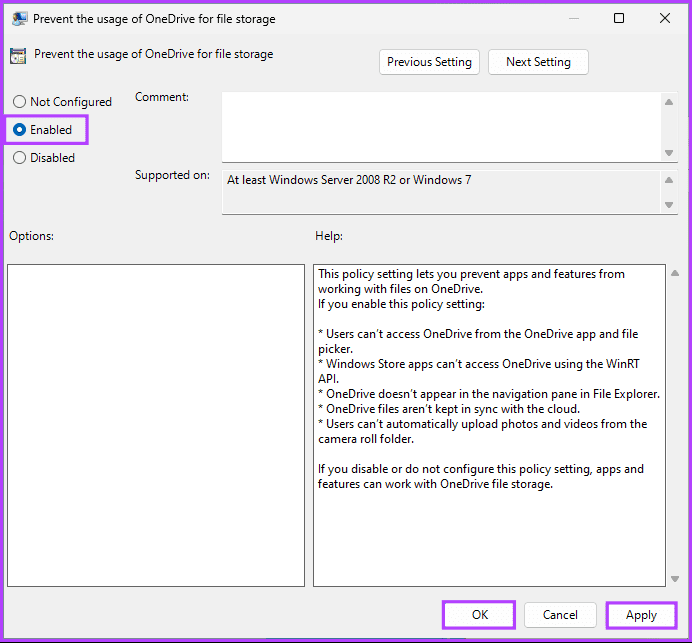
That’s it. You have successfully removed Microsoft OneDrive. Suppose you don’t want to go through the hassle of removing OneDrive from your PC. You can check out the next method.
4. Using Third-Party Tools
Third-party tools offer a more comprehensive uninstallation by removing leftover files, registry entries, and other remnants that the standard uninstallation process might leave behind. Tools like Revo Uninstaller or IObit Uninstaller are popular choices. For demonstration, we will go with Revo Uninstaller. Follow along.
Step 1: Go to Revo Uninstaller’s official website from your preferred browser and click Download.
Step 2: Double-click on the exe file to begin installation once downloaded.
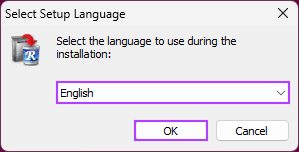
Step 3: In the Select Setup Language pop-up, choose your preferred language and click OK.
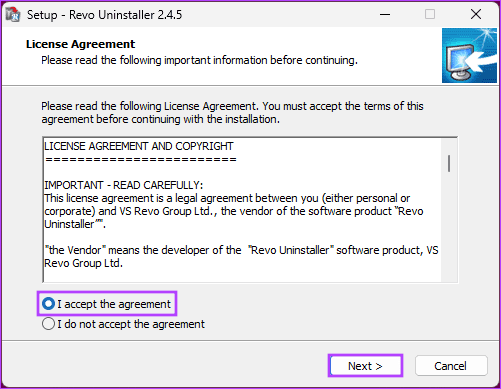
Step 4: In the License Agreement section, choose I accept the agreement and click Next.
Step 5: On the next screen, choose the destination location and click Next.
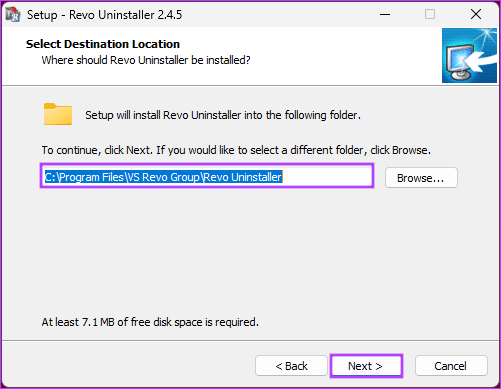
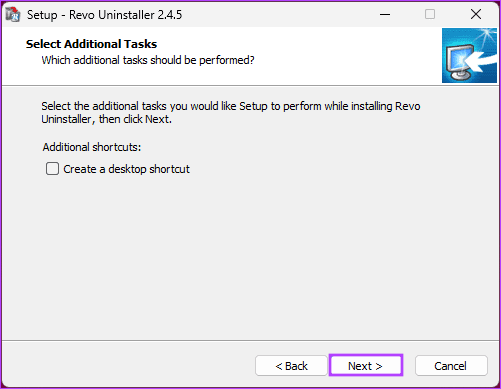
Step 6: Uncheck or leave the checked box next to Create a desktop shortcut and click Next.
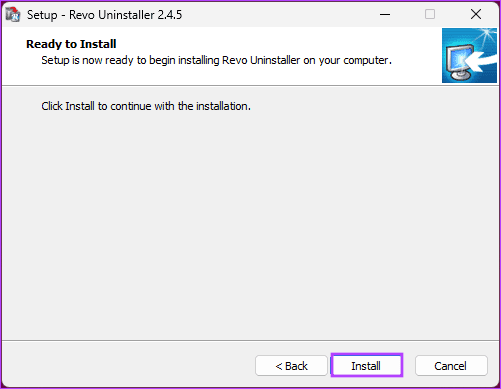
Step 7: Finally, click Install.
Step 8: Once installed, click the Finish button.
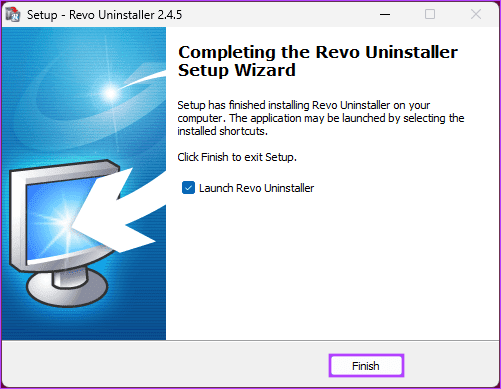
The Revo Uninstaller is now installed on your computer and will launch automatically.
Step 9: Once the Revo Uninstaller launches, scroll down, click on Microsoft OneDrive, and click on the Uninstall option at the top.
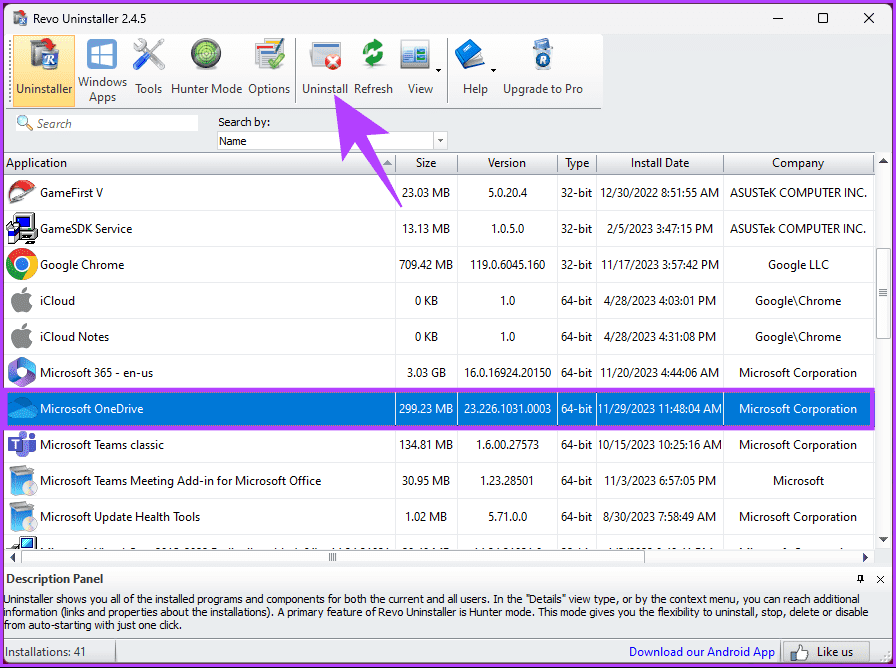
Step 10: In the pop-up, click Continue.

That’s about it. This will remove Microsoft OneDrive and its associated files altogether from your computer. However, if you have utilized any of the methods mentioned to remove OneDrive, you may see the OneDrive folder still showing after uninstalling; continue reading to learn how to delete them.
Also Read: How to stop OneDrive from deleting files automatically on Windows 11
How to Remove All Traces of OneDrive From Windows 11 or 10
Step 1: Press the Windows key, type Command Prompt, and click Run as administrator.
Step 2: Type the below command and hit Enter.
rd "%UserProfile%\OneDrive" /Q /S rd "%LocalAppData%\Microsoft\OneDrive" /Q /S rd "%ProgramData%\Microsoft OneDrive" /Q /S rd "C:\OneDriveTemp" /Q /S
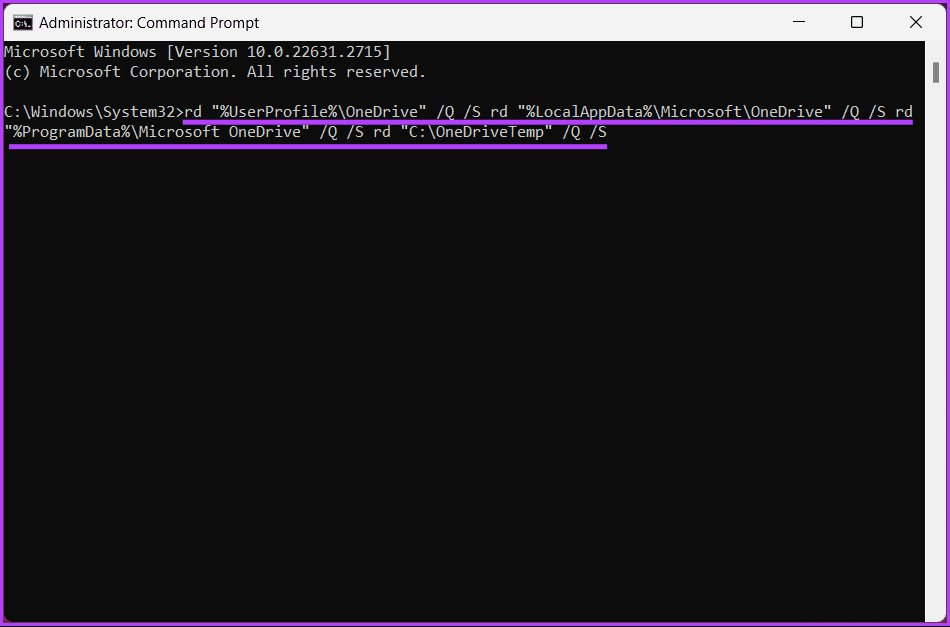
That’s it. All the temporary and residual OneDrive files will be removed from your Windows machine. If you have any queries, check out the FAQ section below.
FAQs on Uninstalling OneDrive Completely From Windows
Yes, you can reinstall OneDrive after uninstalling it. Visit the official OneDrive website, download the latest version, and install it on your computer.
Uninstalling OneDrive does not directly affect other Microsoft Office apps. However, if you use OneDrive for saving and syncing Office files, it may impact your ability to access them across devices.
Uninstalling OneDrive does not disable Windows sync settings. Windows sync settings are separate and control the synchronization of various settings across Windows devices.
Now that you know how to completely uninstall OneDrive from Windows, you can quickly and effectively remove OneDrive, allowing for a more tailored approach to file storage and management on your Windows device.
Was this helpful?
Last updated on 31 August, 2024
Read Next
 How to Completely Uninstall McAfee From Windows 11
Prerequisite: Stop All McAfee Services Running in the Background Before you start, stop all McAfee services running in the background.
How to Completely Uninstall McAfee From Windows 11
Prerequisite: Stop All McAfee Services Running in the Background Before you start, stop all McAfee services running in the background.
 How to Completely Uninstall Existing GPU Drivers the Right Way
How to Uninstall GPU Drivers Using DDU Step 1: Download the DDU installer from the Guru3D dedicated webpage.
How to Completely Uninstall Existing GPU Drivers the Right Way
How to Uninstall GPU Drivers Using DDU Step 1: Download the DDU installer from the Guru3D dedicated webpage.
 How to Completely Uninstall Discord From Windows, Mac, Android, and iOS
https://youtu.be/Zvxq_KArqpY How to Completely Uninstall Discord From Windows Note: We are running on a Windows 11 machine.
How to Completely Uninstall Discord From Windows, Mac, Android, and iOS
https://youtu.be/Zvxq_KArqpY How to Completely Uninstall Discord From Windows Note: We are running on a Windows 11 machine.
 How to Disable Task View in Windows 10 Completely
The Task View feature in Windows 10 is a boon for power users.
How to Disable Task View in Windows 10 Completely
The Task View feature in Windows 10 is a boon for power users.
 5 Ways to Completely Disable Windows Defender
Method 1: Using Command Prompt Step 1: Press the Windows key on your keyboard, type Command Prompt, and click Run as administrator.
5 Ways to Completely Disable Windows Defender
Method 1: Using Command Prompt Step 1: Press the Windows key on your keyboard, type Command Prompt, and click Run as administrator.
 A Complete Guide to OneDrive Storage and Avoiding Disk Full Error
Microsoft OneDrive, previously known as SkyDrive, is a complete cloud storage solution for Windows users.
A Complete Guide to OneDrive Storage and Avoiding Disk Full Error
Microsoft OneDrive, previously known as SkyDrive, is a complete cloud storage solution for Windows users.
 OneDrive Storage Guide: What Counts and What Doesn’t
Thanks to its seamless integration with Windows, Microsoft 365 apps, Microsoft Teams, Outlook, and Samsung Galaxy devices, OneDrive is the go-to cloud storage solution for many.
OneDrive Storage Guide: What Counts and What Doesn’t
Thanks to its seamless integration with Windows, Microsoft 365 apps, Microsoft Teams, Outlook, and Samsung Galaxy devices, OneDrive is the go-to cloud storage solution for many.
 A Guide to Setting Up And Using OneDrive on Mac
Microsoft OneDrive plays a major role in the Microsoft 365 ecosystem.
A Guide to Setting Up And Using OneDrive on Mac
Microsoft OneDrive plays a major role in the Microsoft 365 ecosystem.
The article above may contain affiliate links which help support Guiding Tech. The content remains unbiased and authentic and will never affect our editorial integrity.