Basic Ways:
- Use Siri: If your device has Siri enabled, you can also use the ‘Hey Siri’ command to wake up Siri and turn on the Black and White mode on your iPhone or iPad through voice command.
- Creating a custom shortcut: You can use the Shortcuts app to create a shortcut that instantly turns your iPhone or iPad’s screen black and white without using the Settings menu or the Control Center.
Method 1: Use Settings to Disable Colors on iPhone
The Settings menu on your iOS or iPadOS device can be used to enable or disable most of the important functions and features. So, it is no surprise that you can use the Settings menu to make your iPhone or iPad’s screen black and white. Follow the below steps to do it.
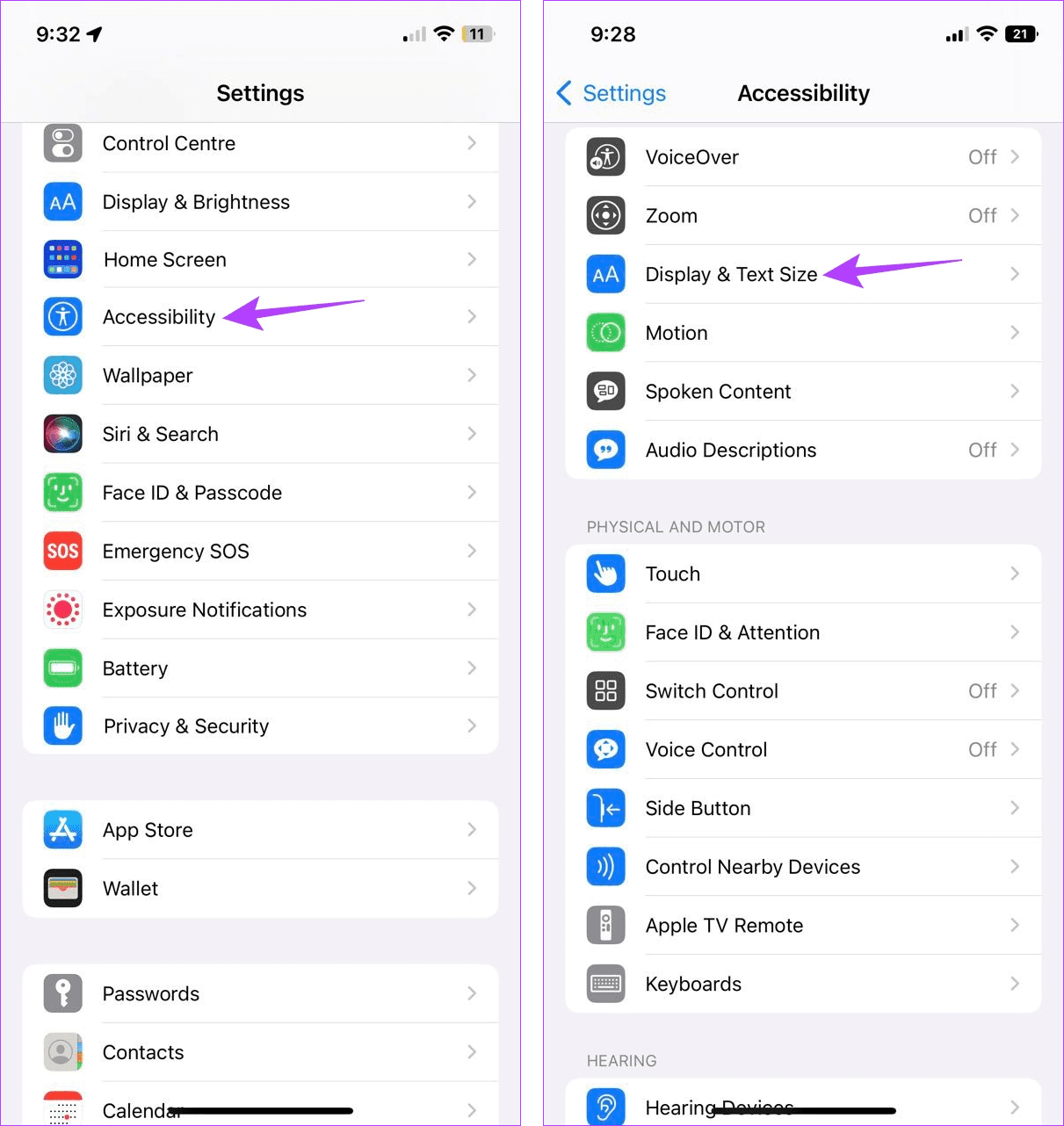
Step 1: Open Settings and tap on Accessibility. Here, tap on Display & Text Size.
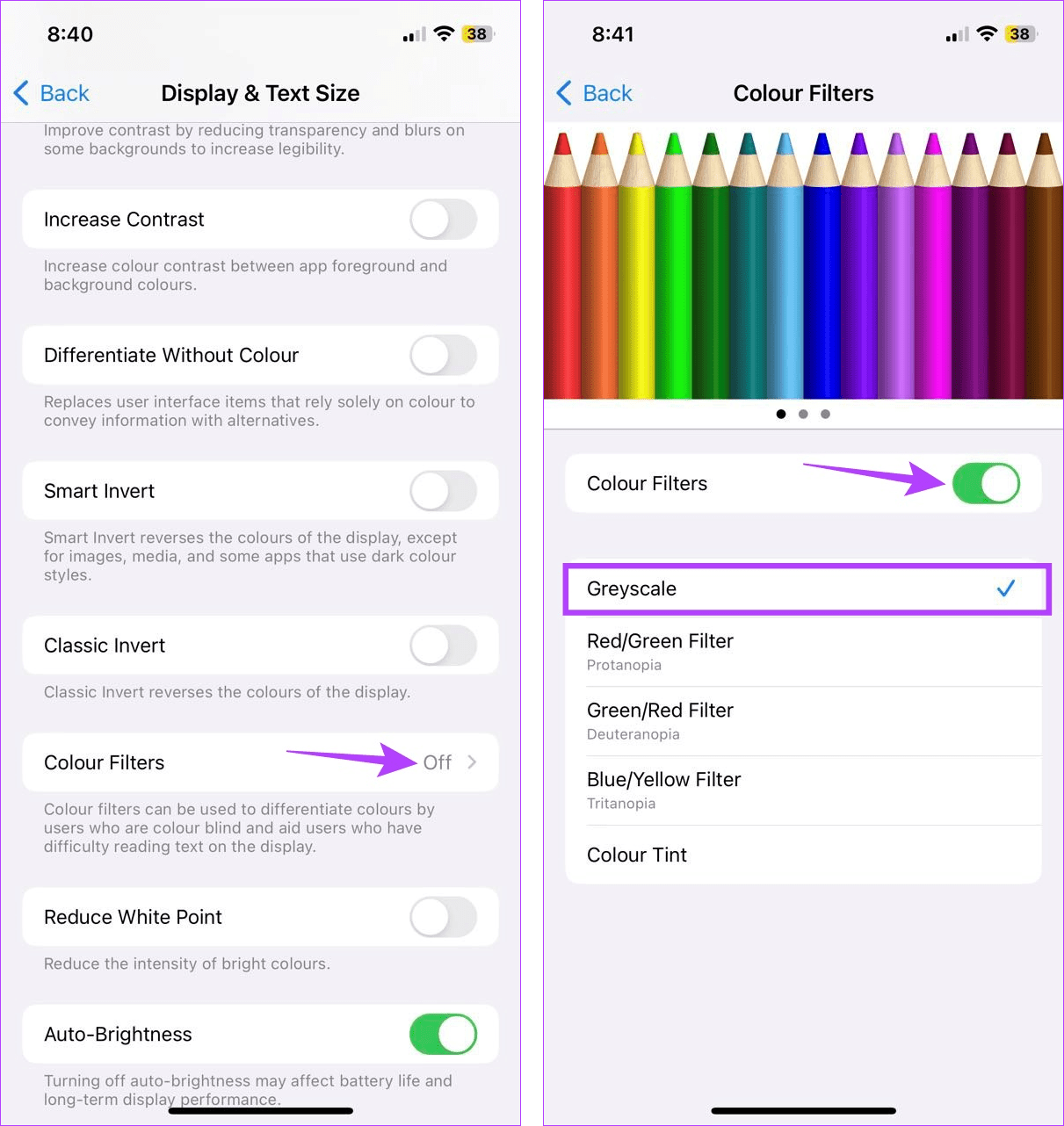
Step 2: Scroll down and select Color Filters. Turn on the toggle for Color Filters and ensure Grayscale is selected from the options.
Method 2: Using the Accessibility Shortcut
As the name suggests, Accessibility Shortcuts can help make your iOS or iPadOS device more accessible, all at the tap of a button. This can also work if you wish to enable certain color filters, like Grayscale, on your device. Here’s how to do it.
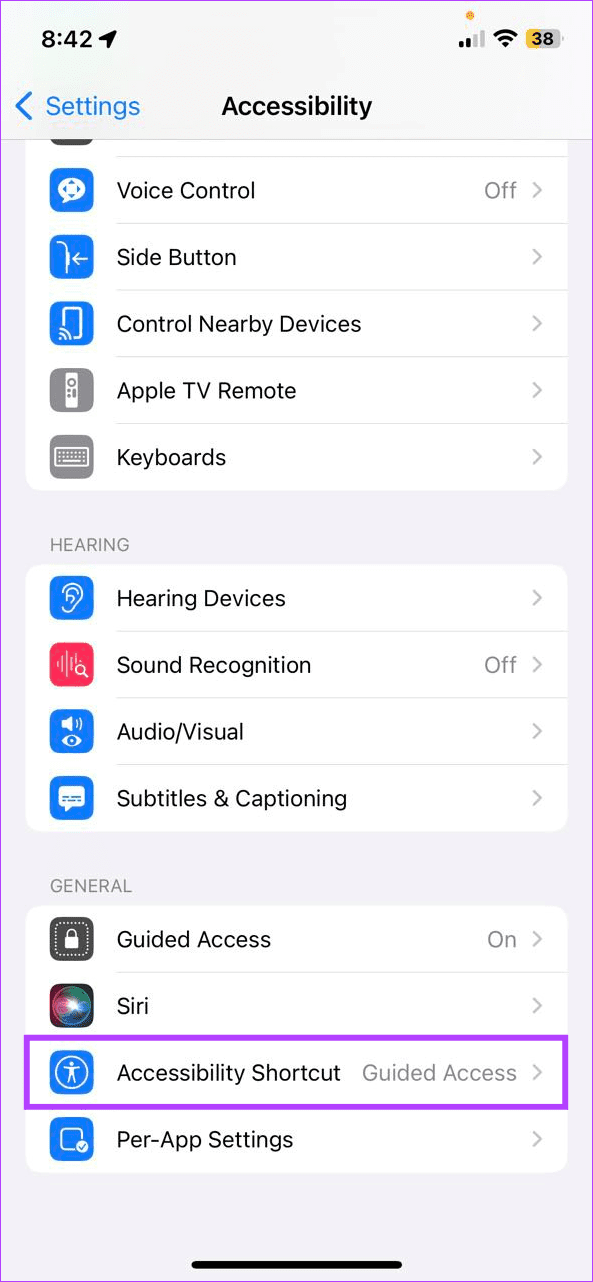
Step 1: Open Settings → Accessibility. Scroll down and tap on Accessibility Shortcut.
Step 2: Here, tap on Color Filters.

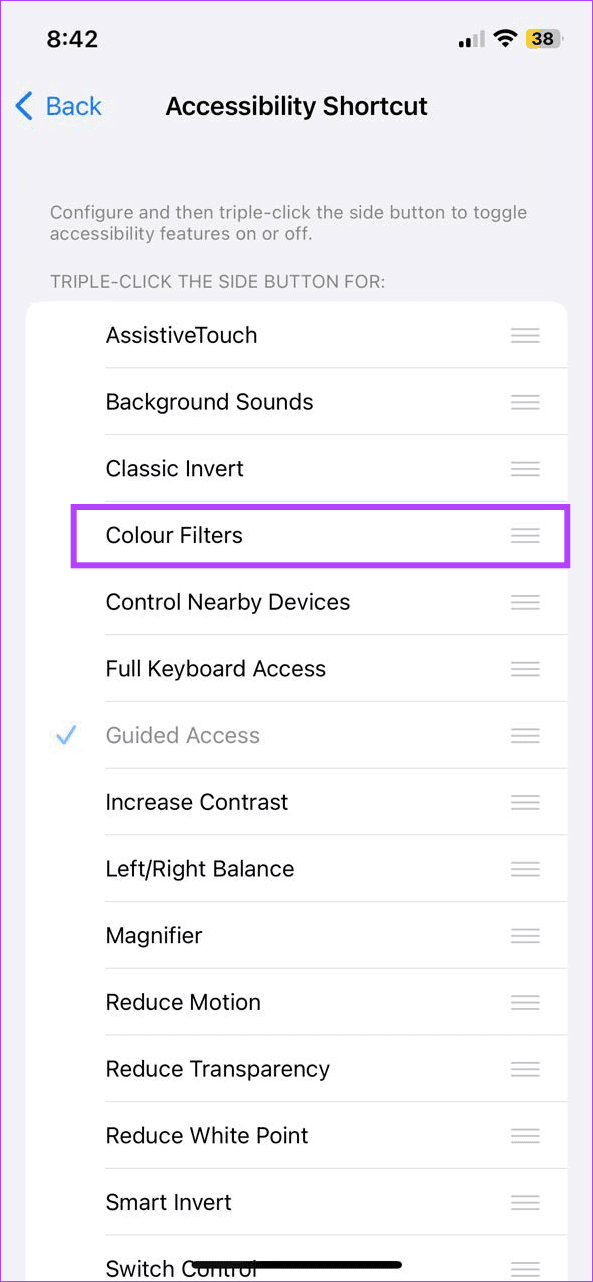
Now, triple-press on the Side button or Home button of your iOS or iPadOS device to instantly enable or disable Grayscale Mode.
Also Read: How to invert screen or picture colors on iPhone
Method 3: Adding Shortcut to Control Center
Besides enabling the Accessibility Shortcut, you can also add it to your device’s Control Center. This way, you can instantly enable Grayscale using the Accessibility icon in the Control Center. Here’s how.
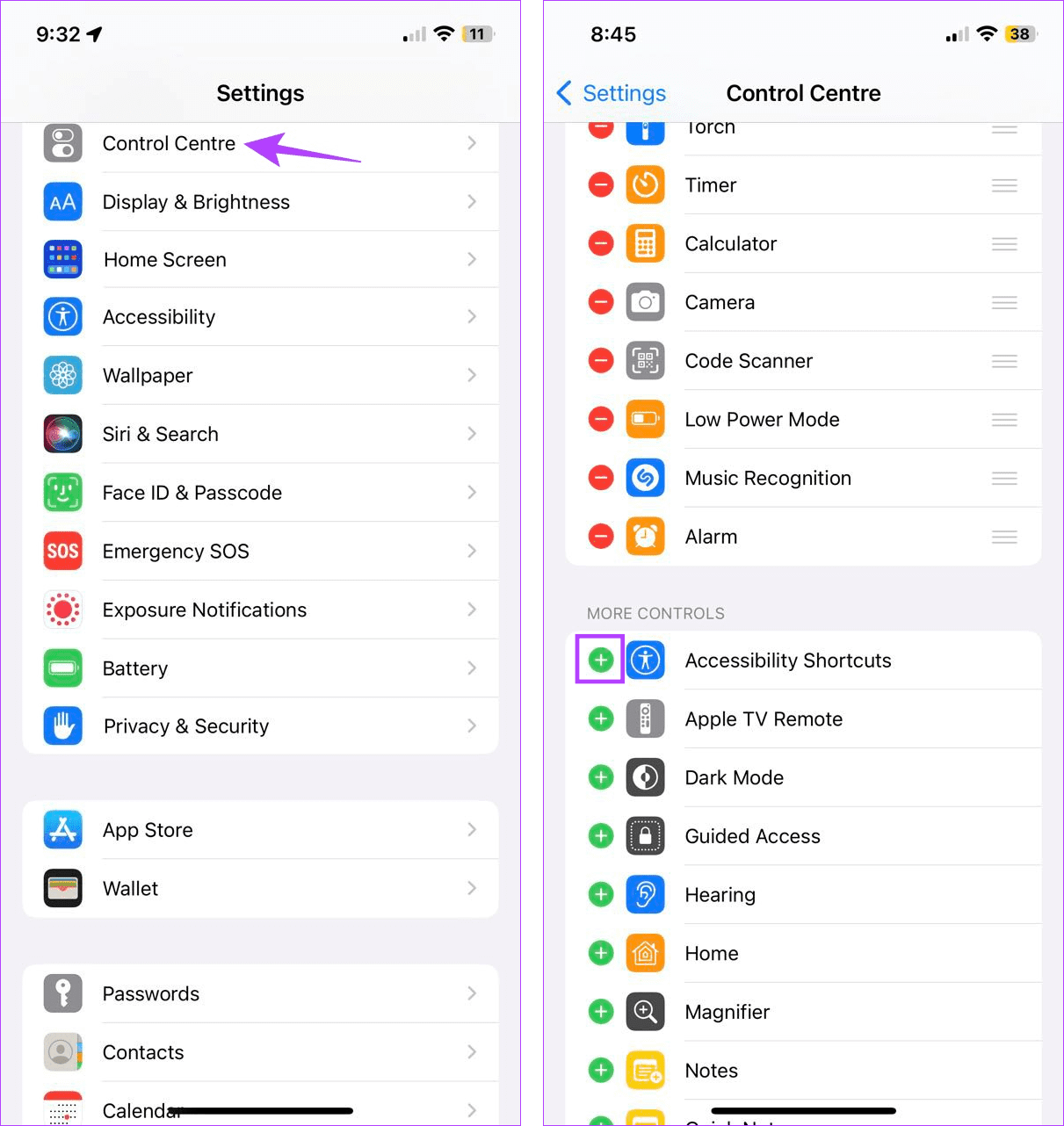
Step 1: Open Settings and tap on Control Center. Tap on the + icon in front of Accessibility Shortcuts.
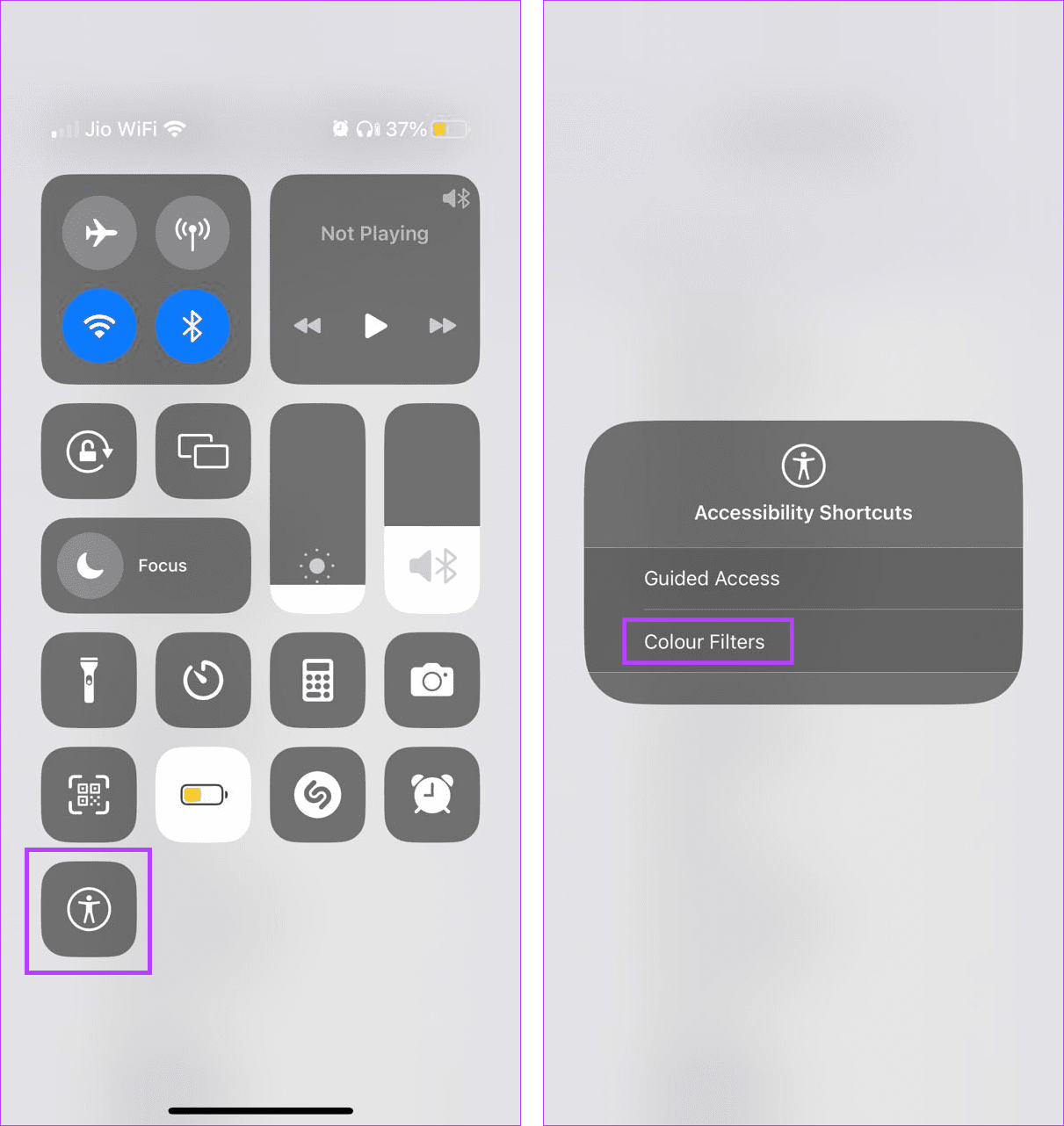
Step 2: Now, pull down from the top-left corner of the screen to open the Control Center.
Step 3: Here, long-press on the Accessibility icon > tap on Color Filters. This will enable Grayscale.
Method 4: Setting up Automation
Setting up automation to turn on Grayscale will help you save the hassle of constantly turning on and off the Grayscale mode on your iPhone or iPad. You can also add specific triggers to ensure Grayscale turns on once all the set conditions are met. Follow the below steps to do it.
Step 1: Open the Shortcuts app and tap on Automation. Here, tap on Create Personal Automation.
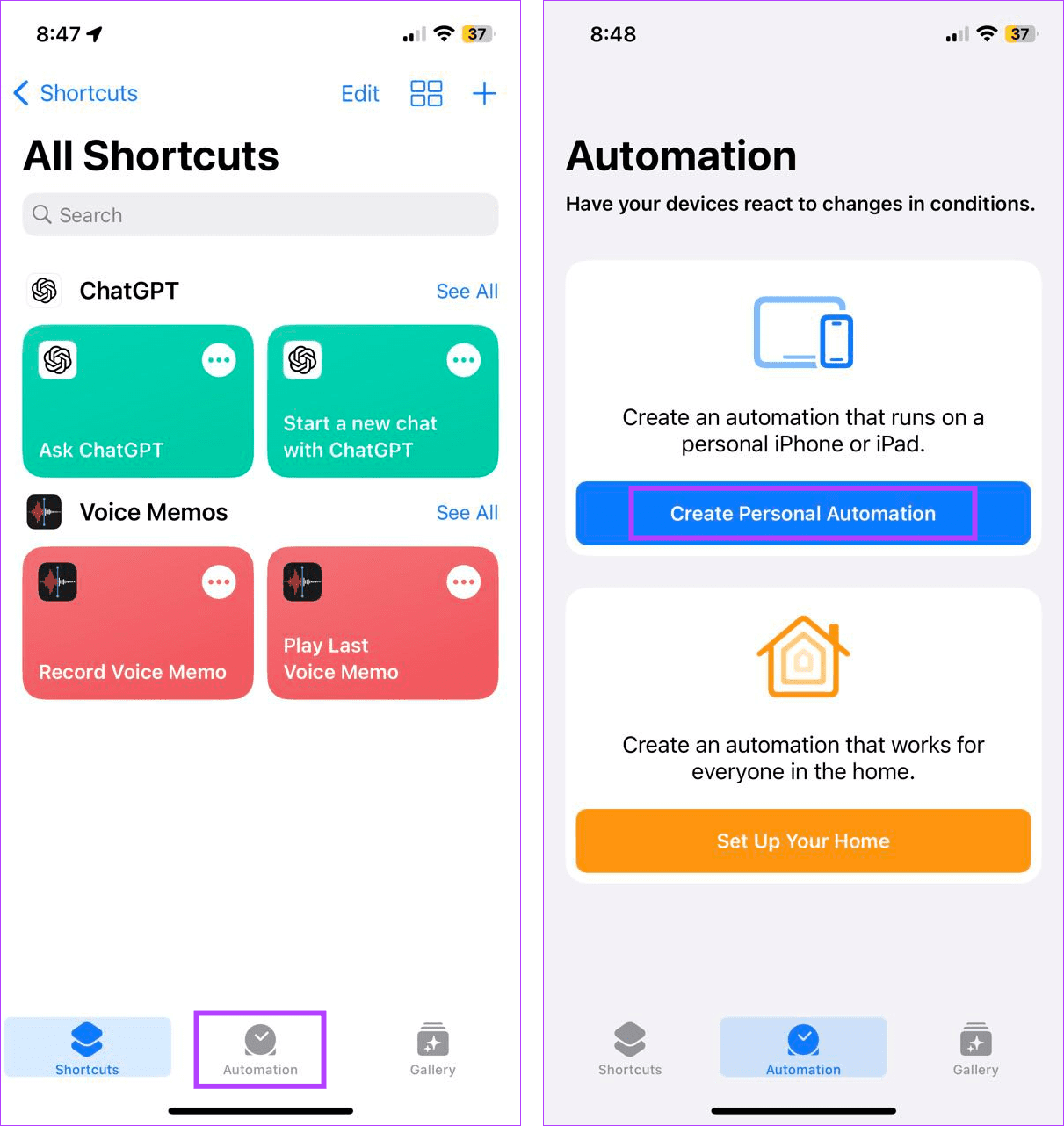
Step 2: Select the trigger for the automation. For demonstration, we will use the Time of Day option.
Step 3: Here, select the relevant options regarding when you want the automation to be enabled and tap on Next.

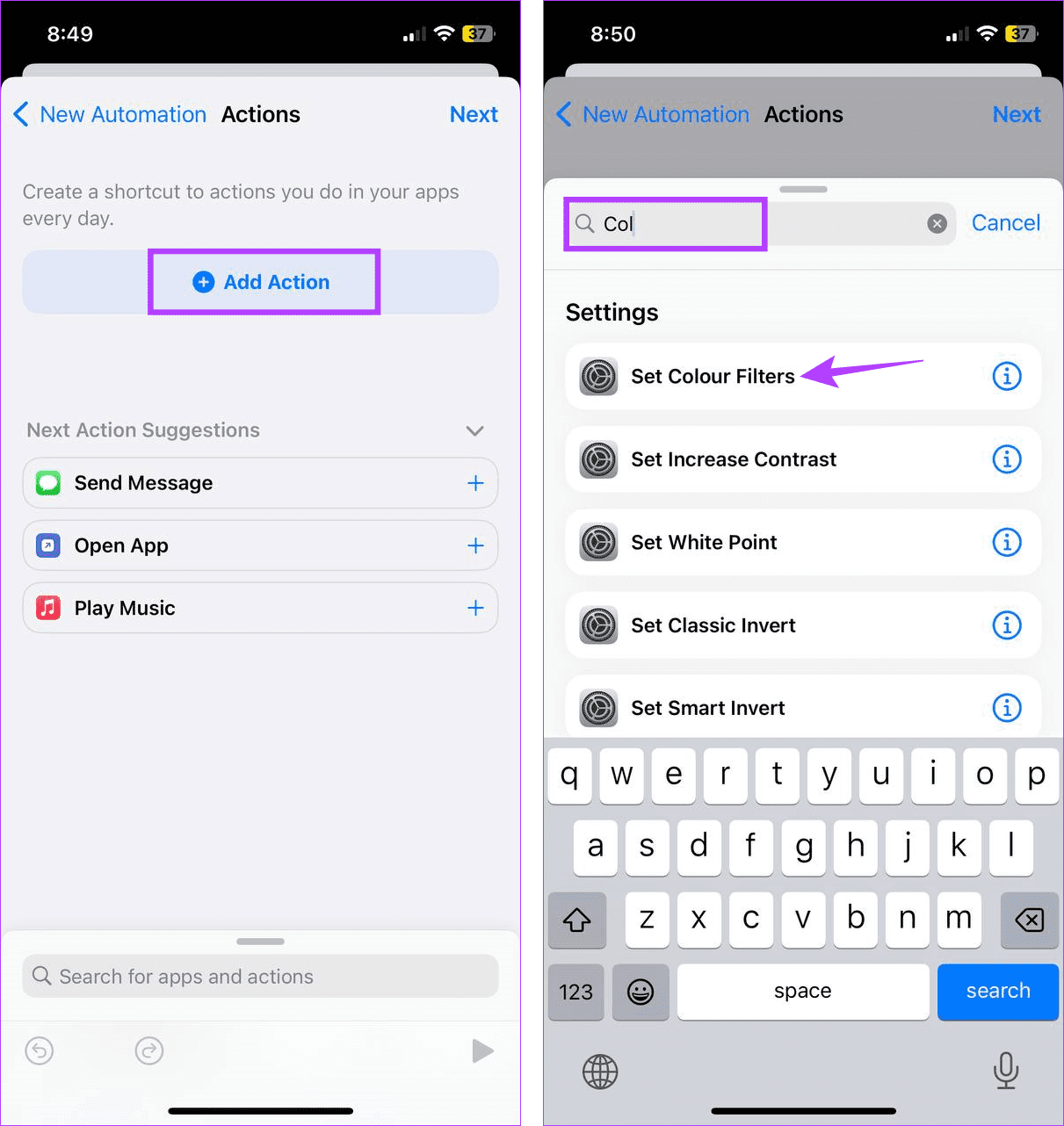
Step 4: Now, tap on Add Action. In the search bar, type Color Filters and tap on Set Color Filters.
Step 5: Tap on Done. Set exceptions, if applicable, and tap on Next.
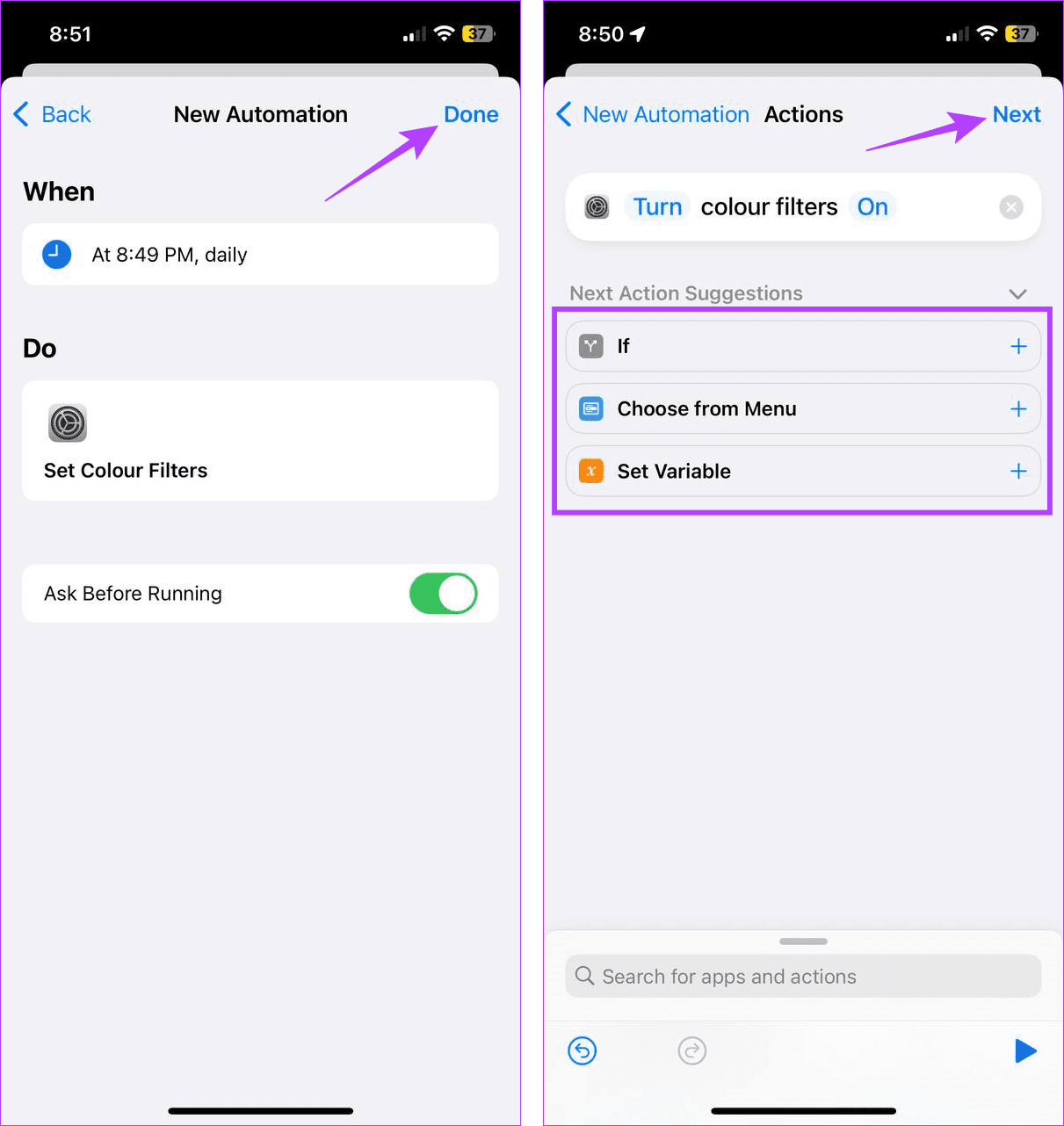
Now, wait for the automation to turn on Black and White mode at the set time and days automatically. You can also check our guide if the Shortcut app automations are not working on your iPhone.
FAQs
Yes, you can always disable Grayscale or Black and White mode on your iPhone and iPad. Open the Settings menu and use the abovementioned steps to turn off Color Filters. You can also use Siri to disable Grayscale on your Apple device using voice commands.
If you have issues reverting your iPhone’s colors to normal, manually turn off Grayscale. If it doesn’t work, restart your device and try again. Additionally, check if your device’s battery is sufficiently charged. If you notice any signs of physical damage, contact Apple Support to fix the issue.
Was this helpful?
Last updated on 26 June, 2024
Read Next
 5 Ways to Turn off Dark Mode on iPhone and iPad
Basic Ways: Disable shortcuts: You can also look in the Apple Shortcuts app and see if any shortcut is set to enable Dark Mode on your iPhone.
5 Ways to Turn off Dark Mode on iPhone and iPad
Basic Ways: Disable shortcuts: You can also look in the Apple Shortcuts app and see if any shortcut is set to enable Dark Mode on your iPhone.
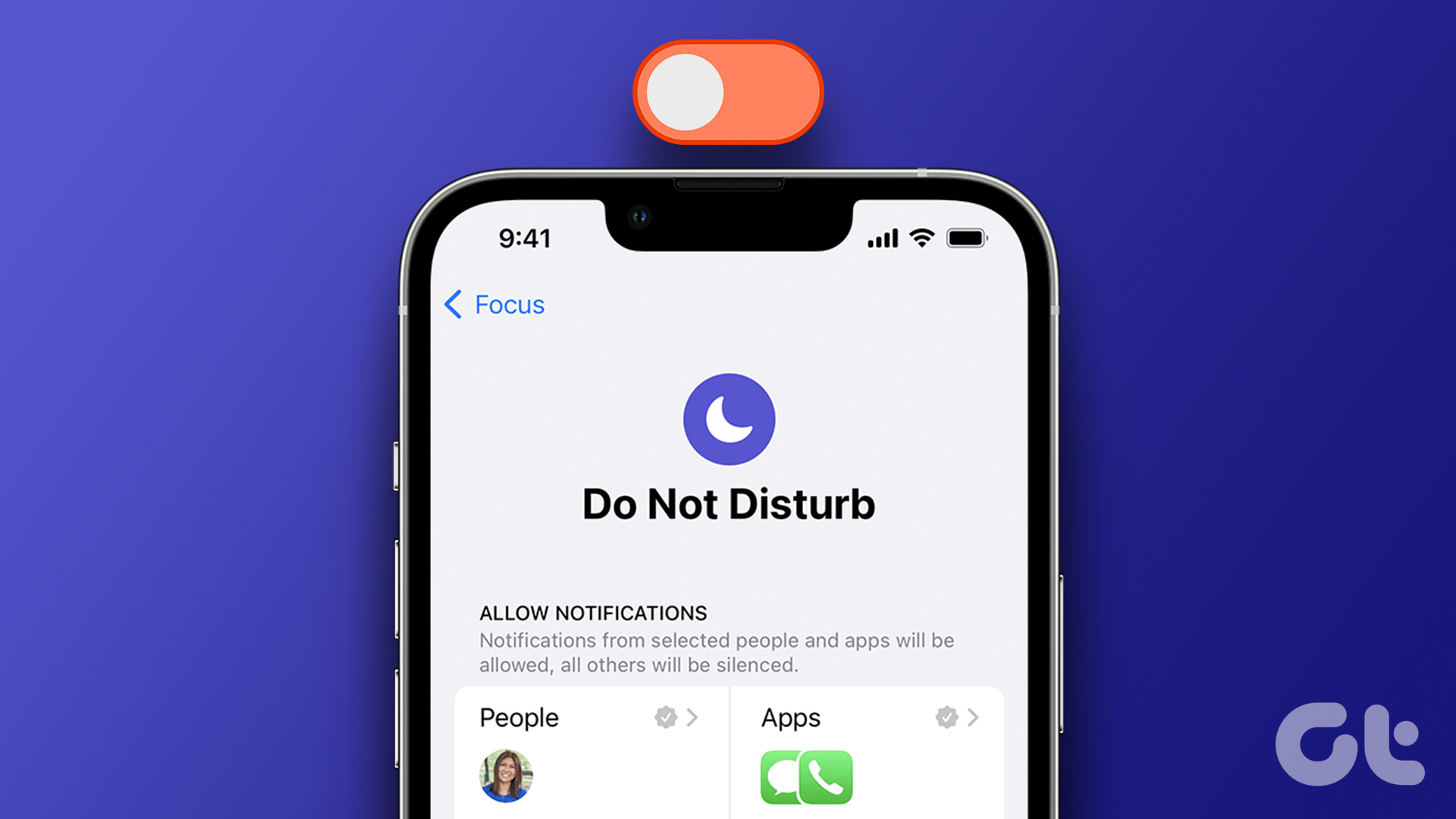 5 Ways to Turn Off Do Not Disturb on iPhone or iPad
Method 1.
5 Ways to Turn Off Do Not Disturb on iPhone or iPad
Method 1.
 How to Turn Off AdBlock in Safari on iPhone, iPad, and Mac
While ads are an excellent way to keep resources free, they can take up too much space or spoil the browsing experience.
How to Turn Off AdBlock in Safari on iPhone, iPad, and Mac
While ads are an excellent way to keep resources free, they can take up too much space or spoil the browsing experience.
 7 Ways to Unsync iPhone from iPad or Another iPhone
Method 1.
7 Ways to Unsync iPhone from iPad or Another iPhone
Method 1.
 7 Best iPad Pro and iPad Stands for Drawing and Sketching
Apple's iPad and iPad Pro lineup supports Apple Pencil and Pencil 2, making it incredibly comfortable to sketch and draw.
7 Best iPad Pro and iPad Stands for Drawing and Sketching
Apple's iPad and iPad Pro lineup supports Apple Pencil and Pencil 2, making it incredibly comfortable to sketch and draw.
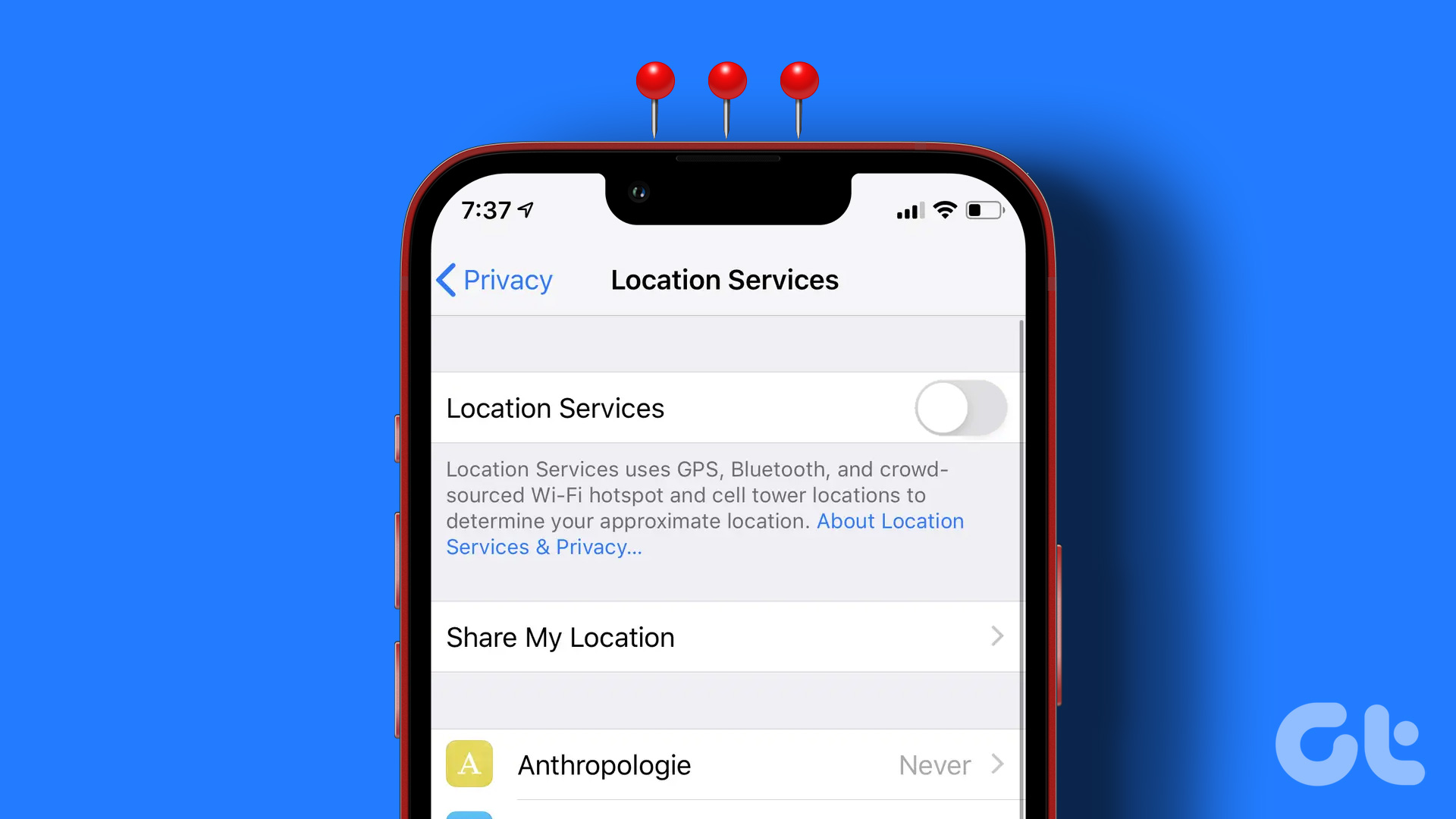 6 Ways to Turn off Location on iPhone
Method 1: Disable Location on iPhone Using Settings Open the Settings app > go to Privacy > Location Services > turn it off.
6 Ways to Turn off Location on iPhone
Method 1: Disable Location on iPhone Using Settings Open the Settings app > go to Privacy > Location Services > turn it off.
 3 Ways to Fix a Frozen iPhone That Won’t Turn Off
Fix 1: Force Restart iPhone You can force restart your iPhone to fix the issue.
3 Ways to Fix a Frozen iPhone That Won’t Turn Off
Fix 1: Force Restart iPhone You can force restart your iPhone to fix the issue.
 6 Ways to Turn off Camera Sound on iPhone
Things to Consider Before Turning Off iPhone's Camera Shutter Sound Let us quickly look at a few things you should consider before we proceed with the task at hand and
6 Ways to Turn off Camera Sound on iPhone
Things to Consider Before Turning Off iPhone's Camera Shutter Sound Let us quickly look at a few things you should consider before we proceed with the task at hand and
The article above may contain affiliate links which help support Guiding Tech. The content remains unbiased and authentic and will never affect our editorial integrity.