

Try Basic Fixes
- Check if WhatsApp is down: Services like WhatsApp can experience server outages at times. Websites like Downdetector monitor server outages for several popular services, including WhatsApp. You can visit their WhatsApp page to check if there’s a widespread issue.
- Update WhatsApp: Updating WhatsApp can resolve any issues that may have been preventing it from loading status updates on your phone. Head to the Play Store or App Store to update WhatsApp and see if that helps.
Fix 1: Allow WhatsApp to Use Mobile Data (iPhone)
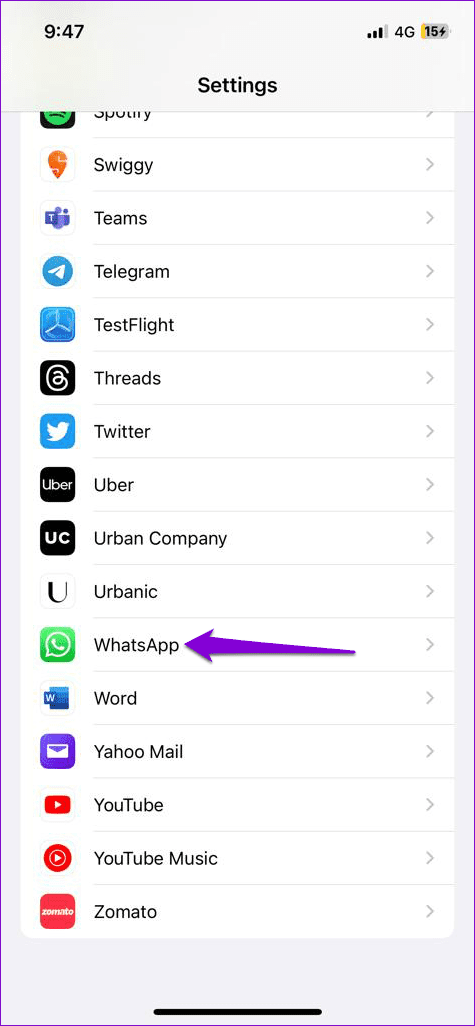
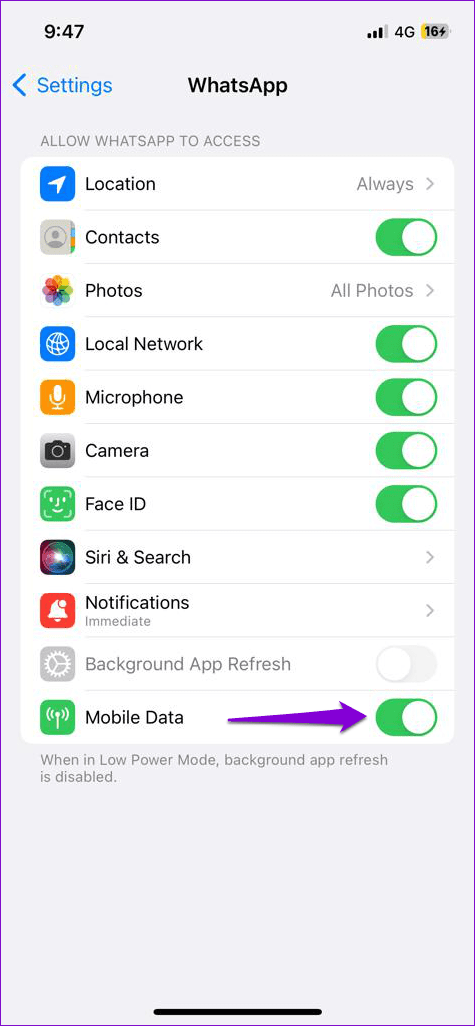
On your iPhone, you can enable or disable mobile data access for each app individually. If you’ve inadvertently disabled WhatsApp’s mobile data permission, it won’t load status updates when you’re not using Wi-Fi.
To enable mobile data access for WhatsApp, open the Settings app > scroll down to tap on WhatsApp > enable the toggle for Mobile Data.
Fix 2: Enable Unrestricted Data Usage for WhatsApp (Android)
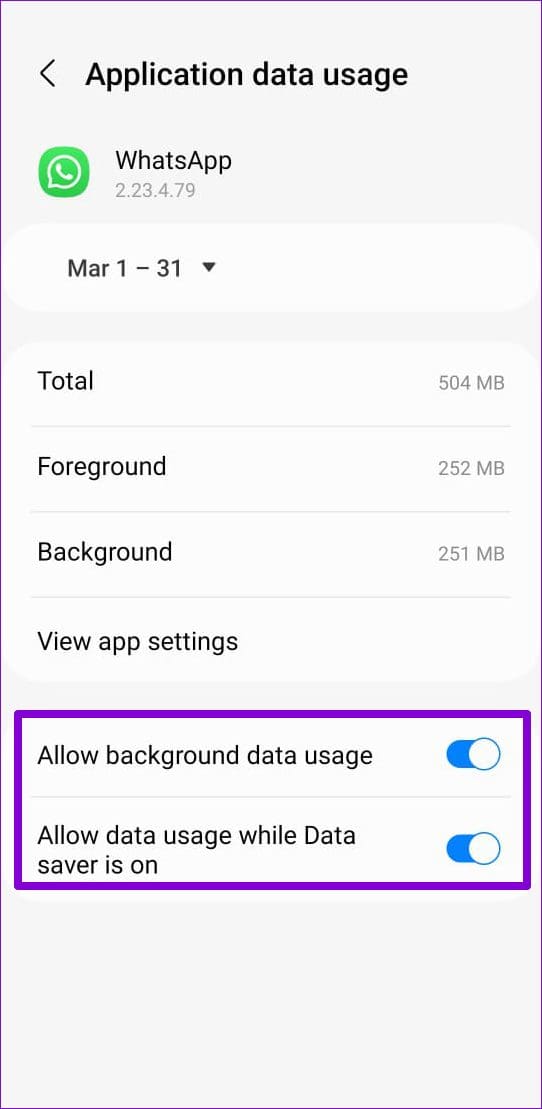
You might have enabled data saver mode on your Android device if you’re running low on monthly cellular data. This could cause problems with internet-dependent apps like WhatsApp. To avoid this, allow unrestricted data usage for WhatsApp using these steps:
Step 1: Long-press the WhatsApp icon > tap the info icon from the menu.
Step 2: Tap on Mobile data > enable the toggles for Allow background data usage and Allow data usage while Data saver is on.


Fix 3: Disable Low Data Mode (iPhone)
Enabling Low Data Mode on your iPhone could affect WhatsApp’s ability to use the internet freely at times, potentially resulting in the “There was an error playing the video” error. Hence, it’s best to turn off Low Data Mode when not required.
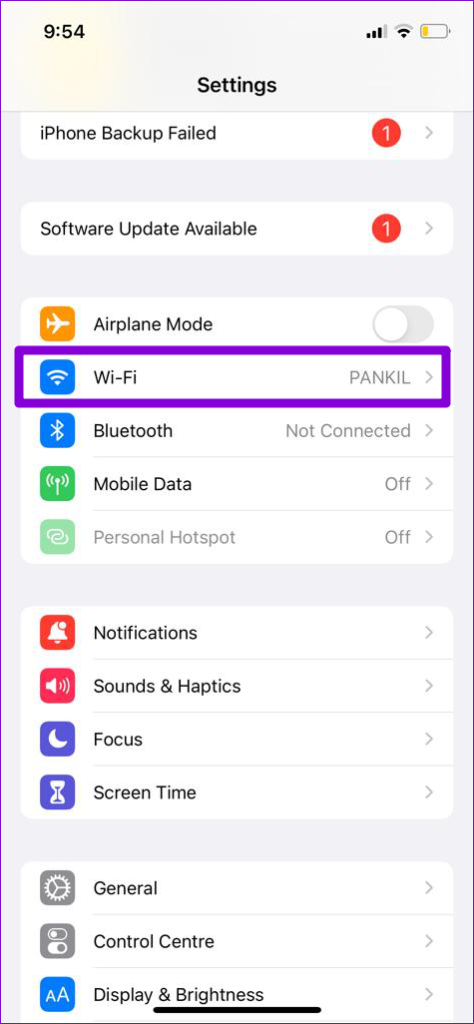
Step 1: Open the Settings app on your iPhone > tap on Wi-Fi.
Step 2: Tap the info icon next to your Wi-Fi network > turn off the toggle for Low Data Mode in the following menu.
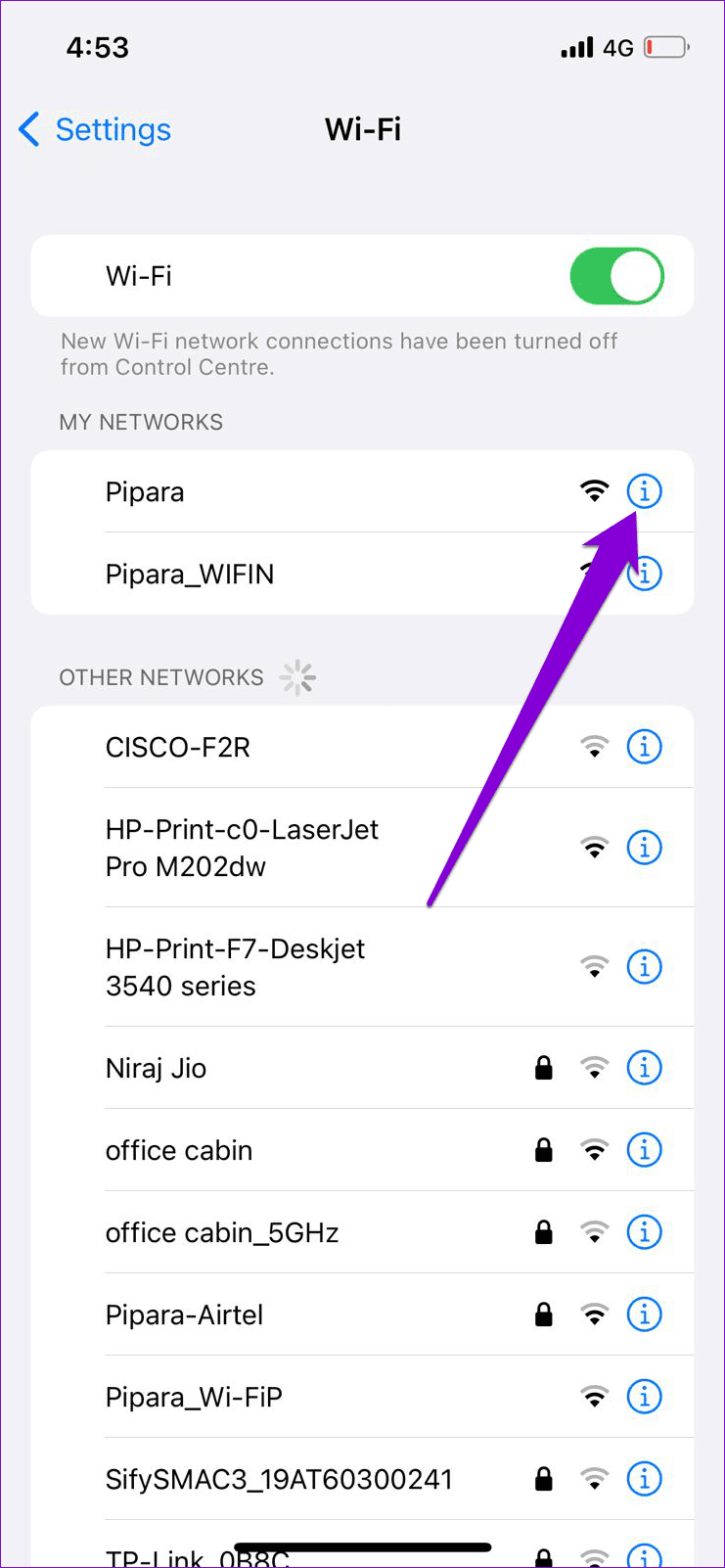
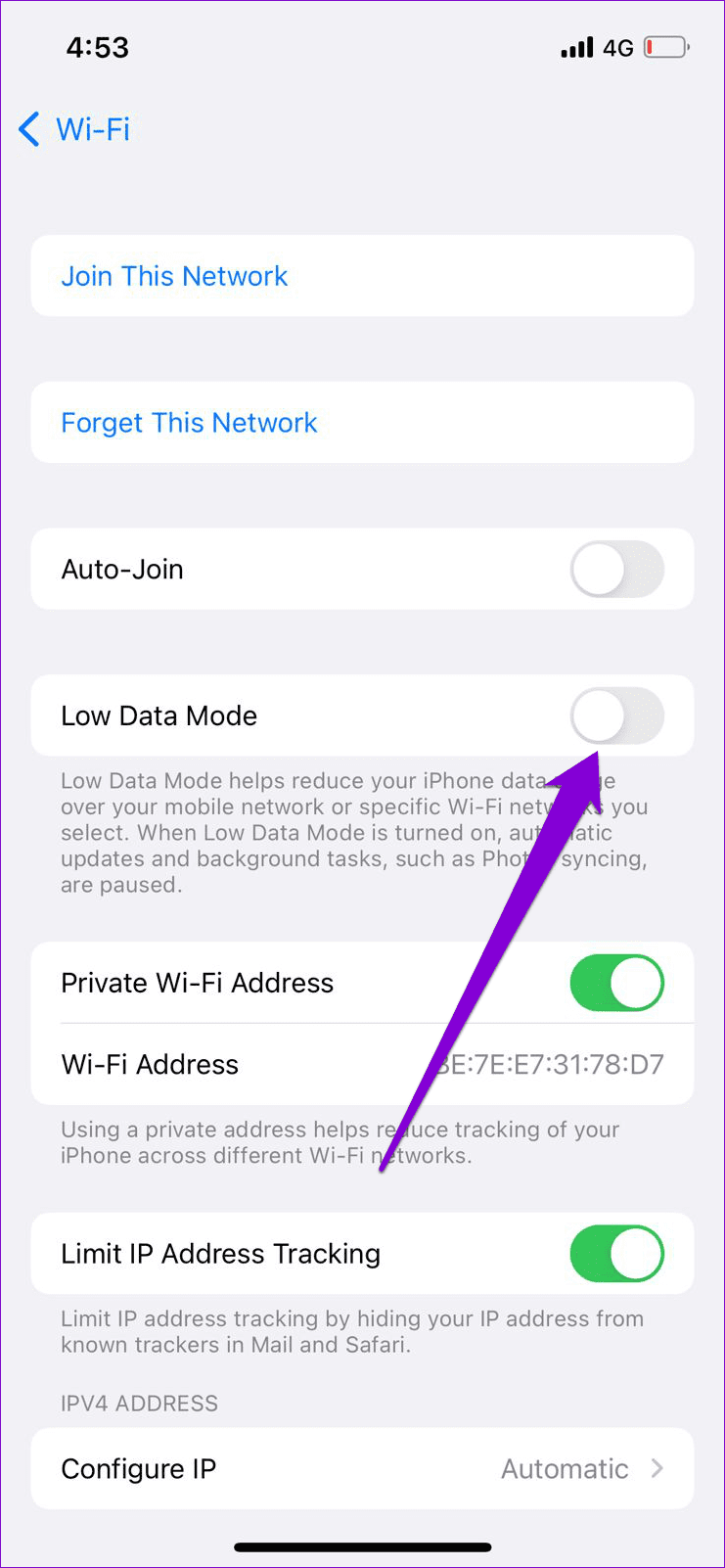
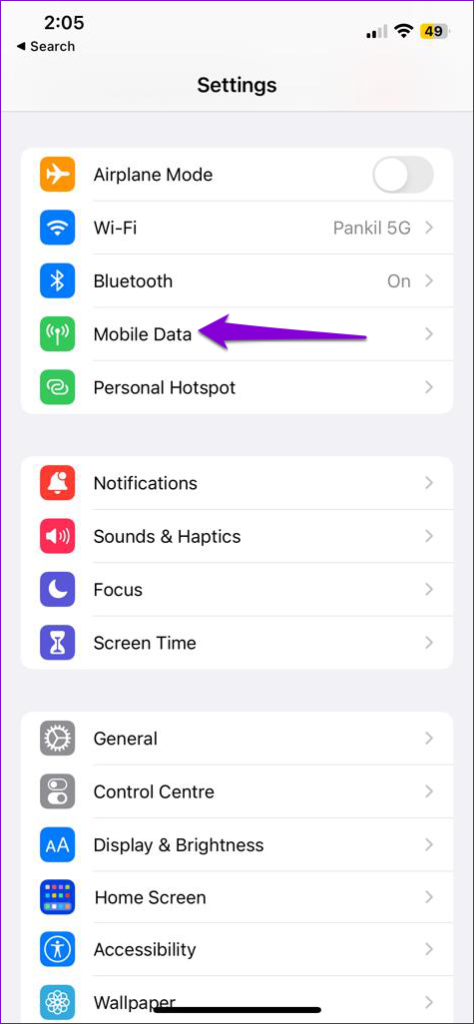
Step 3: If you’re using WhatsApp on mobile data, return to the Settings page > tap Mobile Data.
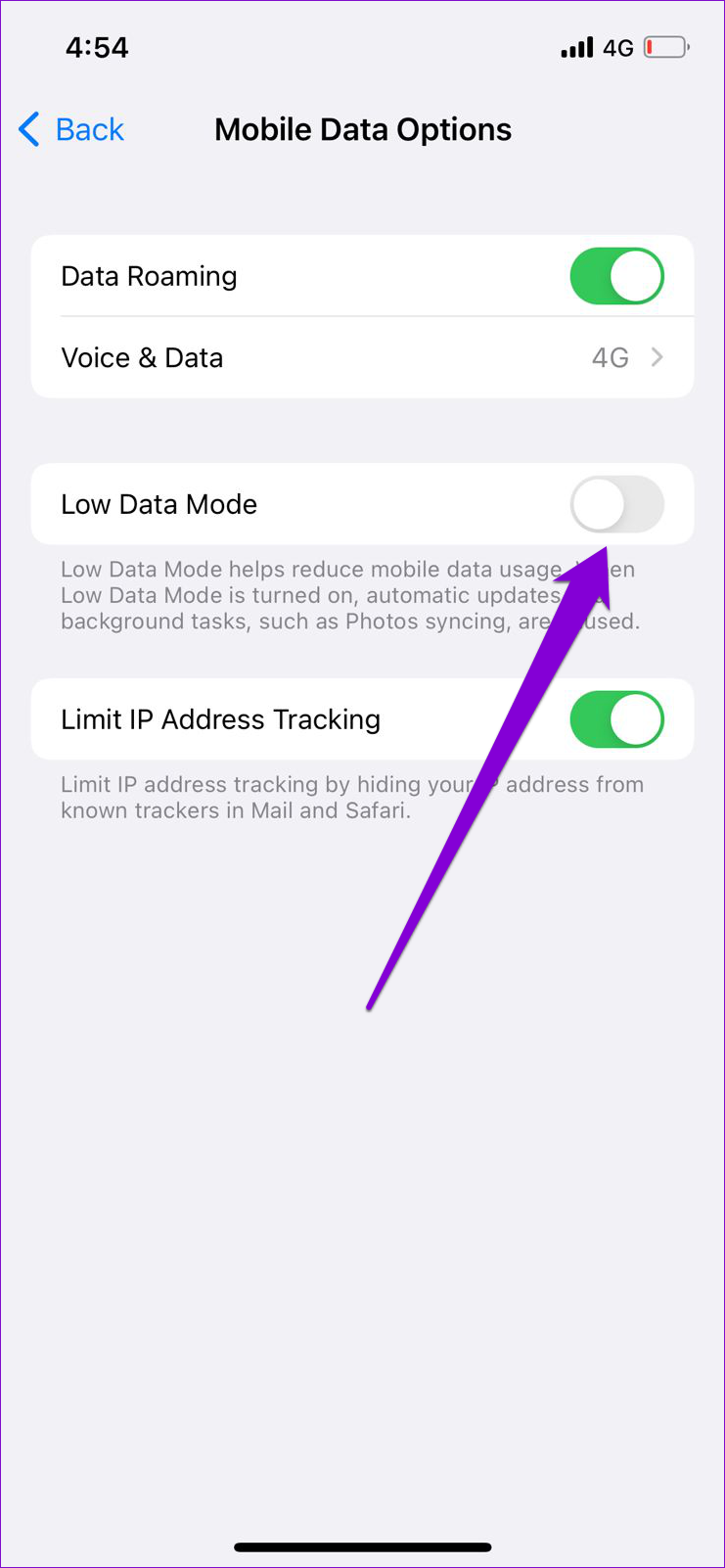
Step 4: Tap Mobile Data Options and turn off the toggle for Low Data Mode.

Fix 4: Clear WhatsApp Cache (Android)
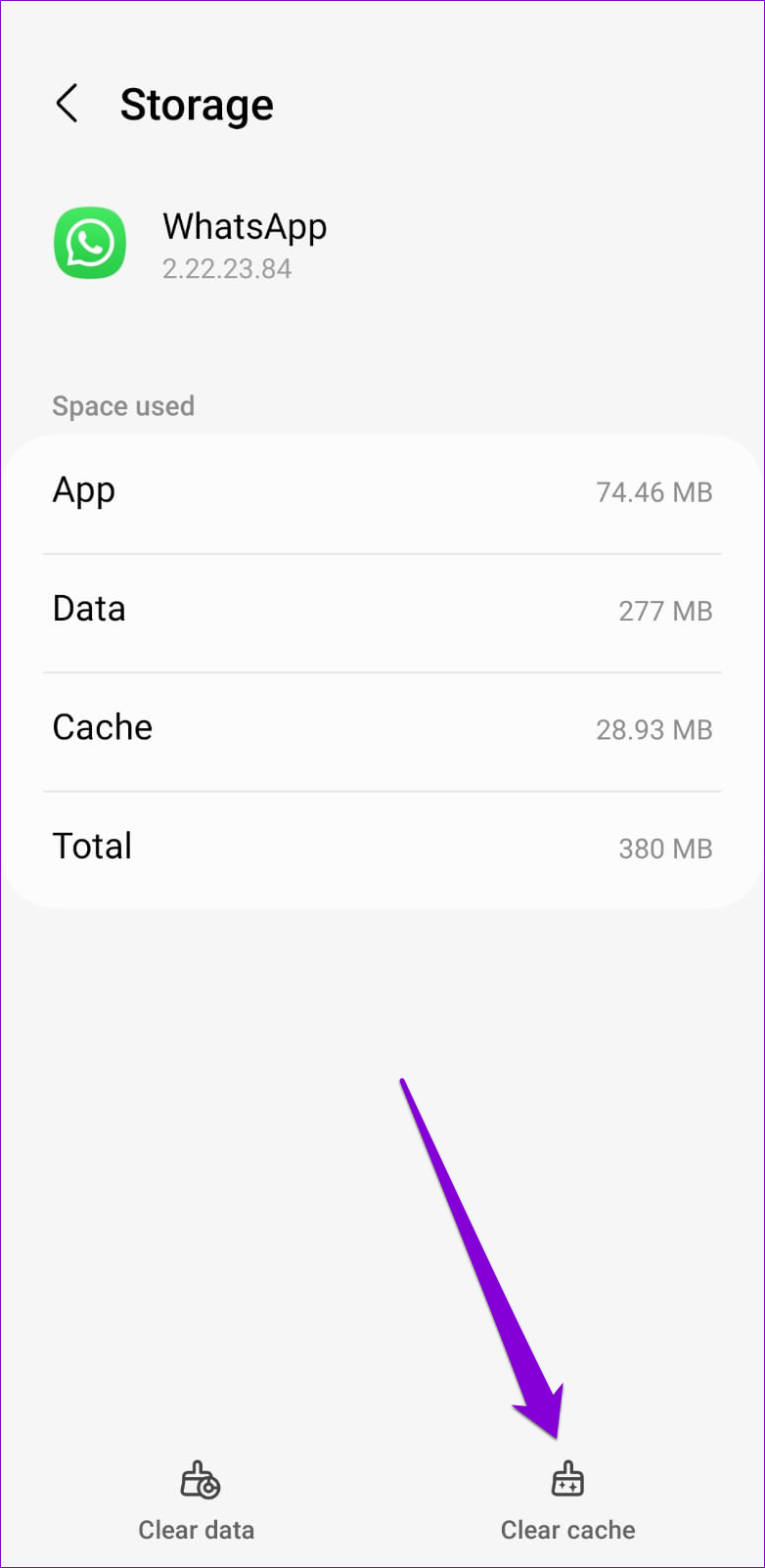
Like most apps, WhatsApp stores temporary files on your phone to improve your experience. While that’s good, outdated or corrupt cache files can sometimes affect WhatsApp’s functionality. You can try clearing WhatsApp cache data to see if that solves the problem.
Step 1: Long-press on the WhatsApp icon > tap the info icon.
Step 2: Go to Storage > tap the Clear cache option in the following menu.

Fix 5: Uninstall and Reinstall the App
If WhatsApp status is still not loading on your phone, there may be an issue with some of the core app files. So, your best option is to uninstall WhatsApp from your phone and install it again.
Was this helpful?
Last updated on 14 August, 2024
1 Comment
Leave a Reply
Read Next
 How to Add Music to WhatsApp Status on iPhone and Android
Method 1: Put WhatsApp Status With a Song WhatsApp allows you to record the sound along with the video for the status.
How to Add Music to WhatsApp Status on iPhone and Android
Method 1: Put WhatsApp Status With a Song WhatsApp allows you to record the sound along with the video for the status.
 5 Ways to See WhatsApp Status Without Being Seen
Method 1: Turning off Read Receipts Read receipts help you know who has seen your message, status, story, etc., on WhatsApp.
5 Ways to See WhatsApp Status Without Being Seen
Method 1: Turning off Read Receipts Read receipts help you know who has seen your message, status, story, etc., on WhatsApp.
 How to Fix WhatsApp Status Visibility Issues
Basic Fixes Check if the contact has blocked you: You should check if someone has blocked you on WhatsApp Switch to Wi-Fi: If you are using Mobile Data, you might
How to Fix WhatsApp Status Visibility Issues
Basic Fixes Check if the contact has blocked you: You should check if someone has blocked you on WhatsApp Switch to Wi-Fi: If you are using Mobile Data, you might
 3 Ways to Fix Facebook Comments Not Loading on Android and iPhone
Try Basic Fixes Check Facebook's server status: It’s not uncommon for Facebook servers to experience problems.
3 Ways to Fix Facebook Comments Not Loading on Android and iPhone
Try Basic Fixes Check Facebook's server status: It’s not uncommon for Facebook servers to experience problems.
 How to Fix WhatsApp Web QR Code Not Loading or Scanning
Basic Fixes Reload WhatsApp QR code - If not scanned for long, the QR code expires.
How to Fix WhatsApp Web QR Code Not Loading or Scanning
Basic Fixes Reload WhatsApp QR code - If not scanned for long, the QR code expires.
 5 Ways to Fix WhatsApp Status Couldn’t Send Error
Try Basic Fixes Try another image or video: Uploading another image or video will help verify whether the issue is related to the specific media file.
5 Ways to Fix WhatsApp Status Couldn’t Send Error
Try Basic Fixes Try another image or video: Uploading another image or video will help verify whether the issue is related to the specific media file.
 Why Do Photos Get Blurry on WhatsApp Status: 3 Ways to Fix This
https://youtu.be/k2MGRKNamFQ Basic Fixes Switch to the stable version of WhatsApp: While beta versions give you early access to new features and cool tricks, they may also introduce several bugs and
Why Do Photos Get Blurry on WhatsApp Status: 3 Ways to Fix This
https://youtu.be/k2MGRKNamFQ Basic Fixes Switch to the stable version of WhatsApp: While beta versions give you early access to new features and cool tricks, they may also introduce several bugs and
 Hide WhatsApp Online Status From One Person or Specific Contacts
 on iPhone Sometimes, you may not want certain people to know when you are online or using WhatsApp.
Hide WhatsApp Online Status From One Person or Specific Contacts
Hide WhatsApp Online Status From One Person or Specific Contacts on iPhone Sometimes, you may not want certain people to know when you are online or using WhatsApp.
The article above may contain affiliate links which help support Guiding Tech. The content remains unbiased and authentic and will never affect our editorial integrity.

Thanksgiving coming to the updates