Try Basic Fixes
- Check if voicemail is enabled: The first thing to do is ensure that voicemail is enabled on your iPhone, especially if you’ve switched carriers or cell plans recently. To determine if the voicemail service is active, head to Settings > Phone. If you see the Change Voicemail Password option at the bottom, it means your voicemail is active.
- Check your voicemail manually: Issues with your carrier’s server can sometimes cause visual voicemail to stop working. To avoid any confusion, try calling your voicemail directly by holding 1 on the dial pad.
- Empty your voicemail box: In some cases, the voicemail service may become unavailable on your iPhone if your mailbox is already full. You can try deleting a few of your voicemails to see if that helps.
- Install iOS updates: It is possible that the voicemail not working issue is due to a bug within iOS. So, installing pending software updates should help.
Fix 1: Enable Wi-Fi Calling
Poor network reception in your area could prevent your iPhone from downloading your voicemails. To get around this, enable Wi-Fi calling on your iPhone by following the steps below.
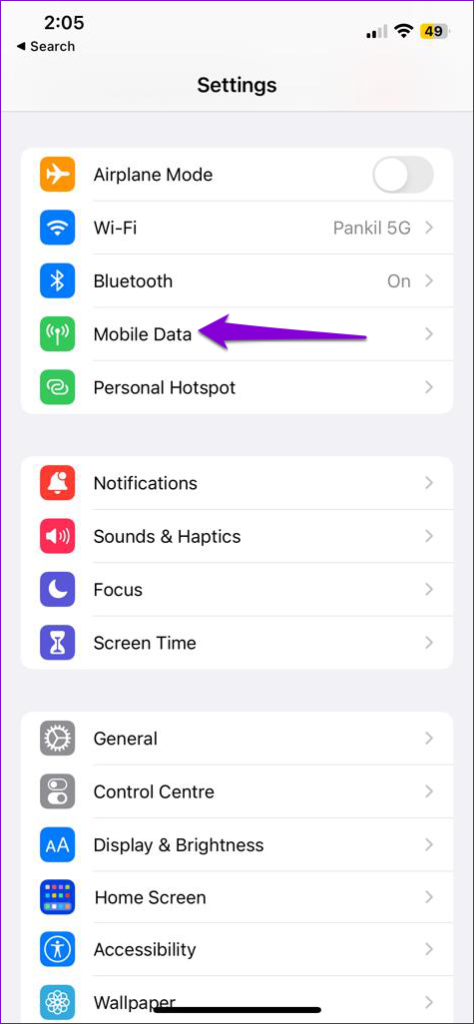
Step 1: Open the Settings app on your iPhone and tap on Mobile Data.
Step 2: Select Wi-Fi Calling and enable the toggle for Wi-Fi Calling on This iPhone.


Fix 2: Check the Voicemail Greeting
Another thing to do is check the set voicemail greeting on your iPhone. If you haven’t set your custom greeting properly, callers may fail to recognize it and won’t leave a message.
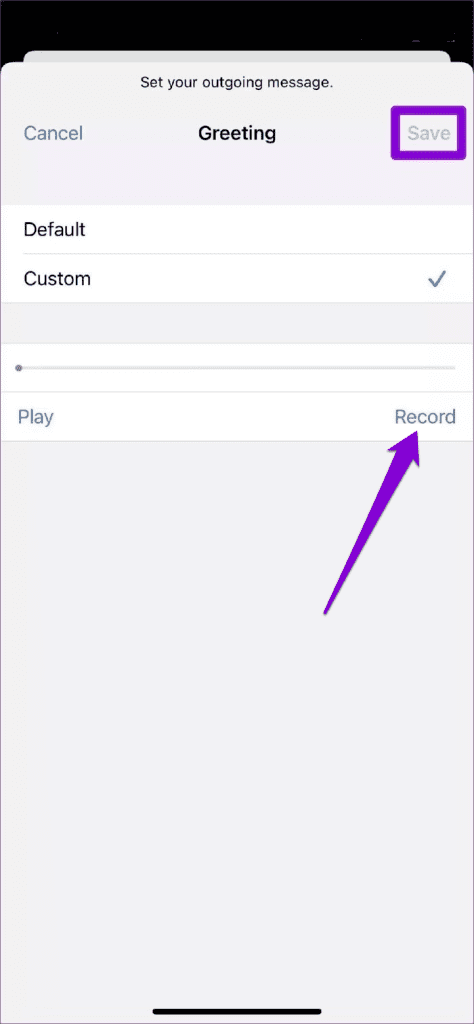
Step 1: Open the Phone app on your iPhone, switch to the Voicemail tab, and tap Greeting at the top left corner.
Step 2: Tap the Play button to preview your custom voicemail greeting. If you are not satisfied with it, tap the Record button to set a new voicemail greeting and hit Save.

Fix 3: Disable Call Forwarding
Have you enabled call forwarding on your iPhone? If so, you won’t get any voicemails, as your iPhone will divert all your incoming calls to the specified phone number.
To disable call forwarding on iPhone:
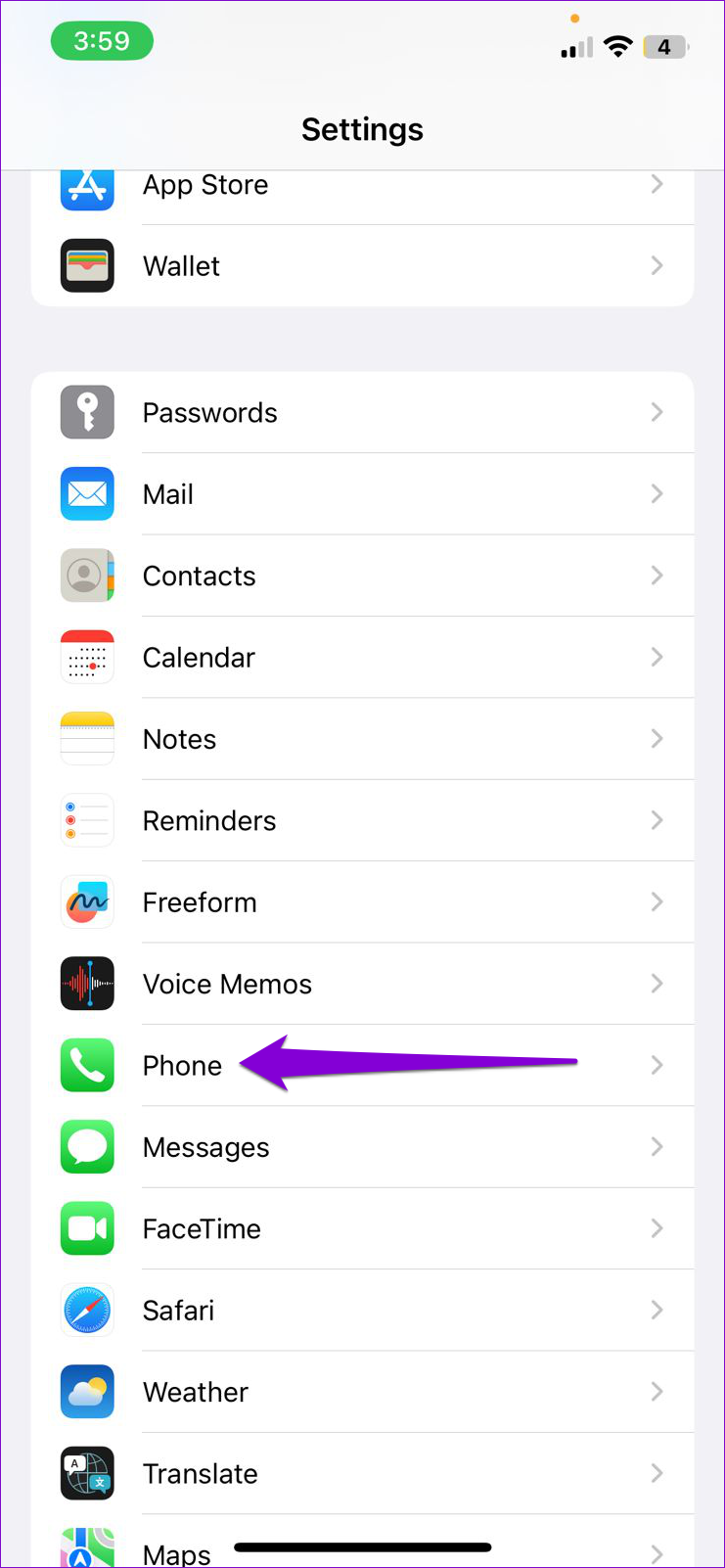
Step 1: Open the Settings app > scroll down to tap on Phone.
Step 2: Tap on Call Forwarding > turn off the toggle in the following menu.


Fix 4: Avoid Using Custom Adblock DNS Profile
Using a custom ad-blocking DNS server on your iPhone can potentially cause issues with services like voicemail and lead to voicemail delay. If you have any AdBlock DNS profiles active on your iPhone, use these steps to delete them and see if that helps.
Step 1: Open the Settings app and head over to General > VPN, DNS & Device Management.
Step 2: Tap on your DNS profile > select Remove Profile.


Fix 5: Install Carrier Updates
Cellular carriers tend to update their settings from time to time. Ideally, these updates are installed automatically in the background. But if for some reason, the update didn’t go through, install it manually using these steps:
Step 1: Launch the Settings app on your iPhone > tap on General > About.
Step 2: If there are any pending updates, you’ll see a pop-up. Tap on Update to proceed.


Fix 6: Reset Network Settings
If installing pending updates does not help, consider resetting network settings on your iPhone. This will reinstate all the network configurations to their default values, and the voicemail should work again on your iPhone.
Step 1: Open Settings on your iPhone and navigate to General. Scroll down to tap on Transfer or Reset iPhone.
Step 2: Tap on Reset at the bottom and choose Reset Network Settings from the resulting menu.


Step 3: It’ll ask you for the lock screen password. Once verified, select the Reset Network Settings confirmation option to begin the restoration process.
Was this helpful?
Last updated on 16 August, 2024
Read Next
 5 Ways to Fix Voicemail Not Working on Android
Try Basic Fixes Check voicemail manually: Open the Phone app on your device, then press and hold 1 to dial your voicemail.
5 Ways to Fix Voicemail Not Working on Android
Try Basic Fixes Check voicemail manually: Open the Phone app on your device, then press and hold 1 to dial your voicemail.
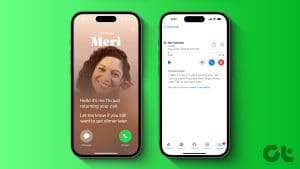 How to Use (Carrier and Live) Voicemail on iPhone
Turn off Call Forwarding Before we set up voicemail on your iPhone, let's first turn off call forwarding.
How to Use (Carrier and Live) Voicemail on iPhone
Turn off Call Forwarding Before we set up voicemail on your iPhone, let's first turn off call forwarding.
 6 Ways to Fix Incoming Calls Go Straight to Voicemail on Android
Try Basic Fixes Toggle the airplane mode: Turning the airplane mode on and off can help refresh your phone’s network connection.
6 Ways to Fix Incoming Calls Go Straight to Voicemail on Android
Try Basic Fixes Toggle the airplane mode: Turning the airplane mode on and off can help refresh your phone’s network connection.
 3 Ways to Fix AirDrop Not Working on iPhone
Try Basic Fixes Enable Wi-Fi and Bluetooth: AirDrop uses Bluetooth on your iPhone to search for nearby devices and subsequently utilizes Wi-Fi to send or receive files.
3 Ways to Fix AirDrop Not Working on iPhone
Try Basic Fixes Enable Wi-Fi and Bluetooth: AirDrop uses Bluetooth on your iPhone to search for nearby devices and subsequently utilizes Wi-Fi to send or receive files.
 5 Ways to Fix Mail App Not Working on iPhone
Basic Fixes Check your network connection: Ensure your iPhone has a good internet connection.
5 Ways to Fix Mail App Not Working on iPhone
Basic Fixes Check your network connection: Ensure your iPhone has a good internet connection.
 4 Ways to Fix Calendar Alerts Not Working on iPhone
Try Basic Fixes Disable Focus mode: When Focus mode is active, your iPhone pauses notifications for all apps, including Calendar.
4 Ways to Fix Calendar Alerts Not Working on iPhone
Try Basic Fixes Disable Focus mode: When Focus mode is active, your iPhone pauses notifications for all apps, including Calendar.
 4 Ways to Fix Spotify Canvas Not Working on Android and iPhone
https://youtu.be/ptmKAurfoyQ Try Basic Fixes Check if Canvas is available in your region: Spotify’s Canvas feature is not available in every region.
4 Ways to Fix Spotify Canvas Not Working on Android and iPhone
https://youtu.be/ptmKAurfoyQ Try Basic Fixes Check if Canvas is available in your region: Spotify’s Canvas feature is not available in every region.
 5 Ways to Fix iPhone Reminders Not Working in iOS 17
Basic Fixes: Restart the Reminders app: If the Reminders app runs into unexpected glitches or bugs, it might not work as expected on your iPhone.
5 Ways to Fix iPhone Reminders Not Working in iOS 17
Basic Fixes: Restart the Reminders app: If the Reminders app runs into unexpected glitches or bugs, it might not work as expected on your iPhone.
The article above may contain affiliate links which help support Guiding Tech. The content remains unbiased and authentic and will never affect our editorial integrity.