Fix 1: Disable Extensions
Third-party extensions can occasionally disrupt browser processes, leading to such issues. If one of your extensions is interfering with video playback functionality in Edge, disabling your extensions can help you verify this.
Type edge://extensions/ in the address bar at the top and press Enter. Then, disable the toggles next to the extensions.

If this solves your problem, re-enable your extensions one by one to identify the one causing the issue.
Fix 2: Turn Off Hardware Acceleration
When you enable hardware acceleration, Edge assigns graphics-intensive tasks to your GPU instead of the CPU. However, if you are having trouble loading videos, consider disabling the hardware acceleration feature in Edge.
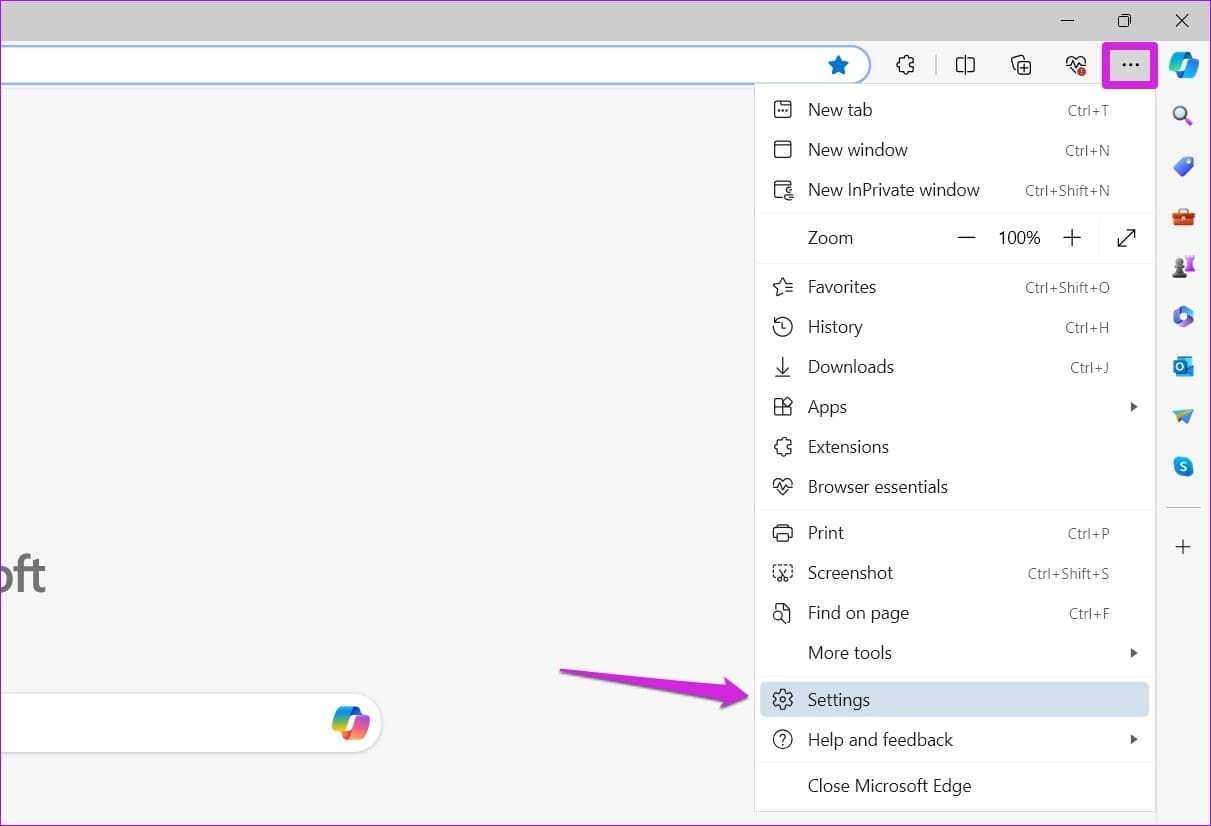
Step 1: In Microsoft Edge, click the three-dot icon in the top right and select Settings.
Step 2: Use the left pane to navigate to the System and performance tab. Then, toggle off the switch next to Use hardware acceleration when available.

Fix 3: Disable SmartScreen feature
Microsoft Defender SmartScreen is a handy feature in Edge that offers you a safer browsing experience by scanning web pages before they load. But sometimes, this feature can also interfere with Edge and falsely block websites that are safe.
Try disabling SmartScreen momentarily to see if that gets videos to play.
Step 1: Open the Settings menu in Microsoft Edge.
Step 2: Switch to the Privacy, search, and services tab. Scroll down to the Security section and turn off the switch next to Microsoft Defender SmartScreen.

Fix 4: Clear Edge Cache and Cookies
Clearing browser cache and cookies is an effective way of fixing most browser-related issues, including this one. Press Ctrl + Shift + Delete to access the Clear browsing data panel. Use the drop-down menu under Time range to select All time. Tick the Cookies and other site data and Cached images and files checkboxes. Then, hit Clear now.

Fix 5: Reset Microsoft Edge
If nothing else works, you can consider resetting Microsoft Edge as a last resort. Doing so will disable all the extensions and reset browser configurations. Rest assured, your saved passwords, bookmarks, and browsing history won’t be affected.
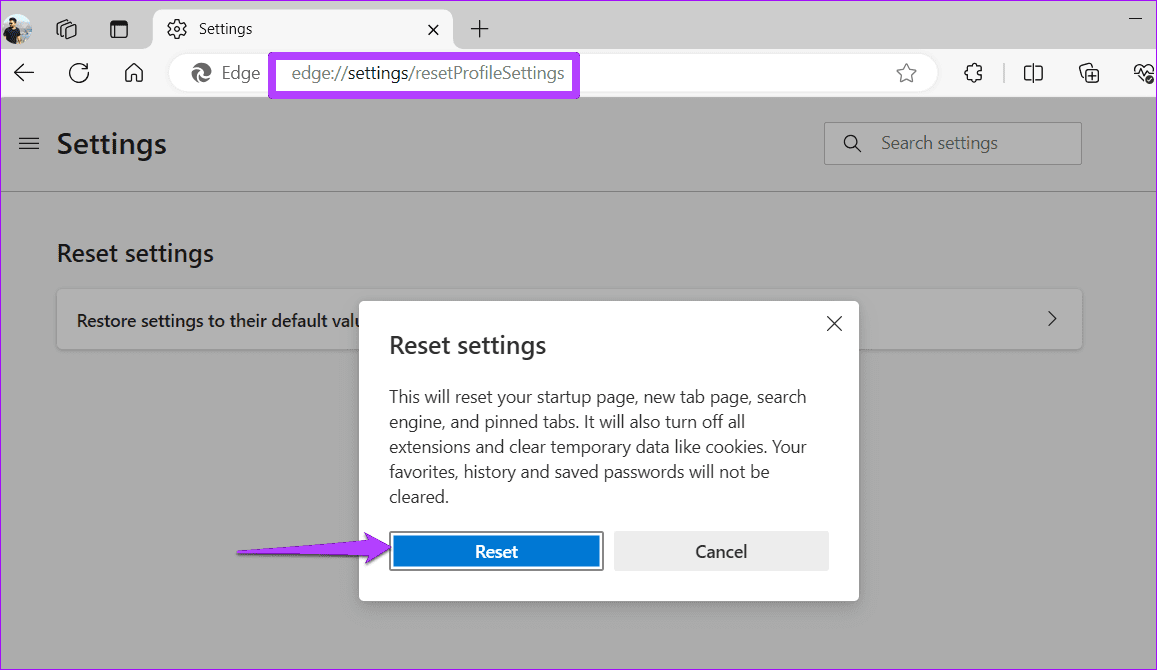
In Edge, type edge://settings/reset in the URL bar and hit Enter. Click Restore settings to their default values and hit Reset to confirm.
Was this helpful?
Last updated on 19 May, 2024
Read Next
 4 Ways to Fix Facebook Not Playing Videos
Basic Fixes Check internet speed: Make sure you use either 5G or a strong Wi-Fi network to watch videos on the Facebook app.
4 Ways to Fix Facebook Not Playing Videos
Basic Fixes Check internet speed: Make sure you use either 5G or a strong Wi-Fi network to watch videos on the Facebook app.
 3 Ways to Fix Videos Not Playing on Instagram
https://youtu.be/27MXAW2cROQ Try Basic Fixes Update the Instagram app: Running an older version of Instagram can lead to such problems.
3 Ways to Fix Videos Not Playing on Instagram
https://youtu.be/27MXAW2cROQ Try Basic Fixes Update the Instagram app: Running an older version of Instagram can lead to such problems.
 3 Ways to Fix Snapchat Not Playing Videos on Android and iPhone
Try Basic Fixes Check if Snapchat is down: At times, server congestion or other related issues can impact Snapchat’s performance and trigger various errors.
3 Ways to Fix Snapchat Not Playing Videos on Android and iPhone
Try Basic Fixes Check if Snapchat is down: At times, server congestion or other related issues can impact Snapchat’s performance and trigger various errors.
 How to Fix WhatsApp Videos Not Playing on iPhone or Android
Basic Fixes Check your network connection: Ensure your phone has a robust internet connection.
How to Fix WhatsApp Videos Not Playing on iPhone or Android
Basic Fixes Check your network connection: Ensure your phone has a robust internet connection.
 3 Ways to Fix Telegram Videos Not Playing on Windows 11
Fix 1: Download Telegram Videos Without Glitches First, here's how to download Telegram videos without problems on your PC.
3 Ways to Fix Telegram Videos Not Playing on Windows 11
Fix 1: Download Telegram Videos Without Glitches First, here's how to download Telegram videos without problems on your PC.
 3 Ways to Fix Videos Not Playing on Windows 11
Fix 1: Run Video Playback Troubleshooter If you also face playback issues on other media players, turn to Windows troubleshooters for help.
3 Ways to Fix Videos Not Playing on Windows 11
Fix 1: Run Video Playback Troubleshooter If you also face playback issues on other media players, turn to Windows troubleshooters for help.
 5 Ways to Fix Videos Not Playing on Android TV
Common Fixes Restart the Android TV: Long-press the power button on your Android TV remote and select Restart in the pop-up menu.
5 Ways to Fix Videos Not Playing on Android TV
Common Fixes Restart the Android TV: Long-press the power button on your Android TV remote and select Restart in the pop-up menu.
 Top 5 Ways to Fix Google Photos Not Playing Videos
Basic Fixes Check Network Connection: If you're trying to stream content backed up to the cloud, then you’ll need to use high-speed internet to sync and stream it.
Top 5 Ways to Fix Google Photos Not Playing Videos
Basic Fixes Check Network Connection: If you're trying to stream content backed up to the cloud, then you’ll need to use high-speed internet to sync and stream it.
The article above may contain affiliate links which help support Guiding Tech. The content remains unbiased and authentic and will never affect our editorial integrity.