

Fix 1: Review Date and Time Settings
You can start by verifying the date and time settings on Windows to ensure they’re set to be updated automatically. Here’s how.
Step 1: Press the Windows key + I to launch the Settings app and head to Time & language > Date & time.

Step 2: Enable the switches next to Set time automatically and Set time zone automatically.
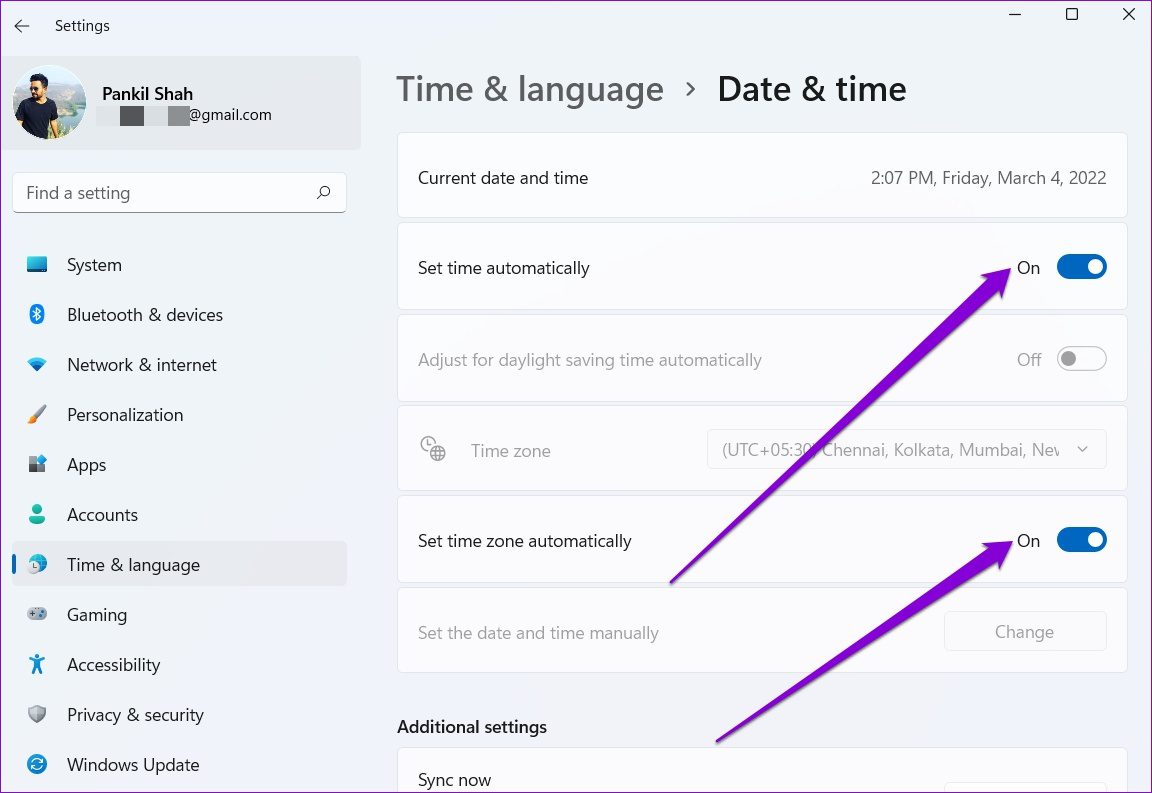
Step 3: Go to Additional settings and hit the Sync now button.

Fix 2: Restart Windows Time Service
The Windows Time service is a small program that needs to run in the background for time synchronization. Ideally, this service should start automatically when your PC boots. However, if the service encounters an error during startup, restarting it might help resolve the issue.
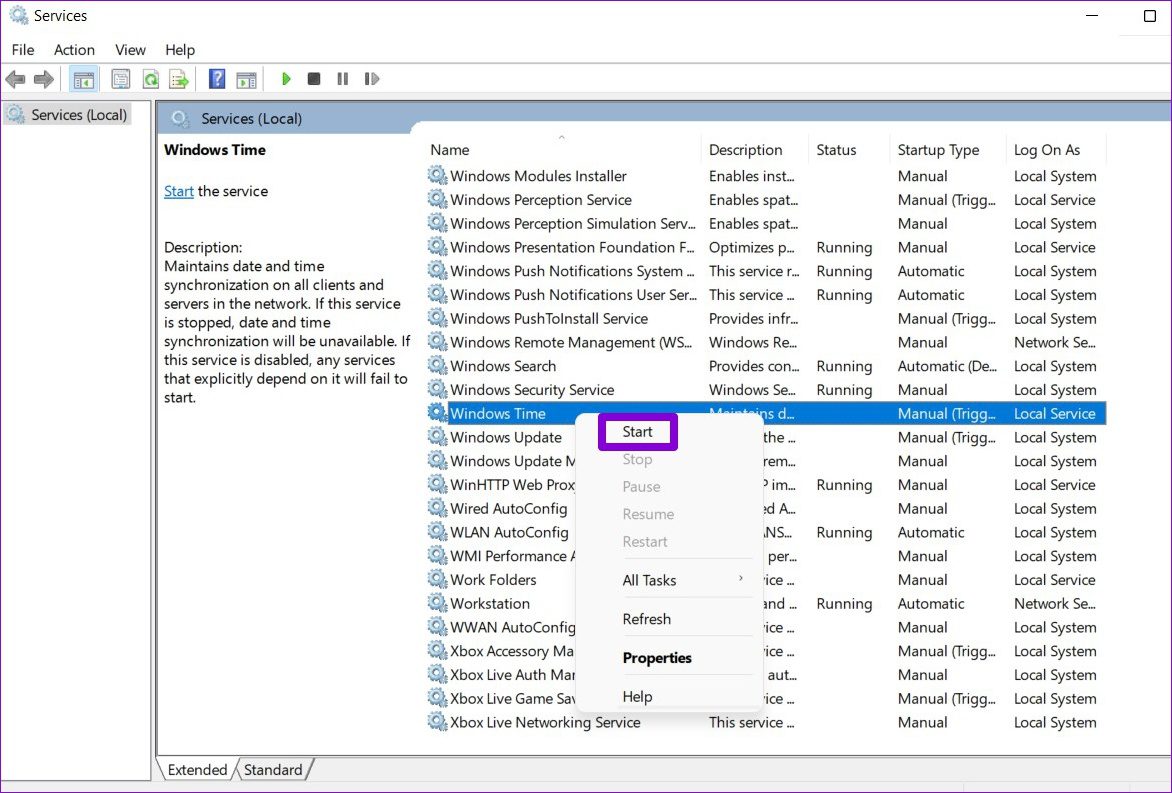
Step 1: Press the Windows key + R to launch the Run command, type in services.msc, and press Enter.
Step 2: In the Services window, locate Windows Time service. Right-click on it and select Restart from the menu. If the service is not running, hit Start.
Fix 3: Change Time Server
If the problem persists, consider switching to a different time server to fix the time sync error. Note that you’ll need to be logged in with administrative account privileges to make this change.
Step 1: Click the search icon on the taskbar, type date & time settings in the search box, and press Enter.

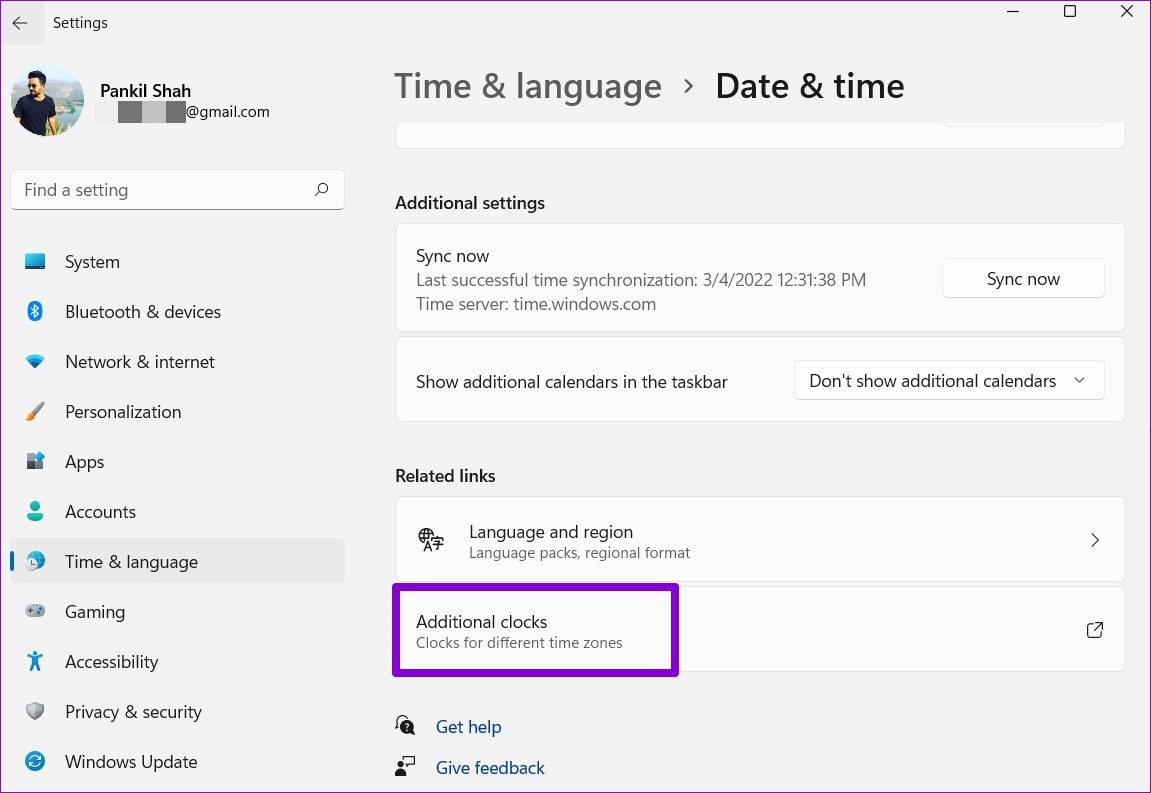
Step 2: Scroll down to Related settings and click on Additional clocks.
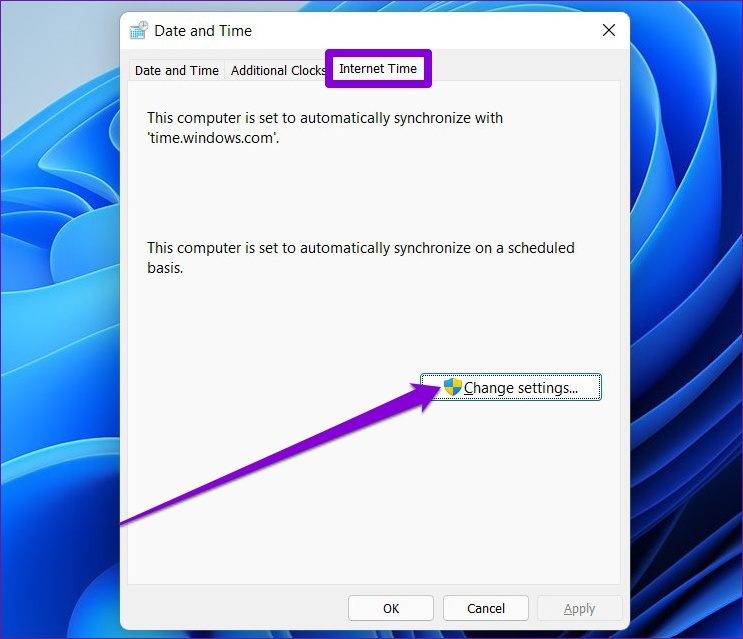
Step 3: Under the Internet Time tab, click Change settings.
Step 4: Use the drop-down menu next to Server to select a different server and hit Update now.

Fix 4: Force Time Sync with Command Prompt
If switching to a different server doesn’t help, you can use the Command Prompt to reset the Windows Time service configurations and force Windows to sync time. Here’s how.
Step 1: Right-click on the Start icon and select the Terminal (Admin) option from the list.

Step 2: Run the following commands one by one.
net stop w32time

w32tm /unregister

w32tm /register

net start w32time

w32tm /resync
Fix 5: Run SFC Scan
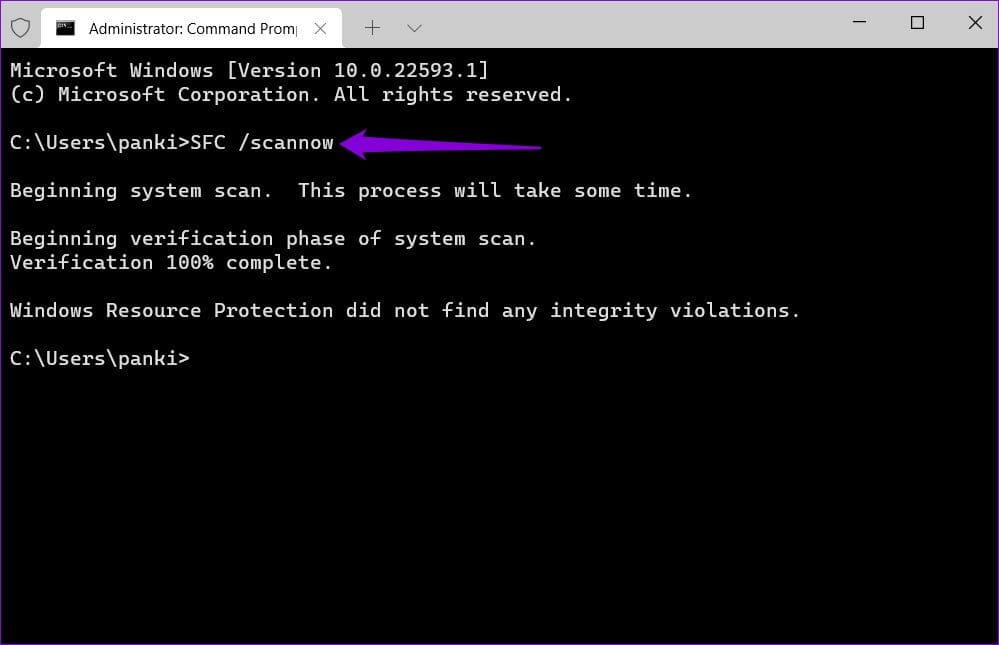
Such issues can also arise if Windows is missing some of its system files. In such cases, running an SFC (or System File Checker) scan will help restore those missing or corrupted system files with their cached versions.
Step 1: Open the Terminal window with admin rights again.
Step 2: Paste the command mentioned below and press Enter.
SFC /scannow
Fix 6: Modify Registry Files
Another thing you can do to fix the time sync issue in Windows is modify the update interval. For that, you’ll need to modify a few registry files.
Step 1: Press the Windows key + R to launch the Run dialog. Type in regedit and press Enter.
Step 2: In the Registry Editor window, use the address bar at the top to navigate to the following key.
HKEY_LOCAL_MACHINE\SYSTEM\CurrentControlSet\Services\W32Time\TimeProviders\NtpClient
Step 3: Double-click on the SpecialPollInterval key and change its value to 86400. Hit OK to save changes.

Restart your PC for changes to take effect and see if that resolves the issue.
Fix 7: Add More Time Servers
Lastly, if the above solutions don’t work out, there might be an issue with one of the servers you’re using to sync time. You can add more time servers to Windows and try connecting to them to fix this.
Step 1: Open the Registry Editor again.
Step 2: Use the left pane or the address bar to navigate to the following key.
HKEY_LOCAL_MACHINE\SOFTWARE\Microsoft\Windows\CurrentVersion\DateTime\Servers
Step 3: Right-click anywhere on the empty space, go to New, and select String Value.

Step 4: In the value name, enter the number for the server. Since we already have 2 servers, we’ll enter the third one. In the Value data field, type in time.google.com and hit OK.
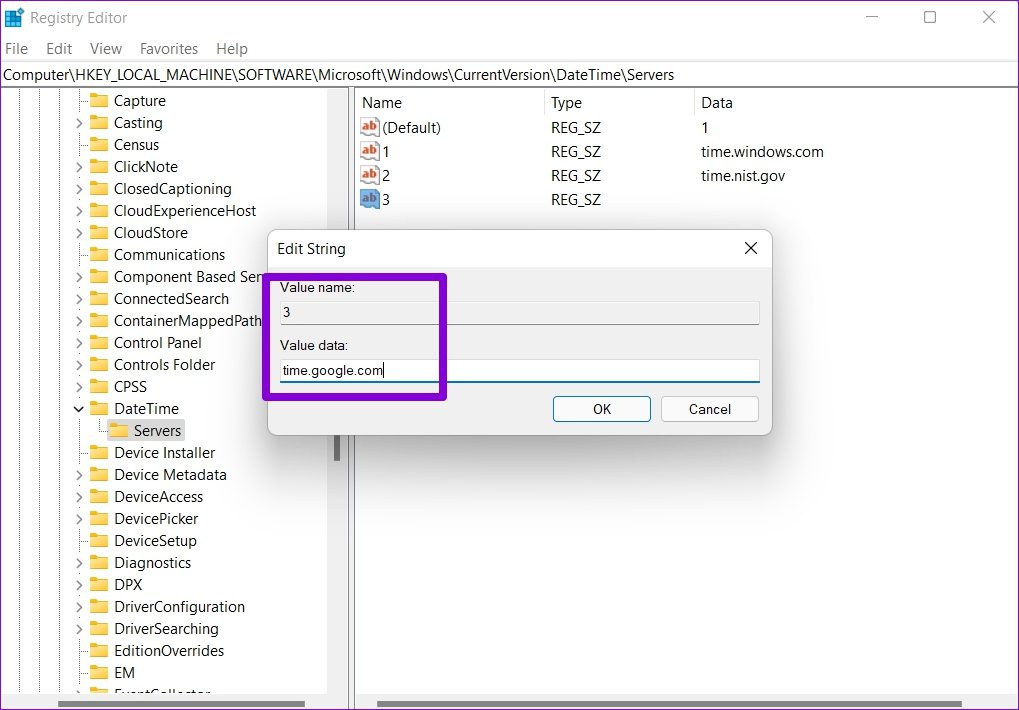
You can create more string values to add more time servers if you like. Once added, follow the steps mentioned in Method 3 above to change the time server on Windows.
Was this helpful?
Last updated on 11 July, 2024
3 Comments
Leave a Reply
Read Next
 3 Ways to Fix Google Chrome Installation Failed on Windows
Basic Fixes: Ensure adequate storage for the installation: If your drive is full, there may not be room for the new installation, which may trigger the problem.
3 Ways to Fix Google Chrome Installation Failed on Windows
Basic Fixes: Ensure adequate storage for the installation: If your drive is full, there may not be room for the new installation, which may trigger the problem.
 4 Ways to Fix “App Removal Failed” Error 0x80073CFA in Windows 11
Fix 1: Reset the Problematic App If the 0x80073CFA error only occurs while uninstalling a specific app, try resetting it first.
4 Ways to Fix “App Removal Failed” Error 0x80073CFA in Windows 11
Fix 1: Reset the Problematic App If the 0x80073CFA error only occurs while uninstalling a specific app, try resetting it first.
 Top 5 Ways to Fix the nvlddmkm.sys Failed Error in Windows
Preliminary Fixes Plug the GPU Into Another PCIe Slot: The nvlddmkm.sys failed error is often related to GPU issues.
Top 5 Ways to Fix the nvlddmkm.sys Failed Error in Windows
Preliminary Fixes Plug the GPU Into Another PCIe Slot: The nvlddmkm.sys failed error is often related to GPU issues.
 6 Ways to Fix Failed to Load Web Page Error in Steam for Windows
Fix 1: Terminate Steam Processes and Reopen the App The "Failed to load web page" error in Steam can occur if one of the app processes is experiencing issues.
6 Ways to Fix Failed to Load Web Page Error in Steam for Windows
Fix 1: Terminate Steam Processes and Reopen the App The "Failed to load web page" error in Steam can occur if one of the app processes is experiencing issues.
 Top 10 Ways to Fix ‘Display Driver Failed to Start’ Error in Windows 10 and 11
Display drivers facilitate communication between the Windows operating system (or any OS) with your GPU.
Top 10 Ways to Fix ‘Display Driver Failed to Start’ Error in Windows 10 and 11
Display drivers facilitate communication between the Windows operating system (or any OS) with your GPU.
 6 Ways to Fix Microsoft Outlook Failed to Delete a Message Error
Fix 1.
6 Ways to Fix Microsoft Outlook Failed to Delete a Message Error
Fix 1.
 15 Ways to Fix OneDrive Sync Is Pending or Stuck Error in Windows 10
One of the most common issues with any cloud storage service is broken sync.
15 Ways to Fix OneDrive Sync Is Pending or Stuck Error in Windows 10
One of the most common issues with any cloud storage service is broken sync.
 6 Ways to Fix iCloud Sync Not Working in Windows 11
Fix 1: Restart File Explorer and Photos App iCloud is integrated into File Explorer and the Photos App.
6 Ways to Fix iCloud Sync Not Working in Windows 11
Fix 1: Restart File Explorer and Photos App iCloud is integrated into File Explorer and the Photos App.
The article above may contain affiliate links which help support Guiding Tech. The content remains unbiased and authentic and will never affect our editorial integrity.


Saved my day.
Thanks for in-depth article.
Nothing worked for me 🙁
Same here. No response from any time server.