Fix 1: Use Check Disk Utility
Corrupted data is one of the most common reasons you might encounter the “incorrect parameter” error. You can use the Check Disk utility on Windows to repair your external drive.
Step 1: Press the Windows key + E to open File Explorer. Select the problematic drive and press Alt + Enter to open its properties.
Step 2: In the Properties window, switch to the Tools tab > click the Check button.
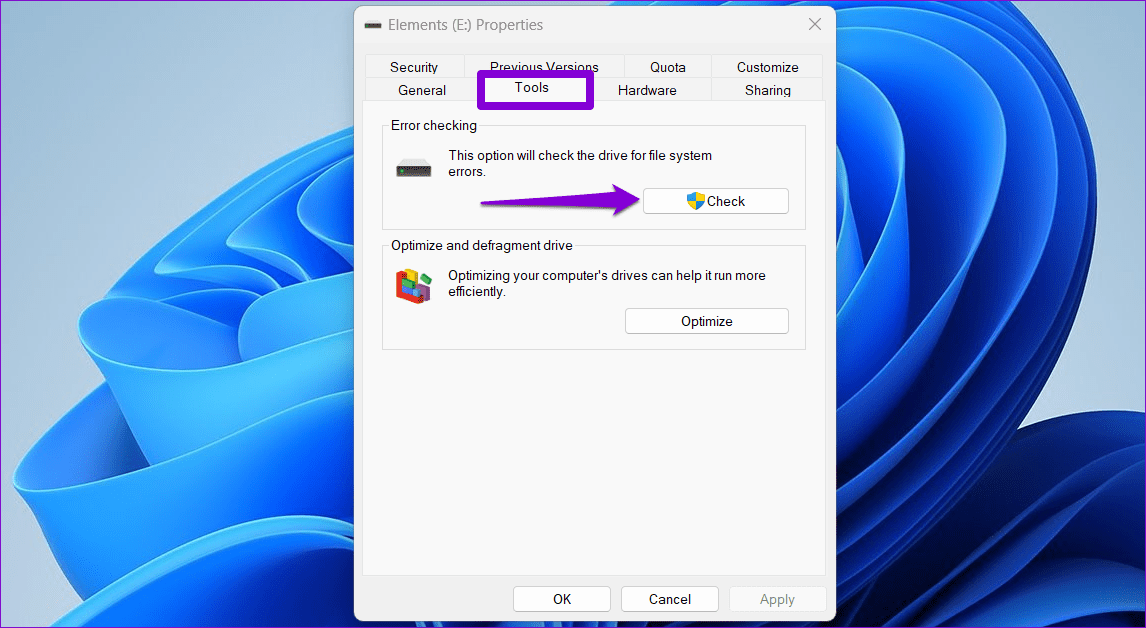
Step 3: Select Scan drive to begin the check disk operation.

Depending on the size of the external drive, this process might take a while. Once it’s done, restart your PC and see if you can access the drive.
Fix 2: Run SFC and DISM Scan
Corrupted or missing system files can trigger the “The parameter is incorrect” error. If that’s the case, running the SFC (System File Checker) and DISM (Deployment Image Servicing and Management) scans should help.
Step 1: Right-click the Start icon and select Terminal (Admin) from the list.
Step 2: In the console, type the following command and press Enter.
SFC /scannow
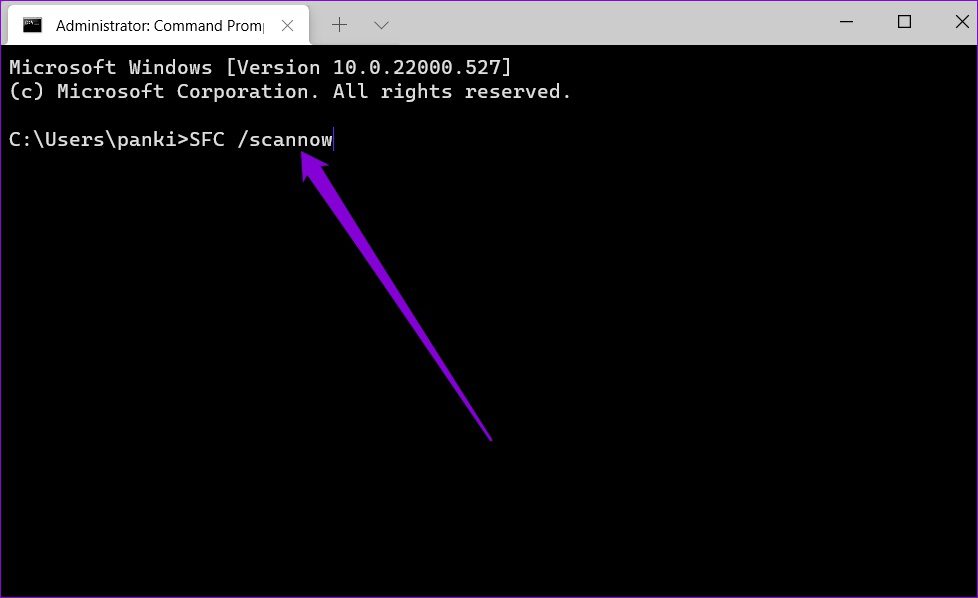
Step 3: Run the following commands one by one and press Enter after each one to run the DISM scan:
DISM /Online /Cleanup-Image /CheckHealth
DISM /Online /Cleanup-Image /ScanHealth
DISM /Online /Cleanup-Image /RestoreHealth

Restart your PC after the scan is complete and check if the issue is still there.
Fix 3: Scan for Malware
Another reason you might face the “Parameter is Incorrect” error is if the external drive connected to your PC is infected with malware. To rule out this possibility, try scanning the external drive using Microsoft Defender.
Step 1: Open the File Explorer on your PC > right-click on the external drive > select Show more options.
Step 2: Select Scan with Microsoft Defender.

This will initiate a thorough scan of the external drive and report any threats if found.
Fix 4: Update Disk Driver
If the drive is free from errors, the issue may be related to outdated or corrupted disk drivers on your PC. Updating these drivers should resolve the issue. Here’s how to do it.
Step 1: Right-click on the Start icon > select Device Manager from the list.

Step 2: In the Device Manager window, expand Disk drives. Right-click on the problematic driver > select Update driver.

Fix 5: Format the Drive
If nothing else works, you must format the drive as a last resort. However, formatting the drive will erase all its content, so we recommend backing up important files before proceeding.
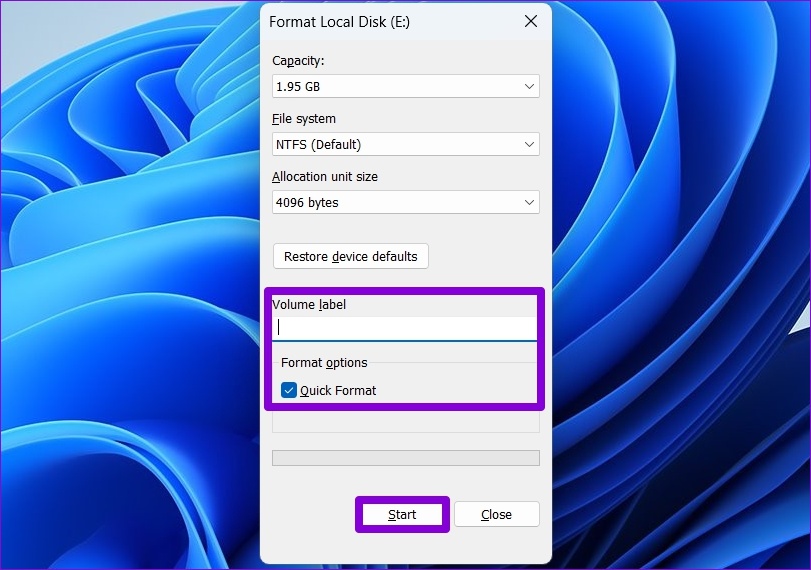
Step 1: In the File Explorer window, right-click on the problematic drive and select Format.
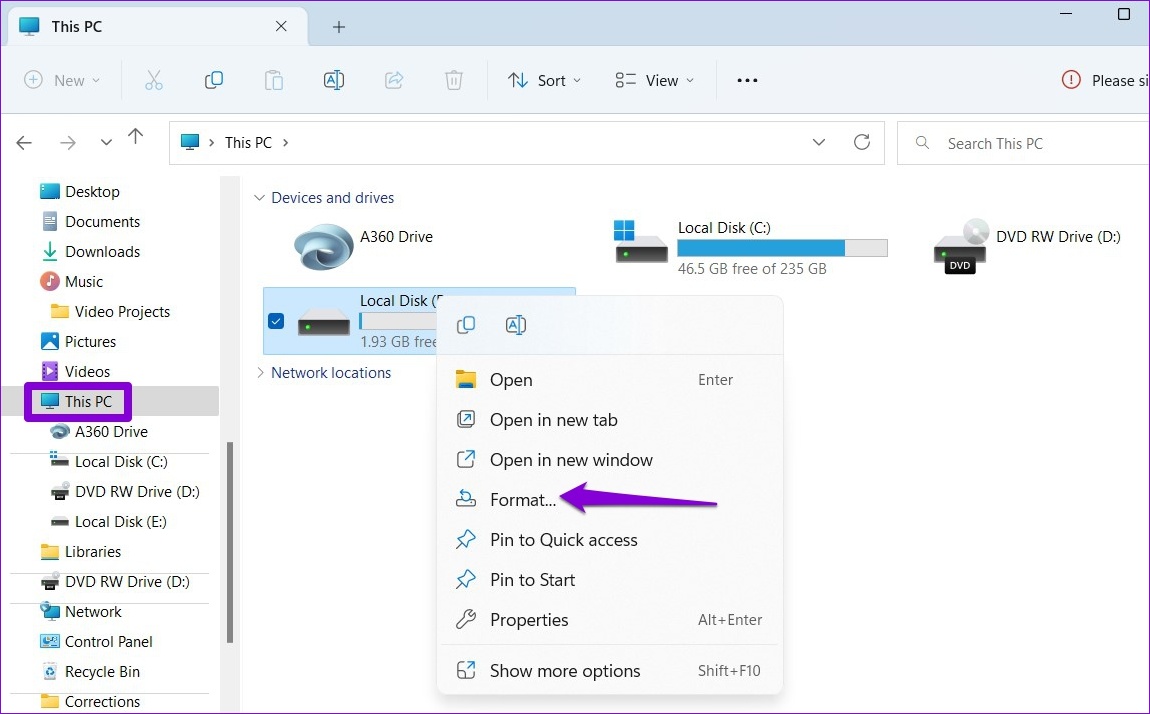
Step 2: Name your drive > tick Quick Format > hit Start.
Was this helpful?
Last updated on 26 August, 2024
Read Next
 Top 6 Ways to Fix Chrome Side-by-Side Configuration Is Incorrect in Windows
Fix 1: Run System File Checker Step 1: Click the Start menu, search for Command Prompt, and open it.
Top 6 Ways to Fix Chrome Side-by-Side Configuration Is Incorrect in Windows
Fix 1: Run System File Checker Step 1: Click the Start menu, search for Command Prompt, and open it.
 5 Ways to Fix iPhone Showing Incorrect Screen Time
Basic Fixes: Disable and Re-enable Screen Time: If your iPhone screen time report shows the wrong data, you can start by resetting the feature.
5 Ways to Fix iPhone Showing Incorrect Screen Time
Basic Fixes: Disable and Re-enable Screen Time: If your iPhone screen time report shows the wrong data, you can start by resetting the feature.
 How to Fix iMessage Incorrect Unread Messages Badge Count on iPhone
Basic Fixes Use the Read All feature: Open the Messages app > three dots > select Messages > Read All.
How to Fix iMessage Incorrect Unread Messages Badge Count on iPhone
Basic Fixes Use the Read All feature: Open the Messages app > three dots > select Messages > Read All.
 5 Fixes for “Word Experienced an Error Trying to Open the File” Error in Windows
Fix 1: Unblock Your Word File Microsoft Word may fail to open a document if it has been altered by third-party software.
5 Fixes for “Word Experienced an Error Trying to Open the File” Error in Windows
Fix 1: Unblock Your Word File Microsoft Word may fail to open a document if it has been altered by third-party software.
 4 Ways to Fix Discord No Route Error on Windows 10 and Windows 11
Try Basic Fixes Restart your router: Since the "No Route" error mainly occurs when there's an interruption with your internet connection, you can start by restarting your router.
4 Ways to Fix Discord No Route Error on Windows 10 and Windows 11
Try Basic Fixes Restart your router: Since the "No Route" error mainly occurs when there's an interruption with your internet connection, you can start by restarting your router.
 5 Ways to Fix Error 0x8007003B on Windows 10 and Windows 11
Fix 1: Check Disk Format Windows may throw the error 0x8007003B message while transferring large files over a network if the destination drive is FAT32 formatted.
5 Ways to Fix Error 0x8007003B on Windows 10 and Windows 11
Fix 1: Check Disk Format Windows may throw the error 0x8007003B message while transferring large files over a network if the destination drive is FAT32 formatted.
 5 Ways to Fix “Your Computer Is Low on Memory” Error on Windows 10 and Windows 11
Try Basic Fixes Close unwanted apps and programs: Start by closing any unwanted apps and programs on your computer, especially the ones consuming a major chunk of your PC’s memory.
5 Ways to Fix “Your Computer Is Low on Memory” Error on Windows 10 and Windows 11
Try Basic Fixes Close unwanted apps and programs: Start by closing any unwanted apps and programs on your computer, especially the ones consuming a major chunk of your PC’s memory.
 5 Ways to Fix “Outlook Data File Cannot Be Accessed” Error on Windows
Fix 1: Change the Default Mail Delivery Location One of the most straightforward ways to fix the "Outlook data file cannot be accessed" error is to configure Microsoft Outlook to
5 Ways to Fix “Outlook Data File Cannot Be Accessed” Error on Windows
Fix 1: Change the Default Mail Delivery Location One of the most straightforward ways to fix the "Outlook data file cannot be accessed" error is to configure Microsoft Outlook to
The article above may contain affiliate links which help support Guiding Tech. The content remains unbiased and authentic and will never affect our editorial integrity.