

Basic Fixes
- Check the volume level and unmute the tab: Ensure you haven’t accidentally muted your phone or computer’s volume. If you use YouTube on a web browser, ensure the browser tab is not muted.
- Turn off Bluetooth: If you have Bluetooth enabled on your phone or PC, one of the connected devices that you may have forgotten about might be playing YouTube audio. To avoid this, turn off Bluetooth on your phone or computer.
Fix 1: Disable Extensions
Are you using any third-party extensions on your browser to block ads or translate YouTube subtitles? If so, one of those extensions could cause sound to stop working in YouTube videos. To verify this, disable all the extensions temporarily.
Type chrome://extensions (Chrome) or edge://extensions/ (Edge) in the address bar and hit Enter. Use the toggles to turn off all the extensions.
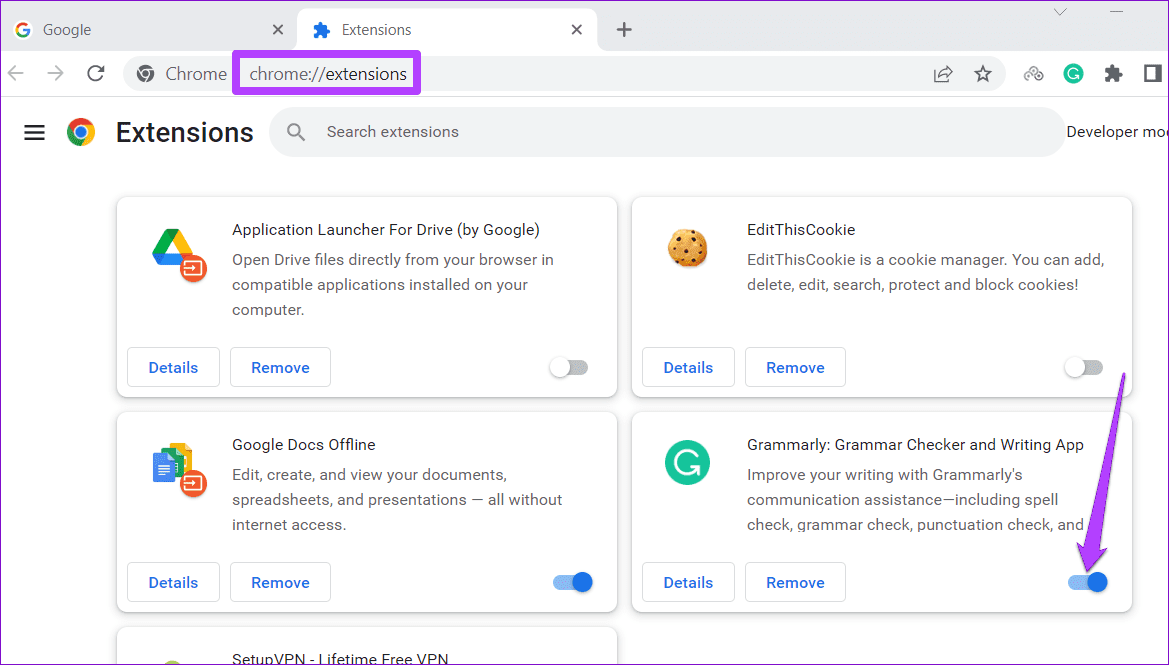
If this solves your problem, re-enable all the extensions one at a time until you find the one causing the issue. Then, remove the problematic extension.
Fix 2: Update Audio Driver
If you face sound problems with several apps, the sound drivers on your PC may be outdated or missing. You can try updating those sound drivers to fix the issue.
Step 1: Right-click on the Start icon and select Device Manager from the list.
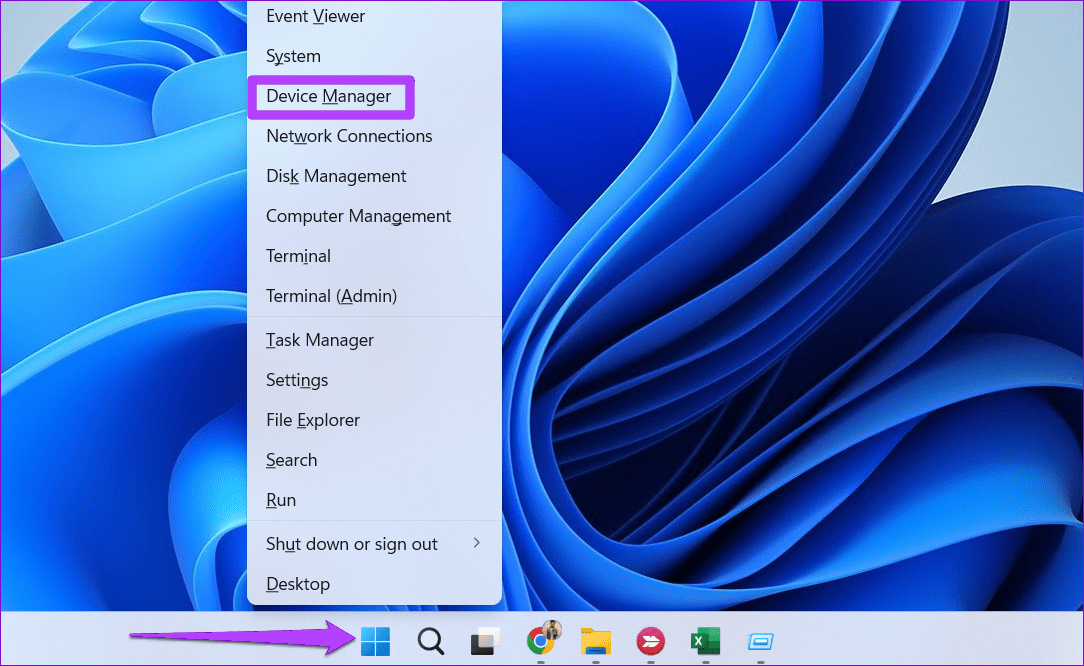
Step 2: Find and expand Sound, video and game controllers. Right-click on the audio device and select Update driver.

From there, follow the on-screen instructions to finish updating the driver. If updating the driver doesn’t help, reinstall the sound driver.
Fix 3: Clear App or Browser Cache
Outdated or corrupt YouTube cache or browsing data can also prevent the sound from working. You can try clearing the YouTube app cache or deleting the browsing data to see if that helps.
On Android
Step 1: Long-press the YouTube app icon and tap the info icon from the resulting menu.
Step 2: Go to Storage > tap the Clear cache option.


On Browser
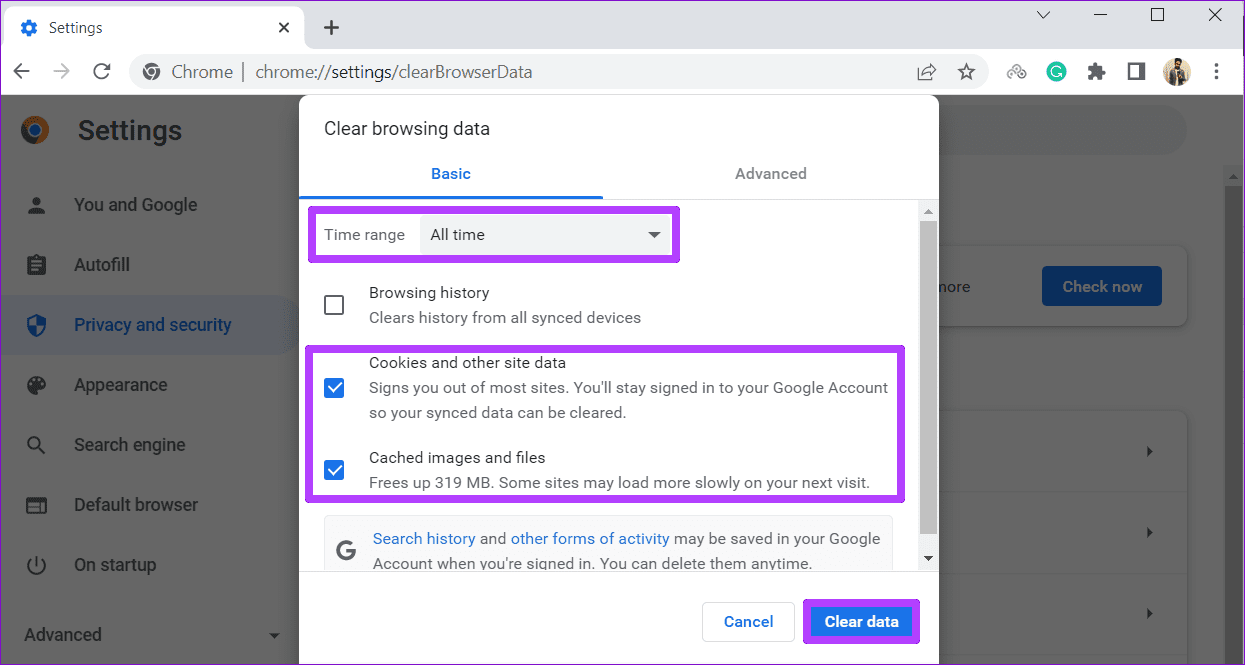
Step 1: To clear browsing data in Chrome or Edge, press the Ctrl + Shift + Delete keys to launch the Clear browsing data panel.
Step 2: Select All time in the Time range option and check the Cookies and other site data and Cached images and files box.
Step 3: Then, click on Clear data at the bottom.
If nothing else works, consider reinstalling the YouTube app on your phone or switching to a different browser as a last option.
Was this helpful?
Last updated on 08 May, 2024
Read Next
 5 Ways to Fix No Sound in YouTube App on Android TV
Common Fixes Check if TV audio is mute - Press the Mute button on your TV remote to unmute the sound.
5 Ways to Fix No Sound in YouTube App on Android TV
Common Fixes Check if TV audio is mute - Press the Mute button on your TV remote to unmute the sound.
 3 Ways to Fix Instagram Story Sound Not Working
Basic Troubleshooting Turn off silent mode or increase the volume - Instagram's sounds are automatically muted on silent mode.
3 Ways to Fix Instagram Story Sound Not Working
Basic Troubleshooting Turn off silent mode or increase the volume - Instagram's sounds are automatically muted on silent mode.
 4 Ways to Fix Facebook Messenger Notification Sound Not Working
Try Basic Fixes Close the Messenger app on your computer: If you have the Messenger app open on your computer, notifications may appear there instead of on your phone, and
4 Ways to Fix Facebook Messenger Notification Sound Not Working
Try Basic Fixes Close the Messenger app on your computer: If you have the Messenger app open on your computer, notifications may appear there instead of on your phone, and
 3 Ways to Fix Sound Not Working on Instagram Reels
Basic Troubleshooting Unmute/raise the volume: When your phone is silent, Instagram mutes the video on the home feed and the Reels tab.
3 Ways to Fix Sound Not Working on Instagram Reels
Basic Troubleshooting Unmute/raise the volume: When your phone is silent, Instagram mutes the video on the home feed and the Reels tab.
 Top 9 Ways to Fix Facebook Video or Story Sound Not Working
Although Facebook isn’t as popular as before, it still plays a major role for millions to stay in touch with friends and family.
Top 9 Ways to Fix Facebook Video or Story Sound Not Working
Although Facebook isn’t as popular as before, it still plays a major role for millions to stay in touch with friends and family.
 5 Ways to Fix Snapchat Notification Sound Not Working
Basic Fixes Disable the silent profile: Press the Volume Up physical button on your Android phone and tap the sound profile icon to disable the silent mode.
5 Ways to Fix Snapchat Notification Sound Not Working
Basic Fixes Disable the silent profile: Press the Volume Up physical button on your Android phone and tap the sound profile icon to disable the silent mode.
 3 Ways to Fix Snapchat Sound Not Working on App
Basic Fixes: Double-check if the Snap or Story has sound: We recommend checking if the Snap or Story you’re viewing has sound.
3 Ways to Fix Snapchat Sound Not Working on App
Basic Fixes: Double-check if the Snap or Story has sound: We recommend checking if the Snap or Story you’re viewing has sound.
 No Sound on Amazon Fire TV Stick YouTube App? Here’s the Fix
Basic Fixes Check if the audio is muted: The Fire TV 4K remote has a dedicated Mute button to disable audio.
No Sound on Amazon Fire TV Stick YouTube App? Here’s the Fix
Basic Fixes Check if the audio is muted: The Fire TV 4K remote has a dedicated Mute button to disable audio.
The article above may contain affiliate links which help support Guiding Tech. The content remains unbiased and authentic and will never affect our editorial integrity.

