Basic Fixes
- Enable Background App Refresh for Snapchat: It allows Snapchat to refresh its feed in the background, providing you with real-time notifications. Head to iPhone Settings > General > Background App Refresh, and enable the Snapchat toggle.
- Disable Focus mode: An active Focus mode suppresses device notifications (including Snapchat). Swipe down from the top right screen corner to open the Control Centre, and tap the Focus toggle to turn it off.
- Update or reinstall Snapchat: Open the Apple App Store, search Snapchat, and tap Update (if available). Alternatively, long-tap the Snapchat icon, select Remove App, and install it afresh from the App Store.
Fix 1: Check iPhone Notification Settings for Snapchat
Snapchat notifications won’t work on your iPhone when it doesn’t have the necessary system permissions. Head to iPhone settings and review Snapchat notification permissions to resume getting new alerts.
Step 1: Open the Settings app, tap Notifications, and select Snapchat.
Step 2: Ensure Allow Notifications and Time-Sensitive Notifications toggles are enabled and turn on Sounds under Alerts.


Fix 2: Check Snapchat In-App Notification Settings
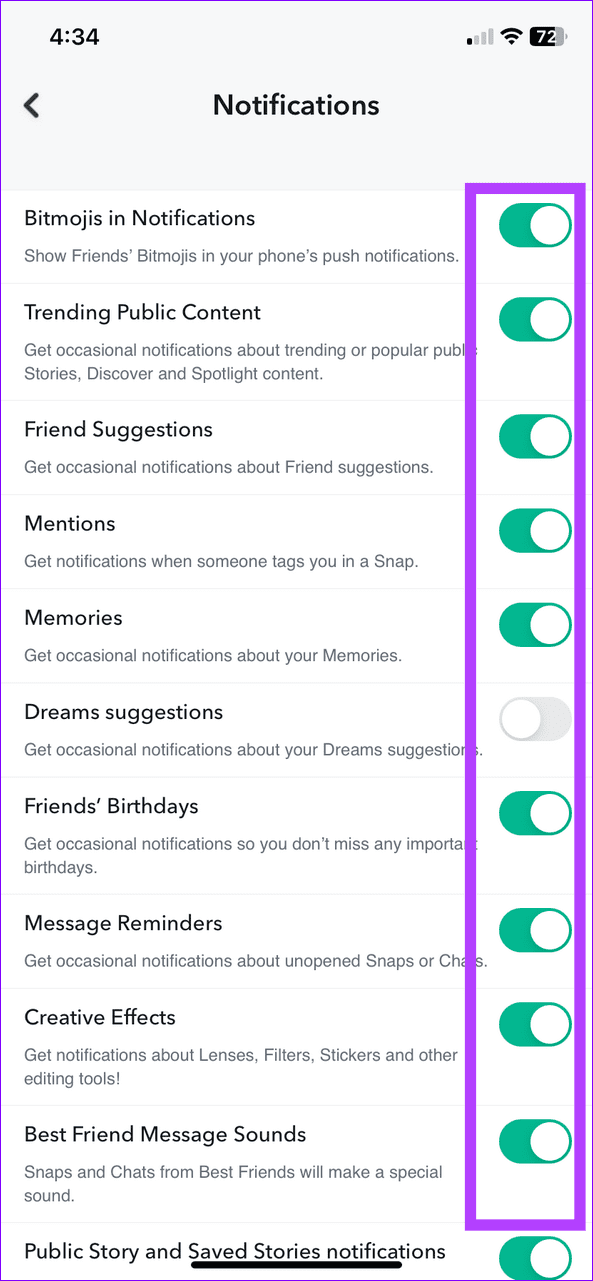
Besides system settings, iOS may struggle to show new Snapchat notifications if you’ve unknowingly disabled them from its in-app settings. Access Snapchat’s in-app settings to review and fix them.
Step 1: Open Snapchat, select your profile avatar at the top left, and tap the Gear icon to access Snapchat settings.


Step 2: Select Notifications, and ensure all notification toggles are enabled.

Fix 3: Clear the Snapchat App Cache
A corrupt app cache is a common reason behind Snapchat notifications not working on your iPhone. Clear the cache files manually from its in-app settings to restore normalcy.
Step 1: Open your profile page in the Snapchat app and tap the Gear icon at the top right corner.
Step 2: Select Clear Data and tap Clear Cache. Tap Clear when prompted to confirm it.


Fix 4: Reset Network Settings
Lastly, if the error persists, reset all network settings on your iPhone, fixing network misconfigurations that are suppressing Snapchat notifications.
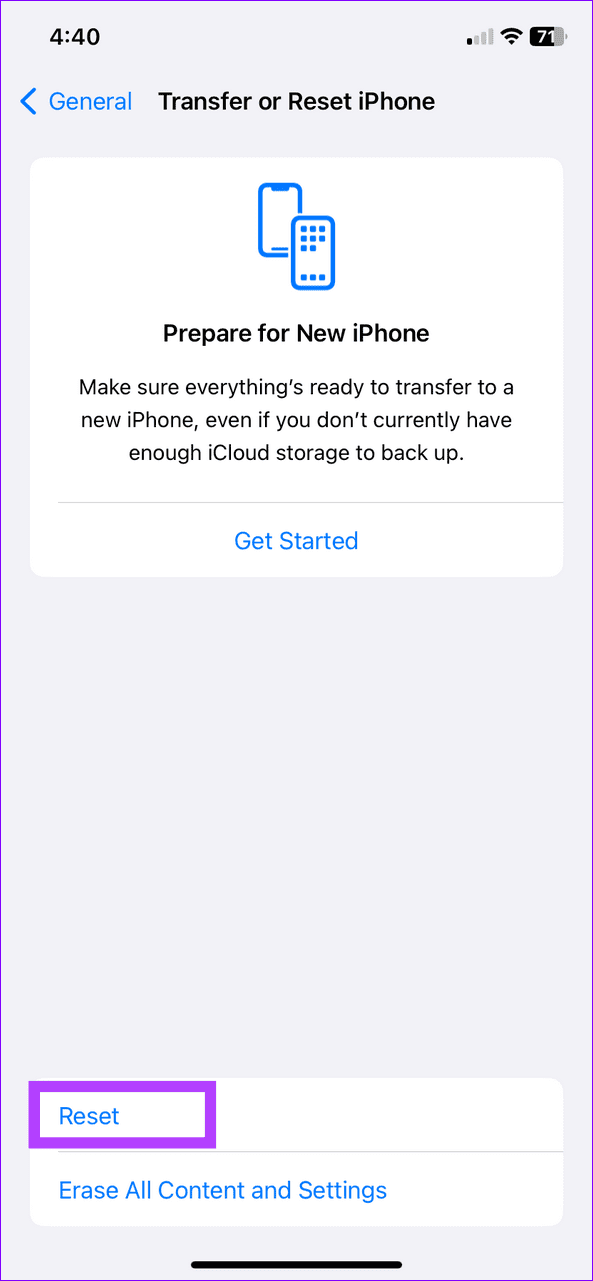
Step 1: Select General under iPhone Settings and tap Transfer or Reset iPhone.


Step 2: Tap Reset and select Reset Network Settings. Enter your device passcode when prompted to confirm it.

Was this helpful?
Last updated on 22 July, 2024
Read Next
 4 Ways to Fix Snapchat Notifications Not Working on Android
Try These Fixes First Restart your phone: The first thing to do is restart your phone.
4 Ways to Fix Snapchat Notifications Not Working on Android
Try These Fixes First Restart your phone: The first thing to do is restart your phone.
 Top 6 Ways to Fix Gmail Notifications Not Working on iPhone
Gmail is so popular that even iPhone users prefer it.
Top 6 Ways to Fix Gmail Notifications Not Working on iPhone
Gmail is so popular that even iPhone users prefer it.
 4 Ways to Fix Notifications Not Working on iPhone
Try Basic Fixes Check in-app notification settings: Several apps, such as WhatsApp, Gmail, Spotify, and others can disable notifications through their in-app settings.
4 Ways to Fix Notifications Not Working on iPhone
Try Basic Fixes Check in-app notification settings: Several apps, such as WhatsApp, Gmail, Spotify, and others can disable notifications through their in-app settings.
 5 Ways to Fix Snapchat Voice Notes Not Working
Fix 1: Check App Permissions Snapchat requires access to your phone's microphone to record Voice Notes.
5 Ways to Fix Snapchat Voice Notes Not Working
Fix 1: Check App Permissions Snapchat requires access to your phone's microphone to record Voice Notes.
 5 Ways to Fix WhatsApp Group Notifications Not Working
Common Fixes Unmute WhatsApp group - Long-tap the muted WhatsApp group and tap the Sound icon at the top to unmute notifications.
5 Ways to Fix WhatsApp Group Notifications Not Working
Common Fixes Unmute WhatsApp group - Long-tap the muted WhatsApp group and tap the Sound icon at the top to unmute notifications.
 6 Ways to Fix Discord Notifications Not Working on Android and iPhone
Close the Discord app on your PC: If you have Discord open on your computer, notifications may appear there first instead of on your phone.
6 Ways to Fix Discord Notifications Not Working on Android and iPhone
Close the Discord app on your PC: If you have Discord open on your computer, notifications may appear there first instead of on your phone.
 4 Ways to Fix TikTok Notifications Not Working on iPhone and Android
Preliminary Fixes Disable Do Not Disturb: If your phone is on DND, you don’t receive notifications from TikTok and other apps.
4 Ways to Fix TikTok Notifications Not Working on iPhone and Android
Preliminary Fixes Disable Do Not Disturb: If your phone is on DND, you don’t receive notifications from TikTok and other apps.
 4 Ways to Fix Snapchat My AI Not Working or Showing on Mobile App
Why Can’t I Add My AI on Snapchat?
4 Ways to Fix Snapchat My AI Not Working or Showing on Mobile App
Why Can’t I Add My AI on Snapchat?
The article above may contain affiliate links which help support Guiding Tech. The content remains unbiased and authentic and will never affect our editorial integrity.