Fix 1: Restart the Windows Search Service
The Windows Search service is a small program that provides search results for files, mail, and other important content. If this service encounters a problem, the search tool may not function properly. Here’s what you can do to fix it.
Step 1: Press the Windows key + R to launch the Run command, type services.msc, and press Enter.
Step 2: In the Services window, scroll down to locate Windows Search. Right-click on it and select Restart.

Fix 2: Restart Windows Explorer
Windows Explorer is a process that provides a graphical interface for the Start menu, Taskbar, and File Explorer. If this process malfunctions, the search tool may take longer than expected to fetch results. In most cases, restarting Windows Explorer will help you fix it.
Step 1: Press Ctrl + Shift + Esc on your keyboard to launch the Task Manager.
Step 2: In the Processes tab, locate and right-click on Windows Explorer and select Restart.

Fix 3: Exclude Online Office Files From Windows Search
Several users on a Microsoft Community post reported resolving the slow Windows search problem in Windows 11 by excluding Office files stored online from their searches. You can also try it.
Step 1: Press the Windows key + S to open the search menu. Type file explorer options in the box and hit Enter.
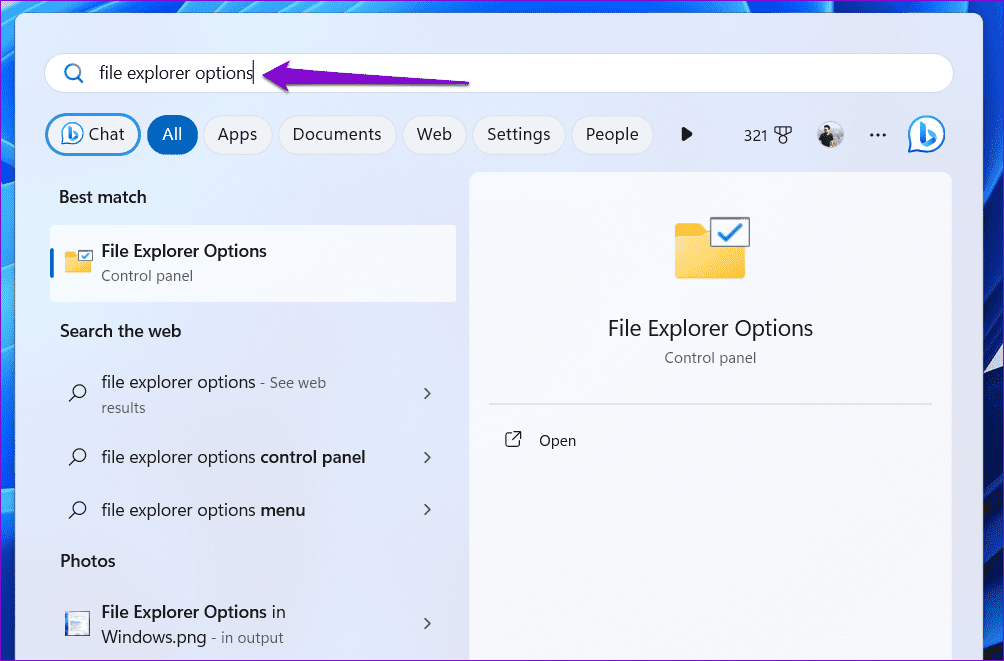
Step 2: Under the General tab, uncheck the Show files from Office.com box. Then, hit Apply, followed by OK.

Fix 4: Disable Web Search in the Start Menu
The Windows Search tool allows you to scour the web directly from the Taskbar, in addition to your apps, files, and other documents. However, this feature can also slow down your PC or sometimes cause Windows to crash. Hence, try disabling web search in the Start Menu to see if that improves the situation.
Step 1: Press the Windows key + R to launch the Run dialog box. Type regedit in the box and press Enter.
Step 2: Copy and paste the following path into the address bar to navigate to the Windows key:
Computer\HKEY_CURRENT_USER\Software\Policies\Microsoft\Windows
Step 3: Right-click on the Windows registry key, pick New, and select Key. Name it Explorer.

Step 4: Right-click on Explorer, select New, and choose DWORD (32-bit) Value. Name it DisableSearchBoxSuggestions.

Step 5: Double-click on the newly created DWORD, change the value data to 1, and hit OK.

Restart your PC to see if the search tool can fetch results faster.
Fix 5: Modify Indexing Options
Indexing your PC’s contents allows Windows to locate your files faster. However, if you don’t frequently search for files and folders in a particular drive, excluding them from the indexing list can speed up the process.
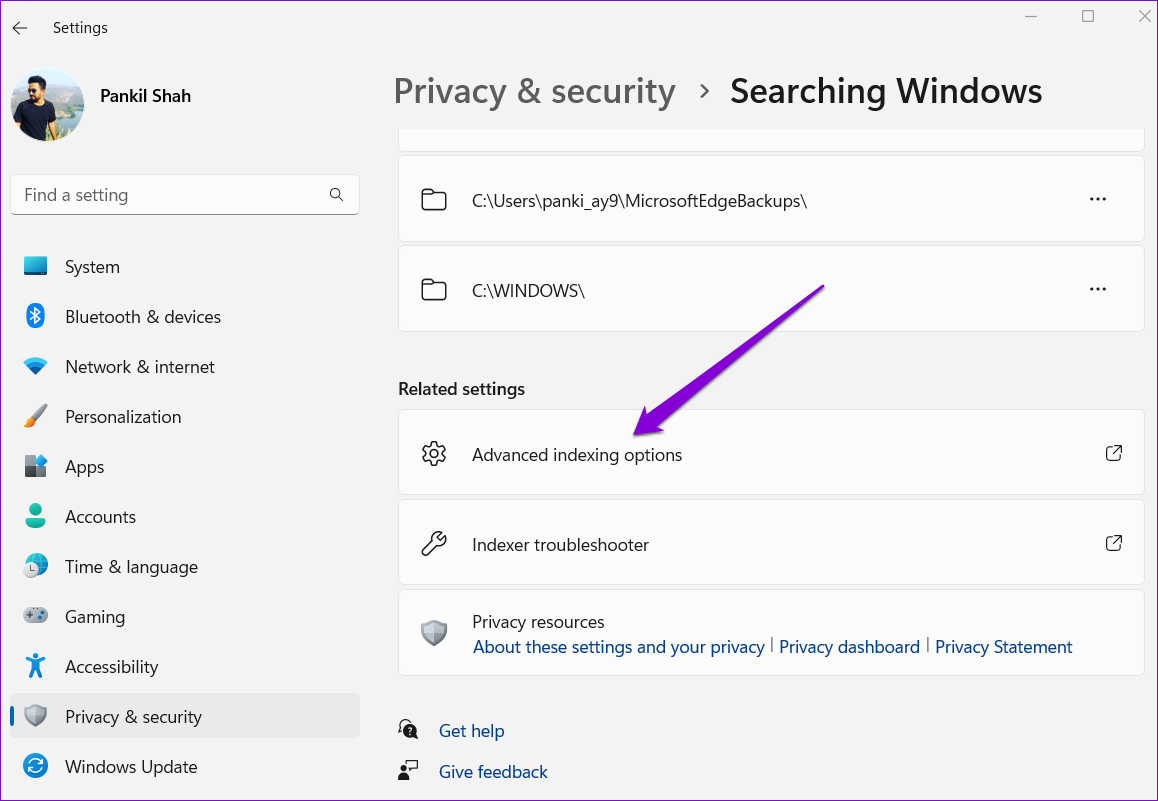
Step 1: Press the Windows key + I to launch the Settings app. Select the Privacy & security tab from the left column and pick Searching Windows.

Step 2: Scroll down to click on Advanced indexing options.
Step 3: Click Modify.
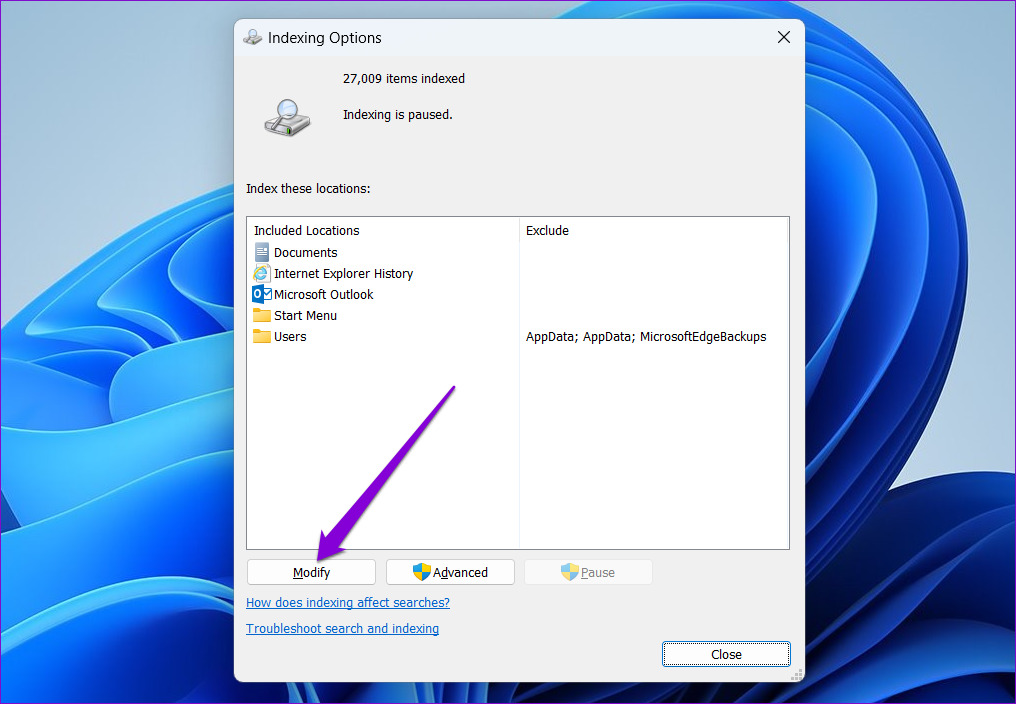
Step 4: In the Indexing Locations window, uncheck the folders or drives you want to exclude and hit OK.

Fix 6: Rebuild the Windows Search Index
Lastly, if the search on Windows is still slow, there might be an issue with the search index library on your PC. Try rebuilding the index from scratch. Depending on the number of files being indexed, this process may take a few hours to complete.
Step 1: Press the Windows key + S to open the search menu, type indexing options, and press Enter.

Step 2: Click Advanced.

Step 3: Hit the Rebuild button under Troubleshooting.

Wait for Windows to complete the indexing process. Again, this may take a while, but you can continue using your PC.
Was this helpful?
Last updated on 03 July, 2024
Read Next
 7 Ways to Fix Microsoft Edge Running Slow on Windows 11
Basic Fixes Update or reinstall Microsoft Edge: Open the Microsoft Store, search Microsoft Edge browser, and click Update.
7 Ways to Fix Microsoft Edge Running Slow on Windows 11
Basic Fixes Update or reinstall Microsoft Edge: Open the Microsoft Store, search Microsoft Edge browser, and click Update.
 5 Ways to Fix Slow Startup Times on Windows 10 and 11
Basic Fixes Install Windows Updates: Microsoft regularly releases updates that bring security patches, new features, and performance improvements to your Windows PC.
5 Ways to Fix Slow Startup Times on Windows 10 and 11
Basic Fixes Install Windows Updates: Microsoft regularly releases updates that bring security patches, new features, and performance improvements to your Windows PC.
 8 Ways to Fix Slow Internet Speed on Windows 11
https://youtu.be/JSqfxm-5XZI Fix 1: Turn Off the Metered Connection Setting your internet connection as metered on Windows can prevent apps from using the internet proficiently, leading to slow internet speeds.
8 Ways to Fix Slow Internet Speed on Windows 11
https://youtu.be/JSqfxm-5XZI Fix 1: Turn Off the Metered Connection Setting your internet connection as metered on Windows can prevent apps from using the internet proficiently, leading to slow internet speeds.
 5 Ways to Fix Slow Download Speeds on Windows 11
Basic Fixes Connect to a 5GHz network: When you work with a dual-band Wi-Fi router, it's a good idea to choose a faster 5GHz Wi-Fi frequency band for better internet
5 Ways to Fix Slow Download Speeds on Windows 11
Basic Fixes Connect to a 5GHz network: When you work with a dual-band Wi-Fi router, it's a good idea to choose a faster 5GHz Wi-Fi frequency band for better internet
 6 Ways to Fix Slow USB File Transfer in Windows 11
Fix 1: Change USB Drive Policy to Better Performance By default, Windows 11 employs the Quick Removal policy for all USB devices.
6 Ways to Fix Slow USB File Transfer in Windows 11
Fix 1: Change USB Drive Policy to Better Performance By default, Windows 11 employs the Quick Removal policy for all USB devices.
 4 Ways to Fix Slow Download Speed in Microsoft Edge for Windows
Basic Yet Essential Fixes Check internet speed: If your internet speed is slow or bandwidth is less, all downloads will get slow.
4 Ways to Fix Slow Download Speed in Microsoft Edge for Windows
Basic Yet Essential Fixes Check internet speed: If your internet speed is slow or bandwidth is less, all downloads will get slow.
 4 Ways to Fix Slow Download Speed in Epic Games Launcher on Windows 11
https://youtu.be/w8E4d-rCMUQ Basic Fixes: Check the Epic Server Status: Epic Games Launcher also relies on multiple servers to operate, and It’s possible that a server might be out of order or
4 Ways to Fix Slow Download Speed in Epic Games Launcher on Windows 11
https://youtu.be/w8E4d-rCMUQ Basic Fixes: Check the Epic Server Status: Epic Games Launcher also relies on multiple servers to operate, and It’s possible that a server might be out of order or
 How to Fix Slow Mounting of ISO Image Files on Windows 11
Why Does Mounting ISO Take So Long on Windows 11?
How to Fix Slow Mounting of ISO Image Files on Windows 11
Why Does Mounting ISO Take So Long on Windows 11?
The article above may contain affiliate links which help support Guiding Tech. The content remains unbiased and authentic and will never affect our editorial integrity.