Try Basic Fixes
- Remove your phone’s case: Start by removing your phone’s case and see if that gets the auto-rotate feature to work. If the problem is caused by an incompatible or broken case, this should help fix it and save you a lot of time.
- Restart your phone: A quick reboot closes all the apps and processes on your phone and gives them a fresh start. This should take care of any temporary glitches that may be causing the problem.
- Avoid touching the screen while rotating the phone: Sometimes, the curved edges of the screen can cause unintentional touches that interfere with the screen rotation feature. To avoid this, make sure you are not accidentally touching the edges of your display while rotating your phone.
- Install software updates: Phone manufacturers regularly push software updates to add new features and fix known issues. If the issue is occurring due to a bug, installing pending updates should help.
Fix 1: Enable Home Screen Rotation
By default, screen rotation on Android does not work for certain screens, such as the home screen. Here’s how you can enable the auto-rotation option for the home screen.
Step 1: Open the Settings app and tap on Home screen.
Step 2: Enable the toggle next to Rotate to landscape mode.


Fix 2: Calibrate Your Phone’s Sensors
Calibration issues with the accelerometer and G-sensor can also cause the auto-rotate feature to stop working on your Android. You can use a dedicated third-party app like Physics Toolbox Sensor Suite to test and calibrate sensors on your Android device.
Fix 3: Try Safe Mode
Safe Mode on Android can help you troubleshoot a variety of issues with your phone. If a recently installed app is interfering with Android and causing problems, booting your Android into Safe Mode will help you verify that.
Press and hold the power button to access the power menu. Long-press the Power off option and then tap the green checkmark to boot your phone into Safe Mode.
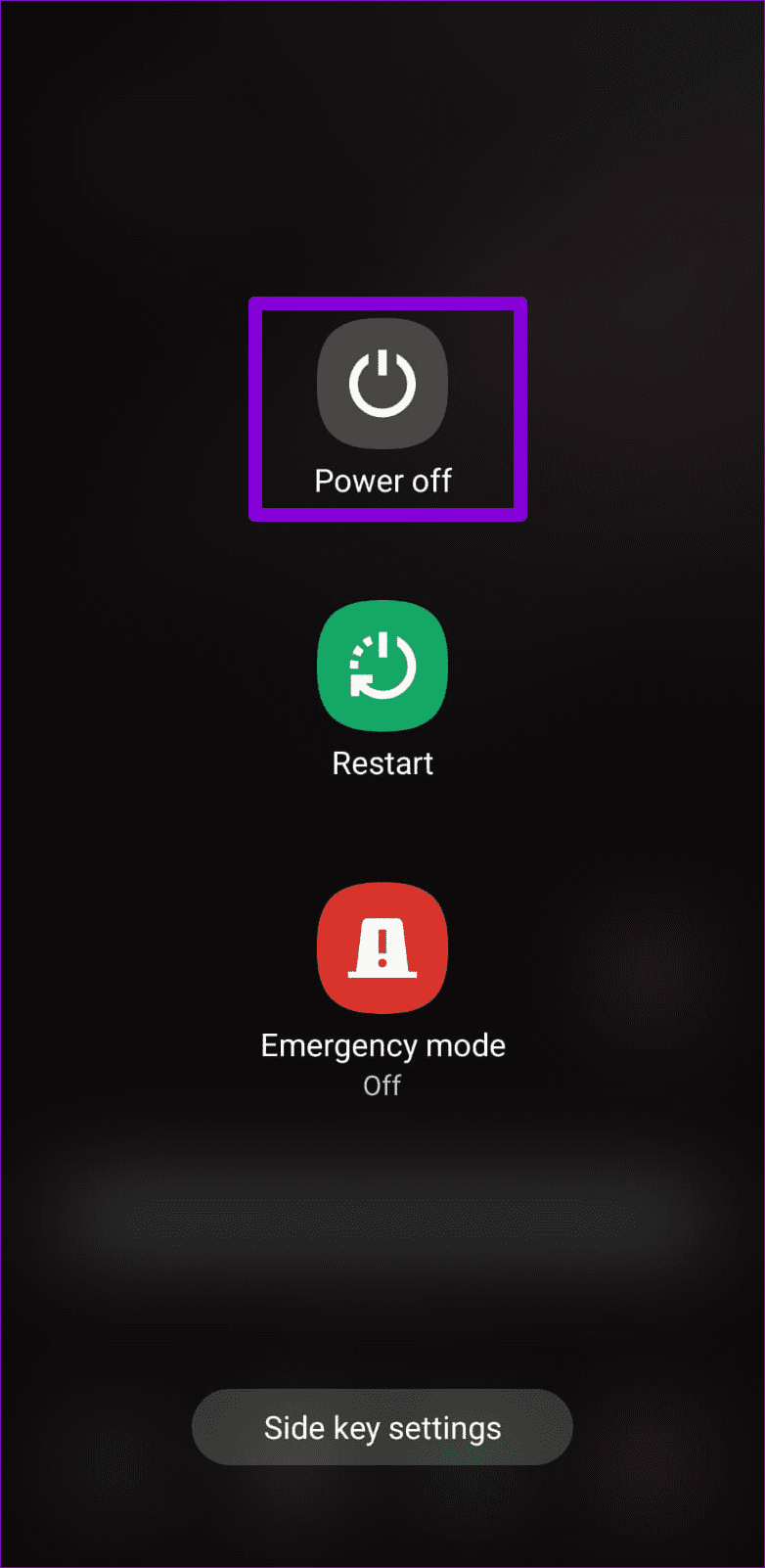

Once your device boots into Safe mode, check if the auto-rotate feature is working as expected. If it is, one of your third-party apps may be to blame. In that case, you will need to uninstall any recently installed apps one by one until the issue is resolved.
Fix 4: Reset Your Android
If you are here, it’s safe to assume that none of the above fixes have worked for you. In that case, your last option is to reset your Android to its factory default settings.
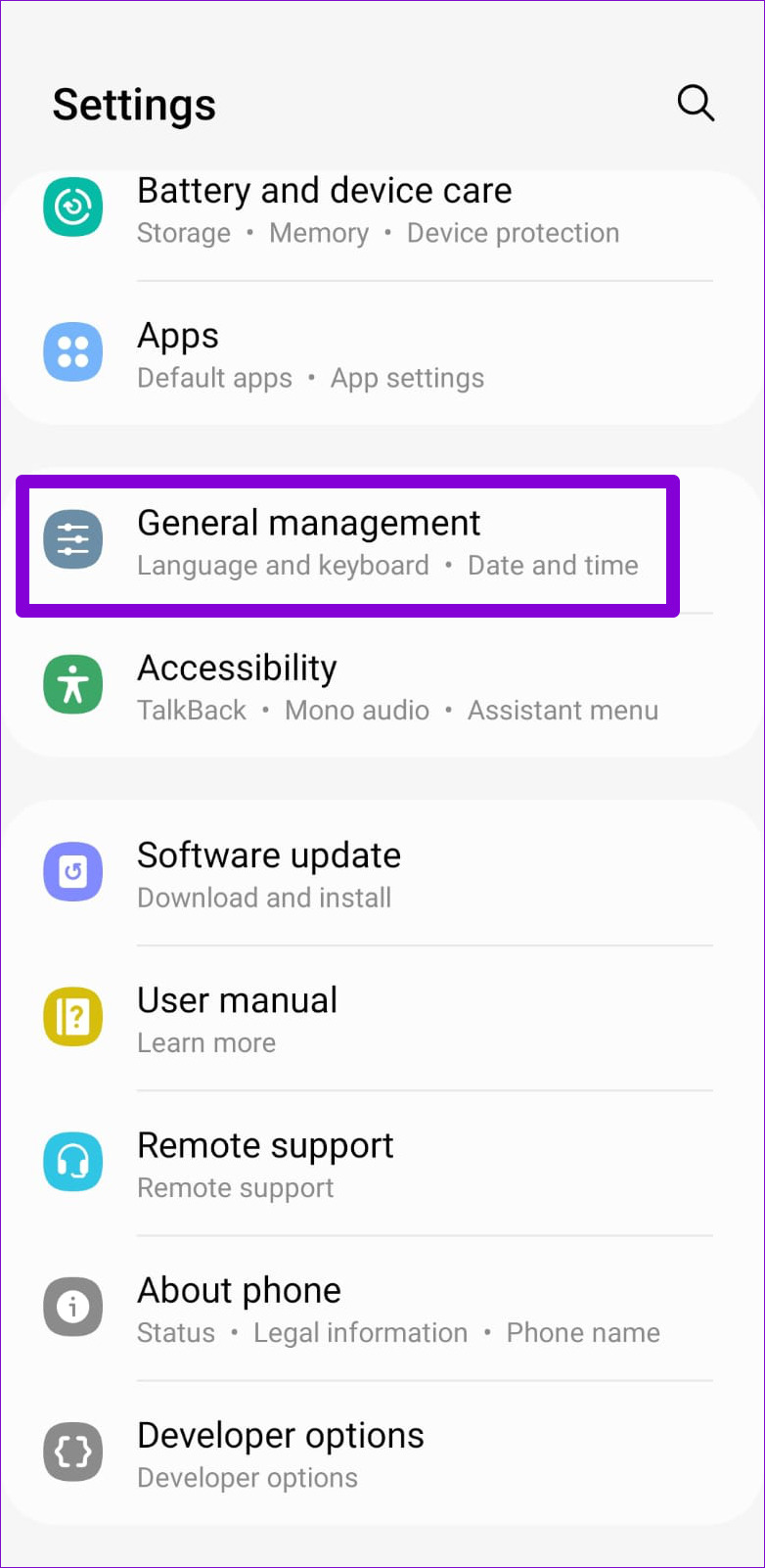
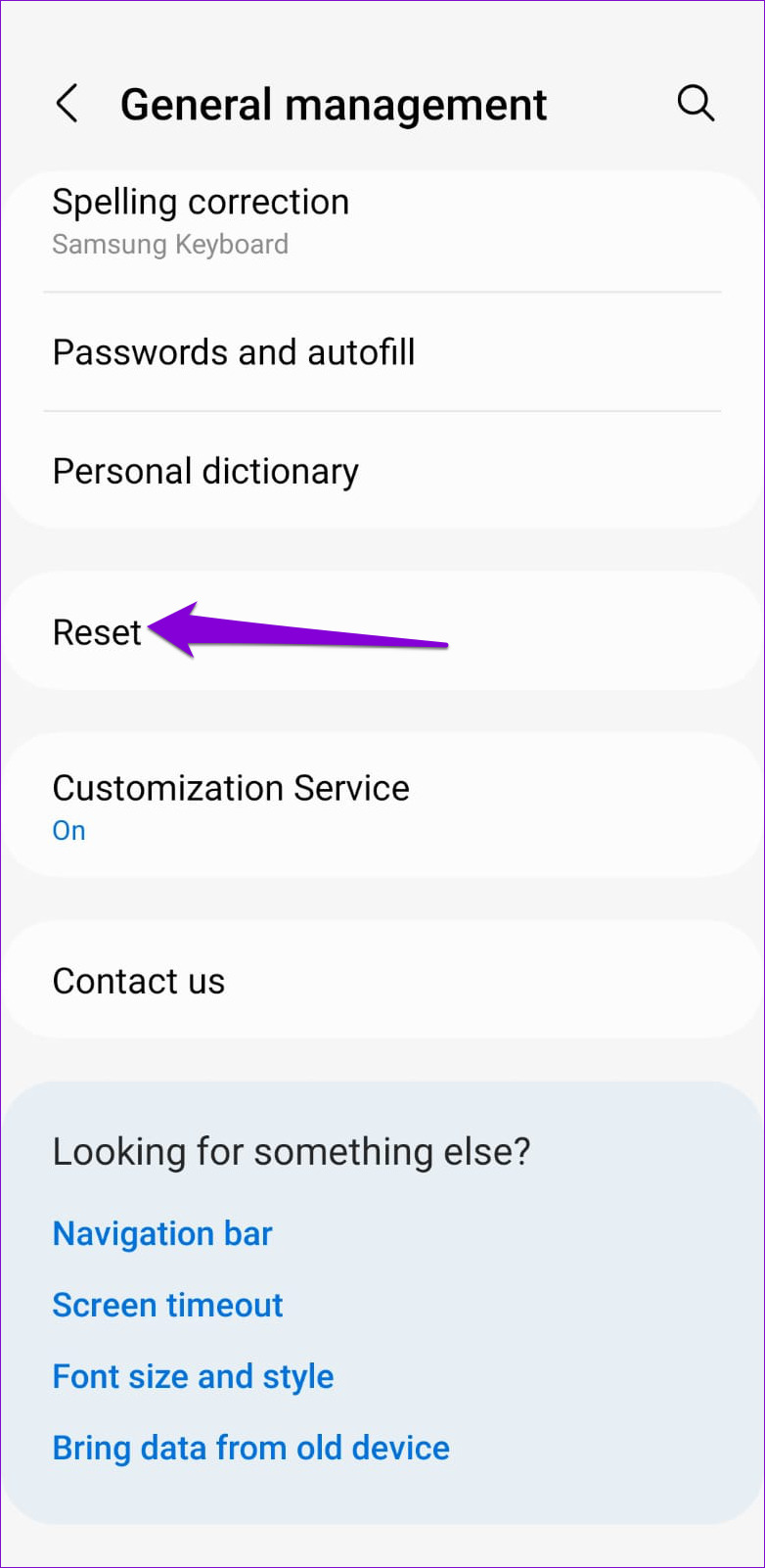
Step 1: Open the Settings app and navigate to General management > Reset.
Step 2: Tap on Reset all settings and hit the Reset settings button to confirm.

Was this helpful?
Last updated on 30 June, 2024
Read Next
 2 Ways to Fix Auto Rotate Not Working on iPhone
https://youtu.be/S_vIJ_3hn1s Try Basic Fixes Turn off the screen rotation lock: Ensure that the rotation lock is turned off on your iPhone: swipe down from the top right > tap the
2 Ways to Fix Auto Rotate Not Working on iPhone
https://youtu.be/S_vIJ_3hn1s Try Basic Fixes Turn off the screen rotation lock: Ensure that the rotation lock is turned off on your iPhone: swipe down from the top right > tap the
 8 Ways to Fix iPad Screen Won’t Rotate
You've downloaded a new Netflix series to watch on your 8-hour flight journey.
8 Ways to Fix iPad Screen Won’t Rotate
You've downloaded a new Netflix series to watch on your 8-hour flight journey.
 4 Ways to Rotate Screen in Windows 11
Method 1: Use Screen Rotation Hotkeys You can quickly change screen orientation in Windows 11 with hotkeys without a mouse.
4 Ways to Rotate Screen in Windows 11
Method 1: Use Screen Rotation Hotkeys You can quickly change screen orientation in Windows 11 with hotkeys without a mouse.
 3 Ways to Rotate an Image in Google Docs
Method 1: Rotate an Image Using Rotation Control Google Docs lets you freely rotate a picture using rotational control.
3 Ways to Rotate an Image in Google Docs
Method 1: Rotate an Image Using Rotation Control Google Docs lets you freely rotate a picture using rotational control.
 How to Quickly Rotate an Image on Mobile and Computer
How to Rotate an Image iPhone The Photos app has a built-in powerful editor that helps you rotate an image.
How to Quickly Rotate an Image on Mobile and Computer
How to Rotate an Image iPhone The Photos app has a built-in powerful editor that helps you rotate an image.
 How to Rotate Videos in Windows 11
How to Rotate a Video and View It on Windows Media Player If you wish to rotate a video just for viewing purposes.
How to Rotate Videos in Windows 11
How to Rotate a Video and View It on Windows Media Player If you wish to rotate a video just for viewing purposes.
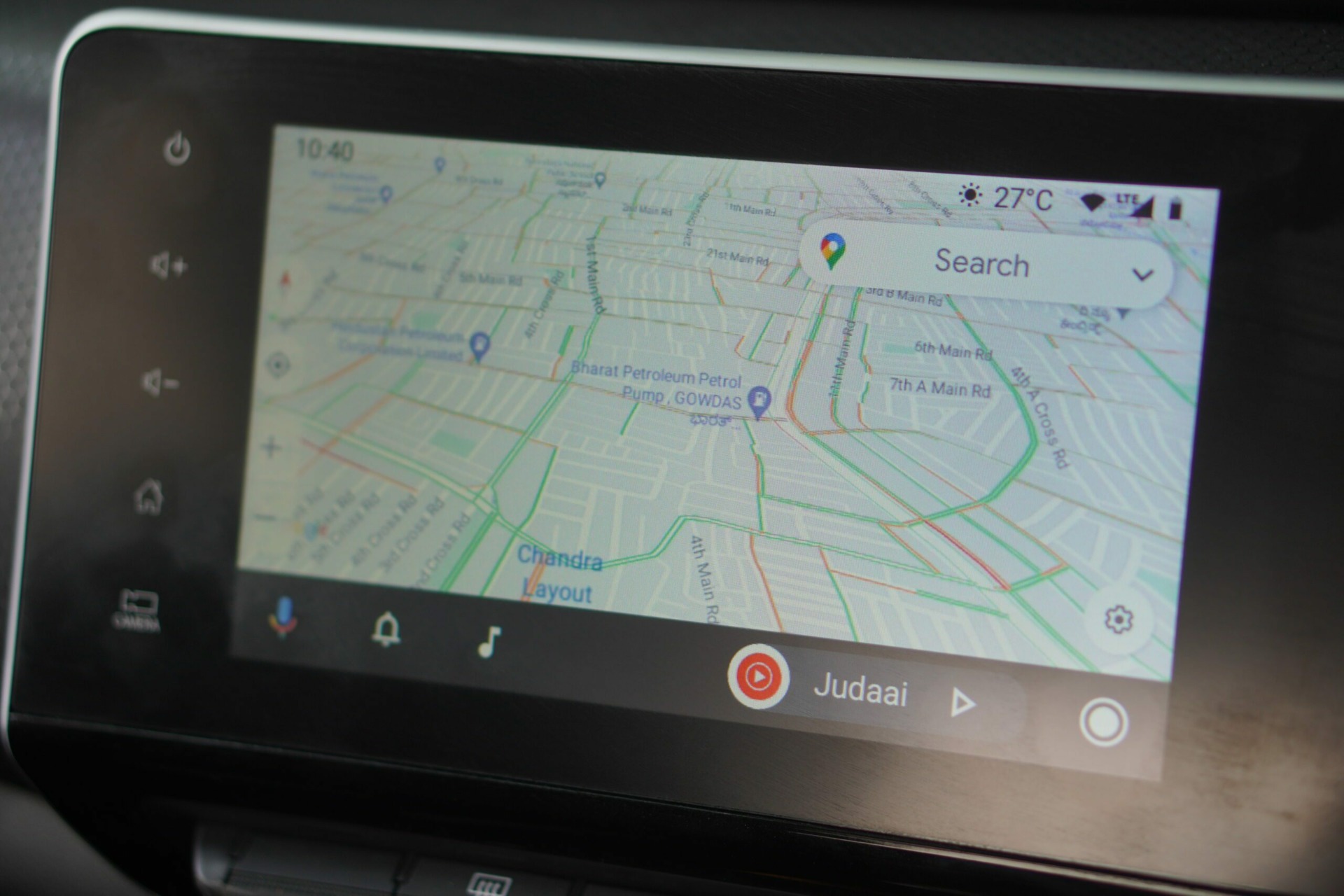 2 Ways to Fix Android Auto Not Working
Try Basic Fixes Disconnect and reconnect the USB cable: If the cable hasn't been plugged in properly, either into your phone or into the USB port in your car, you
2 Ways to Fix Android Auto Not Working
Try Basic Fixes Disconnect and reconnect the USB cable: If the cable hasn't been plugged in properly, either into your phone or into the USB port in your car, you
 5 Ways to Fix Waze Not Working on Android Auto
Fix 1: Ensure Bluetooth and Wi-Fi Are Enabled You can use Android Auto in two modes – wired and wireless.
5 Ways to Fix Waze Not Working on Android Auto
Fix 1: Ensure Bluetooth and Wi-Fi Are Enabled You can use Android Auto in two modes – wired and wireless.
The article above may contain affiliate links which help support Guiding Tech. The content remains unbiased and authentic and will never affect our editorial integrity.