Try Basic Fixes
- Clear emails from the Outbox folder: Outlook may throw the 0x800CCC0E error if some of your messages are stuck in the outbox. In that case, you must delete any emails from the outbox and try sending them again.
- Disable email scanning in your antivirus program: If you’re using a third-party antivirus program with an email-scanning feature, it may interfere with Outlook operations and cause problems. You can temporarily disable the email scanning feature in your antivirus program to see if that improves the situation.
Fix 1: Start Outlook in Safe Mode
Faulty third-party add-ins on Outlook can also give rise to such errors. To rule out this possibility, you can open Outlook in Safe Mode. For that, hold down the Ctrl key and double-click the Outlook shortcut. Click on Yes when the prompt appears.
Try using the Outlook app to see if you encounter the 0x800CCC0E error. If Outlook works fine in Safe Mode, you can disable all the add-ins by following the steps below.
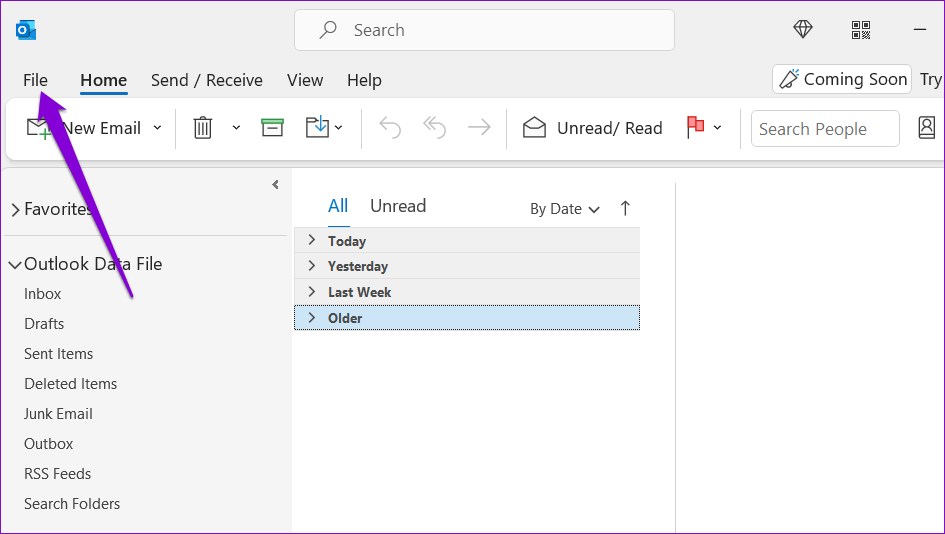
Step 1: In the Outlook app, click on the File menu at the top.
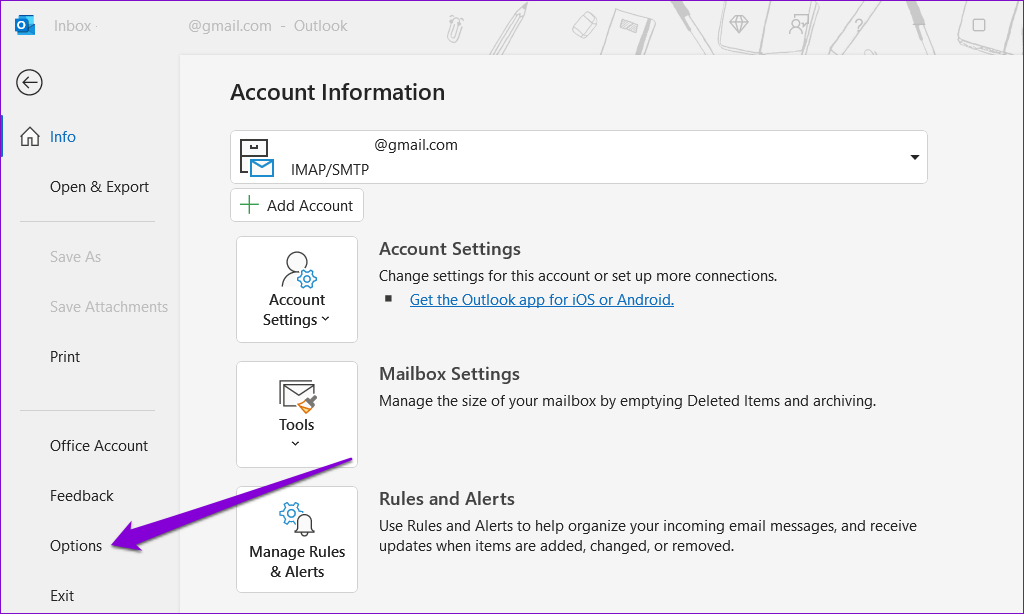
Step 2: Use the left pane to navigate to Options.
Step 3: In the Outlook Options window, switch to the Add-ins tab. Use the drop-down menu next to Manage and select COM Add-ins. Then, click the Go button next to it.
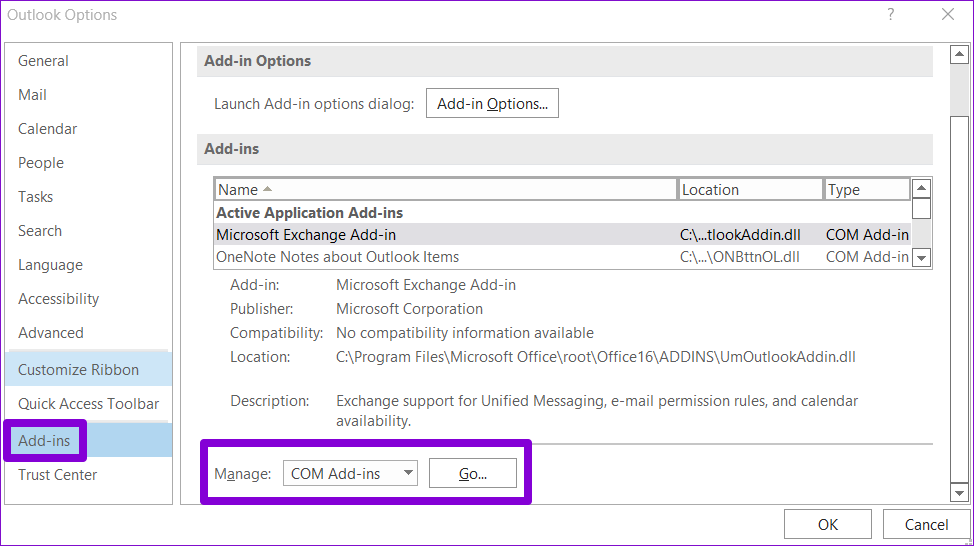
Step 4: Uncheck the boxes to disable add-ins and click OK.
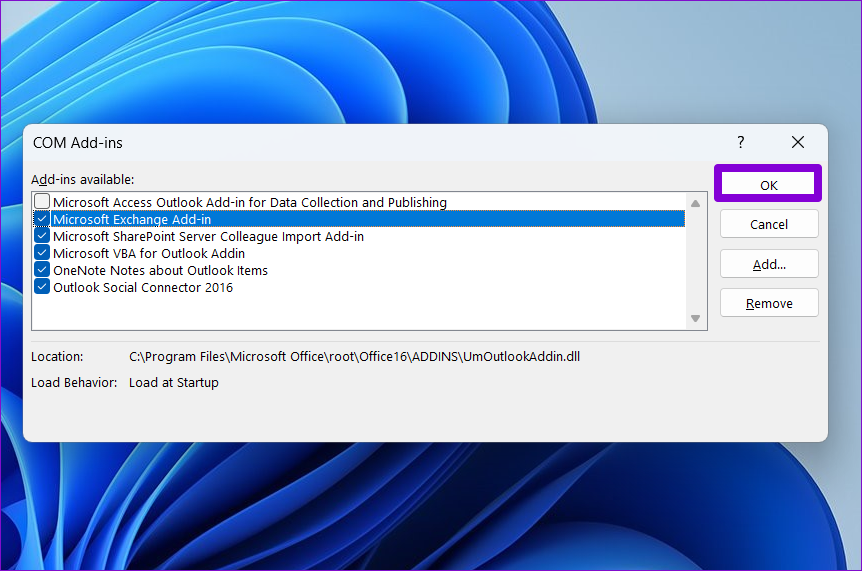
Restart the Outlook app and enable your add-ins individually to isolate the one causing the issue.
Fix 2: Check Server Requirement From Settings
If Outlook fails to authenticate your email’s outgoing server (SMTP), it may prevent you from sending new messages by displaying the 0x800CCC0E error. Here’s what you can do to fix it.
Step 1: Press the Windows key + R to open the Run dialog. Type control in the Open field and press Enter.
Step 2: Switch the view type to Large icons and go to Mail (Microsoft Outlook).

Step 3: Click on Email Accounts.

Step 4: Select your email address and click Change.
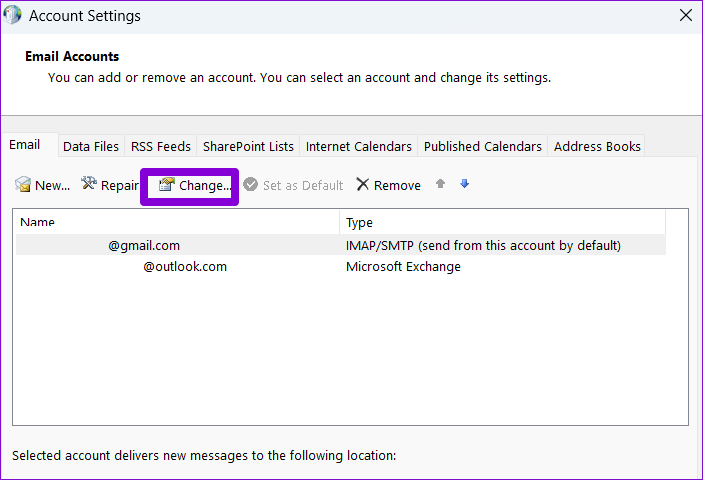
Step 5: Click on More settings.

Step 6: Navigate to the Outgoing Server tab and tick the box that reads My outgoing server (SMTP) requires authentication. Then, click OK.

Fix 3: Change Server Port Number
Such errors may also appear in Outlook if the outgoing server port number is incorrect or blocked. Follow the steps below to fix it.
Step 1: In the Outlook app, click on the File menu in the top left corner.
Step 2: In the Info tab, expand Account Settings and select Server Settings.
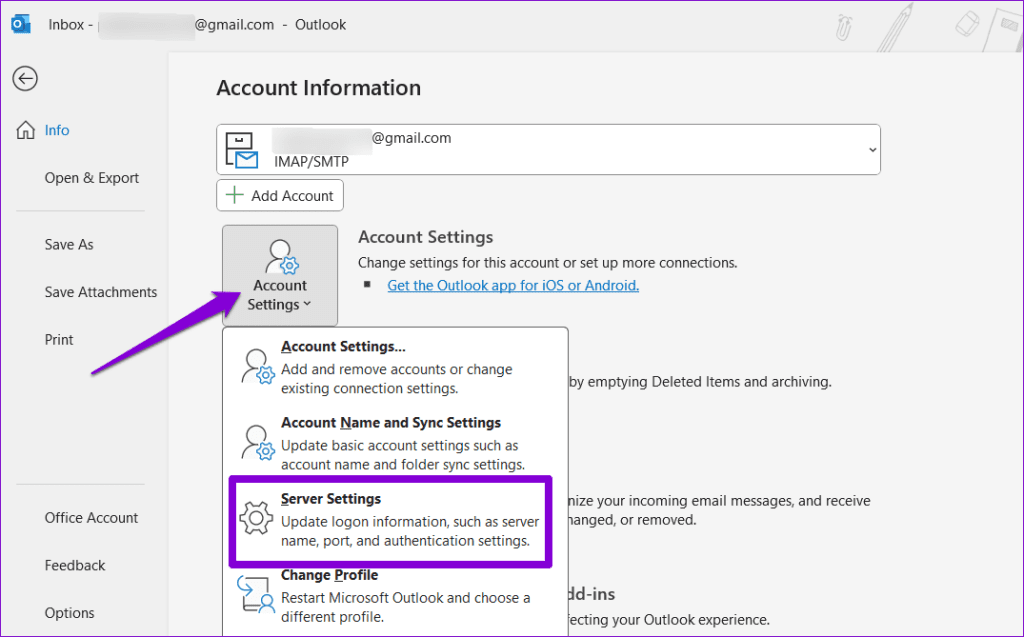
Step 3: Under Outgoing mail, change the port value to 587.

Step 4: Use the slider to increase the Server timeouts and click Next to save changes.

Fix 4: Create a New Outlook Profile
Your Outlook profile contains your Outlook settings. If there’s an issue with that profile or if it has become corrupted, Outlook may have trouble connecting to the server or exchanging emails. You can create a new Outlook profile to fix the issue.
Step 1: Click the search icon on the taskbar, type control panel, and press Enter.
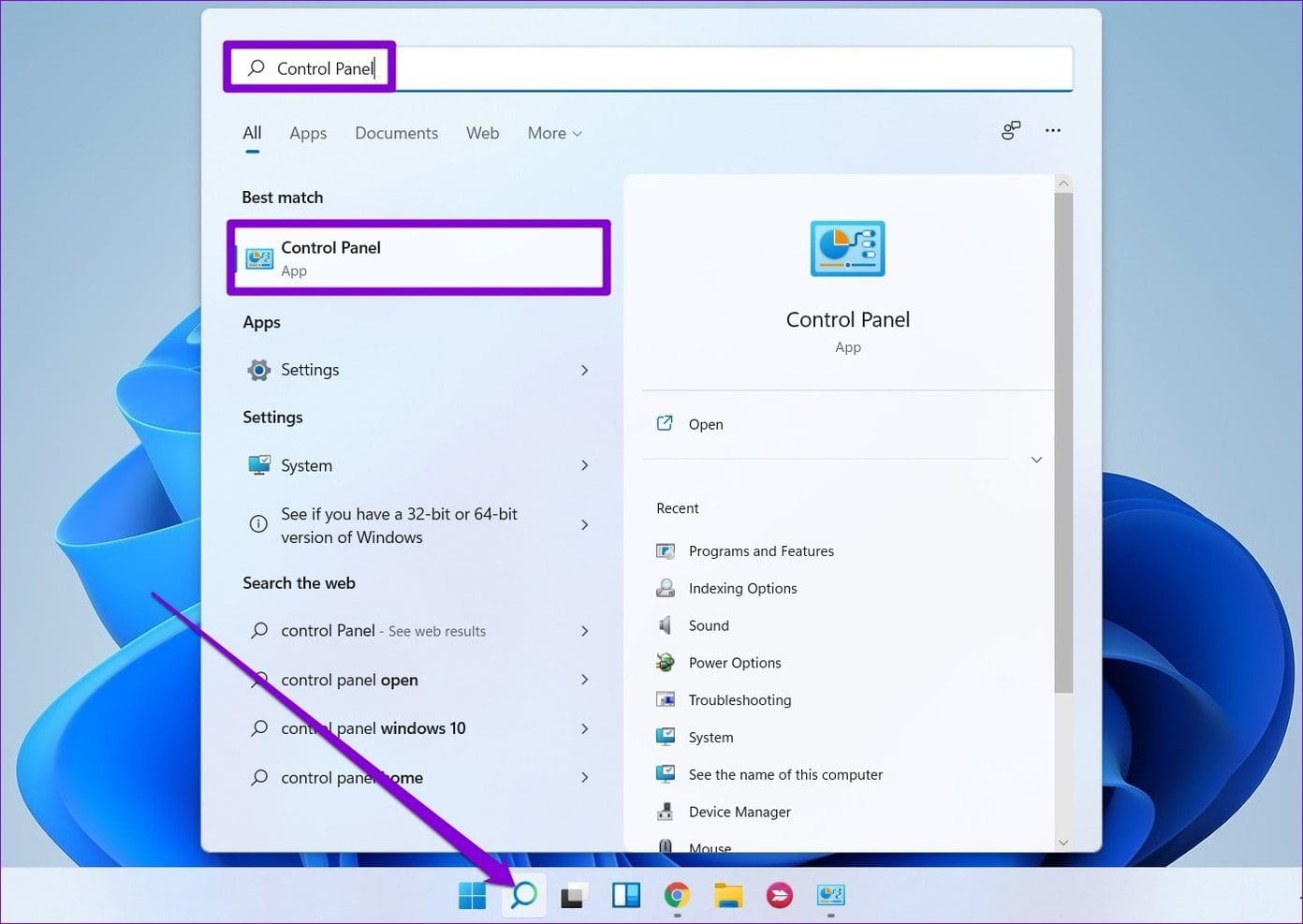
Step 2: Change the view type to Large icons and click on Mail (Microsoft Outlook).

Step 3: Click the Show Profiles button.

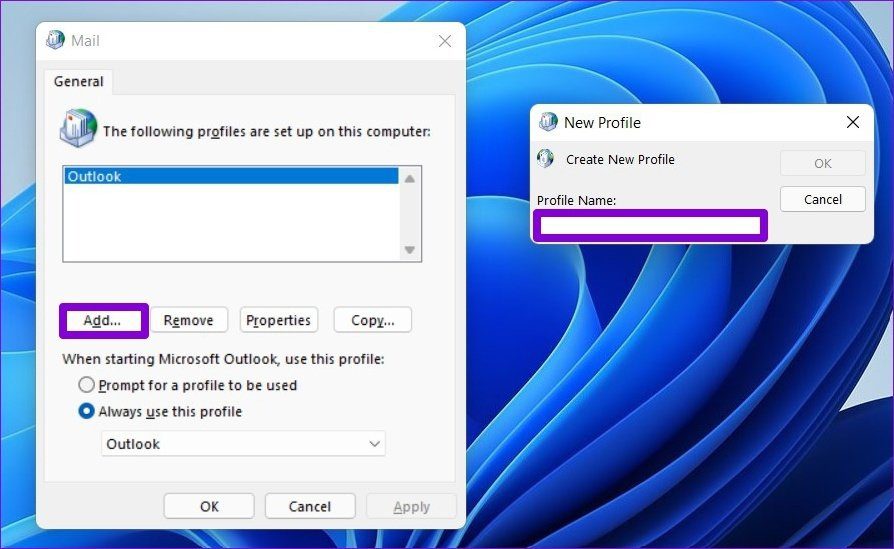
Step 4: Click the Add button, enter the name for the new profile, and click OK.
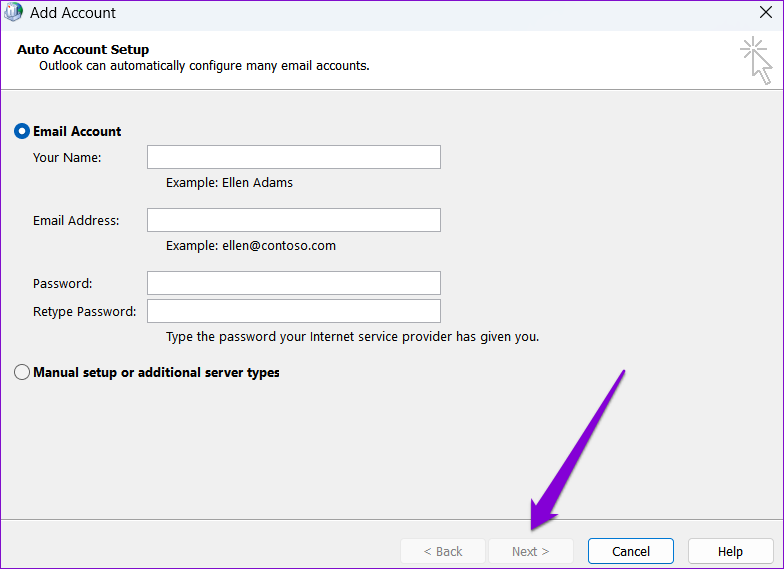
Step 5: In the Add Account window, enter your account details and hit Next.
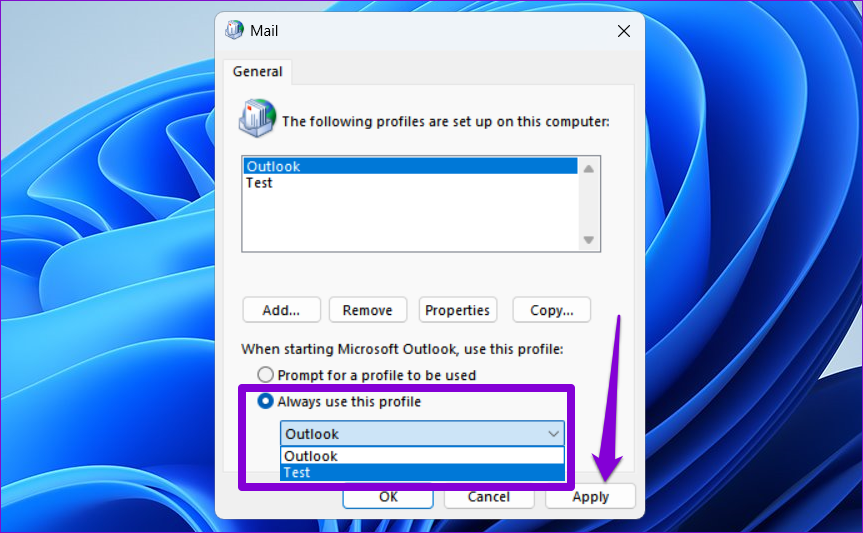
Step 6: Once the profile is created, select your new profile under When starting Microsoft Outlook and hit Apply.
Fix 5: Run Office Repair Tool
Microsoft provides a handy Office repair tool that you can use to repair any of its apps, including Outlook. So, if none of the above solutions work, you can repair the Outlook app by following the steps below.
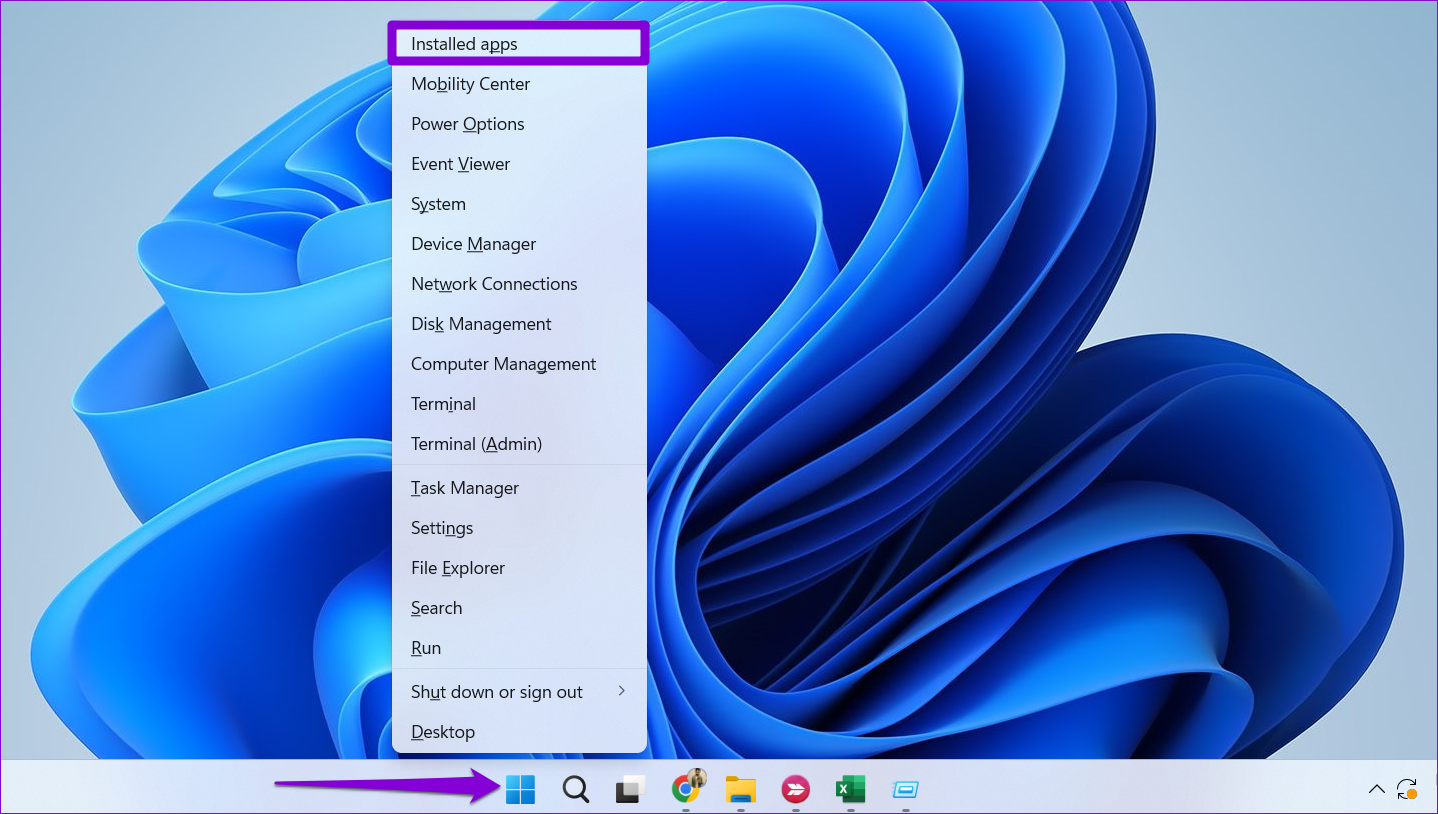
Step 1: Right-click on the Start icon and select Installed apps from the list.
Step 2: Scroll down to locate the Microsoft Office suite on the list. Click the three-dot menu icon next to it and select Modify.
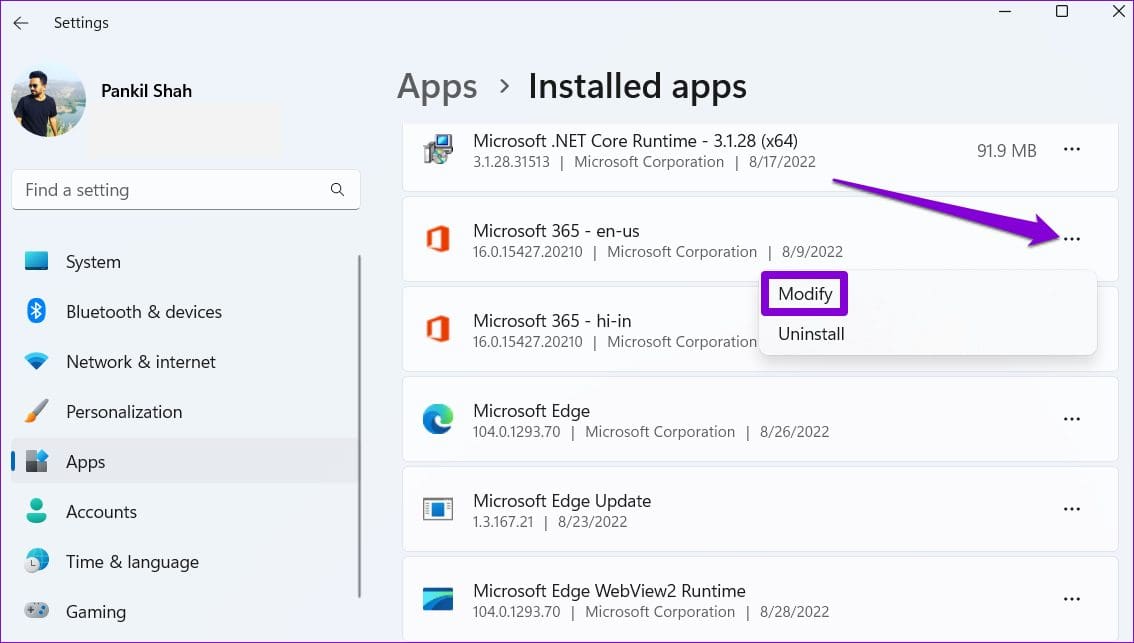
Step 3: Select Online Repair and click Repair.

Was this helpful?
Last updated on 25 July, 2024
Read Next
 Top 4 Ways to Change New Outlook Back to Old (Classic View) Outlook on Windows and Mac
The new Outlook app for desktop boasts a modern and simplified design, aligning it more closely with the web version of Microsoft Outlook.
Top 4 Ways to Change New Outlook Back to Old (Classic View) Outlook on Windows and Mac
The new Outlook app for desktop boasts a modern and simplified design, aligning it more closely with the web version of Microsoft Outlook.
 6 Ways to Fix “The Set of Folders Cannot Be Opened” Error in Outlook for Windows
Fix 1: Reset the Navigation Pane Sometimes, Outlook may fail to load the navigation pane entirely and throw an error message that reads, "Cannot start Microsoft Outlook.
6 Ways to Fix “The Set of Folders Cannot Be Opened” Error in Outlook for Windows
Fix 1: Reset the Navigation Pane Sometimes, Outlook may fail to load the navigation pane entirely and throw an error message that reads, "Cannot start Microsoft Outlook.
 5 Ways to Fix “Outlook Data File Cannot Be Accessed” Error on Windows
Fix 1: Change the Default Mail Delivery Location One of the most straightforward ways to fix the "Outlook data file cannot be accessed" error is to configure Microsoft Outlook to
5 Ways to Fix “Outlook Data File Cannot Be Accessed” Error on Windows
Fix 1: Change the Default Mail Delivery Location One of the most straightforward ways to fix the "Outlook data file cannot be accessed" error is to configure Microsoft Outlook to
 Top 6 Ways to Fix Cannot Expand Folder Error in Outlook
Microsoft Outlook users have been facing a particular error for the past decade.
Top 6 Ways to Fix Cannot Expand Folder Error in Outlook
Microsoft Outlook users have been facing a particular error for the past decade.
 6 Ways to Fix Microsoft Outlook Failed to Delete a Message Error
Fix 1.
6 Ways to Fix Microsoft Outlook Failed to Delete a Message Error
Fix 1.
 5 Fixes for the “Outlook Data File Has Reached the Maximum Size” Error in Windows
Fix 1: Compact the Microsoft Outlook Data File Compacting your Outlook data file removes unused space and purges redundant information from the data file, effectively reducing its size.
5 Fixes for the “Outlook Data File Has Reached the Maximum Size” Error in Windows
Fix 1: Compact the Microsoft Outlook Data File Compacting your Outlook data file removes unused space and purges redundant information from the data file, effectively reducing its size.
 6 Fixes for “The Operation Failed” Error in Microsoft Outlook for Windows
Fix 1: Open Outlook in Safe Mode Running Office apps like Outlook in safe mode can help you determine if one of the add-ins is responsible for the issue.
6 Fixes for “The Operation Failed” Error in Microsoft Outlook for Windows
Fix 1: Open Outlook in Safe Mode Running Office apps like Outlook in safe mode can help you determine if one of the add-ins is responsible for the issue.
 5 Fixes for “Not Implemented” Error in Microsoft Outlook for Windows
Fix 1: Rename the Send/Receive Settings File Is Outlook only showing the "Not Implemented" error when you click the "Send/Receive" tab?
5 Fixes for “Not Implemented” Error in Microsoft Outlook for Windows
Fix 1: Rename the Send/Receive Settings File Is Outlook only showing the "Not Implemented" error when you click the "Send/Receive" tab?
The article above may contain affiliate links which help support Guiding Tech. The content remains unbiased and authentic and will never affect our editorial integrity.