Fix 1: Enable On-Screen Keyboard
The on-screen keyboard may fail to open on Windows if you have previously disabled it from the Settings app. Hence, it’s the first thing you should check.
Step 1: Press the Windows key + I to open the Settings app and head to Accessibility > Keyboard.

Step 2: Toggle on On-screen keyboard.

Fix 2: Check if the Touch Keyboard and Handwriting Panel Service Is Running
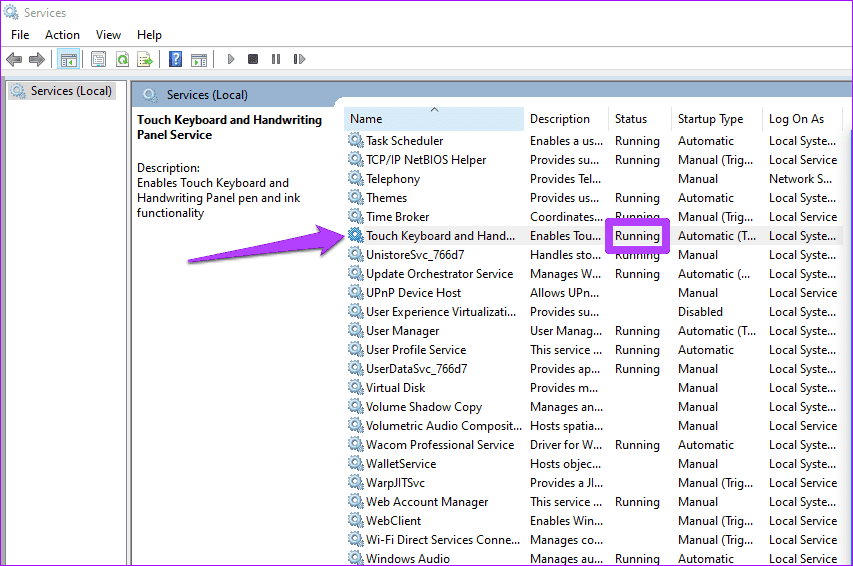
The Touch Keyboard and Handwriting Panel Service is an essential component that needs to run in the background for the on-screen keyboard to work properly. You should ensure that this service is running on your PC to avoid any issues. Here’s how to check.
Step 1: Press the Windows key + R to open the Run dialog box. Type services.msc and press Enter.
Step 2: Locate Touch Keyboard and Handwriting Panel Service and check if it’s running. If it’s not, right-click on it and select Start to run it.
Fix 3: Run an SFC Scan
Corrupt or damaged system files on your PC could also cause such problems. You can run the SFC (System File Checker) to find and fix problematic system files.
Step 1: Right-click on the Start icon and select Terminal (Admin) from the list.

Step 2: Type the command mentioned below and press Enter.
SFC /scannow

Fix 4: Modify Registry Files
If nothing works, try modifying a few registry files to get the on-screen keyboard working on Windows. Here are the steps.
Step 1: Press the Windows key + R to open the Run dialog box, type regedit, and press Enter.
Step 2: Use the left pane to navigate to the following key:
HKEY_LOCAL_MACHINE\SOFTWARE\Microsoft\Windows\CurrentVersion\Explorer\Scaling
Step 3: Double-click the MonitorSize entry, change its value data to 22.5, and hit OK.

Restart your PC after this and try to access the on-screen keyboard again.
Was this helpful?
Last updated on 10 June, 2024
Read Next
 How to Hide Android On-Screen Keyboard When Using External Keyboard
Google understands that multiple users connect physical keyboards to their Android devices.
How to Hide Android On-Screen Keyboard When Using External Keyboard
Google understands that multiple users connect physical keyboards to their Android devices.
 3 Best Ways to Fix Keyboard Backlight Not Working on Windows 10 and Windows 11
Try Basic Fixes Toggle the keyboard backlight using the hotkey: You can use a key combination to quickly enable or disable the keyboard backlight on your Windows 11 PC.
3 Best Ways to Fix Keyboard Backlight Not Working on Windows 10 and Windows 11
Try Basic Fixes Toggle the keyboard backlight using the hotkey: You can use a key combination to quickly enable or disable the keyboard backlight on your Windows 11 PC.
 3 Ways to Open On-Screen Keyboard in Windows 11
https://youtu.be/fKDIO4PpMJk Basic Ways: Using the keyboard shortcut: You can use the Windows + Ctrl + O keys to open the On-Screen Keyboard in Windows 11.
3 Ways to Open On-Screen Keyboard in Windows 11
https://youtu.be/fKDIO4PpMJk Basic Ways: Using the keyboard shortcut: You can use the Windows + Ctrl + O keys to open the On-Screen Keyboard in Windows 11.
 5 Ways to Fix Windows 10 Keyboard Special Characters Not Working
Have you struggled to enter an email ID on your Windows 10 computer?
3 Ways to Fix Mouse and Keyboard Not Working in Windows
Basic Fixes Restart PC: A simple restart can refresh the system memory, clear temporary glitches, and reload device drivers, fixing issues caused by outdated or corrupted files.
5 Ways to Fix Windows 10 Keyboard Special Characters Not Working
Have you struggled to enter an email ID on your Windows 10 computer?
3 Ways to Fix Mouse and Keyboard Not Working in Windows
Basic Fixes Restart PC: A simple restart can refresh the system memory, clear temporary glitches, and reload device drivers, fixing issues caused by outdated or corrupted files.
 3 Ways to Fix Keyboard Function Keys Not Working on Windows 11/10
Fix 1: Confirm Shortcut Keys Don't Disable Function Keys Keyboards with an Fn key allow two sets of actions on the function keys.
3 Ways to Fix Keyboard Function Keys Not Working on Windows 11/10
Fix 1: Confirm Shortcut Keys Don't Disable Function Keys Keyboards with an Fn key allow two sets of actions on the function keys.
 4 Ways to Fix Keyboard Shortcuts Not Working on Windows 11
Preliminary Fixes Disable Game Mode: Gaming keyboards often have special modes that disable keyboard shortcuts.
4 Ways to Fix Keyboard Shortcuts Not Working on Windows 11
Preliminary Fixes Disable Game Mode: Gaming keyboards often have special modes that disable keyboard shortcuts.
 4 Ways to Fix Number Pad Not Working on Keyboard in Windows 11
Basic Fixes: Enable Num Lock on the keyboard: Most keyboards come with a dedicated Num Lock key.
4 Ways to Fix Number Pad Not Working on Keyboard in Windows 11
Basic Fixes: Enable Num Lock on the keyboard: Most keyboards come with a dedicated Num Lock key.
The article above may contain affiliate links which help support Guiding Tech. The content remains unbiased and authentic and will never affect our editorial integrity.