


Common Fixes
- Unmute the Edge tab: If you’ve unknowingly muted a tab, unmute it by right-clicking the tab > Unmute tab.
- Check device volume: Right-click the Volume icon at the right end of the Windows 11 taskbar and select Open volume mixer. Drag the Volume slider to its full volume.
- Disconnect Bluetooth devices: Your Microsoft Edge volume might be routing to your connected Bluetooth accessory. To disconnect it, go to Windows Settings > Bluetooth & devices > select your device and click Disconnect.
- Update or reinstall Microsoft Edge: Open the Microsoft Store, search Microsoft Edge, and click Update (if available). Alternatively, uninstall the app from Settings > Apps > Installed apps and reinstall it from the Microsoft Store.
Fix 1: Manually Switch the Audio Output
If you’ve connected multiple audio accessories to your PC, audio might be coming from one of them. Switch the audio output manually in Windows 11 settings to resume sound in Microsoft Edge.
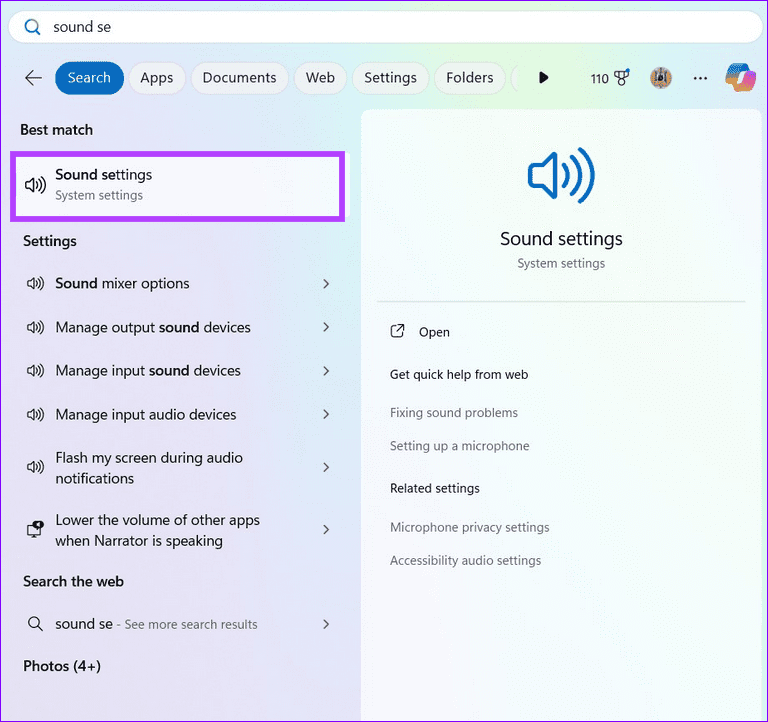
Step 1: Press the Windows key, search Sound settings, and click to open it.
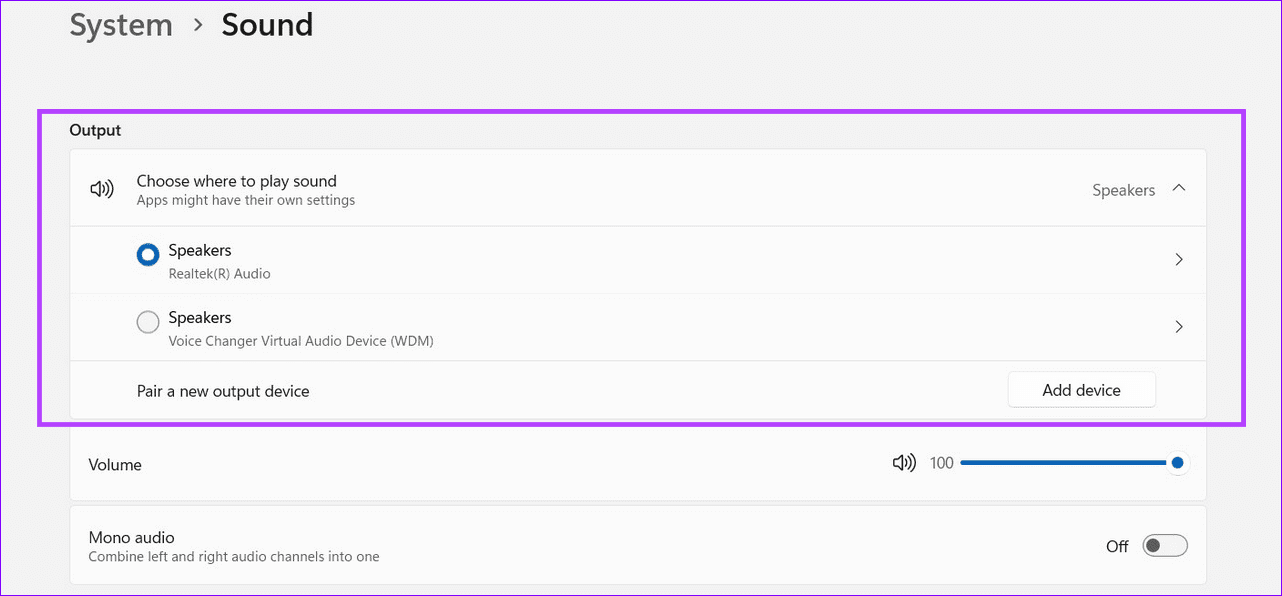
Step 2: Pick the correct sound device under Output.
Fix 2: Reset Site Permissions
If you can’t hear the sound on a select few websites, reset its site permissions to restore normal functioning.
Step 1: Open your desired website in Microsoft Edge, click the padlock icon on the left of the website’s URL, and select Permissions for this site.
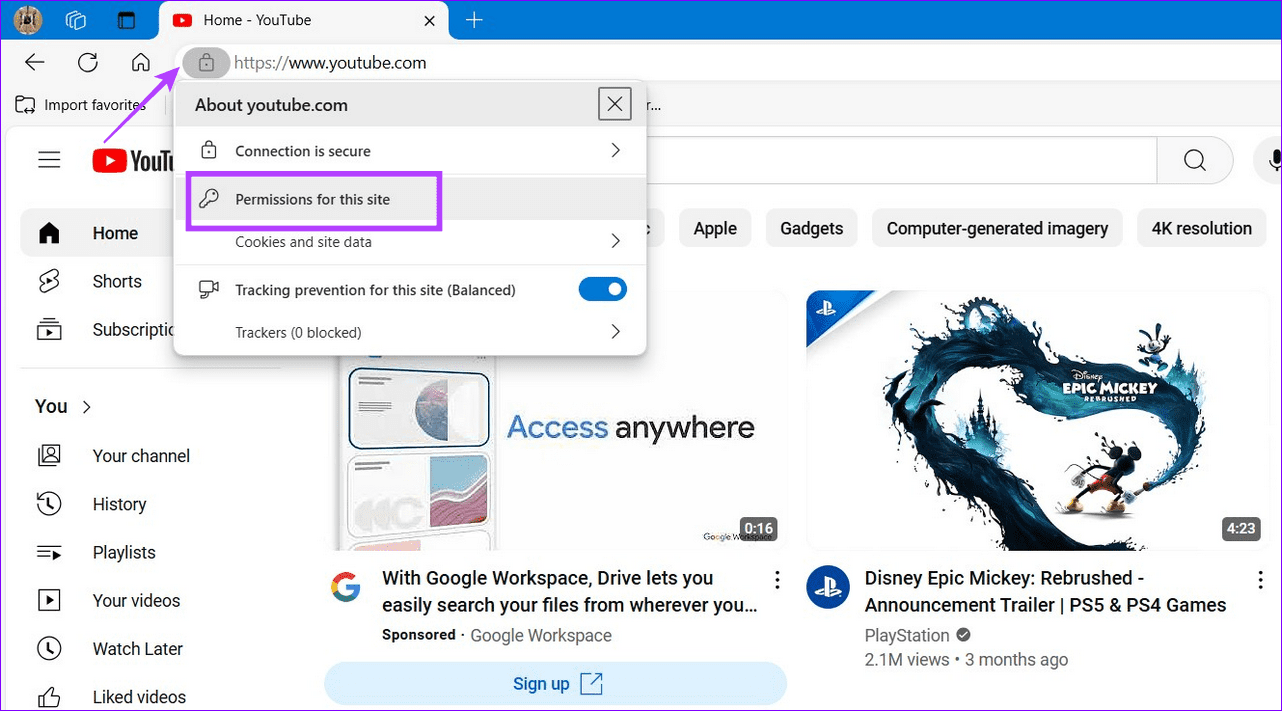
Step 2: Click Reset permissions at the top right and select Reset when prompted to confirm your action.

Fix 3: Reset Sound Volume for All Apps
Existing issues with app volumes can cause no sound in Microsoft Edge. Resetting sound devices and volumes for all apps should fix it.
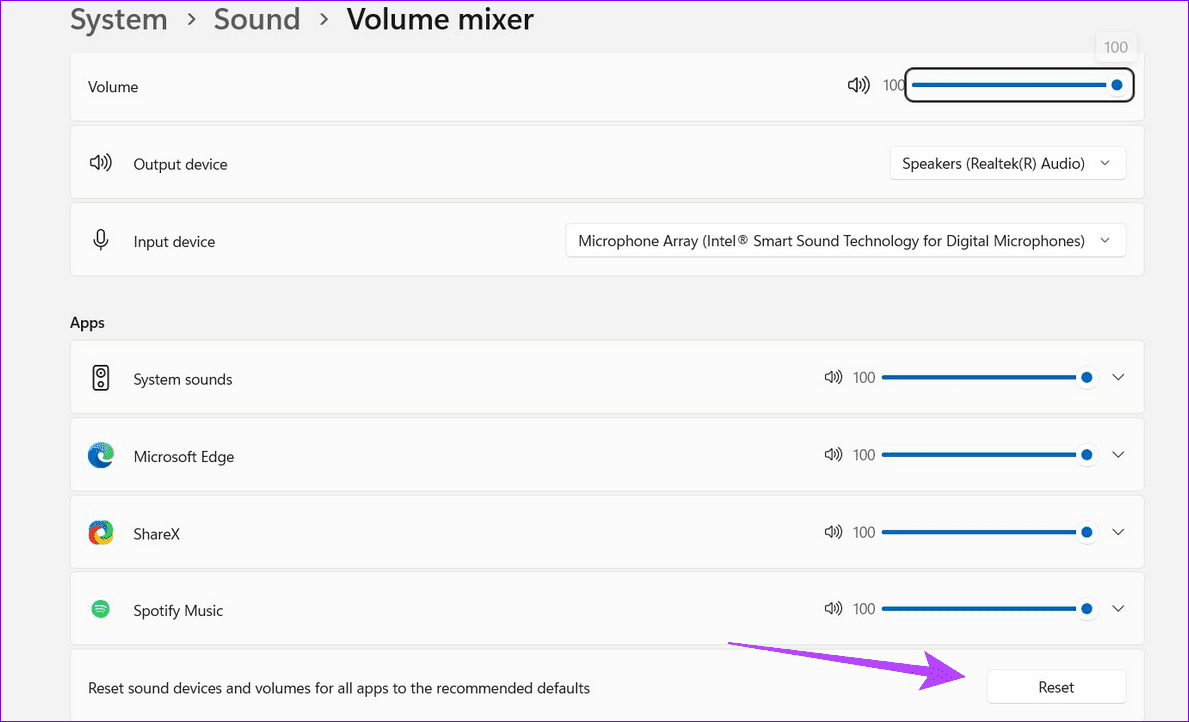
Step 1: Right-click the Volume icon at the right end of the taskbar and select Open volume mixer.

Step 2: Scroll down and click Reset next to Reset sound devices and volumes for all apps to recommended defaults.
Fix 4: Disable Extensions in Microsoft Edge
Edge extensions enhance your browsing experience, but some may interfere with the sound output, creating a no-sound issue in Microsoft Edge. Disable them manually to resolve the issue.
Step 1: Click the three-dot icon at the top right of Microsoft Edge and select Extensions.

Step 2: Select Manage Extensions in the popup.
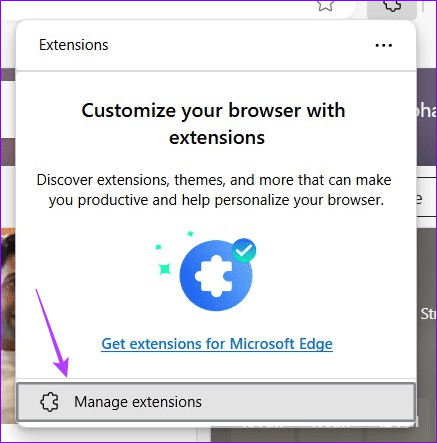
Step 3: Toggle off the installed extensions to disable them. Alternatively, click Remove under an extension to delete it.

Fix 5: Clear Browser Cache
A corrupt browser cache is a common culprit behind the no-sound issue in Microsoft Edge. Open Edge settings to clear it and resume getting the sound output.
Step 1: Click the three-dot menu at the top right of Microsoft Edge and select Settings.

Step 2: Open Privacy, search, and services from the left sidebar, scroll down to the Delete browsing data section, and click Choose what to clear next to Clear browsing data now.

Step 3: Mark Cached images and files, Cookies and other site data, and click Clear now to remove them.

Fix 6: Reset Microsoft Edge
Lastly, if nothing works, reset Microsoft Edge to its default settings to fix the no-sound issue.
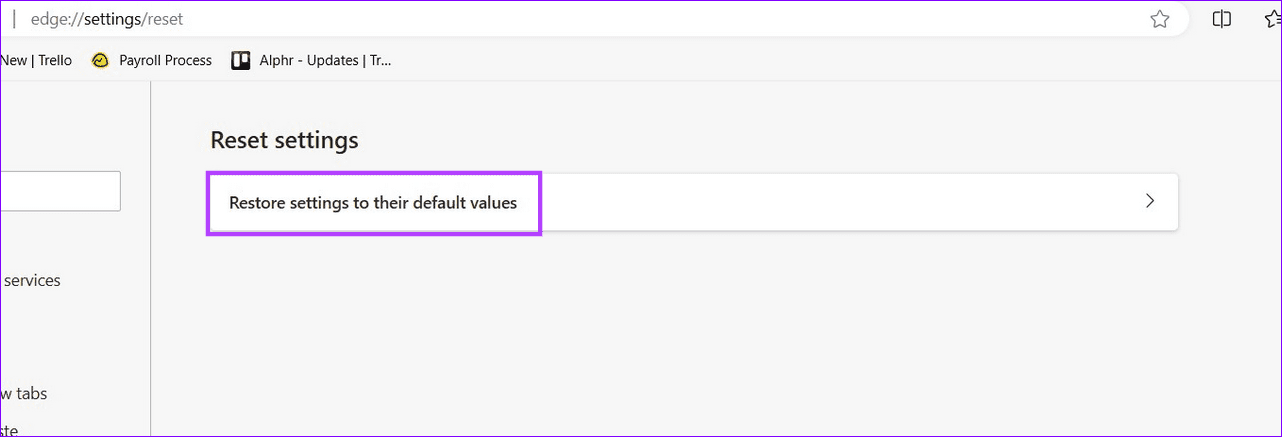
Step 1: Type edge://settings/reset in the address bar and press Enter to open the Edge reset settings.
Step 2: Select Restore settings to their default values and click Reset when prompted to confirm.
Was this helpful?
Last updated on 12 July, 2024
Read Next
 How to Use the Edge Bar in Microsoft Edge on Windows 11
How to Enable Edge Bar in Microsoft Edge Step 1: Launch Microsoft Edge on your PC > click the three-dot menu icon at the top right > select Settings.
How to Use the Edge Bar in Microsoft Edge on Windows 11
How to Enable Edge Bar in Microsoft Edge Step 1: Launch Microsoft Edge on your PC > click the three-dot menu icon at the top right > select Settings.
 Top 6 Ways to Fix Microsoft Edge Black Screen Issues on Windows 10
Microsoft Edge continues to quickly pace ahead in the browser race on mobile and desktop.
Top 6 Ways to Fix Microsoft Edge Black Screen Issues on Windows 10
Microsoft Edge continues to quickly pace ahead in the browser race on mobile and desktop.
 7 Ways to Fix Microsoft Edge Running Slow on Windows 11
Basic Fixes Update or reinstall Microsoft Edge: Open the Microsoft Store, search Microsoft Edge browser, and click Update.
7 Ways to Fix Microsoft Edge Running Slow on Windows 11
Basic Fixes Update or reinstall Microsoft Edge: Open the Microsoft Store, search Microsoft Edge browser, and click Update.
 4 Ways to Fix Slow Download Speed in Microsoft Edge for Windows
Basic Yet Essential Fixes Check internet speed: If your internet speed is slow or bandwidth is less, all downloads will get slow.
4 Ways to Fix Slow Download Speed in Microsoft Edge for Windows
Basic Yet Essential Fixes Check internet speed: If your internet speed is slow or bandwidth is less, all downloads will get slow.
 Top 10 Ways to Fix Microsoft Edge Not Opening on Windows
Microsoft Edge has been nothing short of outstanding since the switchover from EdgeHTML to Chromium.
Top 10 Ways to Fix Microsoft Edge Not Opening on Windows
Microsoft Edge has been nothing short of outstanding since the switchover from EdgeHTML to Chromium.
 6 Ways to Fix Camera Not Working in Microsoft Edge on Windows
Fix 1: Close Background Apps If another app is already using your computer’s camera, Microsoft Edge can't access it.
6 Ways to Fix Camera Not Working in Microsoft Edge on Windows
Fix 1: Close Background Apps If another app is already using your computer’s camera, Microsoft Edge can't access it.
 6 Ways to Fix Microsoft Edge Notifications Not Working on Windows
Fix 1: Check System Notification Settings The first thing you should do is check the system notification settings and ensure that Microsoft Edge is allowed to send notifications on your
6 Ways to Fix Microsoft Edge Notifications Not Working on Windows
Fix 1: Check System Notification Settings The first thing you should do is check the system notification settings and ensure that Microsoft Edge is allowed to send notifications on your
 4 Ways to Fix Microsoft Edge Keeps Refreshing Tabs on Windows
Fix 1: Disable Sleeping Tabs When you enable sleeping tabs in Edge, the browser puts your inactive tabs to sleep to conserve computer resources.
4 Ways to Fix Microsoft Edge Keeps Refreshing Tabs on Windows
Fix 1: Disable Sleeping Tabs When you enable sleeping tabs in Edge, the browser puts your inactive tabs to sleep to conserve computer resources.
The article above may contain affiliate links which help support Guiding Tech. The content remains unbiased and authentic and will never affect our editorial integrity.

