

Fix 1: Ensure Edge Is Allowed to Save Passwords
If Edge is failing to show the “Save password” prompt on websites, you should first ensure that Edge is allowed to save passwords. Here’s how to do it.
Step 1: In Microsoft Edge, type edge://wallet/settings in the URL bar at the top and hit Enter.
Step 2: Enable the Offer to save passwords toggle.

Fix 2: Allows Your Favorite Websites to Save Passwords
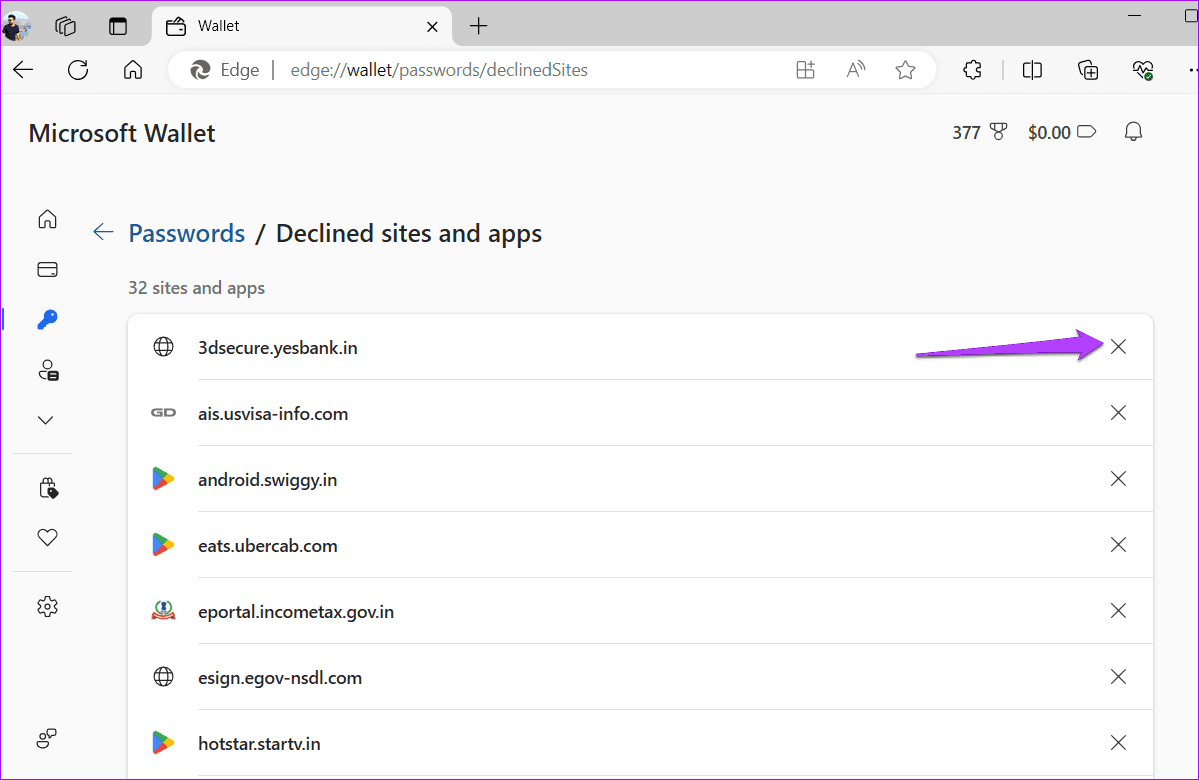
Microsoft Edge also offers the option to disable saving passwords on specific websites. Hence, ensure that your favorite sites are not added to this list.
Step 1: In Microsoft Edge, type in edge://wallet/passwords/declinedSites in the address bar at the top and press Enter.
Step 2: Scroll through this list and click the X icons next to the websites you want to remove.
Fix 3: Check Sync Settings
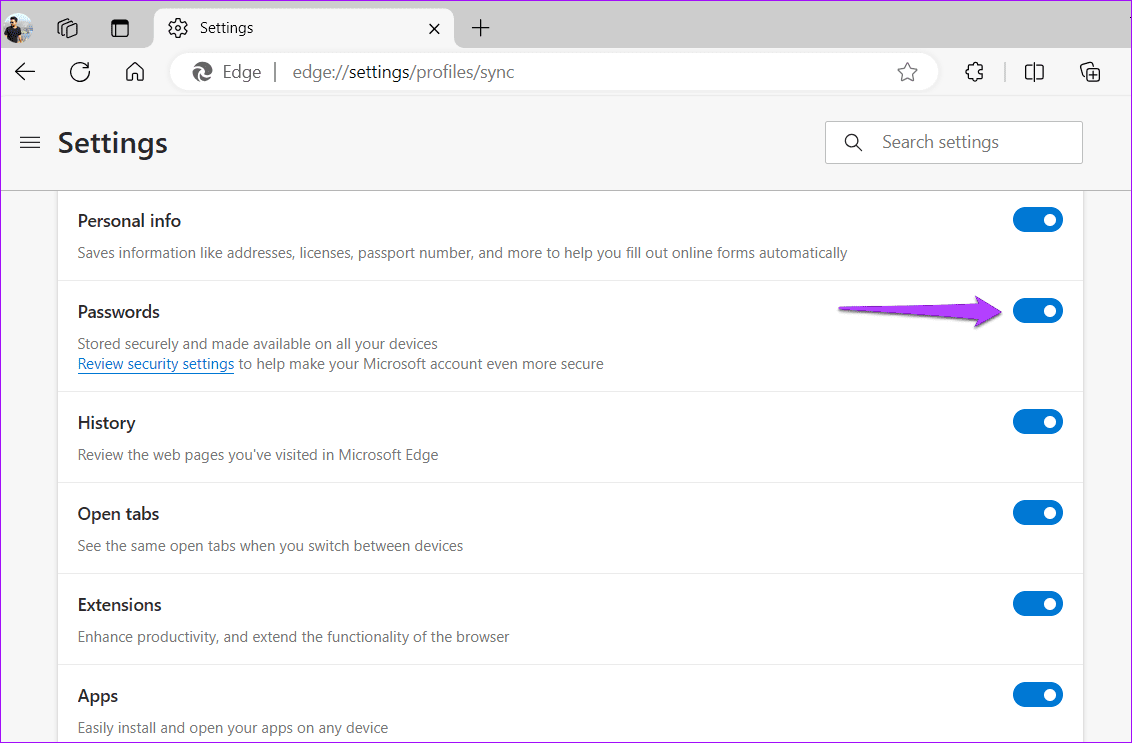
Another thing you need to do is ensure Edge is configured to sync passwords across devices. Otherwise, your saved passwords won’t appear on other devices.
Step 1: Open Microsoft Edge. Click the profile icon in the top left corner and then click the gear icon.

Step 2: Click Sync.

Step 3: Enable the switch next to Passwords if it isn’t already.
Fix 4: Disable Extensions
At times, third-party extensions can interfere with Edge’s ability to save passwords. You can try temporarily disabling all extensions in Edge to see if that resolves the issue.
Type edge://extensions/ in the address bar at the top and press Enter. Then, disable the toggles next to the extensions.

If this solves your problem, re-enable your extensions one by one to identify the one causing the issue.
Fix 5: Create a New Profile
Another reason why Edge might fail to save or sync passwords is if your browser profile is corrupted. In such cases, you’ll need to create and switch to a new profile on Edge.
In Edge, click on your profile icon in the top left corner to select Set up new personal profile. Then, follow the on-screen prompts to finish setting up your profile. After that, you should be able to save passwords again.

Fix 6: Reset Microsoft Edge
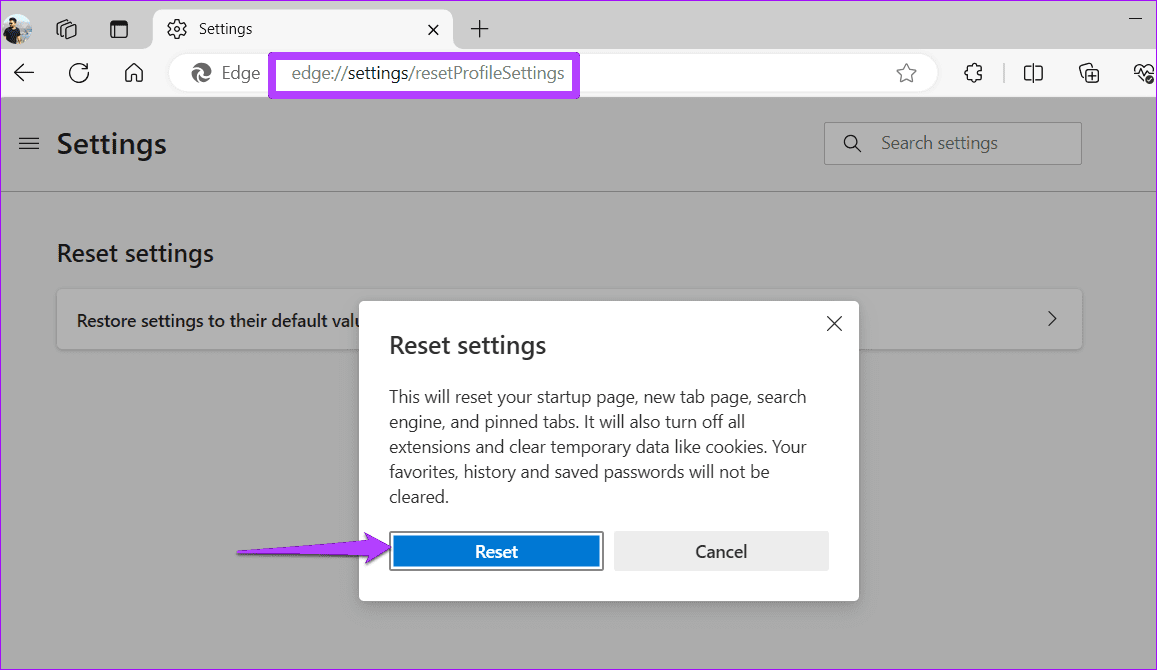
If all else fails, you can consider resetting Microsoft Edge as a last resort. To do so, type edge://settings/reset in the address bar at the top and press Enter. Select Restore settings to their default values and hit Reset to confirm.
Was this helpful?
Last updated on 19 May, 2024
1 Comment
Leave a Reply
Read Next
 How to Stop Microsoft Edge From Asking to Save Passwords on Windows
Microsoft Edge comes with a lot of features, including a password manager.
How to Stop Microsoft Edge From Asking to Save Passwords on Windows
Microsoft Edge comes with a lot of features, including a password manager.
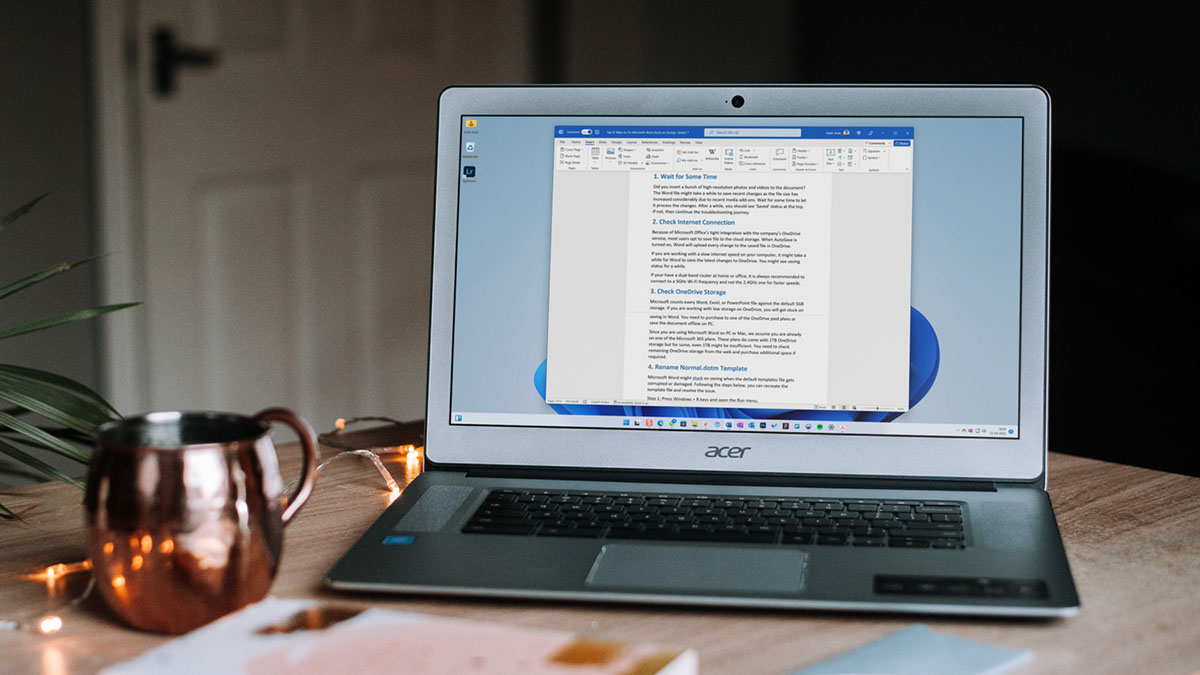 5 Ways to Fix Microsoft Word Stuck on Saving
Basic Fixes Wait for some time: Give it a moment since Word files might take a while to save recent changes, especially when the file size has increased considerably.
5 Ways to Fix Microsoft Word Stuck on Saving
Basic Fixes Wait for some time: Give it a moment since Word files might take a while to save recent changes, especially when the file size has increased considerably.
 2 Ways to Fix Microsoft PowerPoint Not Saving on Mac
Basic Fixes Check your internet connection: If you use any cloud storage services, you must have an active internet connection to sync the latest changes in your PowerPoint file.
2 Ways to Fix Microsoft PowerPoint Not Saving on Mac
Basic Fixes Check your internet connection: If you use any cloud storage services, you must have an active internet connection to sync the latest changes in your PowerPoint file.
 5 Ways to Fix Microsoft Excel Not Saving Changes on Windows
Fix 1: Repair Files From File Explorer Step 1: Open the Microsoft Excel app on your computer.
5 Ways to Fix Microsoft Excel Not Saving Changes on Windows
Fix 1: Repair Files From File Explorer Step 1: Open the Microsoft Excel app on your computer.
 4 Ways to Fix Microsoft Outlook Not Saving Drafts on Windows
Try Basic Fixes Use Outlook search to locate the draft: Outlook may sometimes fail to sort your drafts correctly, making it difficult to locate them.
4 Ways to Fix Microsoft Outlook Not Saving Drafts on Windows
Try Basic Fixes Use Outlook search to locate the draft: Outlook may sometimes fail to sort your drafts correctly, making it difficult to locate them.
 6 Ways to Fix Microsoft PowerPoint Not Saving Files on Windows
Fix 1: Ensure the File Is Not Opened Elsewhere Having a PowerPoint file open in multiple apps can prevent you from editing it.
6 Ways to Fix Microsoft PowerPoint Not Saving Files on Windows
Fix 1: Ensure the File Is Not Opened Elsewhere Having a PowerPoint file open in multiple apps can prevent you from editing it.
 How to Use the Edge Bar in Microsoft Edge on Windows 11
How to Enable Edge Bar in Microsoft Edge Step 1: Launch Microsoft Edge on your PC > click the three-dot menu icon at the top right > select Settings.
How to Use the Edge Bar in Microsoft Edge on Windows 11
How to Enable Edge Bar in Microsoft Edge Step 1: Launch Microsoft Edge on your PC > click the three-dot menu icon at the top right > select Settings.
 3 Ways to Fix TikTok Not Saving Videos
Basic Fixes: Check storage permission on Android: TikTok needs storage access to save videos.
3 Ways to Fix TikTok Not Saving Videos
Basic Fixes: Check storage permission on Android: TikTok needs storage access to save videos.
The article above may contain affiliate links which help support Guiding Tech. The content remains unbiased and authentic and will never affect our editorial integrity.


reset ms edge, and everything I could find on the internet