


Basic Troubleshooting
- Turn off silent mode or increase the volume – Instagram’s sounds are automatically muted on silent mode. So, increase the volume or disable silent mode to hear back sound in stories.
- Disable/disconnect Bluetooth devices – Maybe the sound is directed to the connected Bluetooth device. Disable or disconnect it to use iPhone speakers.
- Check the story – If you don’t see a music icon or tune name at the top, the story is without music. Check another story to be sure.
- Check for restricted audio – Some music might not be licensed to stream in your region. So, Instagram mutes the story to avoid any legal troubles. You can use a VPN as a workaround for this issue.
- Update or reinstall Instagram – To fix bugs or any settings-related issues, update or reinstall the app.
Fix 1. Logout and Log in to Instagram
This trick has worked wonders to fix Instagram glitches such as the feed not refreshing, stickers not working, and more. Instagram might limit you from some functions when it fails to authenticate your account. You need to sign out from your account and log in again.
Step 1: Open Instagram on iPhone or Android.
Step 2: Go to the Profile icon from the bottom-right corner. Tap the hamburger menu at the top.
Step 3: Scroll down and log out from your account.


Login with the same account details and start browsing Instagram stories.
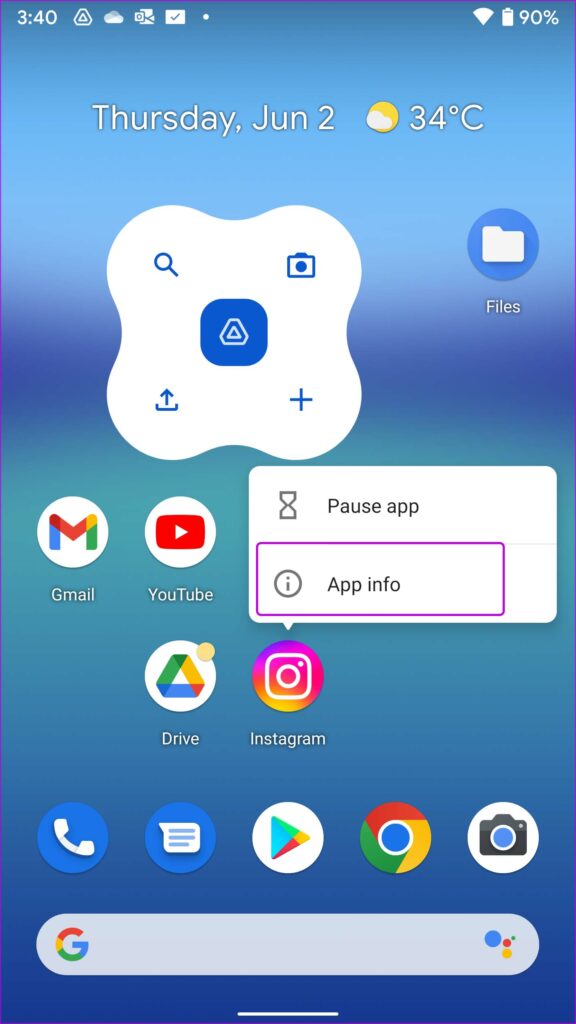
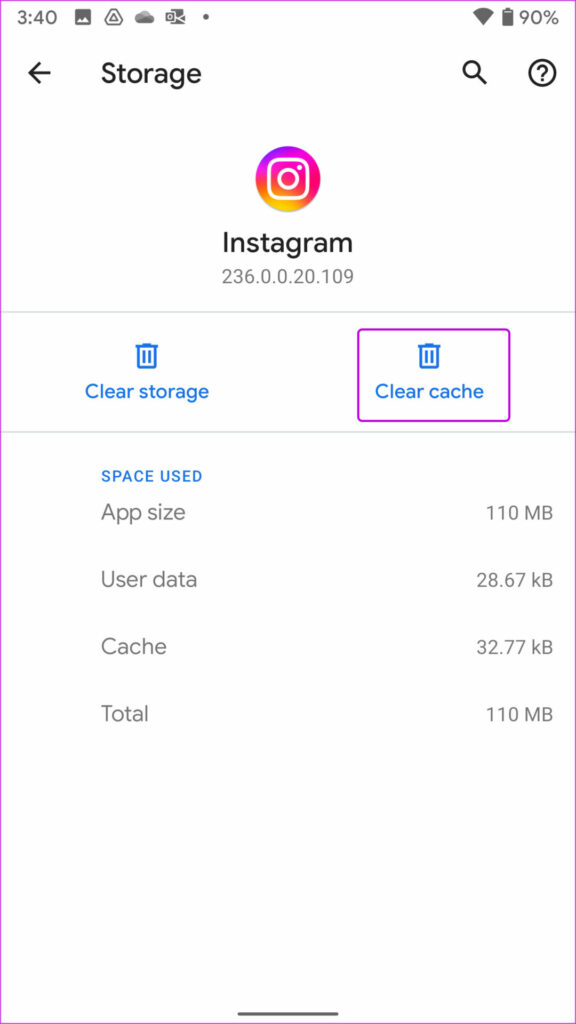
Fix 2. Clear Instagram Cache (Android)
This trick applies to power Instagram users. Your Instagram experience might bog down due to heavy use and high cache data. Remove the Instagram cache on Android and try again.
Step 1: Long-tap on the Instagram app icon > open the app info menu.
Step 2: Go to the Storage & cache menu > tap Clear cache from the following menu.

Fix 3. Report the Problem to Instagram
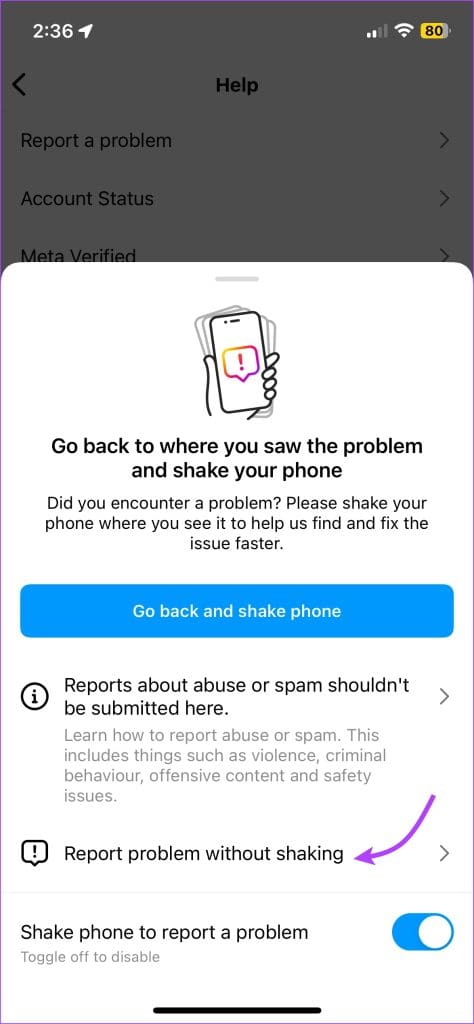
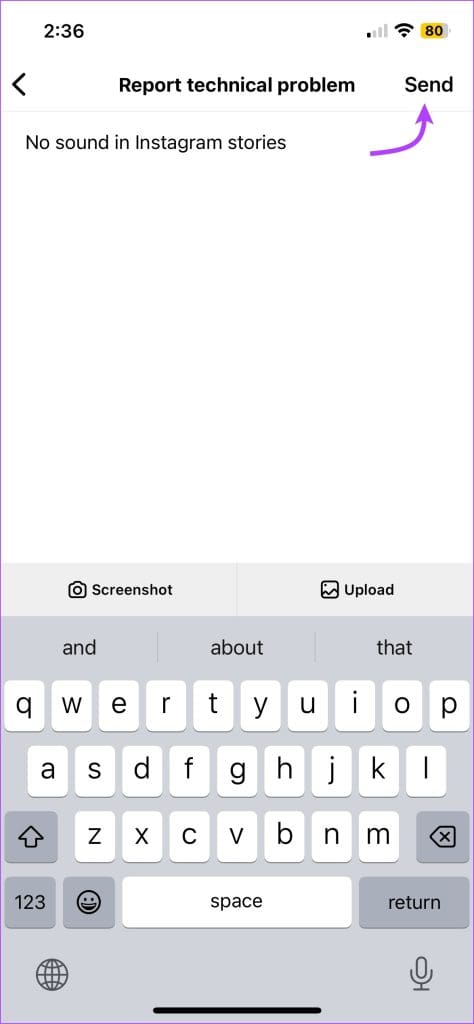
If your Instagram Story sound is still not working, it’s time to complain to the developers. The Meta team usually addresses such problems promptly and helps resolve the issue.
Step 1: Open the Instagram app → Profile tab. Tap the three-line icon (menu) and select Settings.
Step 2: Scroll down and select Help. Choose Report a Problem.


Step 3: In the pop-up window, select Report problem without shaking.
Step 4: Briefly describe the problem you’re facing and tap Send.
Was this helpful?
Last updated on 10 July, 2024
1 Comment
Leave a Reply
Read Next
 Top 9 Ways to Fix Facebook Video or Story Sound Not Working
Although Facebook isn’t as popular as before, it still plays a major role for millions to stay in touch with friends and family.
Top 9 Ways to Fix Facebook Video or Story Sound Not Working
Although Facebook isn’t as popular as before, it still plays a major role for millions to stay in touch with friends and family.
 Facebook Story vs Messenger Story: Similarities and Differences
Key Differences and Similarities FeatureFacebook StoriesMessenger StoriesCross-PostingFacebook Stories are visible to Messenger contacts.Messenger Stories are visible to Facebook friends.AvailabilityAvailable on mobile apps and the Facebook website.Available only on the mobile
Facebook Story vs Messenger Story: Similarities and Differences
Key Differences and Similarities FeatureFacebook StoriesMessenger StoriesCross-PostingFacebook Stories are visible to Messenger contacts.Messenger Stories are visible to Facebook friends.AvailabilityAvailable on mobile apps and the Facebook website.Available only on the mobile
 3 Ways to Fix Sound Not Working on Instagram Reels
Basic Troubleshooting Unmute/raise the volume: When your phone is silent, Instagram mutes the video on the home feed and the Reels tab.
3 Ways to Fix Sound Not Working on Instagram Reels
Basic Troubleshooting Unmute/raise the volume: When your phone is silent, Instagram mutes the video on the home feed and the Reels tab.
 3 Ways to Fix Instagram Story Stuck at Posting
https://youtu.be/qYHxqdYAYzw Fix 1: Some Basic Solutions Restart your phone: A simple restart will reset all apps on your phone and should fix the issue.
3 Ways to Fix Instagram Story Stuck at Posting
https://youtu.be/qYHxqdYAYzw Fix 1: Some Basic Solutions Restart your phone: A simple restart will reset all apps on your phone and should fix the issue.
 4 Ways to Fix Instagram Story Not Uploading on iPhone and Android
Basic Fixes Check if Instagram is down: Check if Instagram is facing downtime.
4 Ways to Fix Instagram Story Not Uploading on iPhone and Android
Basic Fixes Check if Instagram is down: Check if Instagram is facing downtime.
 3 Ways to Fix “This Story Is Unavailable” on Instagram
What Does Story Unavailable Mean on Instagram?
3 Ways to Fix “This Story Is Unavailable” on Instagram
What Does Story Unavailable Mean on Instagram?
 How to Delete a Story on Instagram and What to Do if You Can’t Delete It
How to Delete a Live Story on IG Once you upload a story on Instagram, it lasts for 24 hours.
How to Delete a Story on Instagram and What to Do if You Can’t Delete It
How to Delete a Live Story on IG Once you upload a story on Instagram, it lasts for 24 hours.
 How to Share Comments on Instagram Story
Instagram stories are an easy way to share updates with your followers quickly.
How to Share Comments on Instagram Story
Instagram stories are an easy way to share updates with your followers quickly.
The article above may contain affiliate links which help support Guiding Tech. The content remains unbiased and authentic and will never affect our editorial integrity.


None of this works. Instagram needs to fix this bug.