Try Basic Fixes
- End Discord processes: Press Ctrl + Shift + Esc to launch the Task Manager. In the Processes tab, right-click on the Discord entry and choose the End task option. This will end all the Discord processes and resolve any issues.
- Run Discord as an administrator: Sometimes, an app like Discord may fail to launch if your user account doesn’t have the correct permissions. To overrule this, you can try running Discord with admin rights. Right-click on the Discord app icon and select Run as administrator from the resulting menu.
- Disable VPN or proxy service: Using a VPN or proxy connection can sometimes prevent Discord from opening or becoming stuck on your Windows PC. To avoid this, you can try disabling your VPN or proxy app temporarily and see if that helps.
- Update the Discord app: App updates usually bring all kinds of bug fixes and improvements to the app. If the Discord not opening issue is related to the current app version you’re on, then updating it from the Microsoft Store should help.
Fix 1: Correct the Date and Time on Your PC
Another reason why Discord might fail to open is if your PC is set to an incorrect date or time. You can configure your PC to use the internet-provided date and time to avoid this. Here’s how.
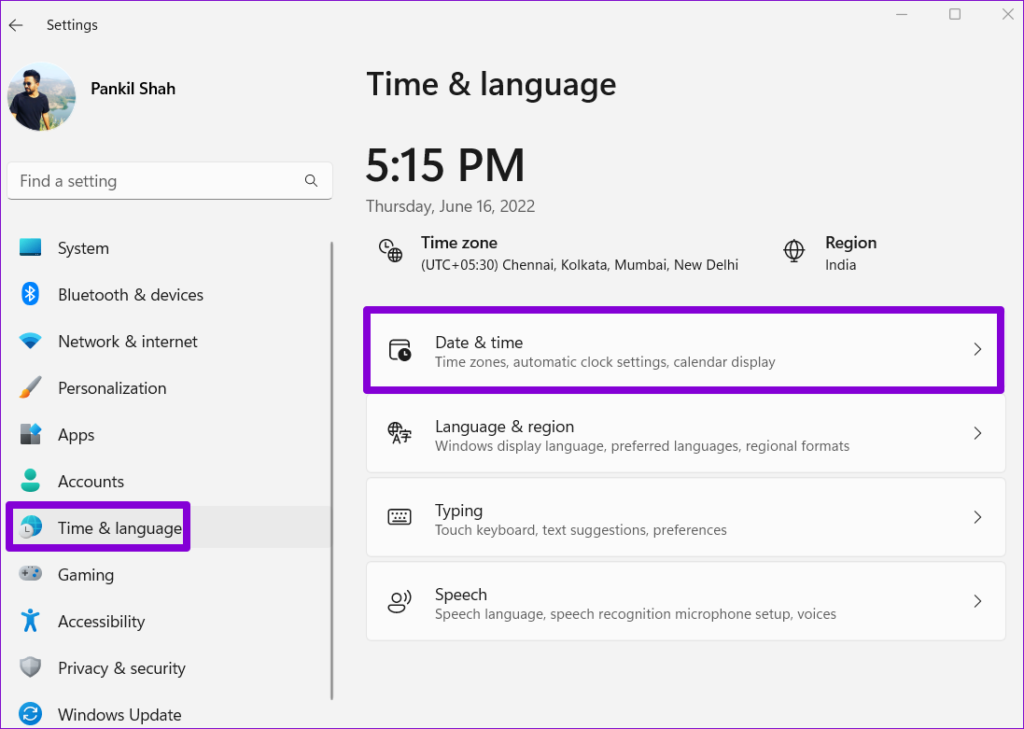
Step 1: Press the Windows key + I to open Settings. Navigate to Time & language tab and click on Date & time.
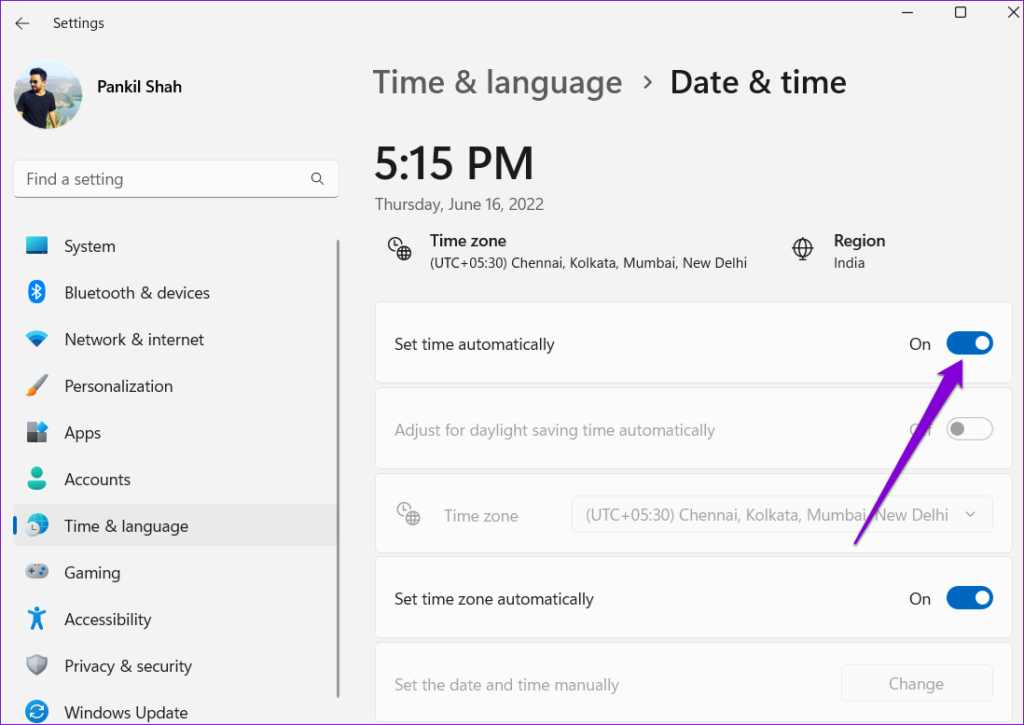
Step 2: Toggle on the toggle next to Set time automatically.
Fix 2: Clear Discord App Data
If the Discord app data on your PC has become inaccessible or corrupted, it might fail to launch. You can delete the app data from your PC and relaunch Discord.
Step 1: Press the Windows key + R to launch the Run command dialog box. Type %appdata%\discord in it and press Enter.
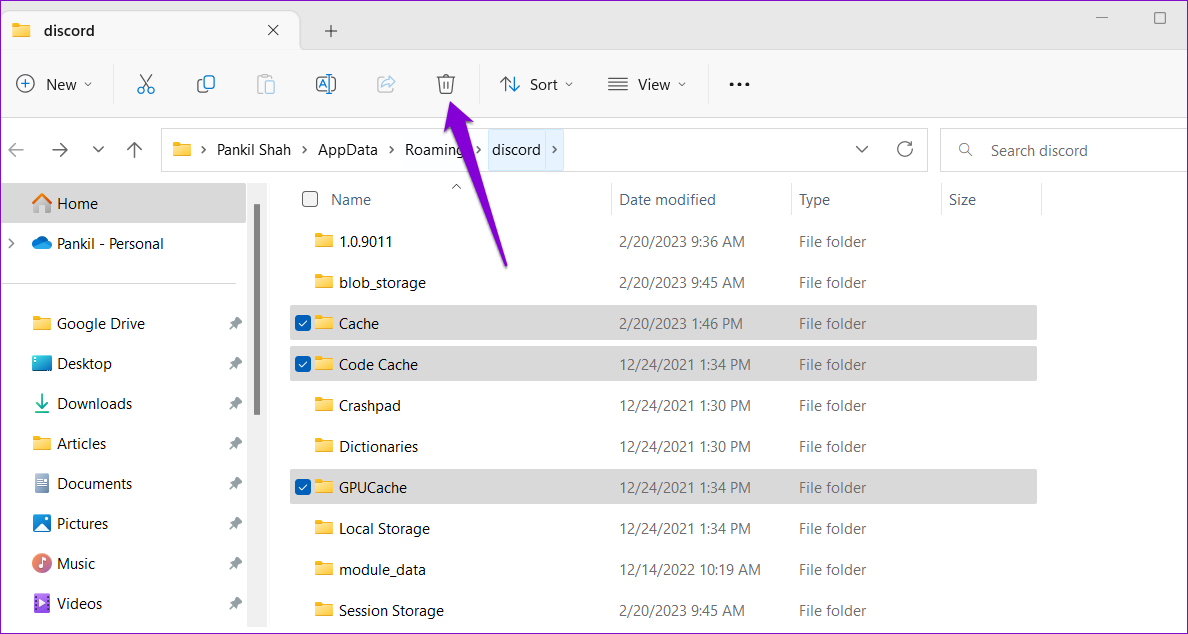
Step 2: In the File Explorer window that opens, delete the following folders: Cache, Code Cache, and GPUCache.
Try to open the Discord app again and see if that works.
Was this helpful?
Last updated on 07 August, 2024
Read Next
 6 Ways to Fix Windows Security Not Opening or Working on Windows 11
Try Basic Fixes Uninstall any third-party antivirus program: Third-party antivirus programs can sometimes interfere with the Windows Security app and prevent it from opening on your Windows 11 PC.
6 Ways to Fix Windows Security Not Opening or Working on Windows 11
Try Basic Fixes Uninstall any third-party antivirus program: Third-party antivirus programs can sometimes interfere with the Windows Security app and prevent it from opening on your Windows 11 PC.
 4 Ways to Fix Firefox Not Opening on Windows 10 and Windows 11
Fix 1: Force Close Firefox Processes Sometimes, Firefox processes may become unresponsive on your PC, resulting in such issues.
4 Ways to Fix Firefox Not Opening on Windows 10 and Windows 11
Fix 1: Force Close Firefox Processes Sometimes, Firefox processes may become unresponsive on your PC, resulting in such issues.
 4 Ways to Fix Windows Terminal Not Opening on Windows 11
Fix 1: Ensure Windows Terminal Is Not Disabled If you cannot launch Windows Terminal via the Start menu or Run dialog box, ensure the app is not disabled on your
4 Ways to Fix Windows Terminal Not Opening on Windows 11
Fix 1: Ensure Windows Terminal Is Not Disabled If you cannot launch Windows Terminal via the Start menu or Run dialog box, ensure the app is not disabled on your
 Top 8 Ways to Fix File Explorer Not Opening on Windows 10
File Explorer is an integral part of Windows 10 OS.
Top 8 Ways to Fix File Explorer Not Opening on Windows 10
File Explorer is an integral part of Windows 10 OS.
 Top 9 Ways to Fix Microsoft Store Not Opening on Windows 10
Microsoft plans to revamp its Store on Windows from scratch sometime in the future.
Top 9 Ways to Fix Microsoft Store Not Opening on Windows 10
Microsoft plans to revamp its Store on Windows from scratch sometime in the future.
 3 Ways to Fix Chrome Not Opening on Windows 11
Try Basic Fixes Force close Chrome using Task Manager and try again: Press Ctrl + Shift + Esc to open the Task Manager.
3 Ways to Fix Chrome Not Opening on Windows 11
Try Basic Fixes Force close Chrome using Task Manager and try again: Press Ctrl + Shift + Esc to open the Task Manager.
 3 Ways to Fix Control Panel Not Opening on Windows 11
Common Fixes Update Windows 11: Press the Windows + I shortcut to open the Settings app, select Windows Update from the left sidebar, and install available system updates.
3 Ways to Fix Control Panel Not Opening on Windows 11
Common Fixes Update Windows 11: Press the Windows + I shortcut to open the Settings app, select Windows Update from the left sidebar, and install available system updates.
 5 Ways to Fix Services Not Opening on Windows 11
Fix 1: Check Default File Association for MSC Files MSC (Microsoft Saved Console) files on your computer store information about various systems and third-party services.
5 Ways to Fix Services Not Opening on Windows 11
Fix 1: Check Default File Association for MSC Files MSC (Microsoft Saved Console) files on your computer store information about various systems and third-party services.
The article above may contain affiliate links which help support Guiding Tech. The content remains unbiased and authentic and will never affect our editorial integrity.