Fix 1: Change Display Resolution and Scale
One of the most common causes of a blurry Windows 11 screen is the incorrect display resolution or scale. Hence, it’s the first thing you should check.
Step 1: Press the Windows + I keys to launch the Settings app and go to System > Display.
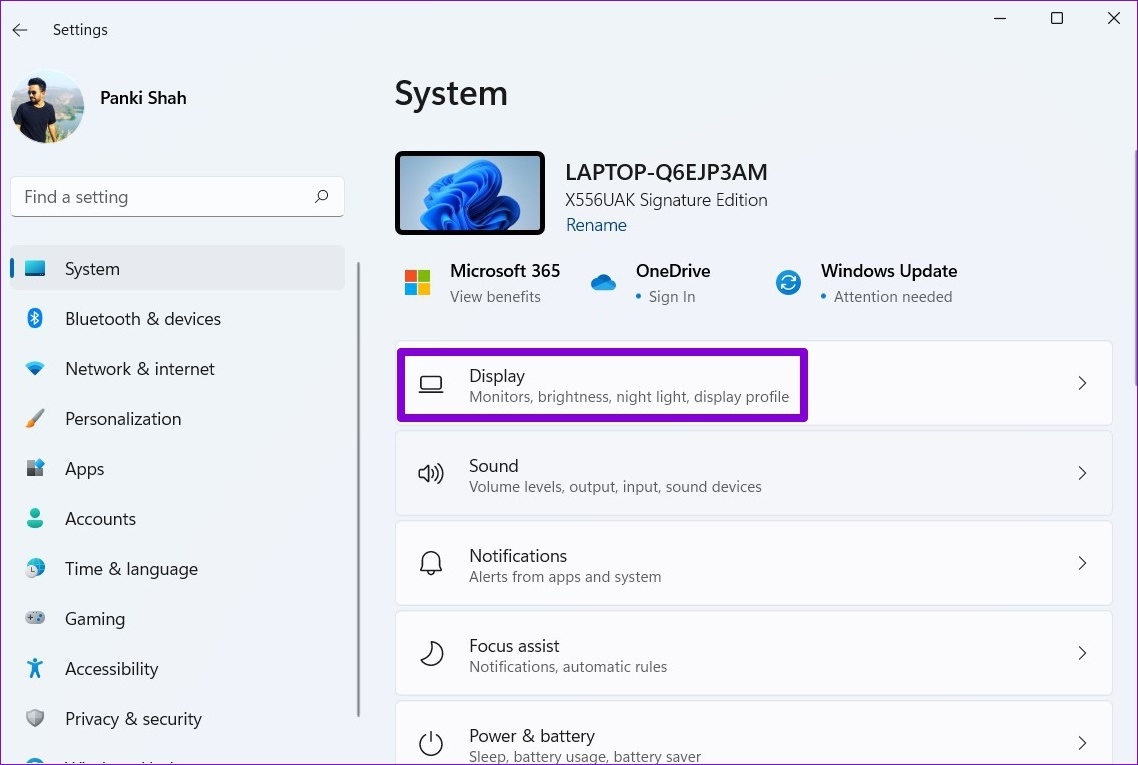
Step 2: Under Scale & layout, use the drop-down menu next to Display resolution > select the recommended option.
Step 3: Use the drop-down menu next to Scale to select the recommended value.

Fix 2: Turn on ClearType Text
If the text on your Windows 11 PC still appears blurry, you can make it sharper using the ClearType Text Tuner on Windows. Here’s how.
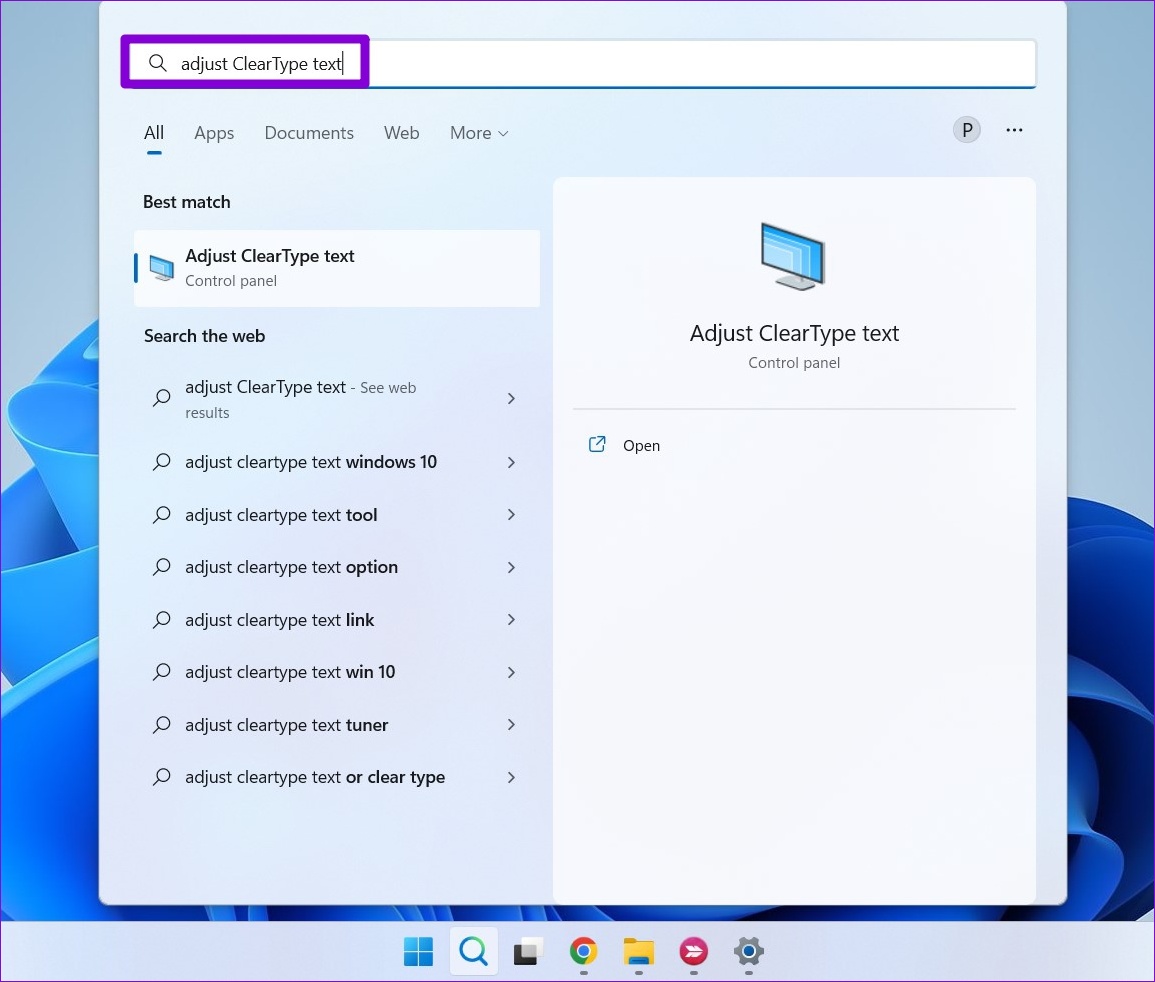
Step 1: Press the Windows + S keys to open the search menu. Type adjust cleartype text in the box and press Enter.
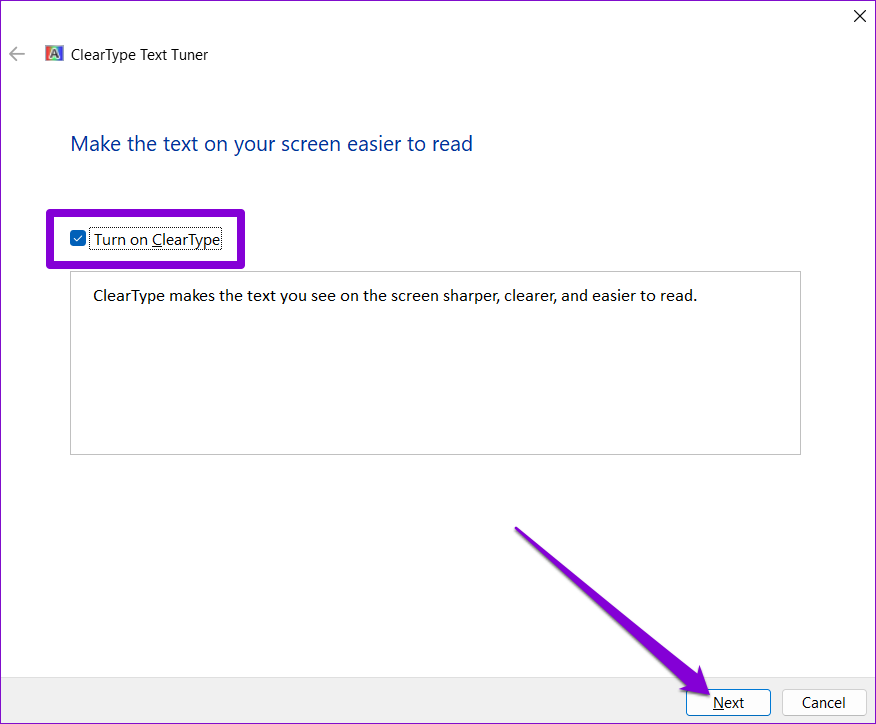
Step 2: Check the box for Turn on ClearType and click Next.
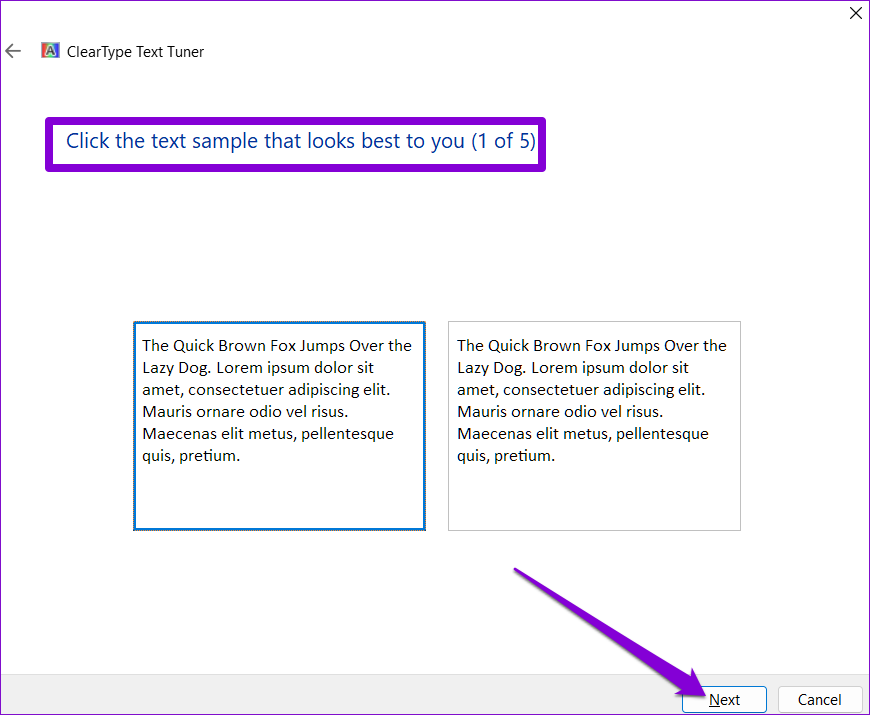
Step 3: You’ll see two samples of text. Select the one that looks best to you and hit Next. You’ll have to perform this exercise five times for different samples.
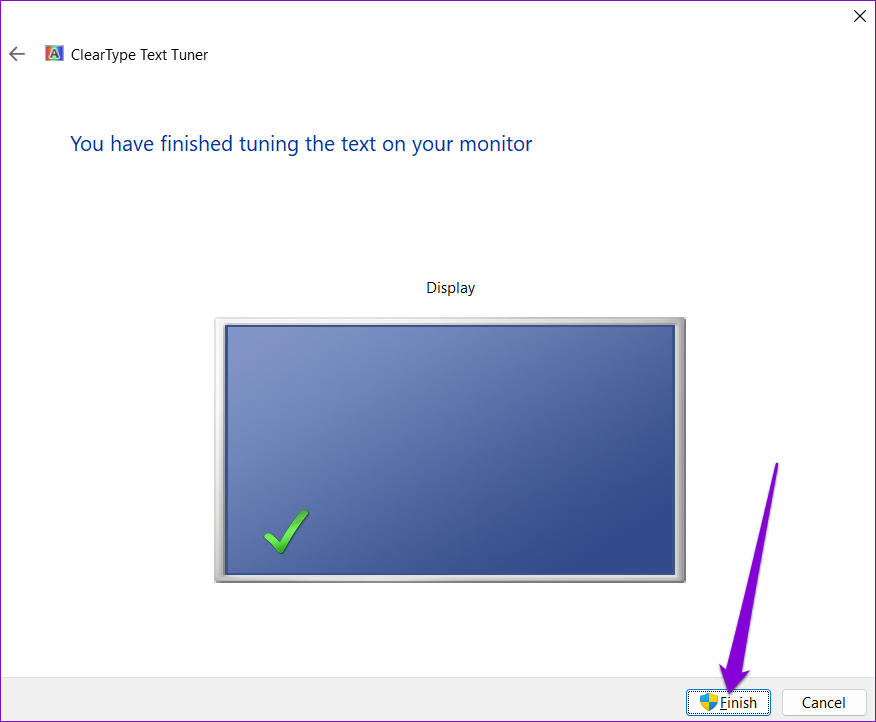
Step 4: Click Finish to apply the changes.
Fix 3: Change DPI Settings for Programs
If you face the blurry screen issue in a specific program, configure its DPI settings and see if that helps.
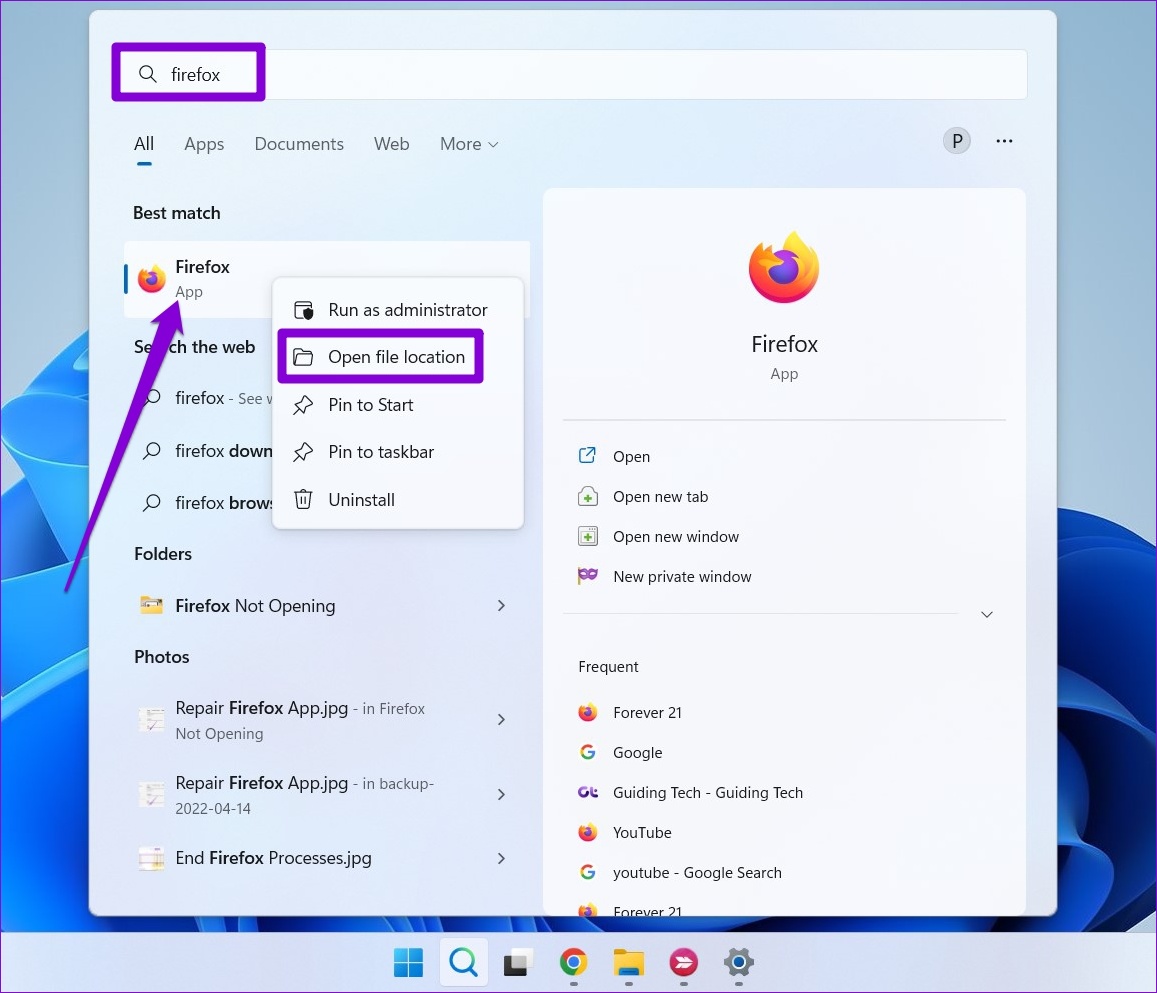
Step 1: Press the Windows key + S to open the search menu. Type the name of the program that’s appearing blurry. Right-click on the first result and select Open file location.
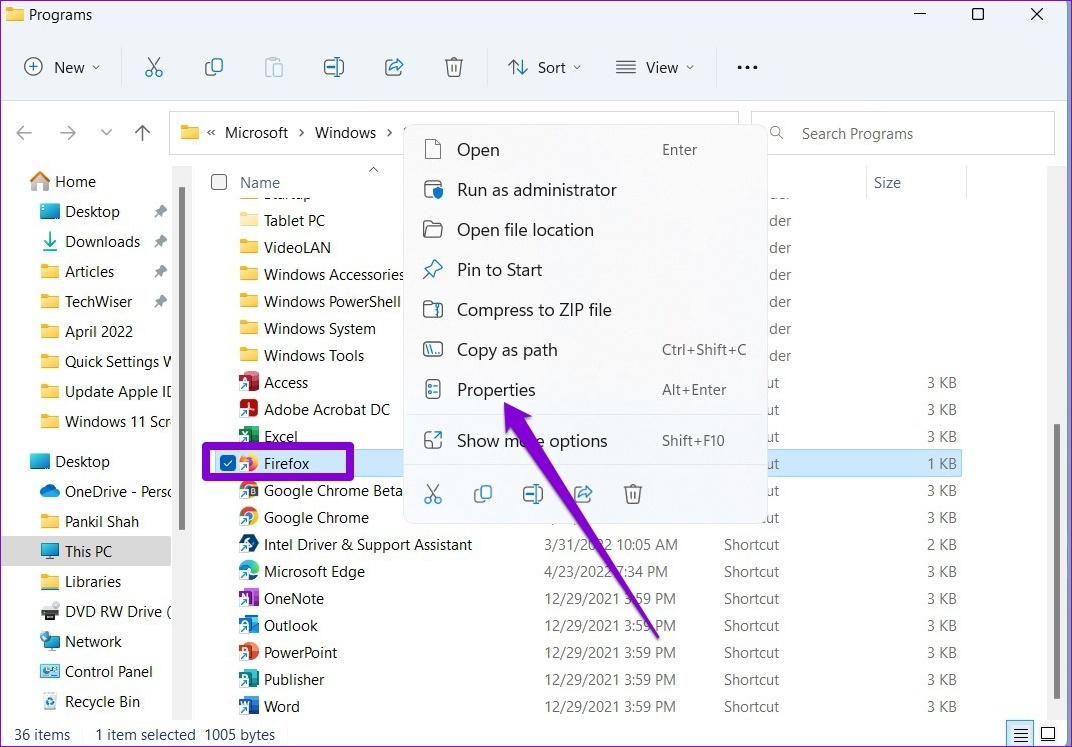
Step 2: In the File Explorer window, right-click on the program and select Properties.
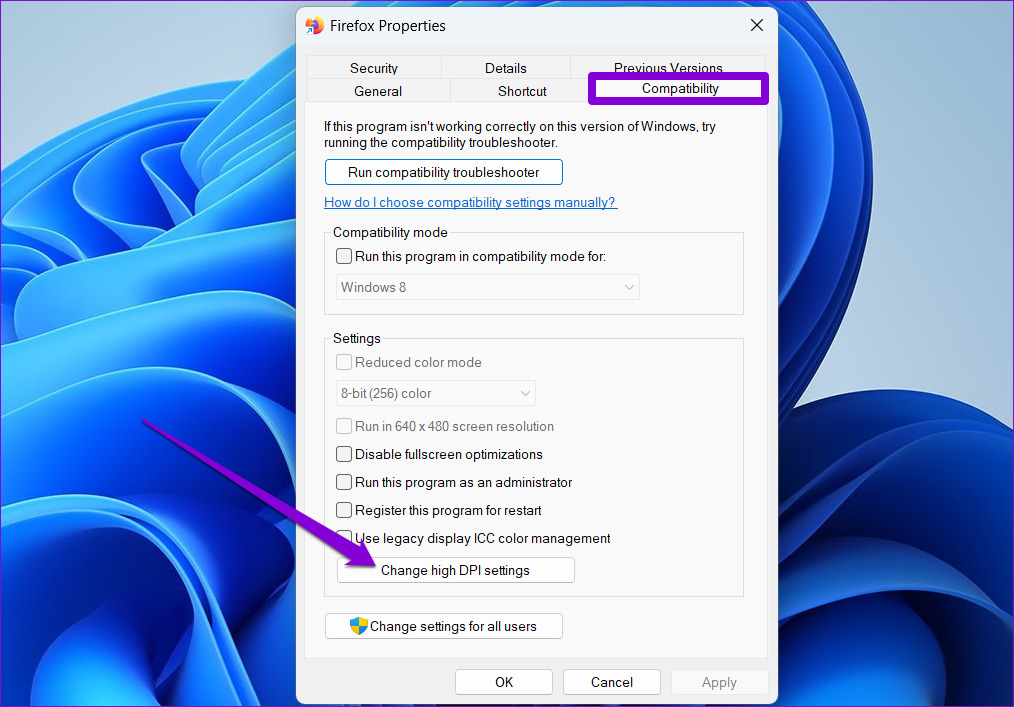
Step 3: In the Properties window, go to the Compatibility tab > click Change high DPI settings.
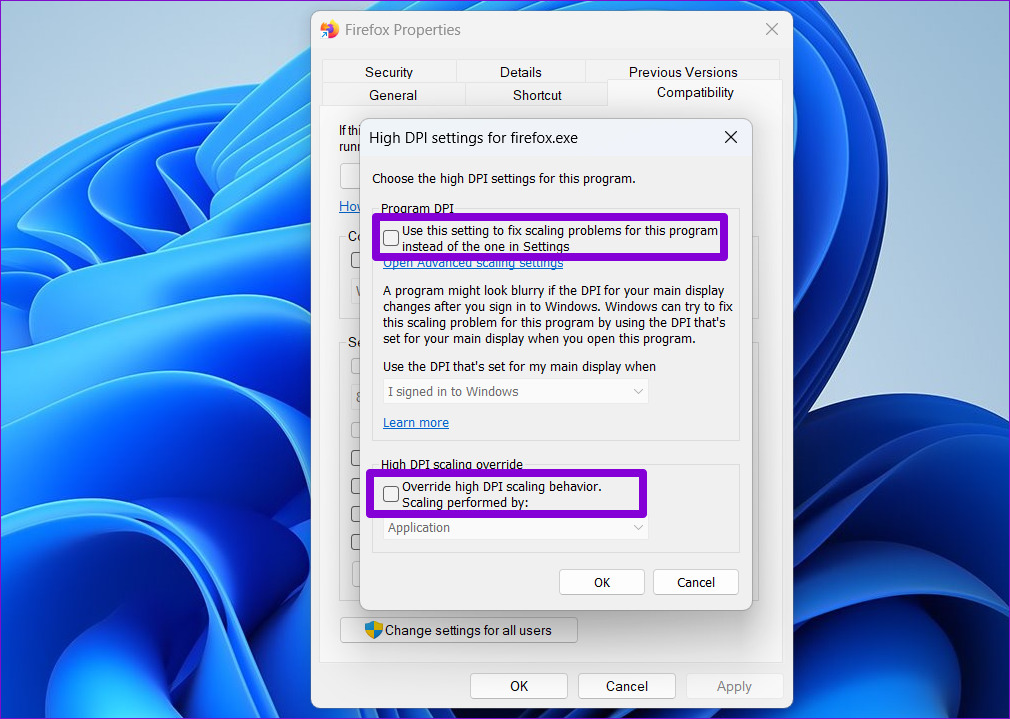
Step 4: Mark the boxes for Use this setting to fix scaling problems for this program instead of the one in Settings and Override high DPI scaling behavior.
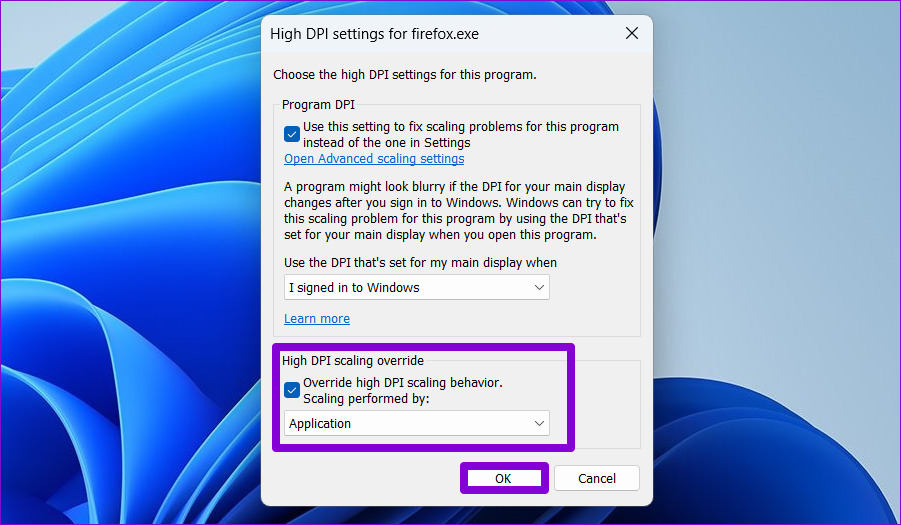
Step 5: Use the drop-down menu under Scaling performed by to select Application. Then, click OK.
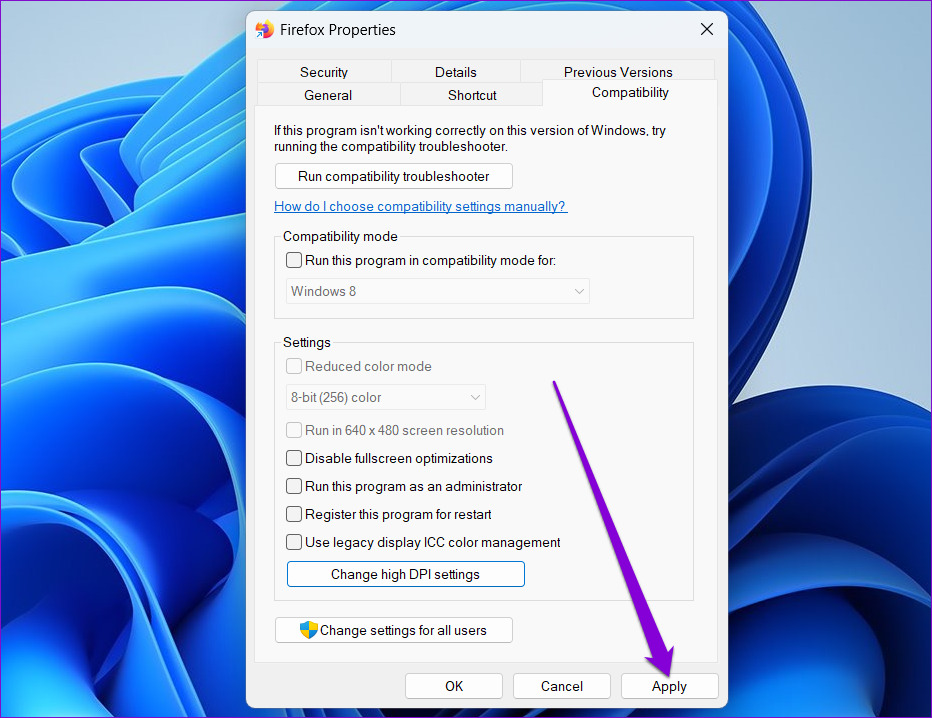
Step 6: Hit Apply to save changes.
Fix 4: Tweak Performance Options
If you recently tweaked Windows performance options to disable animation or other visual effects, the text or menus may appear blurry. Here’s how to change that.
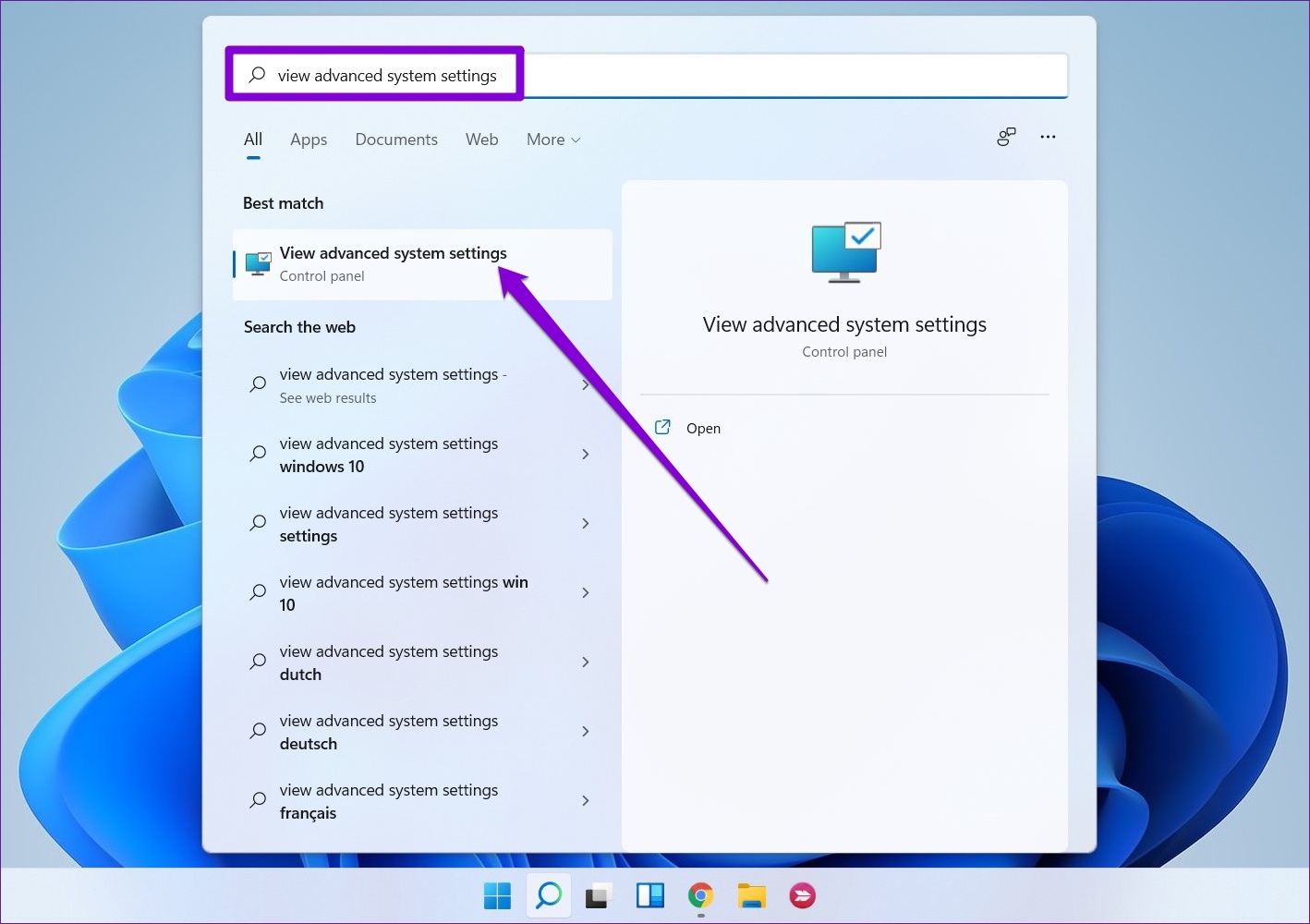
Step 1: Open the search menu, type view advanced system settings, and select the first result.
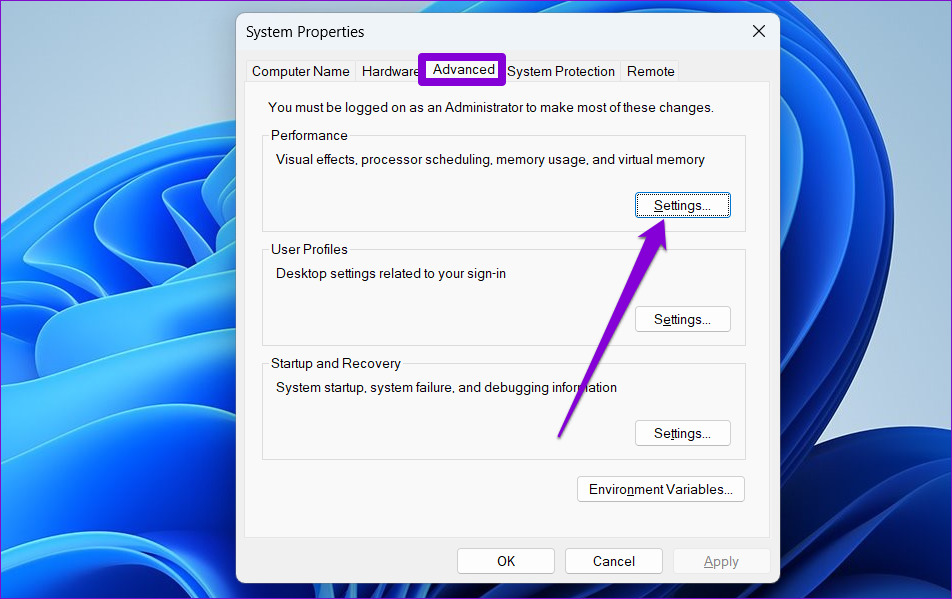
Step 2: In the System Properties window, switch to the Advanced tab and click on Settings under Performance.
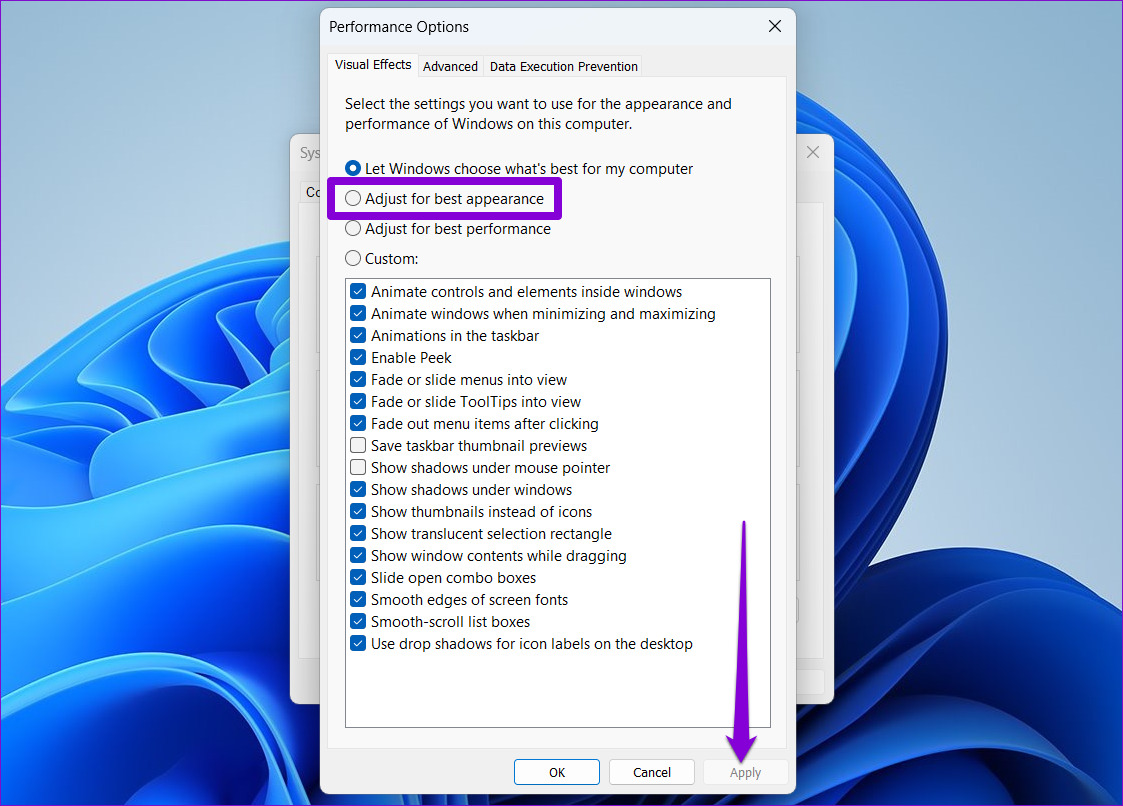
Step 3: Select Adjust for best appearance under the Visual Effects tab and hit Apply to save changes.
Fix 5: Update Display Drivers
Lastly, if the screen still appears blurry on Windows 11, there might be an issue with the current display driver on your PC. In that case, update display drivers to fix the issue.
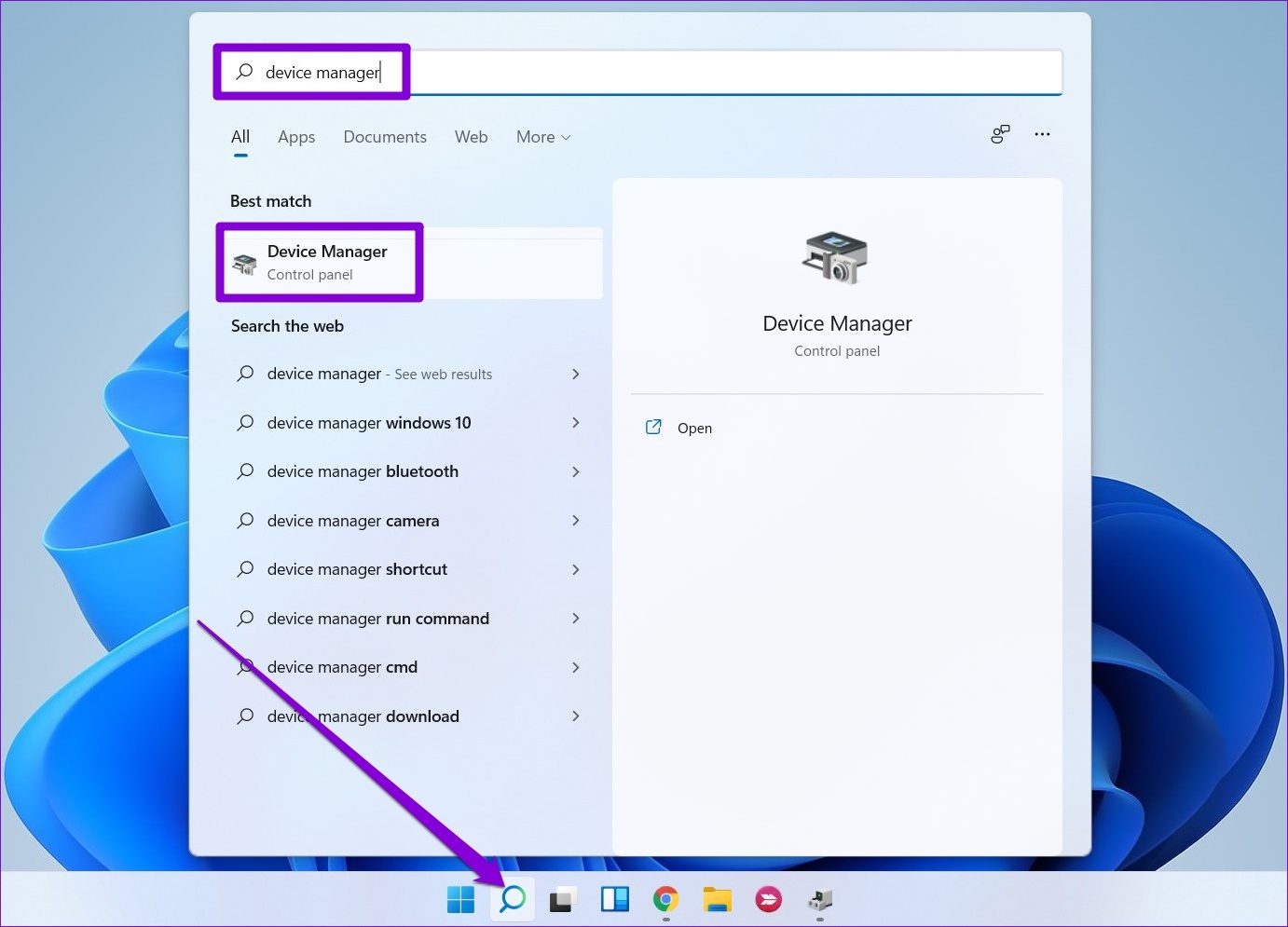
Step 1: Press the Windows + S keys to open Windows Search, type device manager, and press Enter.
Step 2: In the Device Manager window, expand Display adapters > right-click on your graphics card > select Update driver.
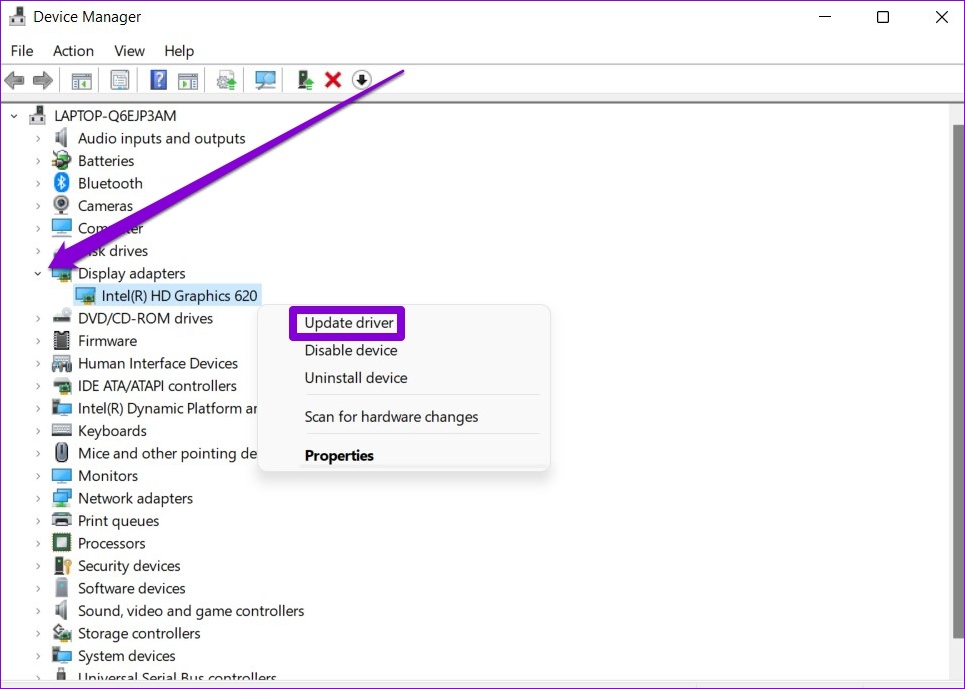
From there, follow the on-screen prompts to finish updating those drivers. After that, restart your PC to see if the issue is resolved.
Was this helpful?
Last updated on 30 July, 2024
Read Next
 5 Ways to Fix Blurry Home or Lock Screen Wallpaper on iPhone
Fix 1: Check if the Wallpaper Resolution Fits Your iPhone's Screen If you have downloaded a wallpaper, check its resolution and ensure that it matches the screen resolution of your
5 Ways to Fix Blurry Home or Lock Screen Wallpaper on iPhone
Fix 1: Check if the Wallpaper Resolution Fits Your iPhone's Screen If you have downloaded a wallpaper, check its resolution and ensure that it matches the screen resolution of your
 How to Fix Your Mac Screen Looking Blurry
Preliminary Fixes Restart your Mac: Sometimes, a restart can resolve temporary glitches, including display glitches.
How to Fix Your Mac Screen Looking Blurry
Preliminary Fixes Restart your Mac: Sometimes, a restart can resolve temporary glitches, including display glitches.
 How to Fix Blurry Webcam or Laptop Camera on Windows 11
Basic Fixes Inspect your webcam: Adjust the webcam focus ring or remove its protective layer causing the blur.
How to Fix Blurry Webcam or Laptop Camera on Windows 11
Basic Fixes Inspect your webcam: Adjust the webcam focus ring or remove its protective layer causing the blur.
 A Complete Guide to Fixing Blurry Text in Windows 10
Microsoft’s Windows 10 operating system enjoys a comfortable lead over the rivals in the desktop OS market share.
A Complete Guide to Fixing Blurry Text in Windows 10
Microsoft’s Windows 10 operating system enjoys a comfortable lead over the rivals in the desktop OS market share.
 3 Ways to Fix Blurry Text in Google Chrome
Fix 1: Disable Hardware Acceleration When you disable hardware acceleration, you offload graphics processing tasks from the computer's graphics card to the central processing unit, which is helpful if the
3 Ways to Fix Blurry Text in Google Chrome
Fix 1: Disable Hardware Acceleration When you disable hardware acceleration, you offload graphics processing tasks from the computer's graphics card to the central processing unit, which is helpful if the
 5 Ways to Fix Blurry iMessage Photos and Videos
Before you begin, ensure there's no problem with network connectivity on your iPhone, and restart your iPhone to fix temporary bugs.
5 Ways to Fix Blurry iMessage Photos and Videos
Before you begin, ensure there's no problem with network connectivity on your iPhone, and restart your iPhone to fix temporary bugs.
 4 Ways to Fix Blurry Stories on Instagram
Stories on Instagram are a great way to share the moments that you cherish, with your friends and followers.
4 Ways to Fix Blurry Stories on Instagram
Stories on Instagram are a great way to share the moments that you cherish, with your friends and followers.
 Why Do Photos Get Blurry on WhatsApp Status: 3 Ways to Fix This
https://youtu.be/k2MGRKNamFQ Basic Fixes Switch to the stable version of WhatsApp: While beta versions give you early access to new features and cool tricks, they may also introduce several bugs and
Why Do Photos Get Blurry on WhatsApp Status: 3 Ways to Fix This
https://youtu.be/k2MGRKNamFQ Basic Fixes Switch to the stable version of WhatsApp: While beta versions give you early access to new features and cool tricks, they may also introduce several bugs and
The article above may contain affiliate links which help support Guiding Tech. The content remains unbiased and authentic and will never affect our editorial integrity.