


Before you begin, ensure there’s no problem with network connectivity on your iPhone, and restart your iPhone to fix temporary bugs.
Fix 1: Disable Low-Quality Image Mode in iMessage Settings
Your iPhone has a setting that limits the resolution and quality of an image sent from iMessage. The iPhone does that to save storage space and internet bandwidth. However, this can cause blurry images in some instances.
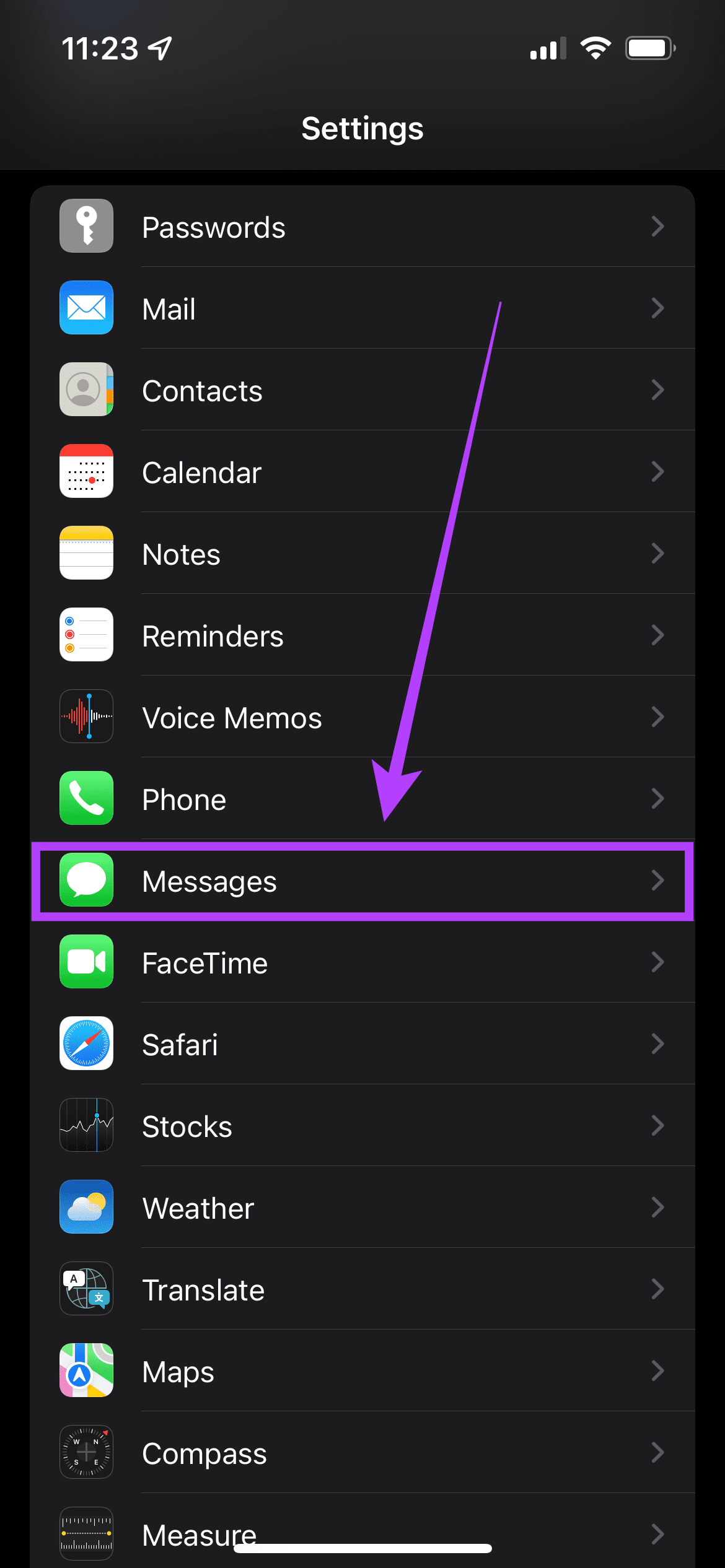
Open Settings > Messages and turn off Low Quality Mode.

Also Read: How to fix iMessage “Not Delivered” error on iPhone
Fix 2: Disable Low Data Mode
If you’re asking why are photos and videos sent to me blurry on my iPhone – the low data mode may be the culprit. This can result in lower-quality images or videos being sent via iMessage or can provide limited internet connectivity while you receive images or videos.
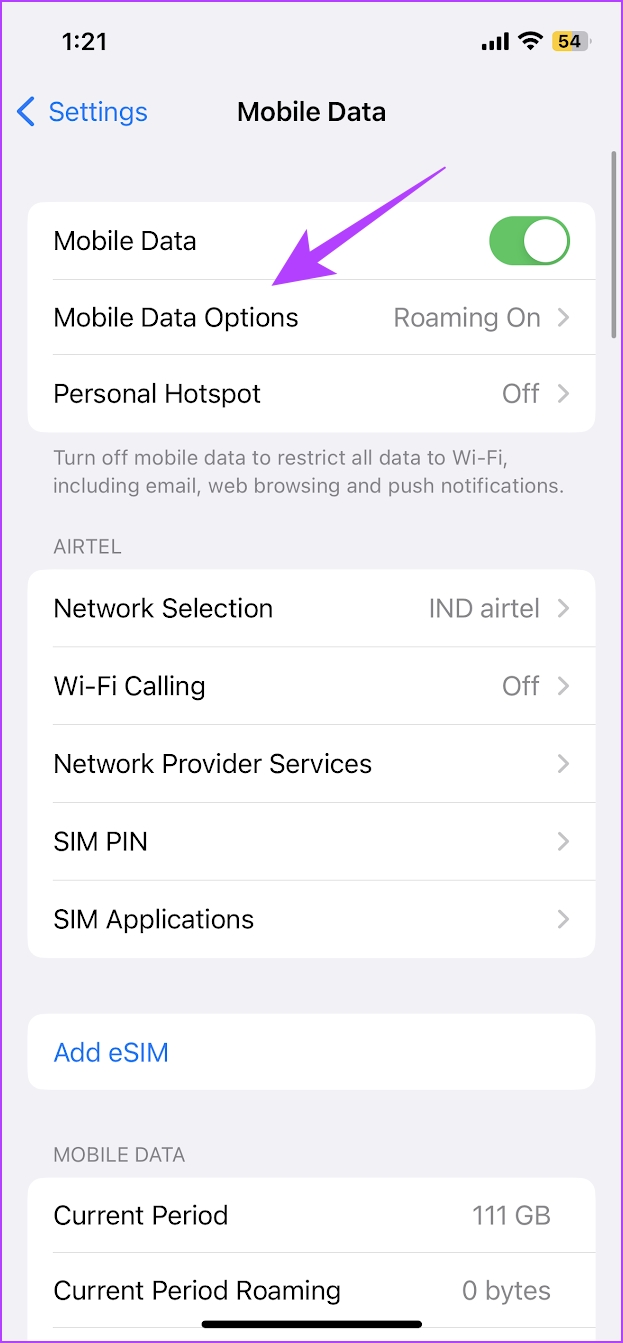
Step 1: Open Settings > tap on Cellular Data/Mobile data.
Step 2: Tap on Mobile Data Options (or Cellular Data Options).
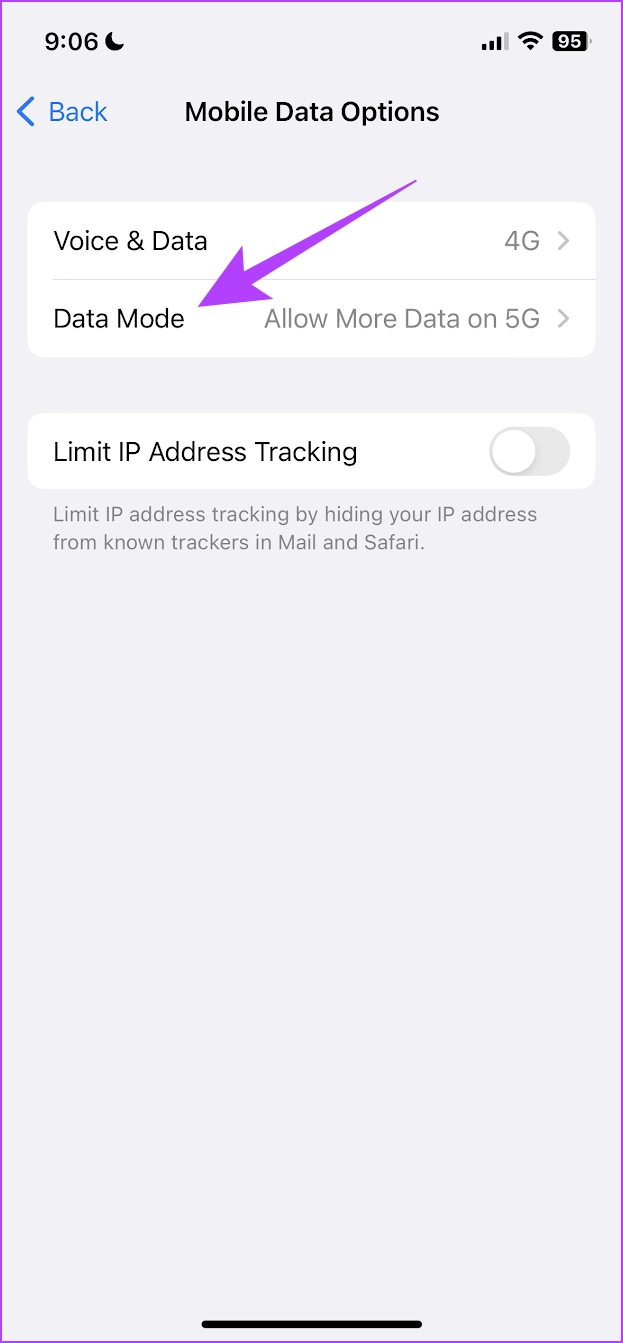
Step 3: Tap on Data Mode. Ensure you haven’t selected Low Data Mode. Select Allow More Data on 5G or Standard.

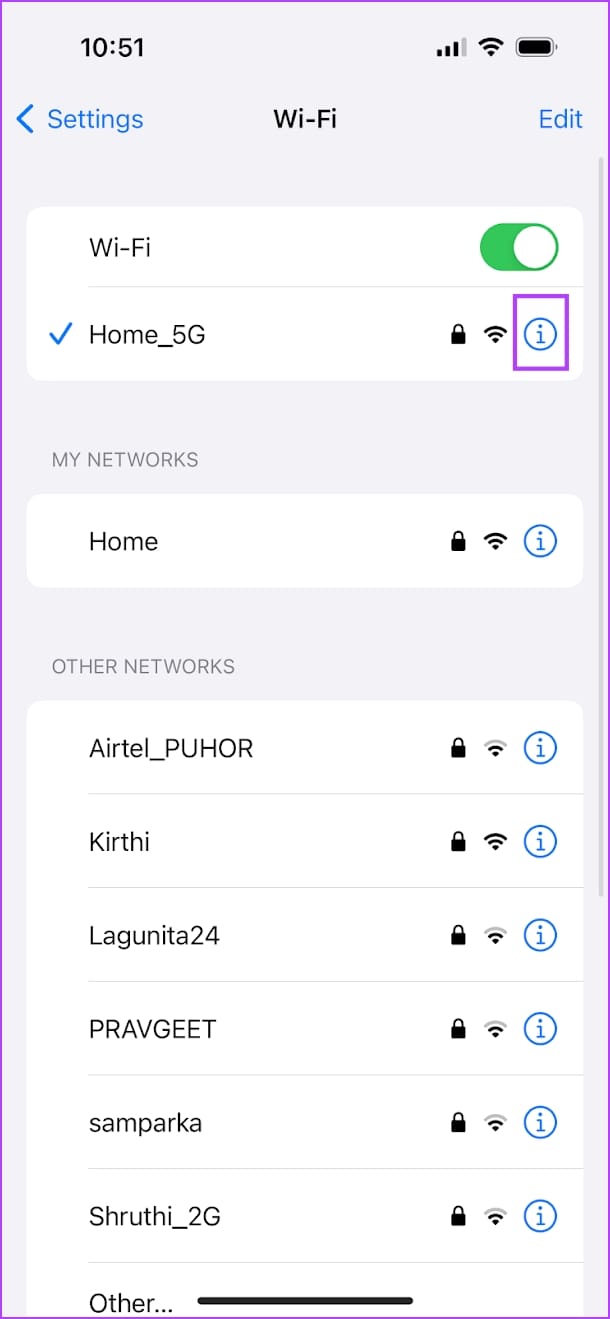
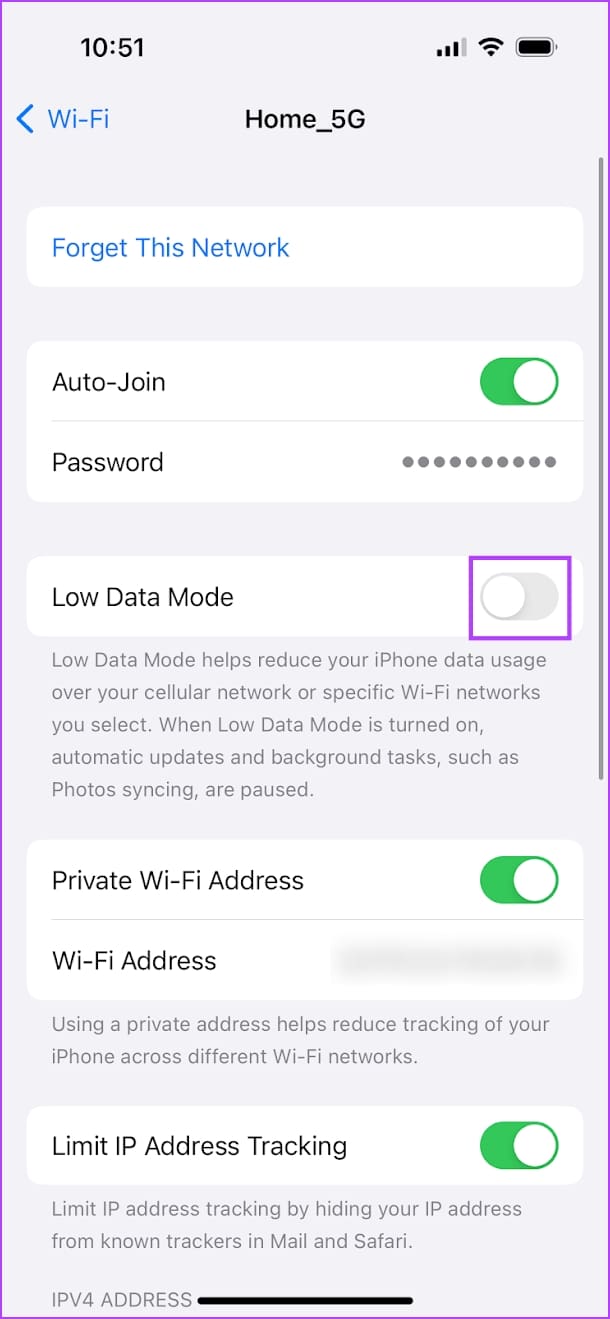
Additionally, ensure you’ve not enabled Low Data Mode for Wi-Fi networks as well. Open the Settings app > tap on Wi-Fi > tap on the info icon next to the connected network > turn off the toggle for Low Data Mode.
Fix 3: Disable Low Power Mode
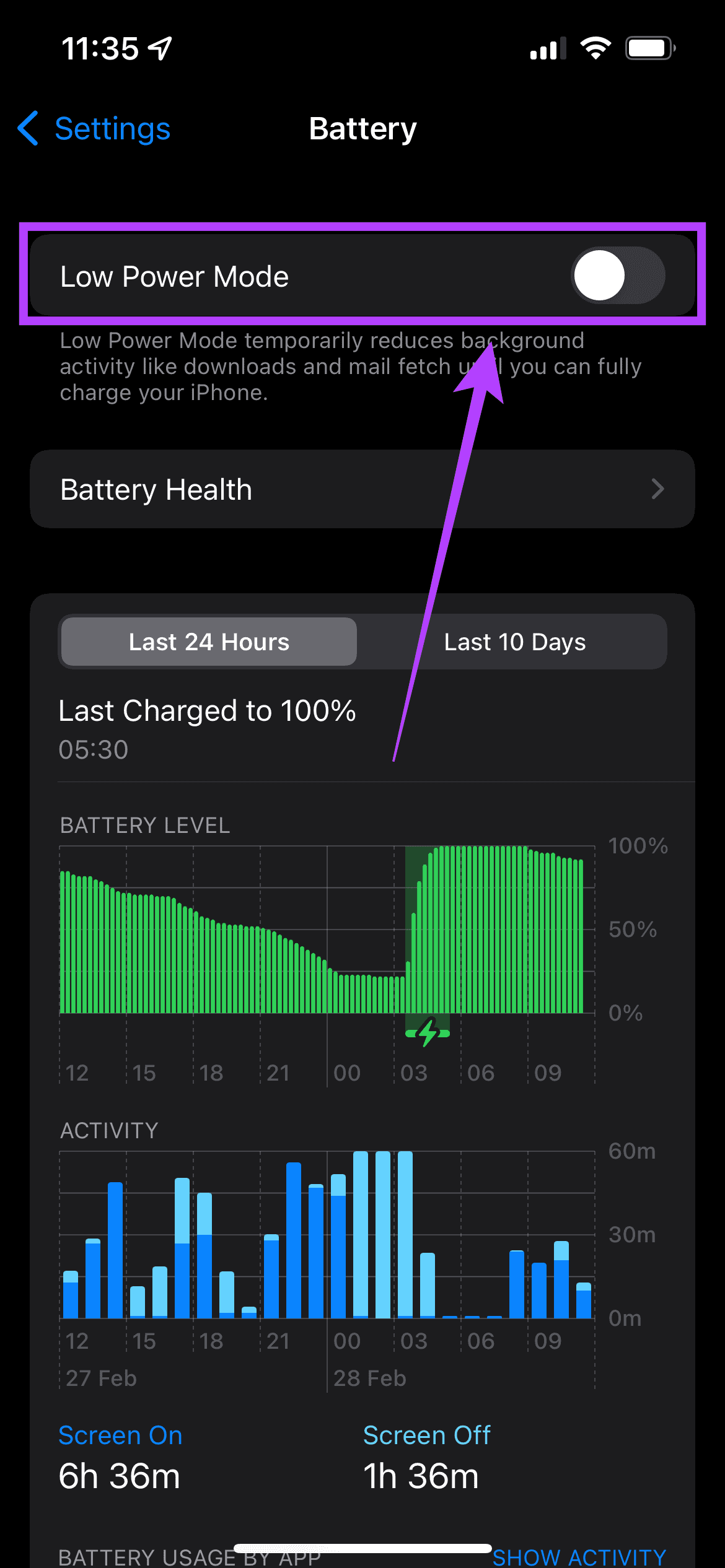
Your iPhone may have automatically switched on the ‘Low Power Mode’ if it is running low on battery. You may also have enabled it manually to conserve battery. Low Power Mode is a good way to make your iPhone last longer, but it comes at the expense of limited connectivity. This could be one of the reasons for blurry iMessage photos and videos. Here’s how you can turn it off.
Open the Settings app, go to Battery > Low Power Mode, and turn it off.

Fix 4: Ensure That the Photo or Video You’re Sending Has a High Resolution
Changing any number of settings on your iPhone will not make any difference if the quality of the media you’re sending is poor. A higher resolution implies better-quality content.
Step 1: Open the Photos app, open the photo, and tap on the info button.
Step 3: You can see the resolution of the photo listed in the details.
Anything above 1280 x 720 pixels is considered HD. So send an image with a resolution greater than that.
Similarly, check the quality of the video, and ensure that it is at least present in the 720p resolution.


Fix 5: Reset Network Settings
If none of the above methods help you fix the problem, then you can try to reset the network settings on your iPhone. If iMessage is not able to utilize the internet connectivity on your iPhone due to a few misconfigurations and bugs – this will help.
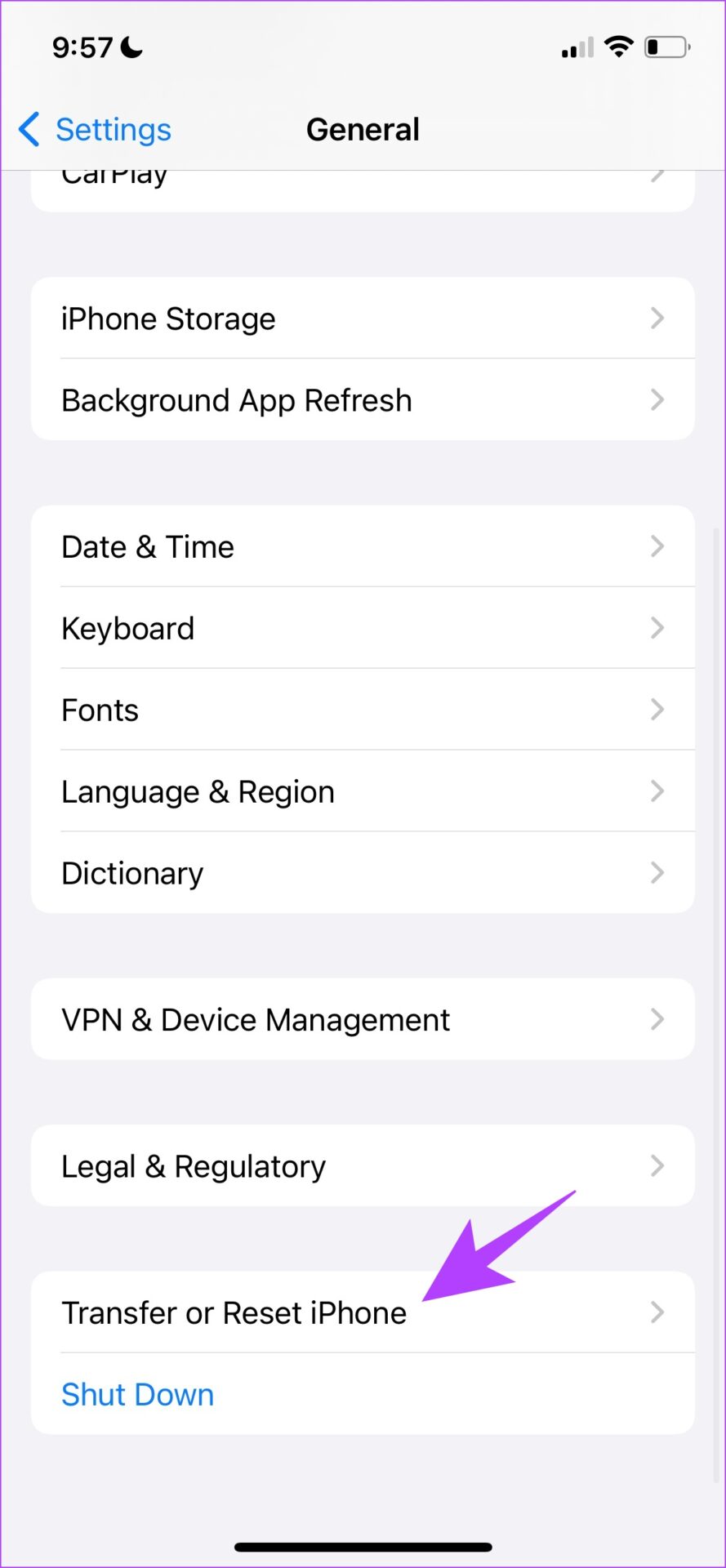
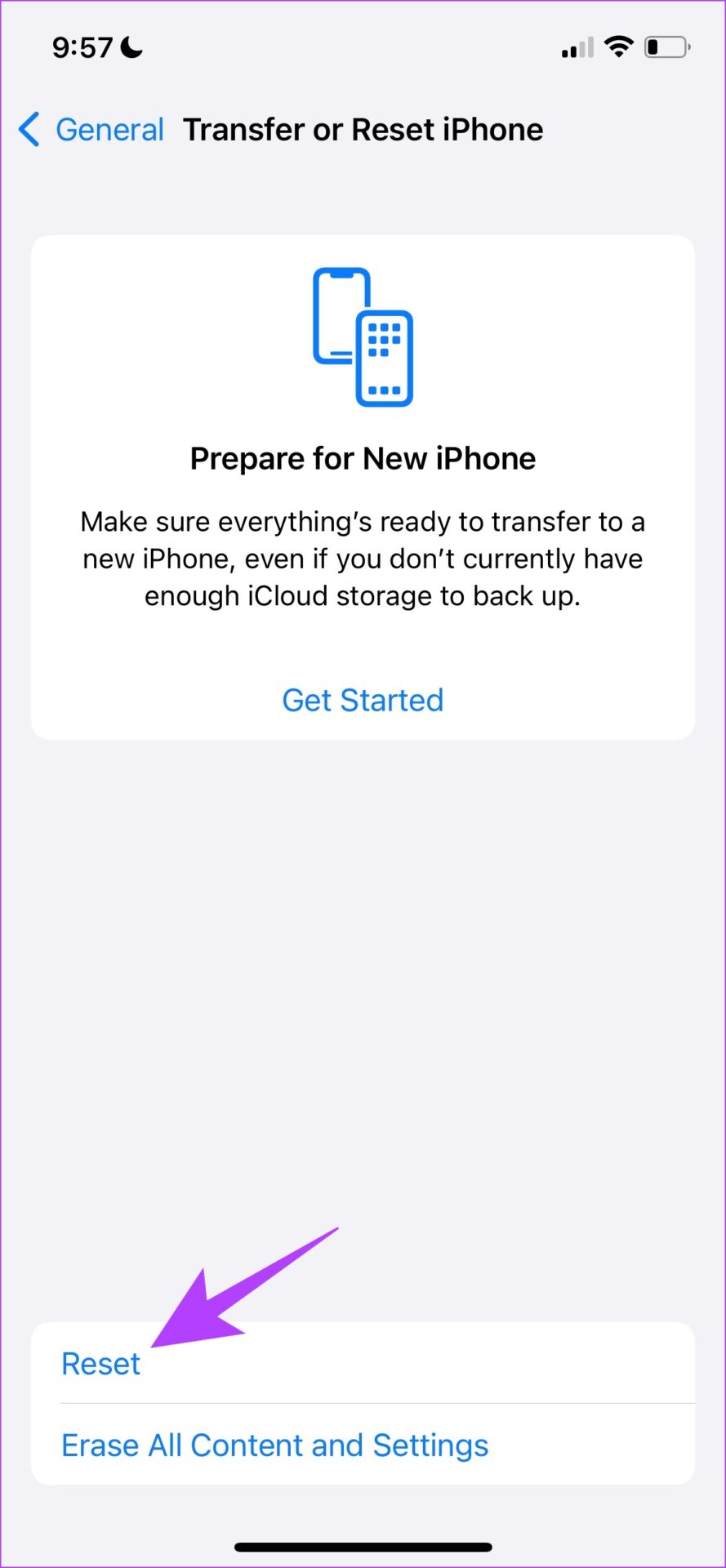
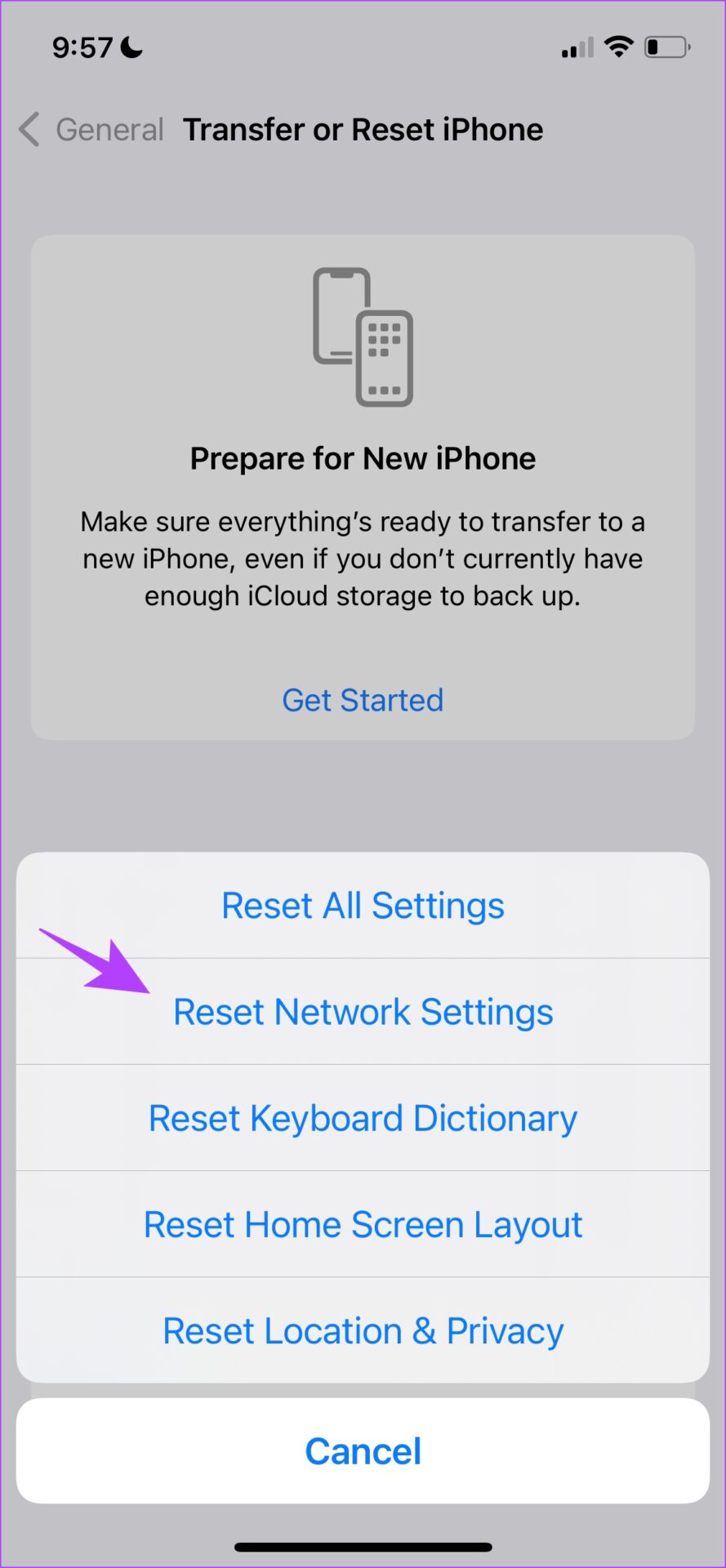
Step 1: Open Settings > General > Transfer or Reset iPhone > Reset.
Step 2: Now, tap on Reset Network Settings. Enter the password if prompted.
Also Read: Why can’t I un-send or edit messages on iMessage
Was this helpful?
Last updated on 24 July, 2024
2 Comments
Leave a Reply
Read Next
 Why Do Photos Get Blurry on WhatsApp Status: 3 Ways to Fix This
https://youtu.be/k2MGRKNamFQ Basic Fixes Switch to the stable version of WhatsApp: While beta versions give you early access to new features and cool tricks, they may also introduce several bugs and
Why Do Photos Get Blurry on WhatsApp Status: 3 Ways to Fix This
https://youtu.be/k2MGRKNamFQ Basic Fixes Switch to the stable version of WhatsApp: While beta versions give you early access to new features and cool tricks, they may also introduce several bugs and
 5 Ways to Fix Blurry Home or Lock Screen Wallpaper on iPhone
Fix 1: Check if the Wallpaper Resolution Fits Your iPhone's Screen If you have downloaded a wallpaper, check its resolution and ensure that it matches the screen resolution of your
5 Ways to Fix Blurry Home or Lock Screen Wallpaper on iPhone
Fix 1: Check if the Wallpaper Resolution Fits Your iPhone's Screen If you have downloaded a wallpaper, check its resolution and ensure that it matches the screen resolution of your
 3 Fixes for iMessage Photos Not Showing in Photos App
Basic Fixes Force quit and relaunch Messages app: You can force quit and relaunch the Messages app to give it a fresh start on your iPhone.
3 Fixes for iMessage Photos Not Showing in Photos App
Basic Fixes Force quit and relaunch Messages app: You can force quit and relaunch the Messages app to give it a fresh start on your iPhone.
 3 Ways to Fix Blurry Text in Google Chrome
Fix 1: Disable Hardware Acceleration When you disable hardware acceleration, you offload graphics processing tasks from the computer's graphics card to the central processing unit, which is helpful if the
3 Ways to Fix Blurry Text in Google Chrome
Fix 1: Disable Hardware Acceleration When you disable hardware acceleration, you offload graphics processing tasks from the computer's graphics card to the central processing unit, which is helpful if the
 5 Ways to Fix Blurry Screen Issue on Windows 11
Fix 1: Change Display Resolution and Scale One of the most common causes of a blurry Windows 11 screen is the incorrect display resolution or scale.
5 Ways to Fix Blurry Screen Issue on Windows 11
Fix 1: Change Display Resolution and Scale One of the most common causes of a blurry Windows 11 screen is the incorrect display resolution or scale.
 4 Ways to Fix Blurry Stories on Instagram
Stories on Instagram are a great way to share the moments that you cherish, with your friends and followers.
4 Ways to Fix Blurry Stories on Instagram
Stories on Instagram are a great way to share the moments that you cherish, with your friends and followers.
 3 Ways to Fix Blurry Camera on Android Phones
Basic Fixes: Check camera lens for damage: If your device's camera lens is damaged or has scratches, it can cause photos to appear blurry on your Android phone.
3 Ways to Fix Blurry Camera on Android Phones
Basic Fixes: Check camera lens for damage: If your device's camera lens is damaged or has scratches, it can cause photos to appear blurry on your Android phone.
 How to Fix Your Mac Screen Looking Blurry
Preliminary Fixes Restart your Mac: Sometimes, a restart can resolve temporary glitches, including display glitches.
How to Fix Your Mac Screen Looking Blurry
Preliminary Fixes Restart your Mac: Sometimes, a restart can resolve temporary glitches, including display glitches.
The article above may contain affiliate links which help support Guiding Tech. The content remains unbiased and authentic and will never affect our editorial integrity.

Yeah still not working despite none of that enabled on the latest iOS. God damn it apple… 70GB mobile plans and it does **** like this!
Ditto! Thanks Richard for your words of truth.