Preliminary Fixes
- Stable Network Connection: A stable and fast internet connection is crucial for streaming high-quality video on Discord. Your stream quality will suffer if your network connection is slow or unstable.
- Check System Resources: Your computer’s performance can significantly impact your Discord stream quality. Use Task Manager to check CPU, GPU, and RAM usage. If any are near 100%, they may be the bottleneck.
- Disable the Background Download Process: Background downloads, especially large files or updates, can consume significant bandwidth, leading to degraded stream quality on Discord.
- Check Discord Servers: Discord servers may experience issues that affect stream quality. Check the Discord status page to see if any ongoing issues with Discord servers might affect stream quality.
- Upgrade Your Webcam: If you’re streaming video using a webcam, the quality of your webcam can directly affect your Discord stream quality. Consider upgrading to a webcam that supports at least 1080p resolution.
- Update Discord: Outdated software can have bugs or compatibility issues that affect stream quality. Keeping Discord updated ensures you have the latest fixes and performance improvements.
Fix 1: Enable HD Video Streaming Using Nitro
Discord Nitro is a premium subscription that unlocks additional features, including the ability to stream in HD and higher frame rates. Here’s how you can purchase Discord Nitro from the app.
Step 1: Launch Discord on your desktop.
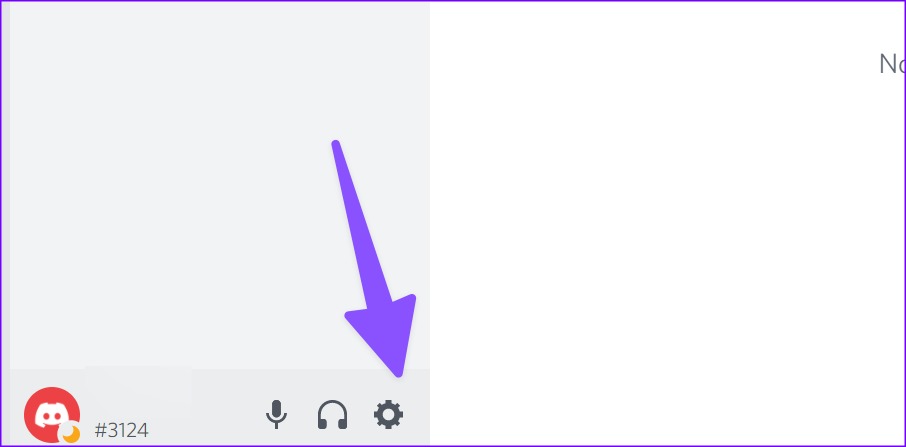
Step 2: Select the Settings gear icon beside your Discord name.
Step 3: Click Nitro under the Billing Settings section.
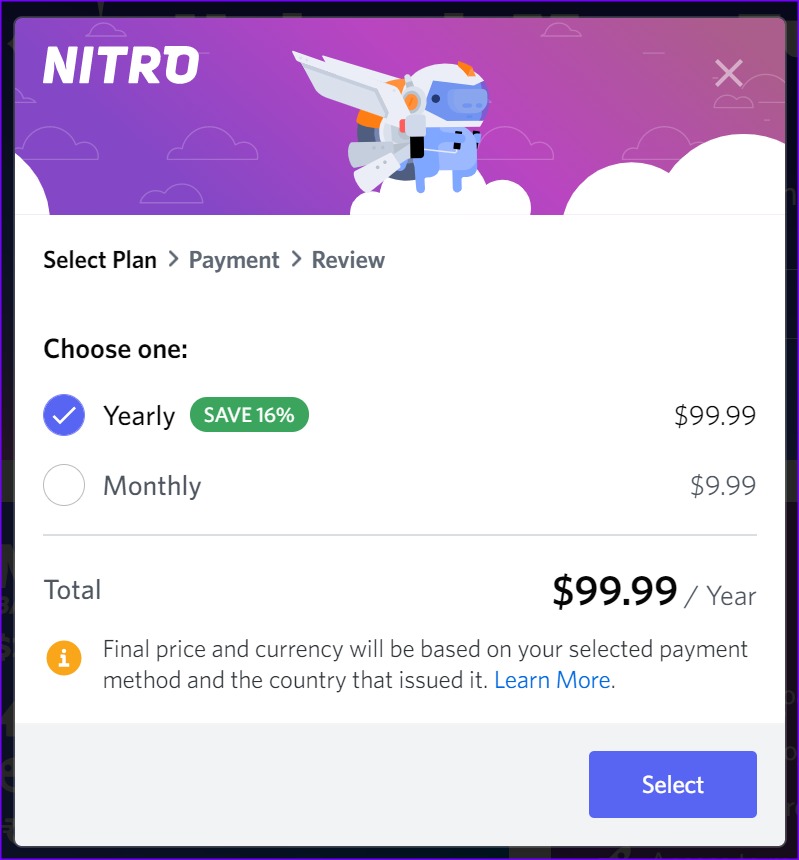
Step 4: Check a couple of Nitro options.

Nitro Basic starts at $2.99 per month, and to enjoy HD video streaming, you’ll need to upgrade to a higher plan at $9.99 per month.
Step 5: Follow the on-screen instructions to complete the payment process.
Restart the Discord app and enjoy streaming with high video quality.
Fix 2: Enable Hardware Acceleration in Discord
Step 1: Head to Discord Settings (refer to the steps above).
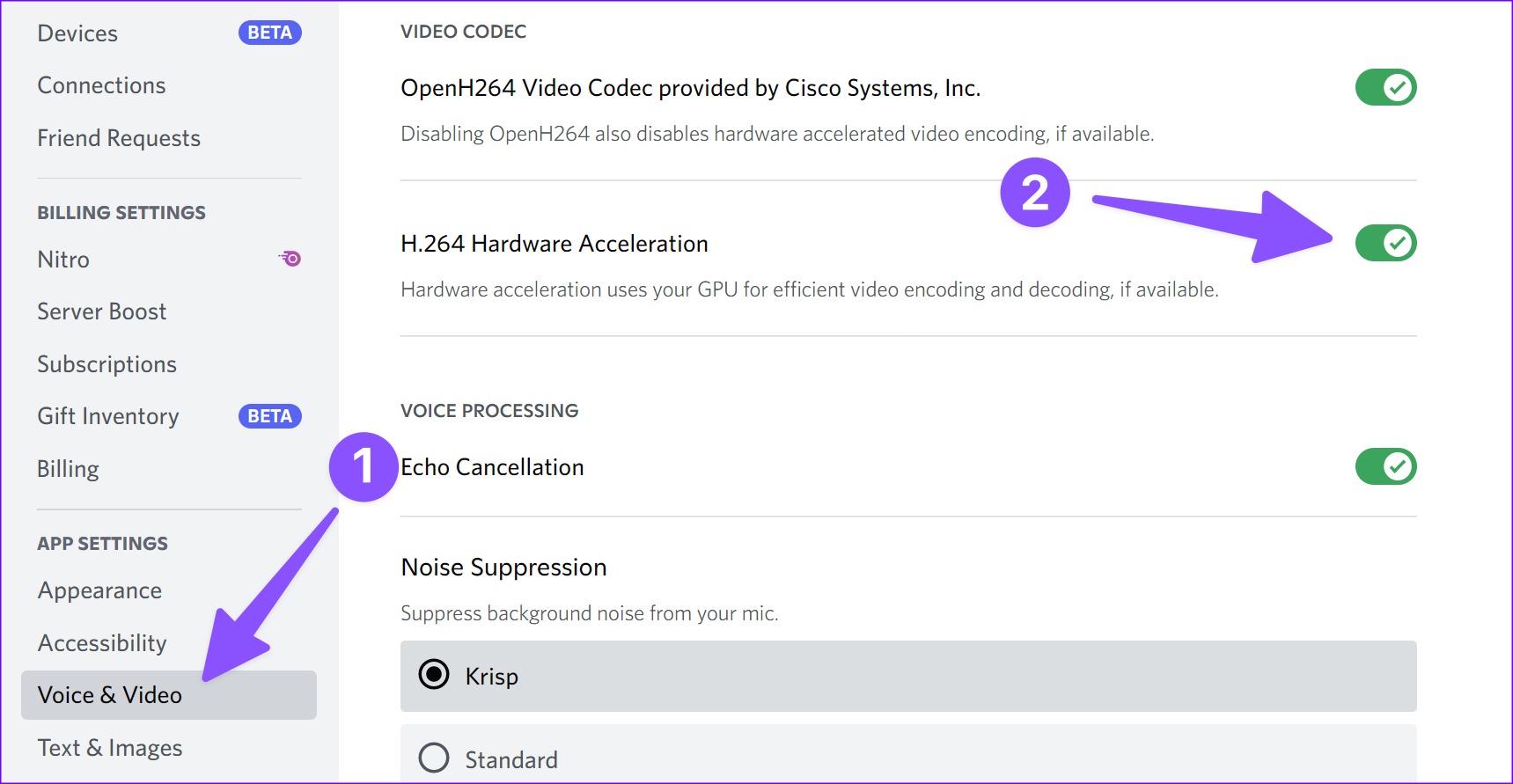
Step 2: Select Voice & Video from the left sidebar.
Step 3: Scroll to Video Codec and enable the H.264 Hardware Acceleration toggle.
Relaunch the Discord app and enjoy better video quality.
Fix 3: Disable Video Background
Step 1: Navigate to Discord Settings (check the steps above).
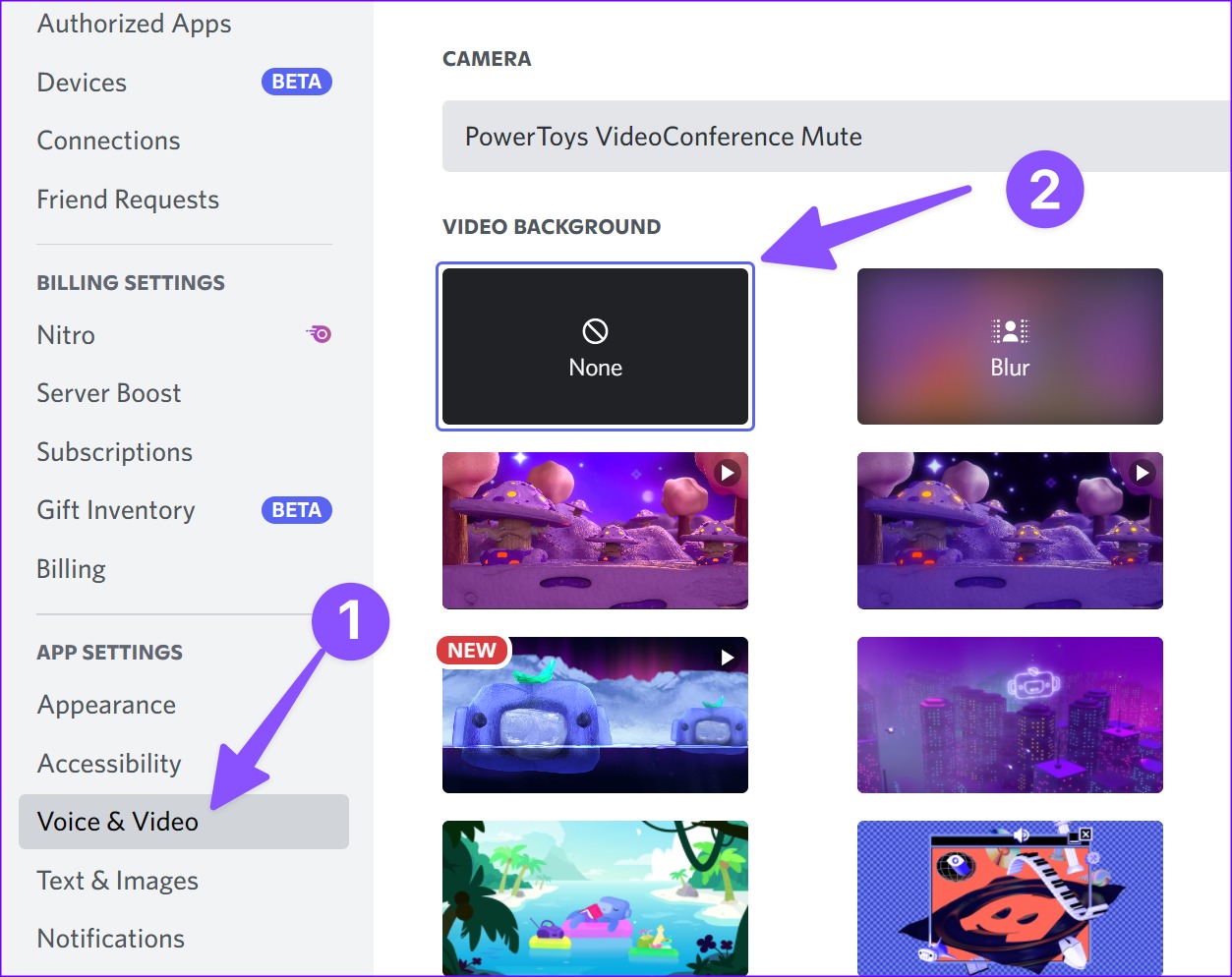
Step 2: Select Voice & Video from the sidebar.
Step 3: Scroll to Video Background and select None.
Fix 4: Prioritize Discord for Internet Speeds
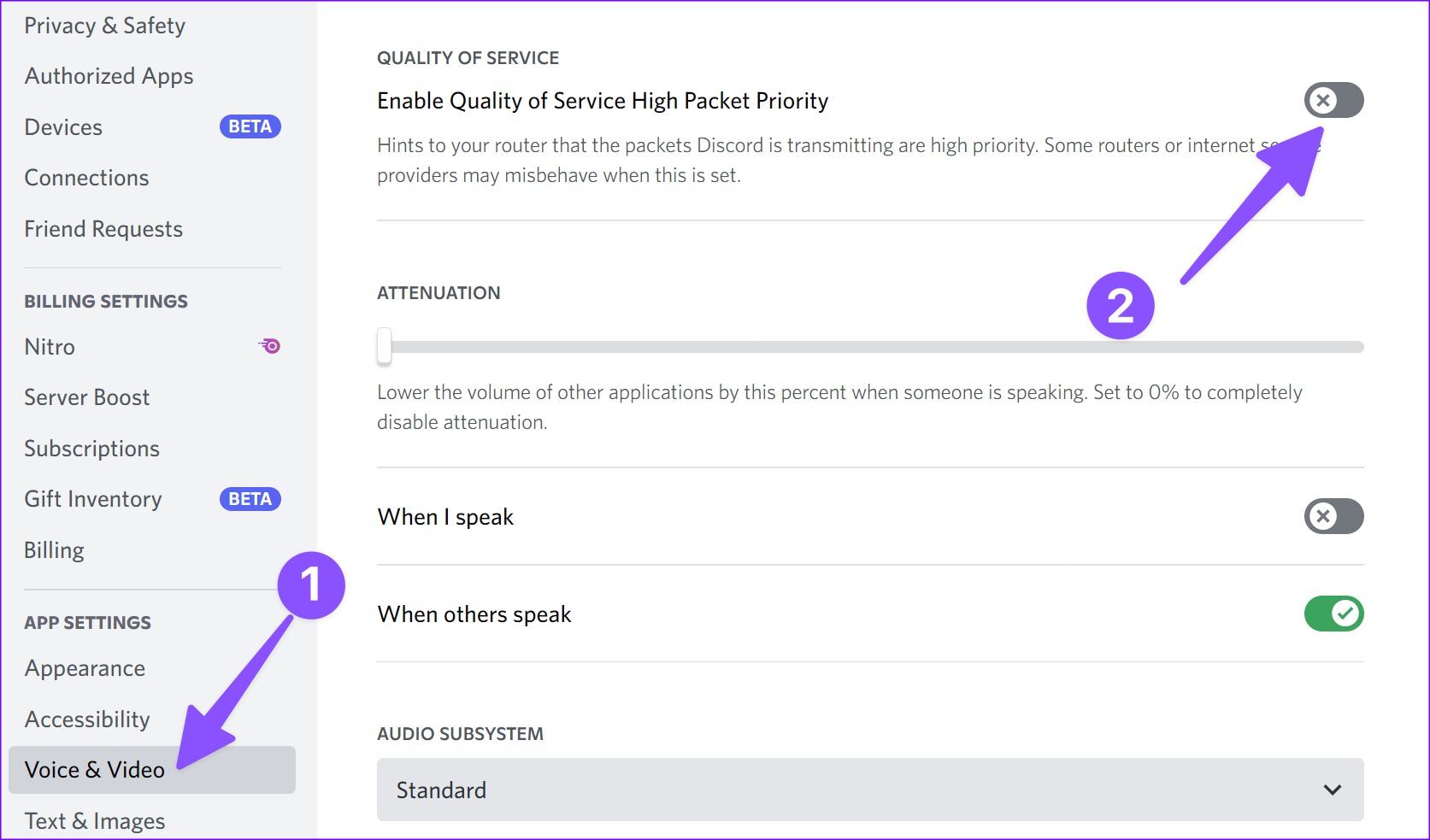
You can enable the ‘Quality of Service High Packet Priority’ toggle, which prioritizes Discord data transfer over other apps on the desktop and fixes bad stream quality.
Step 1: Head to Voice & Video in Discord settings (check the steps above).
Step 2: Scroll to the Quality of Service menu.
Step 3: Enable the High Packet Priority toggle and try again.
Fix 5: Change Screen Sharing Settings
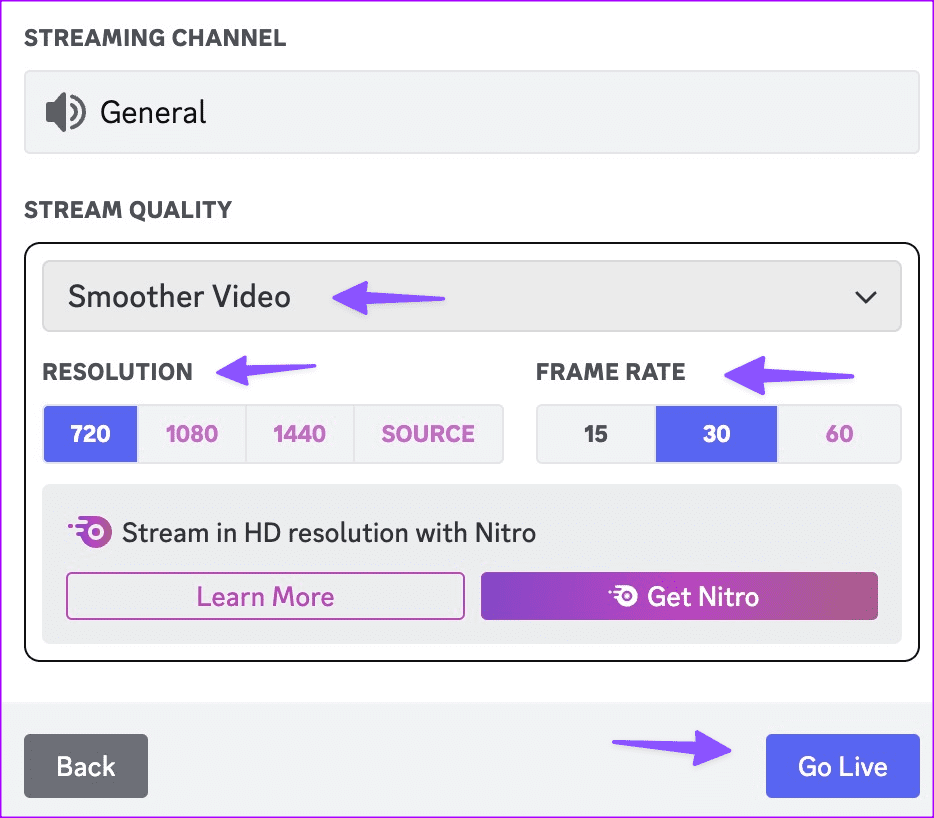
You can tweak screen sharing settings like resolution, frame rates, and quality for a smoother output.
Step 1: Select a relevant Discord channel and hit the share screen option.
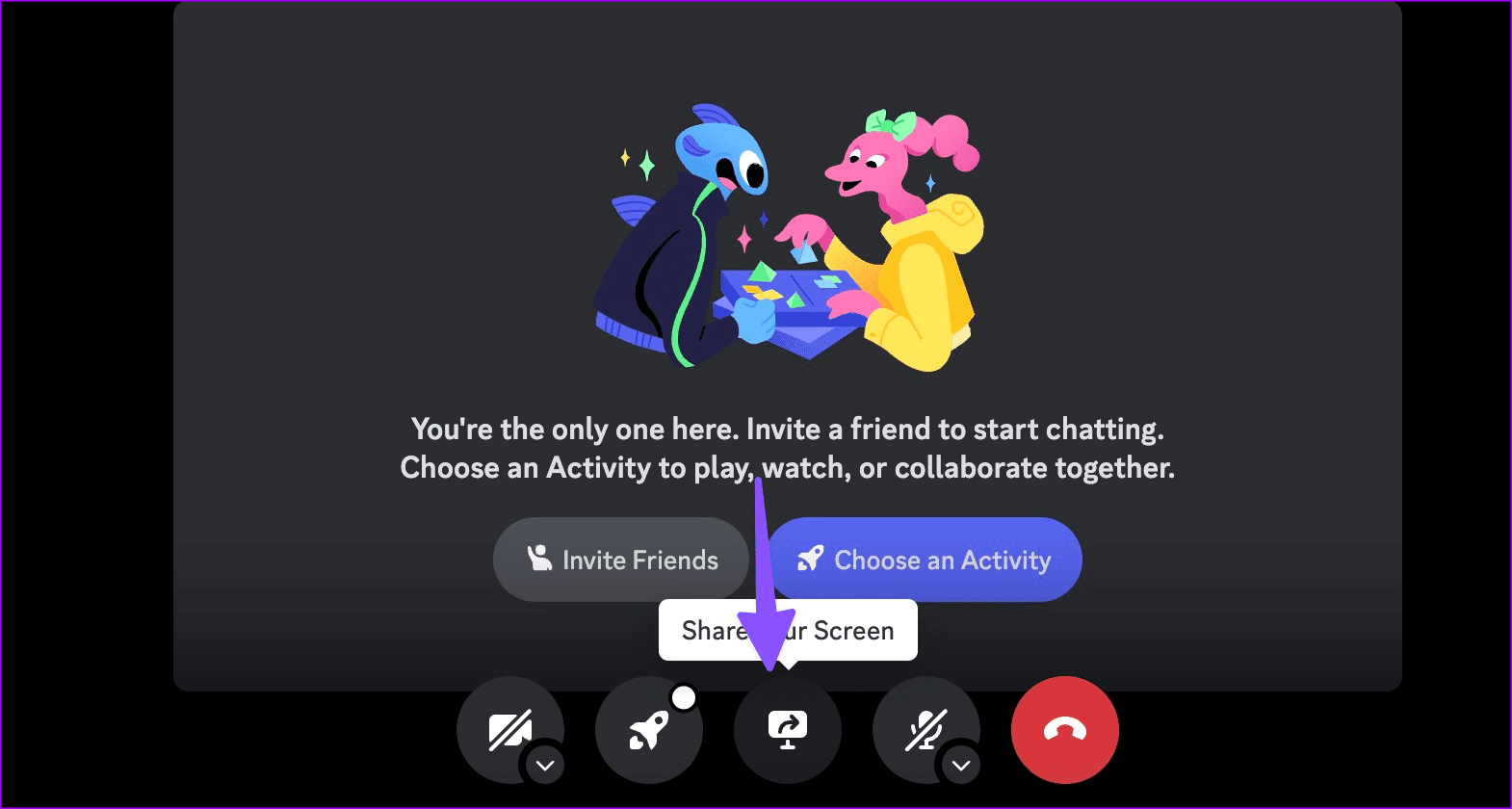
Step 2: Select a screen that you want to share on Discord.
Step 3: Click Smoother video, dial down the resolution, select relevant frame rates, and hit Go Live.
Fix 6: Delete Discord Cache
Step 1: Press the Windows + R keys to open the Run menu.
Step 2: Type %appdata%/discord/cache and hit Enter.

Step 3: Select all folders and files and move them to the trash.

Empty the recycle bin and open Discord to start composing smooth video calls.
You can also try an Ethernet connection to eliminate Discord stream stuttering for viewers during game streaming and group video calls.
Was this helpful?
Last updated on 13 August, 2024
Read Next
 5 Ways to Fix Bad Sound Quality on Spotify Mobile App
Basic Fixes Check Your Spotify Plan: Using a free version of Spotify does not offer the best audio quality.
5 Ways to Fix Bad Sound Quality on Spotify Mobile App
Basic Fixes Check Your Spotify Plan: Using a free version of Spotify does not offer the best audio quality.
 5 Ways to Fix Bad Image Errors on Windows 11
Basic Fixes Uninstall the latest Windows update: Open Settings > System > Update history > Uninstall updates.
5 Ways to Fix Bad Image Errors on Windows 11
Basic Fixes Uninstall the latest Windows update: Open Settings > System > Update history > Uninstall updates.
 4 Fixes for Bad Module Info Has Stopped Working Error on Windows
Fix 1: Turn off Fullscreen Optimizations Full-screen optimizations in Windows can enhance the performance of your games and programs while they're in full-screen mode.
4 Fixes for Bad Module Info Has Stopped Working Error on Windows
Fix 1: Turn off Fullscreen Optimizations Full-screen optimizations in Windows can enhance the performance of your games and programs while they're in full-screen mode.
 How to Set up and Use Google Drive File Stream
Google Drive is undoubtedly the most popular cloud storage service out there.
How to Set up and Use Google Drive File Stream
Google Drive is undoubtedly the most popular cloud storage service out there.
 6 Ways to Get Better Audio Quality on Windows 11
Tip 1: Enable Audio Enhancements Your Windows 11 PC has an audio enhancement feature that automatically improves sound quality.
6 Ways to Get Better Audio Quality on Windows 11
Tip 1: Enable Audio Enhancements Your Windows 11 PC has an audio enhancement feature that automatically improves sound quality.
 4 Ways to Fix YouTube Quality Unavailable on iOS and Android
Basic Fixes Check Internet Connectivity: Ensure your device is connected to a Wi-Fi network or cellular data with good signal strength and an active plan.
4 Ways to Fix YouTube Quality Unavailable on iOS and Android
Basic Fixes Check Internet Connectivity: Ensure your device is connected to a Wi-Fi network or cellular data with good signal strength and an active plan.
 5 Ways to Fix Apple TV+ Low Quality on Windows
Fix 1: Install Apple TV App: A Sureshot Way to Fix the Problem Download the Apple TV app from the Microsoft App Store and sign in with your credentials.
5 Ways to Fix Apple TV+ Low Quality on Windows
Fix 1: Install Apple TV App: A Sureshot Way to Fix the Problem Download the Apple TV app from the Microsoft App Store and sign in with your credentials.
 5 Ways to Fix Netflix Streaming in Low Quality on Android and iPhone
Common Fixes Check internet speed - I recommend at least 5Mbps to stream Netflix in high definition (HD) and a minimum of 25Mbps for Ultra HD and 4K video quality.
5 Ways to Fix Netflix Streaming in Low Quality on Android and iPhone
Common Fixes Check internet speed - I recommend at least 5Mbps to stream Netflix in high definition (HD) and a minimum of 25Mbps for Ultra HD and 4K video quality.
The article above may contain affiliate links which help support Guiding Tech. The content remains unbiased and authentic and will never affect our editorial integrity.