Try Basic Fixes
- Check the App Store server status: Sometimes, the App Store can suffer from service outages. You can visit Apple’s System Status page to check the App Store’s server status.
- Restart your iPhone: Restarting your device remains one of the most effective solutions for fixing minor glitches with your iPhone. Hence, before diving deep into the other solutions, you can try rebooting your device.
- Install iOS updates: The App Store search issue may be related to a bug within iOS. If that’s the case, installing pending iOS updates should help.
Fix 1: Check Date and Time
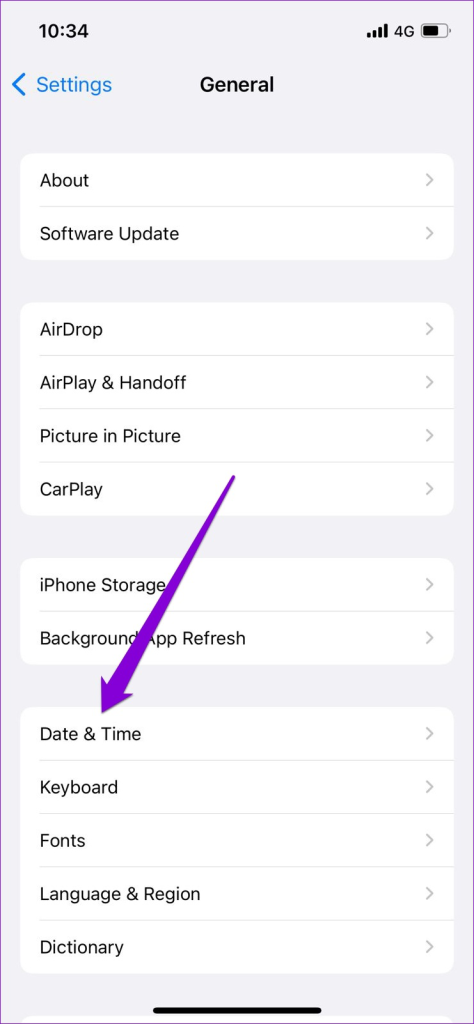
If your iPhone is set to an incorrect time or date, it might fail to communicate with the App Store servers and show a blank screen. It’s best to set your device to use the network-provided time to avoid such issues. Here’s how.
Step 1: Open the Settings app and tap on General.
Step 2: Go to Date & Time. Toggle on the switch next to Set Automatically.


Fix 2: Enable Personalized Ads
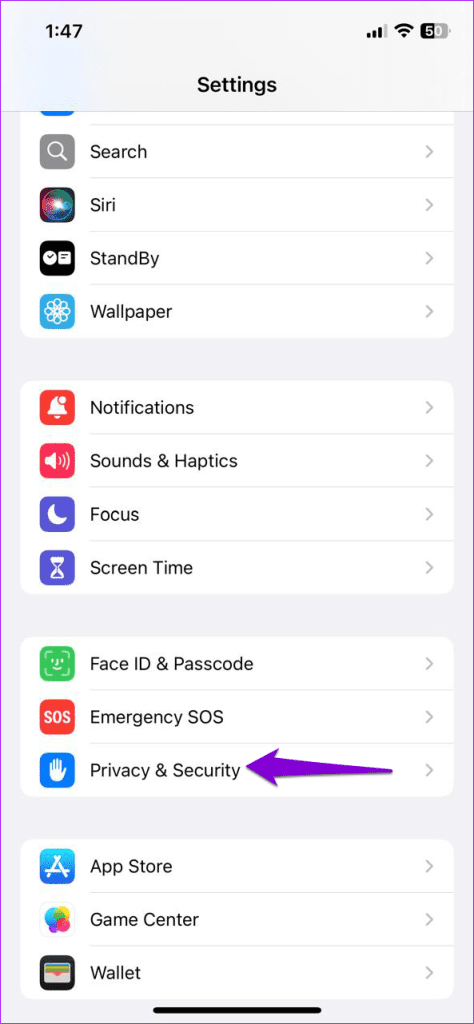
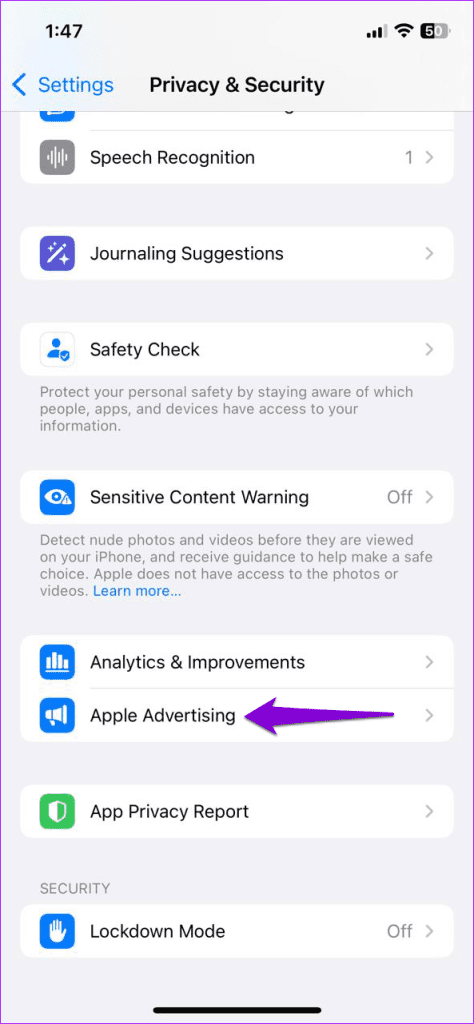
Oddly enough, several users on the forum reported success in resolving the issue with the App Store search by enabling Apple’s Personalized Ads feature. You can also give this a try.
Step 1: Launch the Settings app on your iPhone and navigate to Privacy.
Step 2: Scroll down to tap on Apple Advertising. Then toggle on the switch next to Personalized Ads.

Fix 3: Sign Out and Sign In to App Store
Another way to resolve issues with the App Store is to sign out and sign back in. This forces the App Store to refresh its connection with the servers, which might fix the App Store search.
Step 1: Open the Settings app and tap on your name at the top.
Step 2: Scroll to the bottom of the page and tap on Sign Out. Then, tap on Sign Out in the top right corner.


Sign in again using your Apple ID credentials to see if the App Store search is working fine.
Fix 4: Reset Network Settings
Another reason why you might have trouble using the App Store search is if the Wi-Fi isn’t connecting, or the signal keeps dropping. In such cases, resetting network settings on your iPhone can help. Here’s how to do it.
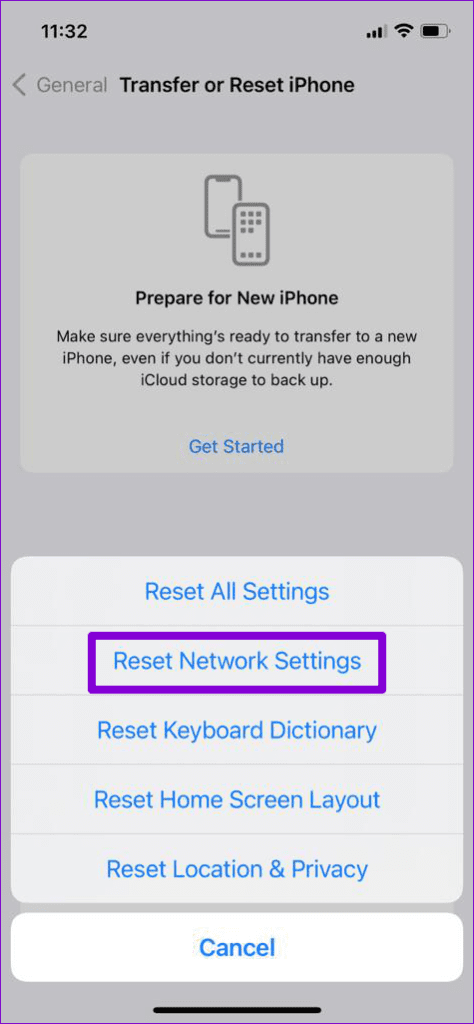
Step 1: Open the Settings app and head to General > Transfer or Reset iPhone.
Step 2: Tap on Reset and select Reset Network Settings from the resulting menu.


Was this helpful?
Last updated on 27 July, 2024
Read Next
 4 Ways to Fix “Account Not in This Store” Error in App Store for iPhone
Try Basic Fixes Disable VPN: The 'Account Not In This Store' error may be appearing due to a VPN connection.
4 Ways to Fix “Account Not in This Store” Error in App Store for iPhone
Try Basic Fixes Disable VPN: The 'Account Not In This Store' error may be appearing due to a VPN connection.
 6 Ways to Fix Spotlight Search Not Working On iPhone and iPad
Before you begin, try restarting your iPhone or updating it to the latest version to get rid of any bugs that are affecting Spotlight Search.
6 Ways to Fix Spotlight Search Not Working On iPhone and iPad
Before you begin, try restarting your iPhone or updating it to the latest version to get rid of any bugs that are affecting Spotlight Search.
 4 Ways to Fix iPhone Calendar Search Not Working
Basic Troubleshooting Restart the Calendar app: Restarting the app can usually fix minor bugs or system errors.
4 Ways to Fix iPhone Calendar Search Not Working
Basic Troubleshooting Restart the Calendar app: Restarting the app can usually fix minor bugs or system errors.
 3 Ways to Fix WhatsApp Search Not Working on iPhone
Fix 1: Disable and Re-Enable iCloud Sync for WhatsApp If WhatsApp has trouble retrieving chats from iCloud, it may get stuck when using the search tool.
3 Ways to Fix WhatsApp Search Not Working on iPhone
Fix 1: Disable and Re-Enable iCloud Sync for WhatsApp If WhatsApp has trouble retrieving chats from iCloud, it may get stuck when using the search tool.
 3 Ways to Fix Apple iPad Can’t Connect to App Store
Basic Fixes: Restart iPad: A simple reboot may fix glitches like the iPad can’t connect to the App Store.
3 Ways to Fix Apple iPad Can’t Connect to App Store
Basic Fixes: Restart iPad: A simple reboot may fix glitches like the iPad can’t connect to the App Store.
 4 Ways to Fix “Verification Required” on App Store
Basic Fixes Check internet connection: Using the App Store to explore the library and download the apps without any problem requires a stable network connection Sign out and sign into
4 Ways to Fix “Verification Required” on App Store
Basic Fixes Check internet connection: Using the App Store to explore the library and download the apps without any problem requires a stable network connection Sign out and sign into
 A Guide to Using the Search Bar and Search Operators in Microsoft Outlook
How to Use the Microsoft Outlook Search Bar There are two ways to use the Microsoft Outlook Search bar.
A Guide to Using the Search Bar and Search Operators in Microsoft Outlook
How to Use the Microsoft Outlook Search Bar There are two ways to use the Microsoft Outlook Search bar.
 Top 8 Ways to Fix Messenger Search in Conversation Not Working on Android and iPhone
As your Messenger conversations grow and the number of messages increases, it can be quite difficult to find specific messages during a conversation.
Top 8 Ways to Fix Messenger Search in Conversation Not Working on Android and iPhone
As your Messenger conversations grow and the number of messages increases, it can be quite difficult to find specific messages during a conversation.
The article above may contain affiliate links which help support Guiding Tech. The content remains unbiased and authentic and will never affect our editorial integrity.