


Basic Fixes
- Check the Microsoft Teams server: Open the Microsoft Service Health page and click on Teams in the left sidebar to check its service status.
- Disable Do Not Disturb: Open the Settings app > search Do Not Disturb in the search bar > tap on the feature to toggle it off.
- Change your status in Microsoft Teams: Open the Teams app > select your profile icon at the top left > tap on status below your account name to set it to Available.
- Unmute the conversation: Long-tap a conversation in the Microsoft Teams app and select Unmute chat.
- Disable Data Saver mode: Open Android settings > select Network & internet > tap Data Saver > turn off its toggle.
- Clear the Teams app cache: Long-tap the Teams app icon to open App info > select Storage and cache > tap Clear cache.
- Update or reinstall Microsoft Teams: Open Google Play Store > search Microsoft Teams > tap Update (if available). Alternatively, uninstall the app and install it afresh.
Fix 1: Check Notifications for Microsoft Teams
Missing permissions are a common reason Microsoft Teams notifications don’t work on Android. To fix this, go to the Teams app settings.
Step 1: Tap your profile icon at the top left in the Teams app and select Notifications.


Step 2: Select General activity and enable the toggle for All Teams notifications, if not already.


Fix 2: Ensure Block Notifications Is Disabled
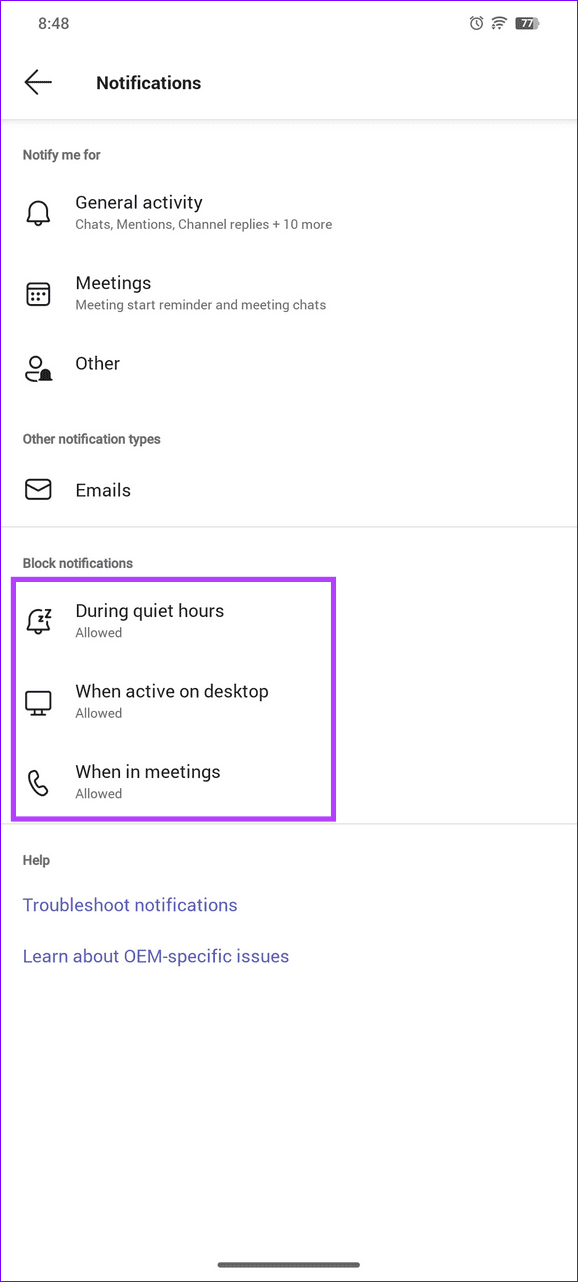
The Teams app can automatically block notifications on your phone during meetings, quiet hours, or when using its desktop app. If you’ve set this up before and are missing notifications, tweak app settings to resolve it.
Step 1: Open the Teams app sidebar (tap your profile icon at the top-left) and select Notifications.
Step 2: Review the Block notifications section and ensure During quiet hours, When active on desktop, and When in meetings are Allowed to receive new notifications.

Fix 3: Log Out and Re-Authenticate Account
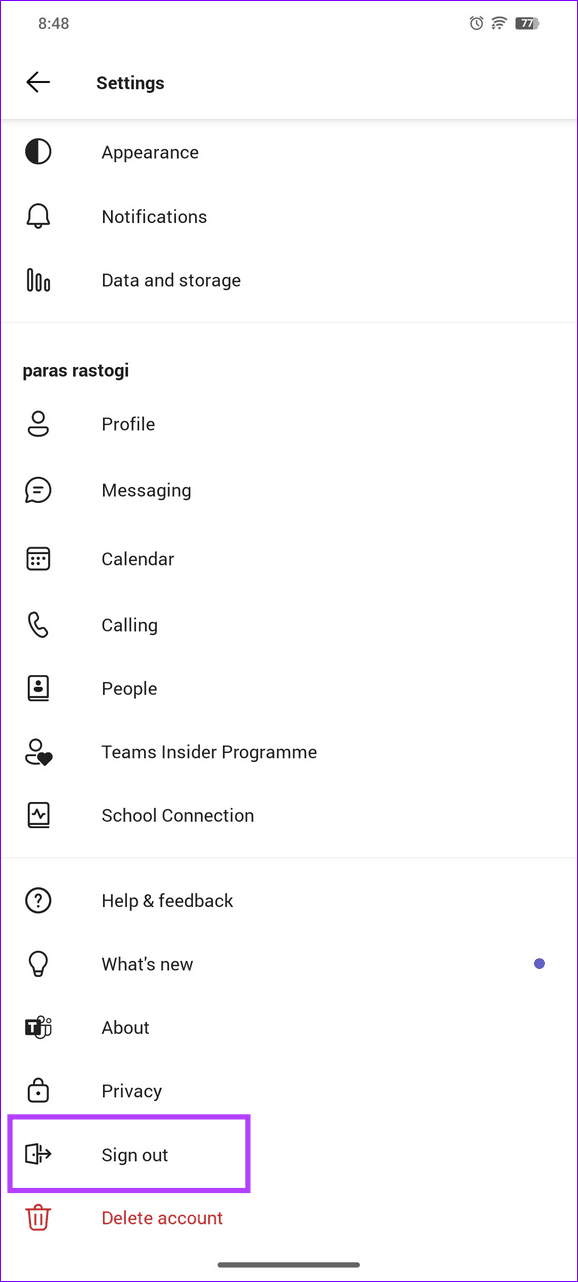
Besides missing permissions, incorrect Microsoft account configuration in the Teams app can cause notifications to not work on Android. Sign out and log back into the Teams app to restore normalcy.
Open the Teams app Settings from the left sidebar > scroll to the bottom > tap on Sign out. Re-enter your Microsoft account credentials to sign in.

Fix 4: Allow Unrestricted Data Usage for Microsoft Teams
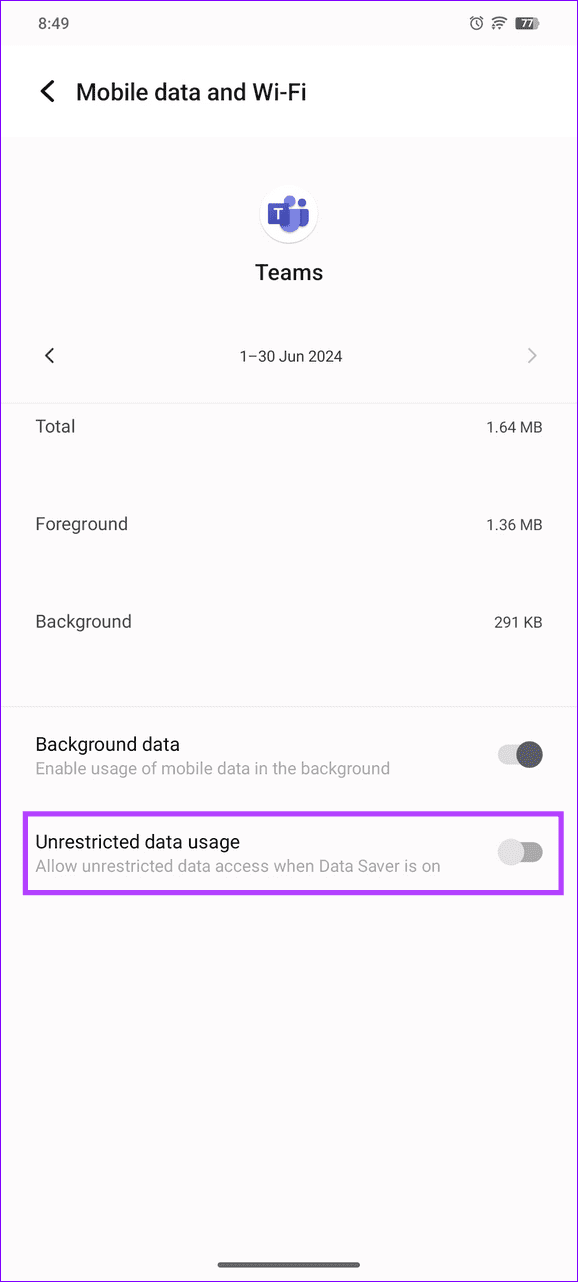
If you have a limited cellular data plan and enable the Data Saver mode, the Teams app might freeze internet access once you exceed the data limit. Set unrestricted data usage for the Teams app to resume getting notifications.
Long-tap the Teams app icon > open App info > select Mobile data and Wi-Fi > enable the toggle for Unrestricted data usage.


Was this helpful?
Last updated on 11 July, 2024
1 Comment
Leave a Reply
Read Next
 2 Ways to Fix Microsoft Teams Notifications Not Working on Windows 11/10
Preliminary Fixes Turn off Battery Saver: To ensure Microsoft Teams notifications work properly on Windows 11/10, turning off Battery Saver is essential.
2 Ways to Fix Microsoft Teams Notifications Not Working on Windows 11/10
Preliminary Fixes Turn off Battery Saver: To ensure Microsoft Teams notifications work properly on Windows 11/10, turning off Battery Saver is essential.
 Top 4 Ways to Fix Microsoft Teams Notifications Not Working on Mac
Basic Fixes Check Microsoft Teams Status: If Microsoft suffers from an outage, you might want to confirm the issue via Downdetector.
Top 4 Ways to Fix Microsoft Teams Notifications Not Working on Mac
Basic Fixes Check Microsoft Teams Status: If Microsoft suffers from an outage, you might want to confirm the issue via Downdetector.
 4 Fixes for Microsoft Teams Notifications Not Working on iPhone
Fix 1: Enable Notifications in iPhone Settings Ensure you haven't disabled notifications for the Teams app in Settings.
4 Fixes for Microsoft Teams Notifications Not Working on iPhone
Fix 1: Enable Notifications in iPhone Settings Ensure you haven't disabled notifications for the Teams app in Settings.
 4 Fixes When Microsoft Teams Notifications Are Not Working in Google Chrome
Basic Fixes: Ensure Team status is not set to DND: If you set your status to Do Not Disturb, you will not get notifications by default.
4 Fixes When Microsoft Teams Notifications Are Not Working in Google Chrome
Basic Fixes: Ensure Team status is not set to DND: If you set your status to Do Not Disturb, you will not get notifications by default.
 6 Ways to Fix Microsoft Teams App Not Working on Android
Basic Fixes Check internet connectivity: Ensure your device is connected to a Wi-Fi network or cellular data with good signal strength and an active plan.
6 Ways to Fix Microsoft Teams App Not Working on Android
Basic Fixes Check internet connectivity: Ensure your device is connected to a Wi-Fi network or cellular data with good signal strength and an active plan.
 3 Ways to Fix Hyperlink Is Not Working in Microsoft Teams
Basic Fixes Re-sign in Microsoft Team: It could be a temporary glitch which can be easily fixed by signing out and then signing back into your Microsft account Reinstall the
3 Ways to Fix Hyperlink Is Not Working in Microsoft Teams
Basic Fixes Re-sign in Microsoft Team: It could be a temporary glitch which can be easily fixed by signing out and then signing back into your Microsft account Reinstall the
 5 Ways to Fix Microsoft Teams Web Not Working
Basic Fixes Sign out and sign back in: Authentication issues with your Microsoft account can sometimes cause Teams to stop working.
5 Ways to Fix Microsoft Teams Web Not Working
Basic Fixes Sign out and sign back in: Authentication issues with your Microsoft account can sometimes cause Teams to stop working.
 How to Fix Polls Not Working in Microsoft Teams for Windows
Try Basic Fixes Close and reopen the Teams app: You can start by closing and reopening the Teams app.
How to Fix Polls Not Working in Microsoft Teams for Windows
Try Basic Fixes Close and reopen the Teams app: You can start by closing and reopening the Teams app.
The article above may contain affiliate links which help support Guiding Tech. The content remains unbiased and authentic and will never affect our editorial integrity.
Thanks! The problem was sloved by switching off the data saver function
Actually it was solved by switching off the data restrictions. But switching off the data save function overrides that.