Preliminary Fixes
- Check your internet speed: Since Google Drive relies on your internet connection, a change in your internet speed will directly impact the upload and download speeds. So, check whether you’re getting the usual network speeds.
- Ensure you’re not using a metered connection: A metered connection essentially indicates that the available bandwidth is limited. Hence, your computer would try to limit internet usage to preserve more data.
- Compress the file to reduce size: Consider compressing large files before uploading them to Google Drive. This can significantly reduce upload times.
- Try a different browser: At times, a web browser may act slowly. Try performing the same upload or download via a different web browser.
- Keep the Google Drive app open during upload and download (iPhone and iPad): When uploading a file onto Google Drive, keep the app open during the transfer. Failing to do so would hamper the upload, and you will have to restart.
Fix 1: Clear Your Browser Cookies and Cache
On Web
Clearing the cookies and cache on your browser can, at times, boost the upload and download speeds.
While the steps are similar for most web browsers, for step-by-step instructions, see how to clear cookies and cache in Chrome.
On Mobile
Step 1: Open the Settings app on your Android phone and scroll to the Apps section.
Step 2: Find the Google Drive app and tap on it.


Step 3: Select Storage > tap on Clear cache at the bottom.


Also Read: How to turn off Windows Hello for Google Chrome passwords
Fix 2: Enable Hardware Acceleration (Web)
Enabling hardware acceleration allows Chrome to use your computer’s various hardware components more effectively to optimize performance. Here’s how to enable it.
Step 1: Open Chrome on your computer and click on the three dots at the top-right corner.
Step 2: Select Settings.
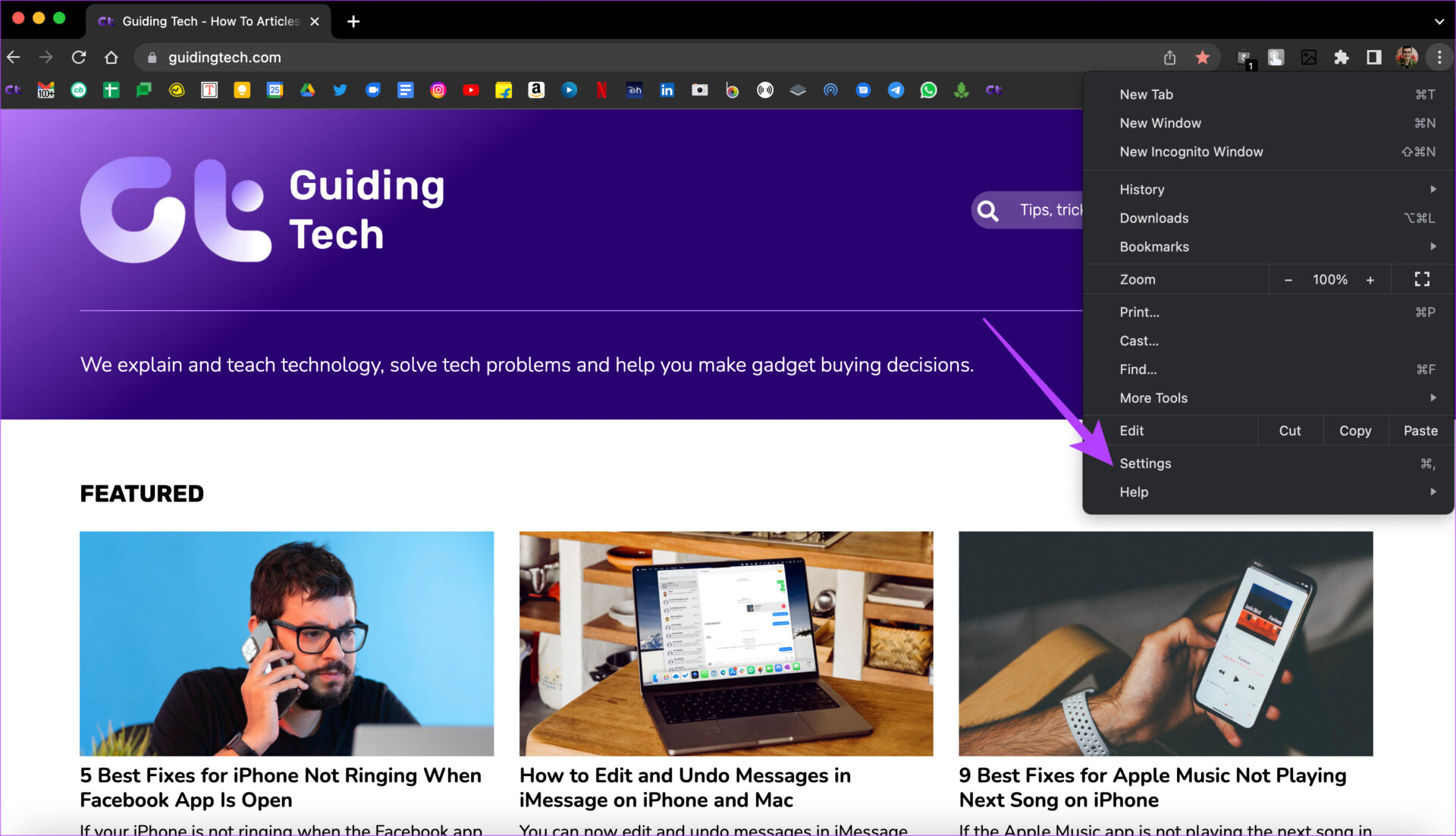
Step 3: Click on System in the left panel.

Step 4: Enable the toggle for Use hardware acceleration when available.

Fix 3: Disable Upload and Download Limits (Google Drive Desktop)
By removing the upload and download limits on the Google Drive desktop app, you allow unrestricted data transfer speeds. Follow the below steps.
Step 1: Launch the Google Drive app on your Windows or Mac computer. Then, click on the gear icon to open the Settings menu.
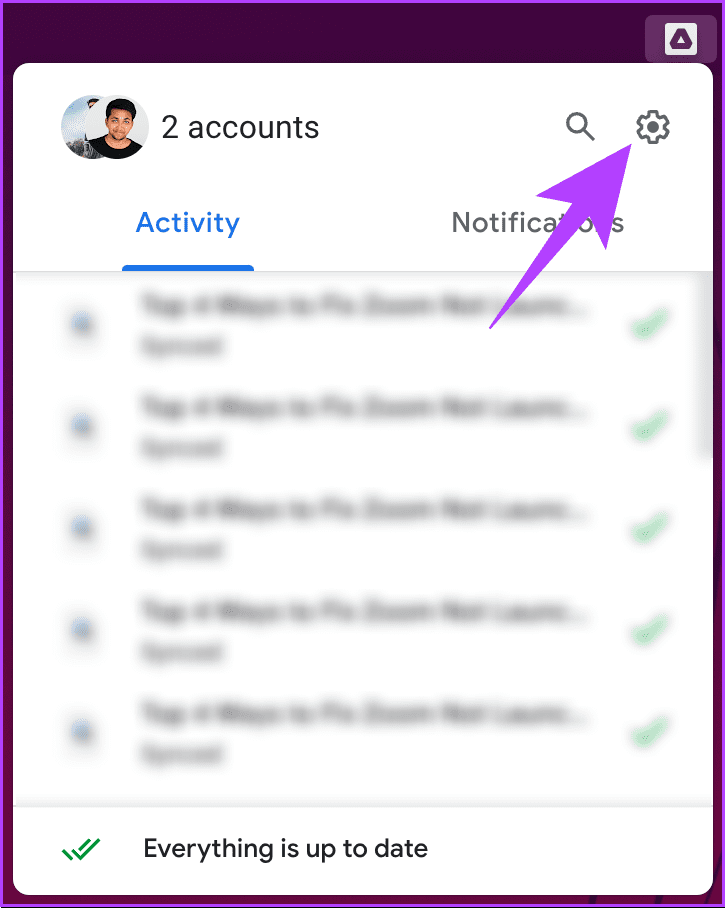
Step 2: Select Preferences > go to the Settings tab.

Step 3: Uncheck Download rate and Upload rate.
Step 4: Finally, click Done.

If the changes don’t take effect immediately, restart the Google Drive desktop app.
Fix 4: Disable Low Power Mode (iPhone and iPad)
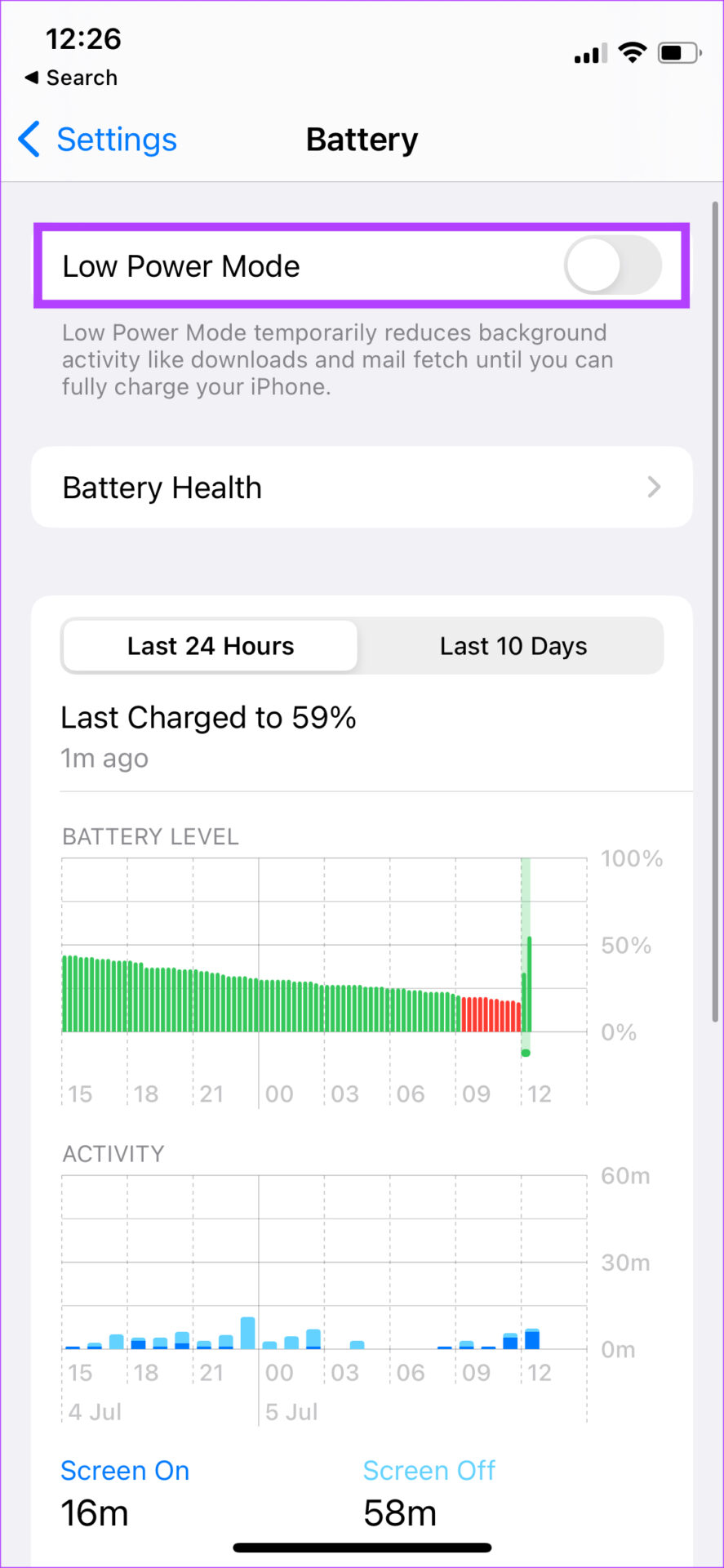
The Low Power mode on iOS reduces your iPhone’s battery usage by turning off background sync and limiting internet usage. This might hamper any file upload or download on your iPhone. So, disable Low Power Mode and then try.
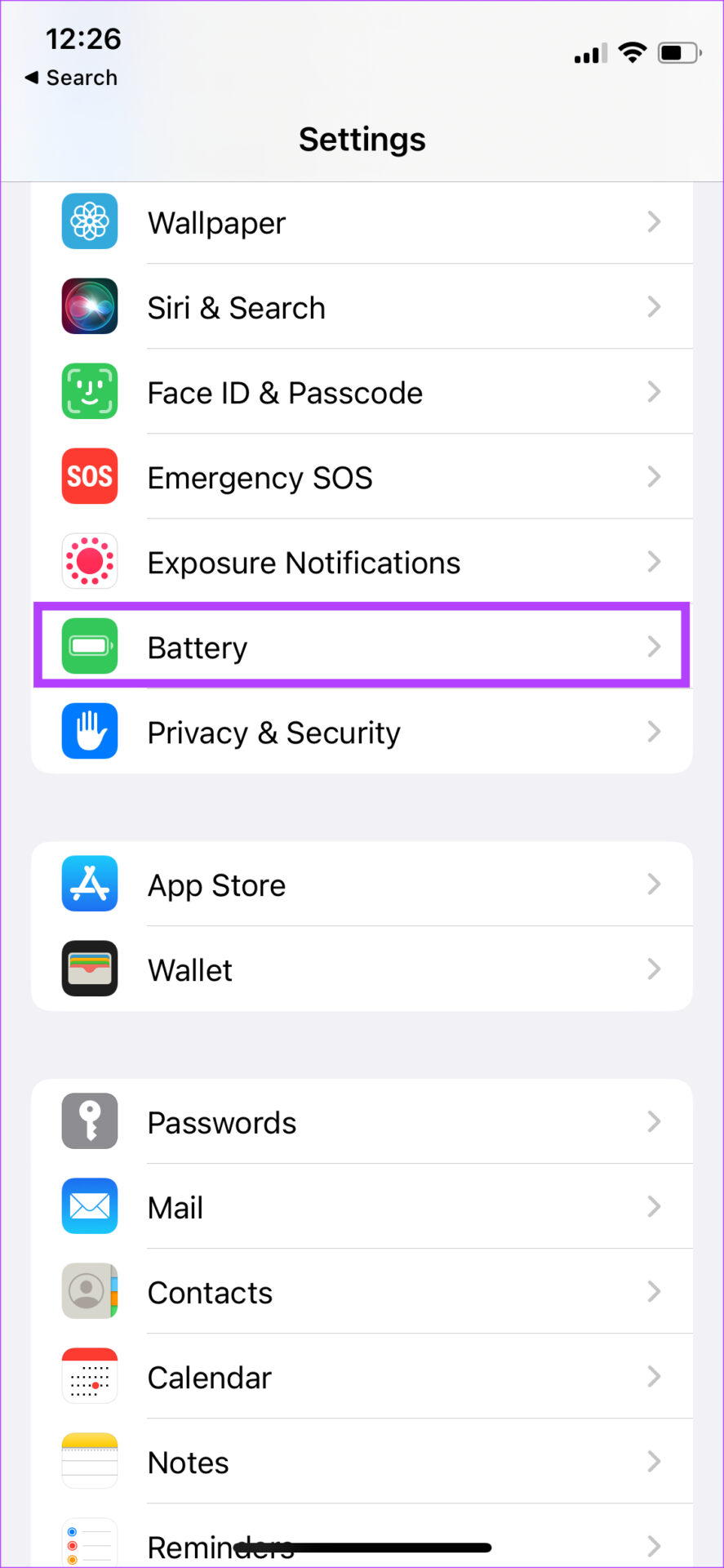
Step 1: Go to the Settings app on your iPhone > select Battery.
Step 2: Toggle off the Low Power Mode option right at the top of the screen.
Also Read: How to fix Google Chrome not working with VPN
Fix 5: Disable Low Data Mode (iPhone and iPad)
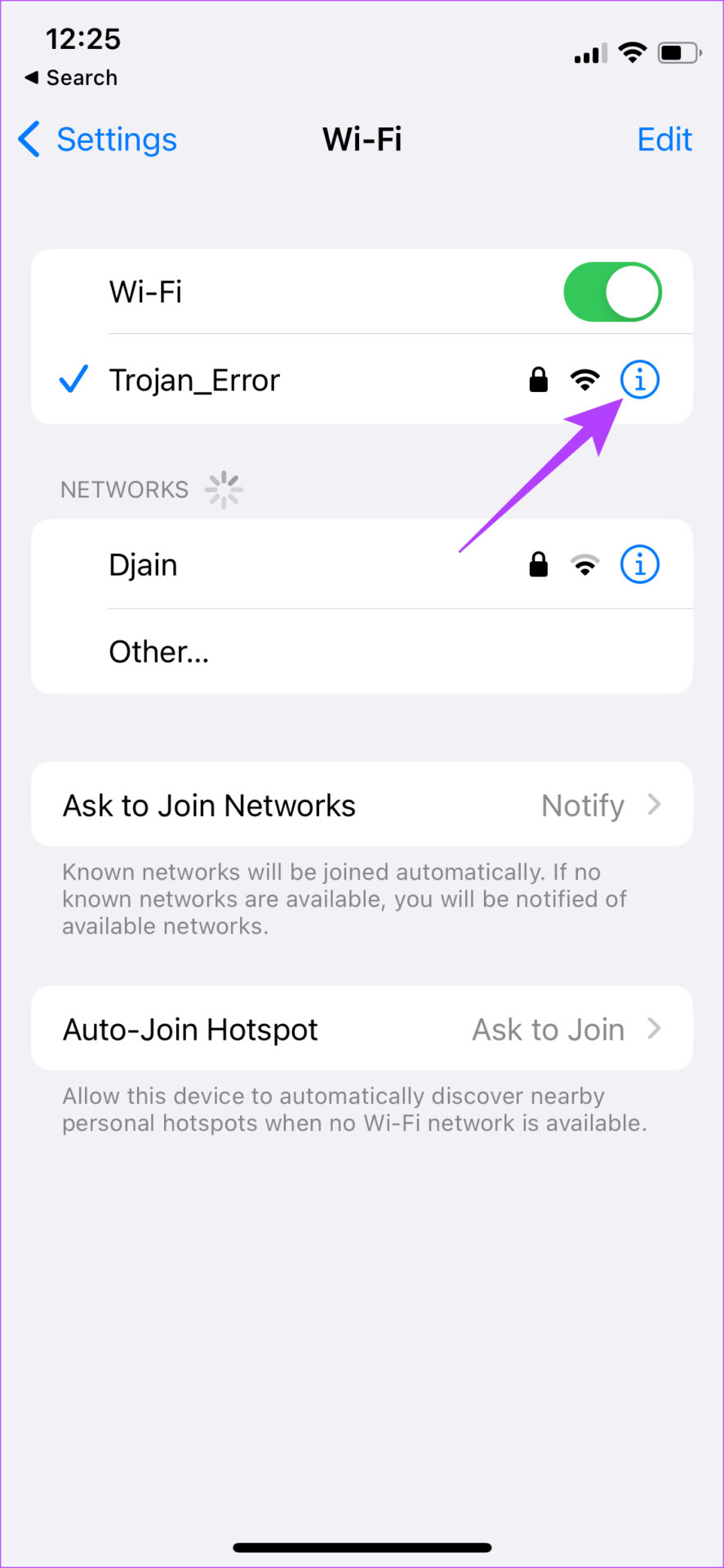
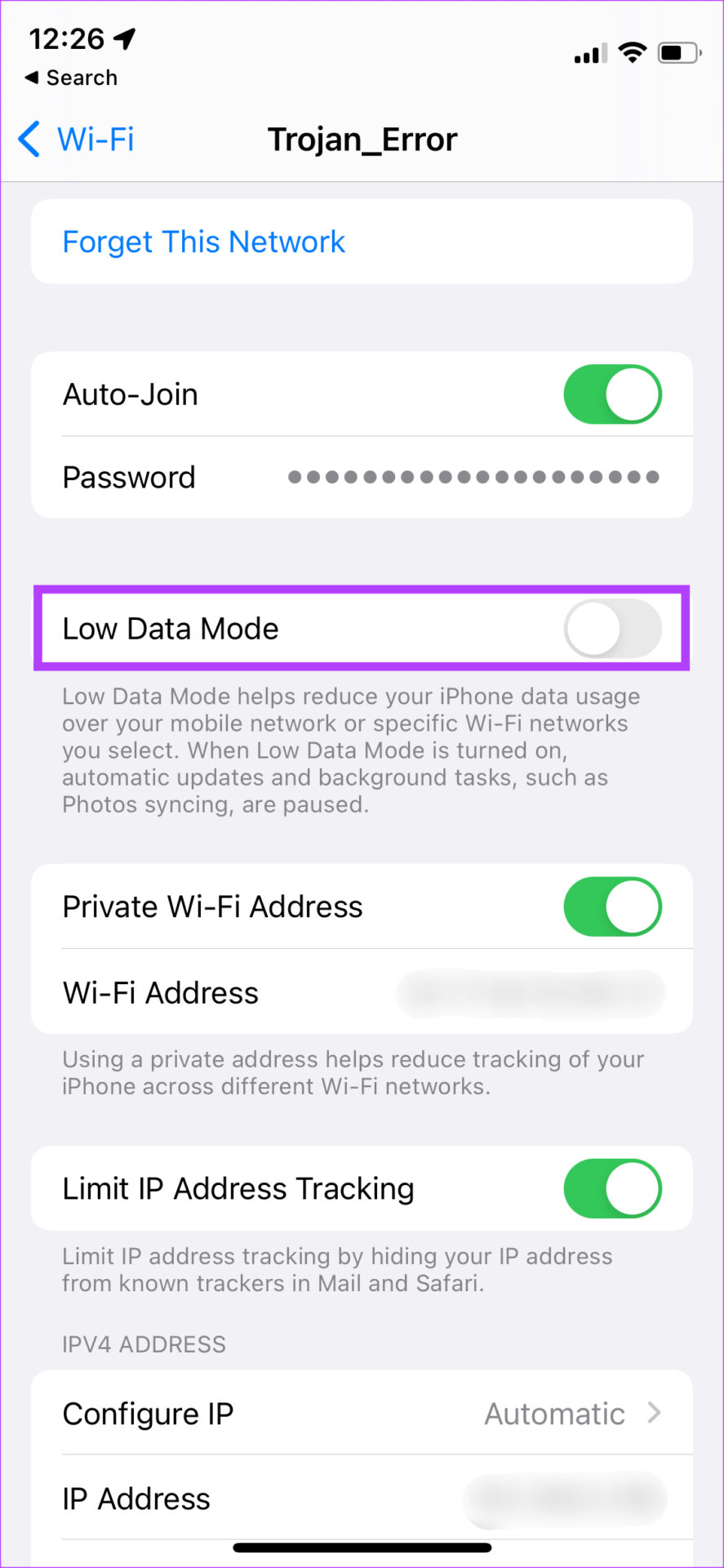
While using a metered network connection or a mobile hotspot, your iPhone will automatically enable Low Data Mode. This mode prevents apps from using a lot of bandwidth, thus preventing large files from being uploaded or downloaded. Here’s how to turn it off.
Step 1: Open the Settings app on your iPhone > tap on Wi-Fi.
Step 2: Select the small blue circle with the i icon next to the network the iPhone is connected to. And turn off the toggle for Low Data Mode.
Fix 6: Try Using Google Drive on Your Browser
There’s a chance the version of the Google Drive app on your Android, iPhone, and iPad is glitchy. If uploading or downloading via the Drive app is too slow, try doing it via Drive on your web browser. You can also try updating the Drive app to see if it helps.
Was this helpful?
Last updated on 31 May, 2024
Read Next
 5 Ways to Fix Slow Download Speeds on Windows 11
Basic Fixes Connect to a 5GHz network: When you work with a dual-band Wi-Fi router, it's a good idea to choose a faster 5GHz Wi-Fi frequency band for better internet
5 Ways to Fix Slow Download Speeds on Windows 11
Basic Fixes Connect to a 5GHz network: When you work with a dual-band Wi-Fi router, it's a good idea to choose a faster 5GHz Wi-Fi frequency band for better internet
 10 Best Ways to Increase Download Speeds in Google Chrome on Windows
While Google Chrome is touted as the fastest web browser among the competition, it isn't unusual to see slow download speeds on the browser.
10 Best Ways to Increase Download Speeds in Google Chrome on Windows
While Google Chrome is touted as the fastest web browser among the competition, it isn't unusual to see slow download speeds on the browser.
 4 Ways to Fix Slow Download Speed in Microsoft Edge for Windows
Basic Yet Essential Fixes Check internet speed: If your internet speed is slow or bandwidth is less, all downloads will get slow.
4 Ways to Fix Slow Download Speed in Microsoft Edge for Windows
Basic Yet Essential Fixes Check internet speed: If your internet speed is slow or bandwidth is less, all downloads will get slow.
 4 Ways to Fix Slow Download Speed in Epic Games Launcher on Windows 11
https://youtu.be/w8E4d-rCMUQ Basic Fixes: Check the Epic Server Status: Epic Games Launcher also relies on multiple servers to operate, and It’s possible that a server might be out of order or
4 Ways to Fix Slow Download Speed in Epic Games Launcher on Windows 11
https://youtu.be/w8E4d-rCMUQ Basic Fixes: Check the Epic Server Status: Epic Games Launcher also relies on multiple servers to operate, and It’s possible that a server might be out of order or
 4 Ways to Fix Slow Google Maps on Android and iPhone
Basic Fixes Update Google Maps app: Keeping your apps updated helps them run smoothly and rules out incompatibility issues.
4 Ways to Fix Slow Google Maps on Android and iPhone
Basic Fixes Update Google Maps app: Keeping your apps updated helps them run smoothly and rules out incompatibility issues.
 3 Ways to Fix Google Drive Waiting to Upload Error
Basic Fixes Check Google Drive storage status: Check how much storage space is left in your Google Drive account.
3 Ways to Fix Google Drive Waiting to Upload Error
Basic Fixes Check Google Drive storage status: Check how much storage space is left in your Google Drive account.
 How to Upload Files in Google Forms
Whether it's a small survey or a school assignment, Google Forms is the go-to destination when you have to collect information from multiple people.
How to Upload Files in Google Forms
Whether it's a small survey or a school assignment, Google Forms is the go-to destination when you have to collect information from multiple people.
 5 Ways to Fix Google Drive Stuck at Starting Upload on Android
How to Stop Google Drive Uploads in Progress on Android Before we get started on how to fix the issue of Google Drive uploads getting stuck, let us have a
5 Ways to Fix Google Drive Stuck at Starting Upload on Android
How to Stop Google Drive Uploads in Progress on Android Before we get started on how to fix the issue of Google Drive uploads getting stuck, let us have a
The article above may contain affiliate links which help support Guiding Tech. The content remains unbiased and authentic and will never affect our editorial integrity.