

Try Basic Fixes
- The contact may have blocked you: If the message not sending issue is limited to one or two people, the other person may have blocked you. In that case, you’ll only see a single tick on all your sent messages, and they won’t be delivered to the other person. You can ask the other person to check their privacy settings and unblock you to resolve the issue.
- Turn off battery and data saver modes: The data saver on your phone can limit Telegram’s use of data efficiently. Similarly, when you enable battery-saving mode, your phone tends to restrict some background activities. So, if Telegram is having trouble fetching notifications or sending messages, you should consider disabling the battery and data-saving modes.
- Update the Telegram app: At times, a buggy app build can also lead to such issues. If that seems to be the case, updating the Telegram app from the Play Store or App Store will help.
- Check if Telegram is down: Although rare, services like Telegram can experience downtime. You can visit a website like Downdetector to check if others are facing similar issues.
Fix 1: Allow Telegram to Use Mobile Data (iPhone)
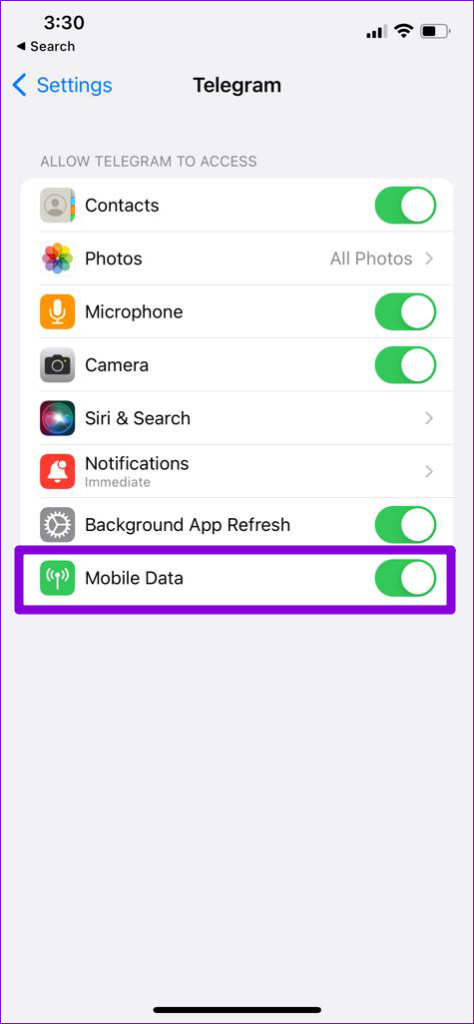
A lack of relevant app permissions can also prevent Telegram from sending messages. Specifically, if Telegram isn’t allowed to access mobile data on your iPhone, the app will fail to send or receive messages.
Open the Settings app on your iPhone and scroll down to tap on Telegram. Ensure that the switch next to Mobile Data is turned on.

Fix 2: Disable Background Restrictions
Telegram is famous for its ability to send large files. However, the app may fail to deliver such large files if it doesn’t have the required permission to work in the background. Here’s how to fix it.
Android
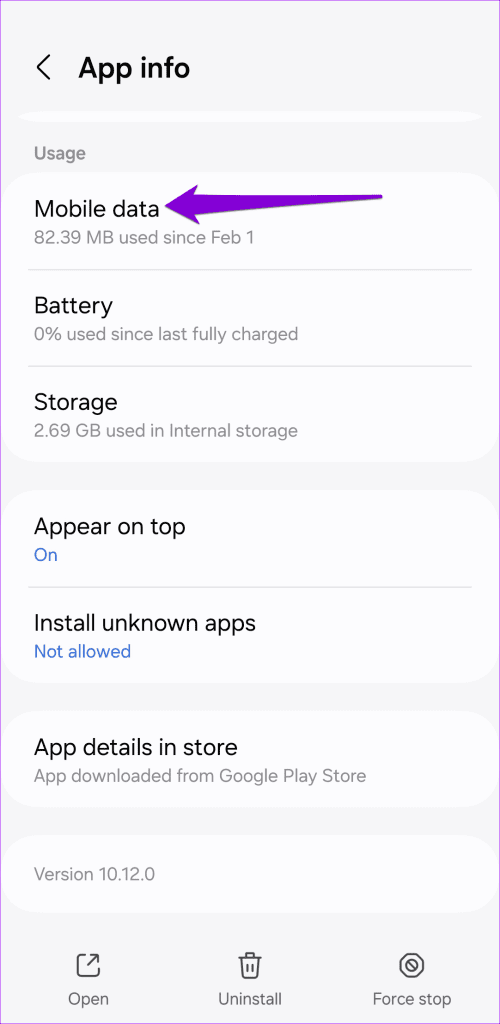
Step 1: Long-press on the Telegram app icon and tap the info icon from the menu that pops up.
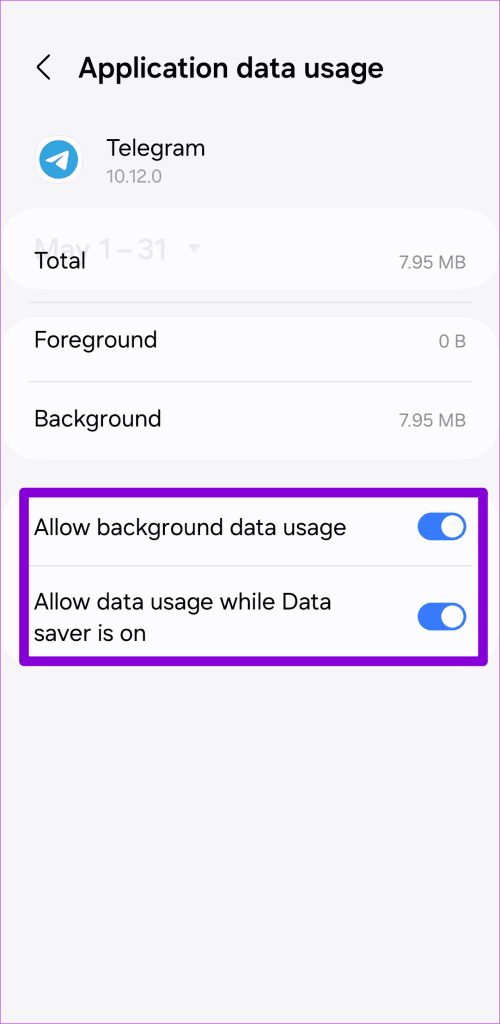
Step 2: Select Mobile data and toggle on the switch next to Allow background data usage and Allow data usage while data saver is on.

iPhone
Step 1: Open the Settings app, scroll down to Telegram, and tap on it.
Step 2: Enable the toggle next to Background App Refresh.

Fix 3: Clear App Cache
If Telegram is still failing to send messages, it could be due to corrupted cache data. In that case, clearing out that cache data should help set things straight.
Thankfully, Telegram offers an option to clear cache data within the app. Here’s how you can access it on your Android or iPhone.
Step 1: Open Telegram on your phone. Tap on the three horizontal lines in the upper-left corner and select Settings. Then, go to Data and Storage.


Step 2: Go to Storage Usage. Under Device storage, tap the Clear Cache option.


Was this helpful?
Last updated on 08 July, 2024
4 Comments
Leave a Reply
Read Next
 4 Ways to Fix Telegram Not Sending SMS Codes on iPhone and Android
Basic Fixes Check network connection: Ensure there are no problems with internet connectivity on your device.
4 Ways to Fix Telegram Not Sending SMS Codes on iPhone and Android
Basic Fixes Check network connection: Ensure there are no problems with internet connectivity on your device.
 5 Ways to Fix Text Messages Not Sending on Android
Basic Fixes Check network plan: Ensure your plan supports sending SMS messages, check your account balance, and ensure sufficient funds to cover the SMS cost.
5 Ways to Fix Text Messages Not Sending on Android
Basic Fixes Check network plan: Ensure your plan supports sending SMS messages, check your account balance, and ensure sufficient funds to cover the SMS cost.
 3 Ways to Fix Android Not Sending Video Messages
Basic Fixes: Check your mobile plan: Most mobile operators charge a certain amount to send MMS to the recipient(s).
3 Ways to Fix Android Not Sending Video Messages
Basic Fixes: Check your mobile plan: Most mobile operators charge a certain amount to send MMS to the recipient(s).
 4 Ways to Fix Messages Not Sending or Delivering to One Person on Android
Basic Fixes Reset network settings: Sometimes, your phone may face issues with connectivity all of a sudden.
4 Ways to Fix Messages Not Sending or Delivering to One Person on Android
Basic Fixes Reset network settings: Sometimes, your phone may face issues with connectivity all of a sudden.
 How to Fix WhatsApp Messages Not Sending on iPhone and Android
Why Doesn't WhatsApp Send My Messages Here are some of the reasons behind WhatsApp's sketchy behavior on your phone.
How to Fix WhatsApp Messages Not Sending on iPhone and Android
Why Doesn't WhatsApp Send My Messages Here are some of the reasons behind WhatsApp's sketchy behavior on your phone.
 7 Best Ways to Fix Samsung Messages Not Sending Error
Many Samsung smartphone users end up using the Samsung Messages app to send and receive messages.
7 Best Ways to Fix Samsung Messages Not Sending Error
Many Samsung smartphone users end up using the Samsung Messages app to send and receive messages.
 6 Fixes for Facebook Messenger Not Sending Messages (iPhone and Android)
Preliminary Fixes Enable and Disable Airplane Mode: Network glitches can prevent Facebook Messenger from sending messages.
6 Fixes for Facebook Messenger Not Sending Messages (iPhone and Android)
Preliminary Fixes Enable and Disable Airplane Mode: Network glitches can prevent Facebook Messenger from sending messages.
 5 Ways to Fix Instagram Messages Not Sending
Basic Fixes Check if Instagram is down: Check if Instagram is facing downtime.
5 Ways to Fix Instagram Messages Not Sending
Basic Fixes Check if Instagram is down: Check if Instagram is facing downtime.
The article above may contain affiliate links which help support Guiding Tech. The content remains unbiased and authentic and will never affect our editorial integrity.
My message is sending on telegram why
So I bought a revvl 6pro and now I can’t send images on telegram to anyone even after all 8 of these steps if someone finds a fix please let me know
I can’t used my phone number to my contact on telegram
Hi,
I suggest you add restarting iPhone (first) as well, cause that ended up being the only way to fix my such issue.
Greetings!