OneDrive is a handy way to back up and transfer files between devices, and access your data wherever you go, provided you can actually get it uploaded, of course. Today, we aren’t looking at connection or syncing issues, but a smaller, but no less frustrating problem – your file name or type not being allowed.
In this article, we’ll be dealing with the “This item name or type isn’t allowed” error and what you can do to get past it.
Fixing the “This Name or Type Isn’t Allowed” Error
While primarily revolving around the nature and name of your file or folder, this error has a few other potential causes. Because of this, we’ve provided a few fixes below:
Check the Name of Your File or Folder
Let’s start with the likeliest offender. Just like Windows, OneDrive has its own naming restrictions for files and folders. The major ones include:
- A file path cannot exceed 400 characters
- Names cannot include certain characters (much like Windows), such as: “, *, :, <, >, ?, /, and |. These are used by the service itself and can interfere with the programming
- Certain file names are already in use by OneDrive (albeit secretly) and can’t be used either: .lock, CON, PRN, AUX, NUL, COM0 – COM9, LPT0 – LPT9, _vti_, desktop.ini
- Any file name starting with a ~$ sign or a space
- Specific file extensions, like “.tmp,” “desktop.ini,” “.ds_store,” “.pst,” “.asmx,” and “.aspx.” Some “.exe” files will also not be accepted
If you suspect that any of these is causing the issue, renaming is easy to do. Simply right-click your file in Explorer to rename it, or click once and the file name itself. Try uploading it afterwards.
Use the Web Client Instead
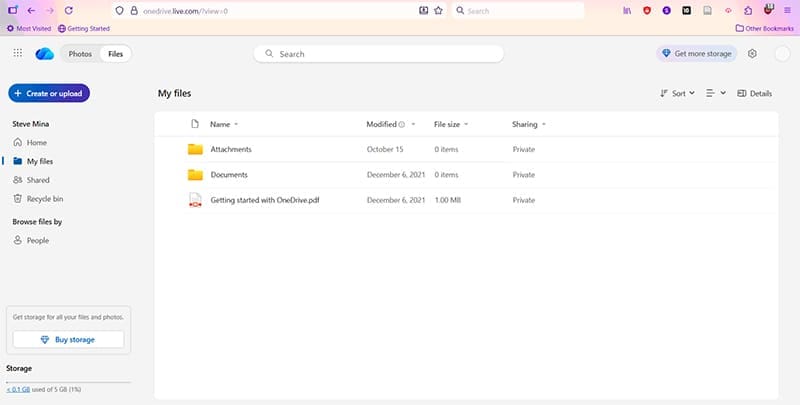
If you can’t upload to OneDrive via your PC, you can load up the web app on any browser and upload there. Simply sign in to your Microsoft account, and drag and drop your problematic file into the browser window to upload directly. If it works, then your problem may lie with a OneDrive sync error.
Unlink and Relink Your PC
If you’re struggling with syncing issues, then the solution might be to relink your OneDrive account to your PC – after unlinking it, of course. Here’s how:
Step 1. Open up your OneDrive via the icon in the System Tray.
Step 2. Click the Settings icon and navigate to the “Account” tab.
Step 3. Select the “Unlink this PC.”
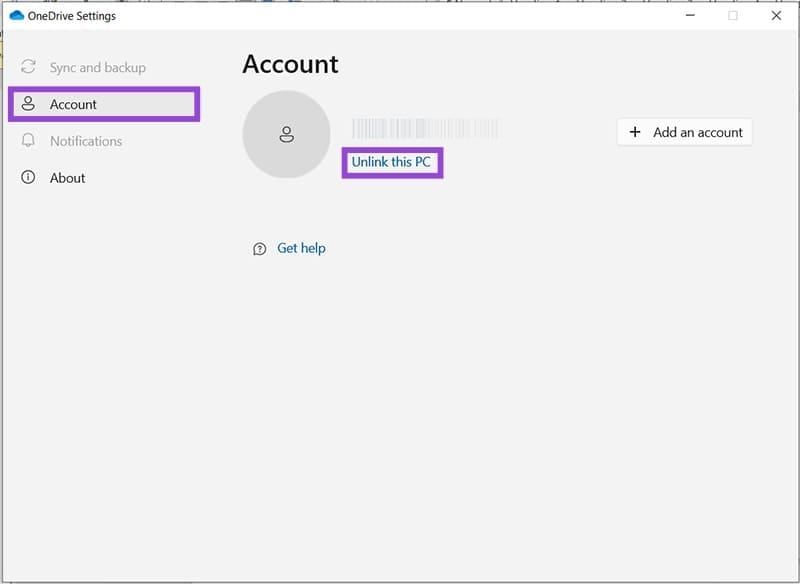
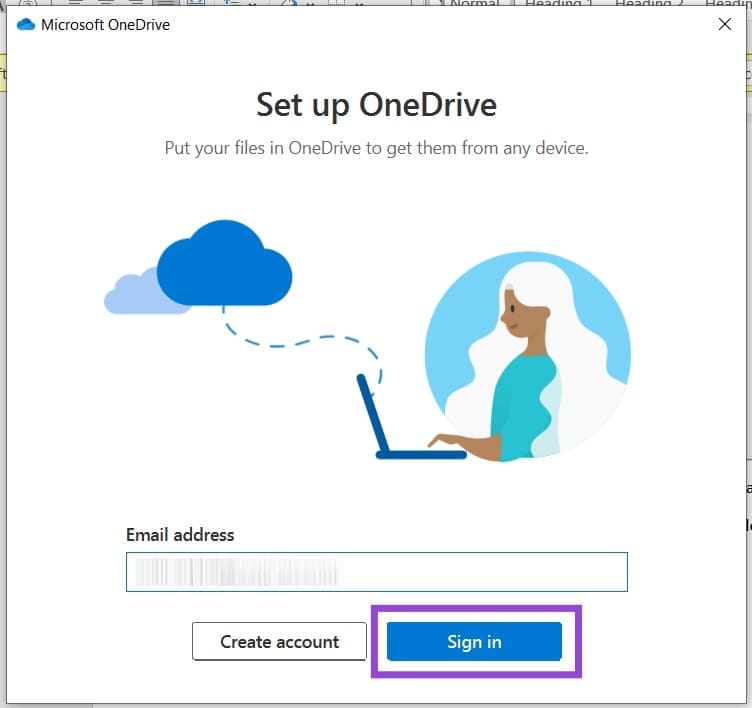
Step 4. Once unlinked, reopen the OneDrive app.
Step 5. Enter your login details and sign in. Try uploading your file again.
If you’re still struggling after this step, then you can try clearing the app’s cache before relinking your account and device. Here’s what to do:
Step 1. Go through the steps above and unlink OneDrive.
Step 2. Open the Run dialog (Win + R) and type “%localappdata%\Microsoft\OneDrive\onedrive.exe /reset” before pressing “Enter.”
Step 3. Your app cache should reset (caches sometimes cause upload and download issues).
Step 4. Relink your OneDrive to your machine and try the upload again.
Was this helpful?
Last updated on 26 November, 2025
Read Next
 2 Ways to Fix Google Meet “Not Allowed to Join” Error
Basic Fixes Sign into Google: The admin may have configured it to only allow participants who have signed in to a Google Account.
2 Ways to Fix Google Meet “Not Allowed to Join” Error
Basic Fixes Sign into Google: The admin may have configured it to only allow participants who have signed in to a Google Account.
 4 Ways to Fix ‘Copying Is Not Allowed on This Webpage’
We advise against copying text from websites that restrict copying content to avoid plagiarism.
4 Ways to Fix ‘Copying Is Not Allowed on This Webpage’
We advise against copying text from websites that restrict copying content to avoid plagiarism.
 How to Fix “This Account Is Not Allowed to Use WhatsApp” Error
Why Did WhatsApp Restrict My Account?
How to Fix “This Account Is Not Allowed to Use WhatsApp” Error
Why Did WhatsApp Restrict My Account?
 4 Ways to Fix Amazon Failed to Add Item to Cart
Basic Fixes Restart the Amazon app: Close and open the Amazon app to get rid of temporary bugs and glitches.
4 Ways to Fix Amazon Failed to Add Item to Cart
Basic Fixes Restart the Amazon app: Close and open the Amazon app to get rid of temporary bugs and glitches.
 9 Ways to Fix Amazon “This Item Cannot Be Shipped” Error
Amazon has become a hub for almost every product in the past few years.
9 Ways to Fix Amazon “This Item Cannot Be Shipped” Error
Amazon has become a hub for almost every product in the past few years.
 How to Recover a Deleted Item or Folder in Outlook
 Desktop If you have not cleared it from your deleted items or trash folder, you can recover it.
How to Recover a Deleted Item or Folder in Outlook
How to Recover a Deleted Item or Folder in Outlook Desktop If you have not cleared it from your deleted items or trash folder, you can recover it.
 4 Ways to Fix Airdrop Failed to Save Item Error on iPhone
Basic Fixes: Ensure AirDrop is enabled: If the relevant AirDrop settings haven’t been enabled, it can cause issues like the AirDrop keeps failing error.
4 Ways to Fix Airdrop Failed to Save Item Error on iPhone
Basic Fixes: Ensure AirDrop is enabled: If the relevant AirDrop settings haven’t been enabled, it can cause issues like the AirDrop keeps failing error.
 Top 8 Ways to Fix Google Sheets Won’t Let Me Type or Edit Error
Google Sheet allows users to collaborate on a single spreadsheet without needing to save anything.
Top 8 Ways to Fix Google Sheets Won’t Let Me Type or Edit Error
Google Sheet allows users to collaborate on a single spreadsheet without needing to save anything.
The article above may contain affiliate links which help support Guiding Tech. The content remains unbiased and authentic and will never affect our editorial integrity.