


Method 1: Rename the BHO Folder
Internet Explorer (IE) uses the Browser Helper Object (BHO) policy stored on your Windows PC to redirect you to Microsoft Edge. One of the simplest ways to prevent IE from opening Edge is to rename the BHO folder on your system. Here’s how to do that.
Step 1: Press the Windows key + R to open the Run dialog box. Type the following path in the Open field and press Enter.
%programfiles(x86)%\Microsoft\Edge\Application
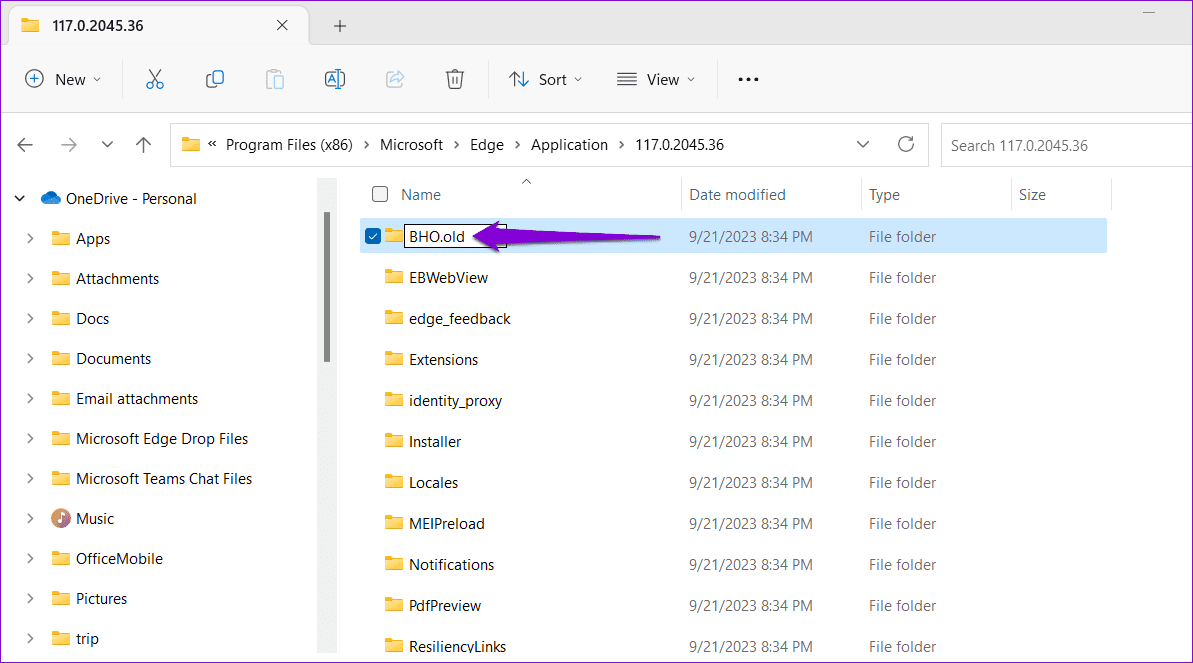
Step 2: In the File Explorer window, you should see a folder named with the version number of Edge installed on your PC. Double-click on it to open it.

Step 3: Select the BHO folder and press F2 to rename it. Rename the folder to BHO.old or something similar.
Method 2: Modify Internet Options
Another way to stop Internet Explorer from opening or redirecting to Edge is to disable third-party browser extensions. To do this, you will need to modify your Internet Options using these steps:
Step 1: Click the search icon on the taskbar, type in control panel, and select the first result that appears.

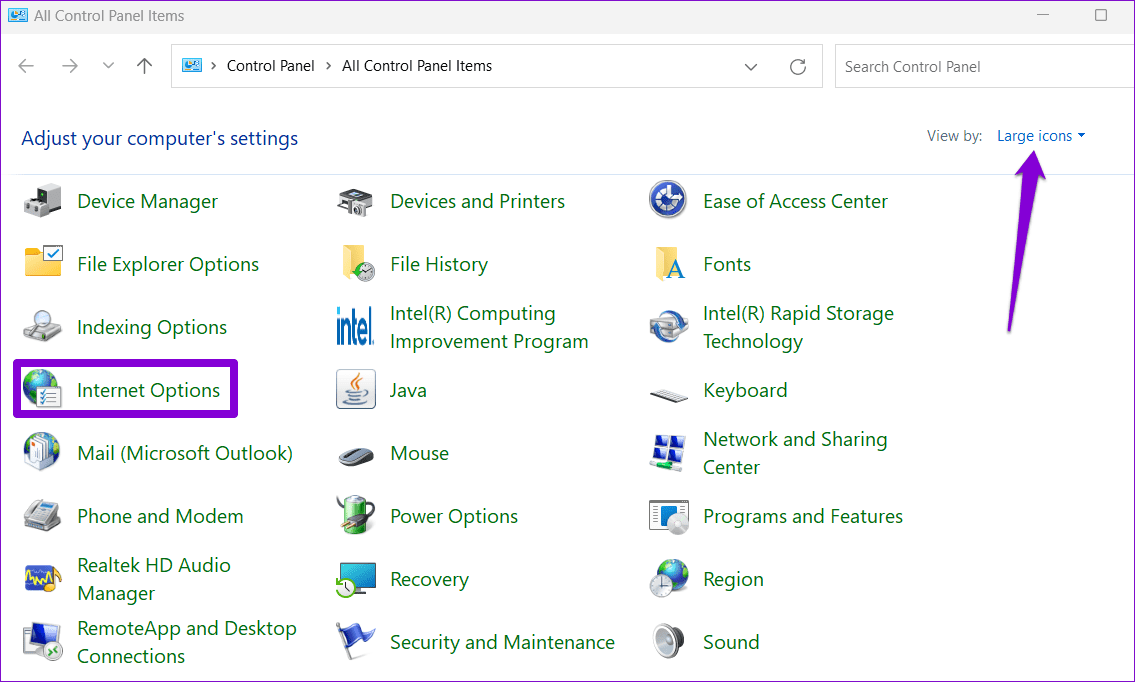
Step 2: Use the drop-down menu in the top right corner to change the view type to Large icons and click Internet Options.
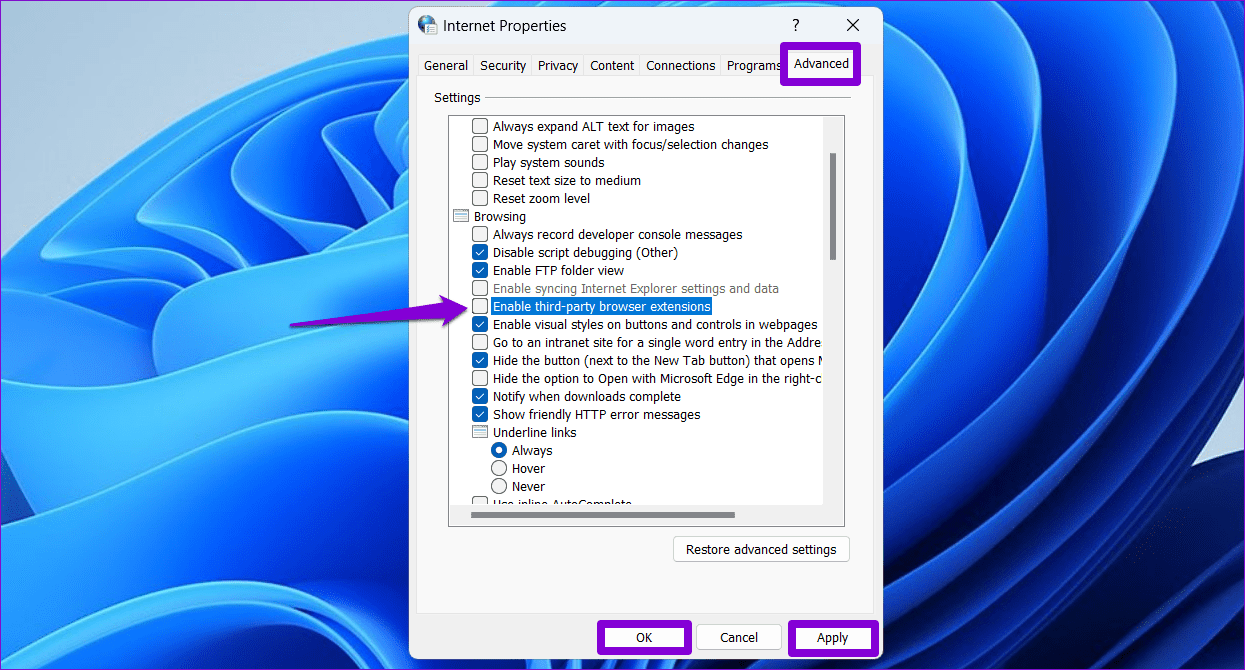
Step 3: In the Internet Properties window, switch to the Advanced tab. Uncheck the Enable third-party browser extensions option and hit Apply, followed by OK.
Method 3: Change the Default Browser in Windows
Such random redirects can also occur if you have set Microsoft Edge as the default browser on Windows. To avoid this, use the following steps to set Internet Explorer as the default browser.
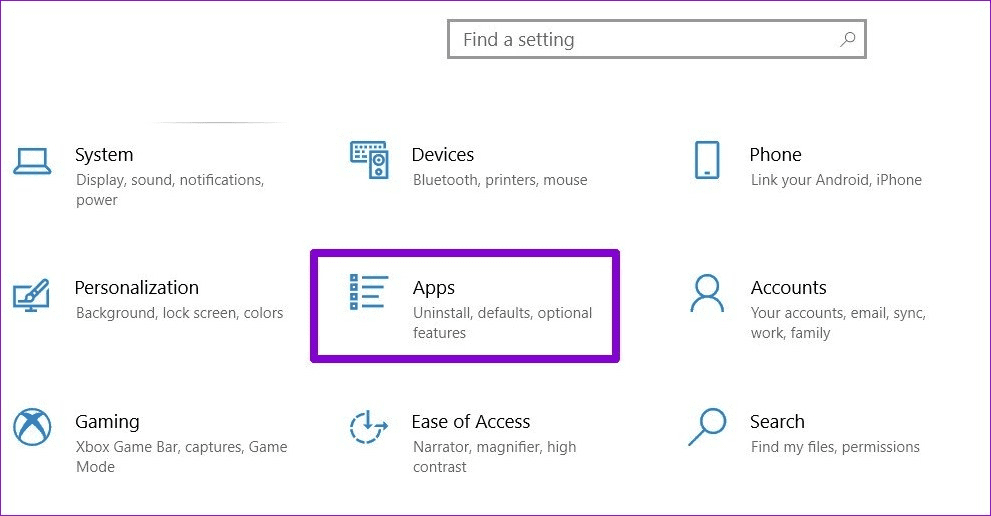
Step 1: Press Windows Key + I to open the Settings app and click on Apps.
Step 2: Select Default apps from the left sidebar. Click on your current default browser in the right pane and select Internet Explorer from the list.

Method 4: Uninstall Microsoft Edge
Still no luck? If so, you can consider uninstalling Microsoft Edge from your Windows PC to solve the problem. This can be helpful if Edge isn’t your preferred browser anyway.
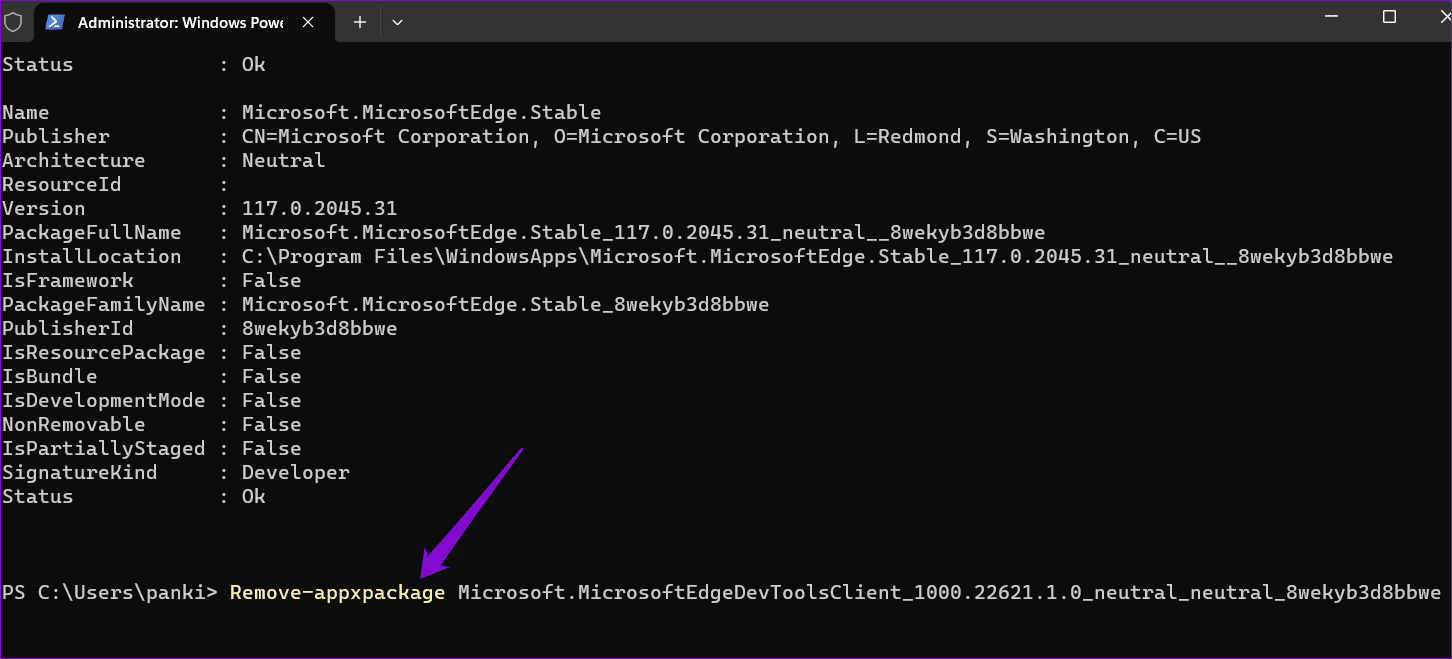
Unlike other apps and programs, you cannot uninstall Edge using the Settings app or Control Panel. Instead, you need to use Windows PowerShell to remove the browser.
Step 1: Click the search icon on the taskbar, type in Windows powershell, and select Run as Administrator.

Step 2: Type the following command in the console and press Enter.
get-appxpackage *edge*
Step 3: Highlight the text next to PackageFullName and press Ctrl + C to copy it.

Step 4: Run the following command to uninstall Microsoft Edge.
Remove-appxpackage [PackageFullName]
Replace [PackageFullName] in the above command with the package name copied earlier.
Was this helpful?
Last updated on 16 July, 2024
1 Comment
Leave a Reply
Read Next
 How to Enable or Disable Internet Explorer Mode in Edge
Enable or Disable the Internet Explorer Mode in Microsoft Edge Microsoft Edge's Internet Explorer mode lets you effortlessly access old websites without switching browsers.
How to Enable or Disable Internet Explorer Mode in Edge
Enable or Disable the Internet Explorer Mode in Microsoft Edge Microsoft Edge's Internet Explorer mode lets you effortlessly access old websites without switching browsers.
 Top 8 Ways to Fix File Explorer Not Opening on Windows 10
File Explorer is an integral part of Windows 10 OS.
Top 8 Ways to Fix File Explorer Not Opening on Windows 10
File Explorer is an integral part of Windows 10 OS.
 6 Ways to Fix Samsung Internet Browser Keeps Opening Automatically
Fix 1: Block Pop-Ups Blocking pop-ups on Samsung Internet is one of the most effective ways to stop the browser from opening on its own.
6 Ways to Fix Samsung Internet Browser Keeps Opening Automatically
Fix 1: Block Pop-Ups Blocking pop-ups on Samsung Internet is one of the most effective ways to stop the browser from opening on its own.
 4 Ways to Stop Apps From Opening at Startup in Windows 11
Method 1: Remove Startup Programs via Windows Settings Probably the easiest way to disable or manage startup apps in Windows 11 is via the Settings app.
4 Ways to Stop Apps From Opening at Startup in Windows 11
Method 1: Remove Startup Programs via Windows Settings Probably the easiest way to disable or manage startup apps in Windows 11 is via the Settings app.
 Top 10 Ways to Fix Microsoft Edge Not Opening on Windows
Microsoft Edge has been nothing short of outstanding since the switchover from EdgeHTML to Chromium.
Top 10 Ways to Fix Microsoft Edge Not Opening on Windows
Microsoft Edge has been nothing short of outstanding since the switchover from EdgeHTML to Chromium.
 How to Stop Teams From Opening on Startup (or Uninstall It)
Method 1: Disable Microsoft Teams From Its Settings If you want to keep Teams installed on your PC but prefer to launch it manually when necessary, follow the steps below.
How to Stop Teams From Opening on Startup (or Uninstall It)
Method 1: Disable Microsoft Teams From Its Settings If you want to keep Teams installed on your PC but prefer to launch it manually when necessary, follow the steps below.
 How to Stop Facebook Messenger From Opening at Startup on Windows
Method 1: Modify In-App Settings to Prevent Messenger From Opening Automatically Like most apps, Facebook Messenger lets you customize its startup behavior from its in-app settings menu.
How to Stop Facebook Messenger From Opening at Startup on Windows
Method 1: Modify In-App Settings to Prevent Messenger From Opening Automatically Like most apps, Facebook Messenger lets you customize its startup behavior from its in-app settings menu.
 Top 8 Fixes for Microsoft Edge Not Opening PDF Files in Windows
The other day I was trying to open a PDF file in Microsoft Edge to edit it.
Top 8 Fixes for Microsoft Edge Not Opening PDF Files in Windows
The other day I was trying to open a PDF file in Microsoft Edge to edit it.
The article above may contain affiliate links which help support Guiding Tech. The content remains unbiased and authentic and will never affect our editorial integrity.


Running IE11 in Windows 10 Home, Version 10.0.19045 Build 19045 only redirects to Edge, even changing BHO to BHO-Old. Something else is forcing the redirect to Edge. Which is annoying as I use both IE11 and Edge for different things.